
- Catalogs
- Zhejiang Dahua Technology Co.,Ltd.
- V3.211.0000012.3.R.260615


V3.211.0000012.3.R.260615
V3.211.0000012.3.R.260615
The document is a release note for the PTZ Camera version V3.211.0000012.3.R.260615 by Zhejiang Dahua Vision Technology Co., Ltd. It includes details about new features, fixed bugs, compatibility, software environment, and update instructions.
New or Optimized Features
The release introduces support for perimeter protection, object monitoring, tracking, face detection, video metadata, people counting, privacy masking, polygon mosaic, preset precision with backlash compensation, and filtering animal targets. These features are supported on models DH-SD5A445MB-HNR and DH-SD6E445MB-HNR-A-PV1.
Fixed Bugs
The update improves the image focusing effect.
Compatibility
The software is compatible with IE9 or later, Google Chrome 41 or later, Firefox 50 or later, and Safari 10 or later. It supports third-party access through CGI V2.91.3.12, ONVIF testing tool V23.06, and MILESTONE testing tool Xprotect Corporate 2023 R3.
Software Environment
The document lists compatible software versions for various devices such as NVR, SmartPSS, DMSS, DSS, and IVSS.
Pending Issues
There are no pending issues reported in this release.
Update Guide
The update guide provides detailed instructions for updating the PTZ camera using ConfigTool, the webpage, and the DMSS app. It includes steps for both individual and batch updates, as well as cloud updates. Users are advised to ensure the device is on the same network as the updating tool and to check the program version post-update to confirm success.
Catalog excerpts
ZHEJIANG DAHUA VISION TECHNOLOGY CO., LTD.
Open the catalog to page 1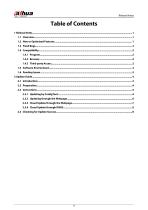
Release Notes
Open the catalog to page 2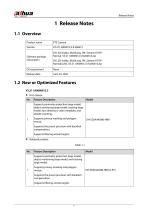
Release Notes 1 Release Notes1.1 Overview Product name • First release.
Open the catalog to page 3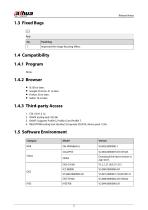
Release Notes
Open the catalog to page 4
Release Notes
Open the catalog to page 5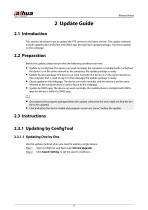
Release Notes 2 Update Guide2.1 Introduction This section introduces how to update the PTZ camera to the latest version. The update methods include updating by ConfigTool and DMSS app, through local update package, and cloud update on the webpage. Before the update, please ensure that the following conditions are met. • Update by ConfigTool: The device can work normally; the computer is installed with ConfigTool; the device is on the same network as the computer; the update package is ready. • Update by local package: The device can work normally; the device is on the same network as the computer...
Open the catalog to page 6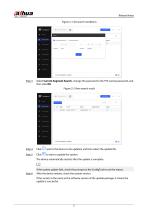
Release Notes Figure 2-1 Set search conditions Select Current Segment Search , change the password to the PTZ camera password, and then click OK. Figure 2-2 View search result next to the device to be updated, and then select the update file. to start to update the system. The device automatically restarts after the update is complete. If the system update fails, check the prompt on the ConfigTool to see the reason. After the device restarts, check the system version. If the version is the same as the software version of the update package, it means the update is successful.
Open the catalog to page 7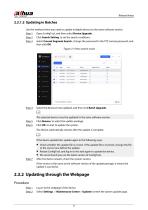
Release Notes 2.3.1.2 Updating in Batches Use this method when you need to update multiple devices to the same software version. Step 1 Open ConfigTool, and then select Device Upgrade. Step 2 Click Search Setting to set the search conditions. Step 3 Select Current Segment Search , change the password to the PTZ camera password, and then click OK. Figure 2-3 View search result Select the devices to be updated, and then click Batch Upgrade. The selected devices must be updated to the same software version. Click Browse to select the update package. Click OK to start to update the system. The device...
Open the catalog to page 8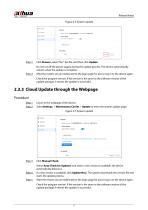
Release Notes Figure 2-4 System update Click Browse , select the *.bin file, and then click Update. Do not cut off the power supply during the update process. The device automatically restarts when the update is complete. After the restart, you are redirected to the login page for you to log in to the device again. Check the program version. If the version is the same as the software version of the update package, it means the update is successful. 2.3.3 Cloud Update through the Webpage Procedure Step 1 Step 2 Log in to the webpage of the device. SelectSettings > Maintenance Center > Update to...
Open the catalog to page 9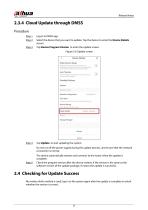
Release Notes 2.3.4 Cloud Update through DMSS Procedure Step 1 Step 2 Step 3 Log in to DMSS app. Select the device that you want to update. Tap the device to enter the Device Details screen. Tap Device Program Version to enter the update screen. Figure 2-6 Update screen Tap Update to start updating the system. Do not cut off the power supply during the update process, and ensure that the network connection is normal. The device automatically restarts and connects to the router when the update is complete. Check the program version after the device restarts. If the version is the same as the software...
Open the catalog to page 10
ENABLING A SMARTER SOCIETY AND BETTER LIVING
Open the catalog to page 11All Zhejiang Dahua Technology Co.,Ltd. catalogs and technical brochures
 Hugo Platform
23 Pages
 PTZ85848-HNF-PA
4 Pages
 HAC-HFW1509MH-A-LED
3 Pages
 IPC-HFW3849T1-ZAS-PV
4 Pages
Archived catalogs
 IP VIDEO PROJECT PRODUCTS
161 Pages
 IP VIDEO DISTRIBUTION PRODUCTS
137 Pages
 HDCVI PRODUCT SELECTION
122 Pages
 Display & Control
28 Pages
 WizSense
20 Pages
 Commercial Display
24 Pages
 Dahua Mobile Products
16 Pages
 SD5A432XB-HNR-AC
4 Pages
 IPC-HDBW3849R1-ZAS-PV
4 Pages


- Display module
- Dahua digital camera
- Dahua visible camera
- Touch monitor
- Ethernet switch
- LCD screen
- Dahua CMOS camera
- Dahua industrial camera
- Management software solution
- Industrial network switch
- Analysis software solution
- Dahua infrared camera
- Full-color camera system
- Dahua monitoring camera
- Real-time software
- Color display panel
- Managed switch
- Gigabit Ethernet ethernet switch
- Dahua detection camera
- RJ45 network switch