
- Catalogs
- U-Reach Data Solutions Inc.
- NV-BM Series

NV-BM Series
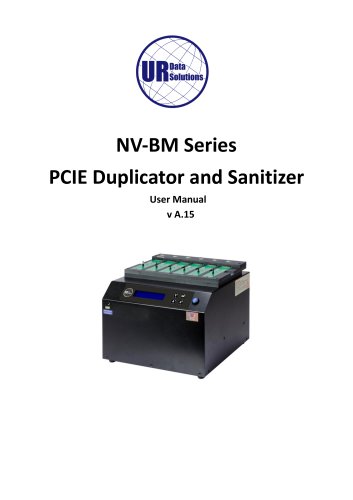
NV-BM Series
U-Reach disclaims liability for damages from product use, including data loss or business interruptions. Customers must ensure product output meets quality requirements. Specifications may change without notice.
A one-year warranty covers parts and labor, excluding consumables. Extended warranties are available. Support is provided for the product's defined life.
U-Reach is not responsible for copyright infringement. Users must ensure legal compliance when copying data.
Read the manual thoroughly before use. Ensure source devices are correct and functioning. Use equal capacity for source and target devices for consistency. Follow all operational instructions to avoid voiding the warranty.
- Copy: Copies data from a source port or internal storage.
- Compare: Verifies data bit-by-bit from a source port or internal storage.
- Copy+Compare: Automates copying and verification.
- Erase: Offers multiple erasure options, including Quick Erase, Full Erase (NIST Clear), and DoD3 Pass.
- Utility: Displays device info, updates system firmware, and calculates CRC64 values.
- Setup: Configures system settings, including language, copy modes, and advanced options.
- Log Manager: Manages log reports and system information.
- Image Manager: Manages SSD images, including copying, comparing, and formatting.
The product features a front and back view with control buttons, USB ports for log outputs and firmware updates, and SSD slots for saving master images. LED indicators show power, pass, and fail statuses.
- Copy: Connect source and target devices, select the source, and start duplication. The LCD displays progress and results.
- Compare: Select the source to verify data from and start the process.
- Copy+Compare: Automates the copy and verification process.
- Erase: Offers various erasure methods, including Quick Erase and Full Erase, complying with standards like NIST and DoD.
- Quick Erase: Initiates a quick data erasure process. Caution is advised as data loss is irreversible.
- Full Erase (NIST Clear): Complies with NIST 800-88 standards, overwriting all data with binary 0s for high security.
- DoD3 Pass: Follows DoD 5220.22-M standards with a three-step overwrite process using binary 0s, 1s, and random data.
- DoD3 Pass+Compare: Similar to DoD3 Pass with an additional verification step.
- Secure Erase (NIST Purge): Uses ATA secure erase or NVMe Format command to overwrite all sectors with binary 0s.
- Enhanced Secure Erase: Utilizes device firmware to overwrite data with a manufacturer-predetermined pattern, recommended by NIST.
- Show Device Info: Displays basic device information such as model, capacity, and firmware version.
- System Update: Offers two methods for updating system firmware via USB or source port.
- System Info: Provides basic system information including system type and firmware version.
- Burn SSD Firmware: Allows firmware updates for compatible SSDs.
- Calc. CRC64: Calculates the CRC64 value for the source port and logs the results.
- Start-up Menu: Allows selection of the default function displayed after initialization.
- Copy Mode: Offers five modes for data copying, including System and Files, All Partitions, Whole Device, Percentage, and Custom Data Copy.
- Copy GPT Backup Area: Option to ignore GPT backup area for copying from larger to smaller devices.
- Skip Bad Sectors: Configures how bad sectors are handled during copy and erase operations.
- Language Selection: Allows selection of interface language (English, Japanese, Spanish).
- Advanced Setup: Includes settings for unknown formats, source port erasure, erase patterns, and HPA copy mode.
- Copy Mode: Allows copying of HPA settings from a source to a target device. Caution is advised as this may alter the target device's original settings.
- Clear HPA at Erase: Provides options to clear or keep HPA settings before erasing data. Clearing will erase all data in the HPA area.
- Device Power-up: Sets idle time before operations begin, with a default of 30 seconds.
- Scroll Lock: Enables or disables navigation buttons to prevent accidental scrolling.
- Stop Motor Time: Sets a buffer time for HDDs to spin down, default is 3 seconds.
- Password Setup: Allows setting a system login password, which cannot be reset if forgotten.
- Delete Device Signature: Prevents copying of device signatures to avoid recognition issues in Windows.
- PCIe Speed: Adjusts data transmission speed to improve device compatibility.
- Target Tolerance: Specifies allowable capacity differences between source and target drives.
- Clear SSD Before Copy: Performs a secure erase before copying to ensure data integrity.
- Log Export: Allows exporting logs to a USB drive formatted in FAT32 or exFAT.
- Advanced Functions: Includes clearing logs, setting passwords, adjusting clock, and adding watermarks to log files.
- GOB Images: Custom format for efficient storage, with different modes affecting image size.
- Image Operations: Includes copying SSD to image, comparing SSD with image, and managing stored images.
- PC Link Software: Facilitates creating and uploading GOB images from a PC to the duplicator.
- Ensure the file name and size are correct by pressing 'OK' after selecting 'Storage'.
- Only one duplicator should be connected at a time.
- If an error occurs, delete all files except the 'GOB Uploader application' and retry.
- Example file: Test01.gob with a size of 5096M.
- Format the internal SSD in the PCIE duplicator.
- Automatically copies data after the image is uploaded.
- For more details on the U-Reach® NV-BM Series, visit the provided URL.
- Specifications may change without notice.
- It is advised to backup all important data before using these functions.
Catalog excerpts
NV-BM Series PCIE Duplicator and Sanitizer User Manual v A.15
Open the catalog to page 1
Index Table
Open the catalog to page 2
Product Disclaimer U-Reach is not accountable for any incidental or consequential damages, including, but not limited to property harm, loss of time or data from use of any U-Reach product, or any other damages attributable to product malfunction or failure of including without limitation, those attributed to reliance of the materials provided, costs of product replacement, loss of use, data or profits, delays or business interruptions, any principle of legal responsibility arising from or in reference to the use, overall performance, delays in servicing, or lack of ability to render service...
Open the catalog to page 3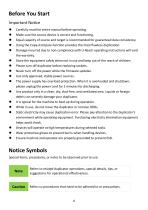
Important Notice • Carefully read the entire manual before operating. • Make sure the source device is correct and functioning. • Equal capacity of source and target is recommended for guaranteed data consistency. • Using the Copy+Compare function provides the most flawless duplication. • Damage incurred due to non-compliance with U-Reach operating instructions will void the warranty. • Store the equipment safely when not in use and keep out of the reach of children. • Please turn off duplicator before replacing sockets. • Never turn off the power while the firmware updates. • Use only approved,...
Open the catalog to page 4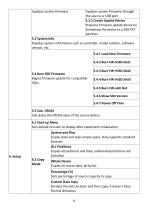
Updates system firmware Updates system firmware through the source or USB port. 5.2.2 Create Update Device Prepares firmware update device by formatting the device to a 2GB FAT partition. 5.3 System Info Displays system information such as controller, model number, software version, etc. 5.4.1 Load New Firmware 5.4.2 Burn FW→SSD Slot1 5.4 Burn SSD Firmware Begins firmware update for compatible SSDs. 5.4.3 Burn FW→SSD Slot2 5.4.4 Burn FW→SSD Slot3 5.4.5 Burn FW→All Slot 5.4.6 Show SSD Version 5.4.7 Power Off Time 5.5 Calc. CRC64 Calculates the CRC64 value of the source device. 6.1 Start-up Menu...
Open the catalog to page 6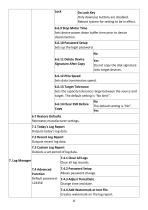
Only down/up buttons are disabled. Reboot system for setting to be in effect. 6.6.9 Stop Motor Time Sets device power down buffer time prior to device disconnection. Sets up the login password. 6.6.11 Delete Device Signature After Copy Do not copy the disk signature onto target devices. Sets data transmission speed. Sets the capacity tolerance range between the source and target. The default setting is "No limit". 6.6.14 Clear SSD Before Copy
Open the catalog to page 8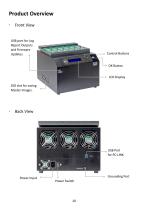
Front View USB port for Log Report Outputs and Firmware Updates. Control Buttons OK Button LCD Display SSD slot for saving Master Images. Back View Power Input Power Switch
Open the catalog to page 10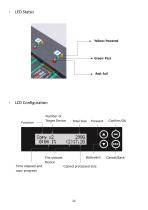
Yellow: Powered Green: Pass Number of Target Device Total Size The slowest Time elapsed and copy progress Device Copied processed size
Open the catalog to page 11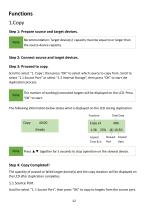
Recommendation: Target device(s)' capacity must be equal to or larger than the source device capacity. Step 2: Connect source and target devices.Step 3: Proceed to copy. Scroll to select "1. Copy", then press "OK" to select which source to copy from. Scroll to select "1.1 Source Port" or select "1.2 Internal Storage", then press "OK" to start the duplication process. The number of working/connected targets will be displayed on the LCD. Press "OK" to start. The following information below states what is displayed on the LCD during duplication. Function Total Data Copied Slowest Copied Time & %...
Open the catalog to page 12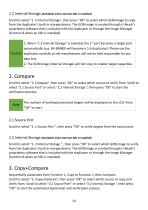
1.2 Internal Storage (Available when internal SSD is installed) Scroll to select “1. 2 Internal Storage”, then press “OK” to select which GOB Image to copy from the duplicator’s built-in storage device. The GOB Image is created through U-Reach’s proprietary software that is included with the duplicator or through the Image Manager (function 8 when an SSD is installed). 1. When “1.2 Internal Storage” is selected, the 1st port becomes a target port automatically (e.g. NV-BM600 will become a 1-6 duplicator). Please use the Caution duplicator carefully as the manufacturer will not be held responsible...
Open the catalog to page 13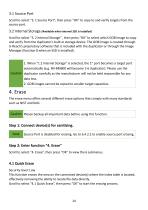
Scroll to select "3. 1 Source Port", then press "OK" to copy to and verify targets from the source port. 3.2 Internal Storage (Available when internalSSDis installed) Scroll to select "3. 2 Internal Storage" , then press "OK" to select which GOB Image to copy and verify from the duplicator's built-in storage device. The GOB Image is created through U-Reach's proprietary software that is included with the duplicator or through the Image Manager (function 8 when an SSD is installed). Scroll to select "4. Erase", then press "OK" to view the 6 submenus. This function erases the area on the connected...
Open the catalog to page 14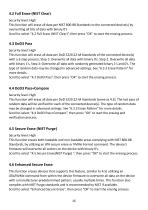
4.2 Full Erase (NIST Clear) Security level: High This function will erase all data per NIST 800-88 Standards to the connected device(s) by overwriting all bits of data with binary 0’s Scroll to select “4.2 Full Erase (NIST Clear)”, then press “OK” to start the erasing process. 4.3 DoD3 Pass Security level: High This function will erase all data per DoD 5220.22-M Standards of the connected device(s) with a 3-step process; Step 1: Overwrite all data with binary 0’s, Step 2: Overwrite all data with binary 1’s, Step 3: Overwrite all data with randomly generated binary 1’s and 0’s. The type of random...
Open the catalog to page 15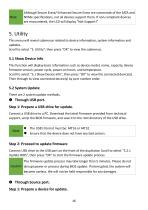
Although Secure Erase/ Enhanced Secure Erase are commands of the SATA and NVMe specifications, not all devices support them. If non-compliant devices are encountered, the LCD will display “Not Support!” 5. Utility This menu will reveal submenus related to device information, system information and updates. Scroll to select “5. Utility”, then press “OK” to view the submenus. 5.1 Show Device Info This function will display basic information such as device model, name, capacity, device firmware version, power cycle, power-on hours, and temperature. Scroll to select “5.1 Show Device Info”, then press...
Open the catalog to page 16All U-Reach Data Solutions Inc. catalogs and technical brochures
 Carry Series
21 Pages
 SATA III Ultra-High Speed
19 Pages
 Carry Series
18 Pages
 MTS-SASN Series
31 Pages
 MT/MTC Series
31 Pages
 PCIE SSD Duplicator
23 Pages
 Auto-detect Dual-interfaces
23 Pages
 NV-BM600CFX
37 Pages
 NVS200USAS Duplicator
21 Pages
 NV-BM Series – Slim Version
24 Pages
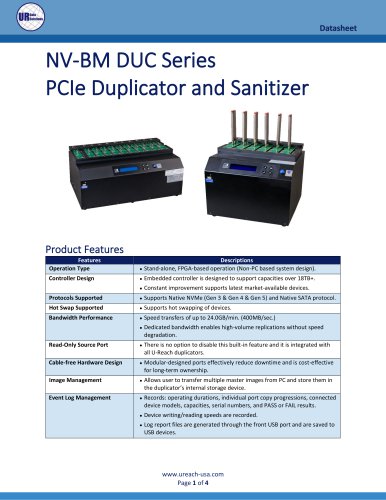 NV-BM DUC Series
4 Pages
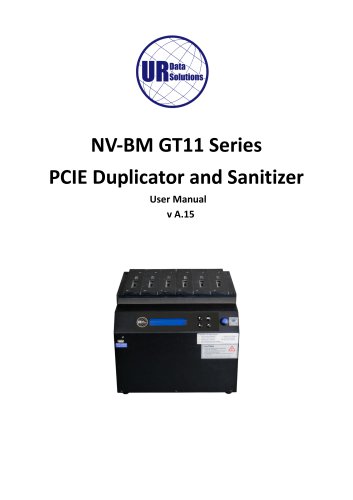 NV-BM GT11 Series
41 Pages
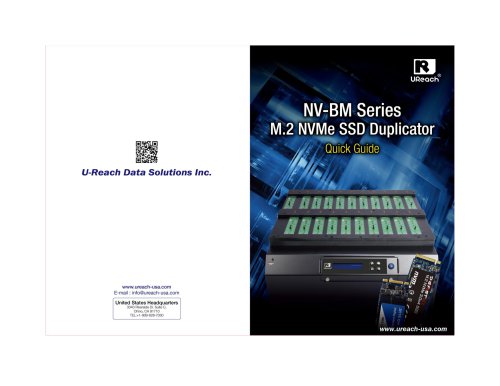 NV-BM Series
2 Pages
- Grinding mill
- LED hand lamp
- Vertical pulverizer
- Reporting software
- Punching center
- Creation software
- Waste chopper
- Impact pulverizer
- Rechargeable hand lamp
- Storage software
- Visible illumination
- Hammer grinding mill
- Compact lump breaker
- Portable hand lamp
- Hole punch punching machine
- Lamp illumination
- Automatic grinding mill
- Software solution on site
- Hand lamp with battery
- UV illumination