
- Catalogs
- U-Reach Data Solutions Inc.
- CF/CFast Series 1 to 1 Portable Copier

CF/CFast Series 1 to 1 Portable Copier
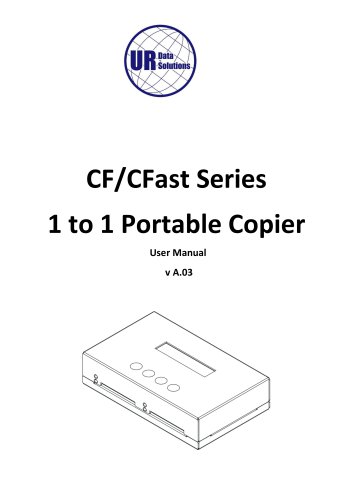
CF/CFast Series 1 to 1 Portable Copier
Warranty: A one-year parts and labor warranty is provided, excluding consumables. Extended warranties and lifetime support are available.
Piracy Statement: Users are responsible for ensuring legal compliance when copying data.
Before You Start: Read the manual thoroughly, verify the source device, and use the Copy+Compare function for accuracy. Follow guidelines to maintain warranty validity.
Hardware Overview: The device includes an LCD display, control buttons, LED indicators, and ports for media duplication.
Function Table: Functions include Copy, Compare, Copy+Compare, Show CF/CFast Info, System Info, and utilities like formatting and erasing.
Function Details:
- Copy: Duplicates data from source to target.
- Compare: Verifies copied data accuracy.
- Copy+Compare: Combines copying and verification.
- Show CF/CFast Info: Displays card information.
- System Info: Provides firmware and machine ID details.
Utility Functions:
- Do Format: Formats media to FAT16 or FAT32.
- Quick Erase: Erases data while retaining format.
- Full Erase: Completely erases data and format.
- DoD Erase: Meets DoD standards by erasing data three times.
- System Update: Updates firmware via flash media.
- Show Transfer Mode: Displays device transfer mode.
Setup Options:
- Copy Area: Choose between data-only or full media copying.
- Button Sound: Toggle button press sound.
- Power Off Time Between Copy+Compare: Set delay to prevent data loss.
- CF Transfer Mode: Select data transmission speed.
- CF Speed: Adjust speed based on media quality.
Transmission Speed Settings: Default is "Normal Mode"; slower speeds recommended for poor flash quality.
UDMA Mode: UDMA Mode 4 is a selectable speed option.
Power Off Time Between: Adjustable with a default of 0.
Enable Source Error: Allows skipping bad sectors; set to "0" for full data cloning.
Set to Default: Restores original device settings.
Specifications Notice: Specifications may change without notice.
Parameter Reset Warning: Warning about clearing parameters to default settings.
Catalog excerpts
CF/CFast Series 1 to 1 Portable Copier User Manual v A.03
Open the catalog to page 1
Product Disclaimer U-Reach is not accountable for any incidental or consequential damages, including, but not limited to property harm, loss of time or data from use of any U-Reach products or any other damages attributable to product malfunction or failure of including without limitation, those attributed to reliance of the materials provided, costs of product replacement, loss of use, data or profits, delays or business interruptions, any principle of legal responsibility arising from or in reference to the use, overall performance, delays in servicing, or lack of ability to render service...
Open the catalog to page 3
• Carefully read the entire manual before operating. • Make sure the source device is correct and functioning. • Equal capacity of source and target is recommended for guaranteed data consistency. • Using the Copy+Compare function provides the most flawless duplication. • Damage incurred due to non-compliance with our operating instructions will void the warranty. • Store the equipment safely when not in use and keep out of the reach of children. • Please turn off duplicator before replacing sockets. • Never turn off the power while the firmware updates. • Use only approved, stable power sources....
Open the catalog to page 4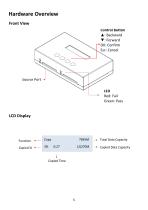
Hardware Overview Front View Control Button ▲: Backward ▼: Forward OK: Confirm Esc: Cancel Source Port LED Red: Fail Green: Pass Copied Time Total Data Capacity Copied Data Capacit
Open the catalog to page 5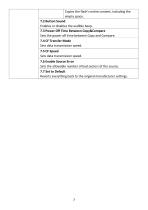
Copies the flash's entire content, including the empty space. Enables or disables the audible beep. Sets the power off time between Copy and Compare. Sets data transmission speed. Sets data transmission speed. Sets the allowable number of bad sectors of the source. Reverts everything back to the original manufacturer settings.
Open the catalog to page 7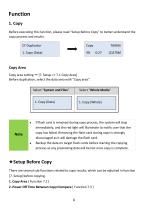
Before executing this function, please read "Setup Before Copy" to better understand the copy process and results. CF Duplicator 1. Copy (Data) Copy Area Copy area setting -*■ [7. Setup >> 7.1 Copy Area] Before duplication, select the data area with "Copy area". Select "System and Files Select "Whole Media 1. Copy (Data) 1. Copy (Whole) • If flash card is removed during copy process, the system will stop immediately, and the red light will illuminate to notify user that the copy has failed. Removing the flash card during copy is strongly discouraged as it will damage the flash card. • Backup...
Open the catalog to page 8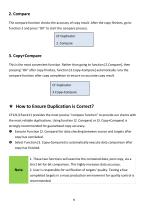
2. Compare The compare function checks the accuracy of copy result. After the copy finishes, go to function 2 and press "OK" to start the compare process. CF Duplicator 2. Compare 3. Copy+Compare This is the most convenient function. Rather than going to function [2.Compare], then pressing "OK" after copy finishes, function [3.Copy+Compare] automatically runs the compare function after copy completion to ensure an accurate copy result. CF Duplicator 3.Copy+Compare ★ How to Ensure Duplication is Correct? CF121/CFast121 provides the most precise "compare function" to provide our clients with the...
Open the catalog to page 9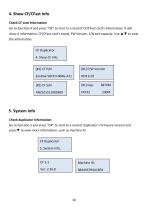
4. Show CF/CFast Info Check CF card Information Go to function 4 and press "OK" to start to a read of CF/CFast card’s Information. It will show 4 Information. CF/CFast card’s brand, FW Version, S/N and capacity. Use ▲▼ to view the Information. CF Duplicator 4. Show CF Info. [#1] CF P/N 5. System Info Check duplicator Information Go to function 5 and press "OK" to start to a read of duplicator’s firmware version and press▼ to view more information, such as machine ID. CF Duplicator 5. System Info.
Open the catalog to page 10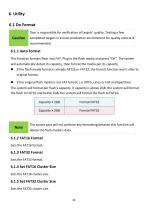
User is responsible for verification of targets' quality. Testing a few completed targets in a mass production environment for quality control is recommended. This function formats flash into FAT. Plug in the flash media and press "OK". The system will automatically detect its capacity, then format the media per its capacity. • If the flash media format is already FAT16 or FAT32, the format function won't alter its original format. • If the original flash media is not FAT format, i.e. NTFS, Linux or FAT multipartition. The system will format per flash's capacity. If capacity is above 2GB, the...
Open the catalog to page 11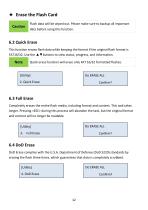
★ Erase the Flash Card Caution Flash data will be wiped out. Please make sure to backup all important data before using this function. 6.2 Quick Erase This function erases flash data while keeping the format if the original flash format is FAT16/32. Use the ▲▼buttons to view status, progress, and information. Quick erase function will erase only FAT 16/32 formatted flashes. 6.3 Full Erase Completely erases the entire flash media, including format and content. This task takes longer. Pressing during this process will abandon the task, but the original format and content will no longer be readable....
Open the catalog to page 12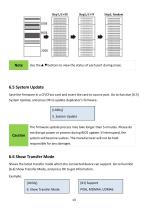
itepl. OxOD Step£. DxFF FFFFFFFFFFF FFFFFFFFFFF ■HIT- Ilf I IF ^FPFFFFFFF ■ rnrrrfFFnr FFFfFFJ-FFFF FffFFI IFF IF FFFfFFfFFFF FFFfFFFFFFF ■rrrrrfrrrr FFFFFFFFFFF FFFFFFFFFFF FFFFFFFFFFF rFnrFFrFFPF FFflFFfm Ff Use the ▲▼buttons to view the status of each port during erase. 6.5 System Update Save the firmware in a CF/CFast card and insert the card to source port. Go to function [6.5] System Update, and press OK to update duplicator's firmware. Caution The firmware update process may take longer than 5 minutes. Please do not disrupt power or process during BIOS update. If interrupted, the system...
Open the catalog to page 13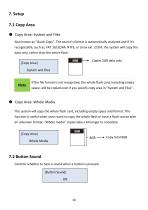
7. Setup 7.1 Copy Area ➊ Copy Area: System and Files Also known as "Quick Copy”. The source’s format is automatically analyzed and if it’s recognizable, such as, FAT 16/32/64, NTFS, or Linux ext. 2/3/4, the system will copy the data only, rather than the entire flash. Copies 2GB data only [Copy Area] System and Files If the file format is not recognized, the whole flash card, including empty space, will be copied even if you specify copy area in “System and Files”. ➋ Copy Area: Whole Media The system will copy the whole flash card, including empty space and format. This function is useful when...
Open the catalog to page 14All U-Reach Data Solutions Inc. catalogs and technical brochures
 Carry Series
21 Pages
 SATA III Ultra-High Speed
19 Pages
 Carry Series
18 Pages
 MTS-SASN Series
31 Pages
 MT/MTC Series
31 Pages
 PCIE SSD Duplicator
23 Pages
 Auto-detect Dual-interfaces
23 Pages
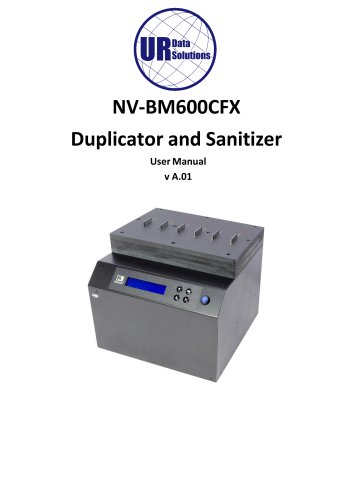 NV-BM600CFX
37 Pages
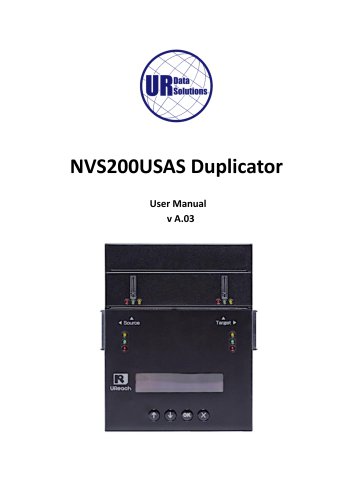 NVS200USAS Duplicator
21 Pages
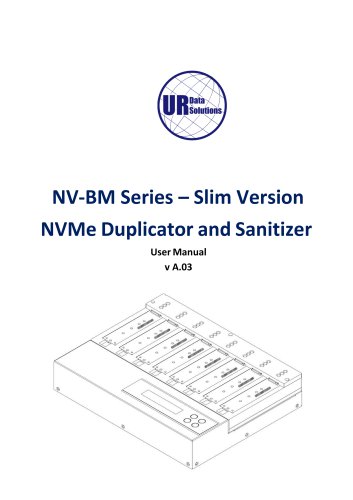 NV-BM Series – Slim Version
24 Pages
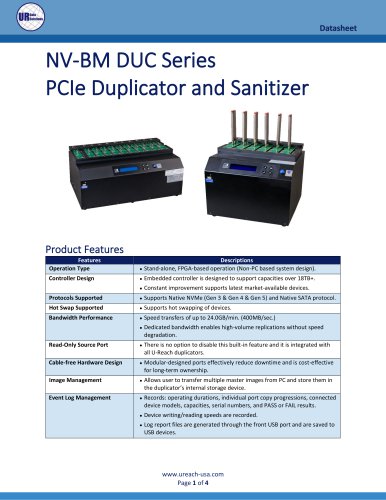 NV-BM DUC Series
4 Pages
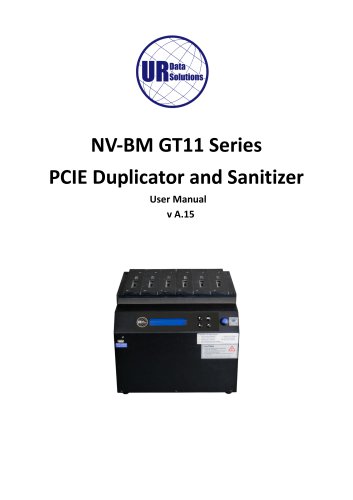 NV-BM GT11 Series
41 Pages
 NV-BM Series
2 Pages
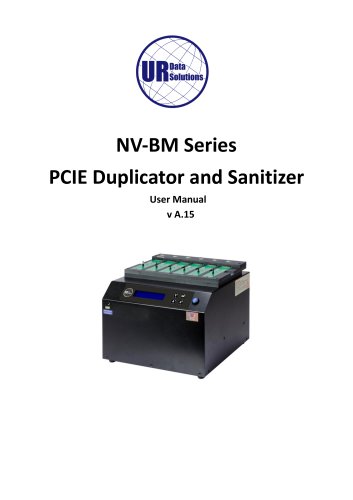 NV-BM Series
41 Pages
- Grinding mill
- LED hand lamp
- Vertical pulverizer
- Reporting software
- Punching center
- Creation software
- Waste chopper
- Impact pulverizer
- Rechargeable hand lamp
- Storage software
- Visible illumination
- Hammer grinding mill
- Compact lump breaker
- Portable hand lamp
- Hole punch punching machine
- Lamp illumination
- Automatic grinding mill
- Software solution on site
- Hand lamp with battery
- UV illumination