

WSCM

WSCM
This manual provides comprehensive guidance on using the WSC application interface, focusing on editing and executing program lists, creating Rail-Pod positions, checking machine status, and sending commands.
The configuration tool is crucial for defining machine components and ensuring proper WSC functionality. It includes:
- Limit List: Defines machine working groups and axis limits.
- Axis List: Sets axis position view parameters.
- Device List: Manages digital/analog inputs, outputs, and variables.
Configuration settings are divided into several categories:
- General Settings: Adjusts application characteristics and interactions.
- List Settings: Configures list display and layout.
- Bench Settings: Manages bench colors and drawing options.
- Toolbar Options: Allows hiding of ribbon bar buttons.
- Fictitious Field Settings: Defines fields with different properties.
- "Mirror" Mode Management: Manages mirror mode for fields.
The interface is divided into several components:
- Title Bar: Displays application title and control buttons.
- Command Bar: Provides quick access to functionalities like modifying, saving, and executing lists.
- Axis and Main Device Bar: Shows axis positions and device status, allowing interaction and control.
- Work Area: Displays execution lists and rail/pod placements.
Execution lists are structured with rows and columns for program execution details. Key components include:
- List Graphic User Interface: Manages program selection, parameter settings, and pod positioning.
- List Layout: Configured by the manufacturer, includes columns for drawing, execution, and program details.
The document outlines procedures for editing lists and managing program execution. It includes details on manipulating cells and rows using keyboard shortcuts and mouse commands, as well as modifying cell data and selecting or deselecting lines.
During program execution, various messages may appear, including system errors, cycle errors, and informational messages. System errors are critical and interrupt the program, while cycle errors allow continuation after resolution. Messages provide warnings or information without halting execution.
The Work Plane section describes the interactive configuration and placement of clamping panel pressure using moving rails and pods. It emphasizes optimal placement to avoid interference with clamping devices and tools, providing a graphic preview for positioning and outlining steps for arranging pods and rails.
The document explains the use of a laser system for positioning rails, pods, and panels. It includes instructions for activating the system, setting communication parameters, and using the laser for graphic representation. The laser system requires a software license and specific settings for operation.
The laser system can be managed through IPC communication using specific commands to send programs to the laser or turn it off. The document references additional manuals for detailed configuration and communication instructions.
Catalog excerpts

Operator manual Tecnologie e Prodotti per l'Automazione
Open the catalog to page 1
This documentation is property of TPA S.r.l. Any unauthorized duplication is forbidden. The Company reserves the right to modify the content of the document at any time.
Open the catalog to page 2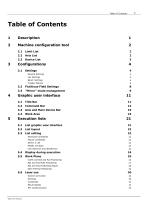
2 Machine configuration tool 2 3.2 Fictitious Field Settings 8 3.3 "Mirror" mode management 9 4 Graphic user interface 11 4.3 Axis and Main Device Bar 19 5.1 List graphic user interface 21 Modify cell data 23 Line selection and deselection 24 5.4 Display during execution 24 Outfit and Rail and Pod Positioning 25 Rail and Pod Positioning Report 28 Data Printing Positioning 29 Operator manual
Open the catalog to page 3
Operator manual
Open the catalog to page 4
This manual describes the use of the user interface, which allows the machine user to make good use of the WSC application features. More specifically, we will describe all the processes to: • Edit and execute program lists. • Create a position for Rail-Pod for the execution list. • Check the machine status, possible errors, and possible emergencies. • Check the status of the main working devices. • Send commands to the machine. Operator manual
Open the catalog to page 5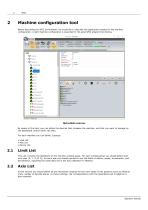
Before describing the WSC environment, we would like to describe the application needed for the machine configuration. A right machine configuration is essential for the good WSC program functioning. By means of this tool, you can define the devices that compose the machine, and that you want to manage by the dashboard control within the WSC. For each machine you can define 3 groups: • Limit List • Axis List • Device List This unit contains the definitions of the machine working group. For each working group you should define their own axes (X, Y, Z, B, C); for each axis you should proceed to...
Open the catalog to page 6
Machine configuration tool Device List In a very similar way as for the axes, you can also define and manage other physical devices available in the machine: Digital inputs/outputs, Analogue outputs, Flag Bit, and Flag switches, Variables. Operator manual
Open the catalog to page 7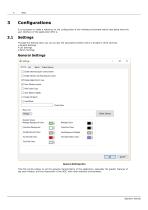
It is necessary to make a reference to the configuration of the working environment before describing what the user interface of the application WSC is. Through the Setting menu you can access the associated window which is divided in three sections: • General Settings • List Settings This first section allows to set the general characteristics of the application, especially the graphic features of the main window, and the interaction of the WSC with other software environments. Operator manual
Open the catalog to page 8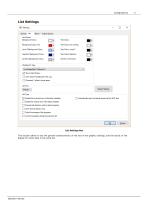
List Settings List Settings Box This section allows to set the general characteristics of the list on the graphic settings, and the layout of the display for some data in the same list. Operator manual
Open the catalog to page 9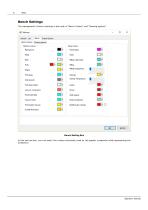
Bench Settings The management of bench settings is also split in “Bench Colours” and “Drawing options”. Bench Setting Box In this sub-section, you can select the colours exclusively used by the graphic component while representing the workbench.
Open the catalog to page 10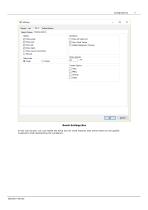
Bench Settings Box In this sub-section, you can enable the items and set some features that will be drawn by the graphic component while representing the workbench. Operator manual
Open the catalog to page 11
Toolbar Options Toolbar Options Box In this section you can hide some of the buttons of the ribbon bar. By hiding the buttons, their functionality will not be available in the WSC. Fictitious Field Settings In this section you can define a set of fictitious fields. This work field may be the normal field translated or it may have different properties from the original normal field, such as the information of the mirror and references in push or pull. Operator manual
Open the catalog to page 12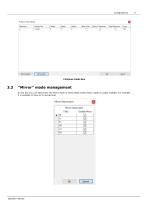
3.3 "Mirror" mode management In this box you can deactivate the Mirror mode of those fields whose Mirror mode is usually enabled. For example, it is possible to have an A normal field. Operator manual Mirror Deactivation
Open the catalog to page 13
Mirror Mode Management Box Operator manual
Open the catalog to page 14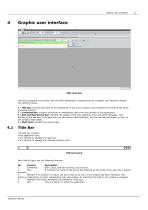
Graphic user interface Graphic user interface Like other programs in the suite, also the WSC dashboard is characterized by a graphic user interface divided into different areas. 1 - Title Bar: contains the name of the opened file in the active window, that represents the title of the same, and some buttons. 2 - Command Bar: contains all buttons to immediately select the functionality of the application. 3 - Axis and Main Device Bar: contains the display of the axis positions, error and alarm messages, main devices of the machine. From here you can also launch some functions, such as machine movement...
Open the catalog to page 15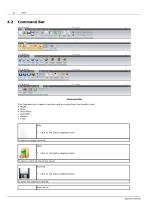
The Command bar is made of sections split according their functionality type: • Work Plane * Click on the button displayed here. It opens an empty work list._ * Click on the button displayed here. It opens a work list previously saved._ Save list * Click on the button displayed here. It saves the selected work list._ Operator manual
Open the catalog to page 16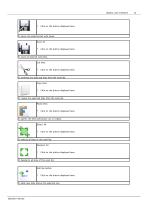
Graphic user interface Click on the button displayed here. It saves the selected list with name. Save All Click on the button displayed here. It saves all opened work lists. Cut lines Click on the button displayed here. It removes the selected lines from the work list. Copy lines Click on the button displayed here. It copies the selected lines from the work list. Paste lines Click on the button displayed here. It pastes the lines previously cut or copied. Select All Click on the button displayed here. It selects all lines of the work list. Deselect All Click on the button displayed here. It deselects...
Open the catalog to page 17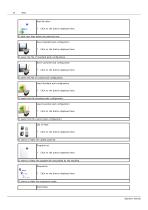
Click on the button displayed here. It adds new lines below the selected one. Save Standard pod configuration Click on the button displayed here. It saves the file of standard pods configuration. Save Customer pod configuration Click on the button displayed here. It saves the file of custom pod configuration. Load Standard pod configuration Click on the button displayed here. It loads from file standard pods configuration. Load Customer pod configuration Click on the button displayed here. It loads from file custom pods configuration. List of Pods Click on the button displayed here. It shows...
Open the catalog to page 18All T.P.A. SRL TECNOLOGIE PRODOTTI catalogs and technical brochures



- Panel PC
- Industrial panel PC
- Panel PC with touch screen
- LCD screen
- Industrial monitor
- Automation software solution
- Intel® Core™ PC
- Industrial computer
- Fanless PC
- Intel® Core™ panel PC
- VESA mounting monitor
- HDMI PC
- Box PC
- Digital I/O
- Windows PC
- USB keyboard
- Industrial keyboard
- USB monitor
- IO module
- Keyboard with mechanical keys