- Catalogs
- SPRINGCARD
- Puck Base RFID Scanner


Puck Base RFID Scanner
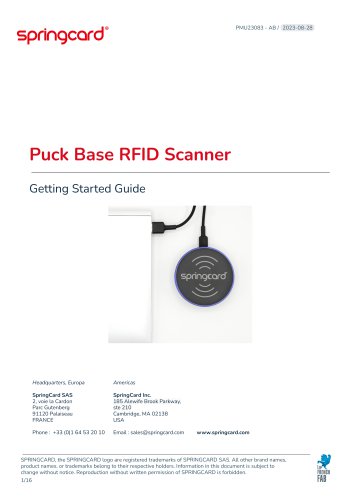
Puck Base RFID Scanner
This guide provides essential instructions for setting up and using the Puck Base RFID Scanner by SpringCard effectively.
Conditions for Using the Product
The scanner is intended for desktop use in a clean, dry area, away from metal objects. Misuse, such as throwing or piercing, voids the warranty.
Overview
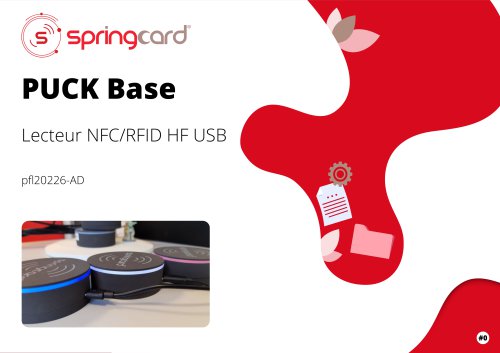
The Puck Base RFID Scanner is a contactless NFC/RFID device that acts as a keyboard input without needing driver installation. It is available in QWERTY and AZERTY layouts and should be kept away from metal surfaces and other radiating devices.
Setup Instructions
1. Connect the scanner to a USB port and wait for activation, indicated by a beep and LED flash.
2. Verify recognition as a keyboard by testing with a contactless card.
Understanding LEDs & Beeper
LED indicators and beeps communicate device status:
- "Breathing" blue: Ready for a card.
- Single beep + Solid green: Card detected.
- Repeated beeps: Communication issue.
- Red, Blinking: Malfunction.
- Fixed white: Device not activated.
FAQ
Common issues include incorrect keyboard layout and connection problems, with solutions involving device configuration checks and ensuring a direct USB connection.
Contacting Support
Support is available through SpringCard's website. Providing detailed issue and environment information aids in efficient support.
Device Configuration
The scanner can be configured using SpringCard Companion software to customize settings like LED colors and sound notifications.
Legal Information
Includes disclaimers on information accuracy, intended product use, and trademark and copyright notices.
Catalog excerpts
Headquarters, Europa Americas 2, voie la Cardon Parc Gutenberg 91120 Palaiseau FRANCE 185 Alewife Brook Parkway, ste 210 SPRINGCARD, the SPRINGCARD logo are registered trademarks of SPRINGCARD SAS. All other brand names, product names, or trademarks belong to their respective holders. Information in this document is subject to change without notice. Reproduction without written permission of SPRINGCARD is forbidden.
Open the catalog to page 1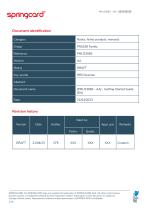
SPRINGCARD, the SPRINGCARD logo are registered trademarks of SPRINGCARD SAS. AH other brand names, product names, or trademarks belong to their respective holders. Information in this document is subject to change without notice. Reproduction without written permission of SPRINGCARD is forbidden.
Open the catalog to page 2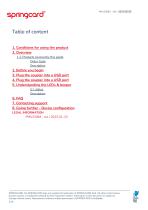
1. Conditions for using the product 1.1. Products covered by this guide Order Code 3. Plug the coupler into a USB port 4. Plug the coupler into a USB port 5. Understanding the LEDs & beeper 8. Going further - Device configuration LEGAL INFORMATION SPRINGCARD, the SPRINGCARD logo are registered trademarks of SPRINGCARD SAS. All other brand names, product names, or trademarks belong to their respective holders. Information in this document is subject to change without notice. Reproduction without written permission of SPRINGCARD is forbidden.
Open the catalog to page 3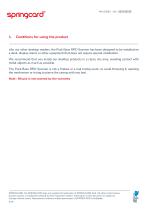
Conditions for using the product Like our other desktop readers, the Puck Base RFID Scanner has been designed to be installed on a desk, display stand, or other equipment that does not require special installation. We recommend that you install our desktop products in a clean, dry area, avoiding contact with metal objects as much as possible. The Puck Base RFID Scanner is not a frisbee or a real hockey puck, so avoid throwing it, opening the mechanism or trying to pierce the casing with any tool. Note : Misuse is not covered by the warranty SPRINGCARD, the SPRINGCARD logo are registered trademarks...
Open the catalog to page 4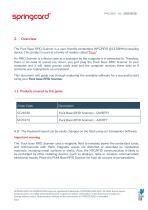
The Puck Base RFID Scanner is a user-friendly contactless (NFC/RFID @13.56MHz) coupling device. This product is part of a family of readers called "Puck". An RFID Scanner is a device seen as a keyboard by the computer it is connected to. Therefore, there is no need to install any driver, you just plug the Puck Base RFID Scanner to your computer and it will reach precise cards data and the computer receives these data as if someone was typing them on a keyboard. This document will guide you through exploring the available software for a successful start using your Puck base RFID Scanner. N.B:...
Open the catalog to page 5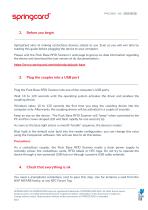
SpringCard aims at making contactless devices simple to use. Even so you will win time by reading this guide before plugging the device to your computer. Please visit the Puck Base RFID Scanner’s web page to get up-to-date information regarding the device and download the last version of all documentations : https://www.springcard.com/en/products/puck-base Plug the coupler into a USB port Plug the Puck Base RFID Scanner into one of the computer’s USB ports. Wait 10 to 120 seconds until the operating system activates the driver and enables the coupling device. Windows takes 10 to 120 seconds the...
Open the catalog to page 6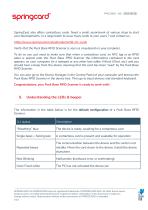
SpringCard also offers contactless cards. Need a small assortment of various chips to start your developments, or a large batch to issue many cards to your users ? Just contact us : Verify that the Puck Base RFID Scanner is seen as a keyboard on your computer. To do so you just need to make sure that when a contactless card, an NFC tag or an RFID label is placed onto the Puck Base RFID Scanner the informations contained in the card appears on your computer (In a notepad or any other text editor (Word, EXcel, etc.) and you should hear a beep from the device meaning that the card has been “read”...
Open the catalog to page 7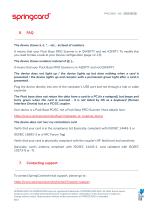
The device shows à, é, “, - etc… instead of numbers It means that your Puck Base RFID Scanner is in QWERTY and not AZERTY. To modify this you need to take a look at your Device configuration (page 12-13) The device shows numbers instead of @, ),It means that your Puck Base RFID Scanner is in AZERTY and not QWERTY. The device does not light up / the device lights up but does nothing when a card is presented / the device lights up and remains with a permanent green light after a card is presented. Plug the device directly into one of the computer’s USB port and not through a hub or cable expender....
Open the catalog to page 8
For a fast and efficient processing of your support requests, please provide accurate information on the environment (contactless card, operating system, driver version, firmware version, etc) and all details you have on the issue itself. Going further - Device configuration The Puck Base RFID Scanner is highly configurable. Out-of-factory settings cover most of the use cases immediately, but advanced users may prefer to load a custom configuration into the device. For instance, it is possible to switch off the sound (beeper) (page15) or to disable some protocols, to silently ignore certain contactless...
Open the catalog to page 9
SPRINGCARD, the SPRINGCARD logo are registered trademarks of SPRINGCARD SAS. All other brand names, product names, or trademarks belong to their respective holders. Information in this document is subject to change without notice. Reproduction without written permission of SPRINGCARD is forbidden. 10/16
Open the catalog to page 10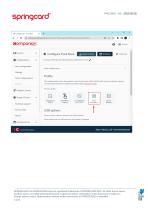
SPRINGCARD, the SPRINGCARD logo are registered trademarks of SPRINGCARD SAS. All other brand names, product names, or trademarks belong to their respective holders. Information in this document is subject to change without notice. Reproduction without written permission of SPRINGCARD is forbidden. 11/16
Open the catalog to page 11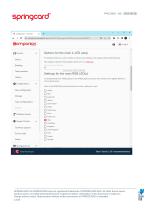
^ Options for the main 4-LED ramp Online Bindings Team products History Team configurations J Realtime Events Q Support Center ^ Technical support Service Data For products that have a set of 4 LEDs as primary user interface, this register control their behaviour. This register is ignored if the product's primary Ul is an RGB LED. Options for thB main 4-LGO ramp For products that have a RGB LED {or a set of RGB LEDs) as primary user interface, this register defines its color and behaviour. Color of the RGB LED(s) when the product is active, waiting for a card 0 White 0 Dark Red 0 Yellow O Dark...
Open the catalog to page 12All SPRINGCARD catalogs and technical brochures
 Prox’N’ Drive
4 Pages
 SPRINGPASS
12 Pages
 Prox’N’Roll PC/SC HSP
4 Pages
 H663 series
2 Pages
 Prox’N’ Drive
5 Pages
 Lecteur NFC/RFID HF USB
11 Pages