
- Catalogs
- Smartrek Technologies Inc.
- Smartrek monitoring

Smartrek monitoring
Smartrek monitoring
This section outlines the initial setup for the Smartrek monitoring system, including the Gateway and an Android tablet with the Sugarheld App. Key steps involve plugging in the Gateway, launching the app, and using the Installation Wizard if needed.
The Wizard assists in setting up the system, including device naming, address entry, remote access configuration, Google Account setup, and alarm customization. Users can select units and the system's main application, pair devices, and optimize performance.
Sensors are installed using a tablet for GPS positioning, checking signals, connecting to the network, and using repeaters if necessary. The app helps add nodes and ensure communication with the Gateway.
Details the Smartrek system components, including sensor nodes and their functions, the Wireless Sensor Network topology, and device roles like Gateway, Handheld, and Repeater nodes.
Covers app features such as map functionalities, node grouping, and configuration. Instructions for app installation, file transfer, and security configuration on Android devices are provided.
Includes database transfer, data backup and restoration, app updates, and enabling sensor data history. Guidance on changing channels and configuring the Gateway is also provided.
The document serves as a comprehensive guide for setting up and managing the Smartrek monitoring system.
A WSN is a network of autonomous microsystems communicating wirelessly, with a gateway node as the interface.
Smartrek uses a mesh topology with multi-hops and multi-paths for data reliability.
- Main Controller Device: GUI for user interaction, typically an Android tablet or smartphone.
- Gateway Node: Central device linking components and synchronizing communication.
- Handheld Node: Battery-operated gateway for portable connectivity.
- Repeater Node: Extends the mesh network by relaying communication.
- Various Sensor Nodes: Includes sensors like vacuum, level, pressure, and more, connecting via the mesh network.
- LED Indicators: Display device status with specific sequences.
- Powering On/Off: Instructions for using the ON/OFF button.
- Normal Boot Sequence: Describes LED behavior during startup.
- Includes configuring alarms, units, applications, network, performance, and enabling features.
- Options for Bluetooth auto-enable, language changes, real-time location display, and notification settings.
- Instructions for setting up remote access via Google Drive and DropBox.
- Features include activating development mode, Web API modes, and data bandwidth statistics.
- Guidelines for installing sensors, optimizing node range, and network topology strategies.
Solutions for common system issues.
- Details on creating block programs, including value types, logical operations, and user-defined functions.
ON/OFF LED indicates network connection and data exchange. Nodes must be configured to the same channel as the gateway for communication.
Sensors use 3 D-cell alkaline batteries lasting 5-7 years. Replace batteries when indicated by the Android device.
Overview of models includes power switch, channel program switch, and connectors. Warnings include avoiding touching electronic components.
Details on contactors, surge protectors, and thermal overloads with specifications and suggested prices.
Pre-2014 models use Auxiliary Inputs Box; post-2014 models connect accessories directly.
Connects Android devices to Smartrek system for data reading and control. Minimum requirements include Android OS 4.0+, Bluetooth 2.0+, Wi-Fi, and GPS.
Includes downloading maps, transferring maps between devices, and customizing map display options.
- Gateway Node: Setup details in Section 5.4.
- Pressure/Vacuum/Tensiometer/Temperature Sensors: Calibration involves setting zero and resetting to factory defaults.
- Level Sensor: Calibration includes setting empty and maximum levels.
- Relay Sensor: Channels are controlled remotely.
- Flowmeter Sensor: Compatible with CST paddlewheels and Seametrics IMAG4700.
- Piezometer Sensor: Measures temperature and hydrostatic pressure.
- Refractometer Sensor: Temperature units and scale settings can be configured.
- Reverse Osmosis Sensor: Controls cycles and parameters.
- Group Settings: Sensors can be organized into groups.
- Table Filtering: Filters can be applied to manage sensor data.
- Getting Started: Ensure the Android device is configured.
- Transferring Installation File: Use a USB cable or download directly.
- Configuring Security Options: Enable installation from unknown sources.
- Installation Process: Locate and install the NwkBaseStation.apk file.
- Launching the App: Ensure the app is not already running before launching.
- Gateway Installation: Follow the Installation Wizard or manual steps.
Ensure it is powered on and connected to the network using the Sugarheld application.
Nodes can be added using the Sugarheld app to scan barcodes and name the nodes.
Ensure the gateway is operational and verify the channel programming.
Install by greasing and attaching the antenna, then power on.
Configure parameters such as duty cycle and hop count.
Transfer databases between Android devices using NFC, Wi-Fi, or file sharing.
Backup databases via the Cfg tab and restore as needed.
Regular updates of the Sugarheld app are recommended.
To change the network channel, configure the gateway to match the new channel.
Enable automatic logging of sensor readings.
Guides through steps like naming the device and configuring alarms.
Includes Bluetooth auto-enable, language settings, and alarm configurations.
Configure periodic SMS or email reports via the Cfg tab.
Provides a table of typical email address formats for 'Email on phone' mode.
Allows remote access via the internet, requiring a stable connection.
Provides full control over sensors and equipment.
Data can be exported to an Excel spreadsheet.
Users can generate satellite maps displaying node locations.
DropBox is an alternative to Google Drive for remote access.
Allows testing of prototype functionalities.
Enables data synchronization via Smartrek servers.
- The configuration tab (Cfg) allows users to select active sensors.
- Data bandwidth stats can be monitored in the Cfg tab.
- The DB Replay feature visualizes sensor network states.
- Installation of vacuum sensors requires specific materials.
- Optimal range between nodes varies based on conditions.
- Network topology should prioritize redundancy.
- Hop count settings are crucial for network reliability.
- Testing signal strength with handheld devices is advised.
- Deploying nodes should be done progressively from the gateway.
- Ensure Android devices are Bluetooth connected to gateways.
- Monitor sensor data transmission through LED indicators.
- Use alternate methods for link quality assessment if handheld devices are unavailable.
- Stable and periodic blinking indicates good connection.
- Rapid oscillation of LEDs helps assess link quality.
- Android Devices: Issues with barcode scanning and Bluetooth connectivity.
- Sensors and Gateways: Connectivity issues often relate to RF channel mismatches.
- Internet Synchronization: Problems with stale data and synchronization errors.
- Ensure correct RF channel settings for all devices.
- Regularly check battery levels.
- Use UPS for stable power supply to critical devices.
- LED blinking patterns are crucial for assessing network health.
- Proper device configuration is essential for accurate sensor readings.
- Channel Control Issues: Ensure the box is not in local control mode.
- Relay Box Voltage Issues: Verify the functionality of both fuses.
- Gateway Polling Mode: Check configuration issues with level sensors.
- General Properties: Block programs are linked to nodes.
- Program Execution: Programs execute based on event triggers.
- Editing Programs: Programs cannot be edited while a gateway is active.
- Instruction Types: Programs consist of statements and functions.
- Value Types: Programs handle numbers, logic, text, and lists.
- Text Operations: Useful for defining constants and debugging.
- Number Operations: Involves mathematical operations and comparisons.
- Logical Operations: Use logical operators for condition-based actions.
- Local Variables: Store values temporarily during program execution.
- Global Variables: Persist values across program executions.
- Conditional Blocks: Execute statements based on logic arguments.
- Mesh Network Interaction: Determine event triggers and schedule polling cycles.
- Sensor Interaction: Obtain sensor MAC addresses for communication.
Catalog excerpts
Smartrek monitoring Thank you for purchasing! This document contains a how-to guide and general information to help you get the most out of this product. Look here first for answers and to get started.
Open the catalog to page 1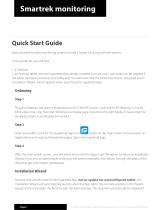
Smartrek monitoring Quick Start Guide Most Smartrek turnkey monitoring system include a Starter kit along with the sensors. In the starter kit, you will find: 1. a Gateway 2. an Android tablet with the Sugarheld App already installed. In most cases, stop steps can be skipped if the tablet has been previously preconfigured. You will know that the tablet hasn’t been setupped yet an installation Wizard doesn’t appear when launching the Sugarheld App. Unboxing Step 1 Plug the Gateway and open it by pressing on the ON/OFF button. Look at the LED flashing. It should blink a few time, stop then start...
Open the catalog to page 2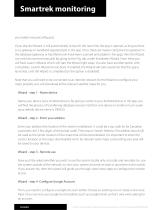
Smartrek monitoring your tablet was preconfigured. If you skip the Wizard, it will automatically re-launch the next time the app is opened, as long as there is no gateway or handheld registered yet in the app. Once there are master components registered in the database (gateway or handheld units have been scanned and added in the app), then the Wizard can only be launched manually by going to the Cfg. tab, under Installation Wizard. From there you will have Launch Wizard, which will start the Wizard right away. You also have another option with a checkbox, Launch Wizard at next boot. If enabled,...
Open the catalog to page 3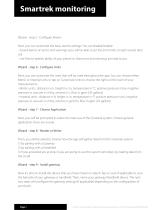
Smartrek monitoring Wizard - step 5 - Configure Alarms Next, you can customize the basic alarms settings. You can disable/enable: - Sound alarms on errors and warnings (you will be able to set the error limits on each sensor later on) - Use Text-to-speech ability of your phone so that errors and warnings are read to you Wizard - step 6 - Configure Units Next, you can customize the units that will be used throughout the app. You can choose either Metric or Imperial units or tap on Customize Units to choose the right unit for each of your measurements. - Metric units : distance in m, height in...
Open the catalog to page 4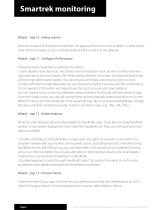
Smartrek monitoring Wizard - step 10 - Define system Enter the distance of the farthest node from the gateway (from your main location). In other words, what will be the radius of your Smartrek network if the center is at the gateway. Wizard - step 11 - Configure Performance Choose how you would like to optimize the system: 1) Save batteries (low data-rate). You should choose this option if you do not currently need very high data rate to save your battery life. When saving batteries, the system will respond slower than with the high performance option. You will still get a lot of data, but not...
Open the catalog to page 5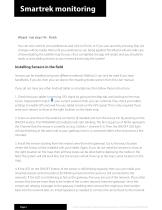
Smartrek monitoring Wizard - last step (14) - Finish You can now commit your preferences and click on Finish, or if you can cancel by pressing Skip (no changes will be made). Wait until your preferences are being applied. The Wizard will also take care of downloading the satellite map for you. Once completed, the app will restart and you should be ready to start adding sensors to your network and enjoy the system! Installing Sensors in the field Sensors can be installed using two different methods. Method 2 can only be used if you have handhelds. If you do, then you can skip to the Installing...
Open the catalog to page 6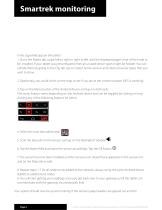
Smartrek monitoring In the Sugarheld app (on the tablet): 1. Go to the Nodes tab, swipe left to right or right to left until the displayed page is that of the node to be installed. If your tablet was preconfigured, then all unused sensor types might be hidden. You can unhide them by going to the Cfg. tab, tap on Select Active sensors and check all sensor types that you wish to show. 2. Optionnaly, you could check on the map to see if you are at the correct location (GPS is working) 3. Tap on the Menu button of the Android device and tap on Add node. The menu button varies depending on the Android...
Open the catalog to page 7
Smartrek monitoring gateway is highlighted in red, then your tablet has not been paired with the gateway. To pair, click and hold on the gateway’ name. In the menu, scroll down and tap on Activate. The app will restart, this time with a bluetooth connection with the gateway. After a few seconds, the sensors’ tabs will change color and you will start seeing data.
Open the catalog to page 8
Quick Start Guide 1. Smartrek Automation and Monitoring system features 12 1.1 Definition of a Wireless Sensor Network 12 1.3.2 Main controller device 19 1.3.3 Portable computer device 21 1.3.7 Vacuum sensor node 21 1.3.8 Level sensor node 22 1.3.9 Remote controls (Relay) 22 1.3.11 Pressure sensor node 22 1.3.12 Flowmeter sensor node 22 1.3.13 Refractometer sensor node 22 1.3.14 Piezometer (Temperature Depth) sensor node 23 1.3.15 Tensiometer sensor node 23 1.3.16 Temperature sensor node 23 1.3.17 Reverse Osmosis sensor node 23 1.3.18 High Power Ultrasonic Level sensor node 23 2.1 Overview of...
Open the catalog to page 9
2.3.3 Normal boot sequence 27 2.3.4 Programming a node on a channel 28 3. Relay (remote controls) 33 3.4 Available inputs for the Remote Controls device (Relay) 37 3.4.1 Mechanical limit switch 38 3.5.1 Downloading road and satellite maps 42 3.5.3 Transferring maps to another Android device 44 3.5.4 Other display options 44 4.2 Transferring the installation file to the device 61
Open the catalog to page 10
4.3 Configuring security options of the Android device 61 4.4 Installing the Sugarheld app from a file from a local computer 62 Smartrek network 5.5 Transferring database between two Android devices 5.5.2 2nd Method, using Wi-Fi 5.6 Backup and restore database 5.7 Updating the Sugarheld application 5.9 Enabling sensors data history 6.2 Going through the wizard 81 6.2.1 Step 1 - Name device 81 6.2.2 Step 2 - Enter your address 81 6.2.4 Step 4 - Configure Google Account 81 6.2.5 Step 5 - Configure alarms 81 6.2.6 Step 6 - Configure Units 82 6.2.7 Step 7 - Choose application 82
Open the catalog to page 11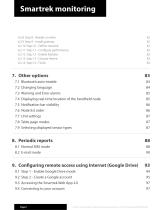
6.2.8 Step 8 - Reader or writer 82 6.2.9 Step 9 - Install gateway 82 6.2.10 Step 10 - Define network 82 6.2.11 Step 11 - Configure performance 82 6.2.12 Step 12 - Enable features 83 6.2.13 Step 13 - Choose theme 83 7.3 Warning and Error alarms 85 7.4 Displaying real-time location of the handheld node 85 7.6 Node list order 86 7.8 Table page modes 87 7.9 Selecting displayed sensor types 87 9. Configuring remote access using Internet (Google Drive) 93 9.1 Step 1 - Enable Google Drive mode 94 9.2 Step 2 - Create a Google account 95 9.4 Connecting to your account 97
Open the catalog to page 12All Smartrek Technologies Inc. catalogs and technical brochures
 Quick Start Guide
11 Pages
 SMK900
55 Pages
 Smartrek Raven-Eye 2
2 Pages
 Smart Gateway+
10 Pages
- Flowmeter
- Liquid flow monitor
- Resistance temperature sensor
- Waterproof flow meter
- Stainless steel flow monitor
- Liquid level sensor
- Wireless remote control
- Industrial remote control
- Remote control with buttons
- Analog level sensor
- Industrial gateway
- Fieldbus gateway
- RS485 flow monitor
- Transceiver module
- Modbus flow meter
- Membrane pressure sensor
- RTD temperature sensor