
- Catalogs
- Smartrek Technologies Inc.
- Quick Start Guide

Quick Start Guide

Quick Start Guide
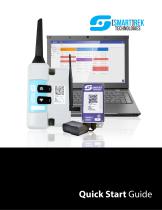
- Unbox the starter kit, which includes a gateway and an Android tablet with the Sugarheld App pre-installed.
- Connect the gateway to a power outlet and ensure it is operational by checking the LED indicator.
- Open the Sugarheld App on the tablet and follow the installation wizard if the tablet is not preconfigured.
- Name Device: Assign a recognizable name to your Android device.
- Enter Address: Input the installation location to download relevant maps.
- Remote Use: Decide if the system will be used locally or remotely.
- Google Account Configuration: Set up a Google Account for data storage and remote access.
- Alarm Settings: Customize sound alarms and text-to-speech options.
- Units Configuration: Choose between Metric or Imperial units for measurements.
- Application Selection: Define the primary use of the Smartrek system.
- Data Gathering Method: Choose how the app will collect data (via Gateway, Handheld, or Cloud).
- Gateway Installation: Scan and name your gateway or handheld device.
- System Definition: Specify the network radius from the gateway.
- Performance Configuration: Optimize for battery saving or high performance.
- Feature Enablement: Enable features for handheld use if applicable.
- Theme Selection: Choose between Legacy or Modern app themes.
- Finish Setup: Apply preferences and download necessary maps.
- Turn on sensors and ensure they connect to the network by checking LED indicators.
- Install sensors starting from the nearest to the gateway and use the tablet to add nodes.
- Ensure the tablet is paired with the gateway for data communication.
- Data is stored locally on the Android device and can be viewed through the app.
- If remote use is enabled, data can be accessed online via Google Drive and the Smartrek Web App.
Catalog excerpts
Quick Start Guide
Open the catalog to page 1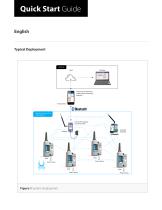
Quick Start Guide English Typical Deployment Optional Cloud Connect to the internet to enable remote monitoring (optional) Android device SpiderMesh Cooperative Mesh Network Connect the Gateway to a power outlet Handheld (roaming) Probe / Sensor Probe / Sensor Probe / Sensor Figure 1 System deployment Probe / Sensor
Open the catalog to page 2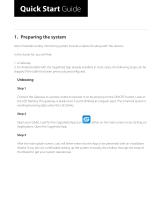
Quick Start Guide 1. Preparing the system Most Smartrek turnkey monitoring system include a Starter kit along with the sensors. In the starter kit, you will find: 1. A Gateway 2. An Android tablet with the Sugarheld App already installed. In most cases, the following steps can be skipped if the tablet has been previously preconfigured. Unboxing Step 1 Connect the Gateway to a power outlet and power it on by pressing on the ON/OFF button. Look at the LED flashing. The gateway is ready once it starts blinking at a regular pace. The Smartrek system is sending/receiving data when the LED blinks....
Open the catalog to page 3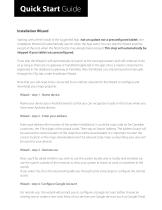
Quick Start Guide Installation Wizard Starting with a fresh install of the Sugarheld App (not an update nor a preconfigured tablet), the Installation Wizard will automatically launch when the App starts. You can skip the Wizard anytime, except at the end, when the finish button has already been pressed. This step will automatically be skipped if your tablet was preconfigured. If you skip the Wizard, it will automatically re-launch at the next app resstart, and will continue to do so as long as there are no gateway or handheld registered in the app. Once a master component is registered in the...
Open the catalog to page 4
Quick Start Guide to store your private data. Wizard - step 5 - Configure Alarms Next, you can customize the basic alarm settings. You can disable/enable: - Sound alarms on errors and warnings (you will be able to set the error limits on each sensor later on) - Turn on Text-to-speech to get warnings and errors even when not looking at the system Wizard - step 6 - Configure Units Next, you can customize the units that will be used throughout the app. You can choose either Metric or Imperial units or tap on Customize Units to choose the right unit for each of your measurements. - Metric units :...
Open the catalog to page 5
Quick Start Guide Enter the distance of the farthest node from the gateway (from your main location). In other words, what will be the radius of your Smartrek network if the center is at the gateway. Wizard - step 11 - Configure Performance Choose how you would like to optimize the system: 1) Save batteries (low data-rate). You should choose this option if you do not currently need very high data rate to save your battery life. When saving batteries, the system will respond slower than with the high performance option. You will still get a lot of data, but not once every second. 2) High performance...
Open the catalog to page 6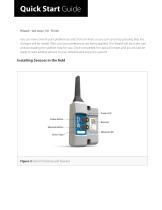
Wizard - last step (14) - Finish You can now commit your preferences and click on Finish, or you can cancel by pressing Skip (no changes will be made). Wait until your preferences are being applied. The Wizard will also take care of downloading the satellite map for you. Once completed, the app will restart and you should be ready to start adding sensors to your network and enjoy the system! Power Button---- Network Button Figure 2 Sensor's buttons and features
Open the catalog to page 7
Quick Start Guide 2. Turn on the sensor by pressing on the Power button . The Network LED indicator will start blinking. The first sequence of blinks represents the Channel that the sensor is currently set on (e.g. 3 blinks = channel # 3). After the startup sequence, the Power LED light will start blinking at the same rate as your gateway once it is connected (after a few seconds to a few minutes). The Network LED will blink 3 times every 8 seconds while it is searching for the network (It is not connected yet!) 3. Install the sensors starting from the nearest ones (from the gateway). Go to the...
Open the catalog to page 8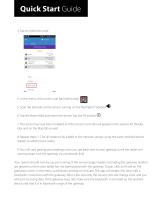
4. In the menu, click on the scan barcode button 5. Scan the barcode on the sensor, turning on the flashlight if needed 6. Tap the Name field and name the sensor. Tap the Ok button 0 7. The sensor has now been installed and the sensor's icon should appear in the sensors list (Nodes tab) and on the Map tab as well. 8. Repeat steps 1-7 for all nodes to be added to the network, always using the same Android device (tablet) to add/remove nodes 9. You will start getting your readings once you get back next to your gateway (until the tablet can communicate with the gateway via a bluetooth link) Your...
Open the catalog to page 9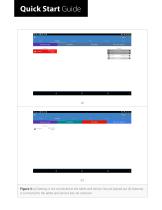
Quick Start Guide (b) Figure 3 (a) Gateway is not connected to the tablet and sensors lists are greyed out (b) Gateway is connected to the tablet and sensors lists are coloured
Open the catalog to page 10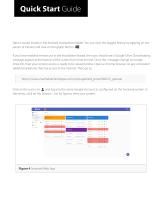
Quick Start Guide Data is stored locally in the Android smartphone/tablet. You can view the logged history by tapping on the sensor of interest and click on the graph button . If you have enabled remote use in the Installation Wizard, then you should see a Google Drive Downloading message appear at the bottom of the screen from time to time. Once the message change to Google Drive OK, then your remote access is ready to be viewed online. Open a Chrome browser on any computer/ tablet/smartphone that has access to the internet. Then go to: https://www.smartrektechnologies.com/vip/sugarheld_proto/Web15_general...
Open the catalog to page 11All Smartrek Technologies Inc. catalogs and technical brochures
 Smartrek monitoring
142 Pages
 SMK900
55 Pages
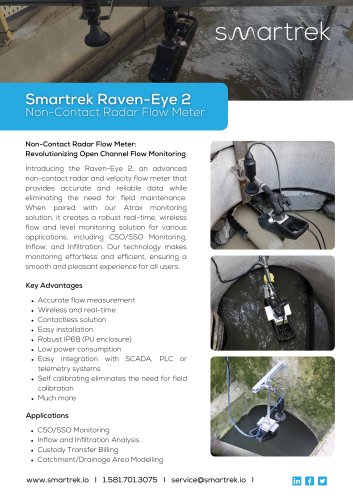 Smartrek Raven-Eye 2
2 Pages
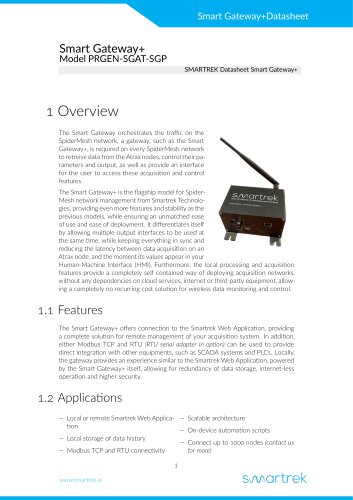 Smart Gateway+
10 Pages
- Flowmeter
- Temperature probe
- Liquid flow monitor
- Resistance temperature sensor
- Waterproof flow meter
- Level probe
- Stainless steel flow monitor
- Liquid level sensor
- Pressure probe
- Wireless remote control
- Industrial remote control
- Remote control with buttons
- Analog level sensor
- Industrial gateway
- Fieldbus gateway
- RS485 flow monitor
- Transceiver module
- Modbus flow meter
- Membrane pressure sensor
- RTD temperature sensor