
- Catalogs
- SIEB & MEYER AG
- drivemaster2

- Products
- Catalogs
- News & Trends
- Exhibitions
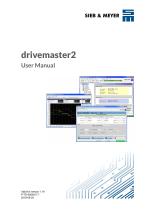
drivemaster2
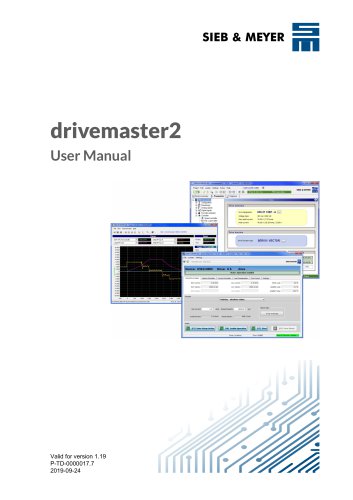
drivemaster2
- About this Manual: Provides an overview of the manual's structure, including warnings, notices, and abbreviations.
- General Information: Describes the applications, purpose, and scope of the DriveMaster2 software.
- Installation: Details hardware requirements, installation steps, and troubleshooting for USB drivers.
- Device Connection to PC: Instructions for connecting devices like PS2, SD2, and FC2 to a PC.
- User Interface Description: Explains the interface layout, menu descriptions, and operational modes.
- Password Protection and User Rights: Discusses user levels and rights for secure access.
- First Steps: Guides users through initial project creation and parameter setting.
- Device Overview: Overview of compatible devices with DriveMaster2.
- Parameters of Devices: Detailed specifications for PS2, SD2x, and FC2 devices.
- Diagnosis and Tools: Tools and methods for diagnosing device issues and managing projects.
- Communication: Describes protocols and settings for device interfacing.
- Safety Functions: Outlines safety functions for operational security.
- Analog and Digital Signals: Describes inputs and outputs for interfacing with other systems.
- Motor Potentiometer and Target Values: Details on setting up motor potentiometers and target values.
- Controller Parameters: Comprehensive details on controller parameters for various operations.
- Tools and Software Updates: Descriptions of tools like the drive-setup-tool and update procedures.
- Communication and Networking: Configuration details for CAN bus, DNC, and USB communication servers.
- Project Management: Instructions on managing projects and parameter sets.
Catalog excerpts
SIEB & MEYER
Open the catalog to page 1
W Copyright Translation of the original instructions, Copyright © 2019 SIEB & MEYER AG All rights reserved. This manual or extracts thereof may only be copied with the explicit authorization of SIEB & MEYER AG. Trademarks All product, font and company names mentioned in this manual may be trademarks or registered trademarks of their respective companies. SIEB & MEYER worldwide For questions regarding our products and technical problems please contact us. SIEB & MEYER AG Auf dem Schmaarkamp 21 21339 Lueneburg Germany Phone: +49 4131 203 0 Fax: +49 4131 203 2000 [email protected] http://www.sieb-meyer.de...
Open the catalog to page 2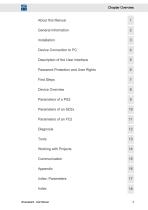
Chapter Overview About this Manual 1 Description of the User Interface 5 Password Protection and User Rights 6 Working with Projects 14
Open the catalog to page 3
Chapter Overview
Open the catalog to page 4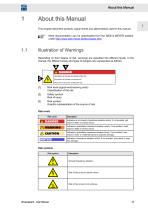
About this Manual This chapter descirbes symbols, signal words and abbreviations used in this manual. More documentation can be downloaded from the SIEB & under http://www.sieb-meyer.de/downloads.html. MEYER website Illustration of Warnings Depending on their degree of risk, warnings are classified into different levels. In the manual, the different levels and types of dangers are represented as follows: [1] Risk level (signal word/warning color) Classification of the risk [2] Safety symbol Risk of injury Graphic representation of the source of risk Risk levels
Open the catalog to page 13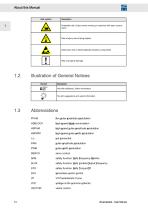
About this Manual Risk symbol 1.2 Illustration of General Notices Symbol Abbreviations FPAM flux pulse amplitude modulation high-speed block commutation high-speed pulse amplitude modulation high-speed pulse width modulation not connected pulse amplitude modulation pulse width modulation servo control safety function: Safe Frequency Monitor safety function: Safe Limited Output Frequency safety function: Safe Torque Off sensorless vector control voltage at the common collector vector control
Open the catalog to page 14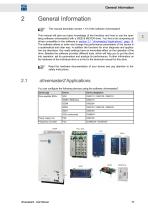
General Information jy* This manual describes version 1.19 of the software drivemaster2. This manual will give you basic knowledge of the functions and how to use the operating software drivemaster2with a SIEB & MEYER drive. You find a list comprising all drives compatible to the software in section 2.1 "drivemaster2Applications", page 15. The software allows to enter and change the performance parameters of the device in a systematical and clear way. In addition the functions for error diagnosis and application are described. Any made settings have an immediate effect on the operation of the...
Open the catalog to page 15
General Information
Open the catalog to page 16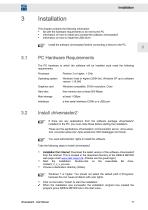
Installation This chapter contains the following information: ▶ list with the hardware requirements to be met by the PC ▶ information on how to install and uninstall the software drivemaster2 ▶ information on how to install the USB driver Install the software drivemaster2 before connecting a device to the PC. PC Hardware Requirements The PC hardware to which the software will be installed must meet the following requirements: Operating system Windows Vista or higher (32/64 bit), Windows XP up to software version 1.18.000 Graphics card Windows compatible, SVGA resolution, Color Hard disc free...
Open the catalog to page 17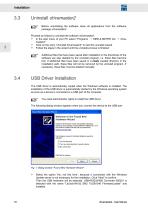
Uninstall drivemaster2 Before uninstalling the software close all applications from the software package drivemaster2. Proceed as follows to uninstall the software drivemaster2: ➮ In the start menu of your PC select “Programs ÿ SIEB & MEYER AG ÿ drive‐ master2”. ➮ Click on the entry “Uninstall drivemaster2” to start the uninstall wizard. ➮ Follow the steps in the wizard until the uninstall process is finished. Additional files that have been saved after installation in the directories of the software are also deleted by the uninstall program, i.e. these files become lost. If additional files...
Open the catalog to page 18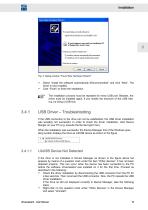
Fig. 2: Dialog window "Found New Hardware Wizard" Select “Install the software automatically (Recommended)” and click “Next”. The driver is now installed. Click “Finish” to finish the installation. The installation process must be repeated for every USB port. Besides, the driver must be installed again, if you modify the structure of the USB tree, e.g. by using a USB hub. USB Driver – Troubleshooting If the USB connection to the drive can not be established, the USB driver installation was possibly not successful. In order to check the driver installation, start Device Manger on your PC (e.g....
Open the catalog to page 19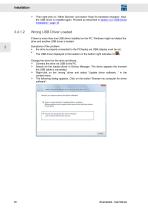
Then right-click on “Other Devices” and select “Scan for hardware changes”. Now, the USB driver is installed again. Proceed as described in section 3.4 "USB Driver Installation", page 18. Wrong USB Driver Loaded If there is more than one USB driver installed on the PC, Windows might not detect the drive and another USB driver is loaded. Symptoms of the problem: ▶ the drive is properly connected to the PC/laptop via USB (display must be on). ▶ The USB driver displayed in the taskbar on the bottom right indicates 0 ( ). Change the driver for the drive as follows: ➮ Connect the drive via USB to...
Open the catalog to page 20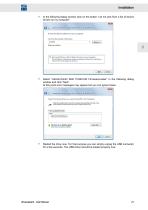
In the following dialog window click on the button “Let me pick from a list of device drivers on my computer”. Select “LibUsb-Win32 SM2 TUSB1340 FirmwareLoader” in the following dialog window and click “Next”. At this point error messages may appear but you can ignore these. Restart the drive now. For that purpose you can simply unplug the USB connector for a few seconds. The USB driver should be loaded properly now.
Open the catalog to page 21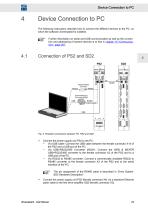
Device Connection to PC The following instructions describe how to connect the different devices to the PC, on which the software drivemaster2 is installed. Further information on serial and USB communication as well as the connec‐ tion and addressing of several devices is to find in chapter 15 "Communica‐ tion", page 287. Fig. 3: Possible connections between PC, PS2 and SD2 Connect the power supply unit PS2 to the PC: ─ Via USB cable: Connect the USB cable between the female connector X14 of the PS2 and a USB port of the PC. ─ Via USB>RS232/485 Converter 050201: Connect the SIEB & MEYER USB>RS232/485...
Open the catalog to page 23All SIEB & MEYER AG catalogs and technical brochures
 Frequency Converter SD2B plus
48 Pages
 Unit Assembly Complying EMC
75 Pages
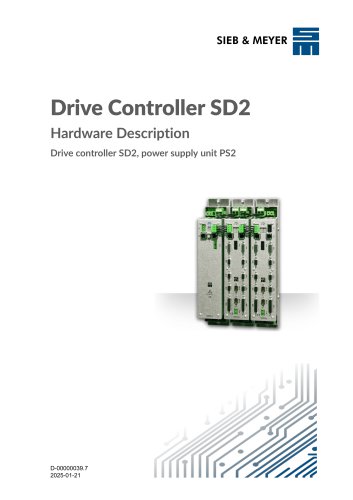 Drive Controller SD2
200 Pages
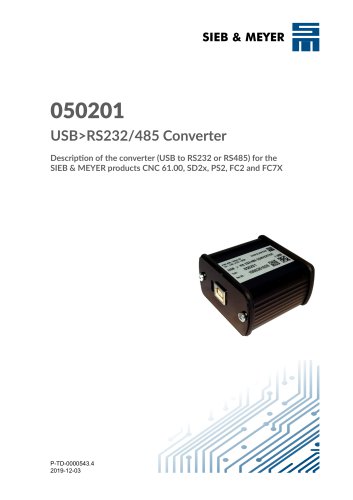 050201
24 Pages
 CNC 8x.00
106 Pages
- Automation software solution
- Servo-amplifier
- Interface software
- Reporting software
- EDM software
- Fieldbus servo-drive
- Machine software
- Frequency inverter
- AC servo-amplifier
- Data management software
- EtherCAT servo-amplifier
- Compact servo-amplifier
- Analog servo-amplifier
- CNC
- RS-232 servo drive
- OPC software
- Asynchronous servo drive
- Compact frequency inverter
- IP20 frequency inverter
- Ethernet positioning controller