
- Catalogs
- Maxphotonics Co., Ltd
- 100W-200W Laser Cleaning Machine V1.1Maxmarking 2 Category V1.0


- Company
- Products
- Catalogs
- News & Trends
- Exhibitions
100W-200W Laser Cleaning Machine V1.1Maxmarking 2 Category V1.0

100W-200W Laser Cleaning Machine V1.1Maxmarking 2 Category V1.0
Maxmarking 2 is a laser marking software by Maxphotonics Co., Ltd., designed to assist users in its operation and maintenance. The guide emphasizes the importance of understanding the instructions for optimal use.
Maxphotonics, established in 2004, is a prominent Chinese fiber laser manufacturer, recognized for its proprietary technologies and comprehensive integration in fiber laser production, catering to industrial applications like marking and welding.
Targeted at small to medium enterprises, Maxmarking 2 offers user-friendly, flexible, and efficient solutions. It is compatible with Windows XP SP3 and later, requiring a minimum of 1.5GHz CPU, 2GB RAM, and 1GB free disk space.
The software supports drawing and marking of various elements such as geometric figures, text, images, and barcodes, with robust graphic editing capabilities. It allows parameter adjustments and includes a parameter base for user convenience.
The main interface features a system toolbar, object list, attribute bar, drawing board, and marking control bar.
The manual is structured around the main interface menu bar, detailing sections like File, Editing, Drawing, Modify, View, Special, Marking, Laser, and Help.
Includes functions for managing files and system settings, such as creating, opening, saving, and importing vector diagrams, and adjusting parameters like color and language.
Users can configure units, grid display, color settings, workspace dimensions, and keyboard settings. Language options include Simplified Chinese, English, and Traditional Chinese.
Displays up to five recently opened files with an option to clear the list.
Features like continuous red light and speed subdivision can be enabled.
Offers standard editing operations such as Cut, Copy, Paste, Delete, Undo, Redo, and object grouping and combining functions.
Allows users to draw geometric figures, text, images, vector diagrams, and barcodes, with detailed options for each type.
Covers image attributes like DPI, color inversion, grayscale conversion, and contrast, affecting image clarity and color distribution.
Explains importing vector diagrams in formats like plt, dwg, ai, svg, and dxf.
Details barcode creation, including type selection and attribute settings.
Sets waiting time between marking operations for precise control.
Includes operations like array copy, object transformation, and alignment.
Provides options for translation, zooming, and display settings, including rulers and grids.
Each file contains 256 pens for color and processing parameter adjustments, optimizing laser marking performance.
Allows adjustments to position size and fill settings, supporting complex patterns.
Includes text replacement, serial number management, and IO configuration for dynamic signal assignment.
Covers device management, connection settings, and marking operations, ensuring accurate marking through configuration options.
Offers multiple marking modes like rotary and split, with specific parameter adjustments.
Includes settings for cylindrical marking, supporting concave marking and effective radius settings.
Provides access to the user manual, software updates, and software information, with options for feedback and technical support.
Catalog excerpts
USER GUIDE Maxphotonics Co.,Ltd.
Open the catalog to page 1
Copyright Notation Copyright © Maxphotonics Co., Ltd (hereafter referred to as Maxphotonics). All rights reserved. You may not copy, modify, transmit or publish this publication, in any form, in any media or by any means, without the prior written permission of Maxphotonics, except as allowed under applicable copyright laws. Permitted copies shall bear the same copyright and proprietary notices that were contained on the original version. All information contained in this document is subject to change and revision without notice. Maxphotonics believes that the information provided is accurate...
Open the catalog to page 2
Preface Thank you for using Maxmarking 2 software developed by Maxphotonics . We compile this document for you in order that the laser is used and maintained properly. Due to the limited level of the writers, coupled with time constraints, there may be some careless mistakes in this document, and your understanding will be much appreciated. Thank you again for using Maxphotonics' products. Please take time to read and understand this 《Maxmarking 2 User Guide》 and familiarize yourself with the operating and maintenance instructions before you use the product. This User Guide should stay with the...
Open the catalog to page 3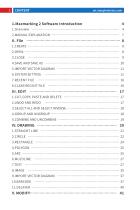
III. EDIT … ……………………………………………………………… 17 1.CUT, COPY, PASTE AND DELETE ����������������� 17 2.UNDO AND REDO … …………………………………………………………… 17 3.SELECT ALL AND SEL
Open the catalog to page 4
1.TRANSLATION, ZOOM IN, ZOOM OUT AND ZOOM PICK ……………………56
Open the catalog to page 5
I.Overview 1.Maxmarking 2 Software Introduction Maxmarking 2 is an industrial laser marking software which is developed by Maxphotonics Co. Ltd. and applicable to middle and small-sized enterprises. It has the advantages of being simple, flexible, efficient and practical and is a significant innovation of the formerly marking software. Maxmarking 2 software is simple in installation, the user just need to copy the installation package to the hard disk and double click the executable program of Maxmarking 2. exe under the folder for running. The operating environment requirements of the software...
Open the catalog to page 6
bitmap (formats such as jpg, gif and png); Powerful node adjust function and graphic editing function; Support the operation of graphic modeling (welding, trim and intersect) and transformation (pan, size, rotation, tilt, zooming and mirror image); The barcode supports various fonts (TrueType font, SHX mongline font and barcode font); The barcode supports the reversal mode, rectangular mode and circle mode; There are 256 pen numbers (layers), so different objects can be set with different marking parameters; Strong filling function. Two kinds of filling types (line, douleline) are increased;...
Open the catalog to page 7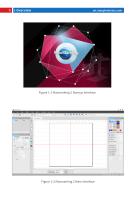
Figure 1-1 Maxmarking 2 Startup Interface Figure 1-2 Maxmarking 2 Main Interface
Open the catalog to page 8
2.manual explanation 1-Content arrangement This manual will Introduce the usage of software according to the sequence of the Maxmarking 2 main Interface menu bar and mainly comprises nine parts: "File", "Editing", "Drawing", "Modify", "View", "Special", "Marking", "Laser" and "Help". 2-Other statements The right of software Is reserved by Maxphotonics Co. Ltd., and any organization or individual shall not copy and modify the contents of the software without the company's permission and authorization.
Open the catalog to page 9
The menu bar of file mainly realizes the common operation of files, such as the function of "Create", "Open", "Close", "Save", "Save as", "Import vector diagram", "System setting", "Recent file" and "Clear recent file", see Figure 2-1. New(N) Ctri + N Open(O)... Ctrl+O Close (X) Save{S) Ctrl+S Save as (A)... Import Vector Diagram (I). System Setting (P)... Recent File Clear Recent File Figure 2-1 "File" Menu Bar i.create The function "Create" is used for creating a new marking document, the system will open a new operating window during creation, and name in sequence: New Graph 1, New Graph 2......
Open the catalog to page 10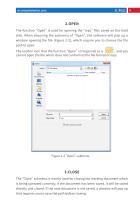
The function "Open" is used for opening the "mps" files saved on the hard disk. When choosing the submenu of "Open", the software will pop up a window opening the file (Figure 2-2), which require you to choose the file path to open. The toolbar icon that the function "Open" corresponds to is , and you cannot open the file which does not conform to the file format of mps. Figure 2-2 "Open" submenu The "Close" submenu is mainly used for closing the marking document which is being operated currently, if the document has been saved, it will be saved directly and closed. If the new document is not...
Open the catalog to page 11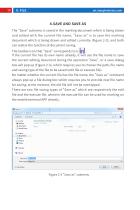
The "Save" submenu is saved in the marking document which is being drawn and edited with the current file name, "Save as" is to save the marking document which is being drawn and edited currently (Figure 2-3), and both can realize the function of document saving. The toolbar icon that "Save" corresponds to is . If the current file has its own name already, it will use the file name to save the current editing document during the operation "Save", or a save dialog box will pop up (Figure 2-3), which requires you to choose the path, file name and saving type of the file to be saved (edit file or...
Open the catalog to page 12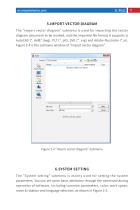
The "Import vector diagram" submenu is used for importing the vector diagram document to be marked, and the imported file format it supports is AutoCAD (*. dxf&*.dwg), PLT (*. plt), SVG (*. svg) and Adobe Illustrator (*.ai). Figure 2-4 is the submenu window of "Import vector diagram". Figure 2-4 "Import vector diagram" Submenu The "System setting" submenu is mainly used for setting the system parameters. You can set some basic attributes through the command during operation of software, including common parameters, color, work space, move & rotation and language selection, as shown in Figure...
Open the catalog to page 13All Maxphotonics Co., Ltd catalogs and technical brochures
 150W-1500W QCW Fiber Laser V1.1
36 Pages
 M5-BOX Laser Marking Machine
2 Pages
 category(English Version)V1.3
32 Pages
 New catalogue for Maxphotonics
18 Pages
 1500W Cutting Data Sheet
2 Pages
 1000W Cutting Data Sheet
2 Pages
 800W Cutting Data Sheet
2 Pages
 500W Cutting Data Sheet
2 Pages
 MFSC-300
3 Pages
 1500W Fiber Laser Resonator
4 Pages
 NEW 1200W~1500W Fiber Lasers
3 Pages
 NEW 200W~1000W Fiber Lasers
4 Pages
 MFP-20H
2 Pages
 Q-switched Laser 10W~100W
4 Pages
 MOPA Laser Source
2 Pages
 Smart Laser Marker
2 Pages
 High Power collimator
1 Page
 NEW MOPA 20W Specification
2 Pages


Archived catalogs


- Marking machine
- Laser marking machine
- Signal amplifying integrated circuit
- Benchtop marking machine
- Pulsed laser
- Manual cleaning system
- Fiber laser marking machine
- Cooled laser
- Visible laser
- Compact laser
- Precision laser
- Air-cooled laser
- Continuous wave laser
- Laser cleaning machine
- Marking laser
- Continuous laser
- OEM laser
- High-power laser