


USR-W630

USR-W630
The USR-W630 User Manual offers detailed instructions for setting up and using the USR-W630 device, which enables data transmission between serial ports and networks, including WiFi and Ethernet.
This section provides a quick start guide for new users, explaining hardware connections and network setup. Users are advised to connect the device to a PC using a serial or USB to 232 line and configure network settings via WiFi.
The USR-W630 is designed for serial to WiFi, serial to Ethernet, and Ethernet to WiFi data transmission. It features remote upgrades, MODBUS polling, and supports various network protocols. The device can connect up to 24 clients in TCP Server mode.
This section outlines networking applications, including functioning as an Access Point (AP), Station (STA), or both (AP+STA). It also discusses wireless serial port applications and network cable bridging.
The device supports multiple work modes such as Transparent Transmission, Serial Port Command, and HTTPD Client Mode. It includes wireless features like auto frequency selection and security mechanisms, along with functionalities like socket communication, UART framing, password authentication, and remote upgrades.
Configuration can be done via a webpage or AT commands, with detailed instructions provided for accessing the configuration interface and setting parameters.
Contact information for technical support is provided, along with a disclaimer and update history.
The device automatically starts after 8 seconds in a normal working state and features a compact design with specified dimensions.
The device supports serial port (RS232/RS485) to WIFI/Ethernet conversions, applicable in remote control/monitoring, medical instruments, smart home devices, and more.
- AP Mode: Acts as a wireless access point.
- STA Mode: Connects to other APs.
- AP+STA Mode: Supports simultaneous AP and STA interfaces.
Supports wireless serial port applications and network cable bridging for seamless integration into existing networks.
- Work Modes: Includes transparent transmission, serial port command, HTTPD client, MODBUS, and AT command modes.
- Wireless Characteristics: Features auto frequency selection and robust security mechanisms.
- Socket Communication: Supports dual sockets for various network interconnection modes.
- UART Framing Mechanism: Offers free and auto framing modes.
- Password Authentication: Ensures secure TCP connections.
- Registration Functions: Supports MAC/CLOUD/USR registration.
- RFC2217 Protocol: Allows modification of serial port parameters via Ethernet.
- Keep-alive Function: Maintains TCP connection stability.
- USR-Link and LAN Search: Facilitates easy network setup and device discovery.
The W630 enters configuration mode by sending IP, MAC, and MID to a specified address and sends a +ok response via UDP.
Users can set and read parameters by sending network AT commands.
In transparent mode, users can enable a custom heartbeat package for network server or serial device communication.
Allows data transmission between a serial port device and a specified socket connection.
The W630 restarts if disconnected or not communicating within a set time.
Supports Modbus polling for multi-host queries.
Supports remote and firmware upgrades via a web interface.
Supports AT commands and webpage settings with default parameters for AP mode.
Includes quick configuration, mode selection, and module management.
A comprehensive list of AT commands is provided for various configurations.
Jinan USR IOT Technology Limited provides contact details for support.
The document provides information on USR-W630 products without granting intellectual property licenses.
The document was established on 2018-06-28, version V1.0.3.
Catalog excerpts

Technical Support: h.usriot.com USR-W630 User Manual File Version: V1.0.3 Jinan USR IOT Technology Limited
Open the catalog to page 1
Technical Support: h.usriot.com
Open the catalog to page 2
Technical Support: h.usriot.com Jinan USR IOT Technology Limited
Open the catalog to page 3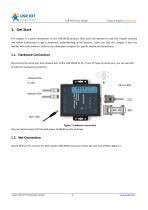
Technical Support: h.usriot.com 1. Get Start This chapter is a quick introduction to the USR-W630 product. New users are advised to read this chapter carefully and follow instructions to get a systematic understanding of the product. Users can skip this chapter if they are familiar with such products. Refer to the subsequent chapters for specific details and instructions. 1.1. Hardware Connection We connect the serial port and network port of the USR-W630 to PC, if your PC have no serial port, you can use USB to 232 line. Hardware connection: Figure 1 hardware connection You just need connect...
Open the catalog to page 4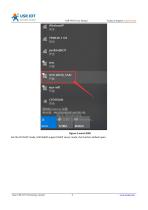
Technical Support: h.usriot.com Figure 2 search SSID Set the PC DHCP mode, USR-W630 support DHCP server mode, the function default open. Jinan USR IOT Technology Limited
Open the catalog to page 5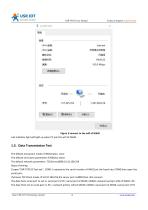
Technical Support: h.usriot.com Figure 3 connect to the wifi of W630 Link indicator light will light up when PC join the wifi of W630. 1.3. Data Transmission Test The default encryption mode of W610:open, none The default serial port parameters:57600,8,1,None The default network parameters: TCP,Server,8899,10.10.100.254 Steps of testing 1\open”USR-TCP232-Test.exe”, COM11 represents the serial number of W610,set the baud rate 57600,then open the serial port; 2\choose TCP Client mode, IP:10.10.100.254,the server port is 8899,then click connect. The data from serial port to net is: serial port of...
Open the catalog to page 6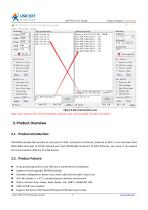
Technical Support: h.usriot.com Figure 4 data transmission test Note: users need to turn off the redundant network cards, and only keep one WiFi connection. 2. Product Overview 2.1. Product Introduction USR-W630 provide the function of serial port to WIFI, serial port to Ethernet, Ethernet to WIFI. It can send data from RS232/485 serial port to TCP/IP network port, from RS232/485 serial port to WIFI/ Ethernet, vice versa. It can expand the communication distance of serial devices. It has positioning holes on the shell and is convenient for installation Support remote upgrade, MODBUS polling Standard...
Open the catalog to page 7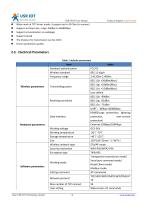
Technical Support: h.usriot.com When work at TCP Server mode, it support up to 24 Client to connect Support set baud rate, range: 300bps to 460800bps Support set parameters on webpage Support reload The distance for transmission can be 210m Ensure production quality 2.3. Electrical Parameters Table 1 default parameters Item Standard authentication Wireless standard Frequency range Wireless parameters Transmitting power Receiving sensitivity Data interface Hardware parameters Working voltage Working temperature Storage temperature Size Wireless network type Security mechanism Encryption type Working...
Open the catalog to page 8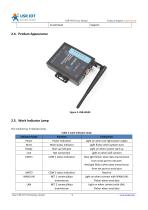
Technical Support: h.usriot.com 2.5. Work Indicator Lamp The module has 7 indicator lamp: Table 2 work indicator lamp Indicator lamp Power Work Ready Link UART1 Function Power indication Work status indicator Start up indicator Net connection COM 1 status indication COM 2 status indication NET 1 connect/data transmission NET 2 connect/data transmission Jinan USR IOT Technology Limited Instruction Light on when use right power supply Light flicker when system start Light on when system start up Light on when wifi connect Blue light flicker when data transmission from serial port to net port; Red...
Open the catalog to page 9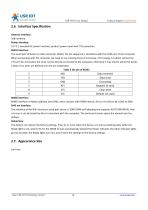
Technical Support: h.usriot.com 2.6. Interface Specification Antenna interface: 3dbi antenna Power interface: 5.5*2.1 standard DC power interface, product power input with TVS protection RS232 interface: The serial port of device is male connector, RS232, the pin sequence is consistent with the COM port of the computer. When connecting with the computer, we need to use crossing lines (2-3 crossing, 7-8 crossing, 5-5 direct connection, 7-8 can’t be connected, but must not be directly connected to the computer, otherwise it may lead to abnormal work), a total of six wires are defined, the rest...
Open the catalog to page 10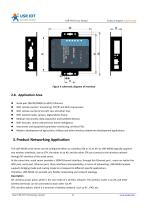
Technical Support: h.usriot.com Figure 6 schematic diagram of interface Serial port (RS232/RS485) to WIFI/ Ethernet. WIFI remote control / monitoring, TCP/IP and WIFI coprocessor; WIFI remote control of aircraft, cars and other toys; WIFI network radio, camera, digital photo frame; Medical instruments, data acquisition and handheld devices. WIFI fat scale, smart card terminal, home intelligence; Instrument and equipment parameter monitoring, wireless POS; Modern development of agriculture, military and other wireless related two development applications 3. Product Networking Application The USR-W630...
Open the catalog to page 11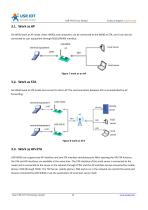
Technical Support: h.usriot.com 3.1. Work as AP Set W630 work at AP mode. Other W630s and computers can be connected to the W630 as STA, and it can also be connected to user equipment through RS232/RS485 interface. 3.2. Work as STA Set W630 work at STA mode and connect to other AP. The communication between STA is accomplished by AP forwarding. 3.3. Work as AP+STA USR-W630 can support one AP interface and one STA interface simultaneously. After opening the AP+STA function, the STA and AP interfaces are available at the same time. The STA interface of the serial server is connected to the router...
Open the catalog to page 12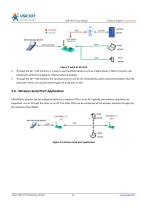
Technical Support: h.usriot.com Figure 9 work as AP+STA Through the AP + STA function, it is easy to use handheld devices such as mobile phone / PAD to monitor user equipment without changing its original network settings. Through the AP + STA function, the serial port server can be set conveniently, which solves the problem that the serial port server can only be set through the serial port in STA. 3.4. Wireless Serial Port Application USR-W630's wireless can be configured either as a wireless STA or as an AP. Logically, two wireless interfaces are supported, one as STA and the other as an AP....
Open the catalog to page 13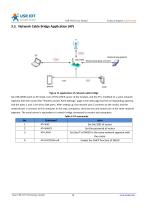
Technical Support: h.usriot.com 3.5. Network Cable Bridge Application (AP) Figure 11 application of network cable bridge Set USR-W630 work at AP mode, turn off the DHCP server of the module, and the IP is modified to a same network segment with the router (the "Wireless Access Point Settings" page in the web page has the corresponding options), and the ports 1 and 2 are set to LAN ports. After setting up, the network port 2 connects to the router, and the network port 1 connects to the computer. In this way, computers, serial servers and routers are in the same network segment. The serial server...
Open the catalog to page 14All Jinan USR IOT Technology Limited catalogs and technical brochures
 USR-MB706
2 Pages
 USR-G807
6 Pages
 USR-N520-H7-6
5 Pages
 USR-G786-G
2 Pages
 USR-LG206-P
15 Pages
 USR-M511
19 Pages
 USR-K6
107 Pages
 USR-K5
81 Pages
 USR-TCP232-306
23 Pages
 USR-DR302
70 Pages
 USR-DR301
70 Pages
 USR-DR404
86 Pages
 USR-GPRS232-734
15 Pages
 USR-N668
48 Pages
 USR-W610
4 Pages
 USR-WIFI232-B2
1 Page
 USR-WIFI232-A2
1 Page
 USR-GM3
2 Pages
 USR-SDR021
4 Pages
 USR-SDR041
3 Pages
 USR-SDR080
3 Pages
 USR-SDR160
3 Pages
 USR-K7
1 Page
 USR-CANET200
3 Pages
 USR-TCP232-S2
1 Page
 USR-TCP232-T2
1 Page
 USR-GPRS232-730
2 Pages
 GW-R4513
5 Pages
 USR-TCP232-304
1 Page
 USR-TCP232-302
1 Page
 USR-G806-A
6 Pages
 USR-G806-E/AU
6 Pages
 USR-TCP232-ED2
4 Pages
 USR-TCP232-E2
4 Pages
 USR-N540
5 Pages
 USR-N510
5 Pages
 USR-N520
5 Pages
 USR-N580
5 Pages
 USRIOT USR-G800V2 catalogs
7 Pages
 USR-GPRS232-7S3
2 Pages
 USR-SDR050-L
4 Pages


- Ethernet switch
- Industrial network switch
- DIN rail mounted network switch
- Waterproof network switch
- Communication gateway
- Unmanaged switch
- Redundant network switch
- Industrial gateway
- Fieldbus gateway
- Ethernet gateway
- PoE network switch
- Serial gateway
- Ethernet communication router
- Industrial communication router
- DIN rail converter
- IP40 network switch
- Fast network switch
- Ethernet converter
- 8 ports network switch
- Cellular communication router