


USR-DR301

USR-DR301
The USR-DR301 is a device for data transmission between Ethernet interfaces and RS485 serial ports. Users can configure it via a webpage or setup software. Initial operations are recommended for familiarization.
Components needed include a DC5V 1A power adapter, serial cable, network cable, USR-DR301, and a PC. The device connects to a PC via serial and RJ45 ports, powered by an AC adapter.
After connecting hardware, disable the PC firewall and anti-virus software, and set a static IP for the PC to match the USR-DR301's network segment.
Defaults include username/password 'admin', IP 192.168.0.7, baud rate 115200, and TCP Client mode.
Using default parameters, test data transmission between COM and network using USR-TCP232-Test software.
The USR-DR301 is a Modbus RS232 to Ethernet converter supporting bidirectional transparent transmission with an ARM processor, low power consumption, and high stability. It supports TCP/UDP server/client modes and HTTPD client.
Operates on ARM Cortex-M0, supports wide temperature range, auto-MDI/MDIX, RJ45 port with 10/100Mbps, and multiple work modes. Configuration via webpage, AT command, serial, and net protocol is supported, along with DHCP, DNS, and firmware upgrades.
Hardware: DC5-36V input, 130mA@5V current, RH45 net interface, 10/1000Mbps, baud rate 600-460.8Kbps. Software: IPV4, TCP/UDP, ARP, ICMP, IPV4 protocols.
- Network Support: Supports DP server, UDP client, RFC2217, HTTPD client, and up to 8 TCP client connections.
- Buffer Capacities: 16Kbyte network send buffer, 4Kbyte receive buffer, 1Kbyte serial buffer.
- Performance: Average delay <10ms.
- Software Compatibility: Compatible with USR-VCOM, USR-cloud, and setup software.
- Certifications: CE, FCC, ROHS certified.
- Protection: 1.5KV electromagnetic isolation.
- Dimensions: 71.0*60.0*25.0mm.
- Environmental Conditions: Operating temperature -40 to +85°C, storage -40 to 105°C, humidity 5-95% RH.
- IP Configuration: Supports static IP and DHCP.
- DNS Server Address: Default 8.8.8.8 for static IP mode.
- Webserver: Built-in, default port 80, modifiable.
- Factory Reset: Via hardware button, software, or AT command.
- Firmware Upgrade: Via network connection.
- TCP Client Mode: Client connection for TCP net server with keepalive packets.
- TCP Server Mode: Up to 8 client connections, suitable for LAN communication.
- UDP Client Mode: No connection verification, supports UDP broadcast.
- UDP Server Mode: Suitable for high-speed communication.
- HTTPD Client Mode: Sends request data to HTTP servers.
- Impersistent Connection: Saves server resources by disconnecting inactive connections.
- Buffer Data Management: Caches data if TCP connection is not established.
- USR-VCOM Application: Facilitates communication between PC software and networked devices.
- Modbus Gateway: Supports Modbus RTU and TCP protocol conversion.
- USR-Cloud Function: Enables remote data transmission and monitoring.
- Heartbeat and Registration Packet Functions: Maintains connections and allows self-defined packets.
- Customized Webpage: Users can modify the DR301's webpage.
- Link and Index Functions: Indicates TCP connection status and manages client connections.
- Serial Port Packaging and Flow Calculation: Configurable packaging time and length.
- Synchronous Baud Rate (RFC2217): Allows encryption during data transmission.
- Setting Protocol: Supports network and serial port setting protocols.
- Command Examples: Includes examples for reading settings, parameter settings, and more.
- Basic Parameter Settings: Details IP address type, HTTP server port, and more.
- Port Settings: Describes baud rate, data size, and more.
- Return Command Results: Explains expected return results for commands.
- AT Command Protocol: Overview of AT command protocol for configuration.
- Error Codes: List of error codes and explanations.
- AT Command List: Comprehensive list of AT commands and their functions.
Methods include software, webpage, and serial configurations. Key steps involve revising username/password, setting IP access method, configuring serial parameters, and selecting work mode.
Ensure the device and PC are on the same LAN, disable antivirus and firewalls. Configurable parameters include webpage port, username, password, and more.
Access the device's IP via a browser to configure settings and manage parameters.
Instructions for using AT commands to query and set parameters.
- AT+E: Enable/disable command echo.
- AT+Z: Restart the module.
- AT+VER: Query firmware version.
- AT+MAC: Query MAC address.
- AT+WEBU: Set/query username and password.
- AT+WANN: Set/query WAN IP settings.
- AT+DNS: Set/query DNS server address.
- AT+UART: Set/query UART interface parameters.
- AT+SOCK: Set/query web protocol parameters.
- AT+SHORTO: Sets short connection time.
- AT+UARTCLBUF: Configures serial port cache clearing.
- AT+RSTIM: Sets restart timeout.
- AT+MAXSK: Configures maximum TCP server clients.
- AT+MID: Sets module name.
- AT+MODTCP: Queries/sets Modbus TCP function.
- AT+H: Provides help information.
- Company: Jinan USR IOT Technology Limited
- Address: Floor 11, Building 1, No.1166 Xinluo Street, Gaoxin District, Jinan, Shandong, 250101 China
- Tel: 86-531-55507297, 86-531-88826739
- Web: www.usriot.com
- Support: h.usriot.com
- Email: [email protected]
This document provides information on USR-DR301 products without granting any intellectual property licenses. The company does not assume any responsibilities beyond those declared in sales terms and conditions and does not warrant product sales and use explicitly or implicitly.
- 2019-10-08 V 1.0.0 Created
Catalog excerpts
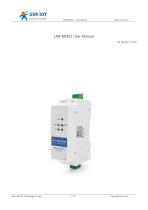
USR-DR301 User Manual File Version: V1.0.0 Jinan USR IOT Technology Limited
Open the catalog to page 1
Jinan USR IOT Technology Limited
Open the catalog to page 2
Jinan USR IOT Technology Limited
Open the catalog to page 3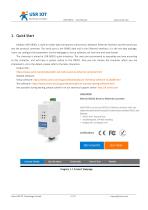
1. Quick Start Module USR-DR301 is used to realize data transparent transmission between Ethernet interface and the serial port and the protocol converter. The serial port is the RS485 data and in the Ethernet interface, it is the net data package. Users can configure the parameters via the webpage or set-up software, set one time and save forever The character is aimed at USR-DR301 quick introduce. The users are recommend to operating one time according to this character, and will have a system realize to the DR301. Also you can choose the character which you are interested in. As to the details,...
Open the catalog to page 4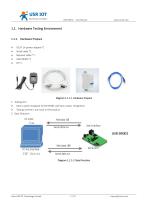
1.1. Hardware Testing Environment 1.1.1. Hardware Prepare Diagram 1.1.1-1 Hardware Prepare 1. Testing Aim Have a quick recognize to the DR301 and have a basic recognition Testing is there is any issue in the product. 2. Data Direction Diagram 1.1.1-2 Data Direction Jinan USR IOT Technology Limited
Open the catalog to page 5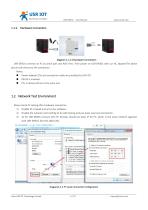
Diagram 1.1.2-1Hardware Connection USR-DR301 connects to PC by serial port and RJ45 Port. Then power on USR-DR301 with our AC adapter.The above picture will show you the connection. Notes: Power adapter (5V) and connection cable are provided by USR IOT. RS232 is involved. PCs in above picture is the same one. 1.2. Network Test Environment Please check PC setting after hardware connection. 1) Disable PC Firewall and anti-virus software. 2) Disable the network card nothing to do with testing and just leave one local connection. 3) As for USR-DR301 connect with PC directly, should set static...
Open the catalog to page 6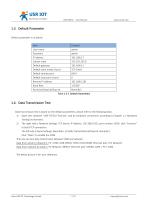
1.3. Default Parameter Default parameter is as below: Item User name Subnet mask Default gateway Default work mode of port Default remote port Default local port of port Baud Rate Parity bit/Data bit/Stop bit Form 1.3-1 Default Parameters 1.4. Data Transmission Test Data transmission test is based on the default parameters, please refer to the following steps: 1) Open test software “USR-TCP232-Test.exe”, and do hardware connection according to Chapter 1.1 Hardware Testing Environment. 2) The right side is Network Settings: TCP Server, IP address: 192.168.0.201, port number: 8324, click “Connect”...
Open the catalog to page 7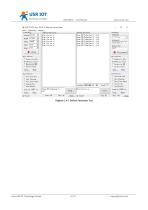
Diagram 1.4-1 Default Parameter Test Jinan USR IOT Technology Limited
Open the catalog to page 8
2. Overview 2.1. Brief Introduction USR-DR301 Modbus RS232 to Ethernet converter can realize bidirectional transparent transmission between RS485 and Ethernet. It carries ARM processor, low power, fast speed, high stability. Via web-page or software, RS232 to Ethernet Converter can realize serial data and TCP/IP data package transparent transmission. ARM base on Cortex-M0 kernel, and reliable TCP/IP protocol stack Industrial working temperature range from -40C ~85C Auto-MDI/MDIX, RJ45 port with 10/100Mbps Support TCP server, TCP client, UDP server, UDP client, HTTPD client and modbus TCP work...
Open the catalog to page 9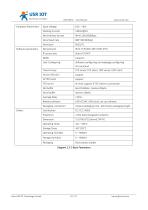
Hardware Parameters Serial baud rate Serial port User Configuring Software configuring and webpage configuring AT command TCP server, TCP client, UDP server, UDP client HTTPD client At most support 8 TCP client to connection Serial buffer Average delay Related software USR-VCOM, USR-cloud, set-up software Packaging mechanism 4 bytes packaging time, 1024 bytes packaging length. Operating Temp. Storage Temp Operating Humidity Storage Humidity Working Current Software parameters Input Voltage Electrostatic bubble Diagram 2.3-1 Basic Parameters Jinan USR IOT Technology Limited
Open the catalog to page 10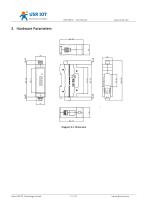
Jinan USR IOT Technology Limited
Open the catalog to page 11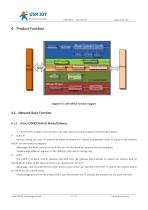
Diagram 4-1 USR-DR301 Function Diagram 4.1. Network Basic Function 4.1.1. Static IP/DHCP/Subnet Masks/Gateway 1. The IP of the module is the symbol in the LAN, which can be distinguish from the other device. Static IP Manual setting the static IP, meanwhile please writing the IP, subnet and gateway. Static IP adjust to the scenario that IP and the device correspond. Advantage: the device access to the IP that can not distribute can searched by the broadcast Disadvantage:different segment of the different LAN need to configuring. DHCP The DHCP is to obtain the IP, gateway and DNS from the...
Open the catalog to page 12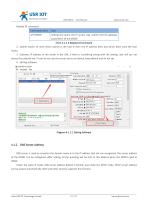
Related AT command: Command name Setting and query the IP access way, subnet and the gateway parameters of the DR301 Form 4.1.1-1 Related AT Command 2. Subnet masks: to mark which subnet is the host in from the IP address bites and which bites mark the host masks. 3. Gateway: IP address of the router in the LAN, if there is something wrong with the setting, user will can not access the external net. If user do not use the router and so on device, keep default and do not set. 4. Setting software. Diagram 4.1.1-1 Setting Software 4.1.2. DNS Server Address DNS server is used to converter the domain...
Open the catalog to page 13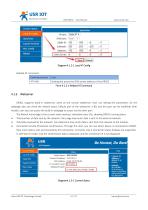
Diagram 4.1.2-1 Local IP Config Related AT command: Command name Setting and query the DNS server address of the DR301 Form 4.1.2-1 Related AT Command 4.1.3. Webserver DR301 supports build-in webserver, same as the normal webserver. User can setting the parameters via the webpage also can check the related status. Default port of the webserver is 80, and this port can be modified/ after modify, user also can access the build-in webpage to access via the other port. The default home page is the current state interface, refreshed every 10s, showing DR301 running status: Total number of data sent...
Open the catalog to page 14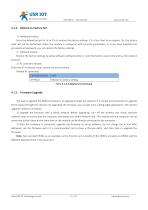
4.1.4. Restore to Factory Set 1) Hardware restore: Press the Reload button for 5s to 15s to restore the factory settings. If it is less than 5s or exceeds 15s, the factory reset will not be performed. When the module is configured with incorrect parameters, or if you have forgotten the previously set password, you can restore the factory settings. 2) Software restore: Restore the factory settings by setup software setting function or send the factory reset command via the network protocol. 3) AT command restore: Enter the AT command mode, restore via the command. Related AT command: Command name...
Open the catalog to page 15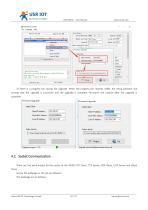
3) There is a progress bar during the upgrade. When the progress bar reaches 100%, the setup software will prompt that the upgrade is successful and the upgrade is complete. Re-search the module after the upgrade is complete. 4.2. Socket Communication There are five work modes for the socket of the DR301:TCP Client, TCP Server, UDP Client, UDP Server and Httpd Client. Set via the webpage or the set-up software The webpage are as bellows: Jinan USR IOT Technology Limited
Open the catalog to page 16All Jinan USR IOT Technology Limited catalogs and technical brochures
 USR-MB706
2 Pages
 USR-G807
6 Pages
 USR-N520-H7-6
5 Pages
 USR-G786-G
2 Pages
 USR-LG206-P
15 Pages
 USR-M511
19 Pages
 USR-K6
107 Pages
 USR-K5
81 Pages
 USR-TCP232-306
23 Pages
 USR-DR302
70 Pages
 USR-DR404
86 Pages
 USR-GPRS232-734
15 Pages
 USR-N668
48 Pages
 USR-W630
34 Pages
 USR-W610
4 Pages
 USR-WIFI232-B2
1 Page
 USR-WIFI232-A2
1 Page
 USR-GM3
2 Pages
 USR-SDR021
4 Pages
 USR-SDR041
3 Pages
 USR-SDR080
3 Pages
 USR-SDR160
3 Pages
 USR-K7
1 Page
 USR-CANET200
3 Pages
 USR-TCP232-S2
1 Page
 USR-TCP232-T2
1 Page
 USR-GPRS232-730
2 Pages
 GW-R4513
5 Pages
 USR-TCP232-304
1 Page
 USR-TCP232-302
1 Page
 USR-G806-A
6 Pages
 USR-G806-E/AU
6 Pages
 USR-TCP232-ED2
4 Pages
 USR-TCP232-E2
4 Pages
 USR-N540
5 Pages
 USR-N510
5 Pages
 USR-N520
5 Pages
 USR-N580
5 Pages
 USRIOT USR-G800V2 catalogs
7 Pages
 USR-GPRS232-7S3
2 Pages
 USR-SDR050-L
4 Pages


- Ethernet switch
- Industrial network switch
- DIN rail mounted network switch
- Waterproof network switch
- Communication gateway
- Unmanaged switch
- Redundant network switch
- Industrial gateway
- Fieldbus gateway
- Ethernet gateway
- PoE network switch
- Serial gateway
- Ethernet communication router
- Industrial communication router
- DIN rail converter
- IP40 network switch
- Fast network switch
- 8 ports network switch
- Cellular communication router