- Catalogs
- Infranor Group
- GemProgramming_e_1.1


GemProgramming_e_1.1
1 /47Pages
GemProgramming_e_1.1
1 /47Pages
Catalog excerpts
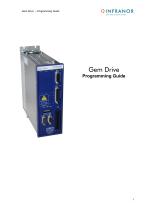
Gem Drive - Programming Guide SERVO DRIVES S. MOTION CONTROL
Open the catalog to page 1
Gem Drive – Programming Guide ! This is a general manual describing a series of servo amplifiers having output capability suitable for driving AC brushless sinusoidal servo motors. Instructions for storage, use after storage, commissioning as well as all technical details require the MANDATORY reading of the manual before getting the amplifiers operational. Please see GD1 Installation Guide for the installation and the GD1 User Guide for the operation of the amplifier (commissioning, configuration…). Maintenance procedures should be attempted only by highly skilled technicians having good knowledge...
Open the catalog to page 2
Gem Drive - Programming Guide CINFRANOR SERVO DRIVES & MOTION CONTROL
Open the catalog to page 3
Gem Drive - Programming Guide
Open the catalog to page 4
Gem Drive – Programming Guide Chapter 1. Gem Drive Programming 1. Introduction The Gem Drive is the newest INFRANOR product. One of the differences with the former Infranor drive ranges is its programmability. A basic programming language was defined for this purpose. This gives the Gem Drive more autonomy. This programming language is based on IEC 1131-3 syntax. To make system integration easy, Gem Drive offers a comprehensive and powerful high-level application programming interface, as well as our Gem Drive Studio for its setting, tuning and programming. These user friendly software tools...
Open the catalog to page 5
Gem Drive - Programming Guide Gem Drive Studio is an intuitive Windows® based, Integrated Development Environment (IDE) for developing motion applications. It is dedicated to the newest generation of INFRANOR programmable drives, called Gem Drive. The IDE provides flexible project management environment making the system easy to program. A project is designed in a single entity for all user applications. It is organized by axis. For each axis, the user can setup the drive parameters and, at need, make an application program with an unique software. Gem Drive Studio includes also diagnostic tools...
Open the catalog to page 6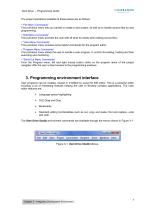
Gem Drive - Programming Guide The project operations available at these places are as follows: • “File Menu Commands” This pull-down menu lets you handle or create a new project, as well as to handle source files for axis programming. • “Edit Menu Commands” This pull-down menu provides the user with all what he needs when editing source files. • “View Menu Commands” This pull-down menu includes some helpful commands for the program editor. • “Program Menu Commands” This pull-down menu allows the user to handle a user program, to control its building, loading and then executing and monitoring....
Open the catalog to page 7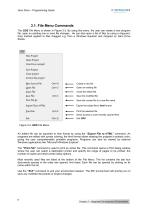
Gem Drive – Programming Guide 3.1. File Menu Commands The GDS File Menu is shown in Figure 3-2. By using this menu, the user can create a new program file, open an existing one or save file changes. He can also open a list of files by using a drag-anddrop method applied to files dragged e.g. from a Windows Explorer and dropped on Gem Drive Studio. Create a new file Open an existing file Close the edited file Save the modified file Save the current file to a new file name Export the edited file to html format Print the selected file Direct access to most recently opened files Exit GDS Figure 3-2:...
Open the catalog to page 8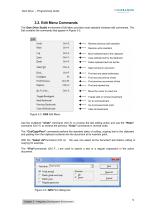
Gem Drive – Programming Guide 3.2. Edit Menu Commands The Gem Drive Studio environment Edit Menu provides most standard windows edit commands. The Edit contains the commands that appear in Figure 3-3: Reverse previous edit operation Reverse undo operation Move selected text to the clipboard Copy selected text to the clipboard Paste clipboard text into the file Select all text in document Find text and place bookmarks Find next occurrence of text Find previous occurrence of text Find and replace text Move the cursor to a text line Toggle (add or remove) bookmark Go to next bookmark Go to previous...
Open the catalog to page 9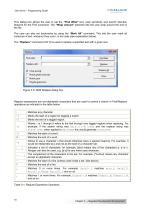
Gem Drive - Programming Guide This dialog box allows the user to set the “Find What” text, case sensitivity and search direction features for the Find command. The “Wrap Around” selection lets the user wrap around the end of the file. The user can also set bookmarks by using the “Mark All” command. This lets the user mark all instances of text, wherever they occur, in his code (see explanation below). The “Replace“ command (Ctrl H) is used to replace a specified text with a given one. Regular expressions are non-alphabetic characters that are used to control a search in Find/Replace operations...
Open the catalog to page 10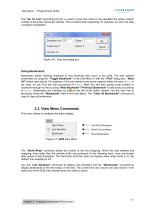
Gem Drive – Programming Guide The “Go To Line“ command (Ctrl G), is used to move the cursor to the specified line and/or column number in the active document window. This is helpful when searching, for example, an error line after a program compilation. Figure 3-6 : Goto line dialog box. Using Bookmarks Bookmarks allows marking instances of text wherever they occur in the code. The user defines bookmarks by using the “Toggle Bookmark” in the Edit Menu or with the “Find” dialog box, “Mark All” button (see above). For instance, if the user wants to see every instance where he uses MyVar in his...
Open the catalog to page 11
Gem Drive - Programming Guide This menu provides all programming commands for the selected axis. I Progr IOpen the Programming Tool View the user variables window Add Files to the user program Remove the selected file Build the user program Configure the output window Configure the file editor The “Programming Tool“ command opens the Programming tool window while the “User Names Viewer Tool“ command is used to view user variables window (see more information in section 5). “Add Files“ and “Remove File“ commands have to be used for adding/removing files to/from the user program. To remove a file,...
Open the catalog to page 12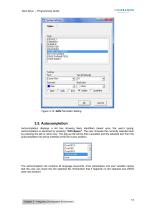
Gem Drive – Programming Guide Figure 3-10: GDS File Editor Setting. 3.5. Autocompletion Autocompletion displays a list box showing likely identifiers based upon the user's typing. Autocompletion is launched by pressing “Ctrl+Space”. The user chooses the currently selected item by pressing the tab or return key. The pop-up list will be then cancelled and the selected text from the autocompletion list will be inserted at the file cursor position. The autocompletion list contains all language keywords, drive parameters and user variable names that the user can insert into the selected file. Remember...
Open the catalog to page 13All Infranor Group catalogs and technical brochures
 XtrapulsPac_EN
4 Pages
 XtrapulsGemTemplates_e_1.4
21 Pages
 XtrapulsGem_User_Manual_v1.2.0.64
199 Pages
 XtrapulsGem_Inst_e_2.1
42 Pages
 XtrapulsGem_Inst_e_2.0
42 Pages
 STO_declaration_Gem
2 Pages
 SMTBSi-2Tz_en_2.1
43 Pages
![SMT100D_e_1.01[1]](https://img.directindustry.com/pdf/repository_di/4620720/smt100d-e-101-1-1141223_1mg.jpg) SMT100D_e_1.01[1]
SMT100D_e_1.01[1]40 Pages
 smt-100
32 Pages
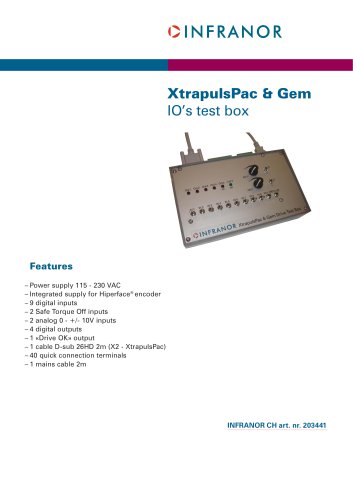 PacSimBox_e
1 Page
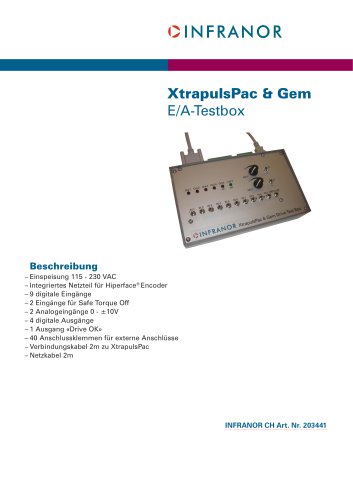 PacSimBox_d_1
1 Page
 Pac-SF01_flyer_en_18.02
4 Pages
 Pac_User_1.2.1.218
253 Pages
 Pac_Templates_en_1.9
27 Pages
 Pac_STO_Installation_en_2.2
13 Pages
 Pac_SF01_operating_en_1.6
63 Pages
 Pac_SF01_EN
4 Pages
 Pac_Installation_en_2.23
82 Pages
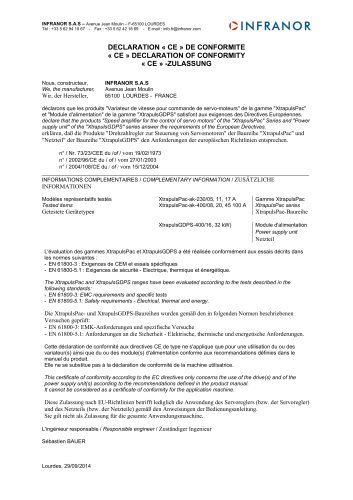 Pac_GDPS_CEconformity
1 Page
 Pac_flyer_en_17.12
4 Pages
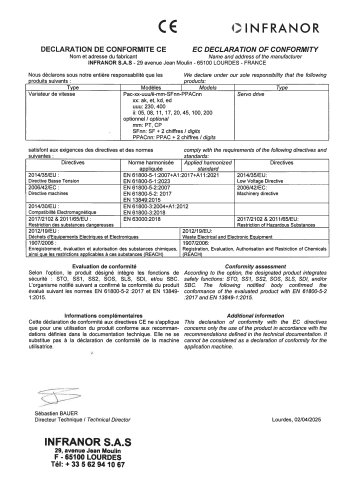 Pac_EC_conformity_25.04
1 Page
 Option_CT_EMF
6 Pages
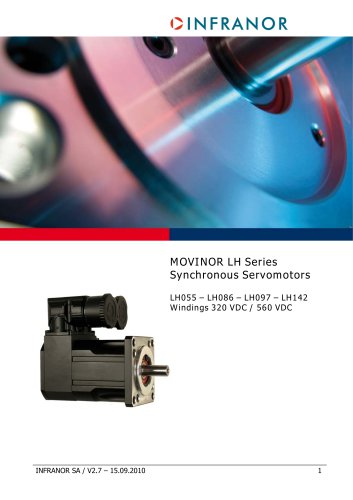 MOVINOR_LH055_LH086_LH097_LH142
23 Pages
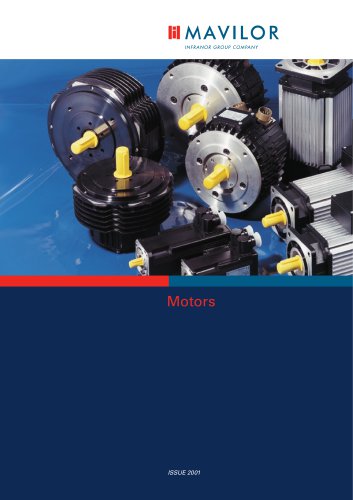 ma_series
6 Pages
 GemSafeTorqueOff_en_1.1
12 Pages
 GDPS_old_version_1.1_1
11 Pages
 CE_conformity_Gem
1 Page
 CD1pm_e_1.2(old)
18 Pages
 CD1pInst_e_7.2(old)
35 Pages
 CD1kInst_e_4.1(old)
40 Pages
 CD1k_CANopenProtocol_e_1.3(old)
86 Pages
 CD1a_e_7.1(old)
45 Pages
 Catalogue gamme SMT-BD1
11 Pages
 BM20A(F)v3_0
20 Pages
 BM20A(D)v3_0
20 Pages
 BF400(GB)v2_2
21 Pages
 BF400(D)v2_2
21 Pages
 BF230(GB)v2_0
23 Pages
 BF230(F)v2_0
23 Pages
 BD2m_e_2.2
69 Pages
 BD2m(GB)2.0
70 Pages
 BD2_e_3.2
53 Pages
 BD2(GB)3.1
53 Pages
 BD2(D)3.1
54 Pages
 Movinor_LH_e
4 Pages
 ma_series
6 Pages
 BD1t(GB)3.1
81 Pages
 BD1t(F)3.0
85 Pages
 BD1pInst(GB)3.0
25 Pages
 BD1pInst(F)3.0
23 Pages
 BD1pInst(D)3.0
24 Pages
 BD1pCD1pUse_e_2.4
57 Pages
 BD1m(GB)5.0
58 Pages
 BD1m(F)5.0
57 Pages
 BD1m(D)v3_3
64 Pages
 BD1k(GB)2.1
35 Pages
 BD1k(F)2.1
36 Pages
 BD1j(GB)v2_41
19 Pages
 BD1j(F)v2_4
21 Pages
 BD1i(GB)v2_21
23 Pages
 BD1i(F)v2_2
27 Pages
 BD1h(F)3.0
65 Pages
 BD1h(D)3.0
59 Pages
 BD1g(GB)v3_0
28 Pages
 BD1g(F)v3_0
28 Pages
 BD1f(GB)v2_01
18 Pages
 BD1f(F)v2_01
17 Pages
 BD1e(F)v2_01
22 Pages
 BD1d(GB)v2_01
25 Pages
 BD1d(F)v2_01
25 Pages
 BD1c(GB)v2_01
19 Pages
 BD1c(F)v2_01
19 Pages
 BD1a400(GB)v2_3
43 Pages
 BD1a400(F)v2_3
44 Pages
 BD1a400(D)v2_3
45 Pages
 BD1(GB)7.1_noPW
45 Pages
 BD1(GB)7.1
45 Pages
 BD1(F)7.1_noPW
47 Pages
 BD1(F)7.1
47 Pages
 BD1(D)7.1
45 Pages
 BD1 Katalog
11 Pages
 08ma_ms_e_01700
20 Pages
 Easy_User_5.0.1.60.2
190 Pages
 08ma_mrm_em_01575
20 Pages
 01ma_smv_e_01953
40 Pages
 PacHP-SF_Flyer_en_23.06
4 Pages
 IRD_User_Manual_en_1.2.XX.54.rev_b
216 Pages
 PacHP_User_en_1.2.8.100.b
280 Pages
 PacHP_TÜV_certificate_25.07
2 Pages
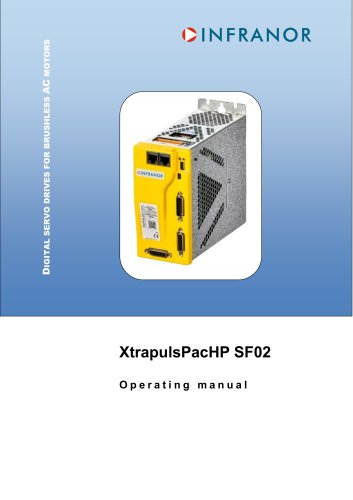 PacHP_SF02_operating_en_1.6
103 Pages
 PacHP_SF01_operating_en_2.0
63 Pages
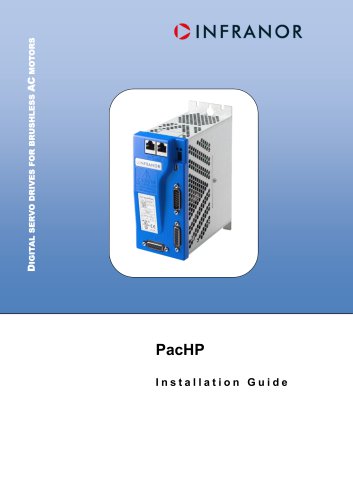 PacHP_Installation_en_2.9
91 Pages
 PacHP_Series_Brochure
8 Pages
 PacHP_Flyer_us_20.10
4 Pages
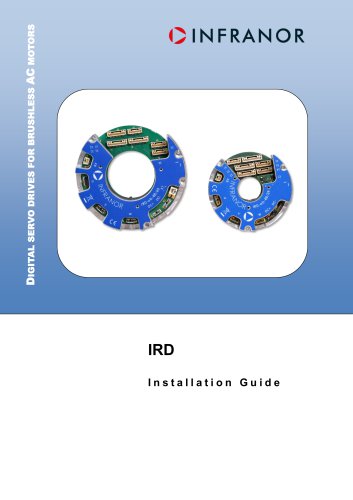 IRD_Installation_en_1.5
42 Pages
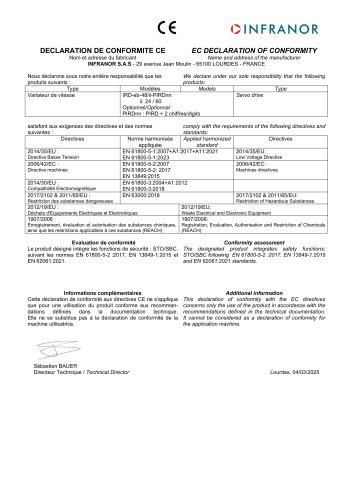 IRD_EC_Conformity_25.03
1 Page
 GDPS_Installation_en_4.4
18 Pages
 EtherCAT Interface_en_1.3
20 Pages
 GDPS_EC_conformity_24.07
1 Page
 Easy_STO_en_1.4
14 Pages
 Easy_EC_Conformity_24_10
1 Page
 Easy_DB_STO_en_1.2
14 Pages
 Easy_DB_Installation_en_1.4
36 Pages
 CD1pmUser_en_4.2
55 Pages
 CD1pmInst_en_8.15
40 Pages
 CD1k_CANopenProtocol_en_2.10.1.1
108 Pages
 CD1pm_ProfibusProtocol_en_1.5
50 Pages
 CD1kUser_en_2.3
26 Pages
 CD1a_en_8.17
62 Pages
 CD1kInst_en_5.16
46 Pages
 CD1_STO_en_1.8
16 Pages
 CD1_STO_conformity_19.02
2 Pages
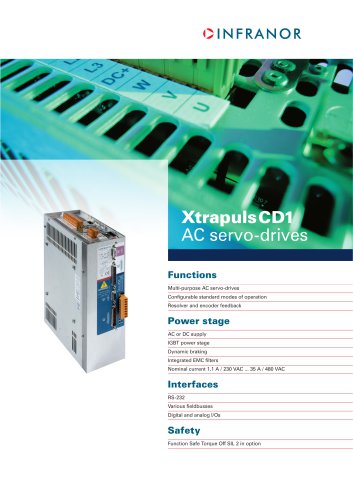 CD1_flyer_en_14.09
4 Pages
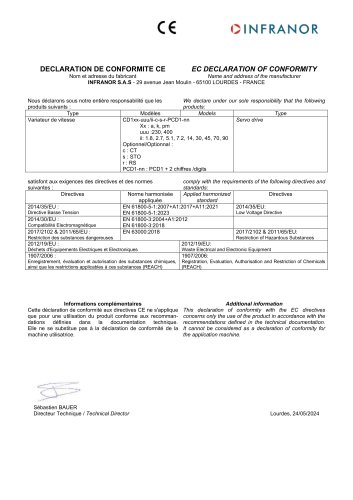 CD1_EC_conformity_24.05
1 Page
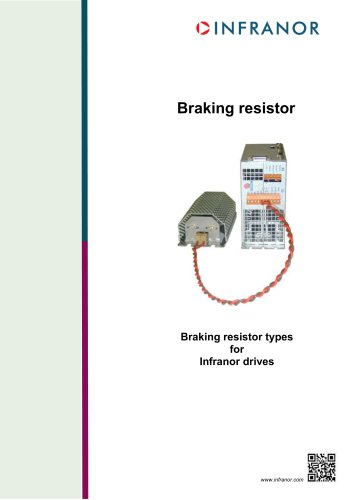 Braking_Resistors_en_1.5
10 Pages
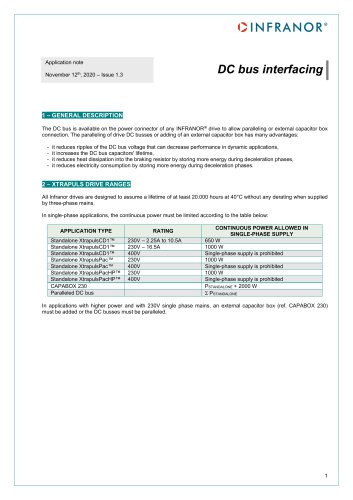 AN_DC_bus_interfacing_en_1.3
5 Pages
 AN_CD1pm_SinCosTracks_e_1.0
7 Pages
 AN_CD1pm_AbsoluteEncoder_en_2.0
10 Pages
 AN_CD1ak_SinCosTracks_e_1.0
7 Pages
 AN_CD1ak_AbsoluteEncoder_en_2.0
10 Pages
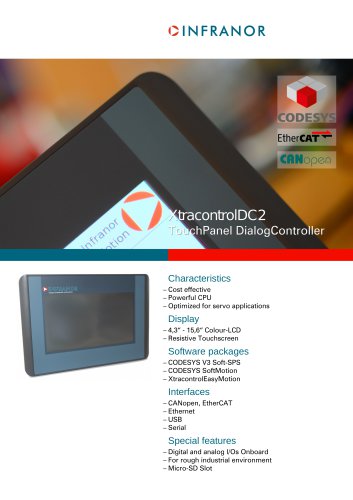 XtracontrolDC2_EN
4 Pages
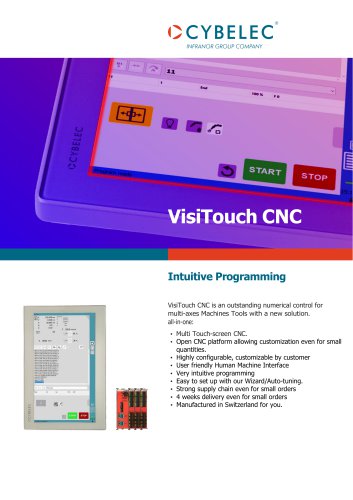 Flyer_VisiTouchCNC_EN_V1.1-1
2 Pages
 XtraforsWashdown_EN-2024
2 Pages
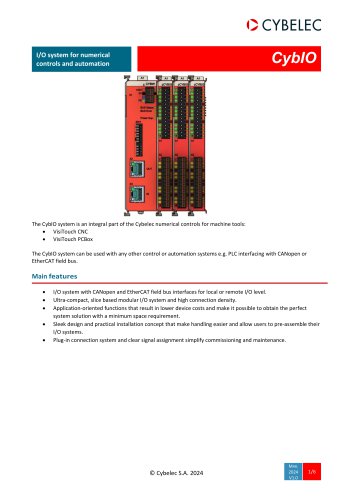 DataSheet_CybIO_CNC_V1.0
6 Pages
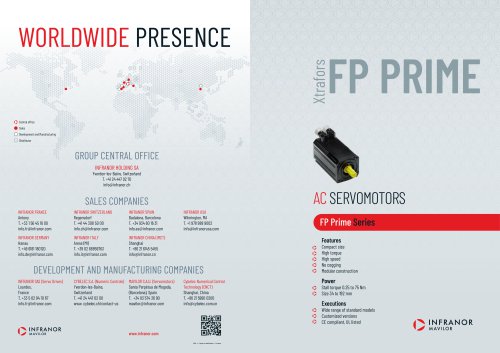 XtraforsPrime_EN-2024
2 Pages
 XtraforsMSS_EN
4 Pages
 XtraforsMSA_EN_2024
2 Pages
 XtraforsEx_EN-2024
2 Pages
 XtraforsBR_EN-2024
2 Pages
 XtraforsBL_EN-2024
2 Pages
 XtraforsBC-ed01-vs3
4 Pages
 Manual_XtraforsPrime
46 Pages
 Drawing_1
1 Page
 Datasheet_MSS
5 Pages
 Datasheet_2
2 Pages
 Datasheet_1
4 Pages
 BLSBLT_series
2 Pages
 BL220221
2 Pages
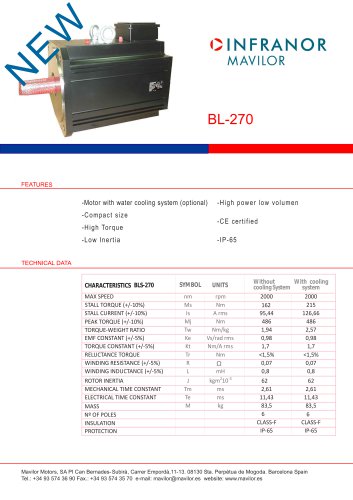 BL270
BL2702 Pages
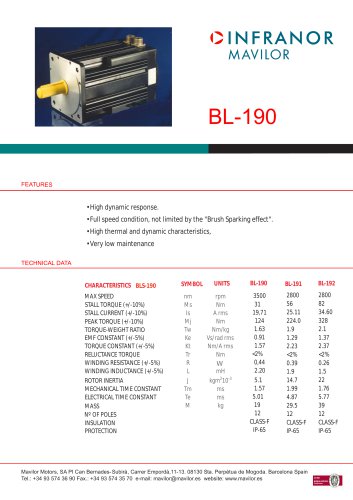 BL190
BL1902 Pages
 bl100_series
6 Pages
 bl40_series
6 Pages
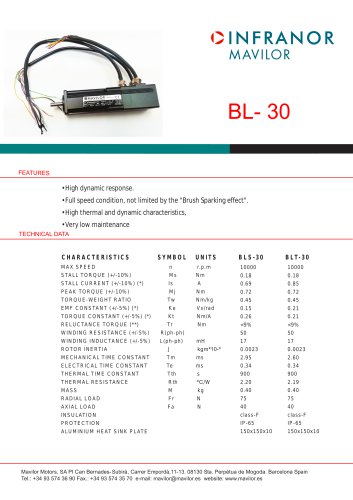 BL30
BL302 Pages
 2019-01_XtraforsFP-DSL_FR
4 Pages
 Movinor_T_EN
4 Pages
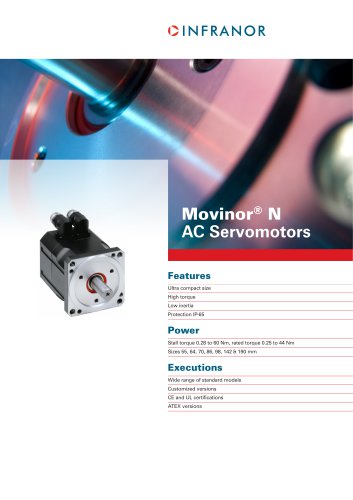 Movinor_N_EN
4 Pages
 Movinor_Low_Voltage_EN
4 Pages
 Manual Movinor T 03-2026
46 Pages
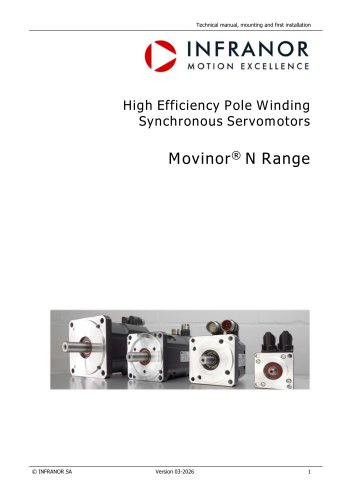 Manual Movinor N 03-2026
63 Pages
 XtrapulsEasy™ AC servo-drive
4 Pages
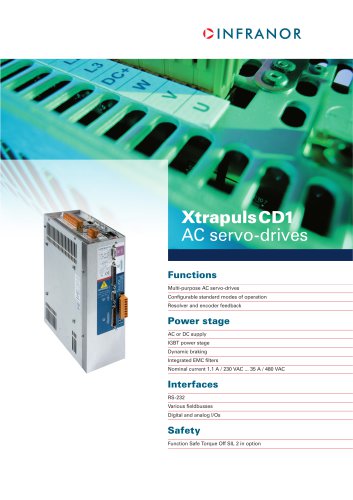 XtrapulsCD1 AC servo-drives
4 Pages
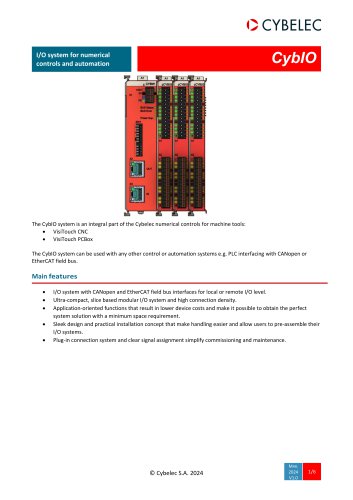 CybIO
CybIO6 Pages
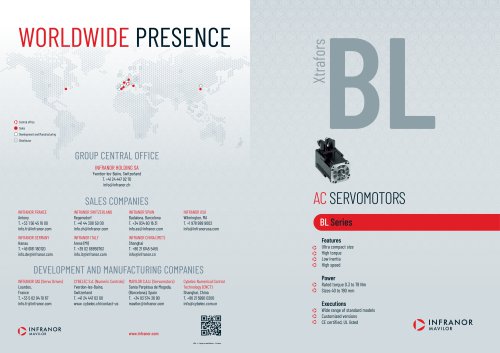 AC SERVOMOTORS
2 Pages
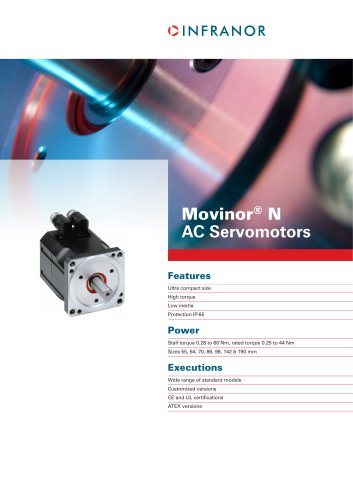 Movinor® N AC Servomotors
4 Pages