- Catalogs
- Havis Inc.
- TSD-201

TSD-201
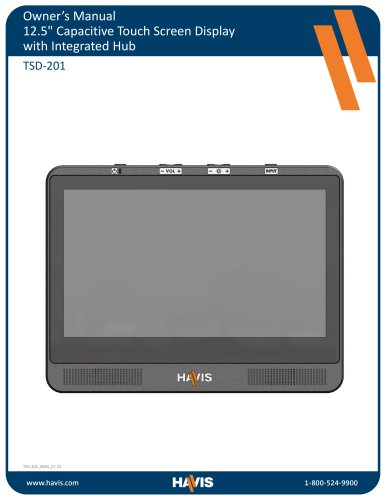
TSD-201
This manual provides guidance for the installation and use of the Havis TSD-201, a 12.5" Capacitive Touch Screen Display with Integrated Hub. For support, contact Havis or visit their website.
Safety Precautions
- Avoid placing the display in airbag deployment zones or using it while driving.
- Connect the display to vehicle power using the supplied Lind Power Supply.
- Use non-abrasive cleaning materials to avoid damage.
Specifications
- Power Supply: 11-16 V DC-In
- Dimensions: 9.58” H x 12.44” W x 1.51” D
- Weight: 2.66 lbs.
- Operating Environment: -29°C to 63°C
- Storage Environment: -51°C to 70°C
- Display: 12.5” Gorilla Glass, 1920 x 1080 resolution, 1200 NITS brightness
Certifications
- FCC Class B compliance
- EU and UKCA Declarations of Conformity
- EMC and RoHS Directives compliance
Parts and Installation
- Includes display hardware, power supply, and mounting hardware.
- Tools required: #2 Phillips screwdriver, 5/16” Hex Socket.
- Follow specific instructions for connecting power and external devices.
Operation
- Power on by pressing the Power Button; indicators show power status.
- Use touch screen features like pinch-zoom and multi-touch.
- Control volume and brightness using dedicated buttons.
- Activate Night Mode for reduced eye strain in dark environments.
Input Source Management
- Lock or unlock input sources using the Input Lock menu.
Related Products
- Havis offers various mounting solutions and accessories like keyboards and replacement cables.
Catalog excerpts
Owner's Manual 12.5" Capacitive Touch Screen Display with Integrated Hub
Open the catalog to page 1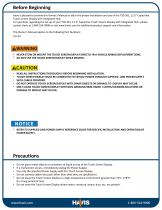
Before Beginning Havis is pleased to provide this Owner’s Manual to aid in the proper installation and use of the TSD-201, 12.5" Capacitive Touch Screen Display with Integrated Hub. For questions regarding the set-up of your TSD-201, 12.5" Capacitive Touch Screen Display with Integrated Hub , please contact Havis at 1-800-524-9900 or visit www.havis.com for additional product support and information. This Owner’s Manual applies to the following Part Numbers: TSD-201 • NEVER STOW OR MOUNT THE TOUCH SCREEN DISPLAY DIRECTLY IN A VEHICLE AIRBAG DEPLOYMENT ZONE. • DO NOT USE THE TOUCH SCREEN DISPLAY...
Open the catalog to page 2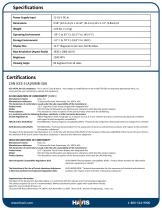
Specifications Power Supply Input FCC 47CFR, Part 15 compliance: This is an FCC Class B device. Any changes or modifications to the model TSD-201 not expressly approved by Havis, Inc. could void the user's authority to operate this equipment. EU DECLARATION OF CONFORMITY [CWN1] Manufacturers Name: Havis, Inc. Manufacturers Addresses: 75 Jacksonville Road, Warminster, PA, 18974, USA This declaration of conformity is issued under the sole responsibility of the manufacturer. Product name: 12.5" Capacitive Touch Screen Display with Integrated Hub Model: TSD-201. May be followed by any alphanumeric...
Open the catalog to page 3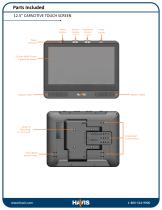
12.5" CAPACITIVE TOUCH SCREEN Power Power Volume Brightness Input Button Control Control Switch Strain Relief Anchor Points
Open the catalog to page 4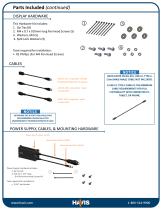
Parts Included (continued) DISPLAY HARDWARE This Hardware Kit includes: 1. Zip Ties (8) 2. M4 x 0.7 x 010mm long Pan Head Screws (5) 3. Washers, M4 (5) 4. Split Lock Washers (5) Tools required for installation: • #2 Phillips (For M4 Pan Head Screws) USB2.0, 2m. Long (male - female) for optional Keyboard or Accessory USB2.0, 20ft. Long (male - male) to External PC HDMI, 20ft. Long (male - male) to External PC EXTENDING THE 20 FOOT USB CABLE IS NOT RECOMMENDED UNLESS AN ACTIVE (INDEPENDENTLY POWERED) REPEATER IS USED. POWER SUPPLY, CABLES, & MOUNTING HARDWARE (Havis Part # HW-EL-0143) (Havis Part...
Open the catalog to page 5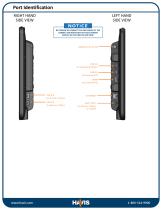
Port Identification RIGHT HAND SIDE VIEW LEFT HAND SIDE VIEW BE CERTAIN TO CONNECT THE USB CABLES TO THE CORRECT USB PORTS ON THE TOUCH SCREEN DISPLAY AS OUTLINED IN SIDE VIEW. USB 3.0 (to Keyboard/ Other) USB 3.0 (to External PC) HDMI (to External PC) USB TYPE-C (to Phone, Laptop, or Tablet)
Open the catalog to page 6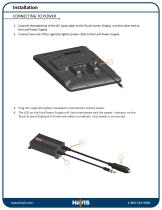
1. Connect threaded end of the DC input cable to the Touch Screen Display and the other end to the Lind Power Supply. 2. Connect one end of the cigarette lighter power cable to the Lind Power Supply. 3. Plug into cigarette lighter receptacle connected to vehicle power. 4. The LED on the Lind Power Supply will illuminate green and the power indicator on the Touch Screen Display will illuminate amber to indicate that power is connected.
Open the catalog to page 7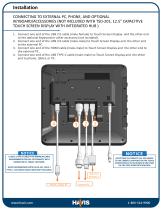
Installation CONNECTING TO EXTERNAL PC, PHONE, AND OPTIONAL KEYBOARD/ACCESSORIES (NOT INCLUDED WITH TSD-201, 12.5" CAPACITIVE TOUCH SCREEN DISPLAY WITH INTEGRATED HUB ) 1. Connect one end of the USB 2.0 cable (male-female) to Touch Screen Display and the other end to the optional keyboard or other accessory (not included). 2. Connect one end of the USB 3.0 cable (male-male) to Touch Screen Display and the other end to the external PC. 3. Connect one end of the HDMI cable (male-male) to Touch Screen Display and the other end to the external PC. 4. Connect one end of the USB TYPE-C cable (male-male)...
Open the catalog to page 8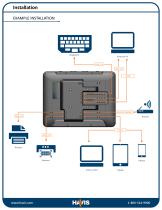
Installation EXAMPLE INSTALLATION
Open the catalog to page 9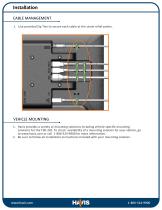
1. Use provided Zip Ties to secure each cable at the strain relief points. VEHICLE MOUNTING 1. Havis provides a variety or mounting solutions including vehicle-specific mounting solutions for the TSD-201. To check availability of a mounting solution for your vehicle, go to www.havis.com or call 1-800-524-9900 for more information. 2. Be sure to follow all installation instructions included with your mounting solution.
Open the catalog to page 10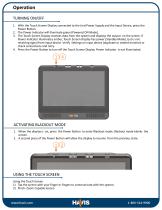
OperationTURNING ON/OFF 1. With the Touch Screen Display connected to the Lind Power Supply and the Input Device, press the Power Button. 2. The Power Indicator will illuminate green (Powered ON Mode). 3. The Touch Screen Display receives data from the system and displays the output on the screen. If Power Indicator illuminates amber, Touch Screen Display has power (Standby Mode), but is not receiving signal from input device. Verify Settings on input device (duplicate or extend monitor) or check connections and retry. 4. Press the Power Button to turn off the Touch Screen Display. Power Indicator...
Open the catalog to page 11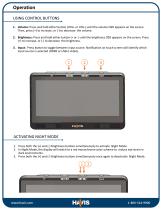
USING CONTROL BUTTONS 1. Volume: Press and hold either button (VOL+ or VOL-) until the volume OSD appears on the screen. Then, press (+) to increase, or (-) to decrease the volume. 2. Brightness: Press and hold either button (+ or -) until the brightness OSD appears on the screen. Press (+) to increase, or (-) to decrease the brightness. 3. Input: Press button to toggle between input source. Notification on touch screen will identify which input source is selected (HDMI or USB-C video). ACTIVATING NIGHT MODE 1. Press both the (+) and (-) Brightness buttons simultaneously to activate Night Mode....
Open the catalog to page 12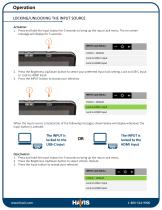
LOCKING/UNLOCKING THE INPUT SOURCE Activation: 1. Press and hold the Input button for 3 seconds to bring up the Input Lock menu. The on-screen message will display for 5 seconds. 2. Press the Brightness Up/Down button to select your preferred Input lock setting, Lock to USB-C Input or Lock to HDMI Input. 3. Press the INPUT button to accept your selection. INPUT Lock Menu Unlock - Default Lock to USB-C Input Lock to HDMI Input When the Input source is locked one of the following messages shown below will display whenever the Input button is pressed: The INPUT is locked to the USB-C input OR The...
Open the catalog to page 13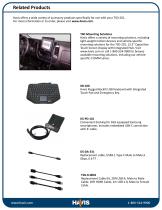
Related Products Havis offers a wide variety of accessory products specifically for use with your TSD-201. For more information or to order, please visit www.havis.com. TSD Mounting Solutions Havis offers a variety of mounting solutions, including light-weight motion devices and vehicle-specific mounting solutions for the TSD-201, 12.5" Capacitive Touch Screen Display with Integrated Hub. Visit www.havis.com or call 1-800-524-9900 to browse available mounting solutions, including our vehiclespecific C-DMM series. KB-108 Havis Rugged Backlit USB Keyboard with Integrated Touch Pad and Emergency...
Open the catalog to page 14All Havis Inc. catalogs and technical brochures
 MM-1000 SERIES
2 Pages
 MM-1000 SP LINE
5 Pages
 DS-PAN-1500 Series
12 Pages