
- Catalogs
- Havis Inc.
- DS-PAN-1500 Series

DS-PAN-1500 Series
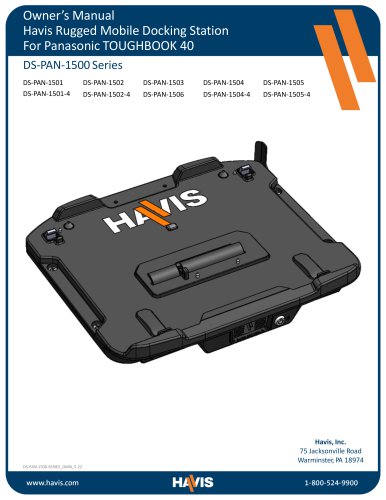
DS-PAN-1500 Series
This document is the Owner’s Manual for the Havis DS-PAN-1500 Series Docking Station, designed for Panasonic TOUGHBOOK 40 laptops. It provides installation instructions, safety precautions, specifications, and operational guidelines.
Precautions
- Do not mount the docking station in a vehicle airbag deployment zone.
- Avoid using the computer while driving.
- Ensure the docking station is not exposed to water, moisture, or dust.
- Dock or undock the computer only when it is powered off to prevent damage.
- Use only the specified power supply (Part # LPS-103) to avoid irreparable damage not covered under warranty.
Specifications
- Power Supply Input: 15.6 V DC-In
- Dimensions: 14.4” W x 12.3” D x 2.63” H
- Weight: 4.25 lbs (1.93 kg) and 6.25 lbs (2.5 kg) with Mounting Bracket
- Operating Environment: -10° C to 50° C
- Storage Environment: -20° C to 60° C
Compliance and Standards
- Conforms to UN ECE Regulation 10 and EMC Directive 2014/30/EU.
- RoHS Directive 2011/65/EU compliance.
- FCC Class B device compliance.
Installation
- Use the provided hardware kit and tools for installation.
- Ensure proper cable management and strain relief using zip ties.
- Follow torque specifications for screws to ensure secure installation.
Operation
- Ensure the docking station is unlatched before docking the laptop.
- Align the laptop with the docking station and press until the latch engages.
- For undocking, unlock the docking station and carefully lift the laptop.
Related Products
- LPS-103: 120W Power Supply
- LPS-211: Power Supply Mounting Bracket
- DS-DA-423: Screen Support
- DS-DA-503: Replacement Keys
For further assistance, contact Havis at 1‐800‐524‐9900 or visit www.havis.com.
Catalog excerpts

75 Jacksonville Road Warminster, PA 18974
Open the catalog to page 1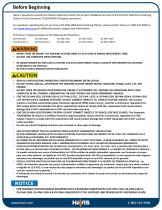
Before Beginning Havis is pleased to provide this Owner’s Manual to aid in the proper installation and use of the DS-PAN-1500 Series Docking Station for the Panasonic TOUGHBOOK 40 laptop computers. For questions regarding the set-up of your DS-PAN-1500 Series Docking Station, please contact Havis at 1‐800‐524‐9900 or visit www.havis.com for additional product support and information. This Owner’s Manual applies to the following Part Numbers: DS-PAN-1501 DS-PAN-1501-4 NEVER STOW OR MOUNT THE DOCKING STATION DIRECTLY IN A VEHICLE AIRBAG DEPLOYMENT ZONE. DO NOT USE COMPUTER WHILE DRIVING. NE JAMAIS...
Open the catalog to page 2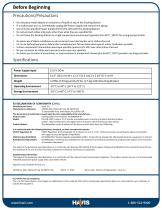
• Do not place metal objects or containers of liquid on top of the Docking Station • If a malfunction occurs, immediately unplug the Power Supply and remove the laptop • Use only the specified Power Supply (Part # LPS-103) with this Docking Station • Do not connect cables into ports other than what they are specified for • Do not leave the Docking Station in a high temperature environment (greater than 85°C, 185°F) for a long period of time • Ne placez pas d'objets metalliques ou de contenants avec des liquides sur la station d'accueil • En cas de dysfonctionnement, debranchez immediatement l'alimentation...
Open the catalog to page 3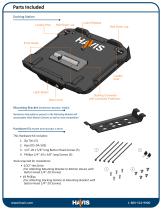
Parts Included Docking Station Locator Post Latch Release Hold Down Lug Front Hooks Locator Post Latch Button Barrel Lock Docking Connector with Connector Protection Mounting Bracket (HAVIS Item Number: 25643) Numerous hole patterns present in the Mounting Bracket will accomodate Havis Motion Devices as well as most competitors’ Hardware Kit (HAVIS Item Number 17672) This Hardware Kit includes: 1. 2. 3. 4. Zip Ties (5) Keys (DS-DA-503) 1/4”-20 x 5/8” long Button Head Screws (5) Phillips 1/4”-20 x 3/8” long Screws (5) Tools required for installation: • 5/32” Hex Drive (For attaching Mounting Bracket...
Open the catalog to page 4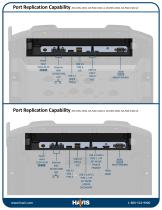
lioioil NON-POWERED www.havis.com Power Input TYPE C + DP ALT MODE (VIDEO) PRIMARY USB 3.2 GEN 2 TYPE C + DP ALT MODE (VIDEO) SECONDARY
Open the catalog to page 5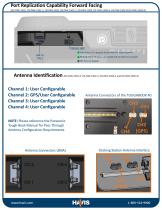
Indicator Light Solid Green: PC is properly docked AND the dock has power Blinking Green: PC is properly docked, but the dock has no power Off: PC is not Docked Antenna Identification (DS-PAN-1501-4, DS-PAN-1502-4, DS-PAN-1504-4 and DS-PAN-1505-4) Channel 1: User Configurable Channel 2: GPS/User Configurable Channel 3: User Configurable Channel 4: User Configurable Antenna Connectors of the TOUGHBOOK 40 NOTE: Please reference the Panasonic Tough Book Manual for Pass Through Antenna Configuration Requirements. Docking Station Antenna Interface
Open the catalog to page 6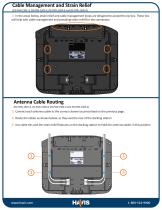
Cable Management and Strain Relief (DS-PAN-1501-4, DS-PAN-1502-4, DS-PAN-1504-4 and DS-PAN-1505-4) 1) In the areas below, strain relief and cable management loops are designed to accept the zip ties. These ties will help with cable management and providing strain relief for the connectors. Antenna Cable Routing (DS-PAN-1501-4, DS-PAN-1502-4, DS-PAN-1504-4 and DS-PAN-1505-4) 1) Connect each antenna cable to the correct channel as prescribed on the previous page. 2) Route the cables as shown below, so they exit the rear of the docking station 3) Use cable ties and the strain relief features on...
Open the catalog to page 7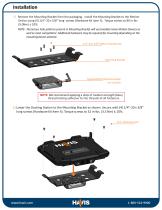
Installation 1) Remove the Mounting Bracket from the packaging. Install the Mounting Bracket to the Motion Device using (4) 1/4“-20 x 5/8” long screws (Hardware Kit Item 3). Torque screws to 80 in-lbs (9.0Nm) ± 10%. NOTE: Numerous hole patterns present in Mounting Bracket will accomodate Havis Motion Devices as well as most competitors’. Additional hardware may be required for mounting depending on the mounting device selected. 1/4”-20 x 5/8” Button Head Screws Mounting Bracket Typical Motion Device Example (not included) NOTE: We recommend applying a drop of medium strength (blue) thread locking...
Open the catalog to page 8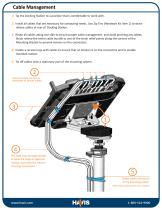
Cable Management 1) Tip the Docking Station to a position that is comfortable to work with. 2) Install all cables that are necessary for computing needs. Use Zip Ties (Hardware Kit Item 1) to strain relieve cables at rear of Docking Station. 3) Route all cables along one side to ensure proper cable management and avoid pinching any cables. Strain relieve the entire cable bundle to one of the strain relief points along the corners of the Mounting Bracket to prevent tension on the connectors. 4) Create a service loop with cables to ensure that no tension is on the connectors and to enable intended...
Open the catalog to page 9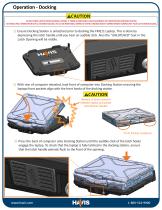
Operation - Docking DO NOT FORCE LAPTOP ONTO DOCKING STATION. IF THERE IS RESISTANCE, CHECK ALIGNMENT OF COMPUTERON DOCKING STATION. NE FORCEZ PAS L’ORDINATEUR SUR LA STATIOND’ACCUEIL. EN CAS DE RÉSISTANCE,VÉRIFIEZ SI VOTREL’ORDINATEUR EST CORRECTEMENT CONFIGURÉE POUR LA STATION D’ACCUEIL. 1) Ensure Docking Station is unlatched prior to docking the FM211 Laptop. This is done by depressing the latch handle until you hear an audible click. Also the “UNLATCHED” text in the Latch Opening will be visible. 2) With rear of computer elevated, load front of computer into Docking Station ensuring the laptops...
Open the catalog to page 10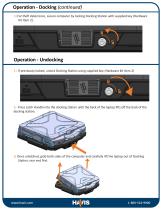
Operation - Docking (continued) 4) For theft deterrence, secure computer by locking Docking Station with supplied key (Hardware Kit Item 2). Operation - Undocking 1) If previously locked, unlock Docking Station using supplied key. (Hardware Kit Item 2) 2) Press Latch Handle into the docking station until the back of the laptop lifts off the back of the docking station. 3) Once unlatched, grab both sides of the computer and carefully lift the laptop out of Docking Station, rear end first.
Open the catalog to page 11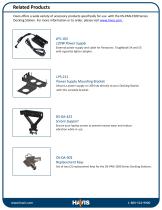
Related Products Havis offers a wide variety of accessory products specifically for use with the DS‐PAN‐1500 Series Docking Station. For more information or to order, please visit www.havis.com. LPS-103 120W Power Supply External power supply and cable for Panasonic Toughbook 54 and 55 with cigarette lighter adaptor. LPS-211 Power Supply Mounting Bracket Mount a power supply or USB hub directly to your Docking Station with this versatile bracket. DS-DA-423 Screen Support Secure your laptop screen to prevent excess wear and reduce vibration while in use. DS-DA-503 Replacement Keys Set of two (2)...
Open the catalog to page 12All Havis Inc. catalogs and technical brochures
 MM-1000 SERIES
2 Pages
 MM-1000 SP LINE
5 Pages
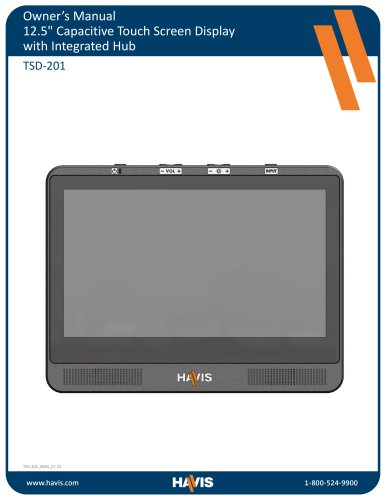 TSD-201
14 Pages
- Display module
- Rectangular housing
- Industrial display panel
- Metal cart
- Wall-mount box
- Color display panel
- Metal box
- Touch screen display panel
- Handling cart
- Current sensor
- Steel cart
- Industrial cart
- Multipurpose cart
- HDMI display panel
- DC current sensor
- Sine wave DC/AC inverter
- Monochrome display
- Integrated display panel
- Lockable enclosure
- USB display