
- Catalogs
- Emdoor Information Co., Ltd.
- M82A- USER MANUAL


- Company
- Products
- Catalogs
- News & Trends
- Exhibitions
M82A- USER MANUAL
M82A- USER MANUAL
This section provides instructions for setting up the M82A Rugged Tablet, including unboxing, connecting the power supply, and powering the device on and off. It describes the tablet's external components and provides guidance on inserting a TF card and SIM card.
This chapter covers the use of the touchscreen and multi-touch gestures, as well as setting up and using WLAN and Bluetooth connections. It also includes safety precautions for operating the tablet in extreme temperatures.
Details on power management are provided, including the use of the power adapter and battery pack. Instructions for charging, checking battery levels, and replacing the battery pack are included, along with power-saving tips such as enabling power-saving mode and reducing screen brightness.
This section explains how to connect peripheral devices via USB and USB Type-C ports to expand the tablet's functionality.
Guidance on using the BIOS setup is provided, including descriptions of the main, advanced, security, boot, and save & exit menus. Instructions for entering BIOS setup are also included.
Recommendations for protecting the tablet, using antivirus software, and performing routine maintenance are outlined. Guidelines for cleaning, battery care, and traveling with the tablet are included.
This chapter offers solutions for common problems related to battery, Bluetooth, display, hardware, power management, software, sound, startup, and WLAN issues. Instructions for restarting the tablet are also provided.
This section likely includes additional technical details and specifications.
The tablet can operate on external Type-C power, DC, or internal battery power. The AC adapter is designed specifically for the tablet and should not be used with other devices. The adapter operates within a voltage range of 100V to 240V AC, with an output of 12V. The battery pack is rechargeable and should be charged between 0℃ and 50℃. Avoid frequent disconnection and reconnection of the AC adapter to prevent battery damage.
The tablet has a USB 3.0 port and a USB Type-C port that supports data transmission, HDMI display output, and headphone output.
The BIOS Setup Utility configures BIOS settings and acts as an interface between hardware and software. It can be used to restore factory settings, modify hardware settings, or optimize system performance.
Protect the tablet by using antivirus software and avoiding extreme temperatures, high humidity, and metallic dust. Clean the tablet with a soft cloth and avoid using sharp objects on the screen.
Ensure the battery is fully charged and the power is off before traveling. Carry the power adapter and avoid placing the tablet in checked luggage.
General Troubleshooting Steps: Identify the problem source, ensure devices are powered on and connected, verify BIOS settings and driver installations, and provide detailed information when seeking technical assistance.
Battery Problems: Ensure the power adapter is connected securely and check battery temperature and terminals.
Bluetooth Problems: Ensure Bluetooth is enabled and devices are within range.
Display Problems: Adjust brightness and check power management settings.
Hardware Device Problems: Install necessary drivers and configure BIOS settings.
Power Management Problems: Check timeout settings for sleep/hibernation modes.
Software Problems: Verify software installation and refer to manuals for error messages.
Sound Problems: Adjust volume settings and ensure the device is not muted.
Startup Problems: Verify power source and battery charge.
WLAN Problems: Ensure WLAN is enabled and check for interference.
Restarting the Tablet: Use Ctrl + Alt + Del or hold the power button for a forced shutdown.
Catalog excerpts
USER MANUAL Rugged Mobile Computing Solution
Open the catalog to page 1
The information in this manual is subject to change without notice.
Open the catalog to page 2
Getting Started This chapter first tells you step by step how to get the tablet up and running. Then, you will find a section briefly introducing the external components of the tablet.
Open the catalog to page 6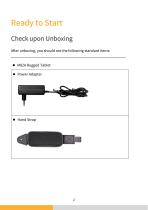
Check upon Unboxing After unboxing, you should see the following standard items: M82A Rugged Tablet Power Adapter
Open the catalog to page 7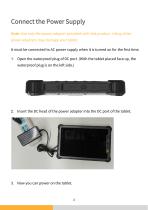
Connect the Power Supply Note: Use only the power adapter provided with this product. Using other power adapters may damage your tablet. It must be connected to AC power supply when it is turned on for the first time. 1. Open the waterproof plug of DC port. (With the tablet placed face up, the waterproof plug is on the left side.) 2. Insert the DC head of the power adapter into the DC port of the tablet.
Open the catalog to page 8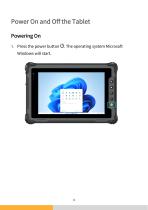
Power On and Off the Tablet Powering On 1. Press the power button Windows will start. . The operating system Microsoft
Open the catalog to page 9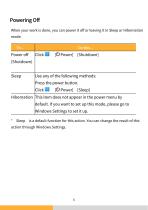
When your work is done, you can power it off or leaving it in Sleep or Hibernation mode: * rSleepj is a default function for this action. You can change the result of this action through Windows Settings.
Open the catalog to page 10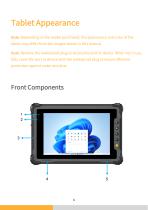
Tablet Appearance Note: Depending on the model purchased, the appearance and color of the tablet may differ from the images shown in this manual. Note: Remove the waterproof plug to access the port or device. When not in use, fully cover the port or device with the waterproof plug to ensure effective protection against water and dust. Front Components
Open the catalog to page 11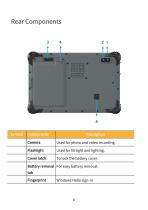
Used for photo and video recording. Cover latch To lock the battery cover. Used for fill light and lighting. Battery removal For easy battery removal. tab
Open the catalog to page 13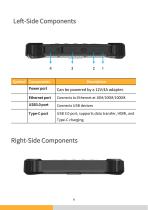
Left-Side Components Power port Ethernet port Type-C port Connects to Ethernet at 10M/100M/1000M. USB 3.0 port, supports data transfer, HDMI, and Type-C charging. Right-Side Componen
Open the catalog to page 14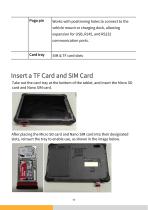
Take out the card tray at the bottom of the tablet, and insert the Micro SD card and Nano SIM card. After placing the Micro SD card and Nano SIM card into their designated slots, reinsert the tray to enable use, as shown in the image below.
Open the catalog to page 16
Basic Operations This chapter teaches you how to use the tablet's components and features. If you are new to tablets, reading this chapter will help you understand basic tablet operations. If you have used tablets before, you may only need to refer to parts of this chapter to learn about features and operations specific to this tablet. Note: When operating the tablet in extremely high or low temperatures, avoid direct skin contact with the tablet. The tablet can get uncomfortably warm when you use it in high temperatures. As a safety precaution in such a circumstance, do not place the tablet...
Open the catalog to page 17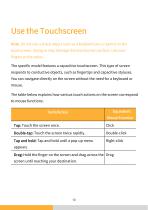
Note: Do not use a sharp object such as a ballpoint pen or pencil on the touchscreen. Doing so may damage the touchscreen surface. Use your fingers or the stylus. The specific model features a capacitive touchscreen. This type of screen responds to conductive objects, such as fingertips and capacitive styluses. You can navigate directly on the screen without the need for a keyboard or mouse. The table below explains how various touch actions on the screen correspond to mouse functions:
Open the catalog to page 18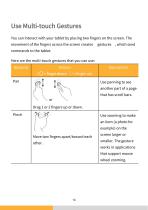
You can interact with your tablet by placing two fingers on the screen. The movement of the fingers across the screen creates “gestures”, which send commands to the tablet. Here are the multi-touch gestures that you can use: Gestures another part of a page that has scroll bars. Drag 1 or 2 fingers up or down. Use zooming to make an item (a photo for Move two fingers apart/toward each other. example) on the screen larger or works in applications that support mouse wheel zooming.
Open the catalog to page 19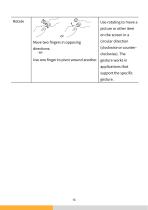
Move two fingers in opposing Use one finger to pivot around another. Use rotating to move a picture or other item on the screen in a circular direction (clockwise or counterclockwise). The gesture works in applications that support the specific gesture.
Open the catalog to page 20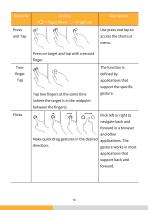
Gestures Press Description Use press and tap to access the shortcut menu. Press on target and tap with a second Two- applications that Tap two fingers at the same time (where the target is in the midpoint Flicks support the specific gesture. Flick left or right to navigate back and and other Make quick drag gestures in the desired applications. The direction. gesture works in most applications that support back and forward.
Open the catalog to page 21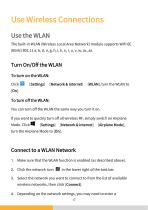
The built-in WLAN (Wireless Local Area Network) module supports WIFI 6E (6GHz) 802.11 a, b, d, e, g, h, i, k, n, r, u, v, w, ac, ax. Turn On/Off the WLANTo turn on the WLAN: ■■ Click : -^[Settings] -»[Network& Internet] -»[WLAN], turn the WLAN to [On]. To turn off the WLAN: You can turn off the WLAN the same wayyou turn it on. If you want to quickly turn off all wireless RF, simply switch on Airplane Mode. Click■■ -^[Settings] ->[Network& Internet] -^[Airplane Mode], turn the Airplane Mode to [On]. 1. Make sure that the WLAN function is enabled (as described above). 2. Click the network icon...
Open the catalog to page 22
password. Contact your network administrator or service provider for details. For more information on setting up wireless networks, refer to Windows Online Help.
Open the catalog to page 23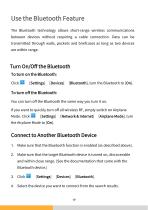
The Bluetooth technology allows short-range wireless communications between devices without requiring a cable connection. Data can be transmitted through walls, pockets and briefcases as long as two devices are within range. Turn On/Off the Bluetooth To turn on the Bluetooth: Click →[Settings] →[Devices] →[Bluetooth], turn the Bluetooth to [On]. You can turn off the Bluetooth the same way you turn it on. If you want to quickly turn off all wireless RF, simply switch on Airplane Mode. Click →[Settings] →[Network & Internet] →[Airplane Mode], turn Connect to Another Bluetooth Device 1. Make sure...
Open the catalog to page 24
5. Depending on the type of Bluetooth device that you want to connect to, you will need to enter the relevant information. For detailed information on using the Bluetooth feature, see Windows Online Help.
Open the catalog to page 25
Manage Power Your tablet operates either on external Type-C power, DC or on internal battery power. This chapter tells you how you can effectively manage power. To maintain optimal battery performance, it is important that you use the battery in the proper way.
Open the catalog to page 26All Emdoor Information Co., Ltd. catalogs and technical brochures
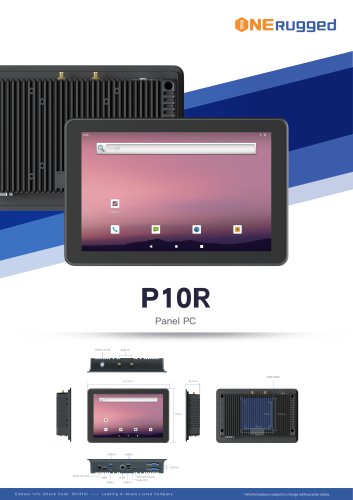 EM-P10R Specification
3 Pages
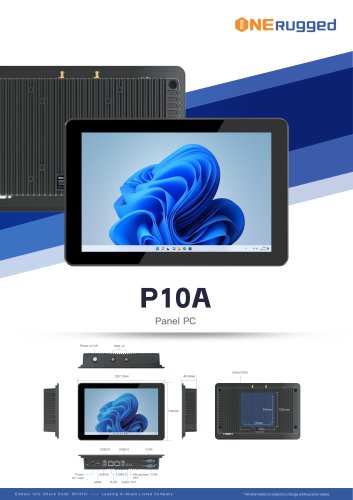 EM-P10A Specification
3 Pages
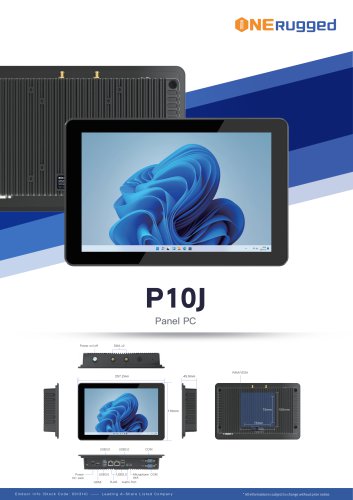 EM-P10J Specification
3 Pages
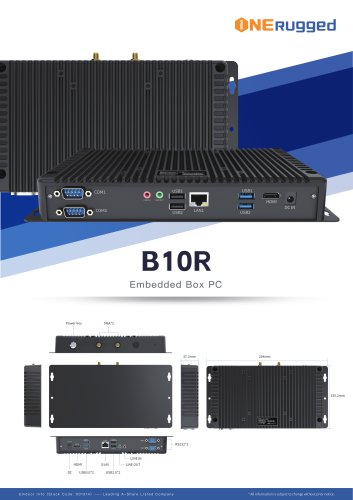 EM-B10R Specification
3 Pages
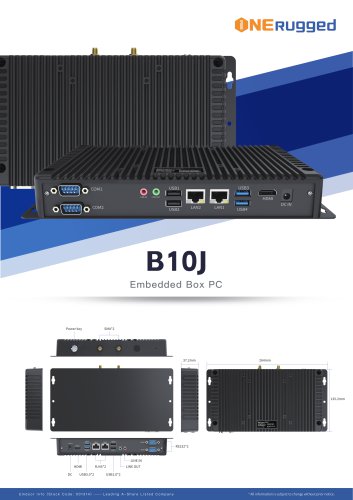 EM-B10J Specification
3 Pages
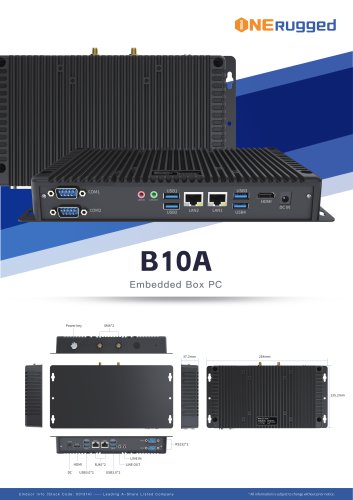 EM-B10A Specification
3 Pages
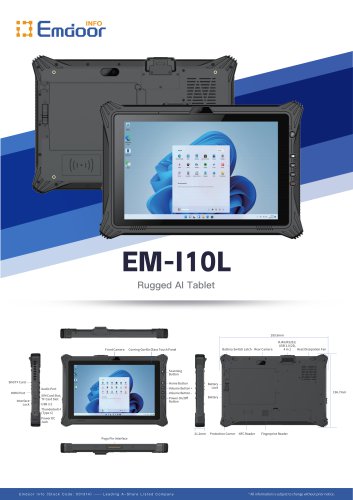 EM-I10L Specification
3 Pages
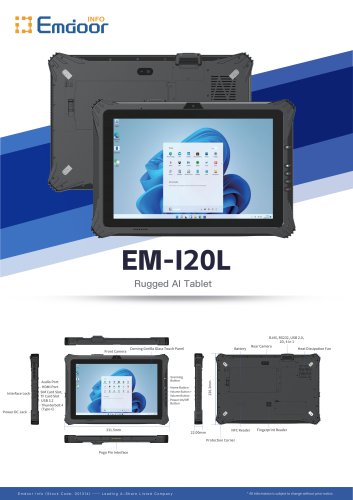 EM-I20L Specification
3 Pages
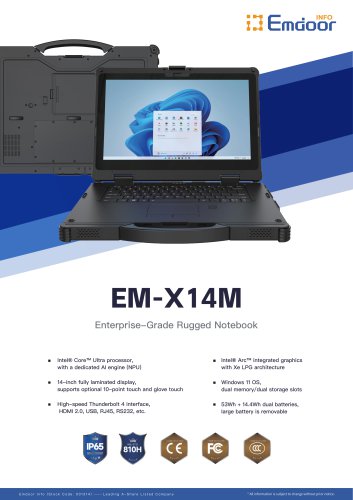 EM-X14M Specification
2 Pages
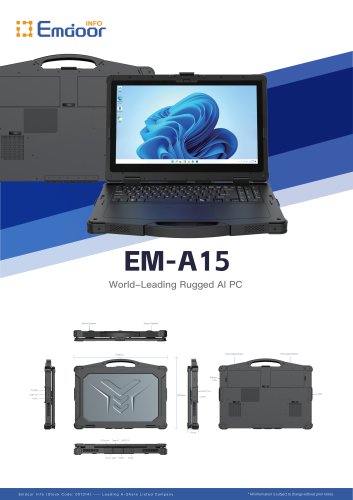 EM-A15 Specification
3 Pages
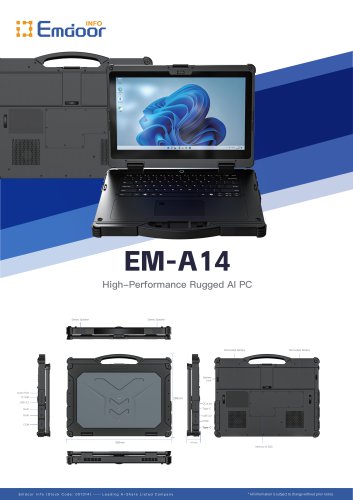 EM-A14 Specification
3 Pages
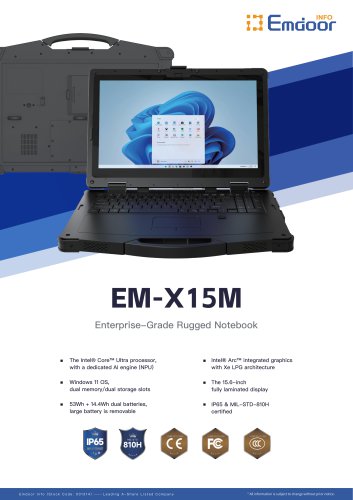 EM-X15M Specification
2 Pages
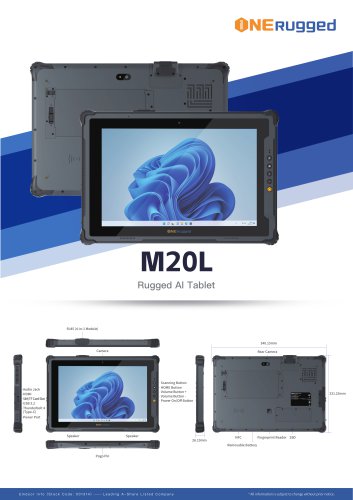 M20L-specification
3 Pages
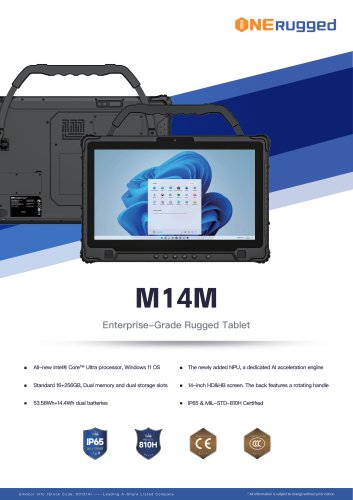 M14M-specification
2 Pages
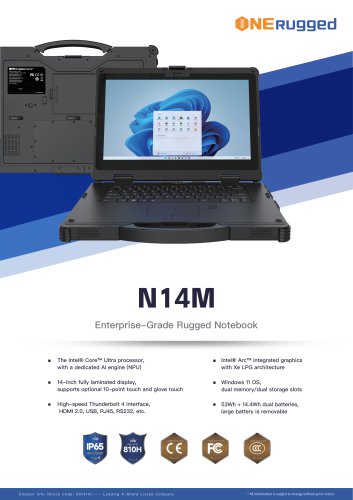 N14M-specification
2 Pages
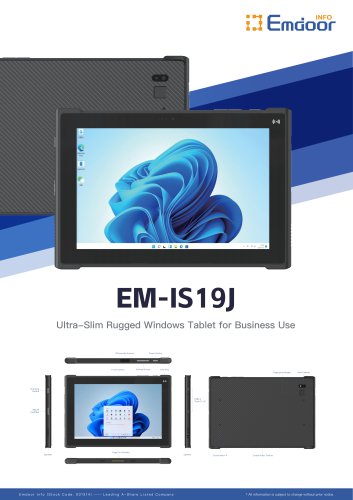 EM-IS19J specification
3 Pages
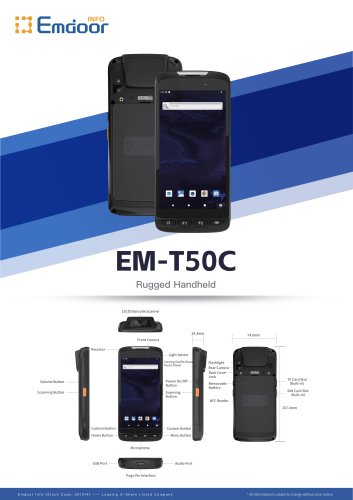 EM-T50C
3 Pages
 EM-D10R successful case
3 Pages
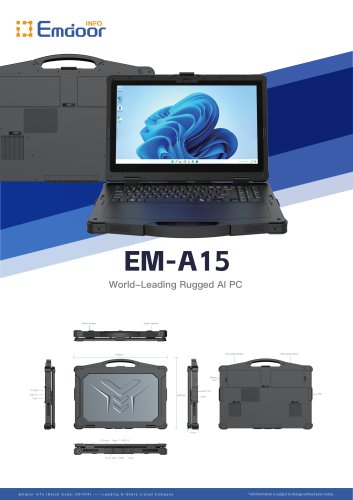 EM-A15
3 Pages
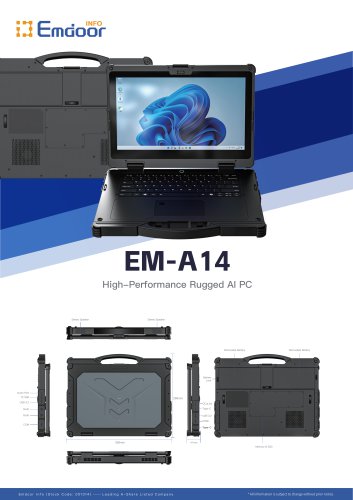 EM-A14
3 Pages
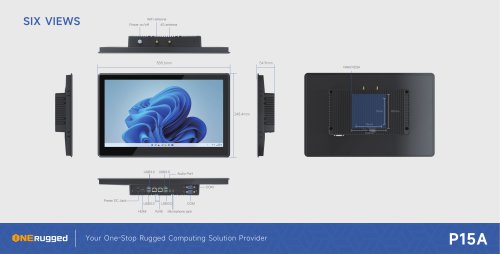 EM-P15A six views
1 Page
 EM-V12R USER MANUAL
2 Pages
 EM-P15A USER
2 Pages
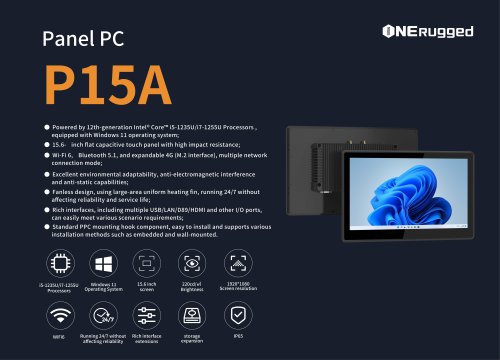 EM-P15A SPE
2 Pages
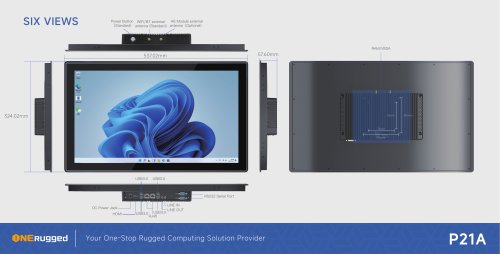 EM-P21A six views
1 Page
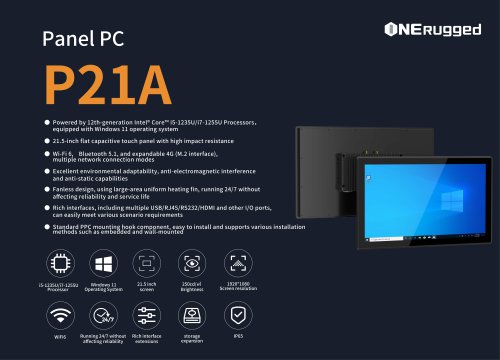 EM-P21A SPE
2 Pages
 EM-P21A user
2 Pages
 EM-V82T-EMC
13 Pages
 EM-V82T spe
4 Pages
 P2 PRO
2 Pages
 P2 PRO-SPE
2 Pages
 M82A-spe
2 Pages
 EM-X15A User Manual
76 Pages
 EM-X15M Rugged AI PC uesr manual
76 Pages
 Emdoor Info. EM-I16J User Manual
57 Pages
 EM-I14M 14Inch Rugged AI PC
2 Pages
 EM-H68T: Android 14 rugged PDA
2 Pages
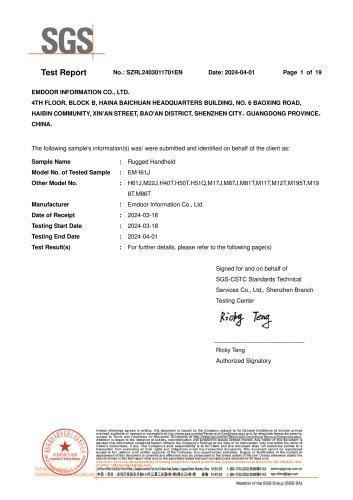 EM -I61J Rugged Handheld
19 Pages
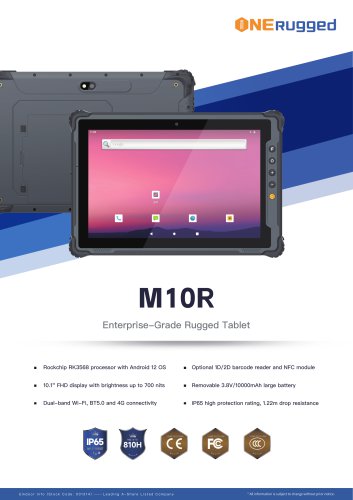 M10R Rugged Tablet RK3588
2 Pages
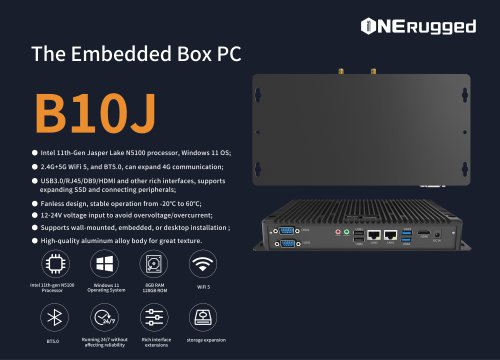 EM-B10J embedded box PC
3 Pages
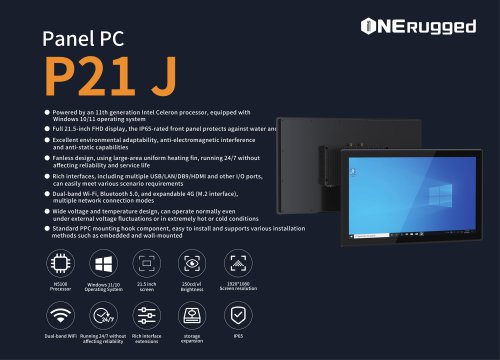
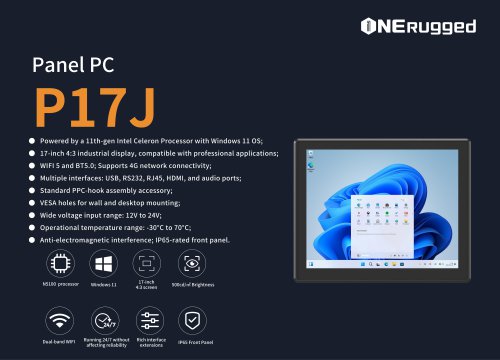 EM-P17J Panel PC
3 Pages
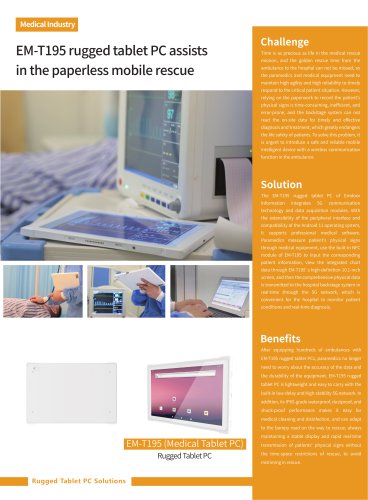
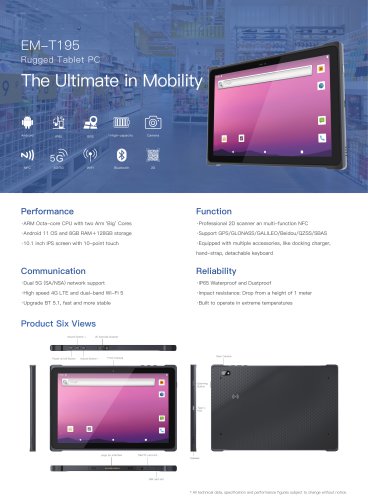 EM-T195 5G Rugged Tablet
2 Pages
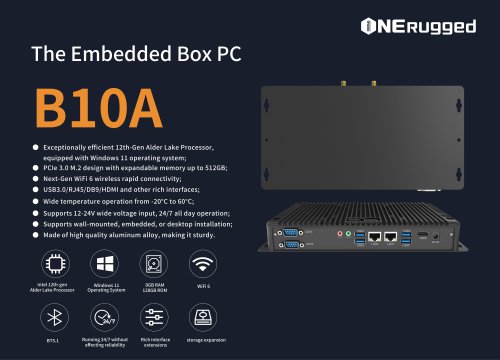 The Embedded Box PC-B10A
3 Pages
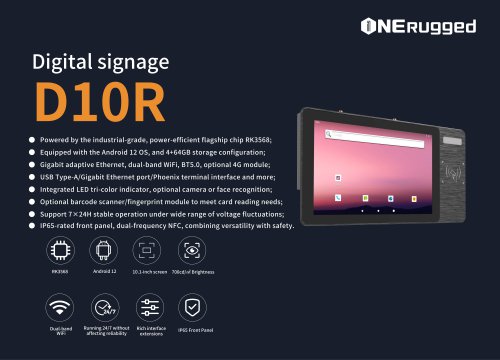 EM-D10R Digital signage
3 Pages
 EM-P1The Outdoor Rugged Phone
2 Pages
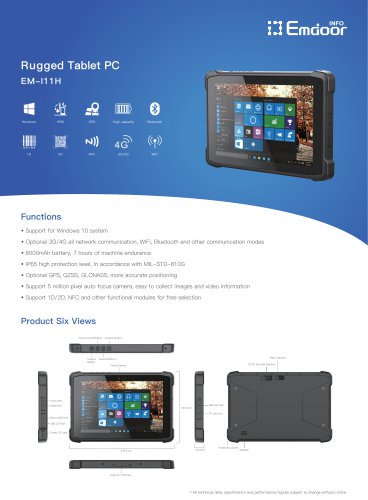 EM-I11H Rugged Tablet PC
2 Pages
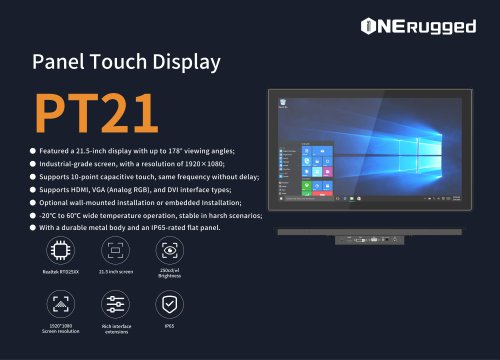 EM-PT21 Panel Touch Display
3 Pages
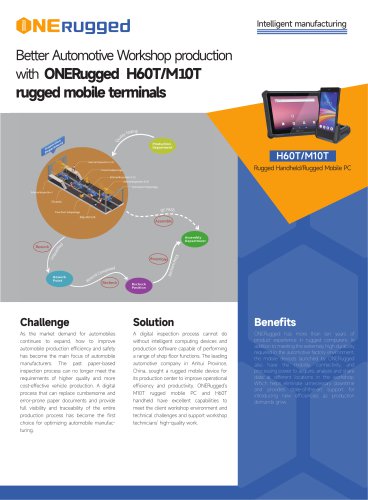
 Rugged Handheld H60T
2 Pages
















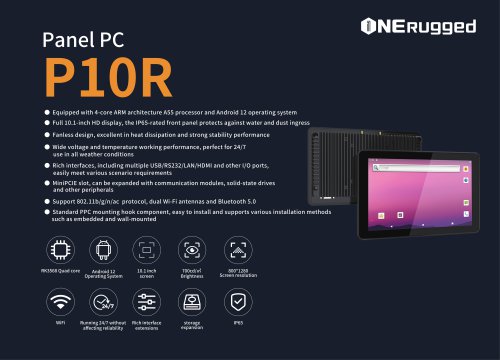

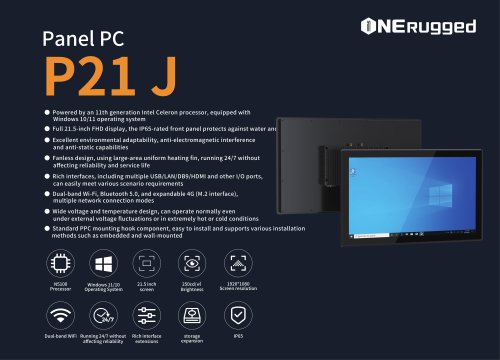
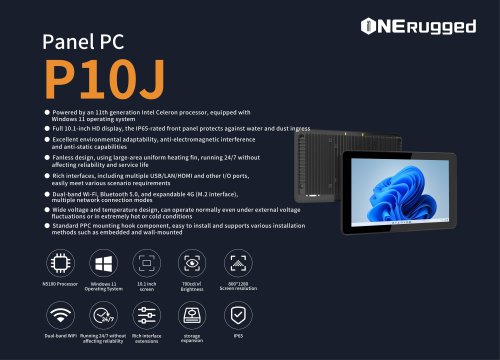
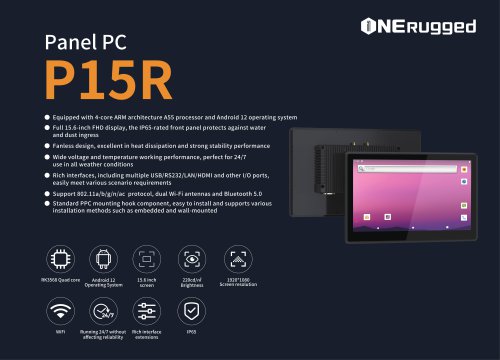

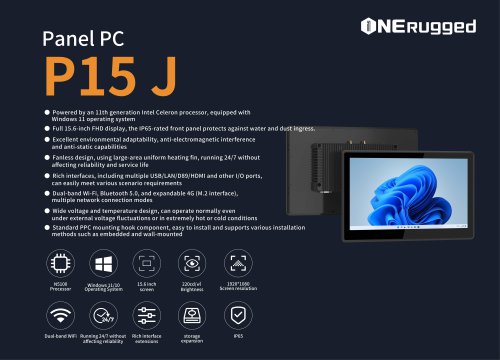
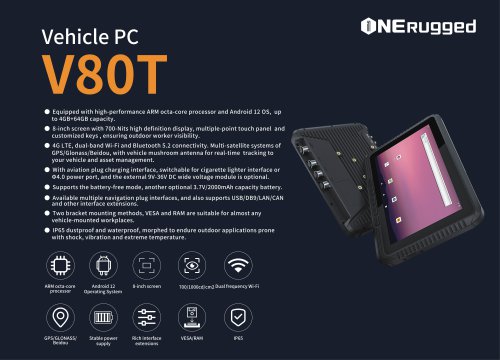

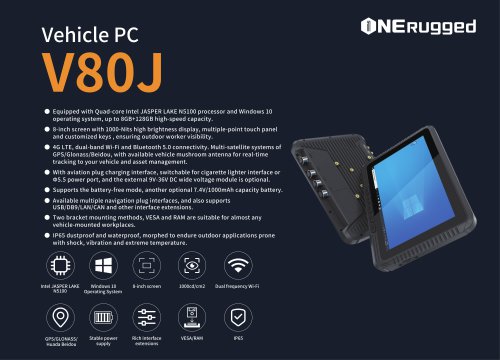
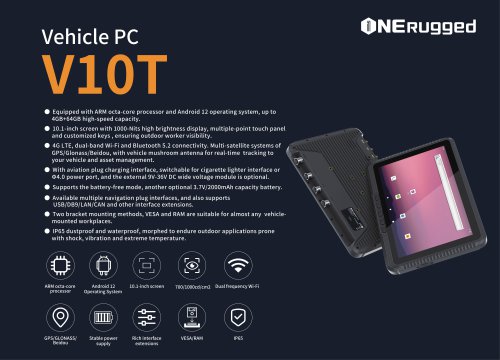











































- Emdoor panel PC
- Emdoor industrial panel PC
- Emdoor panel PC with touch screen
- LCD display panel
- Emdoor fanless panel PC
- Emdoor LCD panel PC
- Industrial display panel
- Intel® Core™ PC
- Fanless PC
- Emdoor IP65 panel PC
- Intel® Core™ panel PC
- VESA mounting panel PC
- Housed panel PC
- HDMI PC
- Embedded PC
- Box PC
- RS-232 PC
- USB 2.0 PC
- Windows PC