
- Catalogs
- Emdoor Information Co., Ltd.
- Emdoor Info.EM-Q885M Rugged Tablet PC User Manual


- Company
- Products
- Catalogs
- News & Trends
- Exhibitions
Emdoor Info.EM-Q885M Rugged Tablet PC User Manual
Emdoor Info.EM-Q885M Rugged Tablet PC User Manual
This section provides details about the document version, including the file name, edition, issue date, and a change log that records updates made to the manual.
The manual describes the physical features and functions of the tablet, including the power key, barcode scanner, home key, cameras, USB and HDMI interfaces, audio output, and other hardware components. Key functionalities such as turning the device on/off, volume control, and data transfer are highlighted.
This section explains how to navigate the tablet's desktop interface, including accessing applications and using the menu bar to manage installed apps.
The manual provides a comprehensive guide to configuring system settings, covering network connections, device connectivity (Bluetooth, NFC), app management, notifications, battery usage, storage, sound, display, accessibility, security, privacy, location services, account management, and system information.
Instructions are provided for installing SIM and TF cards, detailing the supported configurations and the location of the card holder.
Catalog excerpts
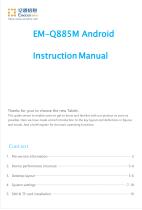
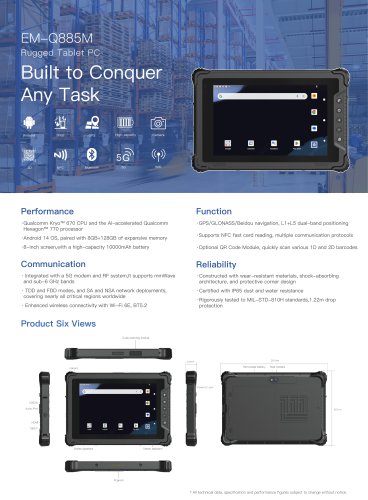
EM-Q885M Android Instruction Manual Thanks for your to choose the new Tablet. This guide serves to enable users to get to know and familiar with our product as soon as possible. Here we have made a brief introduction to the key layout and definitions in figures and words. And a brief explain for the basic operating functions.
Open the catalog to page 1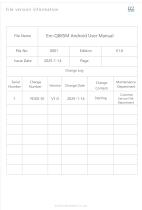
File version information File Name
Open the catalog to page 2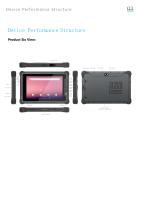
Dev ice Perfor mance Stru ctu re Device Performance Structure Product Six View:
Open the catalog to page 3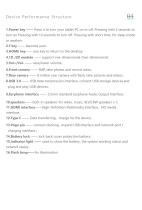
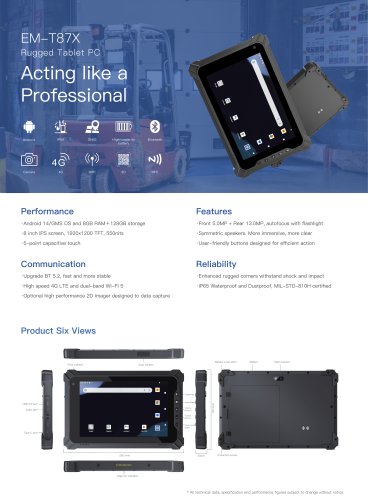
Dev ice Perfor mance Stru ctu re 1.Power key —— Press it to turn your tablet PC on or off. Pressing with 5 seconds to turn on.Pressing with 10 seconds to turn off. Pressing with short time, for sleep mode or awaken; 2.F key —— barcode scan; 3.HOME key—— one key to return to the desktop 4.1D /2D module —— support one-dimensional /two-dimensional; 5.Vol+/Vol- —— raise/lower volume; 6.Front camera —— 5MP, take photos and record video; 7.Rear camera —— 8 million rear camera with flash, take pictures and videos; 8.USB 3.0 —— USB data transmission interface, connect USB storage devices and plug and...
Open the catalog to page 4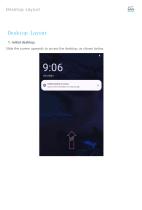
Desktop Layout 1. Initial desktop. Slide the screen upwards to access the desktop, as shown below.
Open the catalog to page 5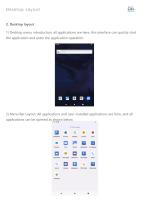
2. Desktop layout 1) Desktop menu introduction: all applications are here, this interface can quickly start the application and enter the application operation. 2) Menu Bar Layout: All applications and user-installed applications are here, and all applications can be opened as shown below.
Open the catalog to page 6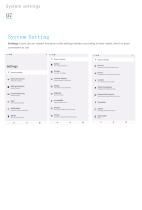
07 System Setting Settings: Users can set related functions in the setting interface according to their needs, which is more convenient to use.
Open the catalog to page 7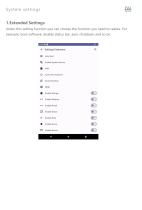
1.Extended Settings Under this setting function you can choose the function you need to realize. For example, boot software, disable status bar, auto shutdown and so on.
Open the catalog to page 8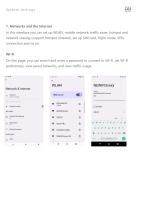
System settings In this interface you can set up WLAN, mobile network, traffic saver, hotspot and network sharing (support hotspot renewal), set up SIM card, flight mode, VPN connection and so on. On this page, you can search and enter a password to connect to Wi-Fi, set Wi-Fi preferences, view saved networks, and view traffic usage. Network & internet Networks available -t- Airplane mode SIM cards Hotspot & tethering <££ Ethernet setting Mobile plan VPN qwertyuiop asdfghj k I ♦ zxcvbnmQ
Open the catalog to page 9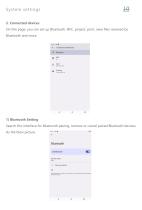
2. Connected devices On this page, you can set up Bluetooth, NFC, project, print, view files received by Bluetooth and more. 1) Bluetooth Setting Search this interface for Bluetooth pairing, remove or cancel paired Bluetooth devices. As the blew picture.
Open the catalog to page 10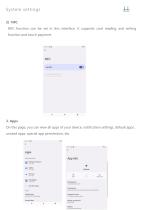
NFC function can be set in this interface. It supports card reading and writing function and touch payment. Contactless payments On this page, you can view all apps of your device, notification settings, default apps, unused apps, special app permissions, etc.
Open the catalog to page 11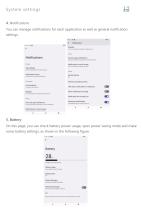
System settings4. NotificationsYou can manage notifications for each application as well as general notification settings. 11:40 n« © **ifl Control notifications from Individual apps Notification history On / Conversations can appear as floating icons Control which apps and devices can read notifications Notifications on lock screen
Open the catalog to page 12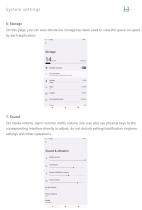
6. Storage On this page, you can view the device storage has been used to view the space occupied by each application. 7. Sound Set media volume, alarm volume, notify volume size (can also use physical keys to the corresponding interface directly to adjust, do not disturb settings)notification ringtone settings and other operations.
Open the catalog to page 13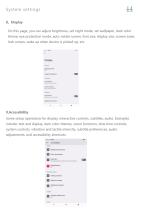
8、Display On this page, you can adjust brightness, set night mode, set wallpaper, dark color theme, eye protection mode, auto-rotate screen, font size, display size, screen saver, lock screen, wake up when device is picked up, etc. 9.Accessibility Some setup operations for display, interactive controls, subtitles, audio. Examples include: text and display, dark color themes, zoom functions, time time controls, system controls, vibration and tactile intensity, subtitle preferences, audio adjustments, and accessibility shortcuts.
Open the catalog to page 14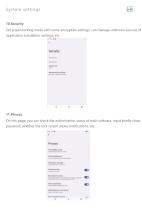
10.Security Set screen locking mode with some encryption settings, can manage unknown sources of application installation settings, etc. 11.Privacy On this page, you can check the authorization status of each software, input briefly show password, whether the lock screen shows notifications, etc.
Open the catalog to page 15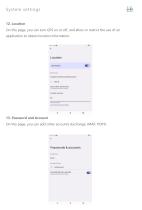
Sy s tem sett in gs 12. Location On this page, you can turn GPS on or off, and allow or restrict the use of an application to obtain location information. 13. Password and Account On this page, you can add other accounts (Exchange, IMAP, POP3)
Open the catalog to page 16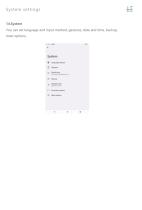
Sy s tem sett in gs 14.System You can set language and input method, gestures, date and time, backup, reset options.
Open the catalog to page 17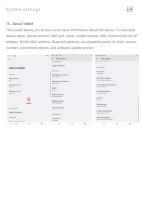
15. About Tablet This screen allows you to view some basic information about the device. For example: device name, phone number, SIM card status, model number, IMEI, Android version, IP address, WLAN MAC address, Bluetooth address, accumulated power-on time, version number, customized version, and software update service.
Open the catalog to page 18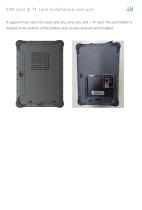
It supports two nano sim cards and one nano sim card + TF card. The card holder is located at the bottom of the battery and can be removed and installed.
Open the catalog to page 19All Emdoor Information Co., Ltd. catalogs and technical brochures
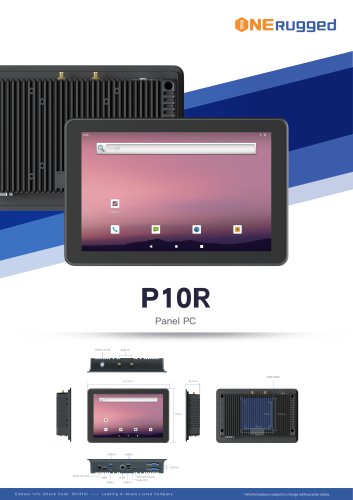 EM-P10R Specification
3 Pages
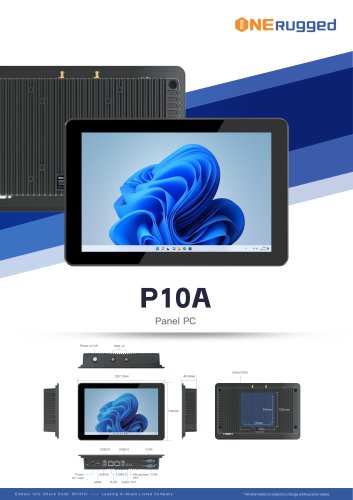 EM-P10A Specification
3 Pages
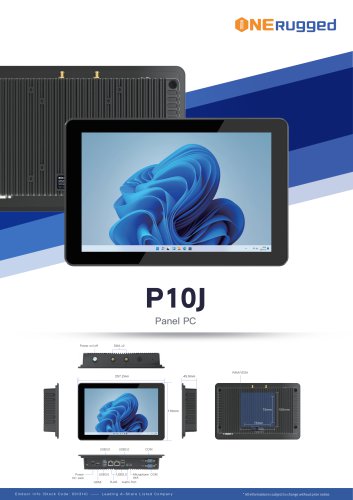 EM-P10J Specification
3 Pages
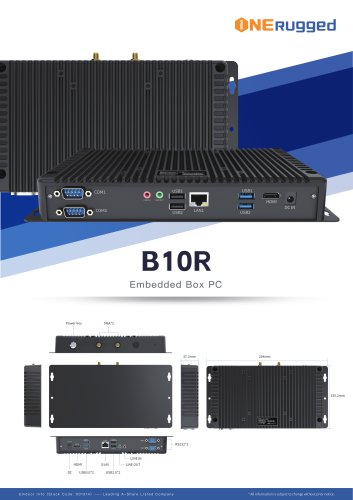 EM-B10R Specification
3 Pages
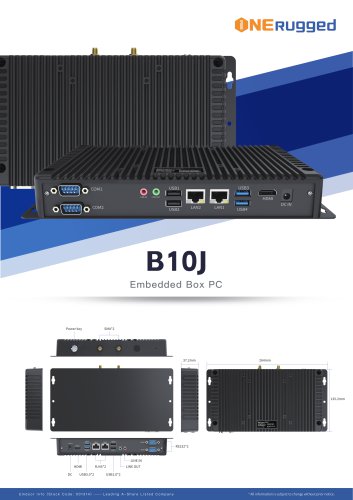 EM-B10J Specification
3 Pages
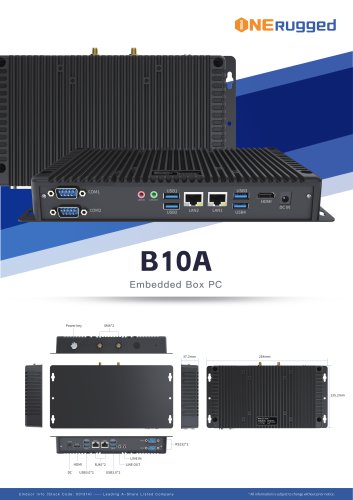 EM-B10A Specification
3 Pages
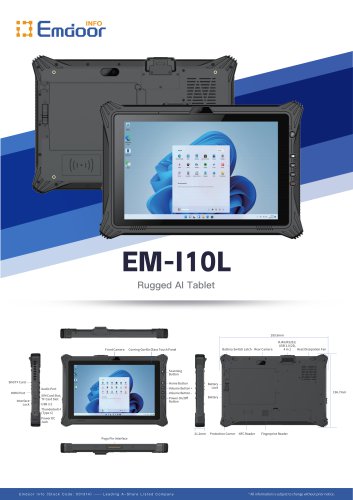 EM-I10L Specification
3 Pages
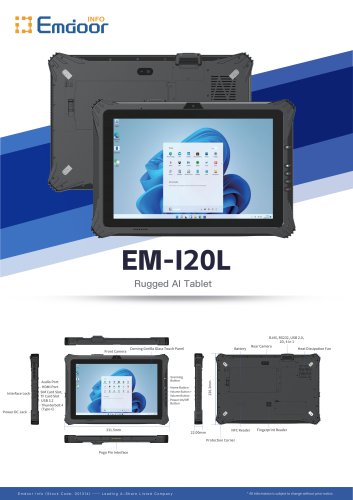 EM-I20L Specification
3 Pages
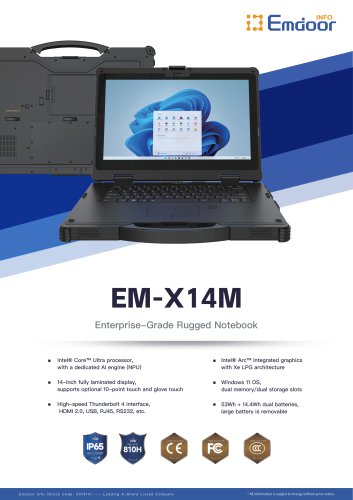
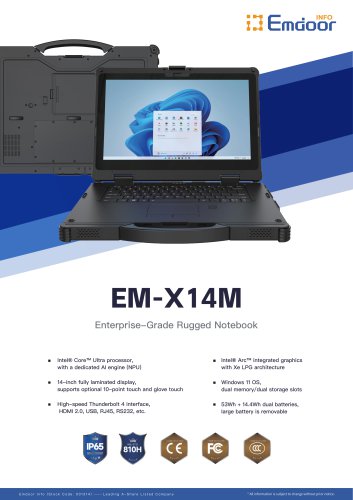 EM-X14M Specification
2 Pages
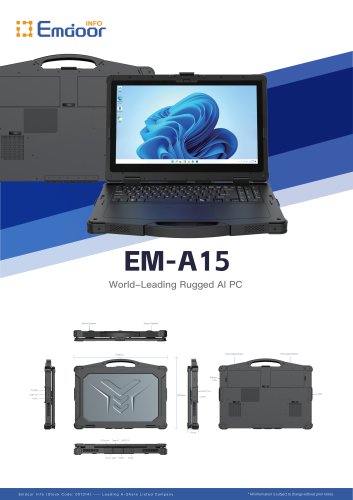 EM-A15 Specification
3 Pages
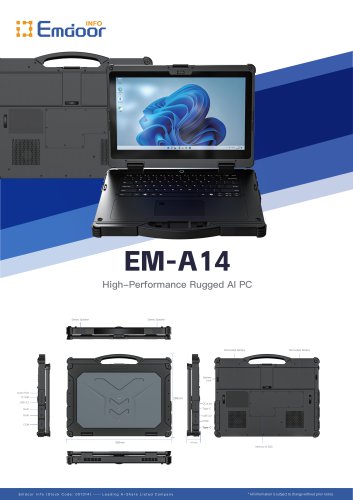 EM-A14 Specification
3 Pages
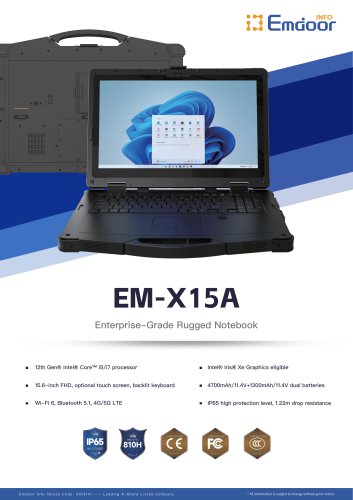
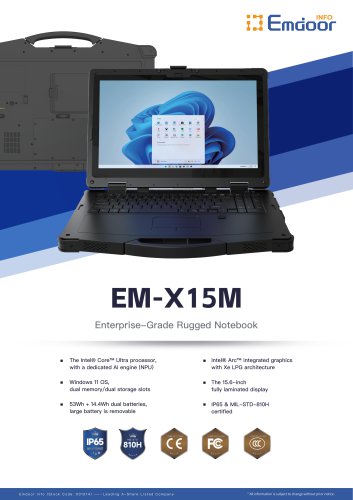
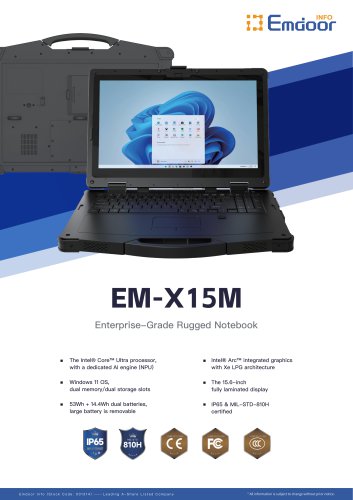 EM-X15M Specification
2 Pages
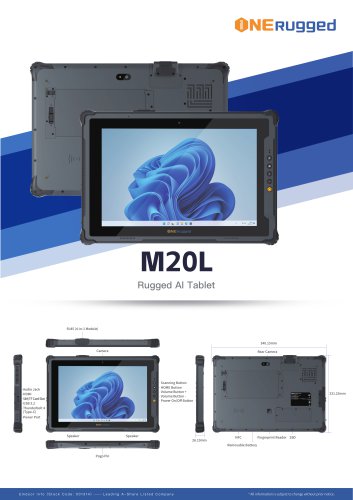 M20L-specification
3 Pages
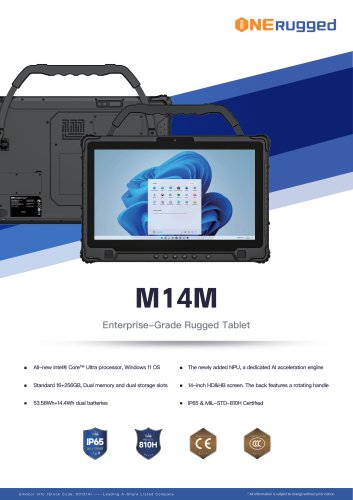 M14M-specification
2 Pages
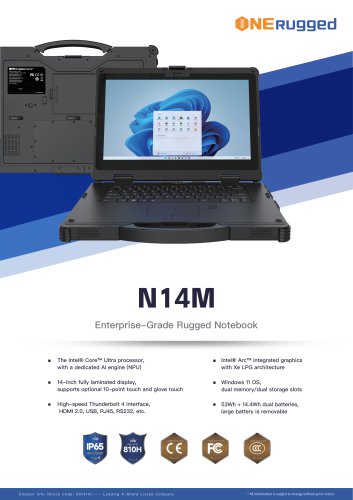 N14M-specification
2 Pages
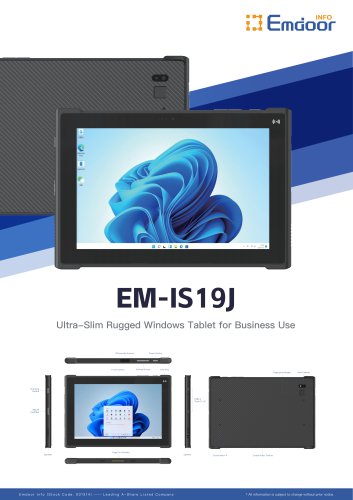 EM-IS19J specification
3 Pages
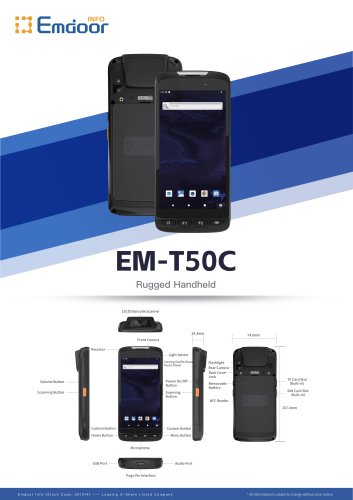 EM-T50C
3 Pages
 EM-D10R successful case
3 Pages
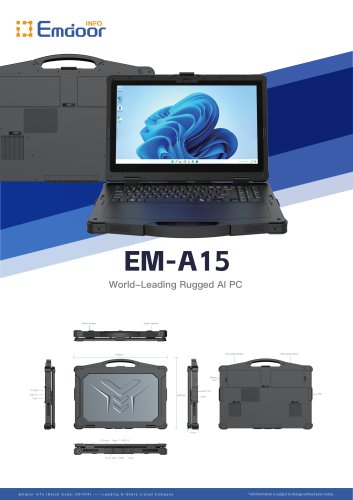 EM-A15
3 Pages
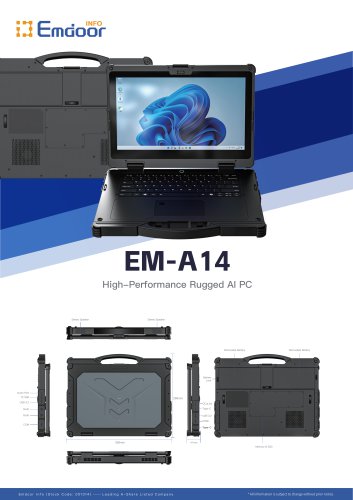 EM-A14
3 Pages
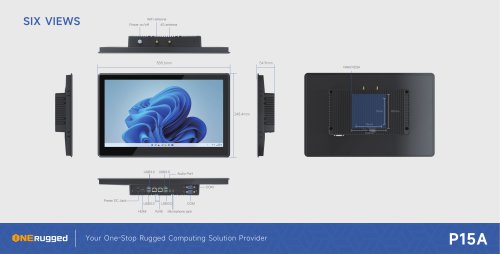 EM-P15A six views
1 Page
 EM-V12R USER MANUAL
2 Pages
 EM-P15A USER
2 Pages
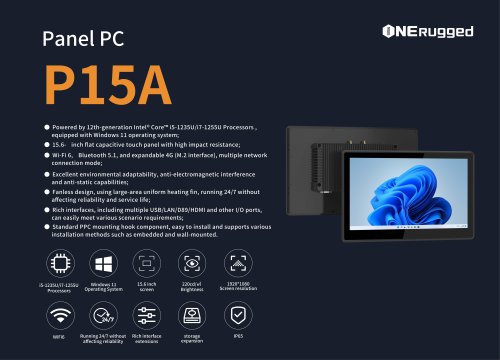 EM-P15A SPE
2 Pages
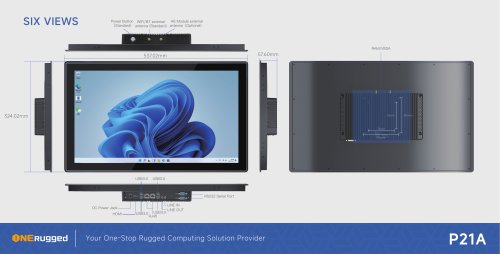 EM-P21A six views
1 Page
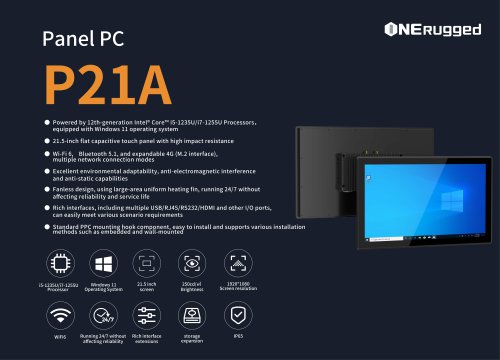 EM-P21A SPE
2 Pages
 EM-P21A user
2 Pages
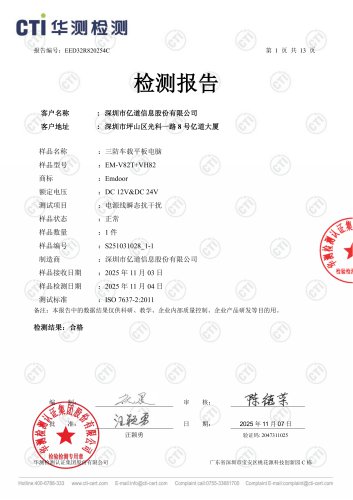 EM-V82T-EMC
13 Pages
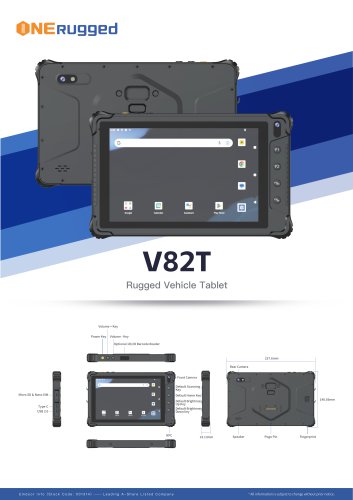 EM-V82T spe
4 Pages
 P2 PRO
2 Pages
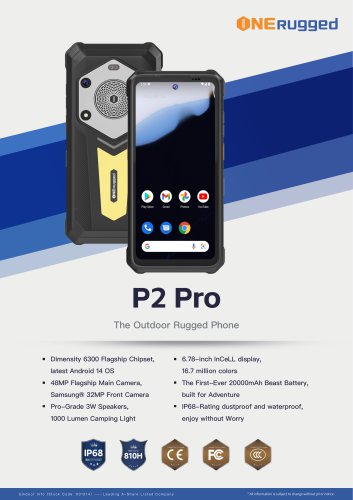 P2 PRO-SPE
2 Pages
 M82A- USER MANUAL
60 Pages
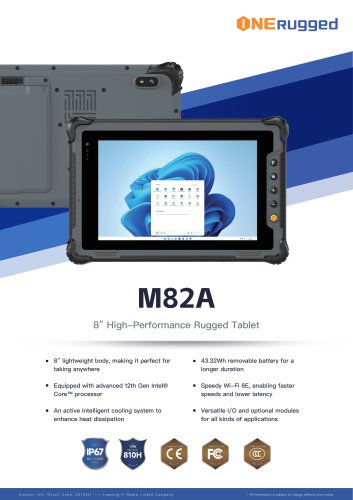 M82A-spe
2 Pages
 EM-X15A User Manual
76 Pages
 EM-X15M Rugged AI PC uesr manual
76 Pages
 Emdoor Info. EM-I16J User Manual
57 Pages
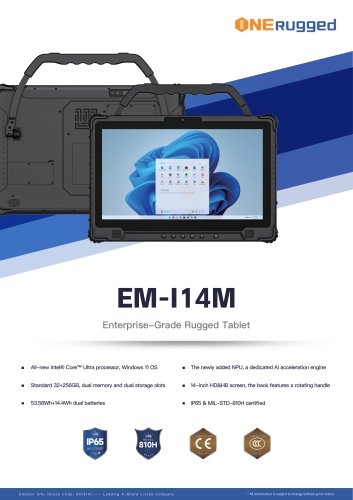 EM-I14M 14Inch Rugged AI PC
2 Pages
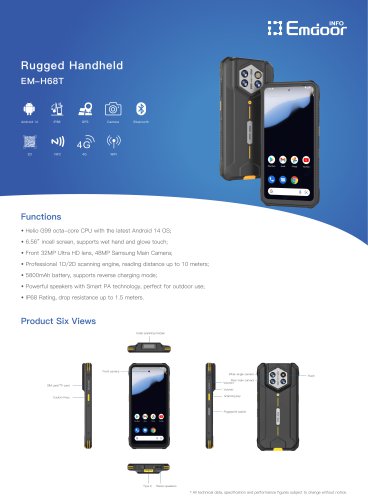 EM-H68T: Android 14 rugged PDA
2 Pages
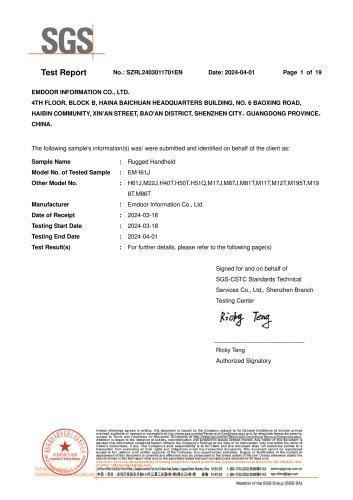 EM -I61J Rugged Handheld
19 Pages
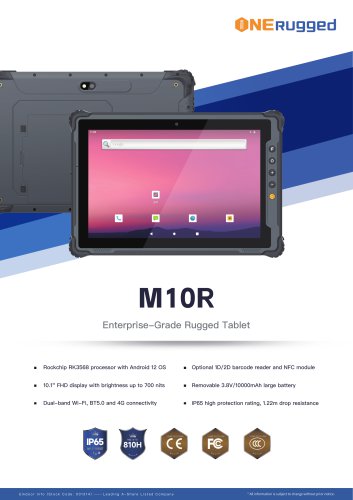 M10R Rugged Tablet RK3588
2 Pages
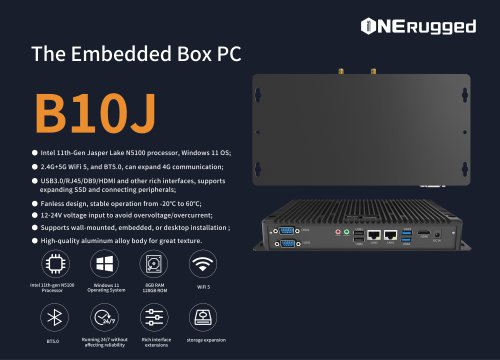 EM-B10J embedded box PC
3 Pages
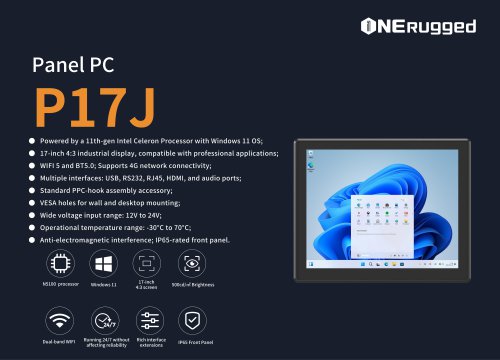 EM-P17J Panel PC
3 Pages
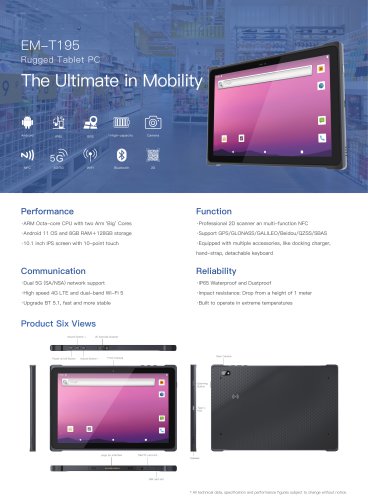 EM-T195 5G Rugged Tablet
2 Pages
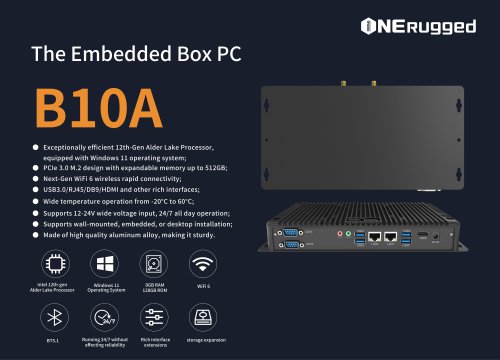 The Embedded Box PC-B10A
3 Pages
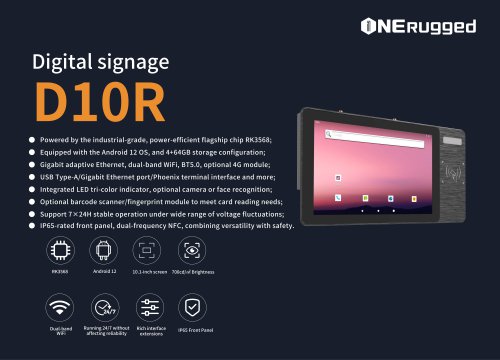 EM-D10R Digital signage
3 Pages
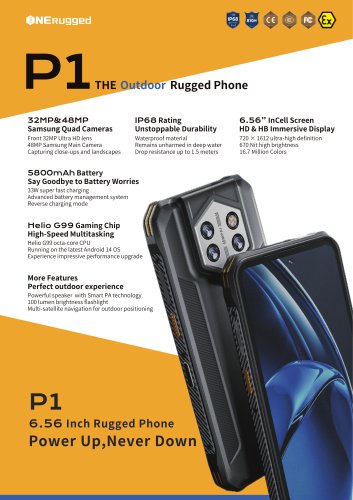 EM-P1The Outdoor Rugged Phone
2 Pages
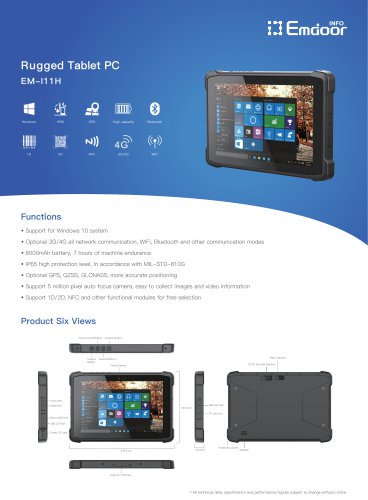 EM-I11H Rugged Tablet PC
2 Pages
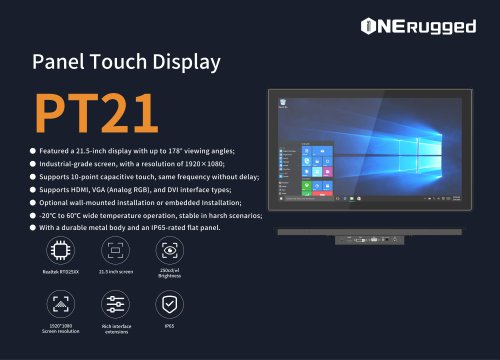 EM-PT21 Panel Touch Display
3 Pages
 Rugged Handheld H60T
2 Pages



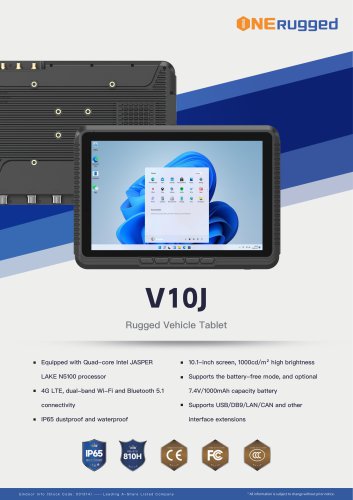

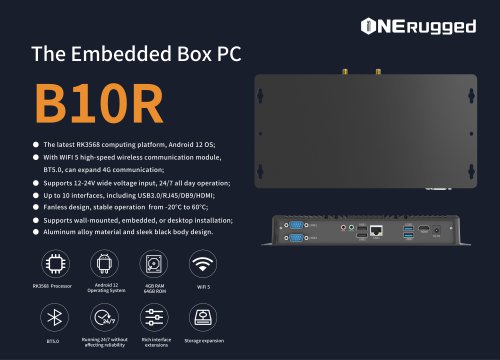
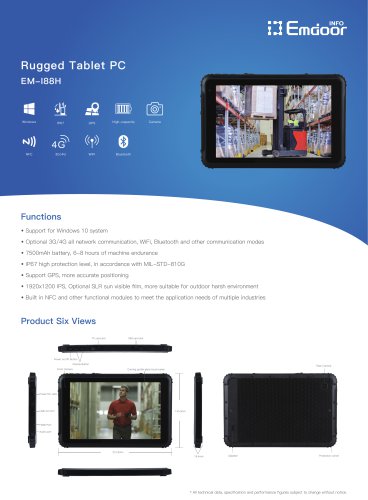
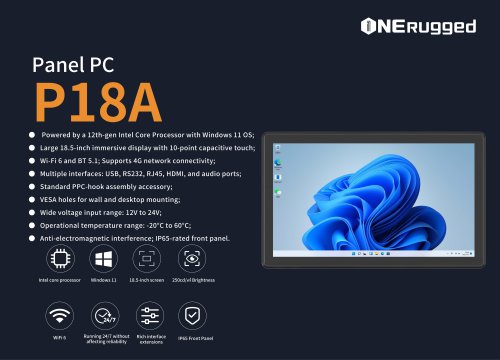
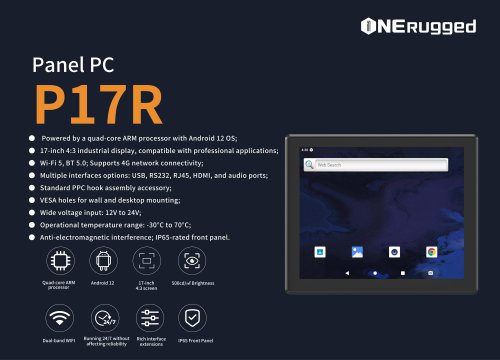
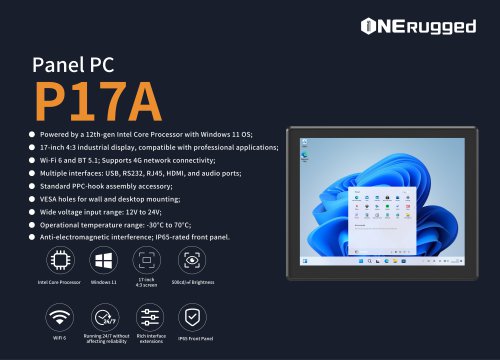


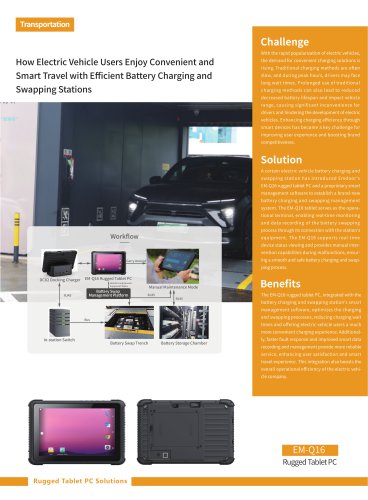
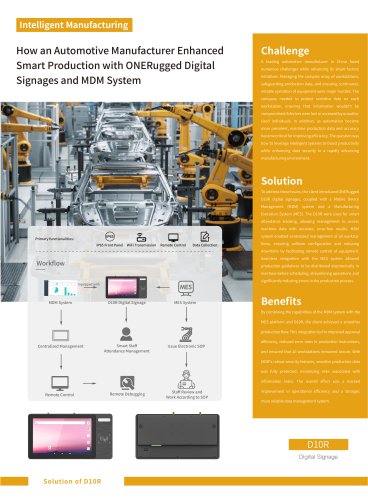
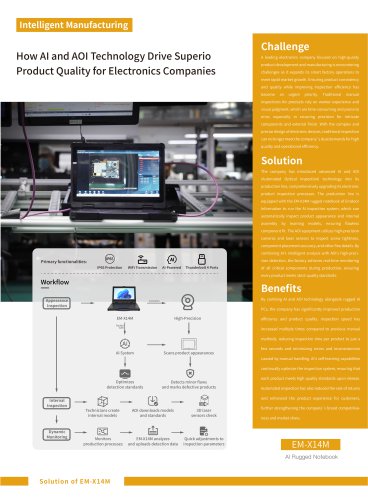







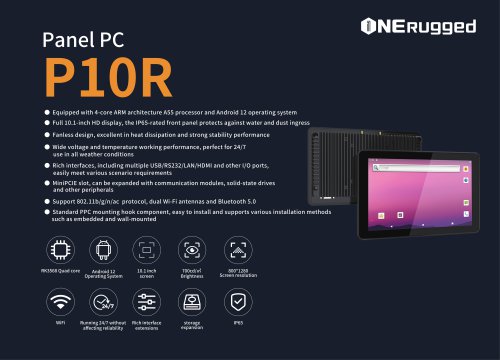

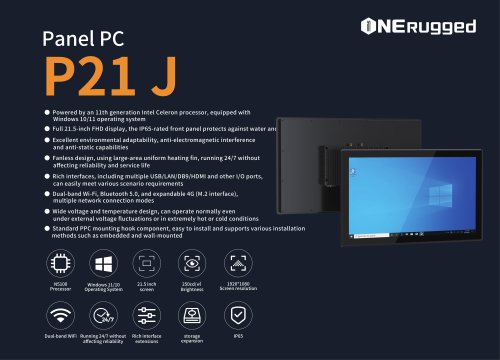
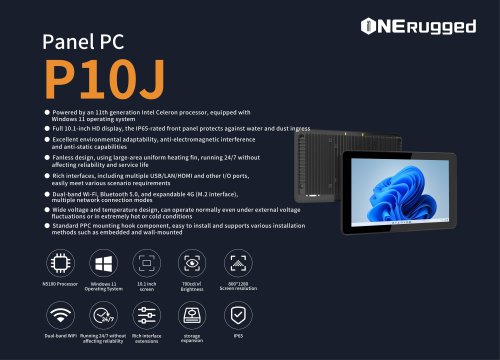
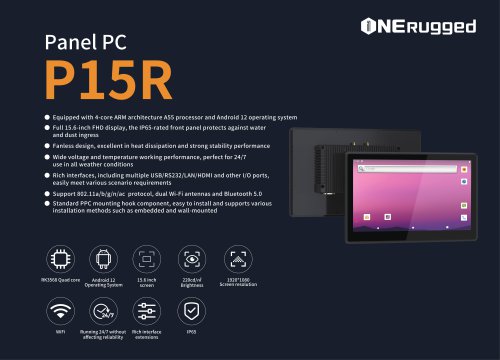



















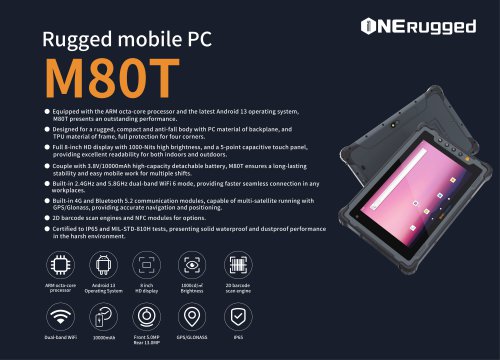
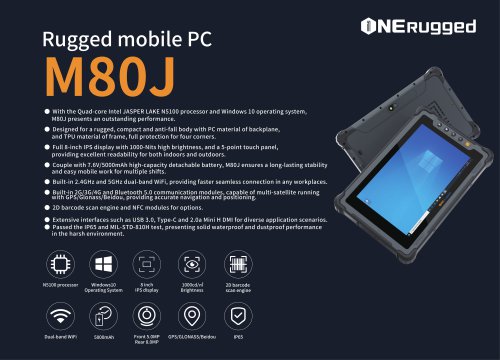
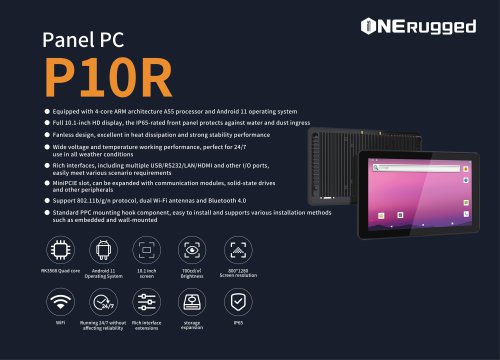
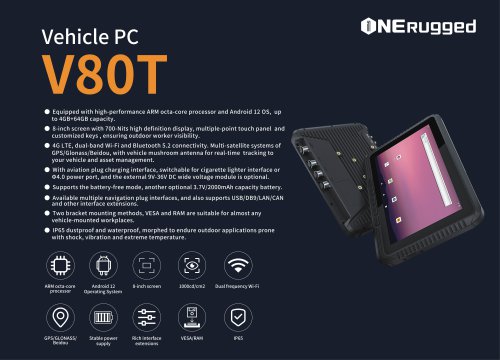


























- Emdoor panel PC
- Emdoor industrial panel PC
- Emdoor panel PC with touch screen
- LCD display panel
- Emdoor fanless panel PC
- Emdoor LCD panel PC
- Industrial display panel
- Intel® Core™ PC
- Fanless PC
- Emdoor IP65 panel PC
- Intel® Core™ panel PC
- VESA mounting panel PC
- Housed panel PC
- HDMI PC
- Embedded PC
- Box PC
- RS-232 PC
- USB 2.0 PC
- Windows PC