
- Catalogs
- Emdoor Information Co., Ltd.
- Emdoor Info. EM-T87X Rugged Tablet PC User Manual


- Company
- Products
- Catalogs
- News & Trends
- Exhibitions
Emdoor Info. EM-T87X Rugged Tablet PC User Manual
Emdoor Info. EM-T87X Rugged Tablet PC User Manual
This user manual provides detailed instructions for the EM-T87X rugged tablet, focusing on interface and system usage, troubleshooting, and technical support contact information.
The manual is the first issue of the T17X Android 12.0 System User Manual, version V1.0, dated August 2, 2023.
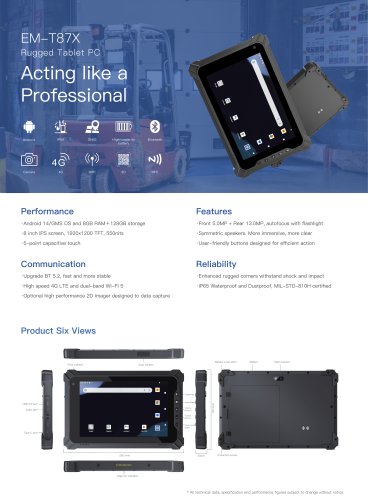
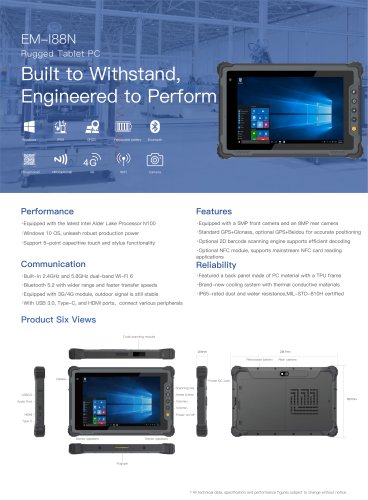
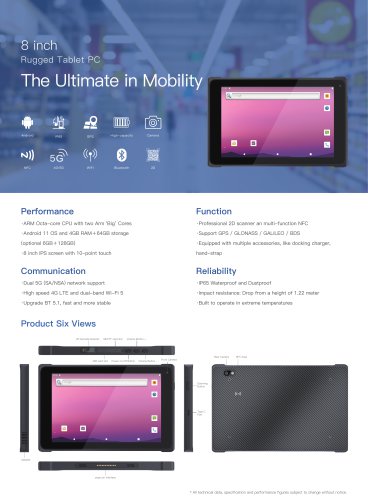
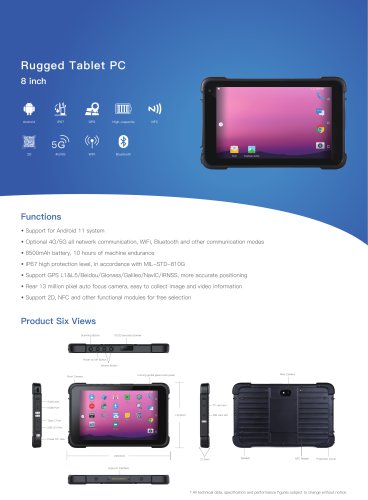
The tablet includes components such as a power button, volume buttons, TF/SIM card slot, optional scanning module, cameras, speaker, pogo pin, NFC, and various ports for audio and charging.
The initial display allows users to swipe up to access all applications for quick app launches.
This section covers settings options including:
- Network and Internet: Configure WLAN, mobile networks, Ethernet, etc.
- Connected Devices: Manage Bluetooth, NFC, and other connections.
- Applications and Notifications: Manage app settings and notifications.
- Battery: Monitor usage and power-saving modes.
- Display: Adjust brightness, themes, and screen settings.
- Volume: Set volume levels and modes.
- Memory: Check memory usage.
- Privacy and Security: Manage permissions, screen locks, and encryption.
- Accessibility: Customize display and interaction settings.
- System: Update software, manage languages, and reset options.
Details on using the Hardware Decoder app, including setting scanning modules and configuring settings like prompt tones, Bluetooth connections, and scanning modes.
Kiosk Mode restricts device usage to specified applications, enhancing security and usability for customer-facing scenarios. It includes admin mode for setting restrictions and user mode for limited access.
The manual provides comprehensive instructions for setting up and using the EM-T87X tablet, ensuring users can fully utilize its features and maintain optimal performance.
Users can customize the image and height of the logo after selection.
Users can set a password to enter "AdminMode" and disable external storage and USB connections for enhanced security.
Options include launching system settings, resetting to default values, clearing recent apps, and checking for updates.
In User Mode, users can only access programs or services allowed by the administrator. AdminMode requires a custom password for access to more settings.
Usage Restrictions: Admins can restrict applications and shortcuts available in Kiosk Mode.
Notification Bar Restrictions: Admins can restrict users from expanding the notification bar.
Password Settings: Admins can set or change the security password for AdminMode.
Data Protection: Options to disable data transfer via USB or external storage.
Admins can customize the wallpaper and icons for the Kiosk Mode home screen.
Instructions for inserting SIM and TF cards, including formatting requirements.
Catalog excerpts
Android System User Manual Thank you for using our products! To help you get familiar with the product faster, please refer to the user manual if you have any problems during use. This document mainly introduces the interface and system usage instructions of the T87X rugged tablet and helps you quickly understand the use of the product through the picture instruction. If you have any insoluble problems during use, please contact our technical personnel to deal with them. Thank you for your trust.
Open the catalog to page 1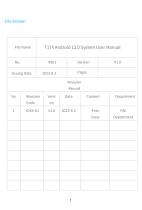
File Version
Open the catalog to page 2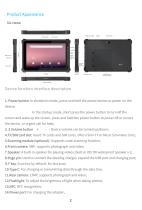
Product Appearance Six views: Device function interface description 1. Power button: In shutdown mode, press and hold the power button to power on the device; In the startup mode, short press the power button to turn off the screen and wake up the screen, press and hold the power button to power off or restart the device, or urgent call for help; 2. 3.Volume button “+””-”: Device volume can be turned up/down; 4.TF/SIM card slot: Insert TF cards and SIM cards. (Micro Sim+TF or Micro Sim+Nano Sim); 5.Scanning module (optional) : Supports code-scanning function; 6.Front camera: 5MP, supports photograph...
Open the catalog to page 3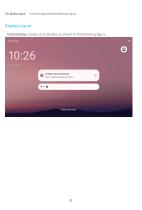
15.Audio port: § 3.5mm standard earphone jack. Initial display: Swipe up to display, as shown in the following figure. Configure physical keyboard Tap to select language and layout
Open the catalog to page 4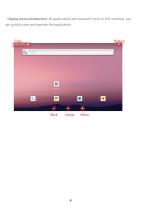
Display menu introduction: All applications are showed in here. In this interface, you can quickly start and operate the application.
Open the catalog to page 5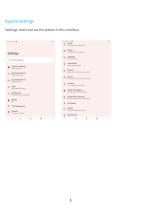
SettingsQ. Search settings Extension Settings Extension Settings Network & internet Mobile, Wi-Fi, hotspot ^ Connected devices Bluetooth, pairing ::: Apps Recent apps, default apps 0 Notifications Notification history, conversations • Batterya 90%*i* OTG Management ;= Storage 11% used-114 GB free ^ Sound Volume, vibration. Do Not Disturb Display Dark theme, font size, brightness ,£5 Wallpaper Home, lock screen -jj- Accessibility ■” Display, Interaction, audio g Security Screen lock. Find My Device, app security <§n Privacy Permissions, account activity, personal data ^ Location On -1 app has...
Open the catalog to page 6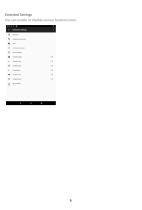
Extended Settings You can enable or disable various functions here.
Open the catalog to page 7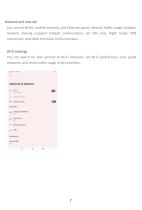
You can set WLAN, mobile network, and Ethernet, query network traffic usage, hotspot, network sharing (support hotspot continuation), set SIM card, flight mode, VPN connection, and other functions in this interface. Wi-Fi Settings You can search for and connect to Wi-Fi networks, set Wi-Fi preferences, view saved networks, and check traffic usage in this interface.
Open the catalog to page 8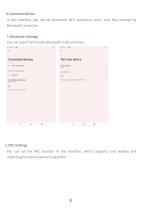
In this interface, you can set Bluetooth, NFC, projection, print, view files received by Bluetooth, and so on. You can search and match Bluetooth in this interface. Previously connected devices Connection preferences Phoned Bluetooth address: 0O;E0:0i:5F:B4:71 You can set the NFC function in this interface, which supports card reading and importingfunctionsand touch payment.
Open the catalog to page 9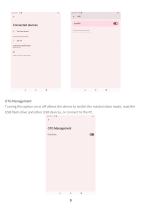
Connected devices Contactless payments Previously connected devices Connection preferences Visible as *T11X” to other devices OTG ManagementTurning this option on or off allows the device to switch the master/slave mode, read the USB flash drive and other USB devices, or connect to the PC. 10:30 ■ * 4 * t
Open the catalog to page 10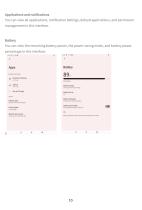
You can view all applications, notification Settings, default applications, and permission management in this interface. Battery You can view the remaining battery power, the power saving mode, and battery power percentage in this interface.
Open the catalog to page 11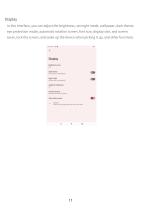
In this interface, you can adjust the brightness, set night mode, wallpaper, dark theme, eye protection mode, automatic rotation screen, font size, display size, and screen saver, lock the screen, and wake up the device when picking it up, and other functions.
Open the catalog to page 12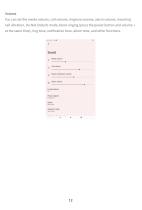
You can set the media volume, call volume, ringtone volume, alarm volume, incoming call vibration, Do-Not-Disturb mode, block ringing (press the power button and volume + at the same time), ring tone, notification tone, alarm tone, and other functions.
Open the catalog to page 13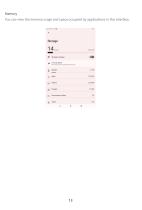
Go to Files app to manage and free up space Videos [Q Images ^ Documents & other 1 Trash
Open the catalog to page 14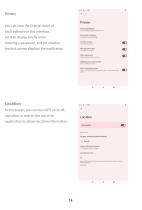
You can view the license status of each software in this interface, set it to display briefly when entering a password, and set whether the lock screen displays the notification. Privacy dashboard Show tvhich apps recently used permissions Permission manager Control app access to your data Camera access For all apps and services Microphone access Show passwords Display characters briefly as you type Notifications on lock screen Show all notification content Show clipboard access Show a message when apps access text images, or other content you've LocationIn this screen, you can turn GPS on or...
Open the catalog to page 15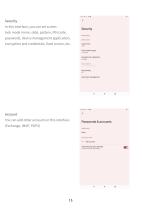
In this interface, you can set screen lock mode (none, slide, pattern, PIN code, password), device management application, encryption and credentials, fixed screen, etc. Security status Device security Screen lock Device admin apps Encryption & credentials Trust agents Auto-start management You can add other accounts in this interface. (Exchange, IMAP, POP3)
Open the catalog to page 16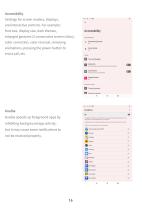
Settings for screen readers, displays, and interactive controls. For example: font size, display size, dark themes, enlarged gestures (3 consecutive screen clicks), color correction, color reversal, removing animations, pressing the power button to end a call, etc. Kuaiba speeds up foreground apps by inhibiting background app activity, but it may cause some notifications to not be received properly.
Open the catalog to page 17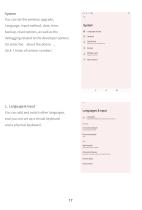
Language, input method, date, time, backup, reset options, as well as the debugging related to the developer options (toenterthe “aboutthephone” , click 7 times ofversion number). You can add and switch other languages, and you can set up a virtual keyboard and a physical keyboard. @ Languages & input p' Gestures q Date & time GMT+08:00 China Standard Time Languages & input English (United States) and Simplified Chinese (China) On-screen keyboard Android Keyboard (AOSP) Physical keyboard IrHid Spell checker Android Spell Checker (AOSP) Personal dictionary Add words to be used in apps such as...
Open the catalog to page 18All Emdoor Information Co., Ltd. catalogs and technical brochures
 EM-P10R Specification
3 Pages
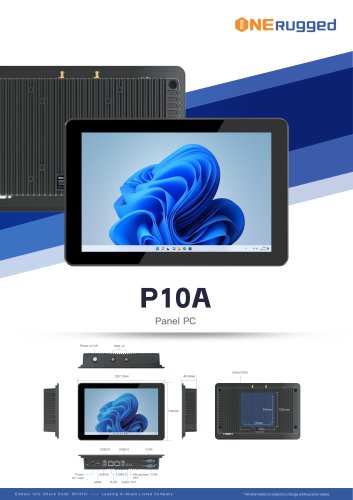 EM-P10A Specification
3 Pages
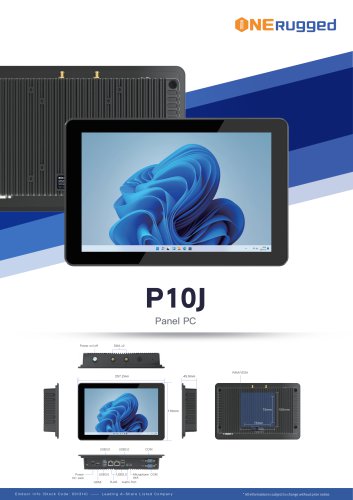 EM-P10J Specification
3 Pages
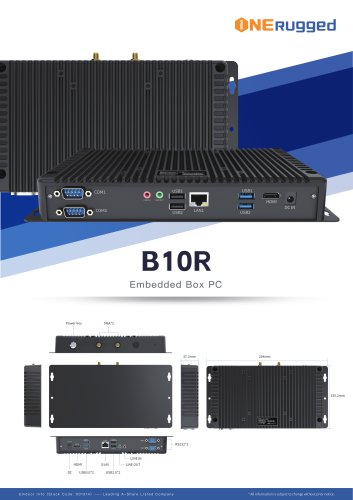 EM-B10R Specification
3 Pages
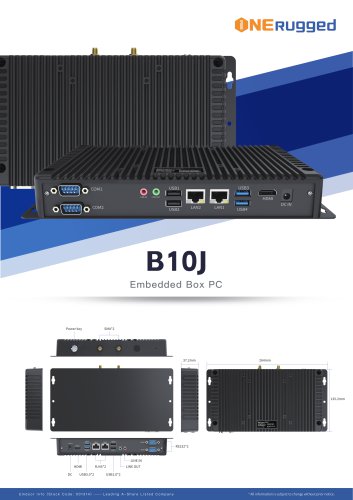 EM-B10J Specification
3 Pages
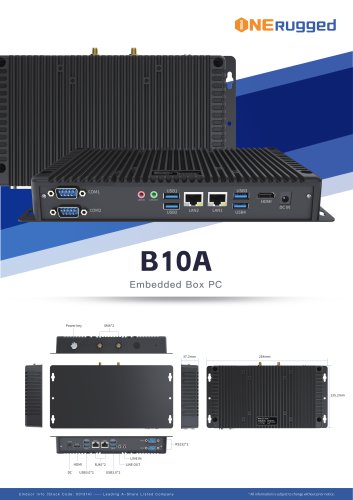 EM-B10A Specification
3 Pages
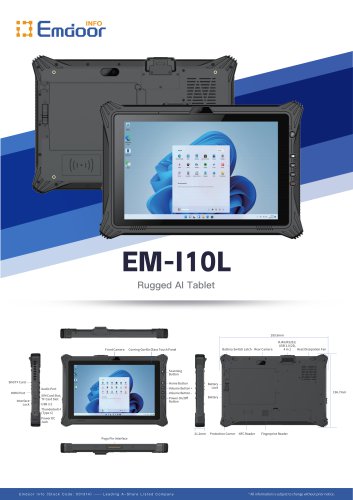 EM-I10L Specification
3 Pages
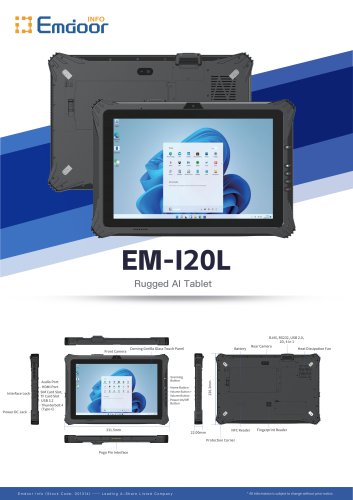 EM-I20L Specification
3 Pages
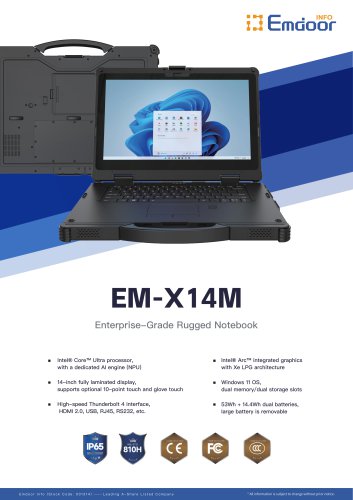 EM-X14M Specification
2 Pages
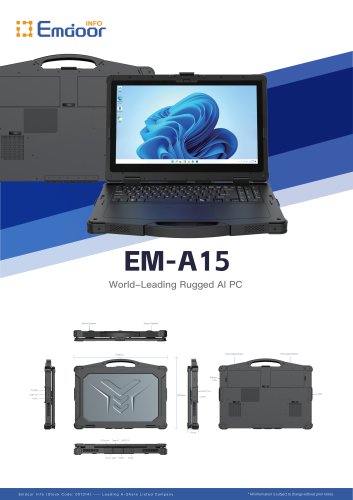 EM-A15 Specification
3 Pages
 EM-A14 Specification
3 Pages
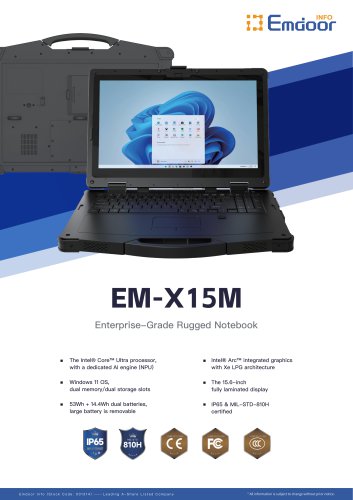 EM-X15M Specification
2 Pages
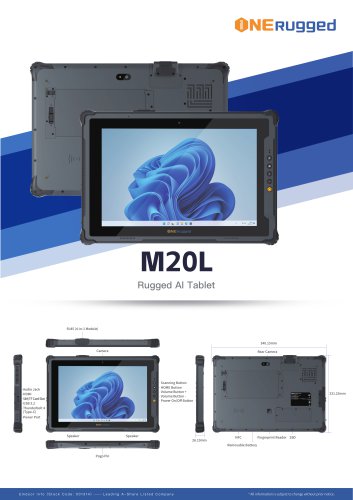 M20L-specification
3 Pages
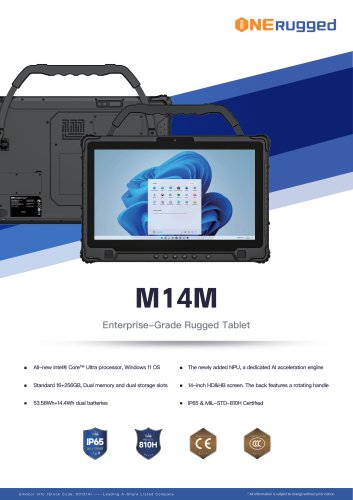 M14M-specification
2 Pages
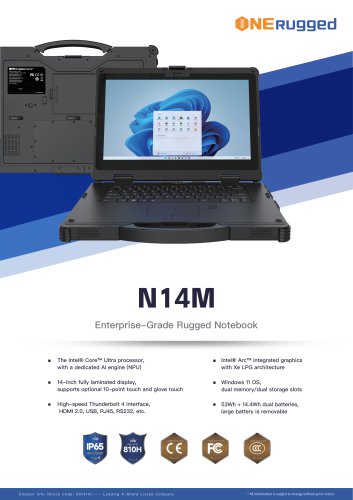 N14M-specification
2 Pages
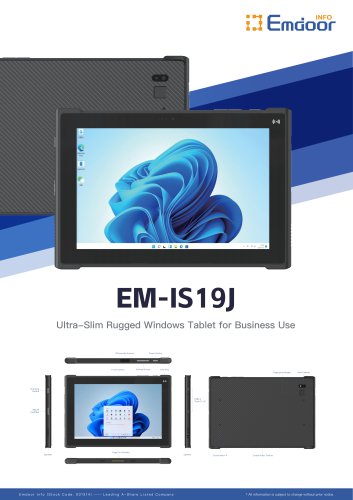 EM-IS19J specification
3 Pages
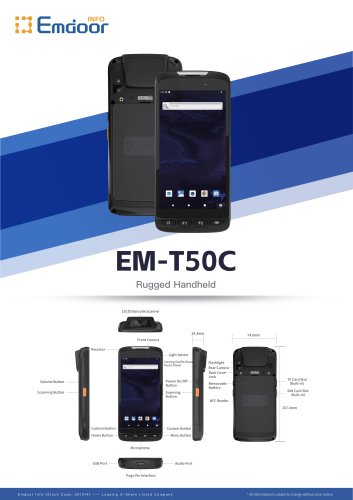 EM-T50C
3 Pages
 EM-D10R successful case
3 Pages
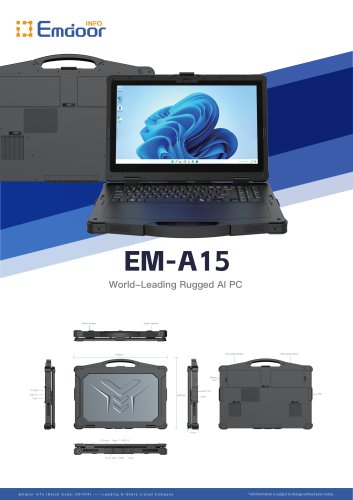 EM-A15
3 Pages
 EM-A14
3 Pages
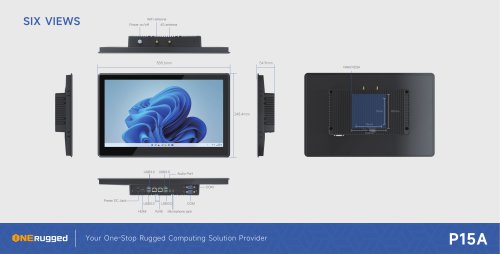 EM-P15A six views
1 Page
 EM-V12R USER MANUAL
2 Pages
 EM-P15A USER
2 Pages
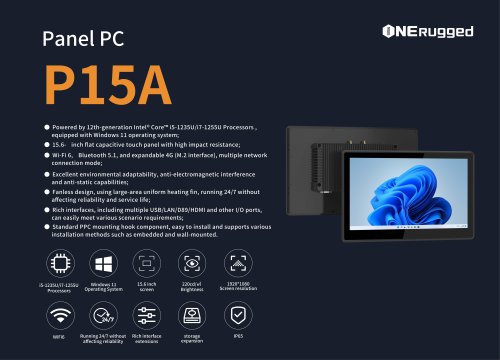 EM-P15A SPE
2 Pages
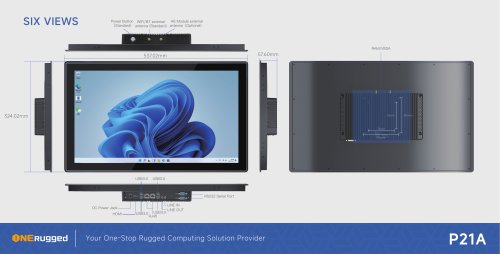 EM-P21A six views
1 Page
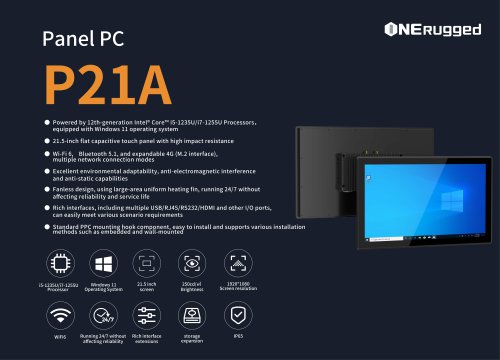 EM-P21A SPE
2 Pages
 EM-P21A user
2 Pages
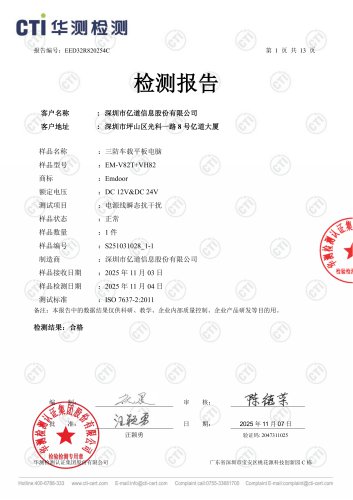 EM-V82T-EMC
13 Pages
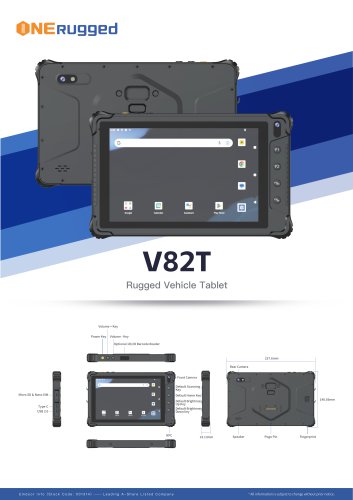 EM-V82T spe
4 Pages
 P2 PRO
2 Pages
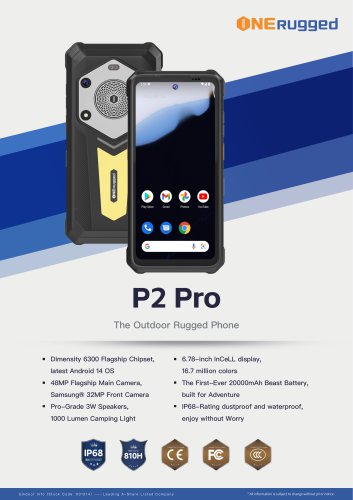 P2 PRO-SPE
2 Pages
 M82A- USER MANUAL
60 Pages
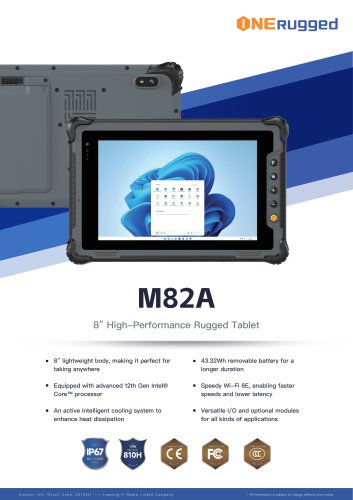 M82A-spe
2 Pages
 EM-X15A User Manual
76 Pages
 EM-X15M Rugged AI PC uesr manual
76 Pages
 Emdoor Info. EM-I16J User Manual
57 Pages
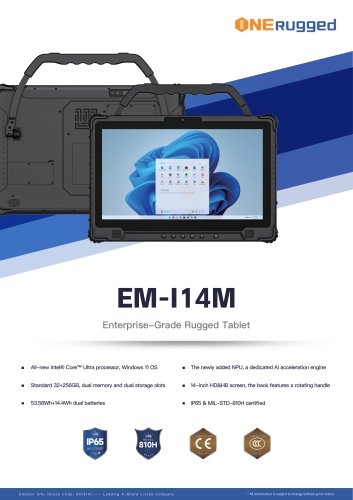 EM-I14M 14Inch Rugged AI PC
2 Pages
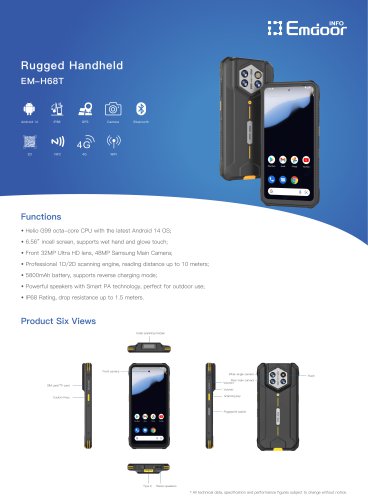 EM-H68T: Android 14 rugged PDA
2 Pages
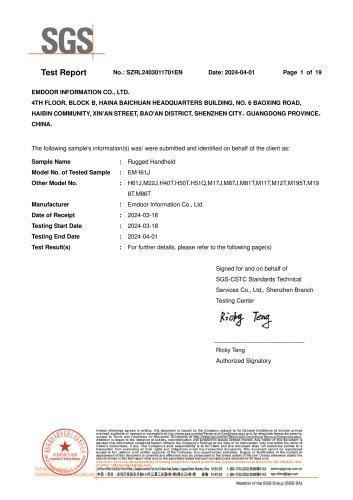 EM -I61J Rugged Handheld
19 Pages
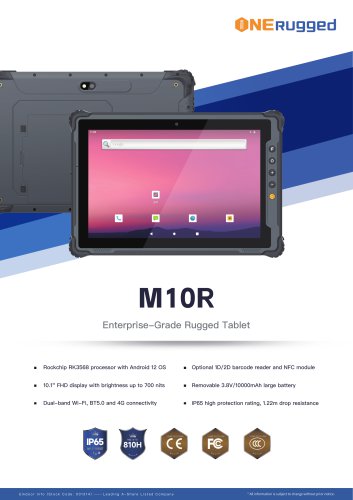 M10R Rugged Tablet RK3588
2 Pages
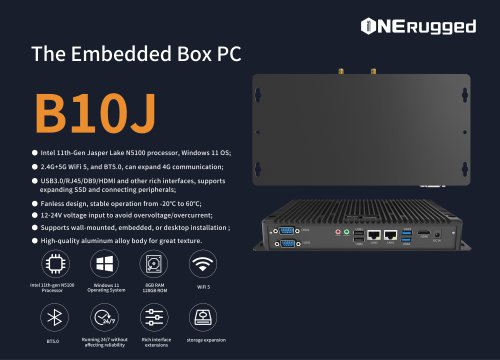 EM-B10J embedded box PC
3 Pages
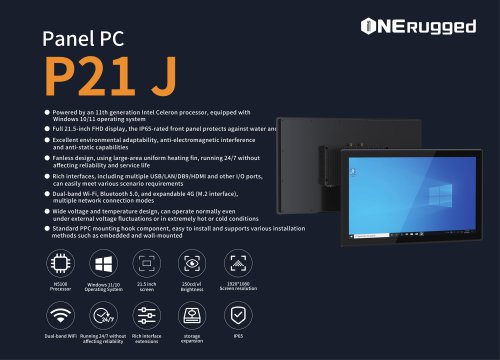
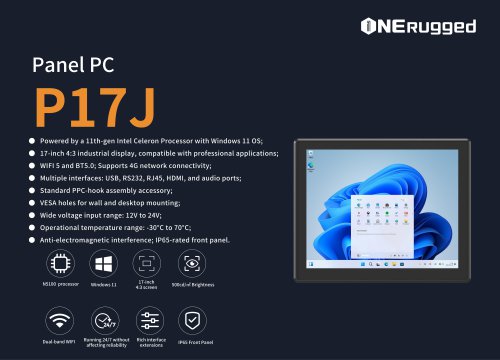 EM-P17J Panel PC
3 Pages
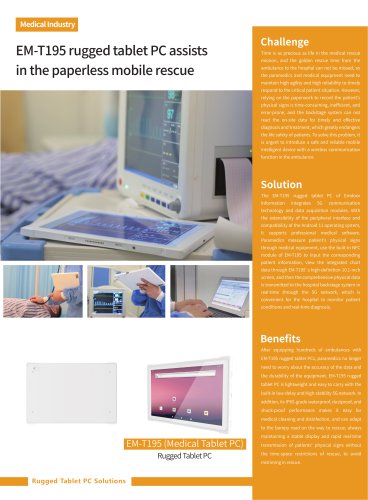
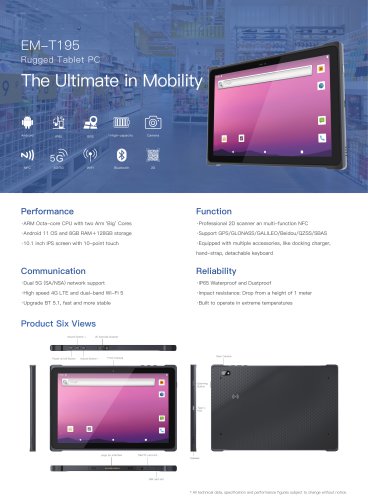 EM-T195 5G Rugged Tablet
2 Pages
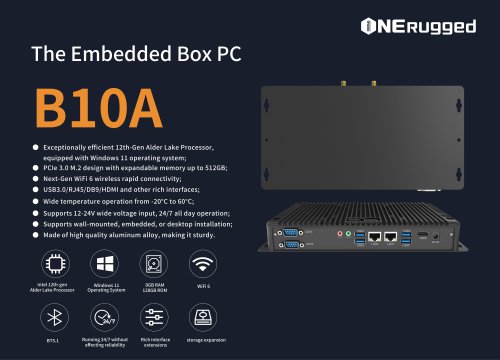 The Embedded Box PC-B10A
3 Pages
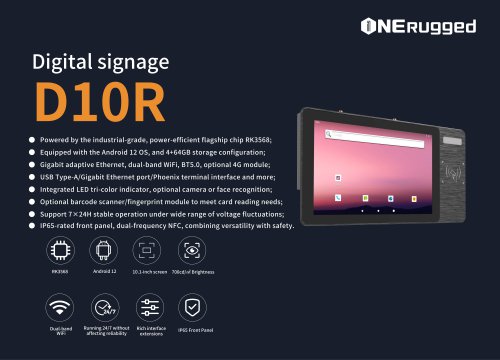 EM-D10R Digital signage
3 Pages
 EM-P1The Outdoor Rugged Phone
2 Pages
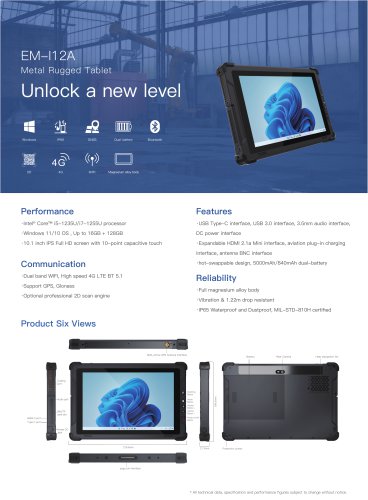
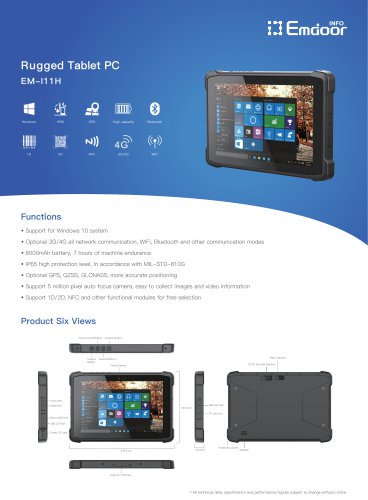 EM-I11H Rugged Tablet PC
2 Pages
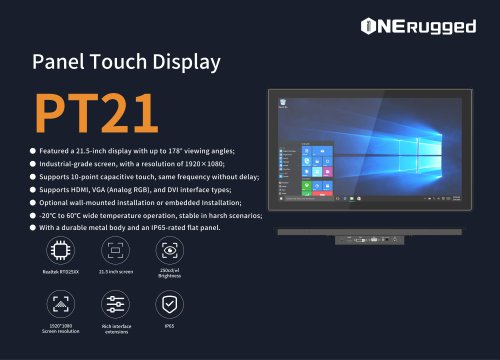 EM-PT21 Panel Touch Display
3 Pages
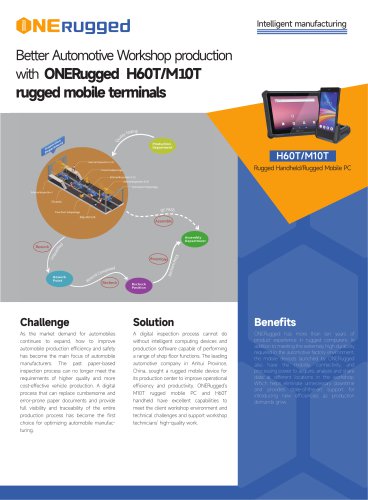
 Rugged Handheld H60T
2 Pages





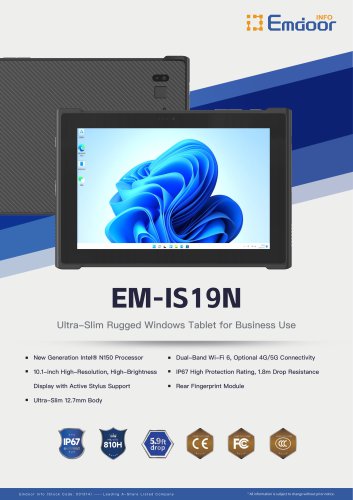


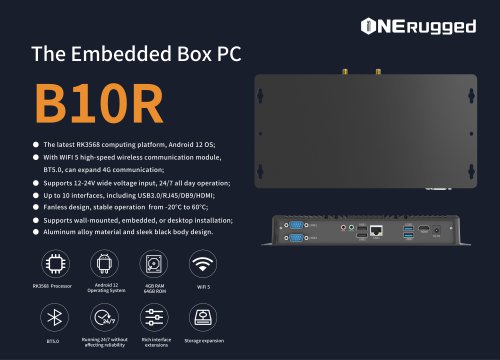
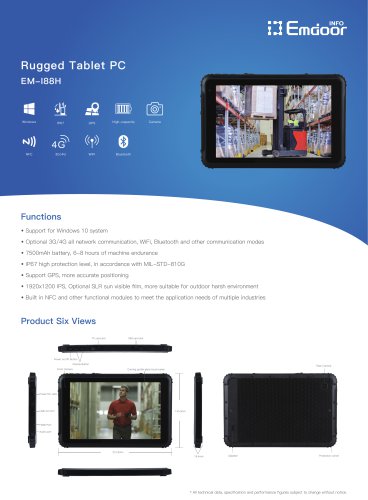
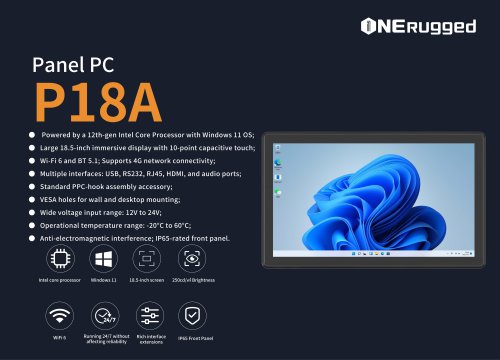
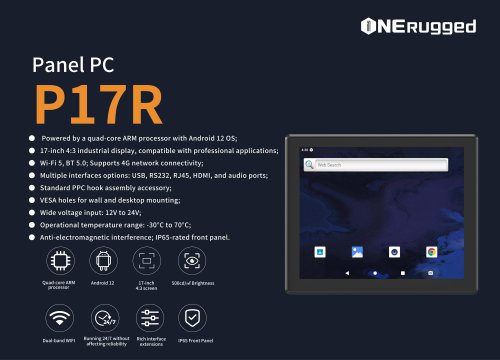
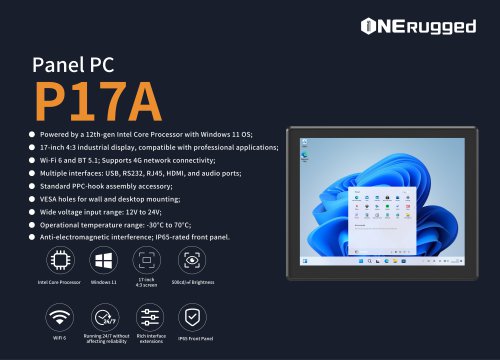


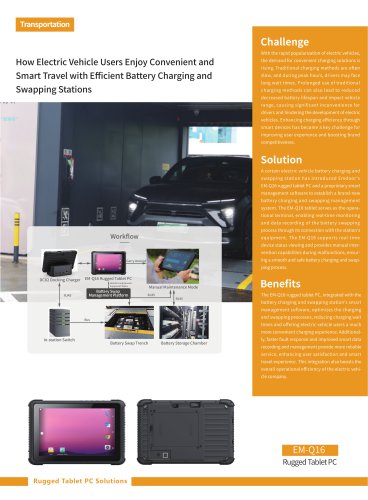

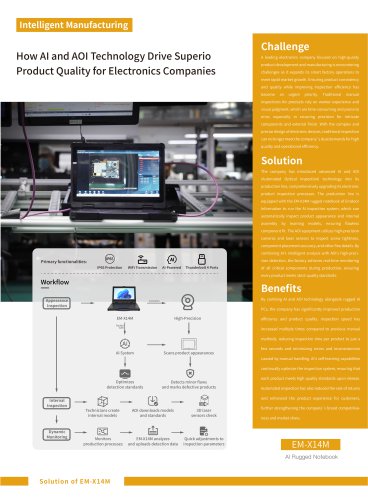










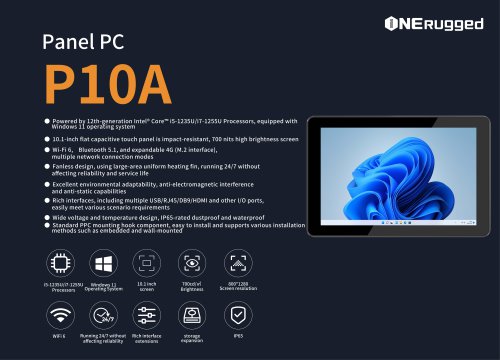
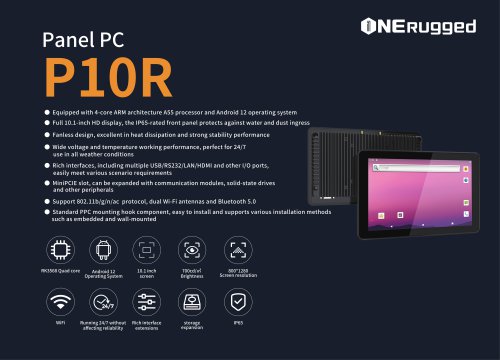

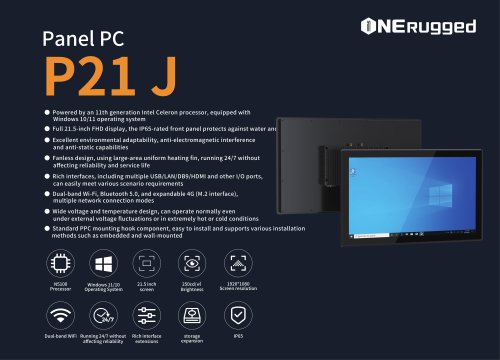
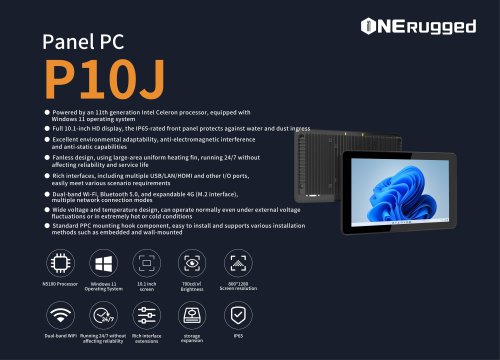














































- Emdoor panel PC
- Emdoor industrial panel PC
- Emdoor panel PC with touch screen
- LCD display panel
- Emdoor fanless panel PC
- Emdoor LCD panel PC
- Industrial display panel
- Intel® Core™ PC
- Fanless PC
- Emdoor IP65 panel PC
- Intel® Core™ panel PC
- VESA mounting panel PC
- Housed panel PC
- HDMI PC
- Embedded PC
- Box PC
- RS-232 PC
- USB 2.0 PC
- Windows PC