
- Catalogs
- Emdoor Information Co., Ltd.
- Emdoor Info. EM-Q19 Windows 11 BT5.1 Rugged Tablet PC User manual


- Company
- Products
- Catalogs
- News & Trends
- Exhibitions
Emdoor Info. EM-Q19 Windows 11 BT5.1 Rugged Tablet PC User manual
1 /48Pages
Emdoor Info. EM-Q19 Windows 11 BT5.1 Rugged Tablet PC User manual
1 /48Pages
Catalog excerpts
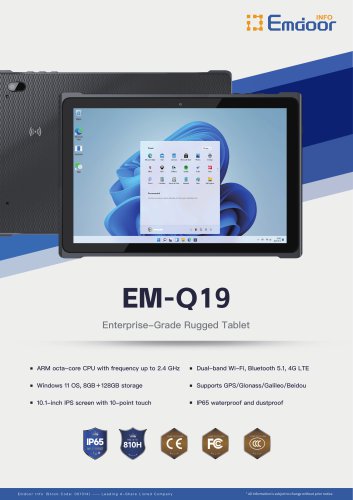
EM-Q19 USERMANUAL Rugged Mobile Computing Solutions
Open the catalog to page 1
The information in this manual is subjectto changewithout notice.
Open the catalog to page 2
This chapterfirsttellsyou step by step how to getthetablet up and running. Then, you will find a section briefly introducing the external components of thetablet.
Open the catalog to page 6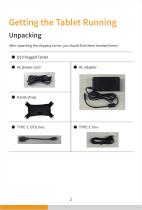
"GUFSVOQBDLJOHUIFTIJQQJOHDBSUPO ZPVTIPVMEOEUIFTFTUBOEBSEJUFNT
Open the catalog to page 7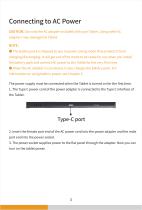
CAUTION: Use onlytheAC adapter included with yourTablet. Using otherAC adapters may damage the Tablet. # The battery pack is shipped toyou in power saving mode that protects it from charging/discharging. It will get out ofthe modeto be readyforusewhenyou install the battery pack and connectAC powerto the Tabletfortheveryfirst time. # When the AC adapter is connected, it also charges the battery pack. For information on using battery power.see Chapter3. The powersupply must be connected when the Tablet isturned on forthe first time. 1. The Type C powercord ofthe poweradapter is connected to the...
Open the catalog to page 8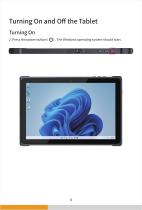
2. Press the power button (([)). The Windows operating system should start.
Open the catalog to page 9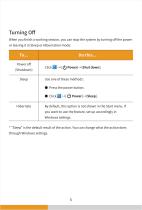
When you finish a working session,you can stop the system by turning offthe power or leaving it in Sleep or Hibernation mode: * “Sleep” isthedefault resultoftheaction.You can changewhattheaction does through Windows settings.
Open the catalog to page 10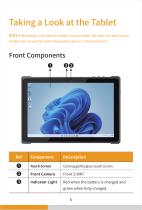
NOTE: Depending on the specific model you purchased, the colorand look ofyour model may not exactly match the graphics shown in this document. Front Components
Open the catalog to page 11
This chapter provides information about the use ofthe Tablet. Ifyou are new to Tablets, reading this chapterwill help you learn the operating basics. Ifyou are alreadya Tablet user.you maychoose to read onlythe parts containinginformation unique toyourTablet. # Do not expose yourskinto the Tabletwhen operating it in a very hot orcold environment. # The Tablet can get uncomfortablywarm when you use it in high temperatures.As a safety precaution in such a circumstance, do not place the Tablet on your lap or touch itwithyourbare handsforextended periods oftime. Prolonged body contact can cause discomfort...
Open the catalog to page 15
The WLAN (Wireless Local Area Network) module supports IEEE 802.11ax. To turn on the WLAN radio: Click the network connection icon inthe lowerrightcornertoopenthe network settings. Click^to open the wireless network. To turn offthe WLAN radio: You can turn offthe WLAN radio the same wayyou turn it on. Ifyou wantto quicklyturn off all radio frequencies at once,just turn on the flight mode: Click the network connection icon inthe lowerrightcornertoopen networksettings and clickflight mode. 1. Make sure thatthe WLAN function is enabled (as described above). 2. Click the network icon-^" in the lower...
Open the catalog to page 16
The Bluetooth technology allows short-range wireless communications between devices without requiring a cable connection. Data can be transmitted through walls, pockets and briefcases as long as two devices are within range. Click the network connection icon inthe lowerrightcornertoopenthe network settings. Click £ to open the Bluetooth. You can turn offthe Bluetooth radio the same wayyou turn it on. Ifyou wantto quicklyturn off all radio frequencies at once,just turn on the flight mode: Click the network connection icon inthe lowerrightcornertoopen networksettings and click night mode. 1. Makesurethatthe...
Open the catalog to page 17
YourTablet operates eitheron externalAC poweroron internal battery power. This chaptertellsyou howyou can effectively manage power. To maintain optimal battery performance, it is importantthatyou use the battery in the proper way.
Open the catalog to page 18
# The AC adapter is designed for use with yourTablet only. ConnectingtheAC adaptertoanotherdevice can damage the adapter. # The AC powercord supplied with yourTablet is for use in the countrywhere you purchased yourTablet. Ifyou plan to go overseas with the Tablet, consultyour dealerforthe appropriate powercord. # When you disconnecttheAC adapter, disconnect from the electrical outlet first and then from the Tablet. A reverse procedure may damage theAC adapteror Tablet. # When unpluggingthe connector, always hold the plug head. Never pull on the cord. TheAC adapterserves as a converterfrom AC...
Open the catalog to page 19
The battery pack is the internal powersource forthe Tablet. It is rechargeable using theAC adapter. CAUTION:The time to unplugthe battery pack is limited to when the battery is not being charged. NOTE:Care and maintenance information forthe battery is provided in the “Battery Pack Guidelines” section in Chapter6. NOTE:The rechargeable temperature ofthe battery is between 0°Cand 50°C. To charge the battery pack, connect the AC adapterto the Tabletand an electrical outlet. The Battery Indicator (e£3i) on the Tablet glows red to indicate that charging is in progress.When the battery is fully charged,...
Open the catalog to page 20
NOTE:Any battery level indication is an estimated result. The actual operating time can be differentfrom the estimated time, depending on howyou are usingthe Tablet. When the battery is fully charged, its powersupplytime depends on howyou use the Tablet. If the softwareyou use requires frequent use of peripheral devices, the power may run outsoon. You can find the battery icon on the Windows taskbar (lower-right corner). The icon shows the approximate battery level. Whenthe batteryis low, please connecttheadapterimmediately, puttheTabletinto hibernation, orturn offthe Tablet's power.
Open the catalog to page 21
Aside from enablingyourTablet’s power saving mode, you can doyourpartto maximizethe battery’ soperatingtime byfollowingthesesuggestions. # Do not disable Power Management. # Decrease the LCD brightness to the lowest comfortable level. # Shorten the length oftime before Windows turn offthe display. # When not using a connected device, disconnect it. # Turn offthe wireless radio ifyou are not usingthe wireless module (such as WLAN or Bluetooth). # Turn offthe Tablet when you are not using it.
Open the catalog to page 22
You can expand the capabilities ofyourTablet by connecting other peripheral devices. When using a device, be sure to read the instructions accompanyingthe device togetherwith the relevant section in this chapter.
Open the catalog to page 23All Emdoor Information Co., Ltd. catalogs and technical brochures
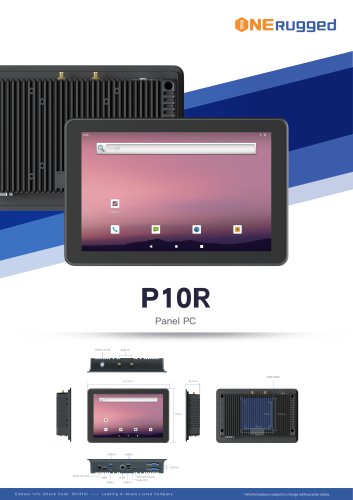 EM-P10R Specification
3 Pages
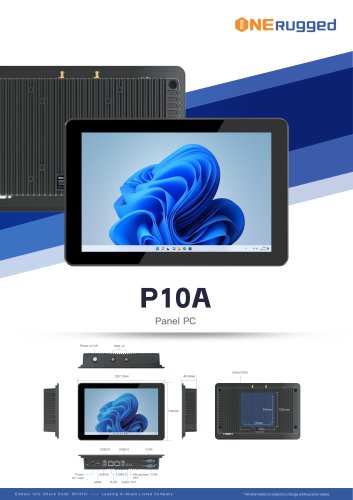 EM-P10A Specification
3 Pages
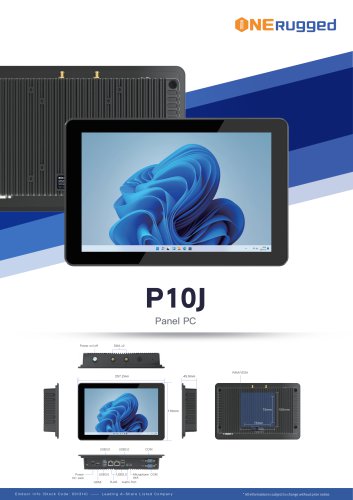 EM-P10J Specification
3 Pages
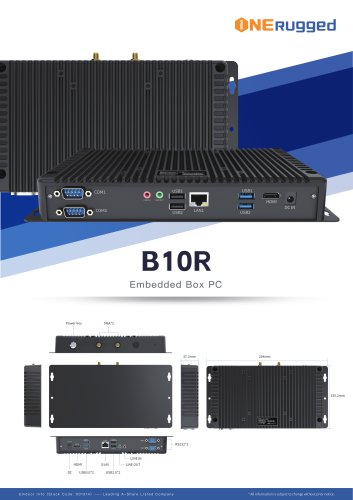 EM-B10R Specification
3 Pages
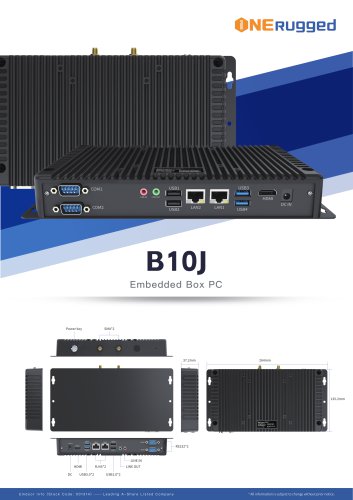 EM-B10J Specification
3 Pages
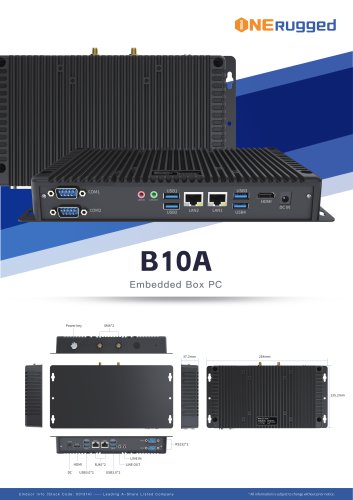 EM-B10A Specification
3 Pages
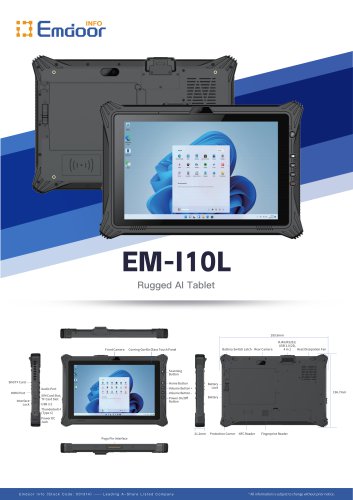 EM-I10L Specification
3 Pages
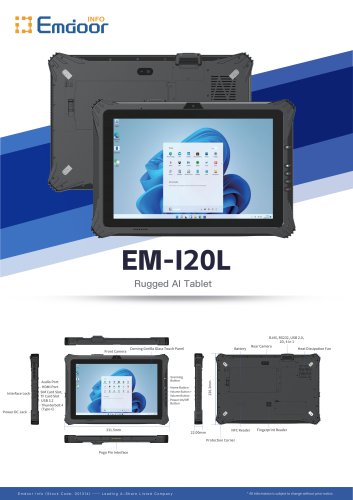 EM-I20L Specification
3 Pages
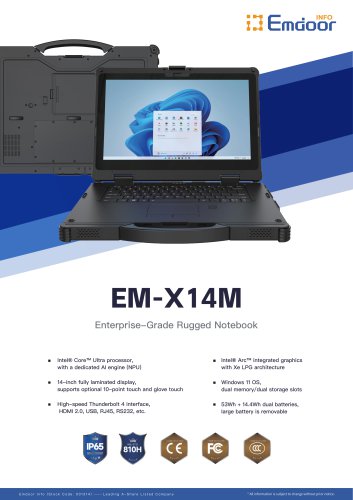 EM-X14M Specification
2 Pages
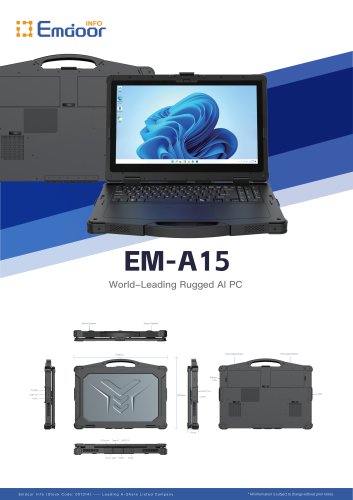 EM-A15 Specification
3 Pages
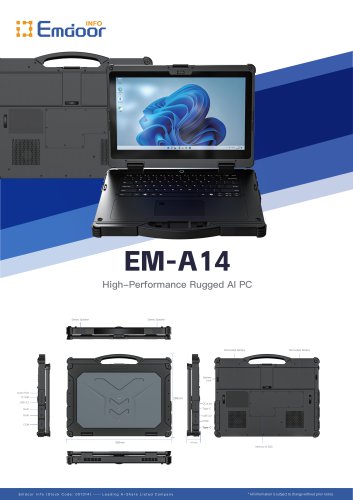 EM-A14 Specification
3 Pages
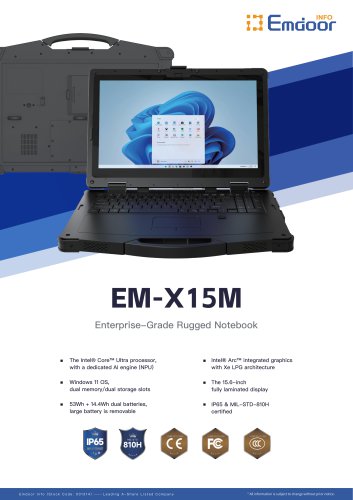 EM-X15M Specification
2 Pages
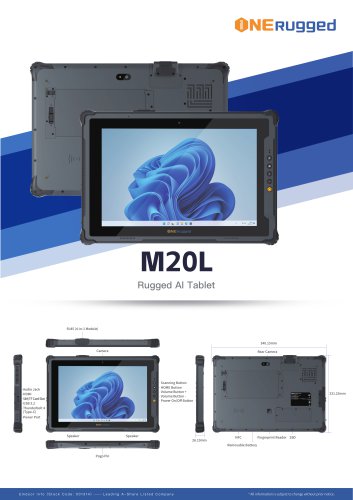 M20L-specification
3 Pages
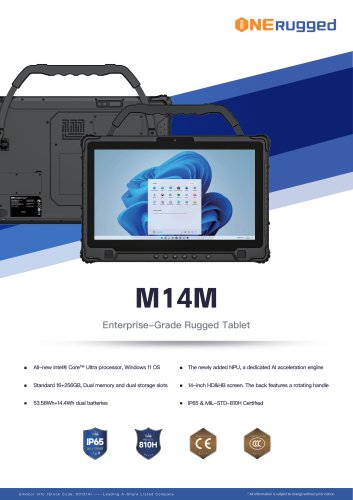 M14M-specification
2 Pages
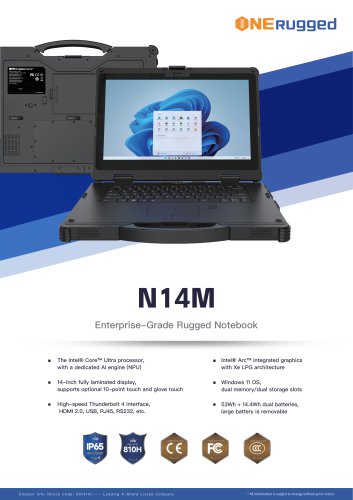 N14M-specification
2 Pages
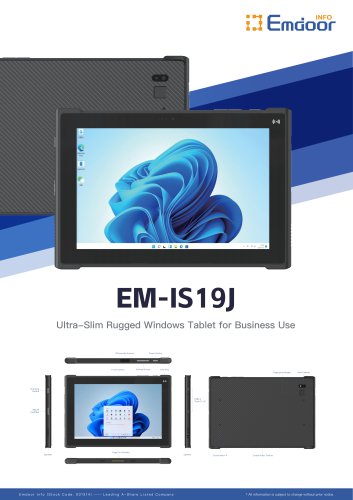 EM-IS19J specification
3 Pages
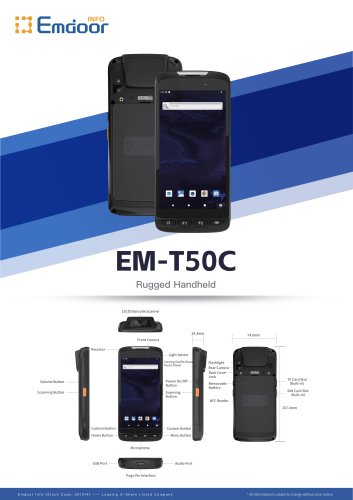 EM-T50C
3 Pages
 EM-D10R successful case
3 Pages
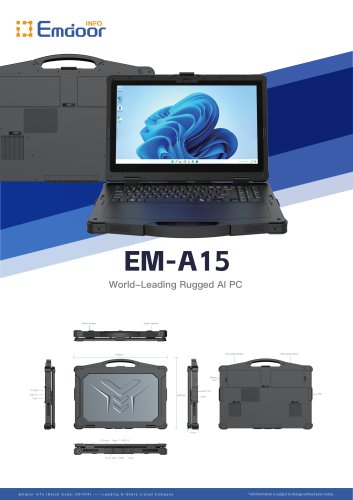 EM-A15
3 Pages
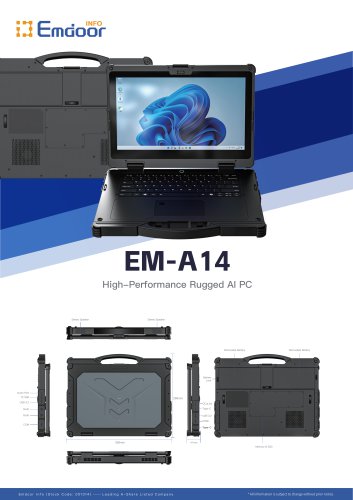 EM-A14
3 Pages
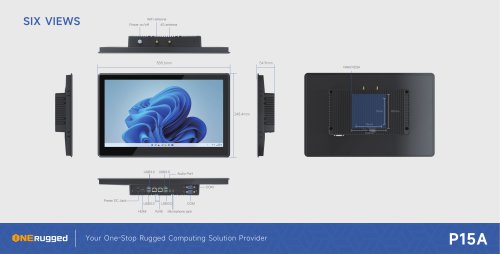 EM-P15A six views
1 Page
 EM-V12R USER MANUAL
2 Pages
 EM-P15A USER
2 Pages
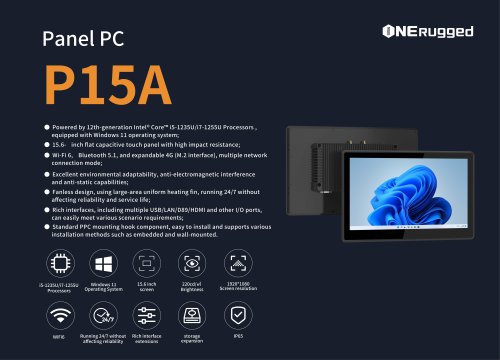 EM-P15A SPE
2 Pages
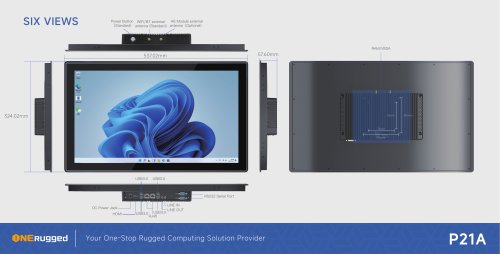 EM-P21A six views
1 Page
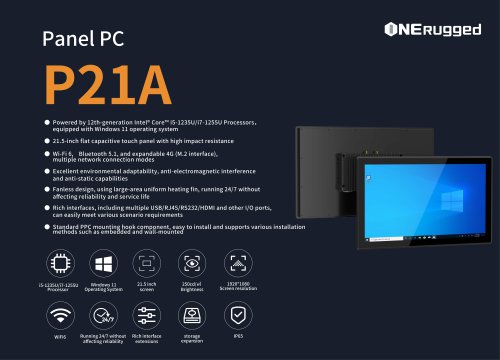 EM-P21A SPE
2 Pages
 EM-P21A user
2 Pages
 EM-V82T-EMC
13 Pages
 EM-V82T spe
4 Pages
 P2 PRO
2 Pages
 P2 PRO-SPE
2 Pages
 M82A- USER MANUAL
60 Pages
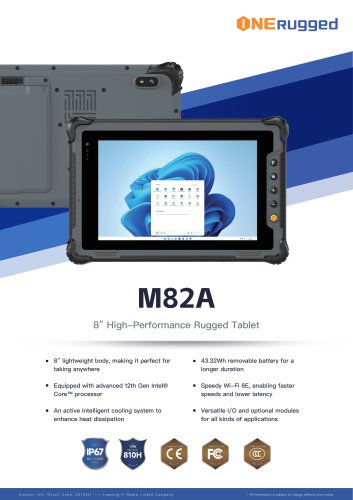 M82A-spe
2 Pages
 EM-X15A User Manual
76 Pages
 EM-X15M Rugged AI PC uesr manual
76 Pages
 Emdoor Info. EM-I16J User Manual
57 Pages
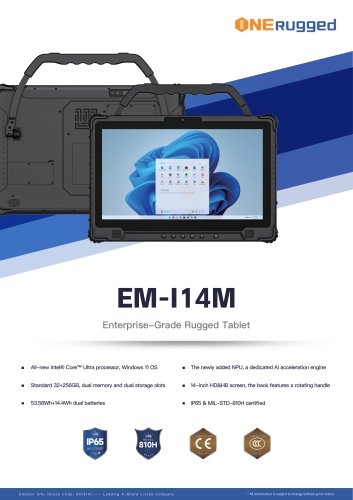 EM-I14M 14Inch Rugged AI PC
2 Pages
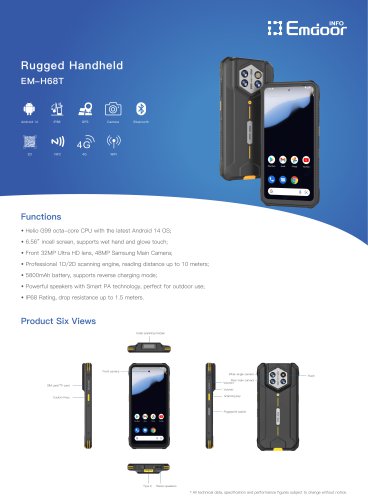 EM-H68T: Android 14 rugged PDA
2 Pages
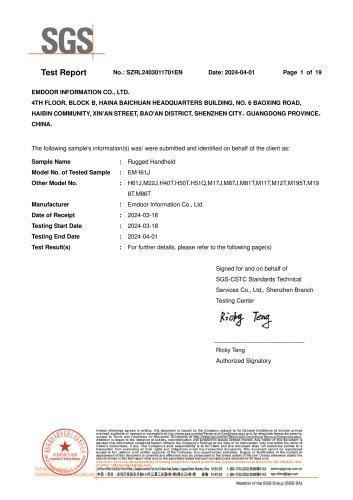 EM -I61J Rugged Handheld
19 Pages
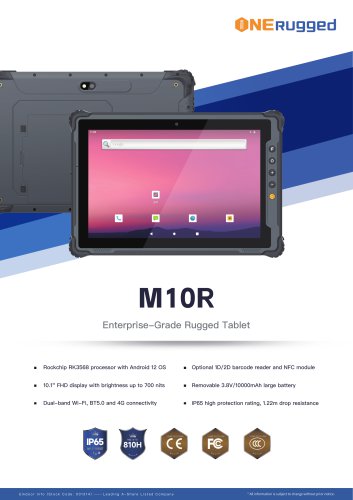 M10R Rugged Tablet RK3588
2 Pages
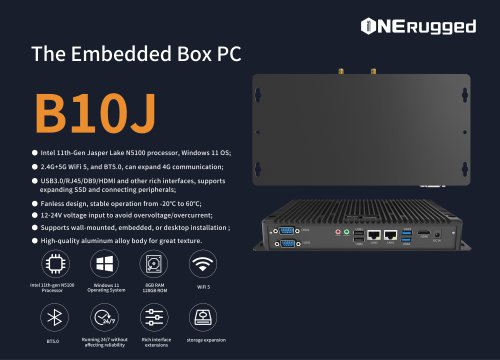 EM-B10J embedded box PC
3 Pages
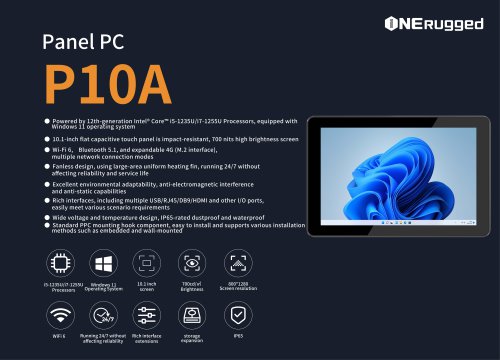
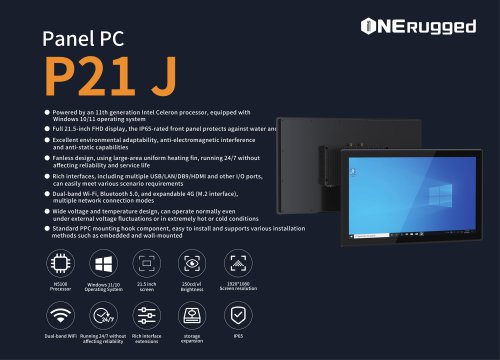
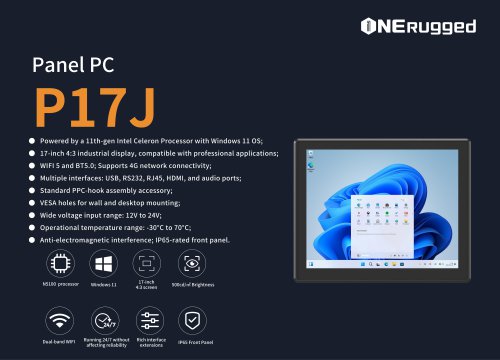 EM-P17J Panel PC
3 Pages
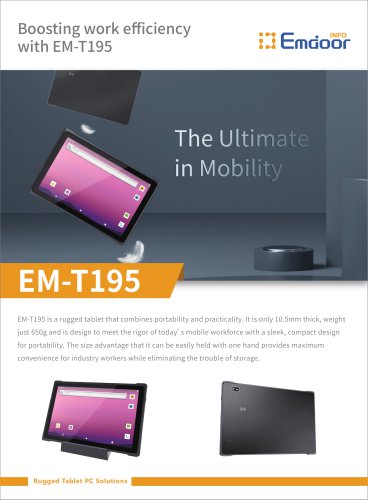
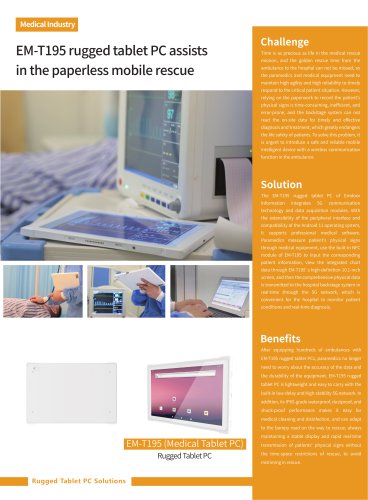
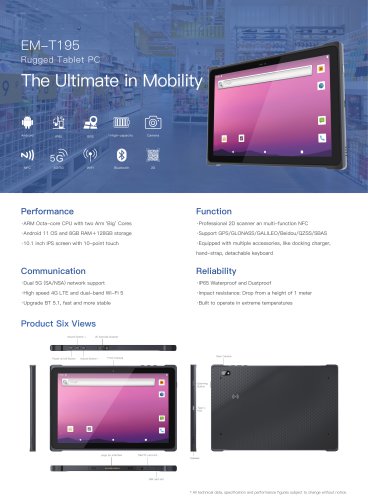 EM-T195 5G Rugged Tablet
2 Pages
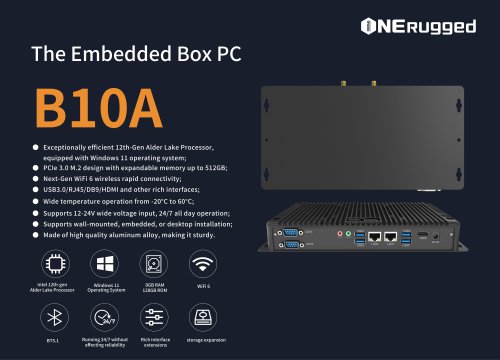 The Embedded Box PC-B10A
3 Pages
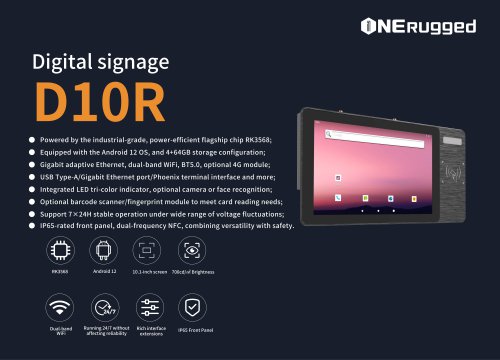 EM-D10R Digital signage
3 Pages
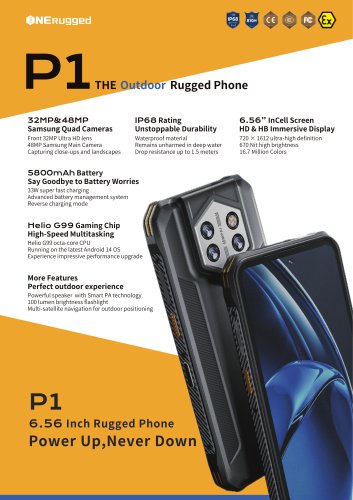 EM-P1The Outdoor Rugged Phone
2 Pages
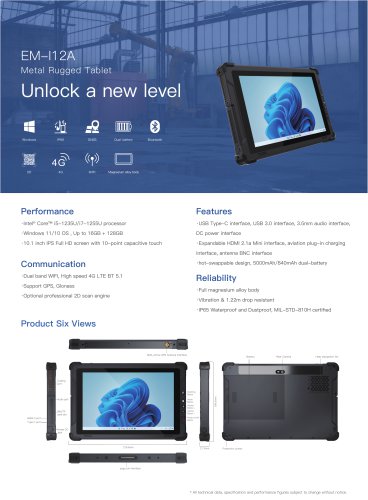
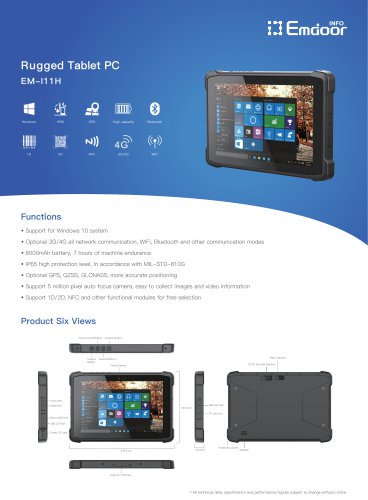 EM-I11H Rugged Tablet PC
2 Pages
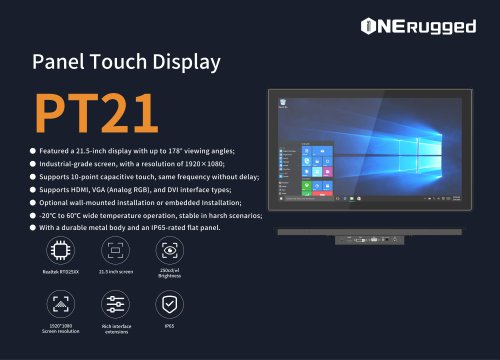 EM-PT21 Panel Touch Display
3 Pages
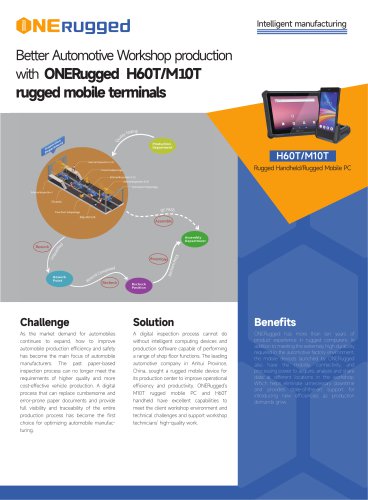
 Rugged Handheld H60T
2 Pages




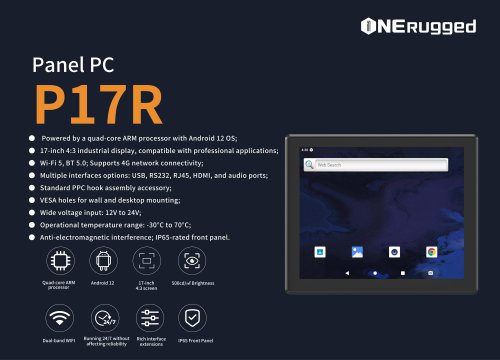
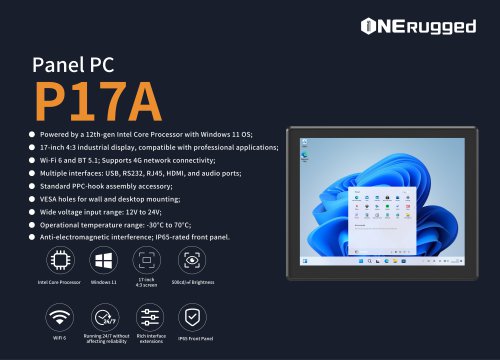


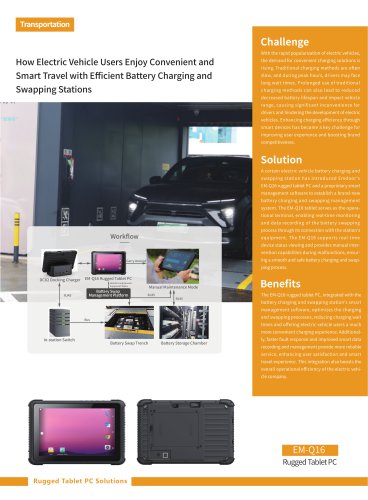

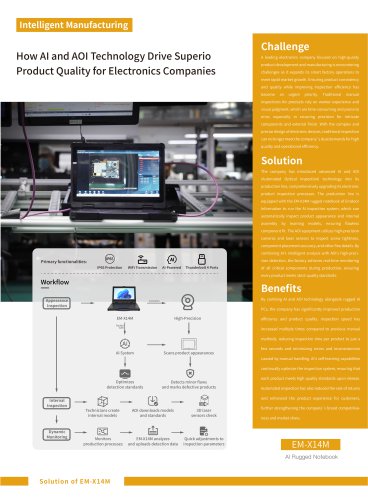







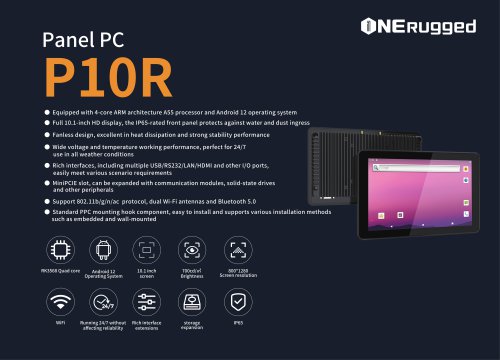

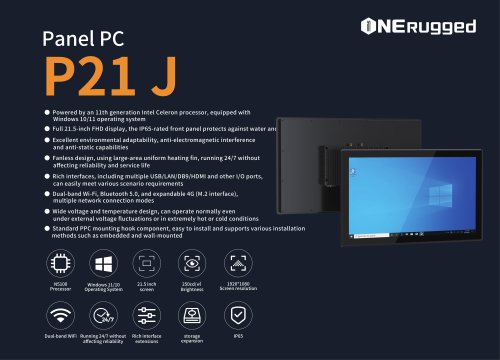
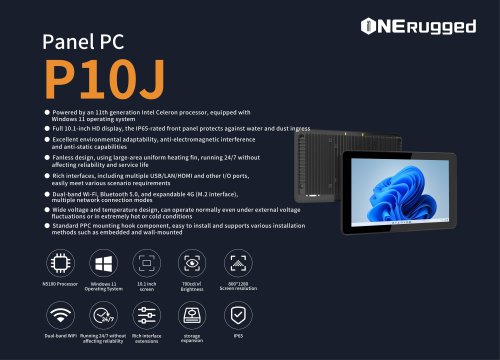
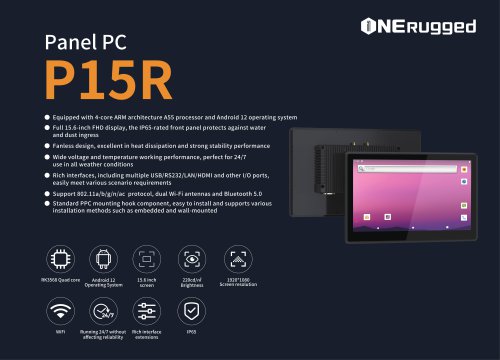

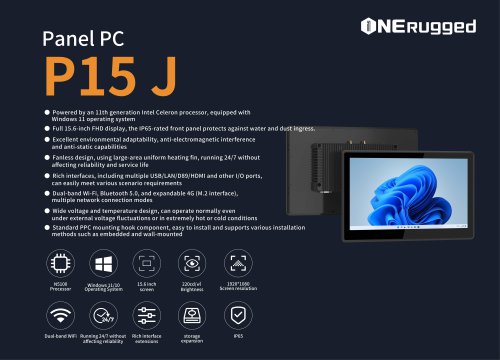
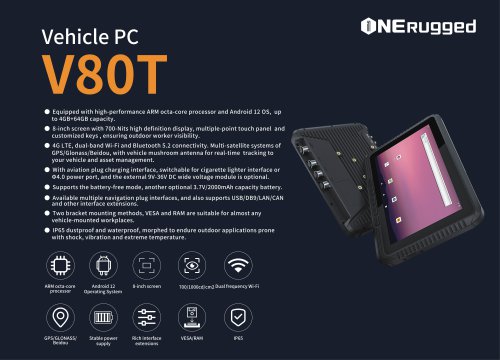

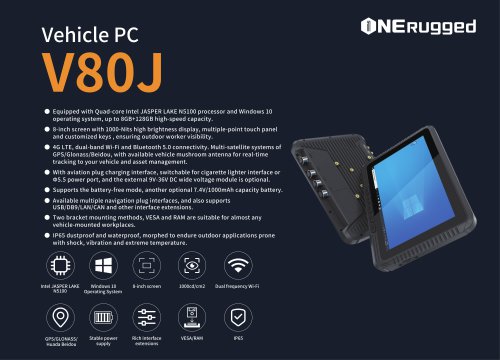
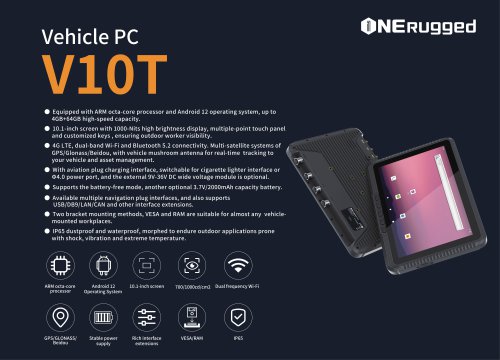












































- Emdoor panel PC
- Emdoor industrial panel PC
- Emdoor panel PC with touch screen
- LCD display panel
- Emdoor fanless panel PC
- Emdoor LCD panel PC
- Industrial display panel
- Intel® Core™ PC
- Fanless PC
- Emdoor IP65 panel PC
- Intel® Core™ panel PC
- VESA mounting panel PC
- Housed panel PC
- HDMI PC
- Embedded PC
- Box PC
- RS-232 PC
- USB 2.0 PC
- Windows PC