
- Catalogs
- Emdoor Information Co., Ltd.
- Emdoor Info. EM-I16J User Manual


- Company
- Products
- Catalogs
- News & Trends
- Exhibitions
Emdoor Info. EM-I16J User Manual
Emdoor Info. EM-I16J User Manual
This section provides a comprehensive guide for setting up the tablet, including unpacking, connecting to AC power, and powering the device on and off. It details the key components located on various sides of the tablet.
This chapter explains the basics of tablet operation, covering wireless connections like WLAN and Bluetooth, and includes instructions for using the fingerprint scanner and soft keyboard. It also discusses adjusting resolution settings and screen orientation.
Details on using the AC adapter and battery pack are provided, including charging, checking battery levels, and replacing the battery. Power-saving tips are also included.
This section explains how to connect peripheral devices such as USB, Type-C, monitors, serial devices, audio devices, and SIM/TF cards.
Instructions on when and how to use the BIOS setup are provided, along with descriptions of the main, advanced, security, boot, and save & exit menus.
Guidelines for protecting and maintaining the tablet are outlined, including anti-virus strategies, using a cable lock, and cleaning guidelines. Tips for traveling with the tablet are also included.
This chapter offers a preliminary checklist and solutions for common problems related to battery, Bluetooth, display, hardware, power management, software, sound, startup, and WLAN. Instructions for restarting the tablet and system recovery are also provided.
Ensure the scanning surface and your finger are clean and dry for optimal performance. Avoid using the scanner in freezing temperatures. A user account and password must be created in Windows before setting up fingerprint recognition.
Access the soft keyboard and adjust display settings through the taskbar and settings menu. Screen resolution and orientation can be configured in the display settings.
Your tablet can operate on AC power or an internal battery. Use the AC adapter specifically designed for your tablet to avoid damage. The adapter converts AC to DC power and charges the battery. The battery should be charged between 0°C and 50°C.
The battery pack is rechargeable via the AC adapter. The battery indicator shows charging status. Replace the battery only with manufacturer-approved packs and follow safety guidelines to avoid explosion risks.
Your tablet supports USB 3.0, Type-C, HDMI, and DisplayPort connections for various devices. Ensure the correct specifications are used for each connection type.
The BIOS Setup Utility configures system settings and is accessed by pressing the "ESC" key during startup. It allows for system optimization and security settings, including password protection and secure boot configuration.
Protect your tablet from extreme conditions and physical damage. Use a Kensington lock for theft prevention. Clean the tablet with a soft cloth and avoid using it in environments with metallic dust.
Avoid removing the battery pack when the Tablet is in Sleep mode to prevent data loss or instability. Store the battery pack properly and recharge it if stored for more than six months.
Use fingers or a stylus to avoid scratches. Clean with a soft cloth to protect the special coating. Avoid excessive force and placing objects on the display.
Ensure the battery is fully charged and the Tablet is off. Close all connector covers for waterproof integrity. Hand-carry the Tablet and avoid checking it as luggage.
Isolate the problem source and ensure all devices are properly connected and configured. For battery issues, ensure proper installation and clean terminals. For Bluetooth, ensure devices are within range and not in "Hidden" mode.
Restart the Tablet using Ctrl + Alt + Del or the power button if it crashes. Use Windows RE for recovery and troubleshooting. System recovery will reinstall Windows and erase all data.
Catalog excerpts

Rugged Mobile Computing Solutions
Open the catalog to page 1
The information in this manual is subject to change without notice.
Open the catalog to page 2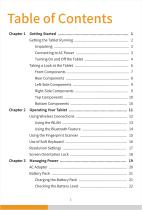
Table of Contents Chapter 1
Open the catalog to page 3
Getting Started This chapter first tells you step by step how to get the tablet up and running. Then, you will find a section briefly introducing the external components of
Open the catalog to page 6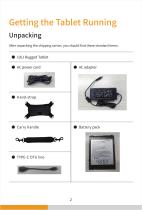
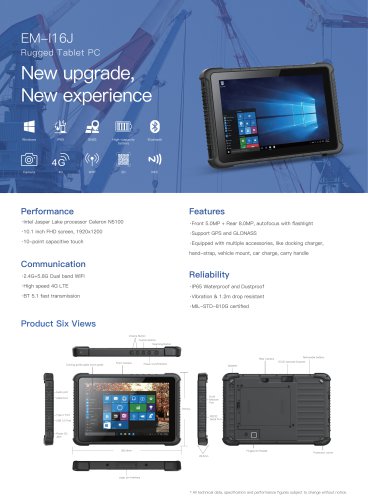
Getting the Tablet Running Unpacking After unpacking the shipping carton, you should find these standard items: ● I16J Rugged Tablet ● AC power cord
Open the catalog to page 7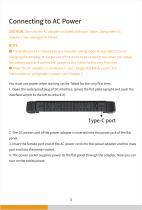
CAUTION:Use only the AC adapter included with your Tablet. Using other AC adapters may damage the Tablet. NOTE: ● The battery pack is shipped to you in power saving mode that protects it from charging/discharging. It will get out of the mode to be ready for use when you install the battery pack and connect AC power to the Tablet for the very first time. ● When the AC adapter is connected, it also charges the battery pack. For information on using battery power, see Chapter 3. You must use power when starting up the Tablet for the very first time. 1. Open the waterproof plug of DC interface. (place...
Open the catalog to page 8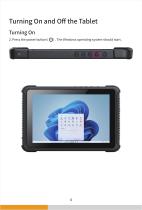
Turning On and Off the Tablet Turning On 2. Press the power button ( ) . The Windows operating system should start.
Open the catalog to page 9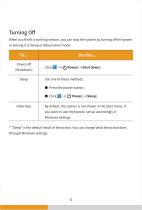
When you finish a working session, you can stop the system by turning off the power or leaving it in Sleep or Hibernation mode: * “Sleep” is the default result of the action. You can change what the action does through Windows settings.
Open the catalog to page 10
Taking a Look at the Tablet NOTE:Depending on the specific model you purchased, the color and look of your model may not exactly match the graphics shown in this document. CAUTION:You need to open the protective covers to access the connectors. When not using a connector, make sure to close the cover completely for water-proof, and dust-proof integrity.
Open the catalog to page 11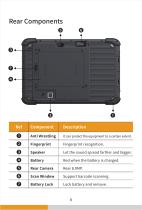
Rear Components Fingerprint recognition. Anti Wrestling Speaker Battery It can protect the equipment to a certain extent. Let the sound spread farther and bigger. Red when the battery is charged. Rear Camera Battery Lock Lock battery and remove. Scan Window
Open the catalog to page 13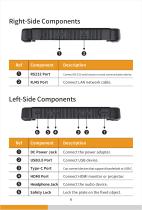
Right-Side Components Connect RS-232 serial mouse or serial communication device. Connect LAN network cable. Left-Side Components Connect the power adapter. Type-C Port Can connect devices that support thunderbolt or USB-C. Headphone Jack Connect the audio device. HDMI Port Safety Lock Connect HDMI monitor or projector.
Open the catalog to page 14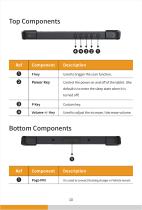
Bottom Components
Open the catalog to page 15
Operating Your Tablet This chapter provides information about the use of the Tablet. If you are new to Tablets, reading this chapter will help you learn the operating basics. If you are already a Tablet user, you may choose to read only the parts containing information unique to your Tablet. CAUTION: ● Do not expose your skin to the Tablet when operating it in a very hot or cold environment. ● The Tablet can get uncomfortably warm when you use it in high temperatures. As a safety precaution in such a circumstance, do not place the Tablet on your lap or touch it with your bare hands for extended...
Open the catalog to page 16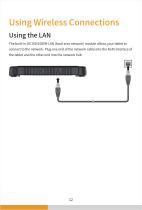
Using Wireless Connections The built-in 10/100/1000M LAN (local area network) module allows your tablet to connect to the network. Plug one end of the network cable into the RJ45 interface of the tablet and the other end into the network hub.
Open the catalog to page 17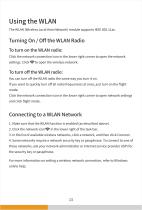
The WLAN (Wireless Local Area Network) module supports IEEE 802.11ax. Turning On / Off the WLAN Radio To turn on the WLAN radio: Click the network connection icon in the lower right corner to open the network settings. Click to open the wireless network. To turn off the WLAN radio: You can turn off the WLAN radio the same way you turn it on. If you want to quickly turn off all radio frequencies at once, just turn on the flight mode: Click the network connection icon in the lower right corner to open network settings and click flight mode. Connecting to a WLAN Network 1. Make sure that the WLAN function...
Open the catalog to page 18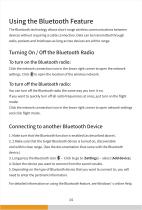
Using the Bluetooth Feature The Bluetooth technology allows short-range wireless communications between devices without requiring a cable connection. Data can be transmitted through walls, pockets and briefcases as long as two devices are within range. Turning On / Off the Bluetooth Radio To turn on the Bluetooth radio: Click the network connection icon in the lower right corner to open the network settings. Click to open the location of the wireless network. To turn off the Bluetooth radio: You can turn off the Bluetooth radio the same way you turn it on. If you want to quickly turn off all radio...
Open the catalog to page 19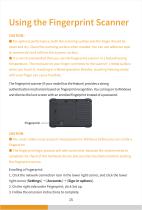
Using the Fingerprint Scanner ● For optimal performance, both the scanning surface and the finger should be clean and dry. Clean the scanning surface when needed. You can use adhesive tape to remove dirt and oil from the scanner surface. ● It is not recommended that you use the fingerprint scanner in a belowfreezing temperature. The moisture on your finger can freeze to the scanner’s metal surface when you touch it, resulting in a failed operation.Besides, touching freezing metal with your finger can cause frostbite. The fingerprint scanner (if your model has the feature) provides a strong authentication...
Open the catalog to page 20
is that appear on the taskbar % Bluetooth & devices ^ Network & internet I / Personalization ^ Apps m Accounts &E Time & language ® Gaming Accessibility Pi Privacy & security Windows Update is that appear on the corner of your taskbar
Open the catalog to page 21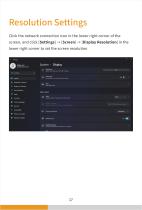
System > Display 'q' Brightness ' • * Adjust the brightness of the built-in display | ■! System % Bluetooth & devices ^ Network & internet / Personalization Apps m Accounts & Time & language ® Gaming Accessibility 9 Privacy & security ® Windows Update Night light Scale & layout :olors to help block blue light Change the size of text, apps, and c rni Display resolution Adjust the resolution t
Open the catalog to page 22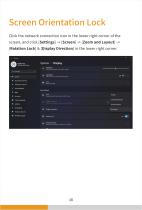
| HI System % Bluetooth & devices ^ Network & internet / Personalization m Accounts & Time & language ® Gaming t Accessibility 9 Privacy & security ® Windows Update Display orientation Landscape (flipped) Portrait (flipped)
Open the catalog to page 23
Managing Power Your Tablet operates either on external AC power or on internal battery power. This chapter tells you how you can effectively manage power. To maintain optimal battery performance, it is important that you use the battery in the proper way.
Open the catalog to page 24All Emdoor Information Co., Ltd. catalogs and technical brochures
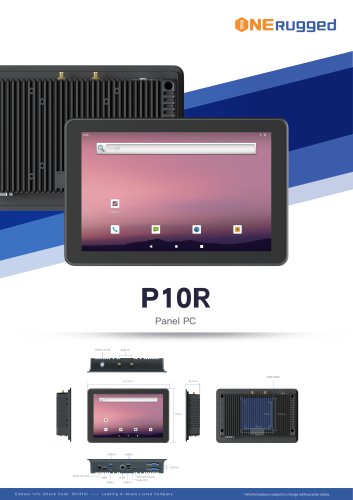 EM-P10R Specification
3 Pages
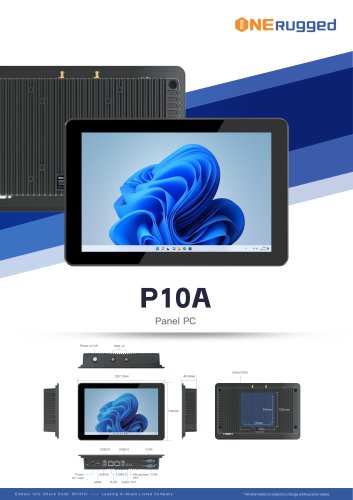 EM-P10A Specification
3 Pages
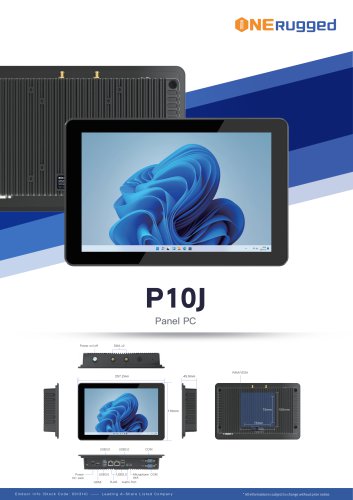 EM-P10J Specification
3 Pages
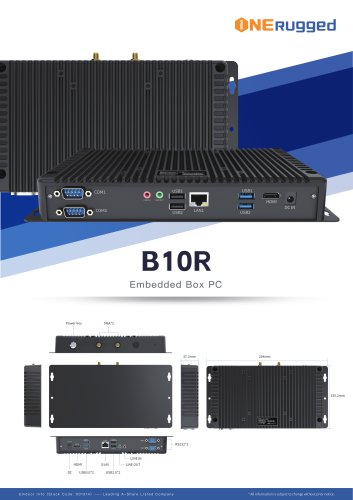 EM-B10R Specification
3 Pages
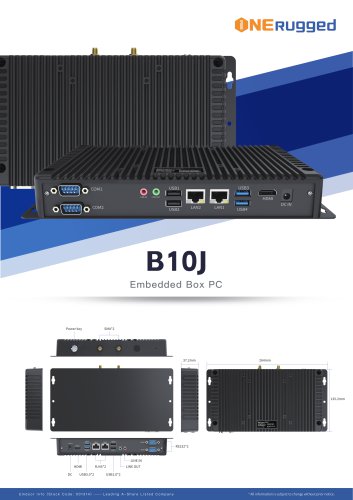 EM-B10J Specification
3 Pages
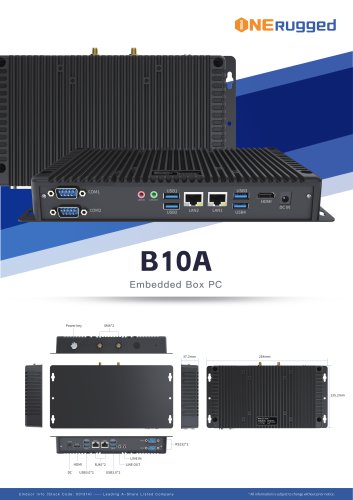 EM-B10A Specification
3 Pages
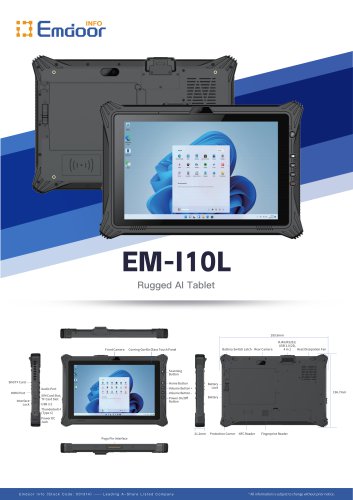 EM-I10L Specification
3 Pages
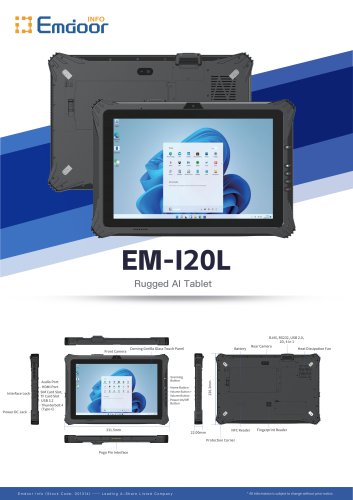 EM-I20L Specification
3 Pages
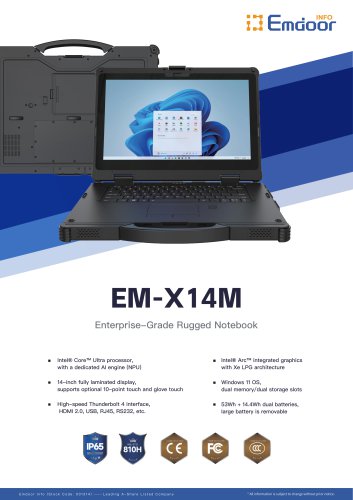 EM-X14M Specification
2 Pages
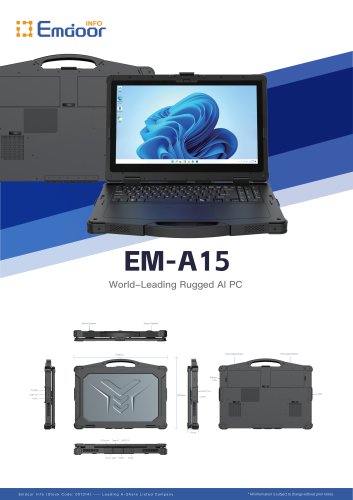 EM-A15 Specification
3 Pages
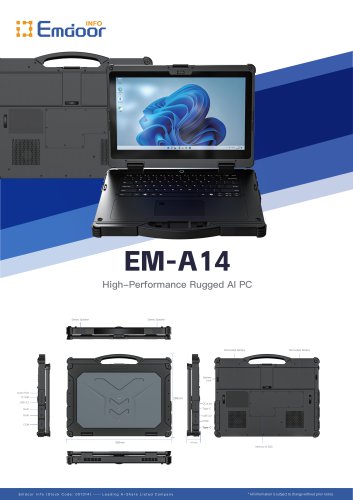 EM-A14 Specification
3 Pages
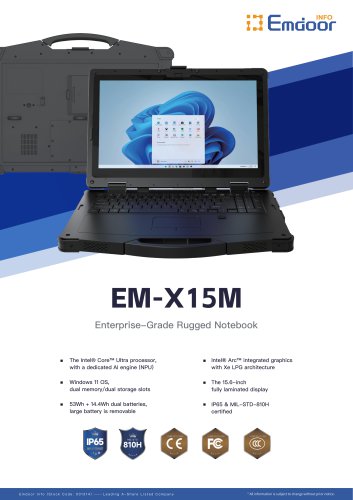 EM-X15M Specification
2 Pages
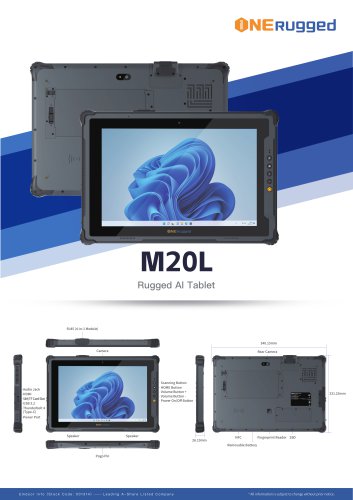 M20L-specification
3 Pages
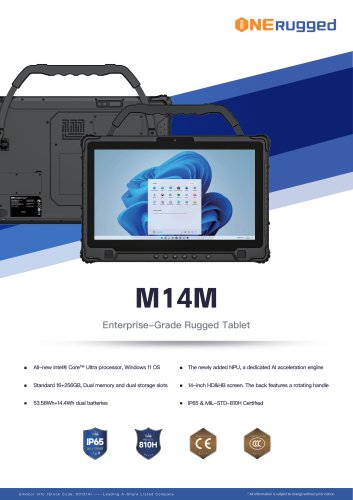 M14M-specification
2 Pages
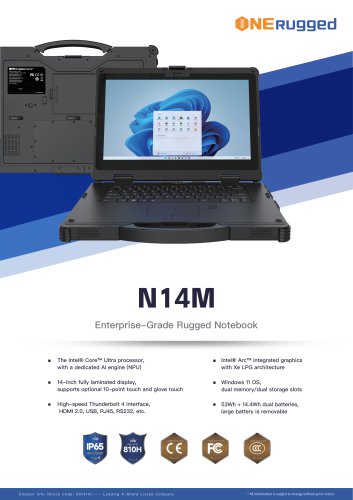 N14M-specification
2 Pages
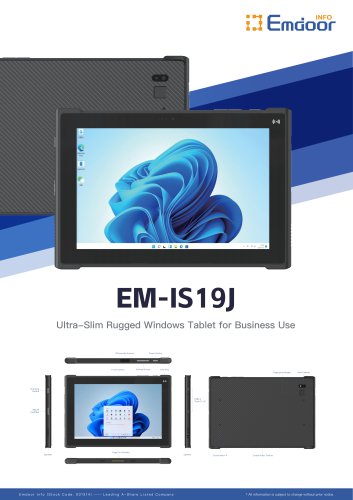 EM-IS19J specification
3 Pages
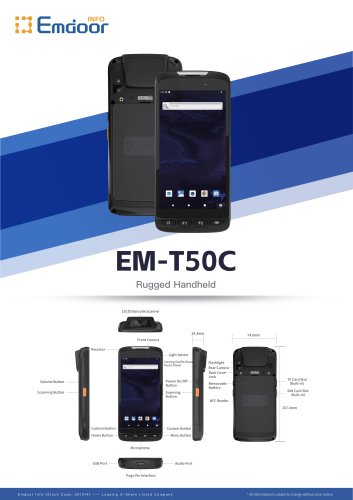 EM-T50C
3 Pages
 EM-D10R successful case
3 Pages
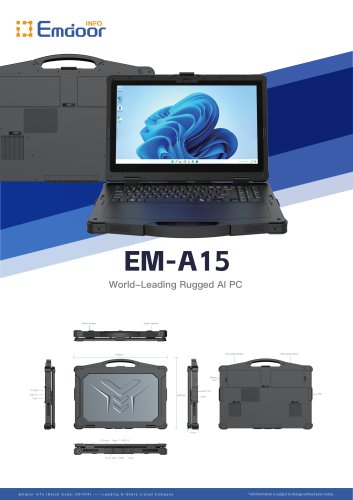 EM-A15
3 Pages
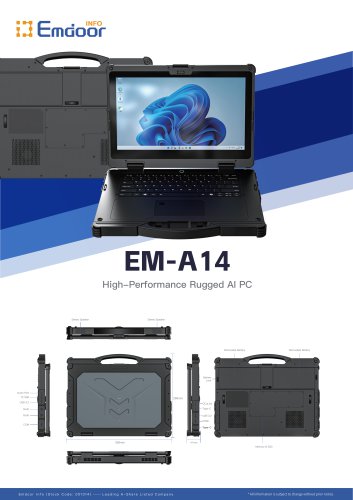 EM-A14
3 Pages
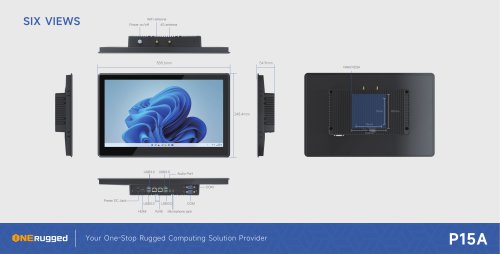 EM-P15A six views
1 Page
 EM-V12R USER MANUAL
2 Pages
 EM-P15A USER
2 Pages
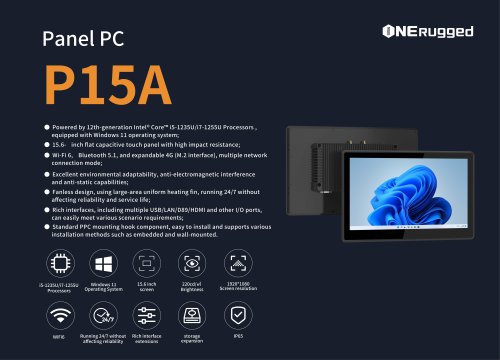 EM-P15A SPE
2 Pages
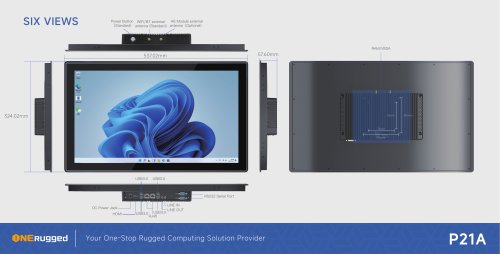 EM-P21A six views
1 Page
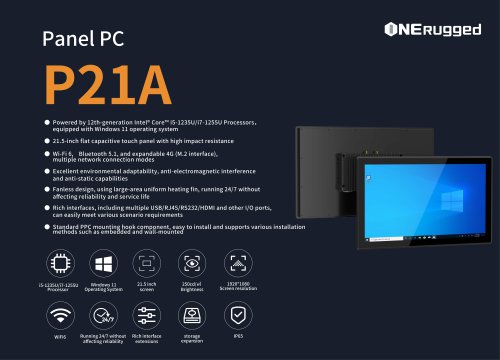 EM-P21A SPE
2 Pages
 EM-P21A user
2 Pages
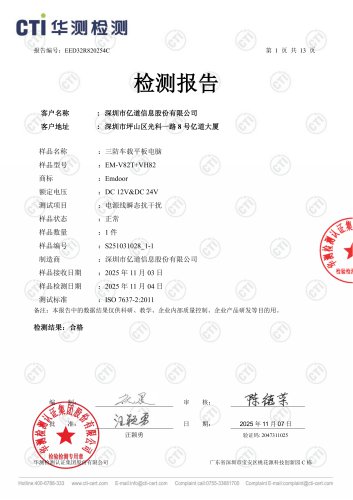 EM-V82T-EMC
13 Pages
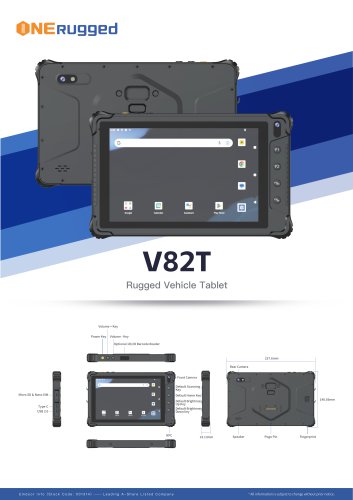 EM-V82T spe
4 Pages
 P2 PRO
2 Pages
 P2 PRO-SPE
2 Pages
 M82A- USER MANUAL
60 Pages
 M82A-spe
2 Pages
 EM-X15A User Manual
76 Pages
 EM-X15M Rugged AI PC uesr manual
76 Pages
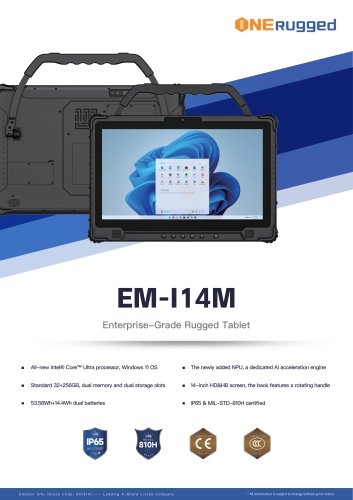 EM-I14M 14Inch Rugged AI PC
2 Pages
 EM-H68T: Android 14 rugged PDA
2 Pages
 EM -I61J Rugged Handheld
19 Pages
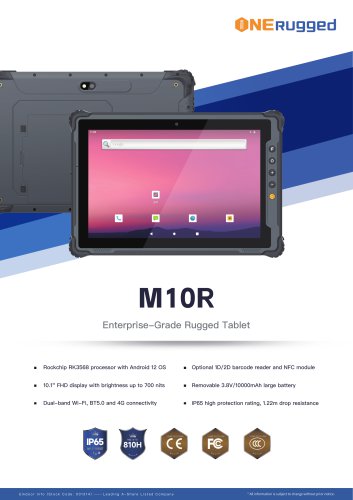 M10R Rugged Tablet RK3588
2 Pages
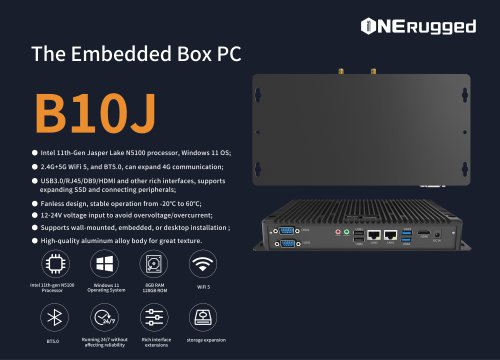 EM-B10J embedded box PC
3 Pages
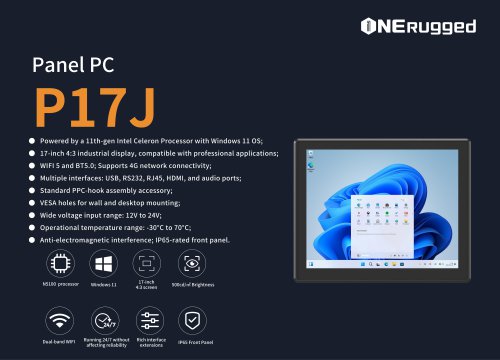 EM-P17J Panel PC
3 Pages
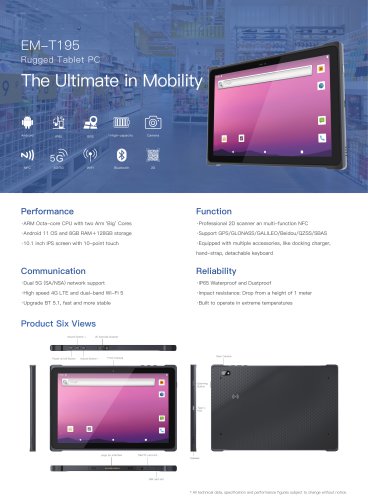 EM-T195 5G Rugged Tablet
2 Pages
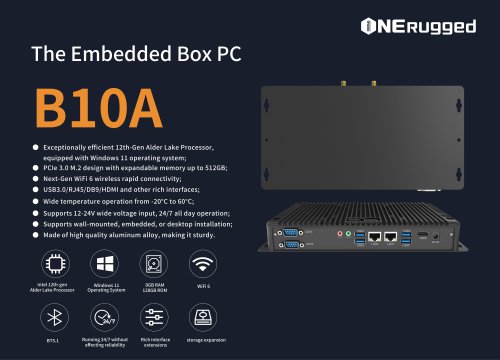 The Embedded Box PC-B10A
3 Pages
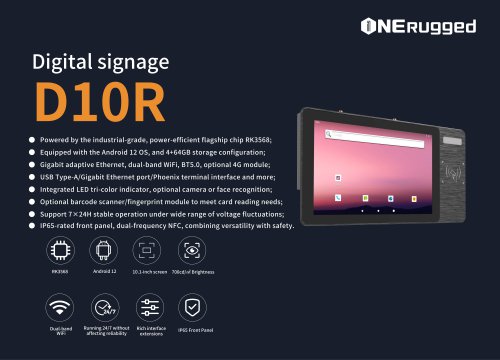 EM-D10R Digital signage
3 Pages
 EM-P1The Outdoor Rugged Phone
2 Pages
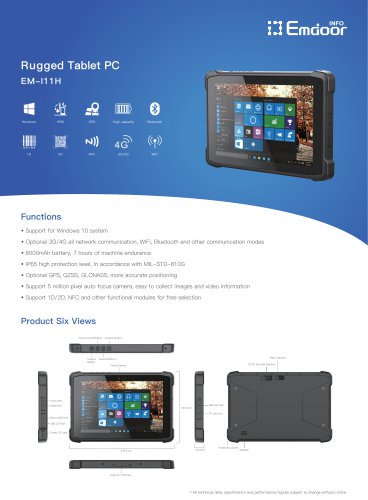 EM-I11H Rugged Tablet PC
2 Pages
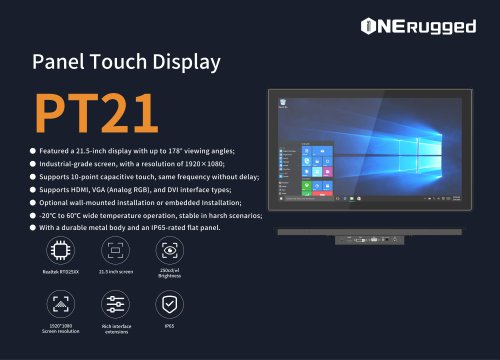 EM-PT21 Panel Touch Display
3 Pages
 Rugged Handheld H60T
2 Pages





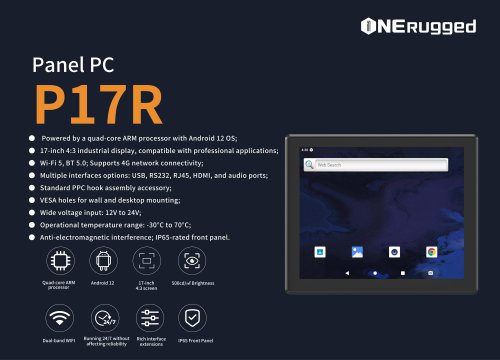
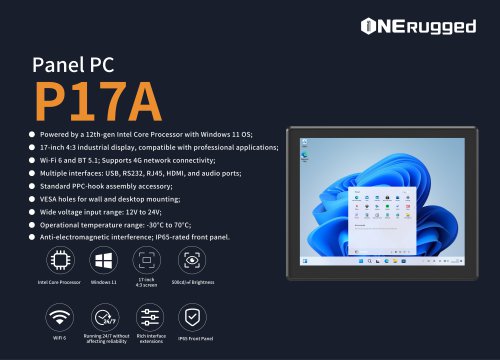














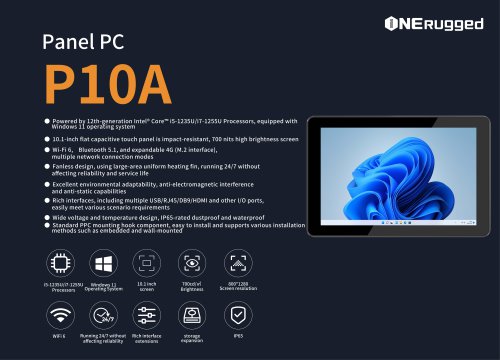
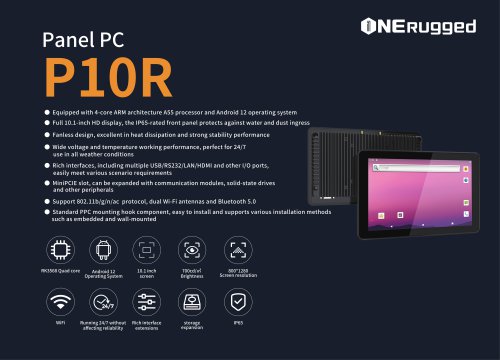

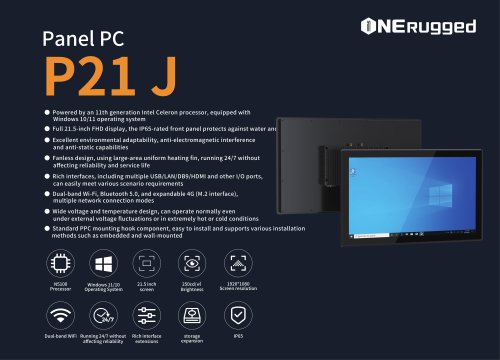
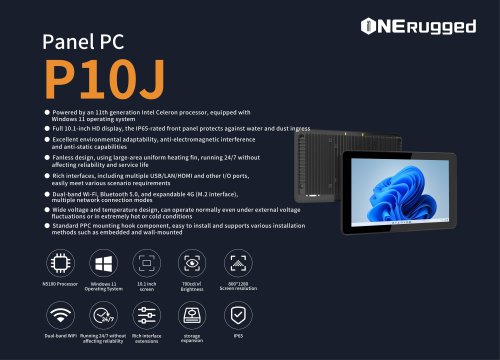
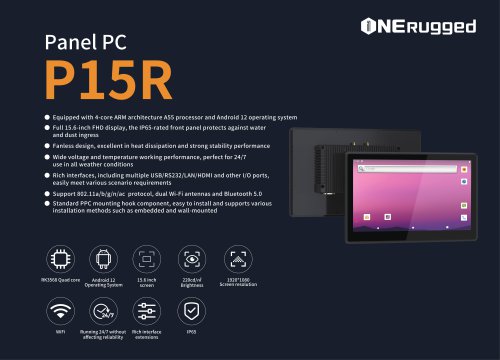




















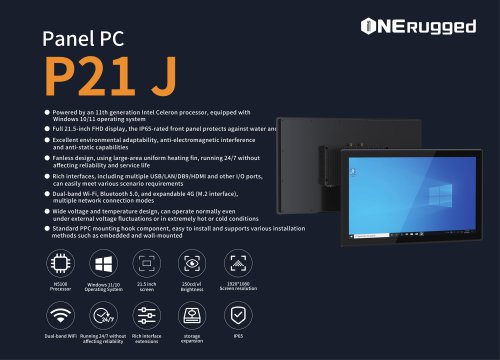

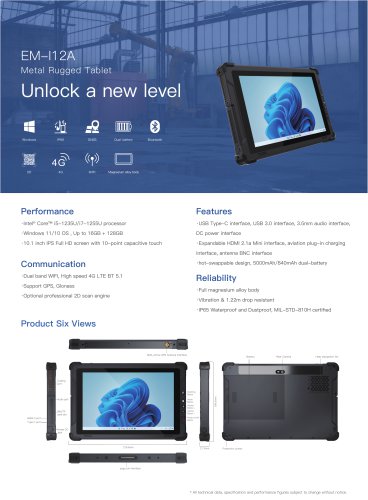

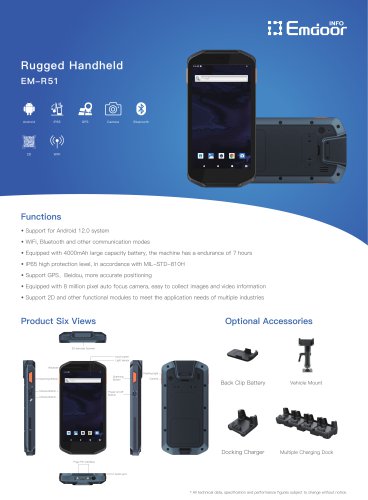
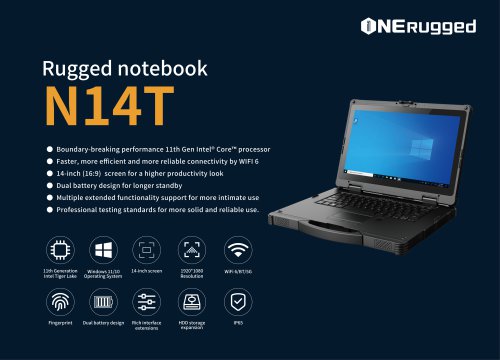
































- Emdoor panel PC
- Emdoor industrial panel PC
- Emdoor panel PC with touch screen
- LCD display panel
- Emdoor fanless panel PC
- Emdoor LCD panel PC
- Industrial display panel
- Intel® Core™ PC
- Fanless PC
- Emdoor IP65 panel PC
- Intel® Core™ panel PC
- VESA mounting panel PC
- Housed panel PC
- HDMI PC
- Embedded PC
- Box PC
- RS-232 PC
- USB 2.0 PC
- Windows PC