
- Catalogs
- Emdoor Information Co., Ltd.
- EM-X15M Rugged AI PC uesr manual


EM-X15M Rugged AI PC uesr manual
EM-X15M Rugged AI PC uesr manual
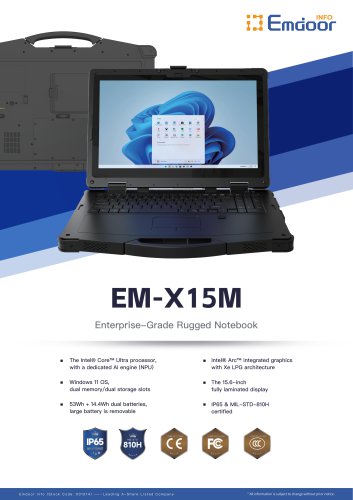
This manual provides detailed instructions for setting up and operating the EM-X15M rugged mobile computing device, covering components, connectivity, power management, and troubleshooting.
- Open Box to Check: Verify the package includes the X15M Rugged Notebook, power cord, battery, and power adapter.
- Connect the Power Supply: Use the provided adapter to avoid damage. The battery exits transport mode upon initial AC power connection.
- Turning On/Off: Release the latch and press the power button to turn on. Use the shutdown option or set to sleep/hibernation to turn off.
Details on the device's components, including ports, buttons, and indicators, are provided for all sides of the device.
- Touchscreen and Keyboard: Includes typing, cursor control, numeric, and function keys. The Fn key accesses additional functions.
- Touchpad: Serves as the pointing device with gesture support in Windows 10. Settings are adjustable.
- Network and Wireless: Instructions for LAN, WLAN, and Bluetooth connectivity, including network and device connections.
- Battery and Charging: Guidelines for charging, checking battery levels, and replacing the battery pack.
- Power-Saving Tips: Suggestions for extending battery life.
Instructions for connecting USB devices, monitors, serial devices, and audio devices.
- Protecting the Device: Antivirus strategies and security lock recommendations.
- Care Guidelines: Tips for location, general use, cleaning, and battery care.
- Common Problems: Solutions for issues related to battery, Bluetooth, display, hardware, keyboard, LAN, power management, software, audio, startup, and WLAN.
Details on using Windows Recovery Environment and recovery partitions for system recovery.
Details on LAN and WLAN use, including the built-in LAN module and WLAN support for IEEE 802.11ax standard.
Instructions for enabling/disabling Bluetooth and connecting to devices. Airplane Mode disables all wireless radios.
Secure login method with guidelines for optimal use and registration steps.
Notes on using the power adapter and battery maintenance, with tips for maximizing battery life.
Support for peripherals through USB, HDMI, and RS-232 ports, with guidelines for audio device connections and SSD/memory module replacement.
Instructions for accessing BIOS and configuring system settings, including security and boot options.
Guidelines for device protection and maintenance, including antivirus use, security locks, and storage conditions.
Preserve the display by allowing the backlight to turn off automatically and avoid placing heavy objects on the device. Clean with a soft cloth moistened with water or non-alkaline detergent.
Charge the battery between 10°C and 30°C, avoid frequent charging, and store in a cool, dark place with 30%-40% charge.
Ensure the battery is fully charged, keep connector covers closed, and hand-carry the device.
Isolate problems, check peripheral devices, cable connections, BIOS settings, and driver installations.
Solutions for hardware, keyboard, touchpad, network, and power management issues.
Use Windows Recovery Environment for system restore and recovery partition for factory settings restoration.
Specifications are subject to change without notice.
Catalog excerpts

Rugged Mobile Computing Solutions
Open the catalog to page 1
Note The information in this manual is subject to change without notice.
Open the catalog to page 2
READY TO START This chapter first tells you step by step how to get the device up and running. Then, you will find a section briefly introducing the external components of the device.
Open the catalog to page 6
GET THE DEVICE RUNNING OPEN BOX TO CHECK After unpacking, you should see the following standard items: X15M Rugged Notebook Power Cord
Open the catalog to page 7
CONNECT THE POWER SUPPLY Note: Use only the power adapter provided with this product. Using other power adapters may damage your device. Note: ●The battery will be shipped to you in transport mode, which protects the battery from charging or discharging. When you install the battery for the first time and connect the notebook to AC power, the battery will automatically exit this mode for you to start using. ●Connecting the power adapter will begin charging the battery. Refer to Chapter 3 for charging instructions. It must be connected to AC power supply when it is turned on for the first time....
Open the catalog to page 8
4. The power outlet supplies power to the device through an adapter. Now you can power on the device.
Open the catalog to page 9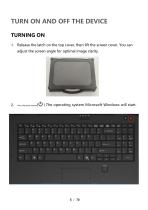
1. Release the latch on the top cover, then lift the screen cover. You can adjust the screen angle for optimal image clarity. Press the power button (<!> ) The operating system Microsoft Windows will start.
Open the catalog to page 10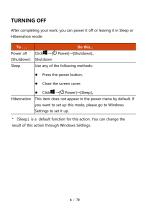
After completing your work, you can power it off or leaving it in Sleep or Hibernation mode: * TSIeepJ is a default function for this action. You can change the result of this action through Windows Settings.
Open the catalog to page 11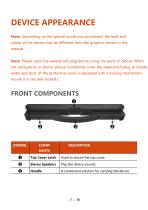
Note: Depending on the special model you purchased, the look and colour of the device may be different from the graphics shown in this manual. Note: Please open the waterproof plug before using the ports or device. When not using ports or device, please completely cover the waterproof plug to isolate water and dust. (If the protective cover is equipped with a locking mechanism, ensure it is securely locked.)
Open the catalog to page 12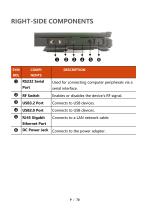
RIGHT-SIDE COMPONENTS Used for connecting computer peripherals via a serial interface. Enables or disables the device's RF signal. Connects to a LAN network cable. Ethernet Port
Open the catalog to page 14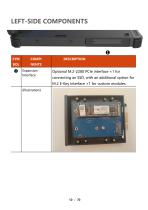
LEFT-SIDE COMPONENTS Expansion Interface Optional M.2-2280 PCIe interface ×1 for connecting an SSD, with an additional option for M.2 E-Key interface ×1 for custom modules.
Open the catalog to page 15
OPERATE YOUR DEVICE This chapter provides information about the use of the device. If you are new to device, reading this chapter will help you learn the operating basics. If you are already a Notebook user, you may choose to read only the parts containing information unique to your Notebook. Note: ● Do not expose your skin to the Notebook when operating it in a very hot or cold environment. ● The Notebook can get uncomfortably warm when you use it in high temperatures. As a safety precaution in such a circumstance, do not place the Notebook on your lap or touch it with your bare hands for extended...
Open the catalog to page 20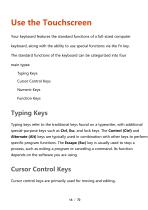
Use the Touchscreen Your keyboard features the standard functions of a full-sized computer keyboard, along with the ability to use special functions via the Fn key. The standard functions of the keyboard can be categorized into four main types: Typing Keys Cursor Control Keys Numeric Keys Function Keys Typing Keys Typing keys refer to the traditional keys found on a typewriter, with additional special-purpose keys such as Ctrl, Esc, and lock keys. The Control (Ctrl) and Alternate (Alt) keys are typically used in combination with other keys to perform specific program functions. The Escape (Esc)...
Open the catalog to page 21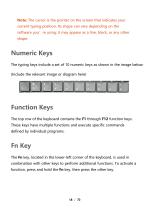
Note: The cursor is the pointer on the screen that indicates your current typing position. Its shape can vary depending on the software you’re using; it may appear as a line, block, or any other shape. Numeric Keys The typing keys include a set of 10 numeric keys as shown in the image below: (Include the relevant image or diagram here) Function Keys The top row of the keyboard contains the F1 through F12 function keys. These keys have multiple functions and execute specific commands defined by individual programs. Fn Key The Fn key, located in the lower-left corner of the keyboard, is used in...
Open the catalog to page 23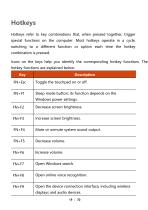
Hotkeys refer to key combinations that, when pressed together, trigger special functions on the computer. Most hotkeys operate in a cycle, switching to a different function or option each time the hotkey combination is pressed. Icons on the keys help you identify the corresponding hotkey functions. The hotkey functions are explained below:
Open the catalog to page 24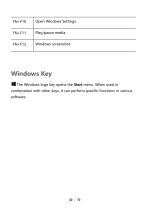
■S The Windows logo key opens the Start menu. When used in combination with other keys, it can perform specific functions in various software.
Open the catalog to page 25
Note: Do not use sharp objects (such as pens) to touch the surface of the touchpad to avoid damage. Press Fn + Esc to toggle the touchpad on or off. To ensure optimal touchpad performance, keep your fingers and the surface of the touchpad clean and dry. When touching the surface, use a gentle tap, not a heavy press. The touchpad serves as the pointing device for interacting with your computer. It controls the position of the pointer (cursor) on the screen and allows for selection via tapping. The touchpad consists of a rectangular surface (working area) and left/right buttons. To use the touchpad,...
Open the catalog to page 26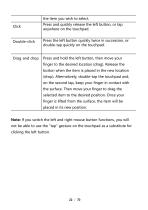
Note: If you switch the left and right mouse button functions, you will not be able to use the "tap" gesture on the touchpad as a substitute for clicking the left button.
Open the catalog to page 27
Touchpad Gestures in Windows 10 For additional touchpad settings, go to [Settings] > [Devices] > [Mouse and Touchpad]. Changing Touchpad Settings You may want to adjust the touchpad settings to suit your needs. For example, left-handed users can swap the left and right mouse button functions to make it easier to use the right button in place of the left one, and vice versa. Additionally, you can change the pointer size and its movement speed on the screen.
Open the catalog to page 28
Network and Wireless Connectivity Using LAN (Local Area Network) The built-in 10/100/1000M LAN (Local Area Network) module allows your computer to connect to a network. Insert one end of the network cable into the RJ45 port on your computer and the other end into a network hub.
Open the catalog to page 29All Emdoor Information Co., Ltd. catalogs and technical brochures
 EM-P10R Specification
3 Pages
 EM-P10A Specification
3 Pages
 EM-P10J Specification
3 Pages
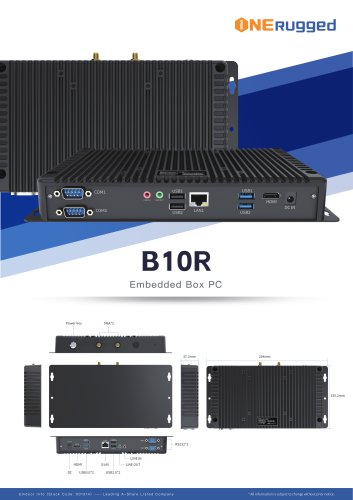 EM-B10R Specification
3 Pages
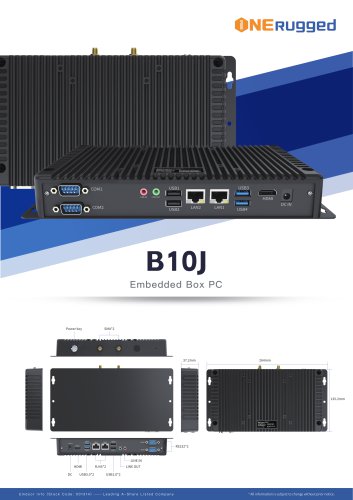 EM-B10J Specification
3 Pages
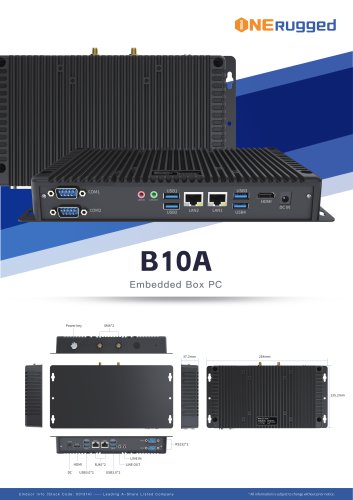 EM-B10A Specification
3 Pages
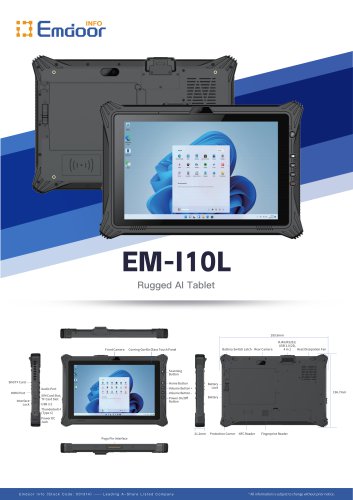 EM-I10L Specification
3 Pages
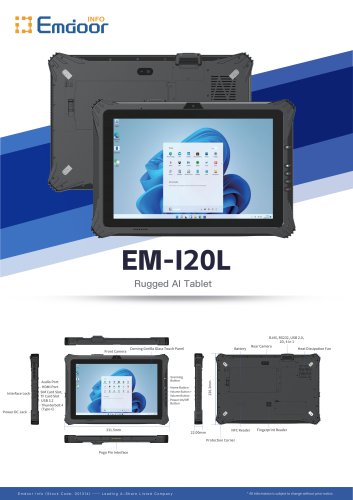 EM-I20L Specification
3 Pages
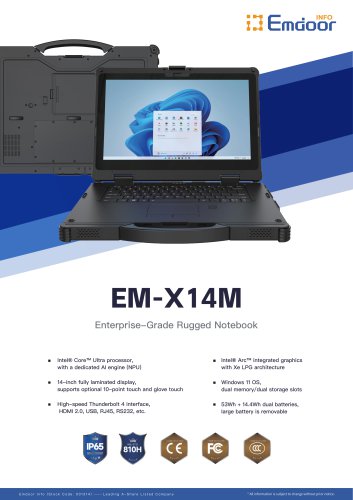 EM-X14M Specification
2 Pages
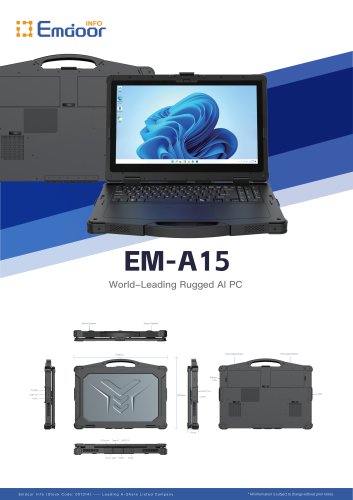 EM-A15 Specification
3 Pages
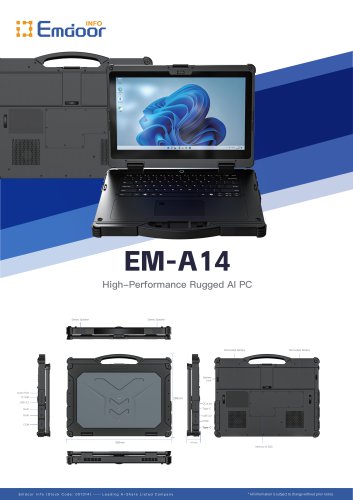 EM-A14 Specification
3 Pages
 EM-X15M Specification
2 Pages
 M20L-specification
3 Pages
 M14M-specification
2 Pages
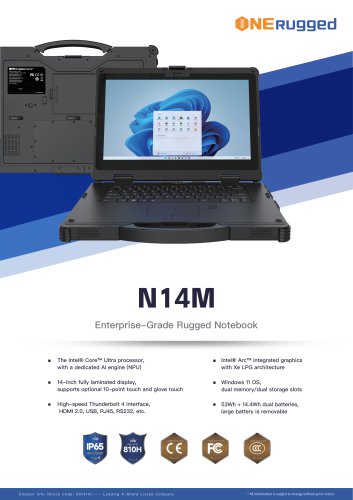 N14M-specification
2 Pages
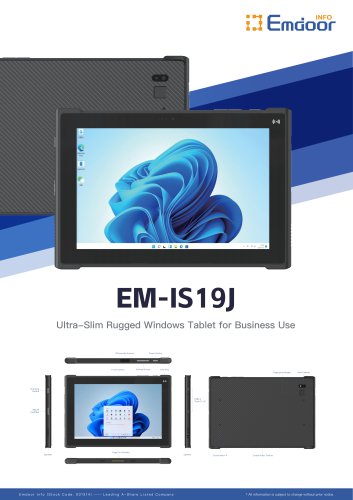 EM-IS19J specification
3 Pages
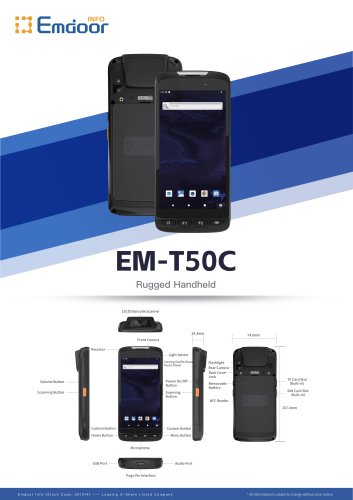 EM-T50C
3 Pages
 EM-D10R successful case
3 Pages
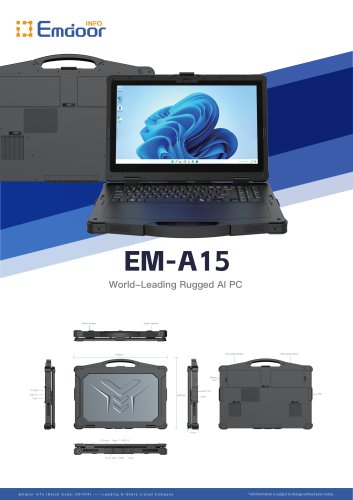 EM-A15
3 Pages
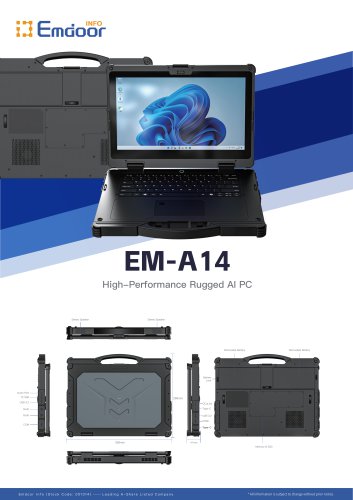 EM-A14
3 Pages
 EM-P15A six views
1 Page
 EM-V12R USER MANUAL
2 Pages
 EM-P15A USER
2 Pages
 EM-P15A SPE
2 Pages
 EM-P21A six views
1 Page
 EM-P21A SPE
2 Pages
 EM-P21A user
2 Pages
 EM-V82T-EMC
13 Pages
 EM-V82T spe
4 Pages
 P2 PRO
2 Pages
 P2 PRO-SPE
2 Pages
 M82A- USER MANUAL
60 Pages
 M82A-spe
2 Pages
 EM-X15A User Manual
76 Pages
 Emdoor Info. EM-I16J User Manual
57 Pages
 EM-I14M 14Inch Rugged AI PC
2 Pages
 EM-H68T: Android 14 rugged PDA
2 Pages
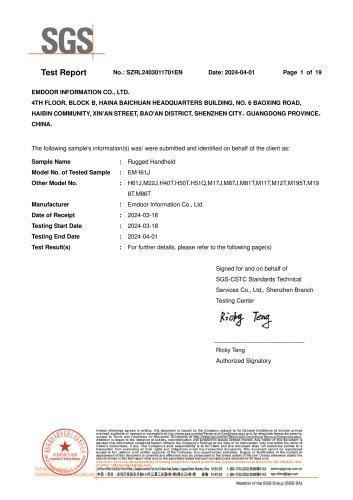 EM -I61J Rugged Handheld
19 Pages
 M10R Rugged Tablet RK3588
2 Pages
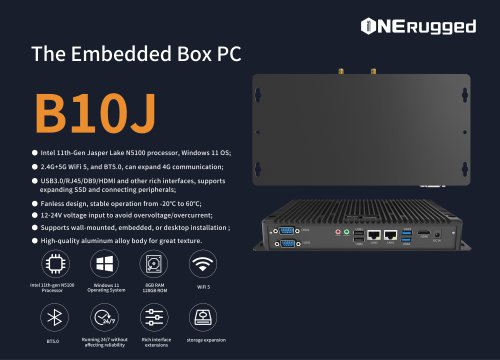 EM-B10J embedded box PC
3 Pages
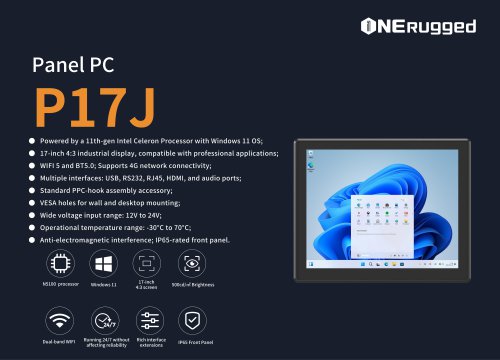 EM-P17J Panel PC
3 Pages
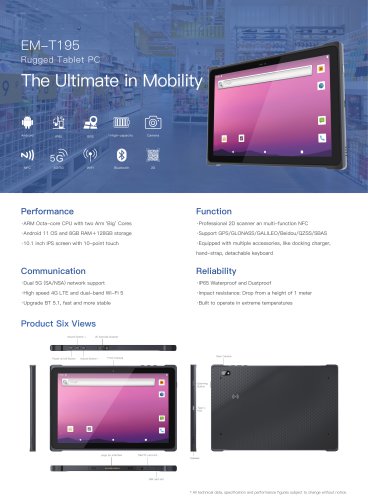 EM-T195 5G Rugged Tablet
2 Pages
 The Embedded Box PC-B10A
3 Pages
 EM-D10R Digital signage
3 Pages
 EM-P1The Outdoor Rugged Phone
2 Pages
 EM-I11H Rugged Tablet PC
2 Pages
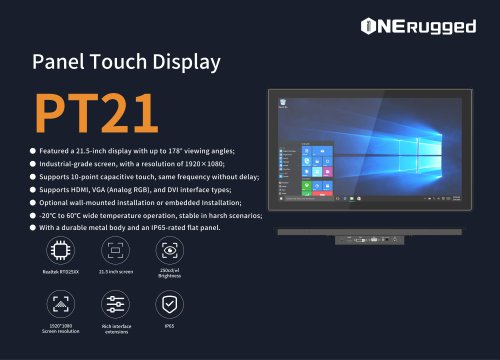 EM-PT21 Panel Touch Display
3 Pages
 Rugged Handheld H60T
2 Pages




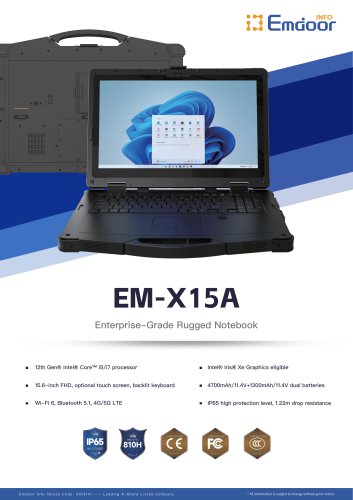

























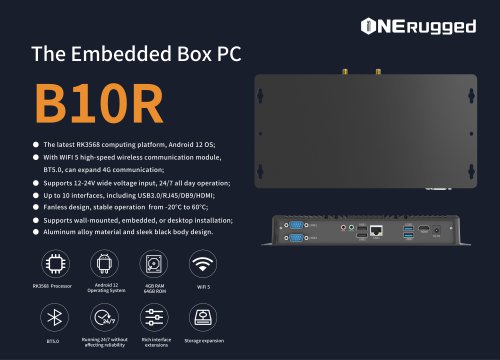

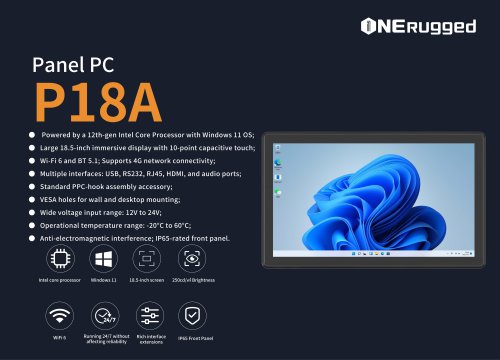
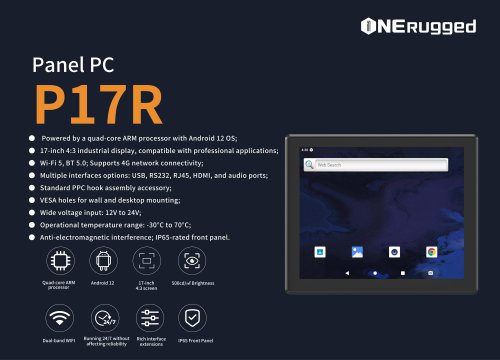
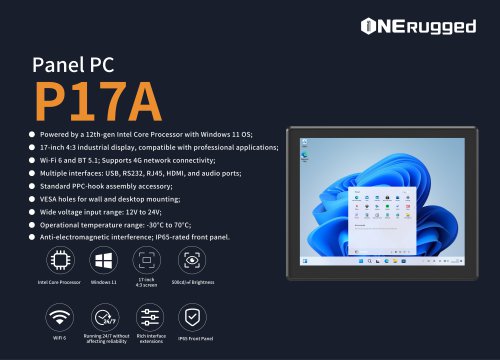













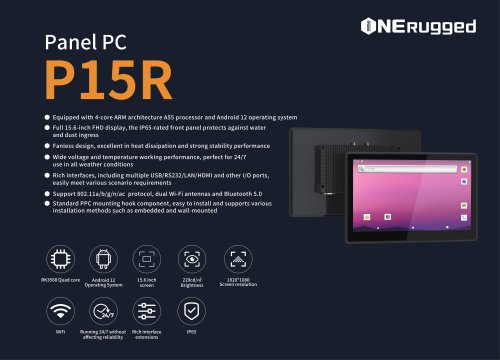









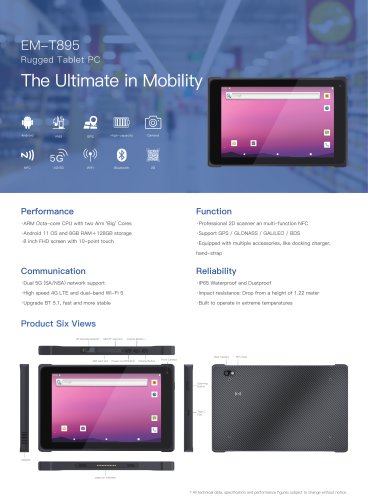



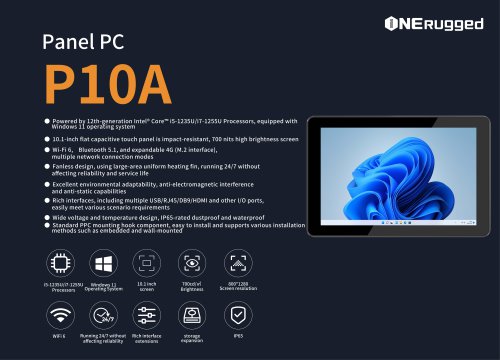
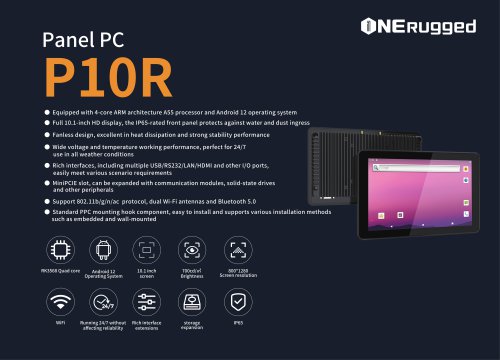

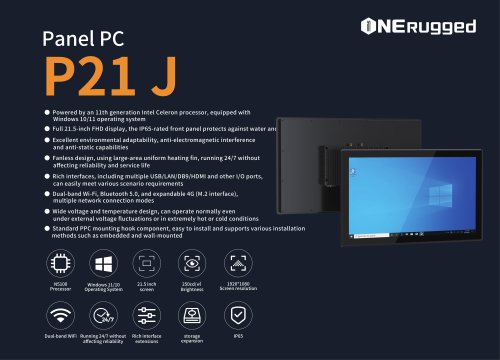
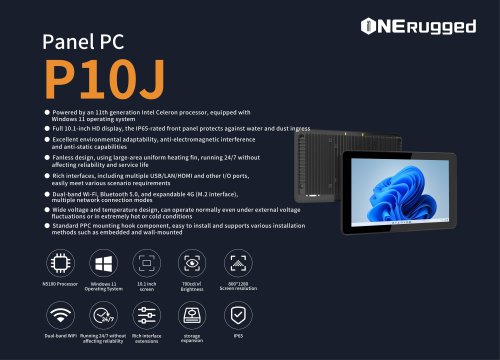
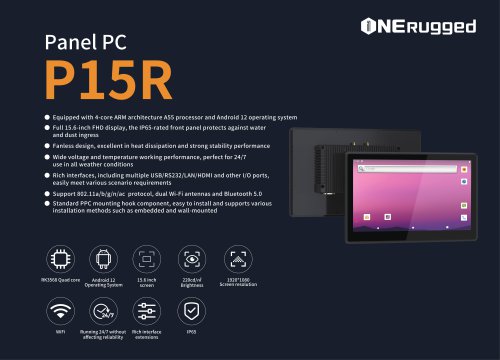

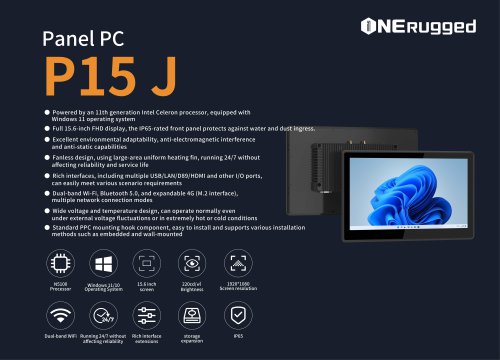

























































































- Emdoor panel PC
- Emdoor industrial panel PC
- Emdoor panel PC with touch screen
- Emdoor fanless panel PC
- LCD display panel
- Emdoor LCD panel PC
- VESA mounting panel PC
- Industrial display panel
- Intel® Core™ panel PC
- Intel® Core™ PC
- Housed panel PC
- Emdoor IP65 panel PC
- Fanless PC
- HDMI PC
- Box PC
- Embedded PC
- RS-232 PC
- USB 2.0 PC
- Windows PC