
- Catalogs
- Emdoor Information Co., Ltd.
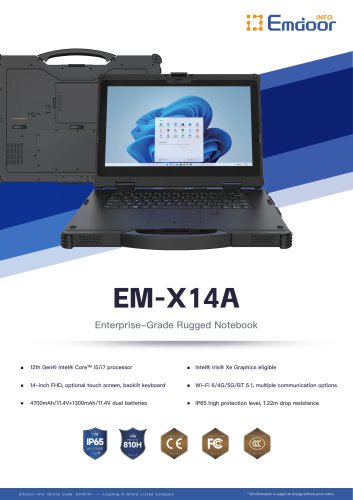
- EM-X14A Fully rugged windows 11/10 OS notebook


- Company
- Products
- Catalogs
- News & Trends
- Exhibitions
EM-X14A Fully rugged windows 11/10 OS notebook

EM-X14A Fully rugged windows 11/10 OS notebook
Warranty Card
This section includes fields for product identification and client information such as Product Name, Product Model, Client Name, Date of Purchase, and Factory Code. It serves as proof of warranty coverage for the product.
Certificate
Likely a section to certify the authenticity or compliance of the product, though specific details are not provided in the excerpt.
Maintenance Record List
This section is designed to track the maintenance history of the equipment. It includes columns for Date In Service, Equipment, Maintenance Detail, Maintenance Date, and Maintenance Performed By. This helps ensure proper upkeep and service documentation.
Product Information
The product model referenced is EM-X14A, described as a rugged computing solution. The user manual and warranty card are associated with this model.
Additional Notes
References to websites (www.emdoorrugged.com and www.emdoor.net) suggest sources for further information or support. The document appears to be part of a user manual or warranty package for the EM-X14A rugged computing device.
Catalog excerpts

IJ tmQOOr WARRANTY CARD PRODUCT NAME: IJ tfllGOOf WARRANTY CARD PRODUCT WARRANTY Shenzhen Emdoor Information Co., Ltd. READY TO START CONNECT THE POWER SUPPLY EQUIPMENT APPEARANCE INTRODUCTION FRONT AND BACK COMPONENTS This chapter first tells you step by step how to get the computer up and running. Then, you will find a section briefly introducing the external components of the computer. Note: Use only the power adapter provided with this product. Using other power adapters may damage your device. It must be connected to the AC power supply when it is turned on for the first time. Note: 1. Depending on the special model you purchased, the look of the device may be different from the the graphics shown in this manual. PRODUCT MODEL: FACTORY CODE: Maintenance record list YOUR ONE-STOP RUGGED COMPUTING SOLUTION PROVIDER EM-X14A USER MANUAL DATE IN SERVICE 1. The following are covered by the warranty and can be repaired free of charge: (1) A 12-month warranty for the whole machine, batteries, power adapters, and data cables. (2) In the case of any malfunction/ breakage/damage that occurs under normal conditions (Non-human damage) within the warranty period, repair will be performed by free. (3) The warranty covers problems with the product under normal use. Note: cosmetic issues are not covered by the warranty. 2. The following conditions are not covered under the terms of the warranty. If maintenance services are required, material and sen/ice fees may be charged as appropriate: (1) Damage caused by transportation, loading and unloading during return, exchange, and repair. (2) Any unauthorized modification, disassembly and repair. (3) Damage caused by accidental factors or human actions. Such as: liquid ingress, drop damage, input inappropriate voltage, excessive extrusion, motherboard deformation, etc. For the power adapter, if there are obvious hard object damage, cracks, broken feet, severe deformation, damaged wires, broken wires, bare cores, etc. (4) Product damage caused by failure to install, use, maintain, and store in accordance with the user manual. (5) The warranty certificate does not match the product model or has been altered. (6) The product nameplate, SN barcode, and tamper-proof label are torn off or damaged, making them blurred and unrecognizable. (8) Failure or damage caused by irresistible factors (such as fire, earthquake, flood, etc.). 3. Warranty requires a warranty card as proof. Q Address: Emdoor Building, No.8 Guangke 1st Road, Pingshan District, Shenzhen EQUIPMENT FORM: Rugged Notebook SERIAL NUMBER: After unpacking, you should seethe following standard items: * EM-X14A Rugged Notebook Terminal • Power Cord • Power Adapter 1. Insert the DC head of the power adapter into the DC port of the device.2. Plug the female end of the power cord into the power adapter and the male end into the power outlet.3. The power outlet supplies power to the device through an adapter. Now you can power on the device. (SYMBOL) OTHER COMPONENTS 1. Press the power button 0. The operating system Windows will start. Repair Service Guide (1) Before sending for repair, please back up your personal data in advance. Your personal data may be lost during the maintenance process. We will protect your personal privacy, but we will not be responsible for the damage or loss of personal data during the maintenance process. (2) When sending for repair, the product must be professionally inspected by an authorized service center. After confirming the fault, the service center will determine the corresponding maintenance plan. For detected non-faulty products, it will be returned as is. (3) If a fee is charged because the product does not meet the warranty conditions, the authorized service center will charge the consumer for maintenance. *The contents of this page shall not be altered without authorization, and please keep the product packaging box to protect your legal rights. LEFT-SIDE COMPONENTS RIGHT-SIDE COMPONENT POWER ADAPTER BOTTOM COMPONENTS Remove the iron cover plate with a screwdriver and insert the SIM card Into the specified position, as shown below. • The power adapter is for your device only. If it is used for other purposes, it may damage the connected electrical appliances or adapters. • The power cord attached to the power adapter must meet the specifications of the place of purchase. To use this device abroad, consult your dealer for a suitable power cord. • If you want to unplugthe power adapter, you must unplug the power plug on the wall first, and then unplug the power connector plugged into the handset, otherwise the device and adapter will be damaged by external voltage impact. ■ When unplugging the plug, please plug in 90° vertically, do not pull the wire, and pull out the plug with your hand. Since your device runs on DC power, but the power outlet usually provides AC power, the job of the power adapter is to convert the AC power from the power source to the DC power required by the device. The battery is also automatically charged when the power adapter is connected. The adapter input operates from 100V to 240V AC and the output is 19V. Equipment problems can be caused by hardware, software, or both. When you have a problem. When you encounter any problem, it might be a typical problem that can easily be solved. This chapter tells you what actions to take when solving common computer problems PRELIMINARY CHECKLIST Assemble the corresponding4G module after inserting the SIM card, connect the antenna, and then lock the cover plate with a screwdriver. When you encounter a problem, you may wish to do the following preliminary checks first, maybe you can solve the problem at this stage: • Try to identify the source and category of the problem. ■ Make sure you have turned on the power of the peripheral device before turning on the device. • If there is a problem with the external equipment, please confirm whether the connection of all lines is correct and firm. • Make sure the settings in the BIOS are completely correct. • Make sure that all the device drivers are correctly installed. • Make notes of your observations. Does any message appear on the screen? What is the status of the indicators light? Detailed descriptions are useful to the service personnel when you need to consult one for assistance. If any problem persists after you follow the instructions in this chapter, contact an authorized dealer for help.
Open the catalog to page 1All Emdoor Information Co., Ltd. catalogs and technical brochures
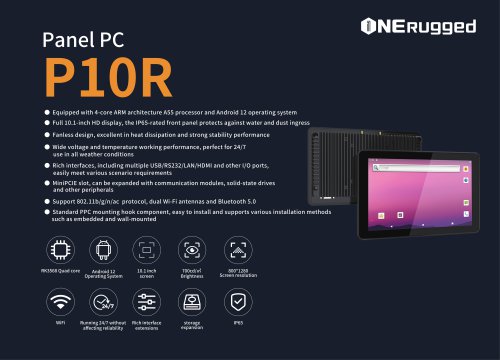
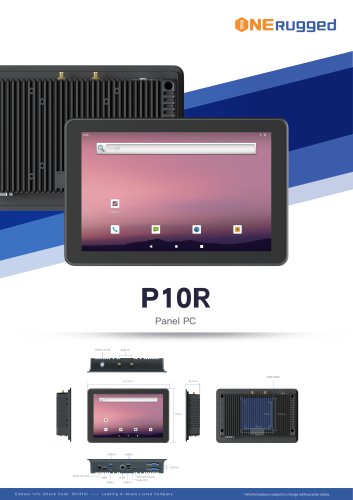 EM-P10R Specification
3 Pages
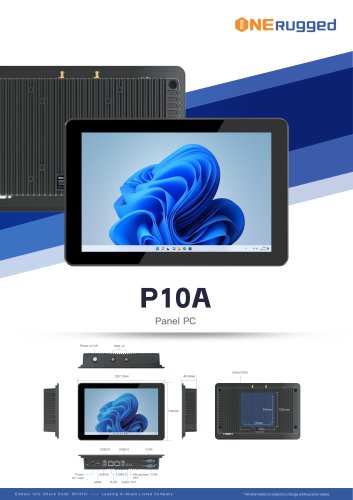 EM-P10A Specification
3 Pages
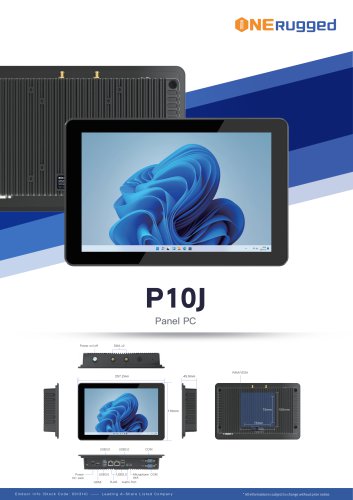 EM-P10J Specification
3 Pages
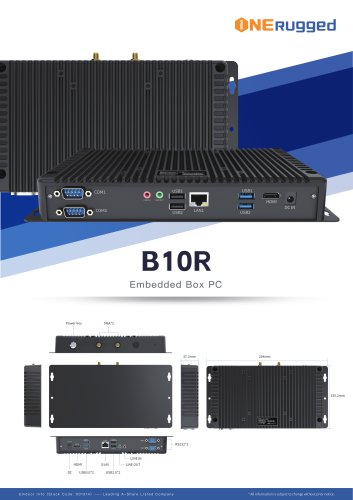 EM-B10R Specification
3 Pages
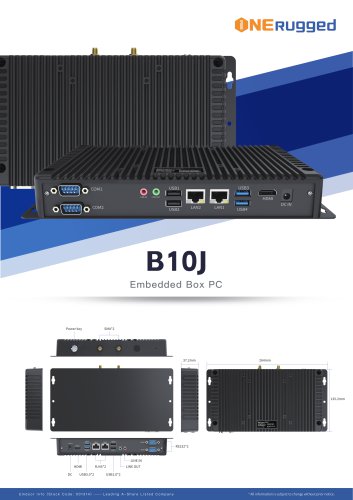 EM-B10J Specification
3 Pages
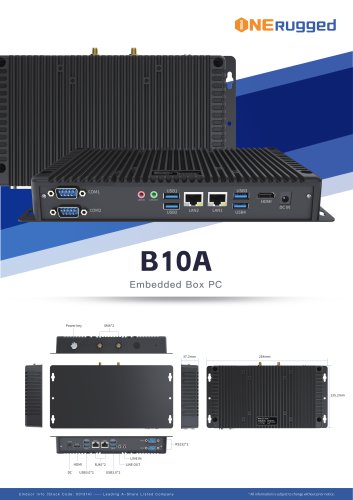 EM-B10A Specification
3 Pages
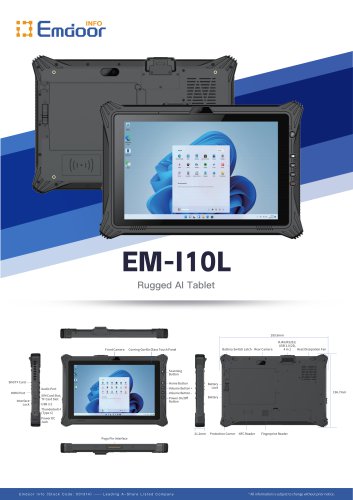 EM-I10L Specification
3 Pages
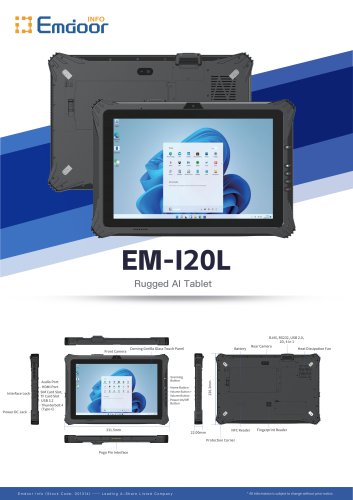 EM-I20L Specification
3 Pages
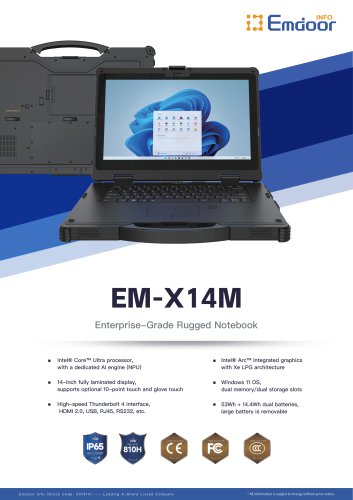
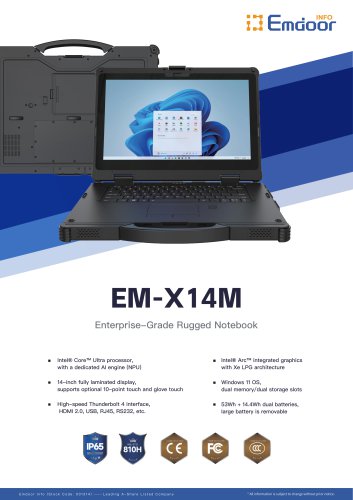 EM-X14M Specification
2 Pages
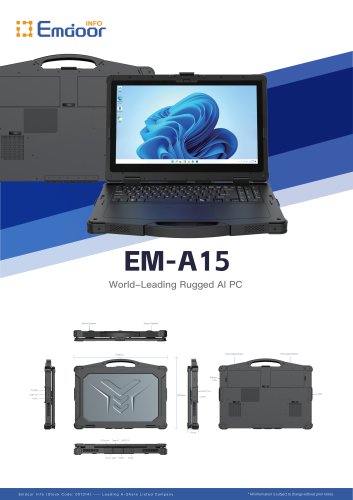 EM-A15 Specification
3 Pages
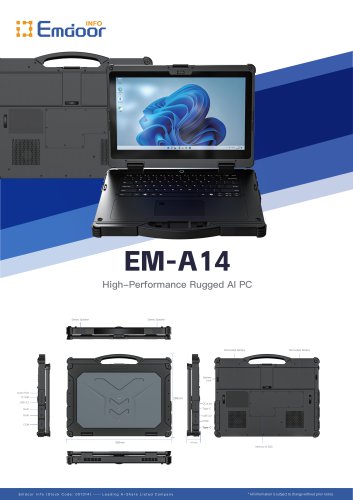 EM-A14 Specification
3 Pages
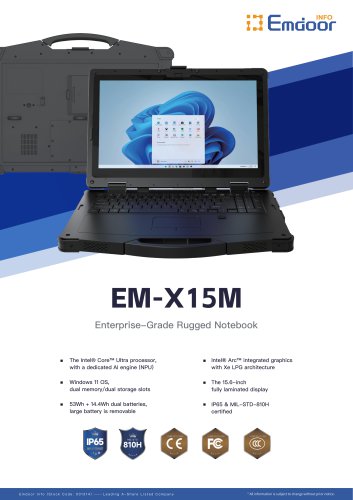 EM-X15M Specification
2 Pages
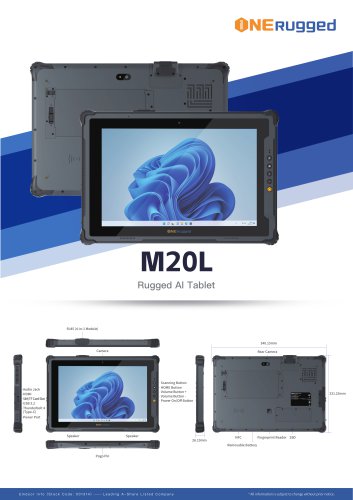 M20L-specification
3 Pages
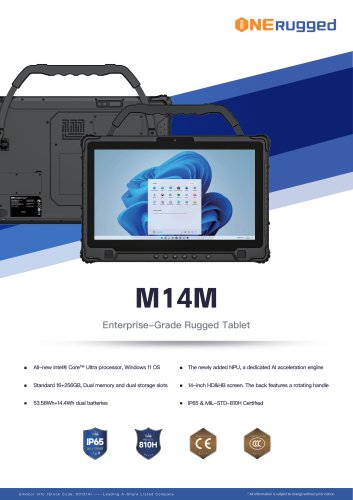 M14M-specification
2 Pages
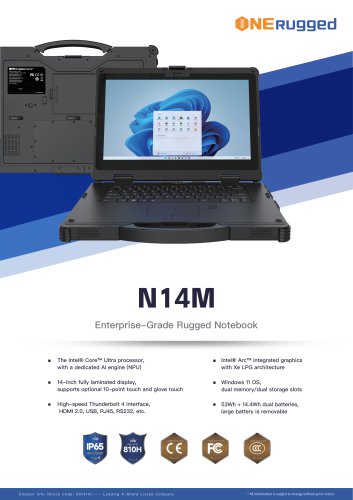 N14M-specification
2 Pages
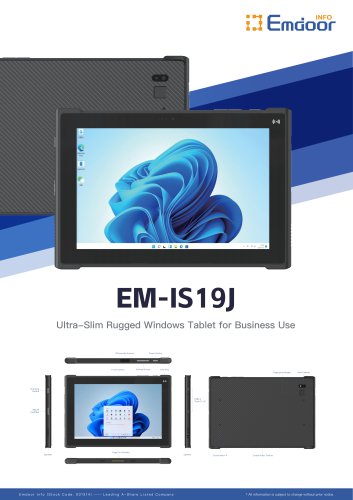 EM-IS19J specification
3 Pages
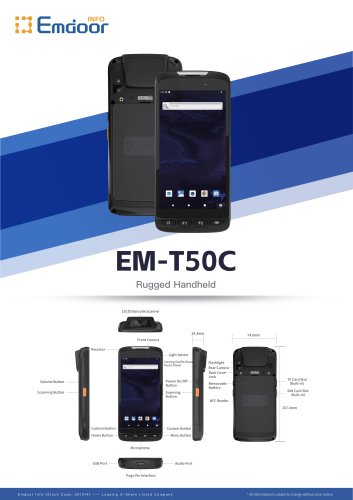 EM-T50C
3 Pages
 EM-D10R successful case
3 Pages
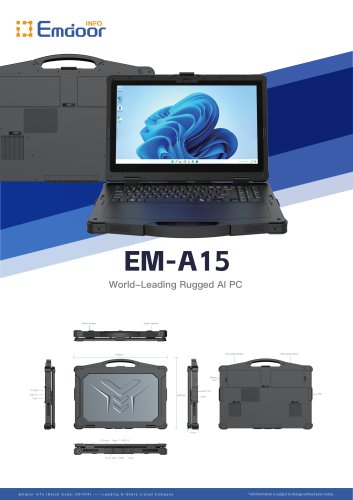 EM-A15
3 Pages
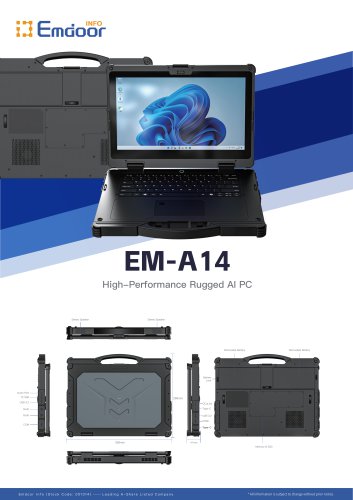 EM-A14
3 Pages
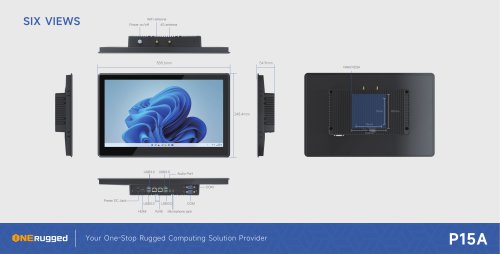 EM-P15A six views
1 Page
 EM-V12R USER MANUAL
2 Pages
 EM-P15A USER
2 Pages
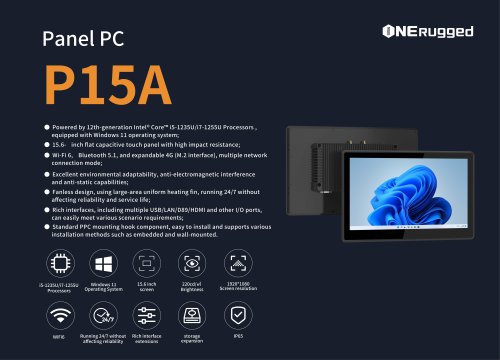 EM-P15A SPE
2 Pages
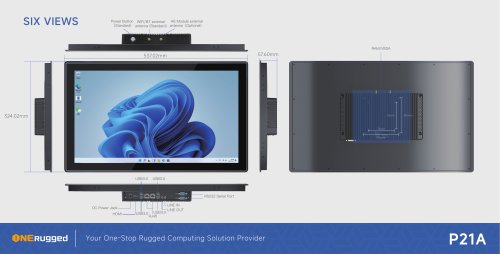 EM-P21A six views
1 Page
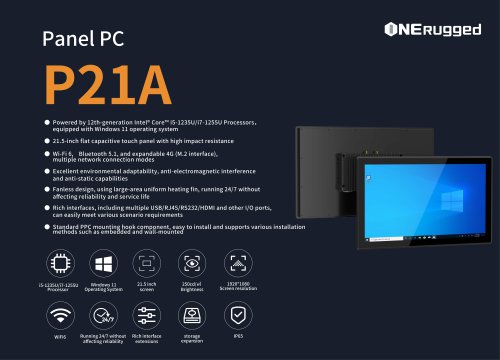 EM-P21A SPE
2 Pages
 EM-P21A user
2 Pages
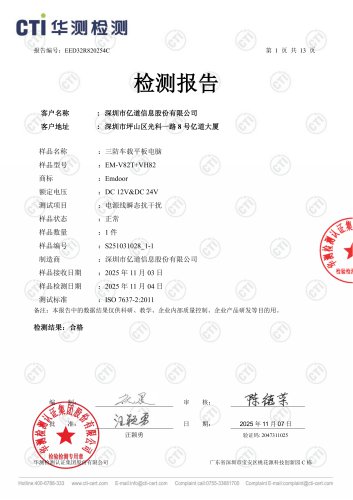 EM-V82T-EMC
13 Pages
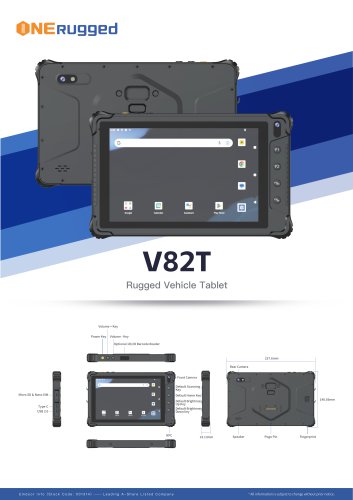 EM-V82T spe
4 Pages
 P2 PRO
2 Pages
 P2 PRO-SPE
2 Pages
 M82A- USER MANUAL
60 Pages
 M82A-spe
2 Pages
 EM-X15A User Manual
76 Pages
 EM-X15M Rugged AI PC uesr manual
76 Pages
 Emdoor Info. EM-I16J User Manual
57 Pages
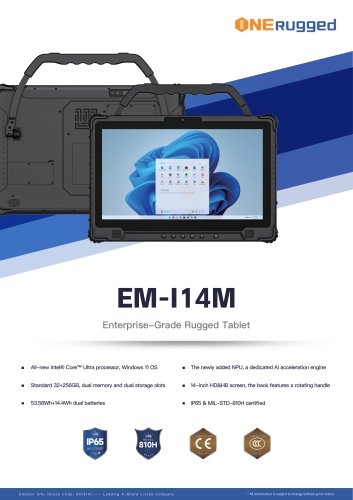 EM-I14M 14Inch Rugged AI PC
2 Pages
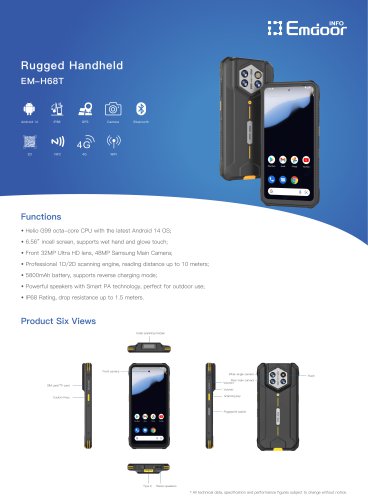 EM-H68T: Android 14 rugged PDA
2 Pages
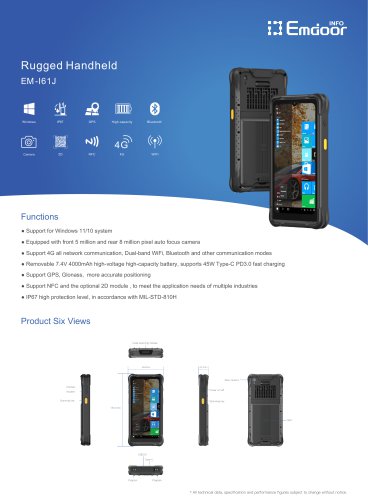
 EM -I61J Rugged Handheld
19 Pages
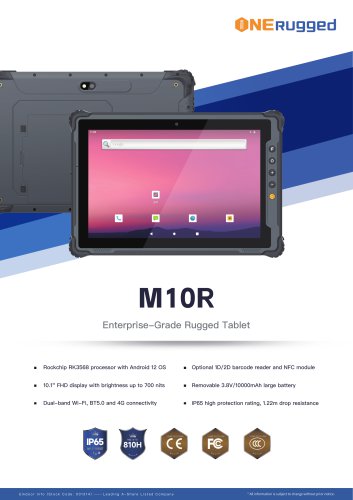 M10R Rugged Tablet RK3588
2 Pages
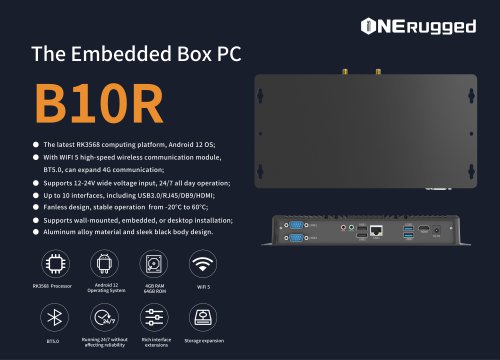
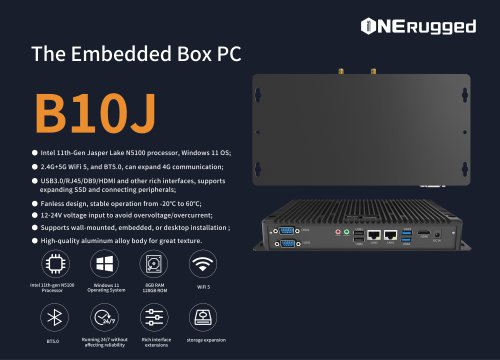 EM-B10J embedded box PC
3 Pages
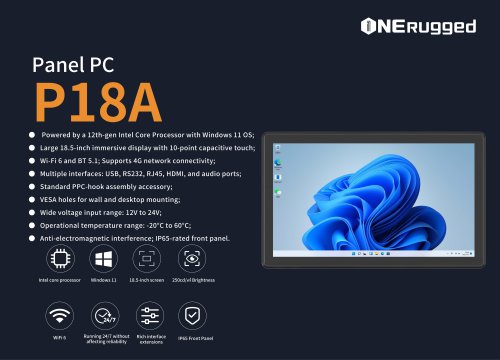
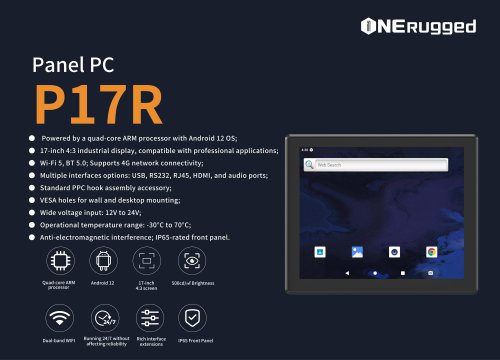
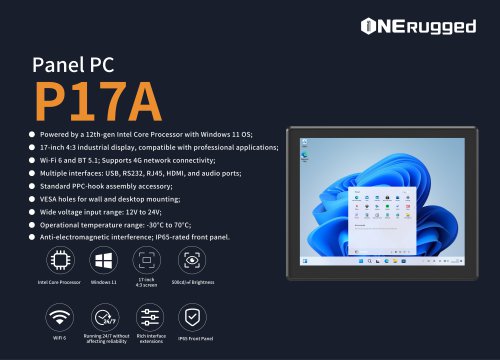
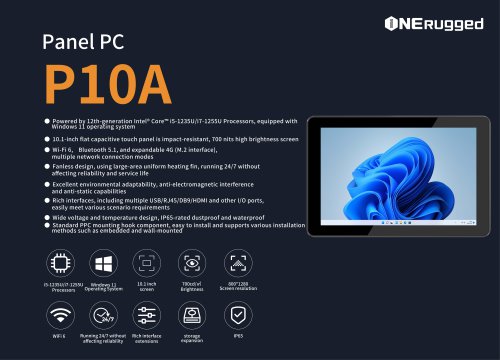
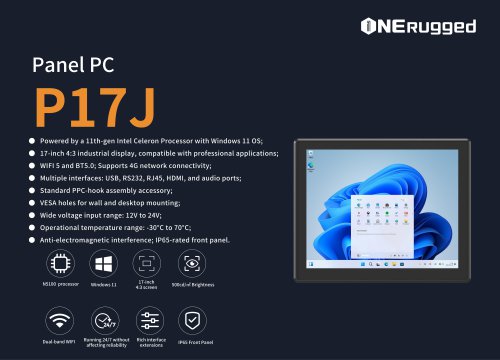 EM-P17J Panel PC
3 Pages
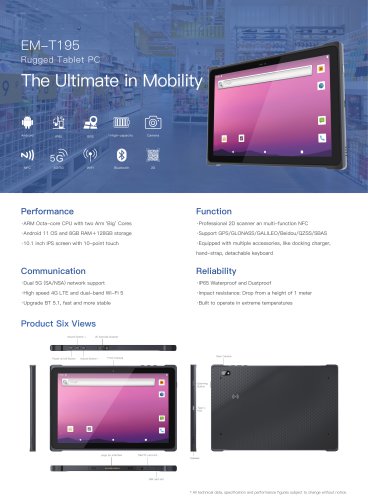 EM-T195 5G Rugged Tablet
2 Pages
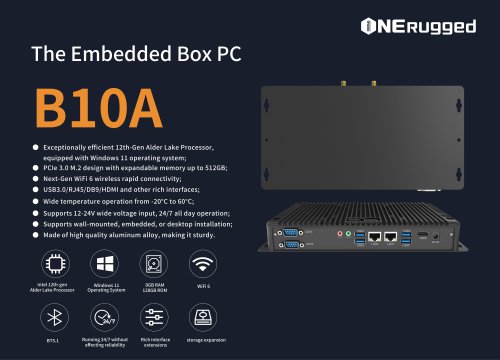 The Embedded Box PC-B10A
3 Pages
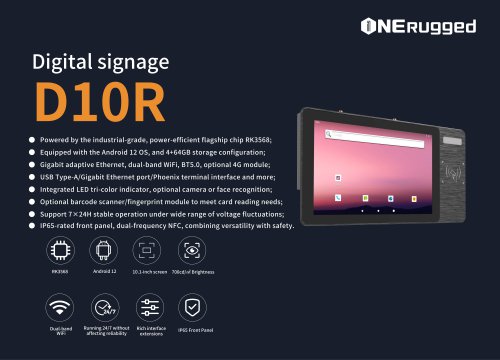 EM-D10R Digital signage
3 Pages
 EM-P1The Outdoor Rugged Phone
2 Pages
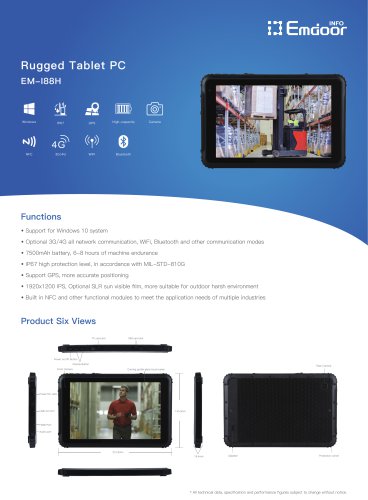
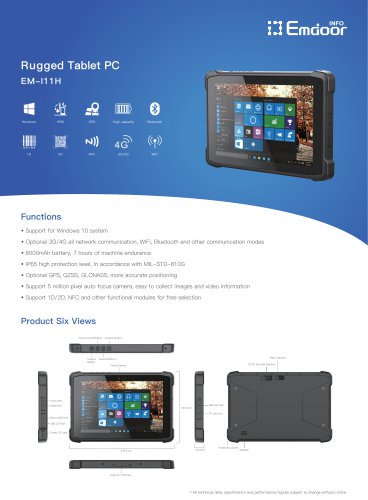 EM-I11H Rugged Tablet PC
2 Pages
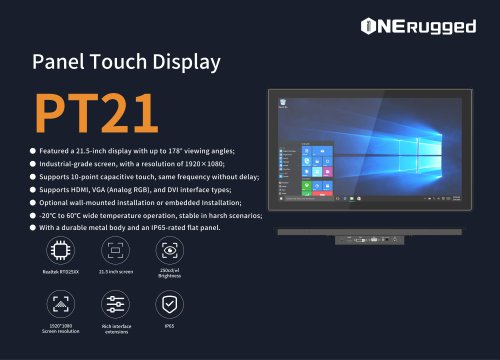 EM-PT21 Panel Touch Display
3 Pages
 Rugged Handheld H60T
2 Pages




















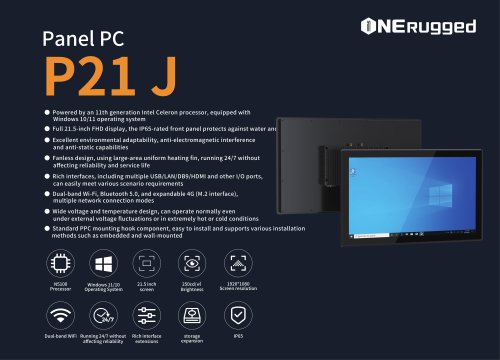
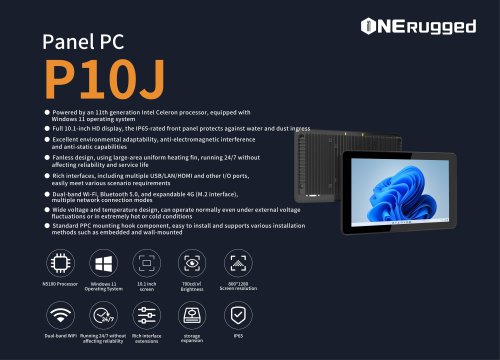
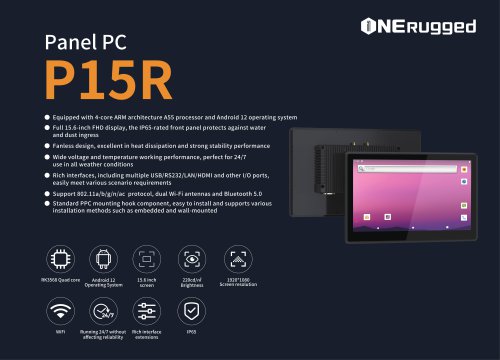

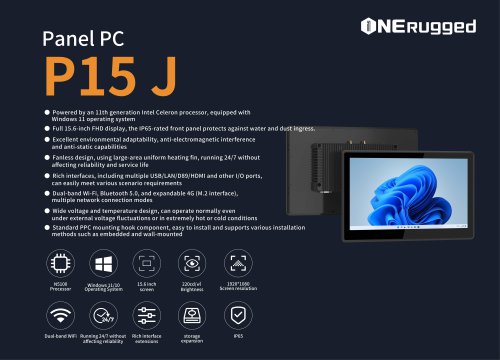






























































- Display module
- Emdoor panel PC
- Emdoor industrial panel PC
- Emdoor panel PC with touch screen
- LCD display panel
- Emdoor fanless panel PC
- Emdoor LCD panel PC
- Industrial display panel
- Intel® Core™ PC
- Fanless PC
- Emdoor IP65 panel PC
- Intel® Core™ panel PC
- VESA mounting panel PC
- Housed panel PC
- HDMI PC
- Embedded PC
- Box PC
- RS-232 PC
- USB 2.0 PC
- Windows PC