
- Catalogs
- Emdoor Information Co., Ltd.
- EM-T40 User Manual Emdoor Info. Rugged Handheld PDA


- Company
- Products
- Catalogs
- News & Trends
- Exhibitions
EM-T40 User Manual Emdoor Info. Rugged Handheld PDA
EM-T40 User Manual Emdoor Info. Rugged Handheld PDA
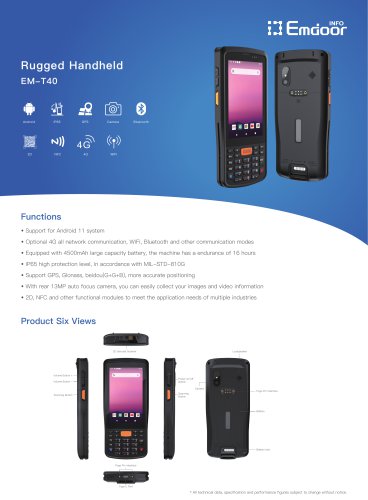
This guide is designed to help users quickly become familiar with the new Rugged Handheld device. It includes an overview of key layouts, definitions, and basic operating functions.
The document is titled 'EM-T40 Android 11 User Manual', with the file number 0001, issued on 2021-07-10. The first edition was published by the Customer Service FAE Department.
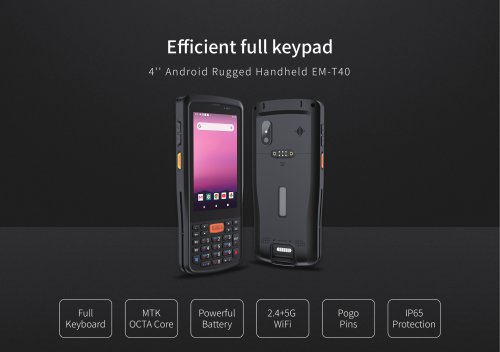
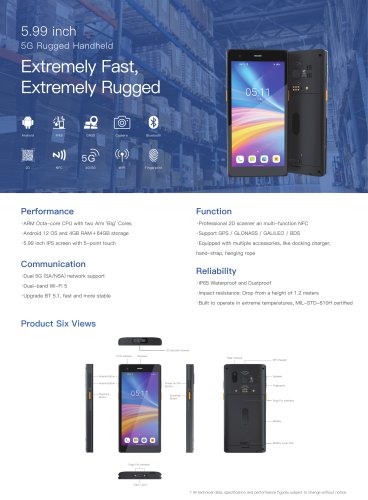
- Power Button: Used to start or close the screen display, enter sleep mode, or wake up the device.
- Scan Key: Opens the scan shortcut key.
- Barcode Scanner: Supports one-dimensional and two-dimensional code scanning.
- Volume Keys: Adjust the volume.
- Rear Camera: 13.0MP, supports photo and video.
- Receiver: Used for listening during phone calls.
- Flash Lamp: Adjusts brightness for photos.
- Type C Port: For data exchange, charging, or connecting headphones.
- Pogo Pin: Used for charging.
- Number/Function Keyboard: Physical keyboard for inputting information.
- Initial Desktop: Accessed by sliding the arrow up.
- Desktop Layout: Users can add shortcuts and access applications quickly.
- Network & Internet: Connect to Wi-Fi, view network details.
- Connected Devices: Manage Bluetooth, NFC, and USB modes.
- Apps & Notifications: Manage installed apps, notifications, and permissions.
- Battery: Monitor usage, enable power saving mode.
- Advanced Features: Set LED light effects for various events.
- Display: Adjust brightness, themes, and wallpapers.
- Sound: Set volume levels for media, calls, and alarms.
- Storage: Manage system memory and SD cards.
- Privacy: Control app data access and notification content.
- Location: Enable or disable location services.
- Security: Configure screen lock, anti-theft, and encryption settings.
- Accounts: Add accounts.
- Accessibility: Adjust font size, themes, and navigation settings.
- DuraSpeed: Enhance app performance.
- System: Set language, input, gestures, and backup options.
- About Phone: View device status, model, and software information.
Catalog excerpts
Thanks for your to choose the new Rugged Handheld. This guide serves to enable users to get to know and familiar with our product as soon as possible. Here we have made a brief introduction to the key layout and definitions in figures and words. And a brief explain for the basic operating functions.
Open the catalog to page 1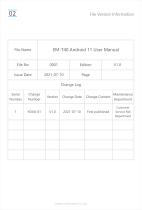
File Version Information File Name
Open the catalog to page 2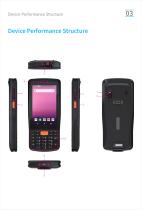
Device Performance Structure
Open the catalog to page 3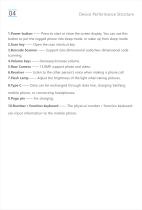
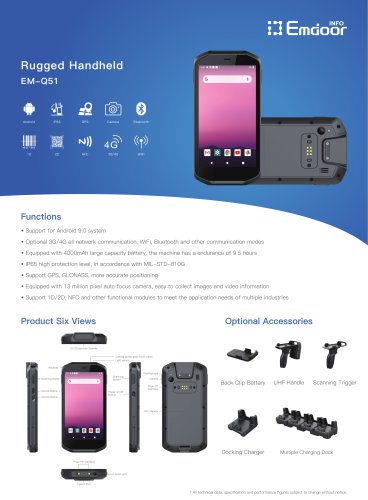
Device Performance Structure 1.Power button —— Press to start or close the screen display. You can use this button to put the rugged phone into sleep mode, or wake up from sleep mode. 2.Scan key —— Open the scan shortcut key. 3.Barcode Scanner —— Support one-dimensional code/two-dimensional code scanning. 4.Volume keys —— Decrease/increase volume. 5.Rear Camera —— 13.0MP, support photo and video. 6.Receiver —— Listen to the other person's voice when making a phone call. 7.Flash Lamp —— Adjust the brightness of the light when taking pictures. 8.Type C —— Data can be exchanged through data line,...
Open the catalog to page 4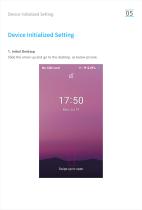
Device Initialized Setting Slide the arrow up and go to the desktop, as below picture.
Open the catalog to page 5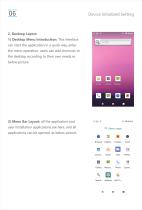
Device Initialized Setting 2. Desktop Layout 1) Desktop Menu Introduction: This interface can start the application in a quick way, enter the menu operation, users can add shortcuts to the desktop according to their own needs,as below picture. 2) Menu Bar Layout: all the application and user installation applications are here, and all applications can be opened, as below picture. Browser Calend... Camera Clock Contac... Email Files FM Ra... Gallery Messa... Phone Scann...
Open the catalog to page 6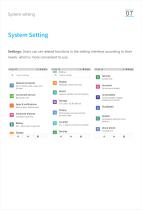
System setting 4ZTUFN4FUUJOH Settings: Users can set related functions in the setting interface according to their needs, which is more convenient to use.
Open the catalog to page 7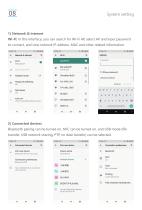
System setting 1) Network & internet Wi-Fi: In this interface, you can search for Wi-Fi AR select AP and input password to connect, and view network IP address, MAC and other related information. VPN, Private DNS, Network data.. Bluetooth pairing can be turned on, NFC can be turned on, and USB mode (file transfer, USB network sharing, PTR no data transfer) can be selected. Bluetooth will turn on to pair Connection preferences © Turn on Bluetooth to connect to other devices. Device name Cj Files received via Bluetooth © Phone's Bluetooth address: 6E:AC:46:C8:47:B1
Open the catalog to page 8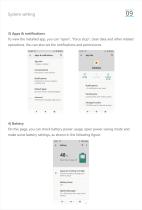
System setting3) Apps & notificationsTo view the installed app, you can "open", "force stop", clear data and other related operations. You can also set the notifications and permissions. 18:00 III o B 48% Notification history, bubbles, recently sent Default apps Browser, Phone, and Messaging Advanced Permission manager, Special ap.. OPEN DISABLE FORCE Camera, Files and media, and M... Storage & cache 4.96 MB used in internal storage On this page, you can check battery power usage, open power saving mode and make some battery settings, as shown in the following figure. 18:01 SSI! o.*B4 More than...
Open the catalog to page 9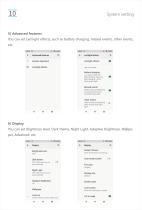
System setting 5) Advanced featuresYou can set Led light effects, such as battery charging, missed events, other events, etc. 18:01 ffl o.tfl48% 18:01 !!! o-tU48% <- Advanced features Q. <- Led light effects Q. b Gesture Operation Oo Led light effects Battery charging Low power flash red light,charging show red light,charging >=95% show green light. Missed events When screen off,Received sms,email,call events then flash blue light. Other events When screen off,Received m Other events flash blue light. 6) DisplayYou can set Brightness level, Dark theme, Night Light, Adaptive brightness, Wallpaper,...
Open the catalog to page 10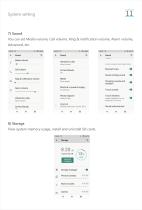
System setting7) SoundYou can set Media volume, Call volume, Ring & notification volume, Alarm volume, Advanced, etc. 18:02 m Never vibrate Show player Shortcut to prevent ringing Phone ringtone Flutey Phone Default notification sound, Defa.. OTHER SOUNDS AND VIBRATIONS Screen locking sound a# Touch sounds # Touch vibration Haptic feedback for tap, keyboard, and more Sound enhancement View system memory usage, install and uninstall SD cards.
Open the catalog to page 11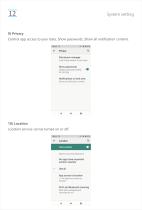
System setting9) PrivacyControl app access to your data, Show passwords, Show all notification content. 18:03 Hi o»^0 47% Permission manager Control app access to your data Show passwords Display characters briefly as you type Notifications on lock sere.. Show all notification content 10) LocationLocation service can be turned on or off. 18:03 m RECENT LOCATION REQUESTS No apps have requested location recently 1 of 4 apps has access to location Wi-Fi and Bluetooth scanning Both Wi-Fi and Bluetooth scanning are off
Open the catalog to page 12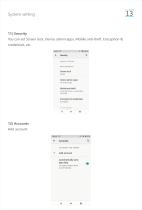
System setting11) SecurityYou can set Screen lock, Device admin apps, Mobile anti-theft, Encryption & credentials, etc. 18:03 aa o.*B47% SECURITY STATUS DEVICE SECURITY Screen lock Device admin apps Mobile anti-theft Lock the phone or wipe data remotely Encryption & credentials Trust agents
Open the catalog to page 13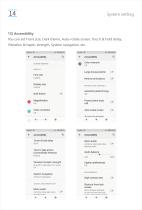
System setting13) AccessibilityYou can set Front size, Dark theme, Auto-rotate screen, Touch & hold delay, Vibration & haptic strength, System navigation, etc. 18:04IHS 0.^0 47% SCREEN READERS Font size Display size Dark theme Color inversion Large mouse pointer Remove animations INTERACTION CONTROLS Autoclick (dwell timing) Power button ends call Auto-rotate screen Color correction Tnurh 8. hnlrl Halaw Touch & hold delay Time to take action (Accessibility timeout) Vibration & haptic strength Ring Off, notification On, touch On System navigation AUDIO & ON-SCREEN TEXT Mono audio Combine channels...
Open the catalog to page 14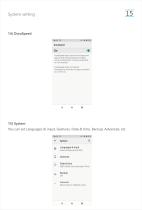
DuraSpeed helps boost the foreground app by restricting background apps, some notifications may be postponed or not received. DuraSpeed does not restrict background activities of apps switched on in the list. You can set Languages & input, Gestures, Date & time, Backup, Advanced, etc. Android Keyboard (AOSP) GMT+08:00 China Standard Time Reset options, Multiple users
Open the catalog to page 15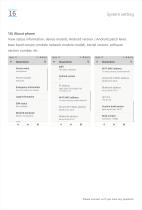
System setting16) About phoneView status information, device models, Android version / Android patch level, base band version (mobile network module model), kernel version, software version number, etc. 18:05 M ©»^Q47% Device name Phone number Unknown Emergency information Info & contacts for Owner Legal information Model & hardware Model: smartphone Android version To view, choose saved network Device Wi-Fi MAC address 00:08:22:5c:ad:fb To view, choose saved network Device Wi-Fi MAC address 00:08:22:5c:ad:fb Custom build version Build number Please connect us if you have any question!
Open the catalog to page 16All Emdoor Information Co., Ltd. catalogs and technical brochures
 EM-P10R Specification
3 Pages
 EM-P10A Specification
3 Pages
 EM-P10J Specification
3 Pages
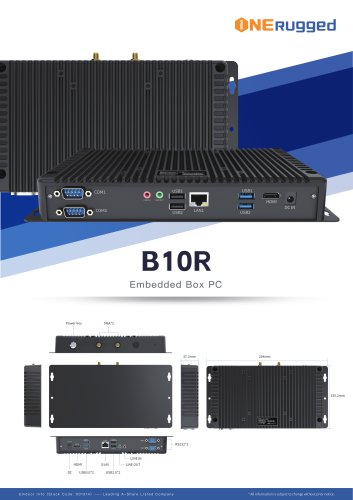 EM-B10R Specification
3 Pages
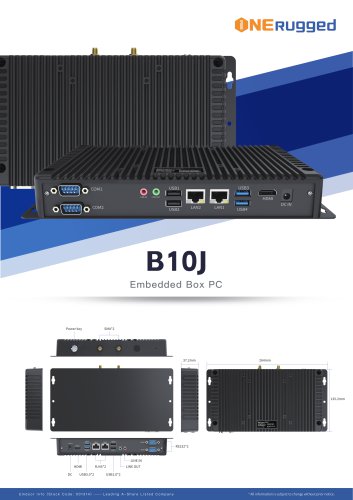 EM-B10J Specification
3 Pages
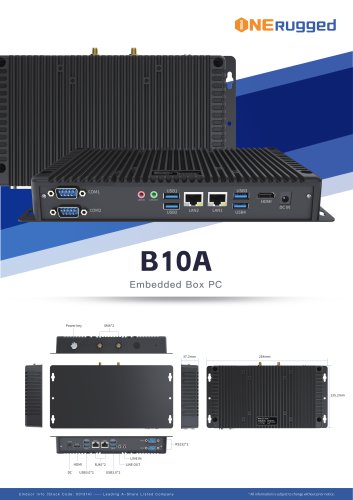 EM-B10A Specification
3 Pages
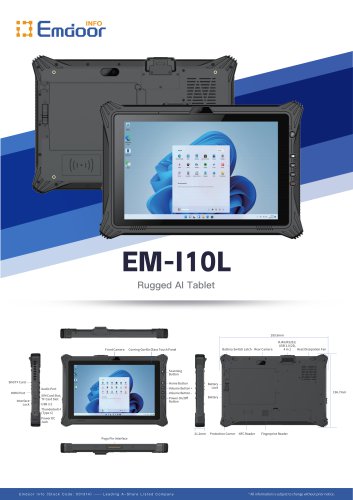 EM-I10L Specification
3 Pages
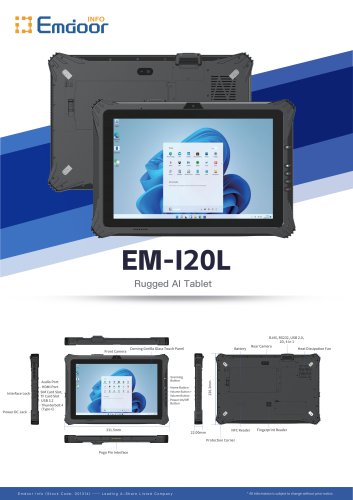 EM-I20L Specification
3 Pages
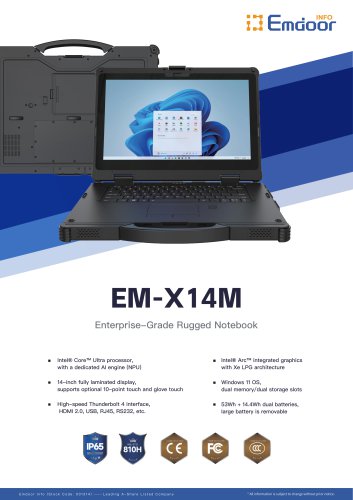 EM-X14M Specification
2 Pages
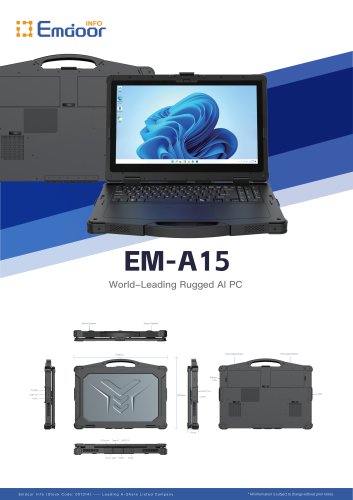 EM-A15 Specification
3 Pages
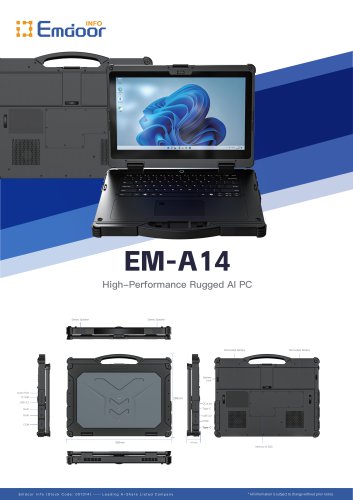 EM-A14 Specification
3 Pages
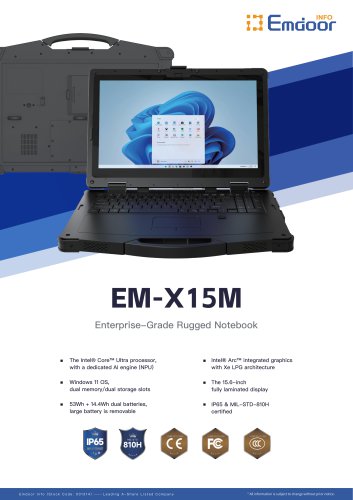 EM-X15M Specification
2 Pages
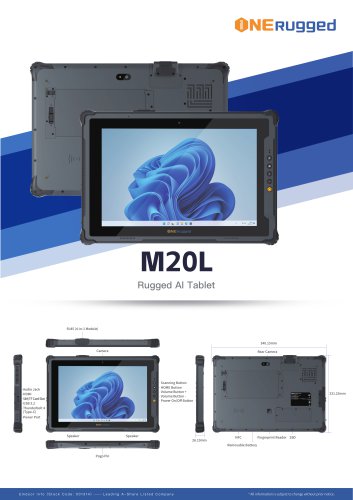 M20L-specification
3 Pages
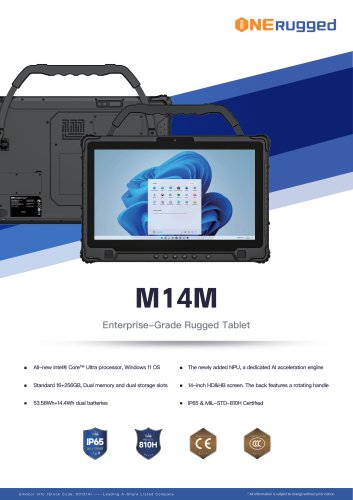 M14M-specification
2 Pages
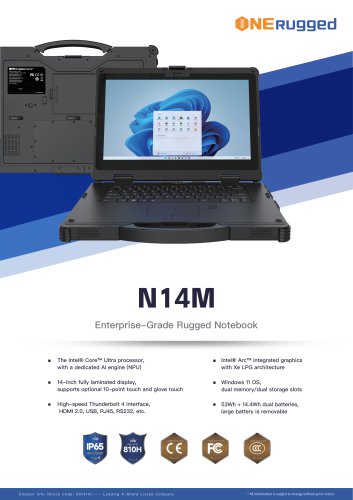 N14M-specification
2 Pages
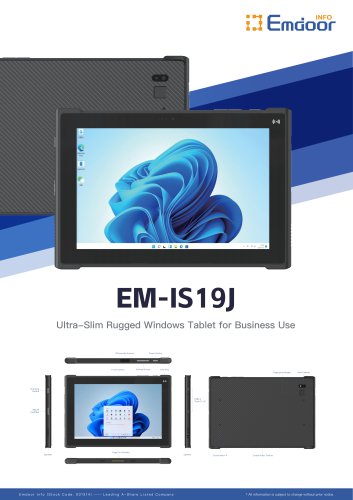 EM-IS19J specification
3 Pages
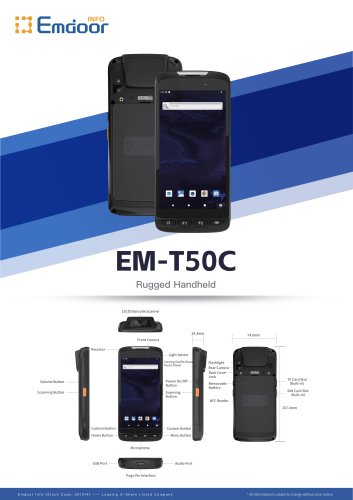 EM-T50C
3 Pages
 EM-D10R successful case
3 Pages
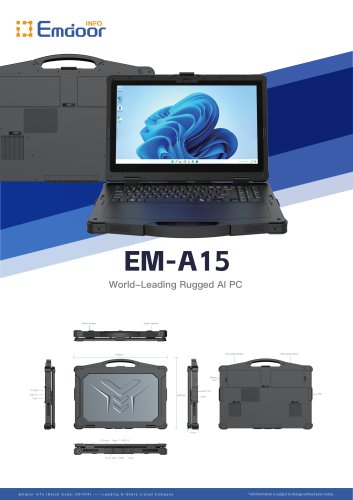 EM-A15
3 Pages
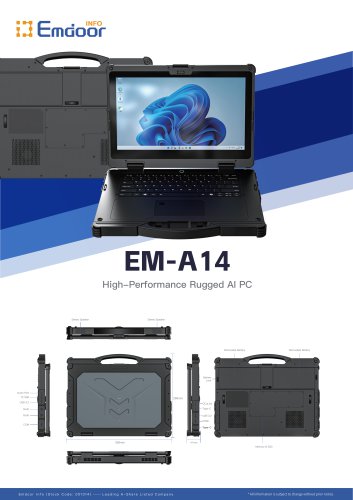 EM-A14
3 Pages
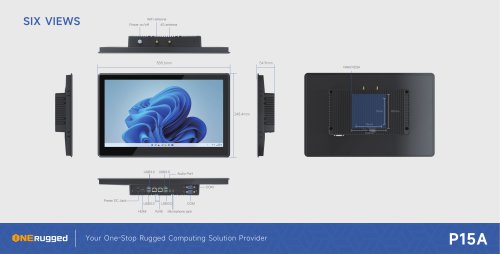 EM-P15A six views
1 Page
 EM-V12R USER MANUAL
2 Pages
 EM-P15A USER
2 Pages
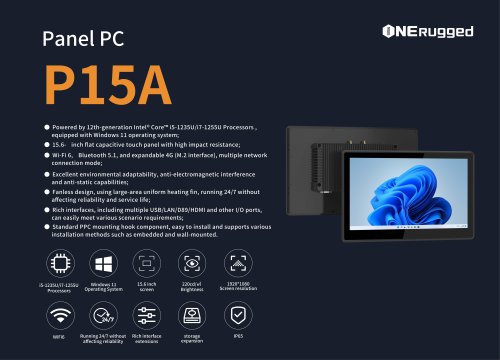 EM-P15A SPE
2 Pages
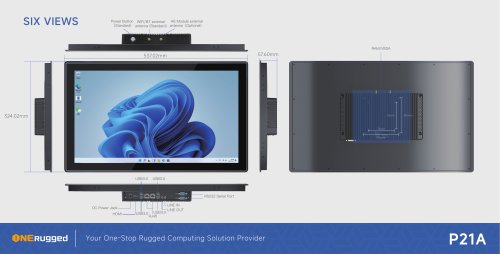 EM-P21A six views
1 Page
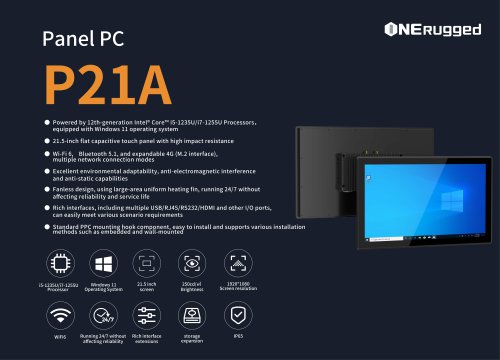 EM-P21A SPE
2 Pages
 EM-P21A user
2 Pages
 EM-V82T-EMC
13 Pages
 EM-V82T spe
4 Pages
 P2 PRO
2 Pages
 P2 PRO-SPE
2 Pages
 M82A- USER MANUAL
60 Pages
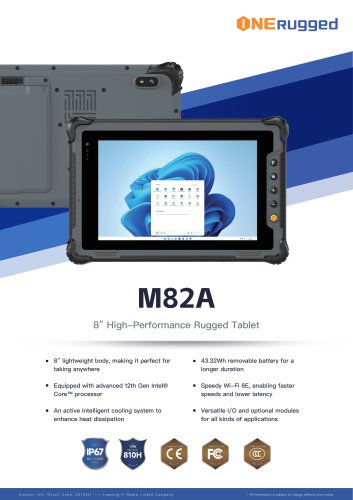 M82A-spe
2 Pages
 EM-X15A User Manual
76 Pages
 EM-X15M Rugged AI PC uesr manual
76 Pages
 Emdoor Info. EM-I16J User Manual
57 Pages
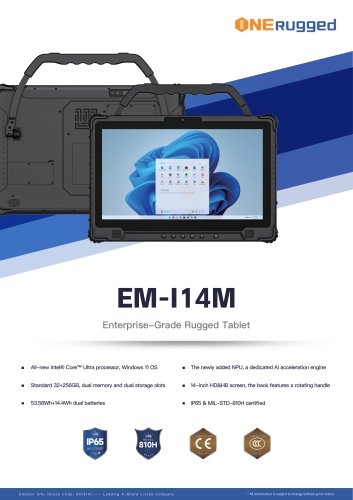 EM-I14M 14Inch Rugged AI PC
2 Pages
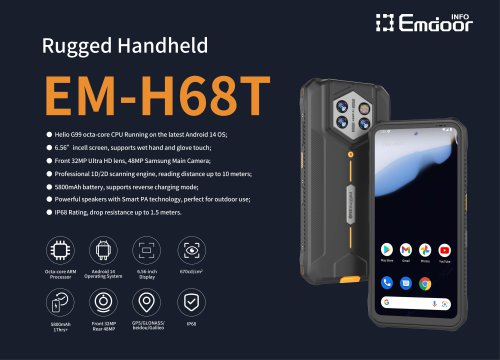
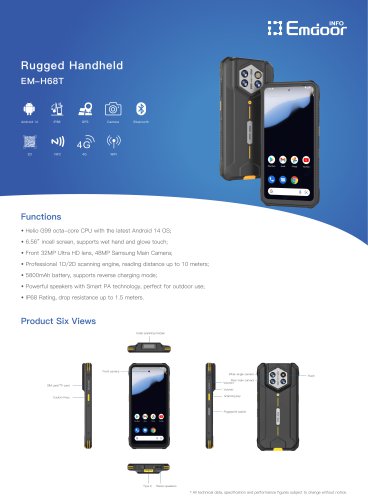 EM-H68T: Android 14 rugged PDA
2 Pages
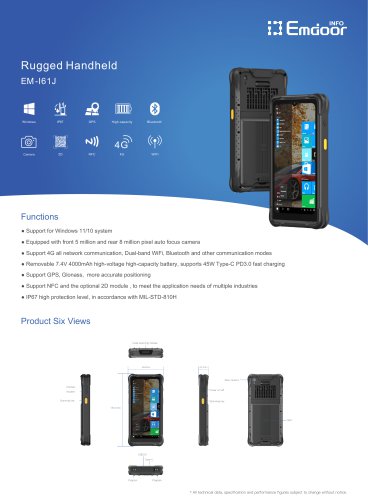
 EM -I61J Rugged Handheld
19 Pages
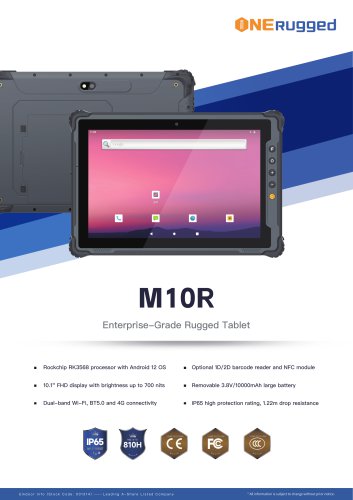 M10R Rugged Tablet RK3588
2 Pages
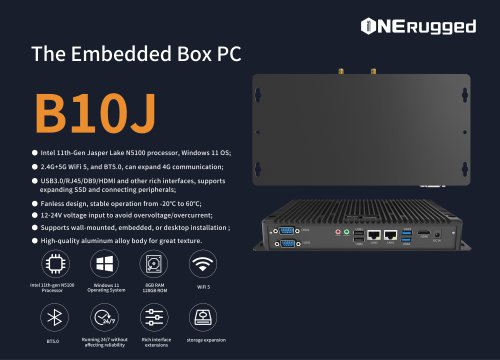 EM-B10J embedded box PC
3 Pages
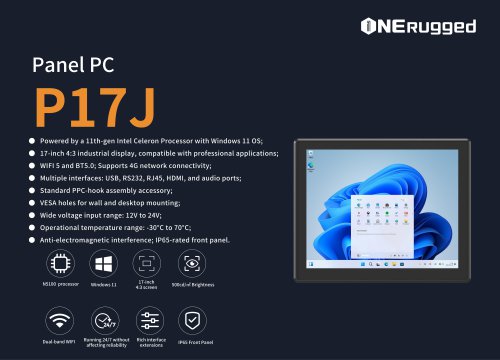 EM-P17J Panel PC
3 Pages
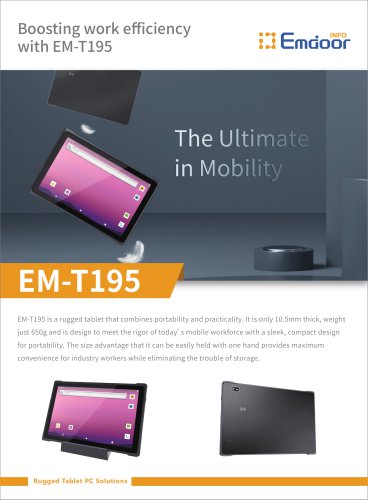
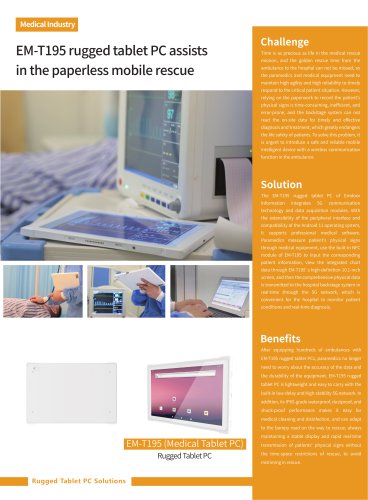
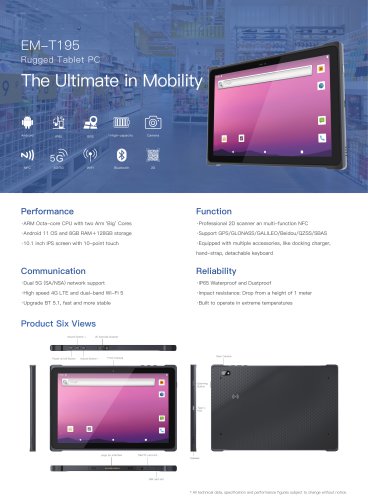 EM-T195 5G Rugged Tablet
2 Pages
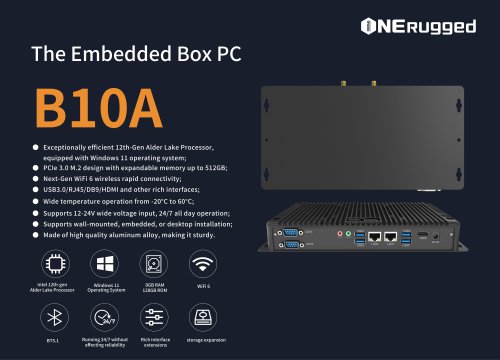 The Embedded Box PC-B10A
3 Pages
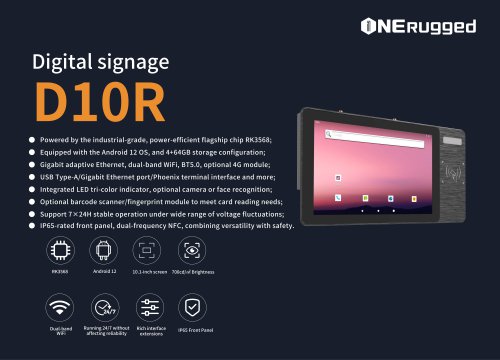 EM-D10R Digital signage
3 Pages
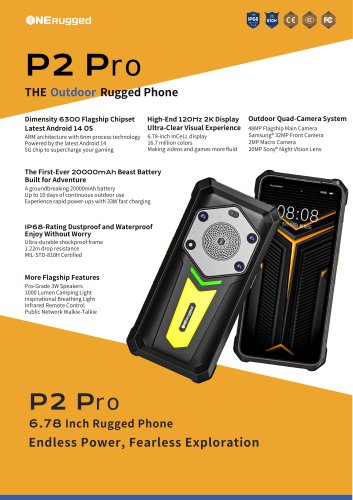
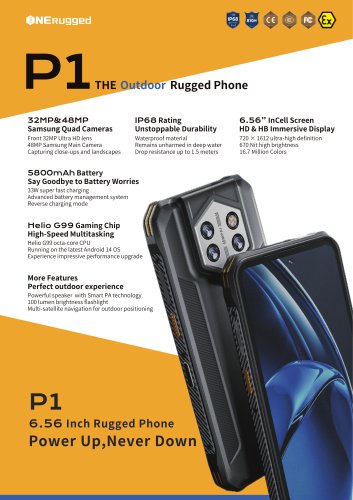 EM-P1The Outdoor Rugged Phone
2 Pages
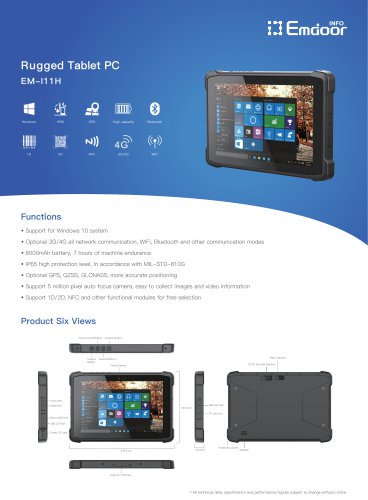 EM-I11H Rugged Tablet PC
2 Pages
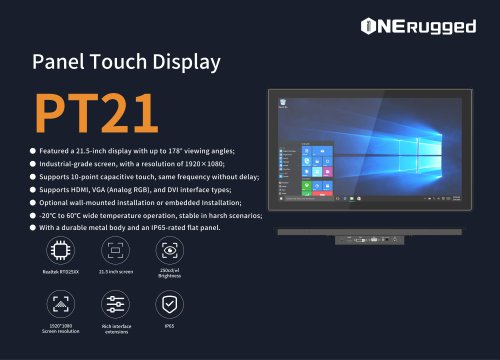 EM-PT21 Panel Touch Display
3 Pages
 Rugged Handheld H60T
2 Pages



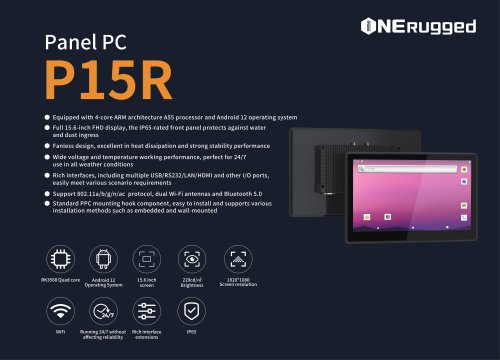
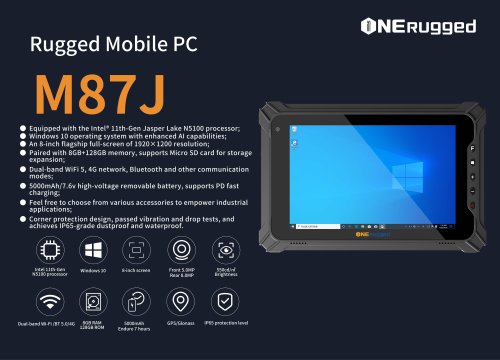
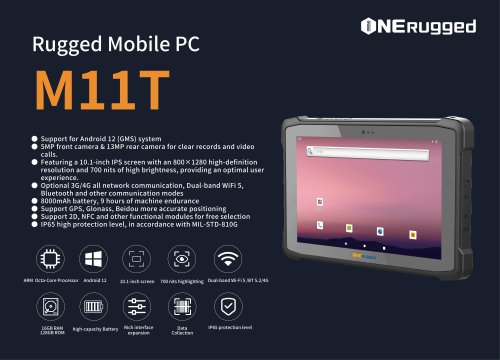
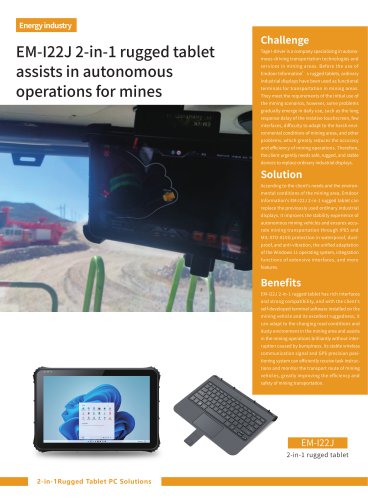






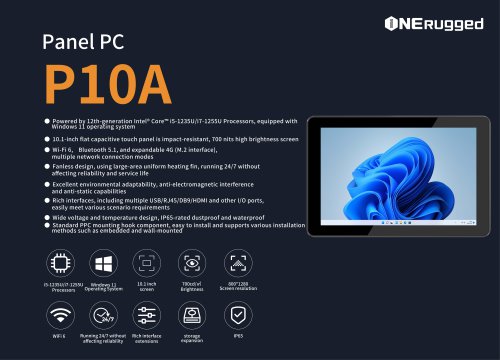
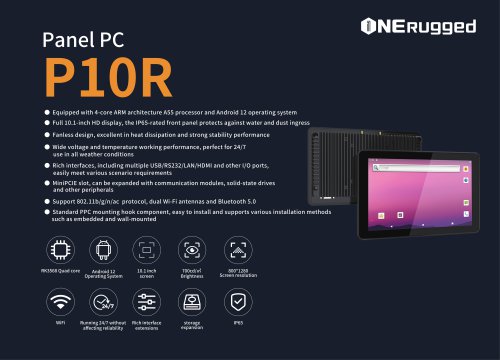

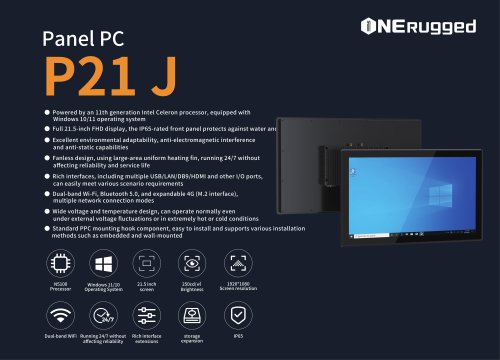
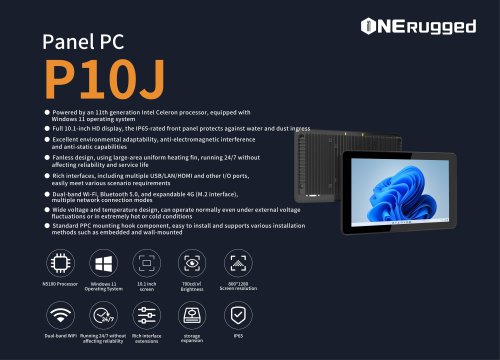

















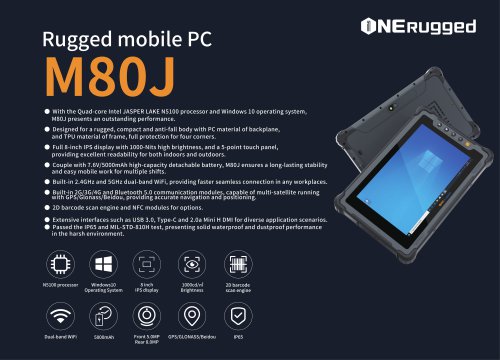
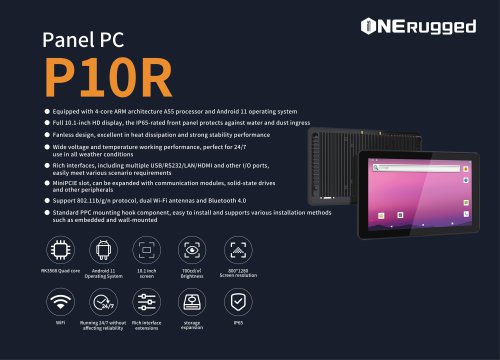
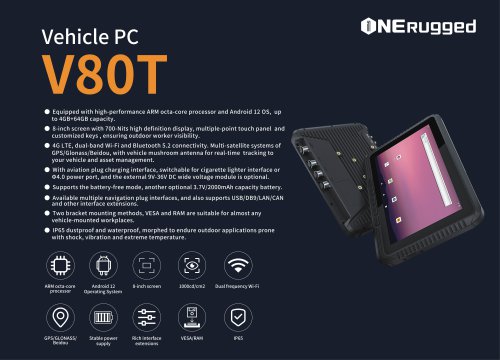
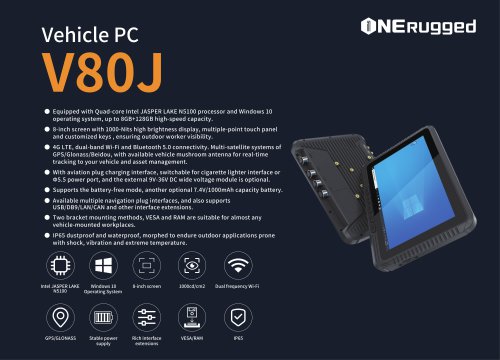






















- Emdoor panel PC
- Emdoor industrial panel PC
- Emdoor panel PC with touch screen
- LCD display panel
- Emdoor fanless panel PC
- Emdoor LCD panel PC
- Industrial display panel
- Intel® Core™ PC
- Fanless PC
- Emdoor IP65 panel PC
- Intel® Core™ panel PC
- VESA mounting panel PC
- Housed panel PC
- HDMI PC
- Embedded PC
- Box PC
- RS-232 PC
- USB 2.0 PC
- Windows PC