
- Catalogs
- Emdoor Information Co., Ltd.
- EM-T19 10.1 inch Rugged Tablet PC User Manual


- Company
- Products
- Catalogs
- News & Trends
- Exhibitions
EM-T19 10.1 inch Rugged Tablet PC User Manual
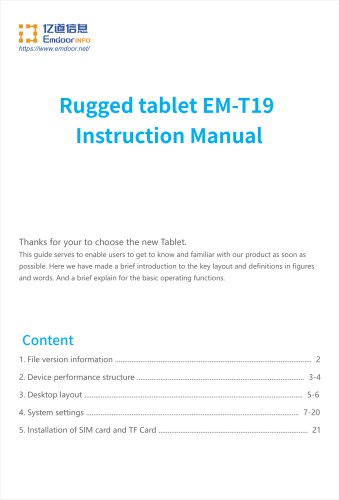
EM-T19 10.1 inch Rugged Tablet PC User Manual
This manual provides an overview of the Rugged Tablet EM-T19, including key layout, definitions, and basic operating functions to help users become familiar with the product quickly.
The manual is identified as EM-T19 User Manual, File No 0001, issued on 2021-12-20, with the first version published by the Customer Service FAE Department.
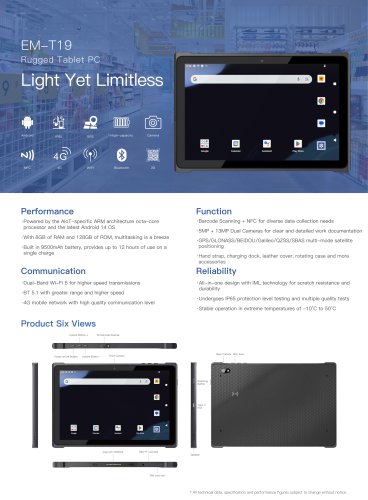
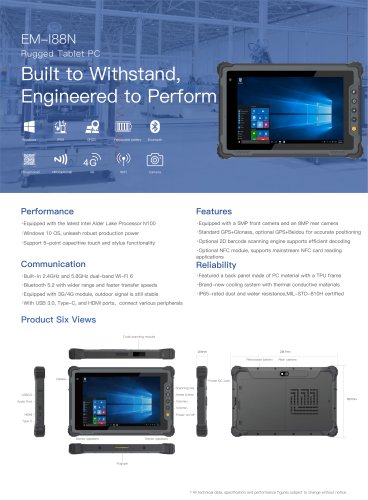
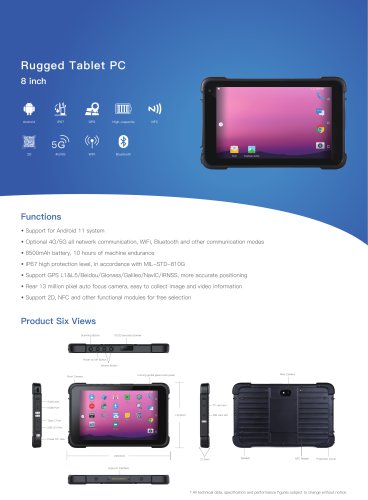
The tablet features a power button, scan key, barcode scanner, volume keys, front and rear cameras, flash lamp, speaker, Type C port, pogo pin, and SIM/TF slot. These components support various functionalities such as scanning, photography, data exchange, and charging.
The initial desktop allows users to access applications quickly, customize shortcuts, and view essential information like time and battery status.
The settings section covers a wide range of configurations:
- Network & Internet: Manage WiFi, mobile networks, and hotspot settings.
- Connected Devices: Configure Bluetooth, NFC, and other connectivity options.
- Apps & Notifications: Manage app storage, notifications, and screen lock settings.
- Battery: Monitor power usage and enable power-saving modes.
- Display: Adjust brightness, wallpaper, and screen settings.
- Sound: Set volume levels and notification tones.
- Storage: View memory usage and manage SD cards.
- Privacy: Control permissions and lock screen notifications.
- Location: Enable or disable GPS and app location access.
- Security: Set screen locks and manage encryption.
- Accounts: Add and manage email accounts.
- Accessibility: Customize display and interaction settings for accessibility.
- Digital Wellbeing & Parental Controls: Monitor device usage and set parental controls.
- DuraSpeed: Enhance app performance by limiting background activities.
- Google: Manage Google account settings and services.
- System: Configure system updates, language, date, time, and developer options.
Instructions are provided for inserting a Micro SIM and TF card into the designated slots.
Catalog excerpts
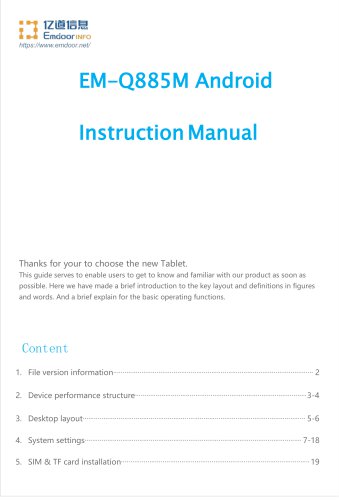
Thanks for your to choose the new Tablet. This guide serves to enable users to get to know and familiar with our product as soon as possible. Here we have made a brief introduction to the key layout and definitions in figures and words. And a brief explain for the basic operating functions.
Open the catalog to page 1
File Version Information File Name
Open the catalog to page 2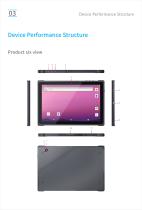
Device Performance Structure Device Performance Structure Product six view 1 4 4
Open the catalog to page 3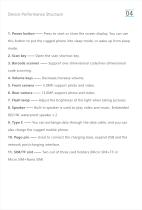
Device Performance Structure 1. Power button —— Press to start or close the screen display. You can use this button to put the rugged phone into sleep mode, or wake up from sleep mode. 2. Scan key —— Open the scan shortcut key. 3. Barcode scanner —— Support one-dimensional code/two-dimensional code scanning. 4. Volume keys —— Decrease/increase volume. 5. Front camera —— 5.0MP, support photo and video. 6. Rear camera —— 13.0MP, support photo and video. 7. Flash lamp —— Adjust the brightness of the light when taking pictures. 8. Speaker —— Built-in speaker is used to play video and music. Embedded...
Open the catalog to page 4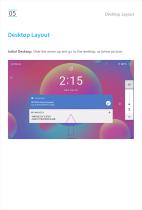
Desktop Layout Desktop Layout Initial Desktop: Slide the arrow up and go to the desktop, as below picture.
Open the catalog to page 5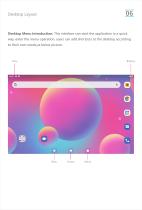
Desktop Layout Desktop Menu Introduction: This interface can start the application in a quick way, enter the menu operation, users can add shortcuts to the desktop according to their own needs,as below picture.
Open the catalog to page 6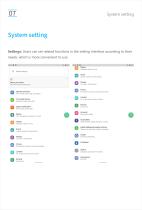
System setting System setting Settings: Users can set related functions in the setting interface according to their needs, which is more convenient to use.
Open the catalog to page 7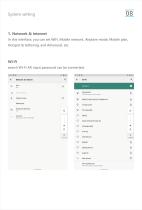
System setting1. Network & internet In this interface, you can set WiFi, Mobile network, Airplane mode, Mobile plan, Hotspot & tethering, and Advanced, etc. search Wi-Fi AP, input password can be connected. Mobile network Airplane mode Mobile plan Hotspot & tethering Data Saver, VPN, Private DNS
Open the catalog to page 8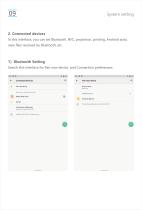
System setting2. Connected devices In this interface, you can set Bluetooth, NFC, projection, printing, Android auto, view files received by Bluetooth, etc. Search this interface for Pair new device, and Connection preferences. Available devices (7) Phone's Bluetooth address: 00:00:04:5B:7B:11
Open the catalog to page 9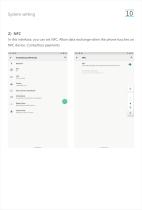
System setting 2)NFC In this interface, you can set NFC. Allow data exchange when the phone touches an NFC device. Contactless payments.
Open the catalog to page 10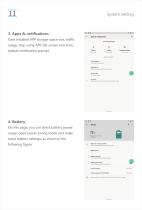
System setting 3. Apps & notifications View installed APP storage space size, traffic usage, stop using APP. Set screen lock time, default notification prompt. Recently opened apps Photos Camera Notification history, bubbles, recently sent Screen time 42 minutes today Default apps. Permission manager, Special app access 4. Battery On this page, you can check battery power usage, open power saving mode and make some battery settings, as shown in the following figure. Battery percentage Show battery percentage in status bar Last full charge 8 days ago Screen usage since full charge 2 hr. 49 min...
Open the catalog to page 11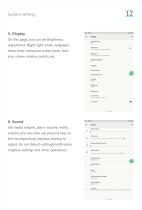
System setting 5. Display On this page, you can set Brightness adjustment, Night light mode, wallpaper, sleep time, interactive screen saver, font size, screen rotation switch, etc. 6. Sound Set media volume, alarm volume, notify volume size (can also use physical keys to the corresponding interface directly to adjust, do not disturb settings)notification ringtone settings and other operations.
Open the catalog to page 12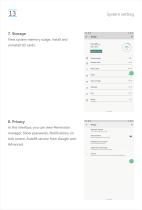
System setting 7. Storage View system memory usage, install and uninstall SD cards. 8. Privacy In this interface, you can view Permission manager, Show passwords, Notifications on lock screen, Autofill service from Google and Advanced. Permission manager Control app access to your data Show passwords Display characters briefly as you type Notifications on lock screen Show all notification content Autofill service from Google Saved passwoids, credit cards, addresses Google location history, Activity controls, Ads, Usage & diagnostics
Open the catalog to page 13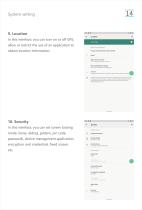
In this interface, you can turn on or off GPS, allow or restrict the use of an application to obtain location information. In this interface, you can set screen locking mode (none, sliding, pattern, pin code, password), device management application, encryption and credentials, fixed screen, etc.
Open the catalog to page 14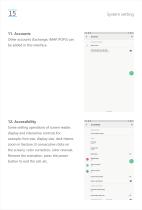
System setting 11. Accounts Other accounts (Exchange, IMAP, POP3) can be added in this interface. Some setting operations of screen reader, display and interactive controls.For example: font size, display size, dark theme, zoom in Gesture (3 consecutive clicks on the screen), color correction, color reversal, Remove the animation, press the power button to end the call, etc. Color correction Large mouse pointer Remove animations INTERACTION CONTROLS Autoclick (dwell timing) Off Power button ends call
Open the catalog to page 15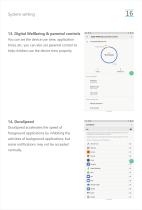
System setting 13. Digital Wellbeing & parental controls You can set the device use time, application timer, etc. you can also set parental control to help children use the device time properly. 14. DuraSpeed DuraSpeed accelerates the speed of foreground applications by inhibiting the activities of background applications, but some notifications may not be accepted normally.
Open the catalog to page 16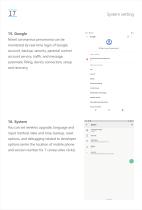
System setting 15. Google Novel coronavirus pneumonia can be monitored by real-time login of Google account, backup, security, parental control account service, traffic and message, automatic filling, device connection, setup and recovery. G Sign in to your Google Account SERVICES ON THIS DEVICE Devices and sharing Find My Device Mobile data and messaging Parental controls Personalise using shared data Set up and restore 16. System You can set wireless upgrade, language and input method, date and time, backup, reset options, and debugging related to developer options (enter the location of mobile...
Open the catalog to page 17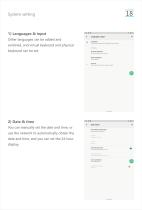
Other languages can be added and switched, and virtual keyboard and physical keyboard can be set. You can manually set the date and time, or use the network to automatically obtain the date and time, and you can set the 24-hour display.
Open the catalog to page 18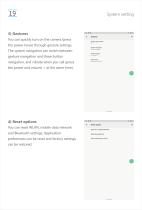
System setting 3) Gestures You can quickly turn on the camera (press the power twice) through gesture settings. The system navigation can switch between gesture navigation and three button navigation, and vibrate when you call (press the power and volume + at the same time). Quickly open camera System navigation Gesture navigation Prevent ringing Show device controls 4) Reset options You can reset WLAN, mobile data network and Bluetooth settings, Application preferences can be reset and factory settings can be restored. Reset Wi-Fi, mobile & Bluetooth Reset app preferences Erase all data (factory...
Open the catalog to page 19All Emdoor Information Co., Ltd. catalogs and technical brochures
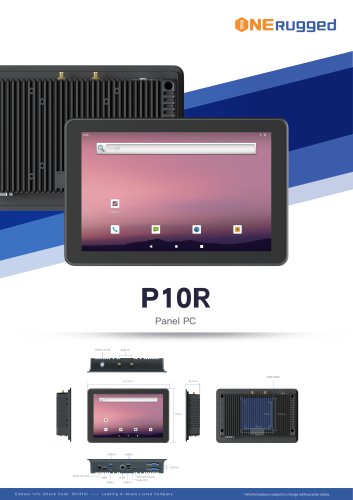 EM-P10R Specification
3 Pages
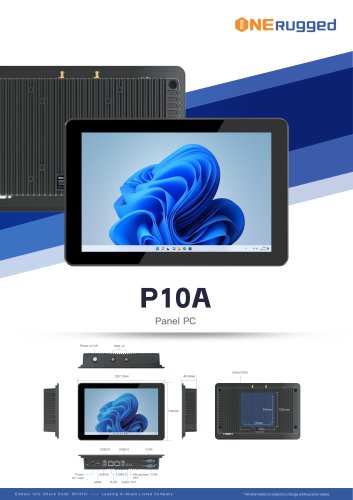 EM-P10A Specification
3 Pages
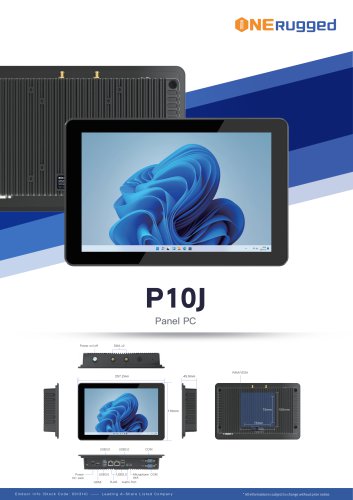 EM-P10J Specification
3 Pages
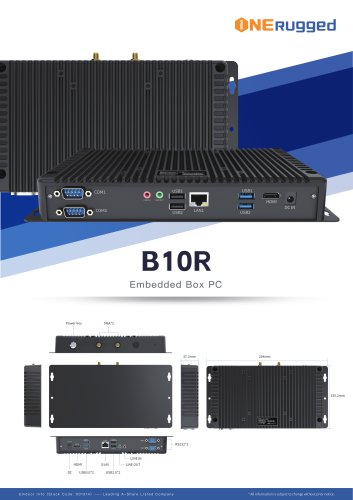 EM-B10R Specification
3 Pages
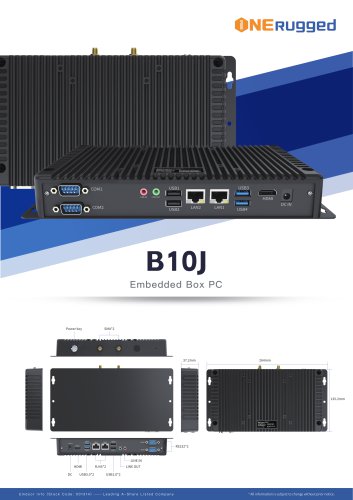 EM-B10J Specification
3 Pages
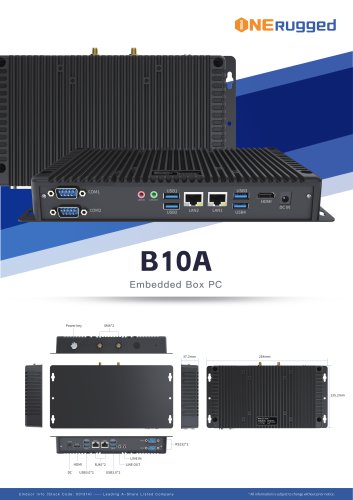 EM-B10A Specification
3 Pages
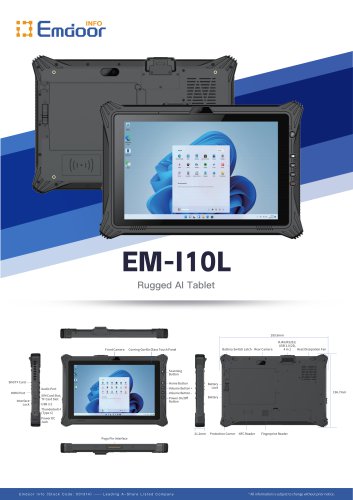 EM-I10L Specification
3 Pages
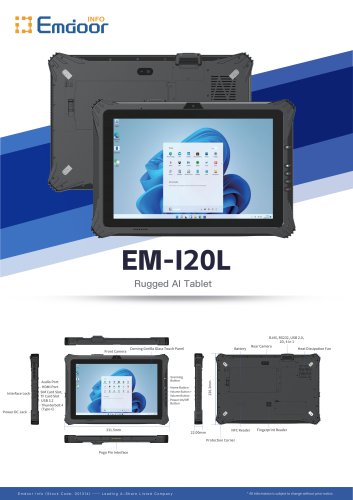 EM-I20L Specification
3 Pages
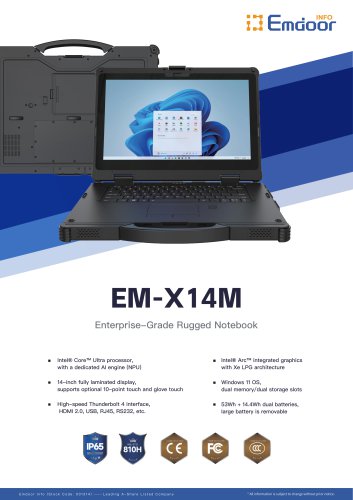 EM-X14M Specification
2 Pages
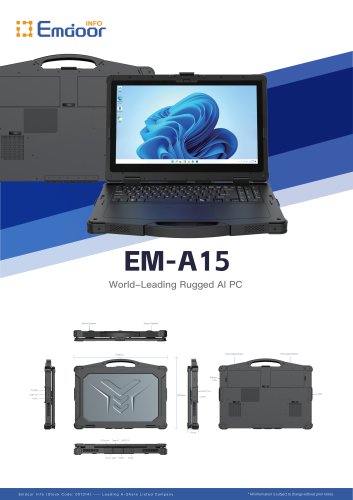 EM-A15 Specification
3 Pages
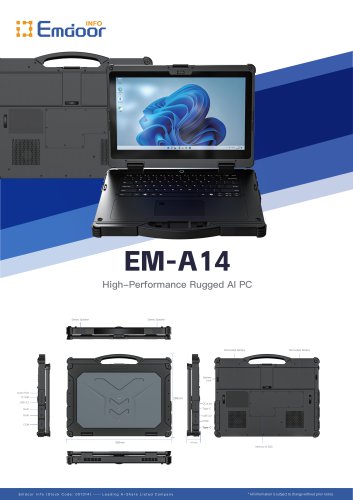 EM-A14 Specification
3 Pages
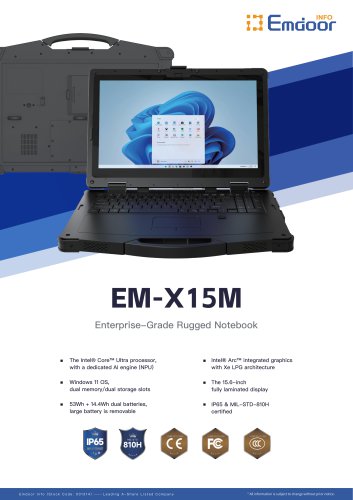 EM-X15M Specification
2 Pages
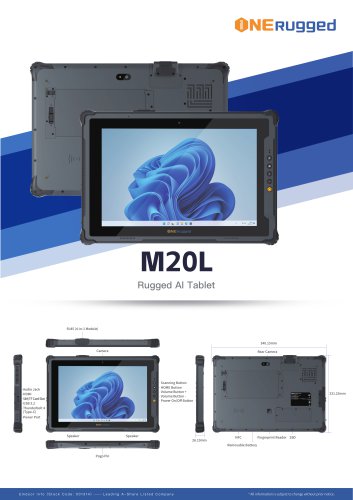 M20L-specification
3 Pages
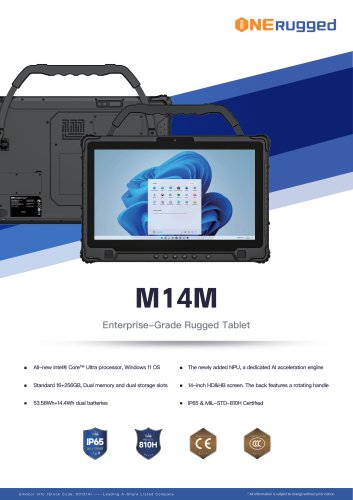 M14M-specification
2 Pages
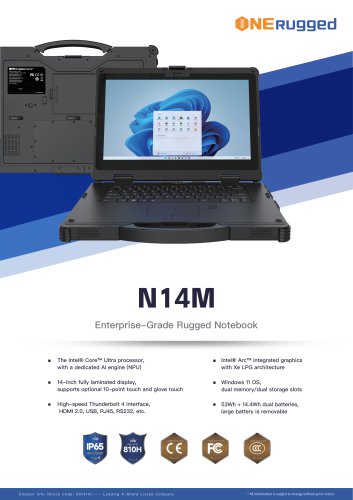 N14M-specification
2 Pages
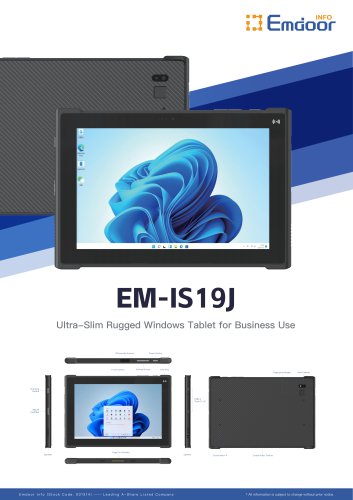 EM-IS19J specification
3 Pages
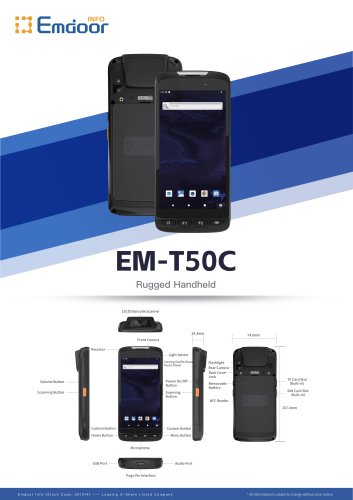 EM-T50C
3 Pages
 EM-D10R successful case
3 Pages
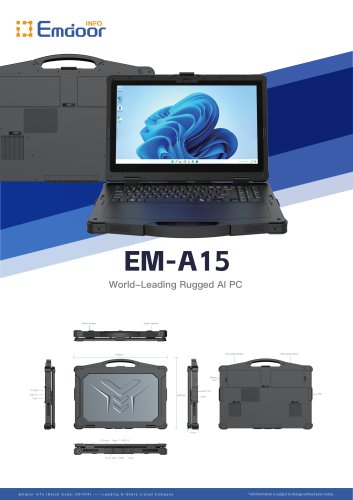 EM-A15
3 Pages
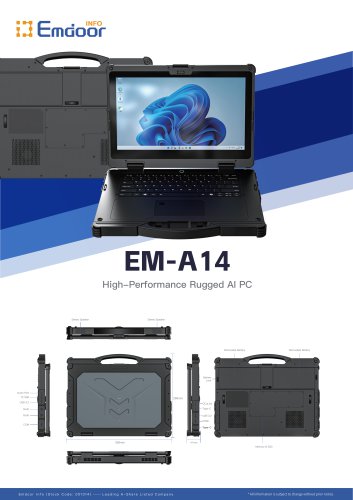 EM-A14
3 Pages
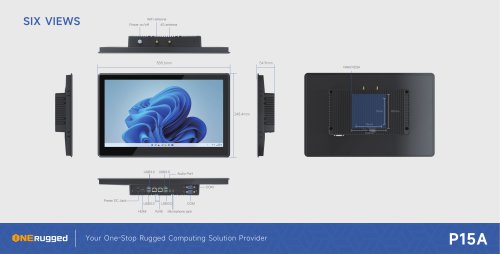 EM-P15A six views
1 Page
 EM-V12R USER MANUAL
2 Pages
 EM-P15A USER
2 Pages
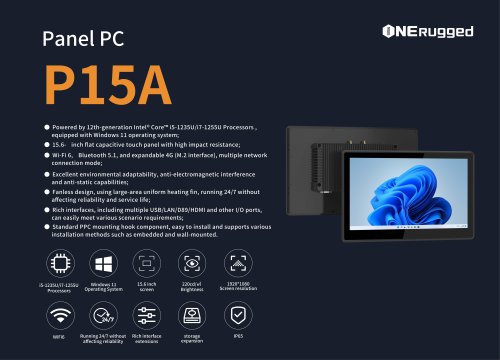 EM-P15A SPE
2 Pages
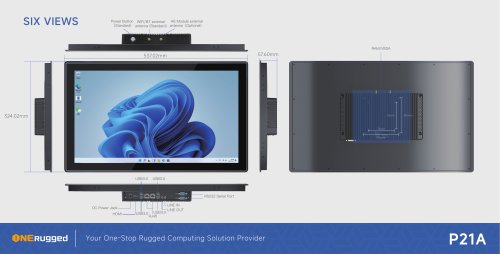 EM-P21A six views
1 Page
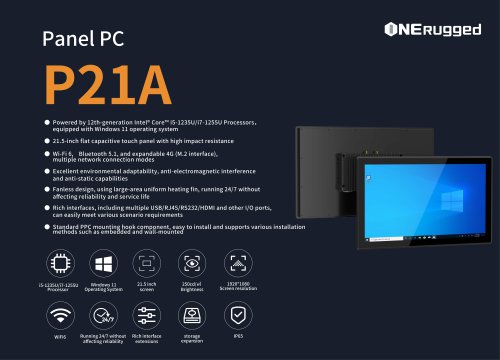 EM-P21A SPE
2 Pages
 EM-P21A user
2 Pages
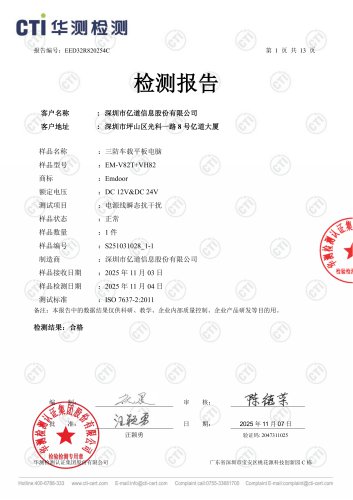 EM-V82T-EMC
13 Pages
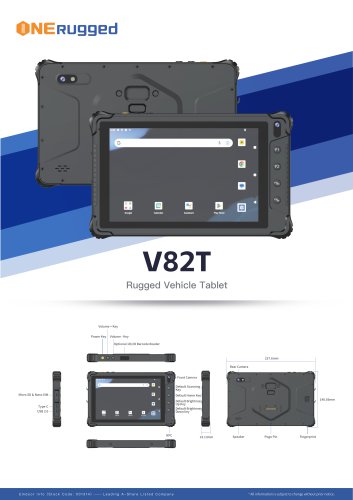 EM-V82T spe
4 Pages
 P2 PRO
2 Pages
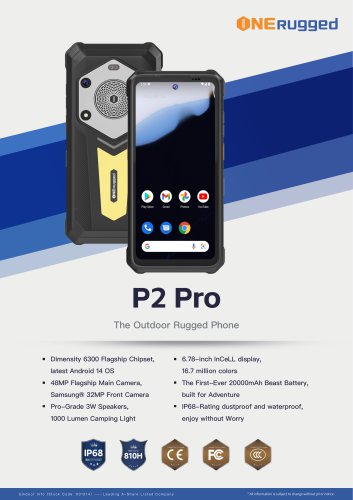 P2 PRO-SPE
2 Pages
 M82A- USER MANUAL
60 Pages
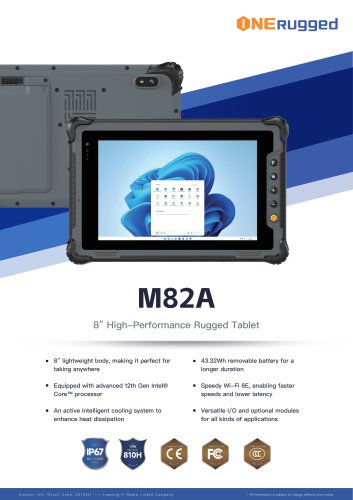 M82A-spe
2 Pages
 EM-X15A User Manual
76 Pages
 EM-X15M Rugged AI PC uesr manual
76 Pages
 Emdoor Info. EM-I16J User Manual
57 Pages
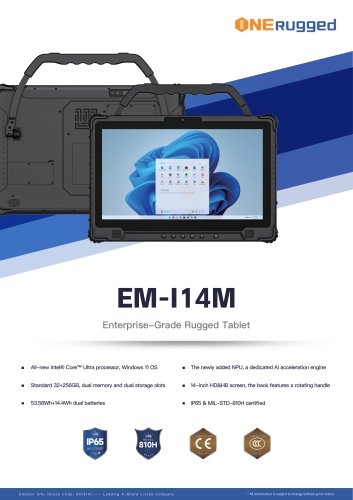 EM-I14M 14Inch Rugged AI PC
2 Pages
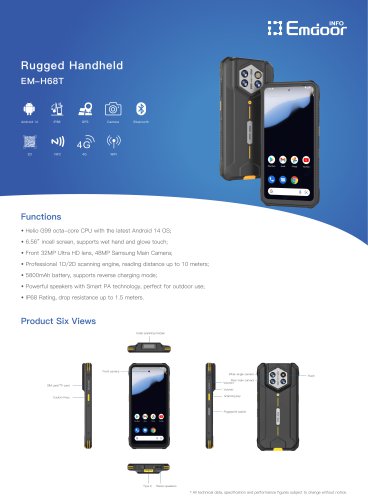 EM-H68T: Android 14 rugged PDA
2 Pages
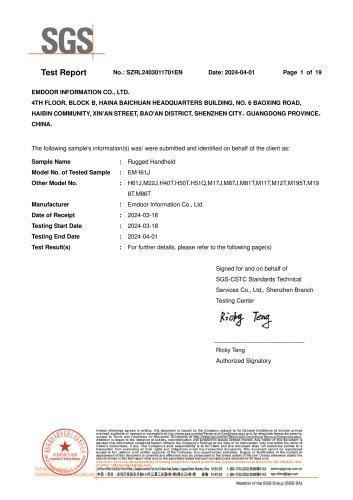 EM -I61J Rugged Handheld
19 Pages
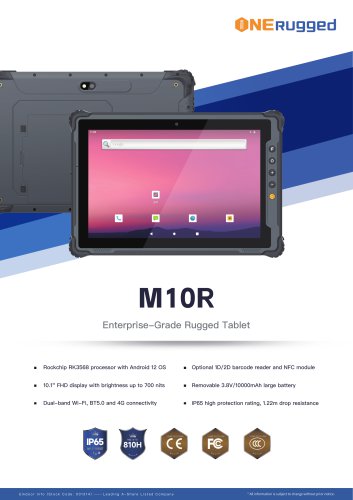 M10R Rugged Tablet RK3588
2 Pages
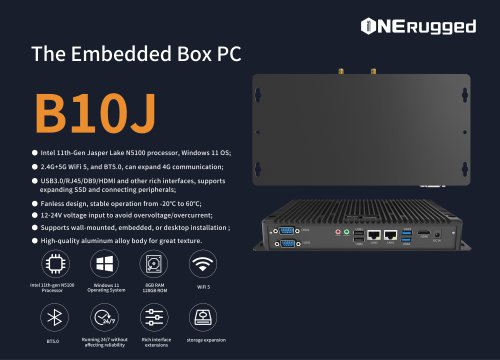 EM-B10J embedded box PC
3 Pages
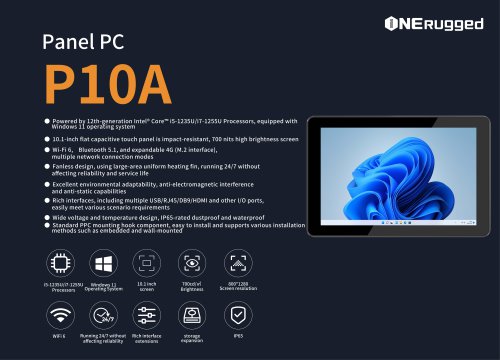
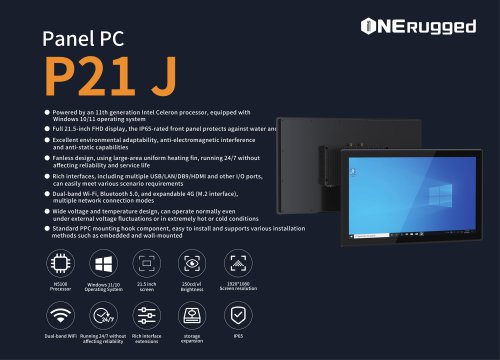
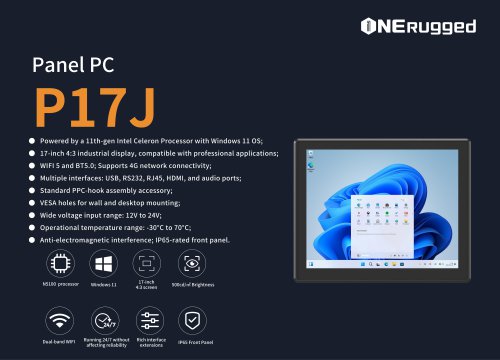 EM-P17J Panel PC
3 Pages
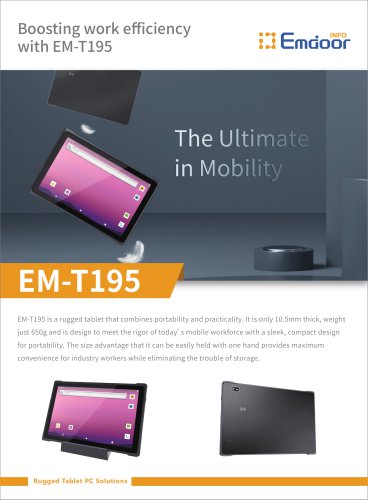
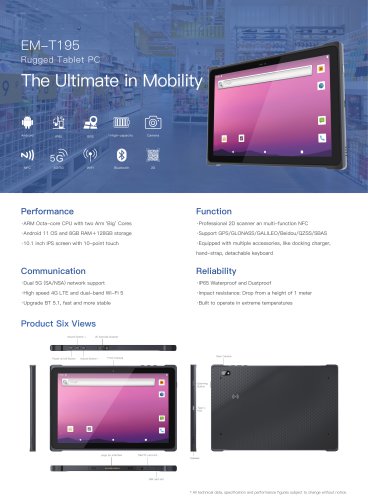 EM-T195 5G Rugged Tablet
2 Pages
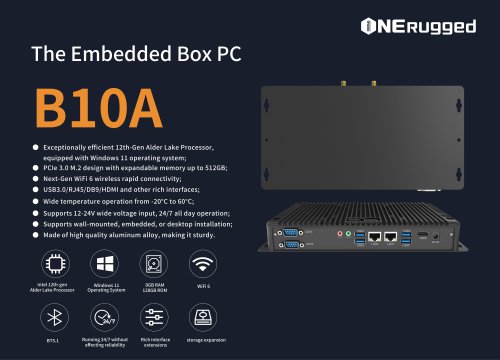 The Embedded Box PC-B10A
3 Pages
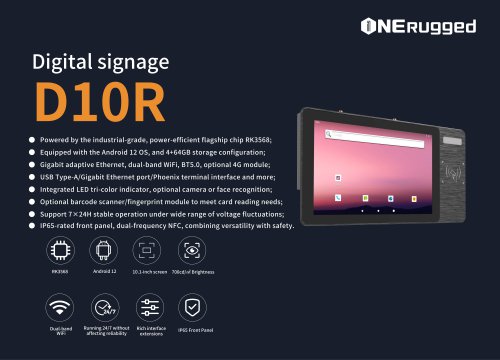 EM-D10R Digital signage
3 Pages
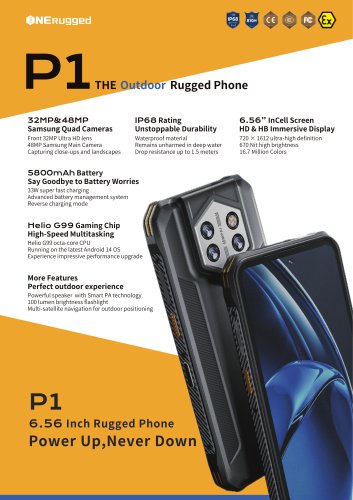 EM-P1The Outdoor Rugged Phone
2 Pages
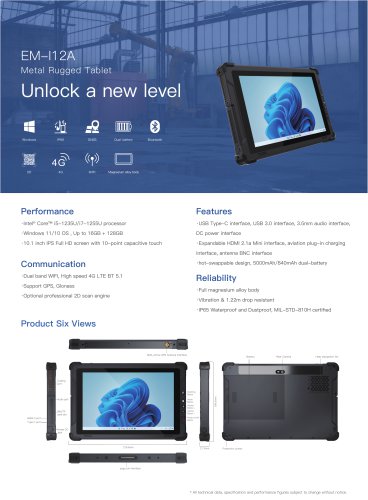
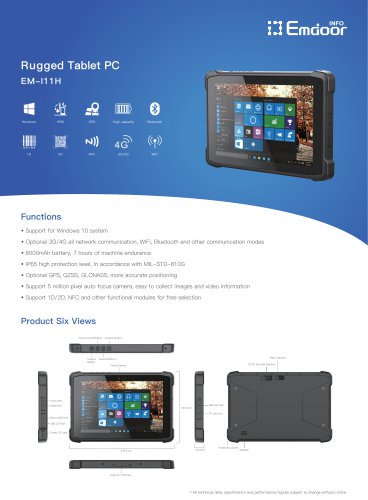 EM-I11H Rugged Tablet PC
2 Pages
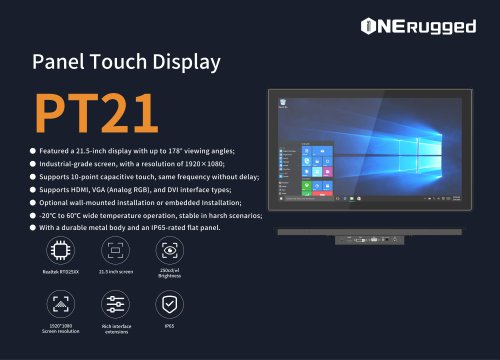 EM-PT21 Panel Touch Display
3 Pages
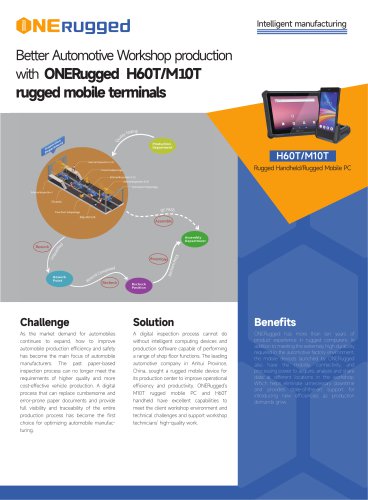
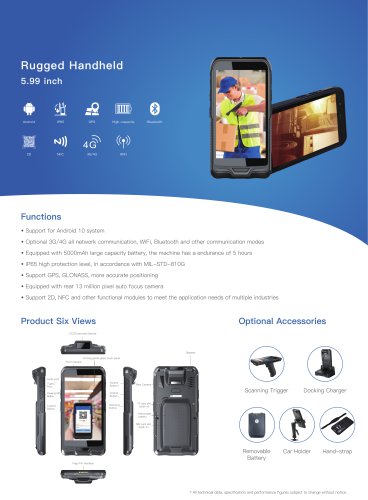
 Rugged Handheld H60T
2 Pages
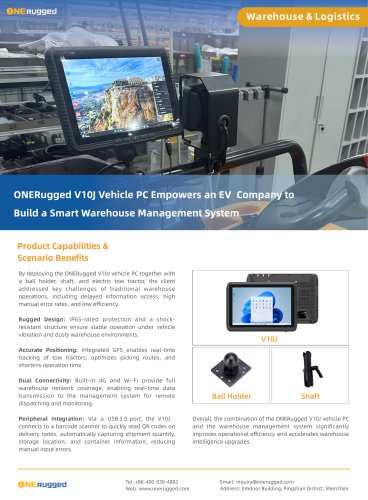


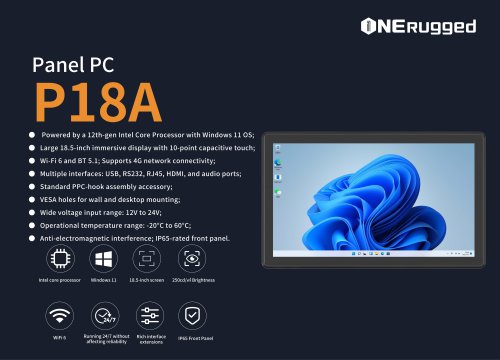
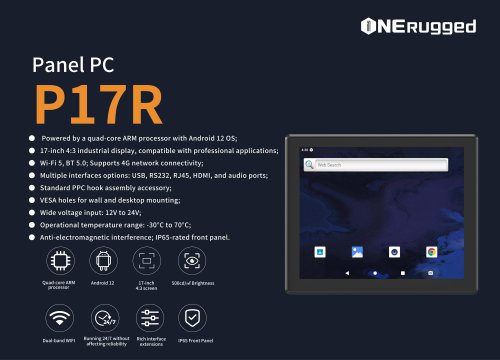
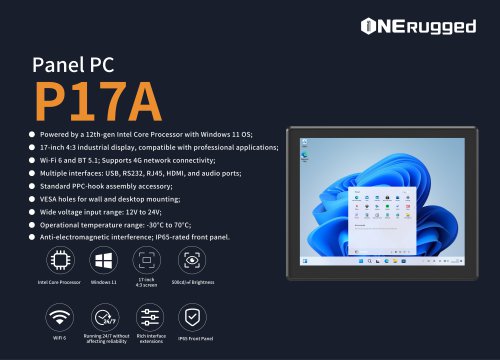


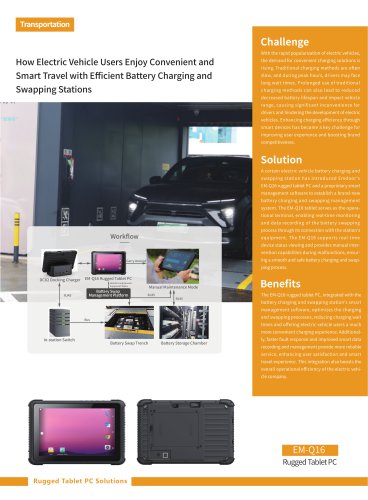





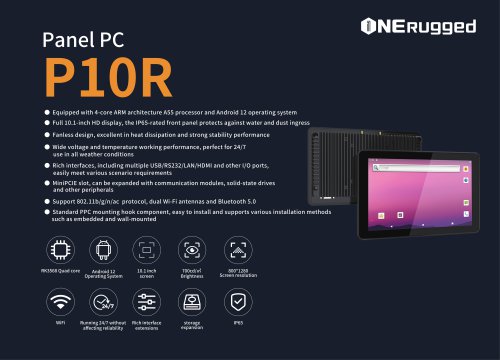

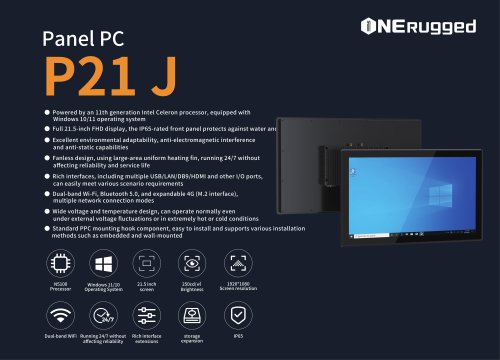
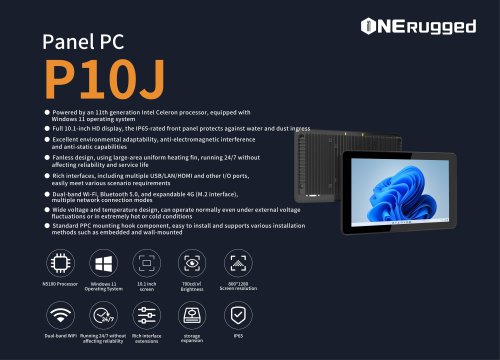
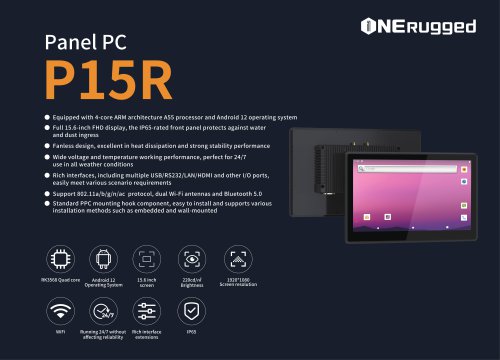





































- Emdoor panel PC
- Emdoor industrial panel PC
- Emdoor panel PC with touch screen
- LCD display panel
- Emdoor fanless panel PC
- Emdoor LCD panel PC
- Industrial display panel
- Intel® Core™ PC
- Fanless PC
- Emdoor IP65 panel PC
- Intel® Core™ panel PC
- VESA mounting panel PC
- Housed panel PC
- HDMI PC
- Embedded PC
- Box PC
- RS-232 PC
- USB 2.0 PC
- Windows PC