
- Catalogs
- Emdoor Information Co., Ltd.
- EM-I88N 8inch windows rugged mobile pc User Manual


- Company
- Products
- Catalogs
- News & Trends
- Exhibitions
EM-I88N 8inch windows rugged mobile pc User Manual
1 /57Pages
EM-I88N 8inch windows rugged mobile pc User Manual
1 /57Pages
Catalog excerpts

5IF JOGPSNBUJPO JO UIJT NBOVBM JT TVCKFDU UP DIBOHF XJUIPVU OPUJDF
Open the catalog to page 2
3&"%: 50 45"35 5IJT DIBQUFS STU UFMMT ZPV TUFQ CZ TUFQ IPX UP HFU UIF UBCMFU VQ BOE SVOOJOH 5IFO ZPV XJMM OE B TFDUJPO CSJFZ JOUSPEVDJOH UIF FYUFSOBM DPNQPOFOUT PG UIF UBCMFU
Open the catalog to page 5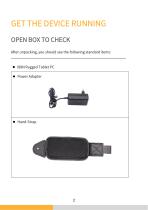
"GUFS VOQBDLJOH ZPV TIPVME TFF UIF GPMMPXJOH TUBOEBSE JUFNT z */ 3VHHFE 5BCMFU 1$ z 1PXFS "EBQUFS
Open the catalog to page 6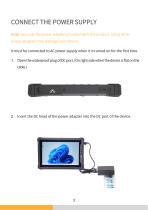
/PUF 6TF POMZ UIF QPXFS BEBQUFS QSPWJEFE XJUI UIJT QSPEVDU 6TJOH PUIFS QPXFS BEBQUFST NBZ EBNBHF ZPVS EFWJDF *U NVTU CF DPOOFDUFE UP "$ QPXFS TVQQMZ XIFO JU JT UVSOFE PO GPS UIF GJSTU UJNF 0QFO UIF XBUFSQSPPG QMVH PG %$ QPSU 0O SJHIU TJEF XIFO UIF EFWJDF JT GMBU PO UIF UBCMF *OTFSU UIF %$ IFBE PG UIF QPXFS BEBQUFS JOUP UIF %$ QPSU PG UIF EFWJDF
Open the catalog to page 7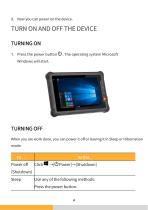
1SFTT UIF QPXFS CVUUPO 8JOEPXT XJMM TUBSU 5IF PQFSBUJOH TZTUFN .JDSPTPGU 8IFO ZPV BSF XPSL EPOF ZPV DBO QPXFS JU PGG PS MFBWJOH JU JO 4MFFQ PS )JCFSOBUJPO NPEF
Open the catalog to page 8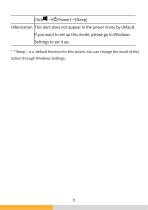
* rSleepj is a default function for this action. You can change the result of this action through Windows Settings.
Open the catalog to page 9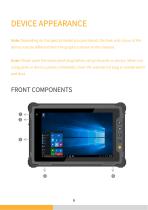
%&7*$& "11&"3"/$& /PUF %FQFOEJOH PO UIF TQFDJBM NPEFM ZPV QVSDIBTFE UIF MPPL BOE DPMPVS PG UIF EFWJDF NBZ CF EJGGFSFOU GSPN UIF HSBQIJDT TIPXO JO UIJT NBOVBM /PUF 1MFBTF PQFO UIF XBUFSQSPPG QMVH CFGPSF VTJOH UIF QPSUT PS EFWJDF 8IFO OPU VTJOH QPSUT PS EFWJDF QMFBTF DPNQMFUFMZ DPWFS UIF XBUFSQSPPG QMVH UP JTPMBUF XBUFS BOE EVTU
Open the catalog to page 10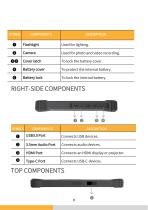
Cover latch Battery cover Battery lock Used for photo and video recording. To lock the battery cover. To protect the internal battery. To lock the internal battery.
Open the catalog to page 13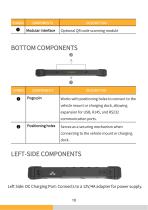
SYMBOL COMPONENTS Modular Interface Optional QR code scanning module Left Side: DC Charging Port: Connects to a 12V/4A adapter for power supply.
Open the catalog to page 14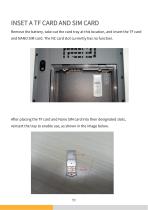
3FNPWF UIF CBUUFSZ UBLF PVU UIF DBSE USBZ BU UIJT MPDBUJPO BOE JOTFSU UIF 5' DBSE BOE /"/0 4*. DBSE 5IF /$ DBSE TMPU DVSSFOUMZ IBT OP GVODUJPO "GUFS QMBDJOH UIF 5' DBSE BOE /BOP 4*. DBSE JOUP UIFJS EFTJHOBUFE TMPUT SFJOTFSU UIF USBZ UP FOBCMF VTF BT TIPXO JO UIF JNBHF CFMPX
Open the catalog to page 15
5IJT DIBQUFS QSPWJEFT JOGPSNBUJPO BCPVU UIF VTF PG UIF EFWJDF *G ZPV BSF OFX UP EFWJDF SFBEJOH UIJT DIBQUFS XJMM IFMQ ZPV MFBSO UIF PQFSBUJOH CBTJDT *G ZPV BSF BMSFBEZ B 5BCMFU VTFS ZPV NBZ DIPPTF UP SFBE POMZ UIF QBSUT DPOUBJOJOH JOGPSNBUJPO VOJRVF UP ZPVS 5BCMFU /PUFT ӳ %P OPU FYQPTF ZPVS TLJO UP UIF 5BCMFU XIFO PQFSBUJOH JU JO B WFSZ IPU PS DPME FOWJSPONFOU ӳ 5IF 5BCMFU DBO HFU VODPNGPSUBCMZ XBSN XIFO ZPV VTF JU JO IJHI UFNQFSBUVSFT "T B TBGFUZ QSFDBVUJPO JO TVDI B DJSDVNTUBODF EP OPU QMBDF UIF 5BCMFU PO ZPVS MBQ PS UPVDI JU XJUI ZPVS CBSF IBOET GPS FYUFOEFE QFSJPET PG UJNF 1SPMPOHFE CPEZ...
Open the catalog to page 16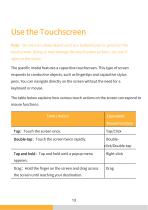
/PUF%P OPU VTF B TIBSQ PCKFDU TVDI BT B CBMMQPJOU QFO PS QFODJM PO UIF UPVDITDSFFO %PJOH TP NBZ EBNBHF UIF UPVDITDSFFO TVSGBDF 6TF ZPVS OHFST PS UIF TUZMVT 5IF TQFDJGJD NPEFM GFBUVSFT B DBQBDJUJWF UPVDITDSFFO 5IJT UZQF PG TDSFFO SFTQPOET UP DPOEVDUJWF PCKFDUT TVDI BT GJOHFSUJQT BOE DBQBDJUJWF TUZMVT QFOT :PV DBO OBWJHBUF EJSFDUMZ PO UIF TDSFFO XJUIPVU UIF OFFE GPS B LFZCPBSE PS NPVTF 5IF UBCMF CFMPX FYQMBJOT IPX WBSJPVT UPVDI BDUJPOT PO UIF TDSFFO DPSSFTQPOE UP NPVTF GVODUJPOT .PVTF 'VODUJPO %PVCMFUBQ5PVDI UIF TDSFFO UXJDF SBQJEMZ 5BQ BOE IPME5BQ BOE IPME VOUJM B QPQVQ NFOV %SBH)PME UIF OHFS...
Open the catalog to page 17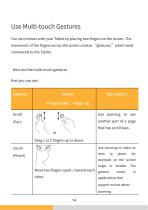
:PV DBO JOUFSBDU XJUI ZPVS 5BCMFU CZ QMBDJOH UXP OHFST PO UIF TDSFFO 5IF NPWFNFOU PG UIF OHFST BDSPTT UIF TDSFFO DSFBUFT HFTUVSFT XIJDI TFOE DPNNBOET UP UIF 5BCMFU )FSF BSF UIF NVMUJUPVDI HFTUVSFT UIBU ZPV DBO VTF (FTUVSFT OHFS EPXO OHFS VQ BOPUIFS QBSU PG B QBHF UIBU IBT TDSPMM CBST 6TF [PPNJOH UP NBLF BO JUFN FYBNQMF PO UIF TDSFFO MBSHFS PS TNBMMFS 5IF .PWF UXP OHFST BQBSU UPXBSE FBDI HFTUVSF XPSLT PUIFS BQQMJDBUJPOT UIBU TVQQPSU NPVTF XIFFM
Open the catalog to page 18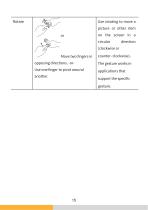
opposing directions, -or-Use one finger to pivot around another. Use rotating to move a picture or other item on the screen in a circular direction (clockwise or counter-clockwise). The gesture works in applications that support the specific gesture.
Open the catalog to page 19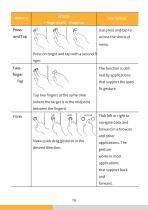
Use press and tap to access the shortcut menu. Press on target and tap with a second fi nger. The function is defi ned by applications that support the sped fic gesture. Tap two fingers at the same time (where the target is in the midpoint between the fingers). Make quick drag gestures in the desired direction. Flick left or right to navigate back and forward in a browser and other applications. The gesture works in most applications that support back and
Open the catalog to page 20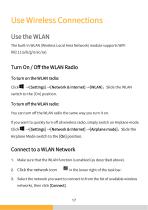
The built-in WLAN (Wireless Local Area Network) module supports WIFI 802.11(a/b/g/n/ac/ax). To turn on the WLAN radio: ClickSS -^[Settings] -^[Network & Internet] ->[WLAN], Slide the WLAN switch to the [On] position. To turn off the WLAN radio: You can turn off the WLAN radio the same way you turn it on. If you want to quickly turn off all wireless radio, simply switch on Airplane mode. ClickSS -^[Settings] -^[Network & Internet] -^[Airplane mode], Slide the Airplane Mode switch to the [On] position. 1. Make sure that the WLAN function is enabled (as described above). 2. Click the network icon...
Open the catalog to page 21
%FQFOEJOH PO UIF OFUXPSL TFUUJOHT ZPV NBZ OFFE UP FOUFS B QBTTXPSE $POUBDU ZPVS OFUXPSL BENJOJTUSBUPS PS TFSWJDF QSPWJEFS GPS EFUBJMT 'PS NPSF JOGPSNBUJPO PO TFUUJOH VQ XJSFMFTT OFUXPSLT SFGFS UP 8JOEPXT POMJOF IFMQ
Open the catalog to page 22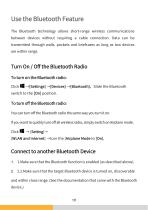
5IF #MVFUPPUI UFDIOPMPHZ BMMPXT TIPSUSBOHF XJSFMFTT DPNNVOJDBUJPOT CFUXFFO EFWJDFT XJUIPVU SFRVJSJOH B DBCMF DPOOFDUJPO %BUB DBO CF USBOTNJUUFE UISPVHI XBMMT QPDLFUT BOE CSJFGDBTFT BT MPOH BT UXP EFWJDFT BSF XJUIJO SBOHF 5P UVSO PO UIF #MVFUPPUI SBEJP $MJDL 5P UVSO P UIF #MVFUPPUI SBEJP :PV DBO UVSO P UIF #MVFUPPUI SBEJP UIF TBNF XBZ ZPV UVSO JU PO *G ZPV XBOU UP RVJDLMZ UVSO P BMM XJSFMFTT SBEJP TJNQMZ TXJUDI PO "JSQMBOF NPEF $MJDL <8-"/ BOE *OUFSOFU> ̜UVSO UIF <"JSQMBOF .PEF UP <0O> $POOFDU UP BOPUIFS #MVFUPPUI %FWJDF .BLF TVSF UIBU UIF #MVFUPPUI GVODUJPO JT FOBCMFE BT EFTDSJCFE BCPWF .BLF...
Open the catalog to page 23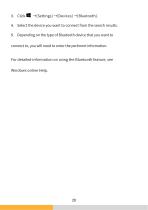
3. Click 8S -^[Settings] -^[Devices] -^[Bluetooth]. 4. Select the device you want to connect from the search results. 5. Depending on the type of Bluetooth device that you want to connect to, you will need to enter the pertinent information. For detailed information on using the Bluetooth feature, see Windows online Help.
Open the catalog to page 24All Emdoor Information Co., Ltd. catalogs and technical brochures
 EM-P10R Specification
3 Pages
 EM-P10A Specification
3 Pages
 EM-P10J Specification
3 Pages
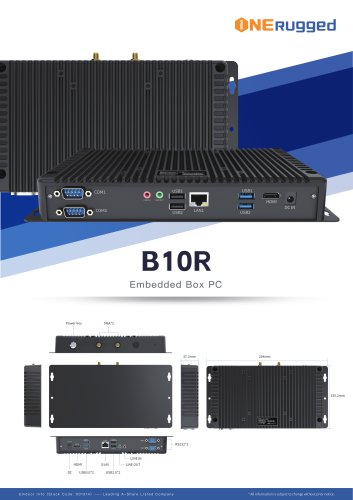 EM-B10R Specification
3 Pages
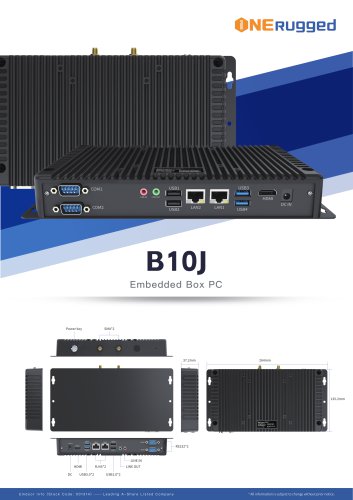 EM-B10J Specification
3 Pages
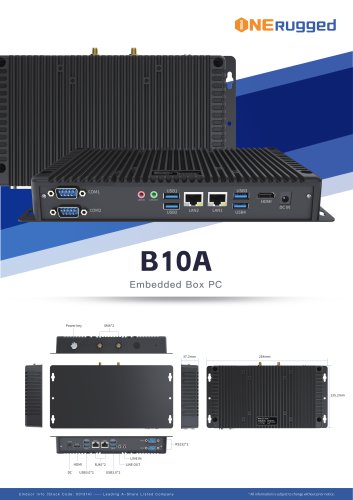 EM-B10A Specification
3 Pages
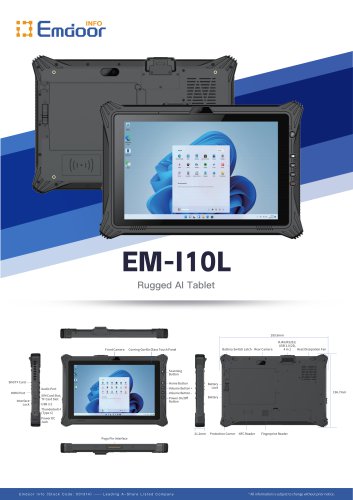 EM-I10L Specification
3 Pages
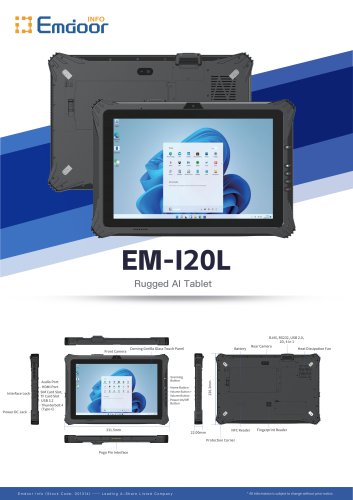 EM-I20L Specification
3 Pages
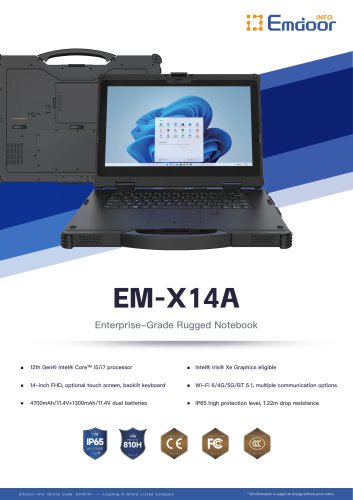
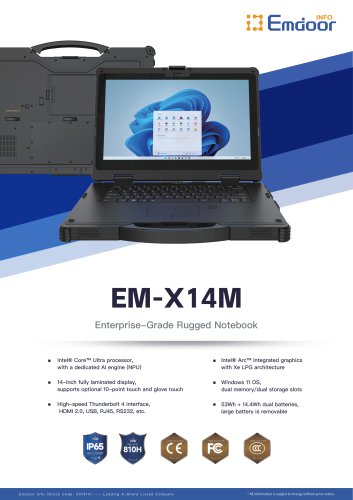
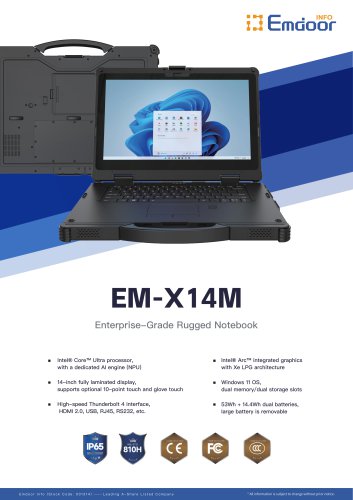 EM-X14M Specification
2 Pages
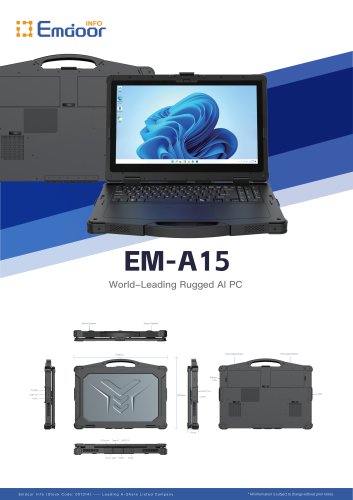 EM-A15 Specification
3 Pages
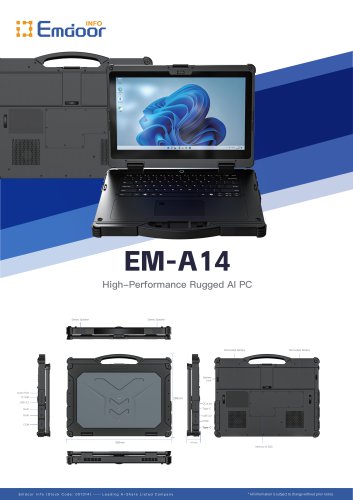 EM-A14 Specification
3 Pages
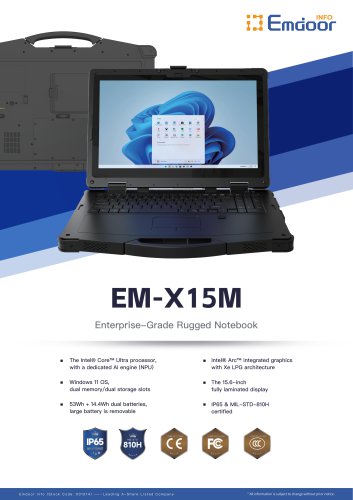
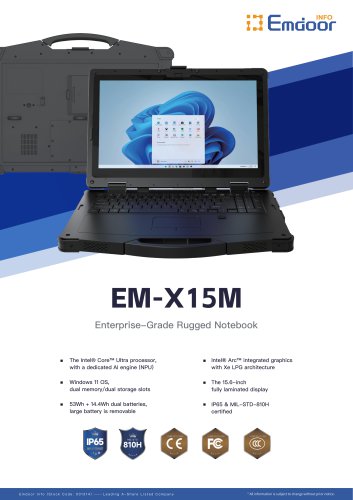 EM-X15M Specification
2 Pages
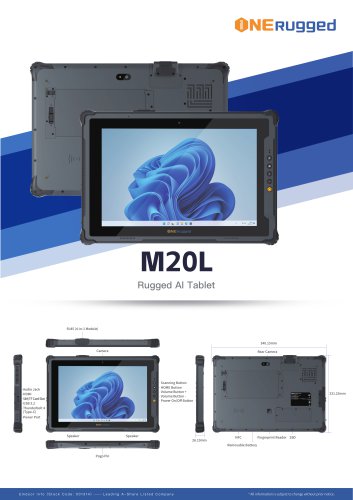 M20L-specification
3 Pages
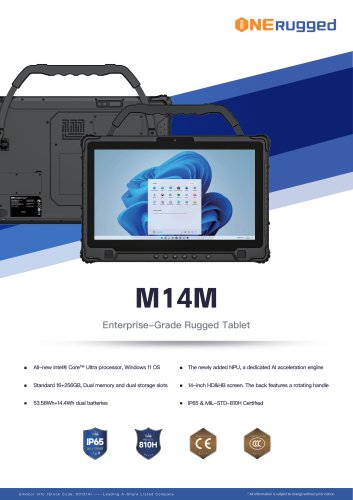 M14M-specification
2 Pages
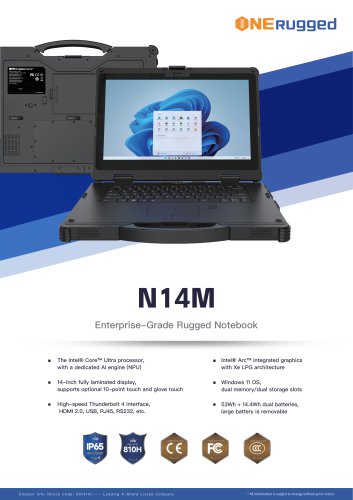 N14M-specification
2 Pages
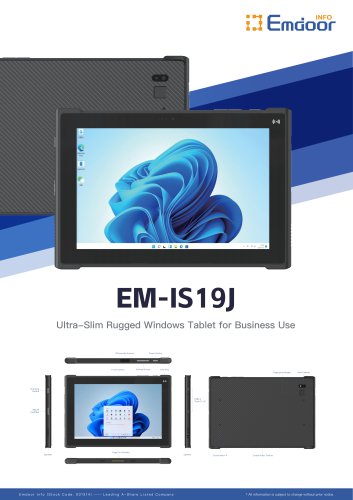 EM-IS19J specification
3 Pages
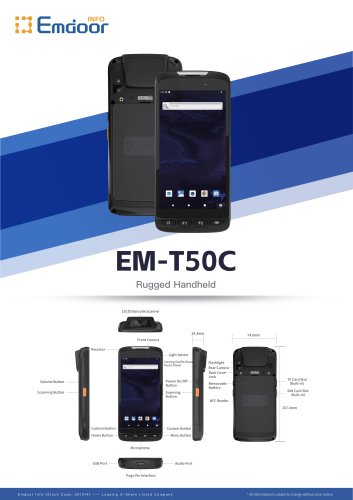 EM-T50C
3 Pages
 EM-D10R successful case
3 Pages
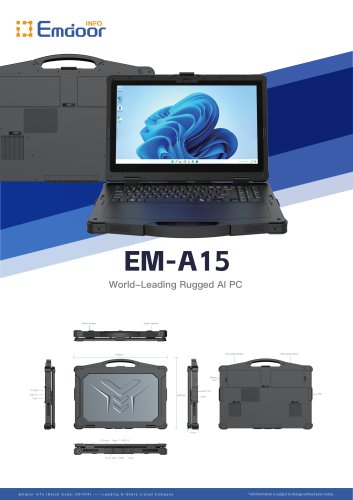 EM-A15
3 Pages
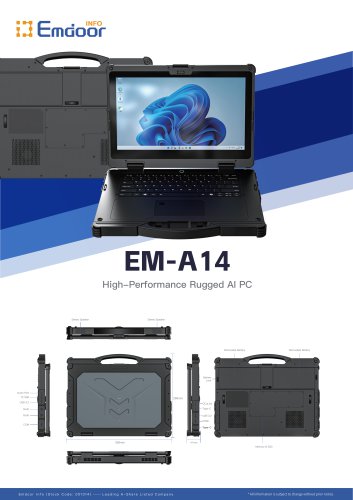 EM-A14
3 Pages
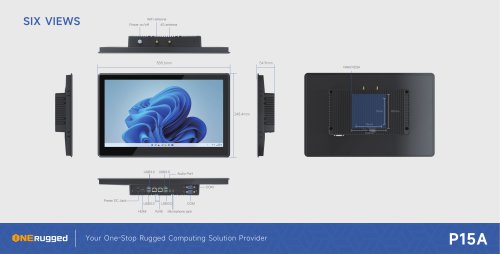 EM-P15A six views
1 Page
 EM-V12R USER MANUAL
2 Pages
 EM-P15A USER
2 Pages
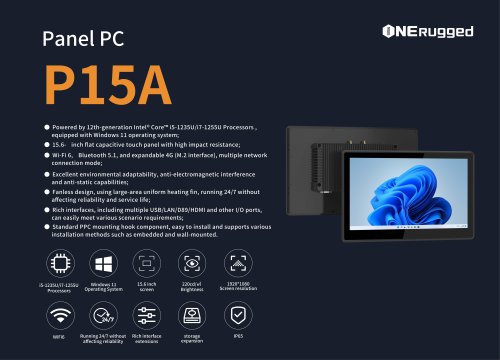 EM-P15A SPE
2 Pages
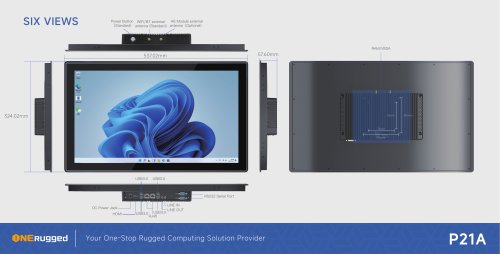 EM-P21A six views
1 Page
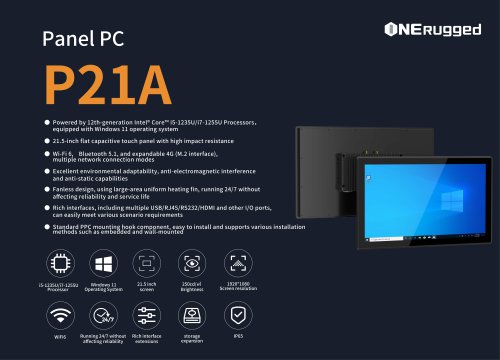 EM-P21A SPE
2 Pages
 EM-P21A user
2 Pages
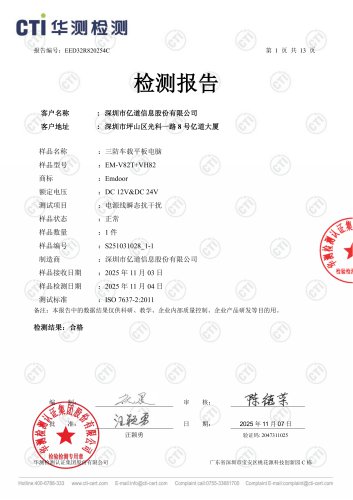 EM-V82T-EMC
13 Pages
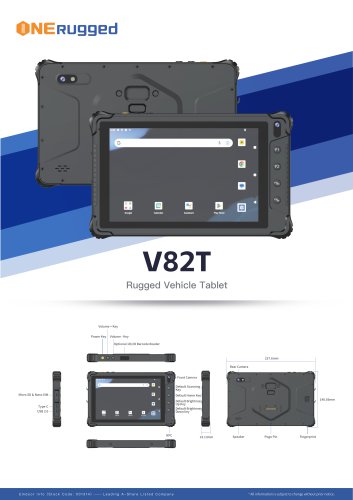 EM-V82T spe
4 Pages
 P2 PRO
2 Pages
 P2 PRO-SPE
2 Pages
 M82A- USER MANUAL
60 Pages
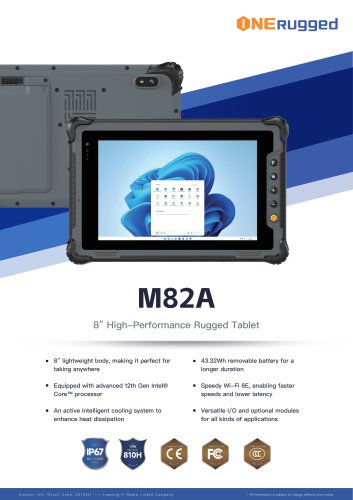 M82A-spe
2 Pages
 EM-X15A User Manual
76 Pages
 EM-X15M Rugged AI PC uesr manual
76 Pages
 Emdoor Info. EM-I16J User Manual
57 Pages
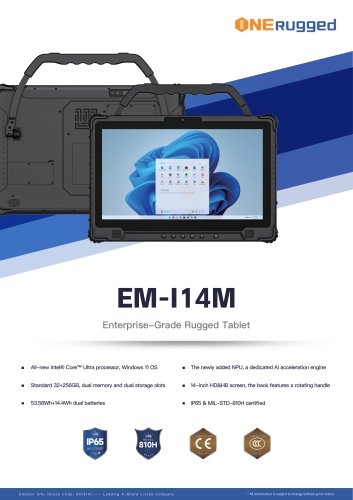 EM-I14M 14Inch Rugged AI PC
2 Pages
 EM-H68T: Android 14 rugged PDA
2 Pages
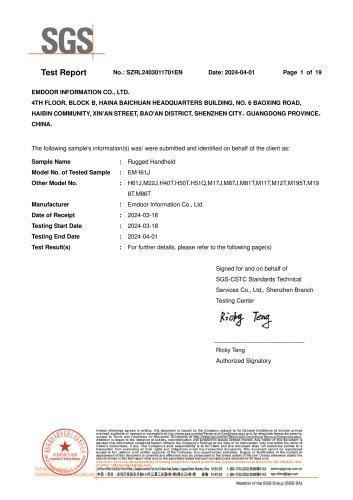 EM -I61J Rugged Handheld
19 Pages
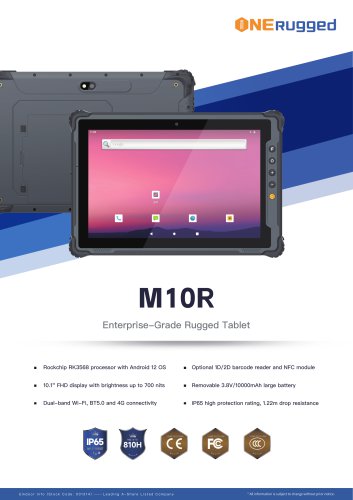 M10R Rugged Tablet RK3588
2 Pages
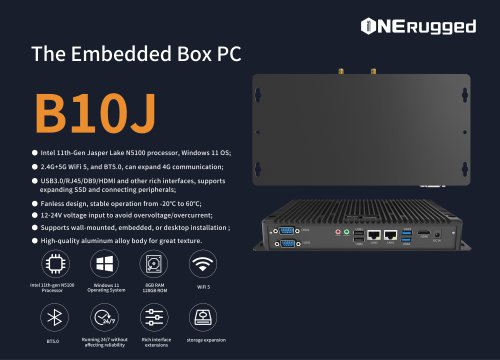 EM-B10J embedded box PC
3 Pages
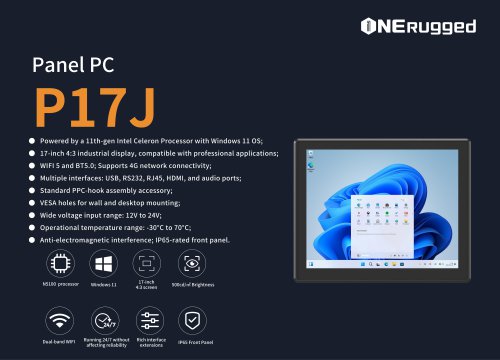 EM-P17J Panel PC
3 Pages
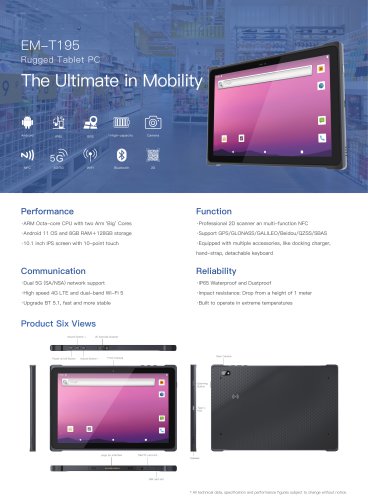 EM-T195 5G Rugged Tablet
2 Pages
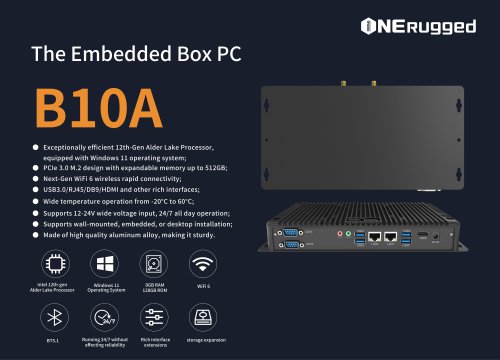 The Embedded Box PC-B10A
3 Pages
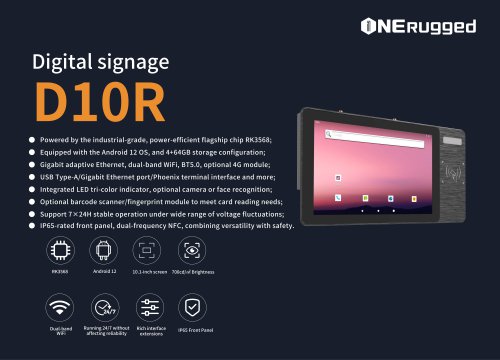 EM-D10R Digital signage
3 Pages
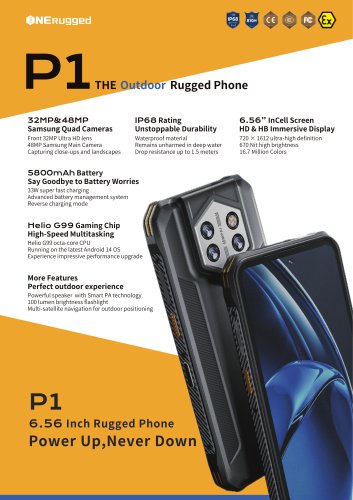 EM-P1The Outdoor Rugged Phone
2 Pages
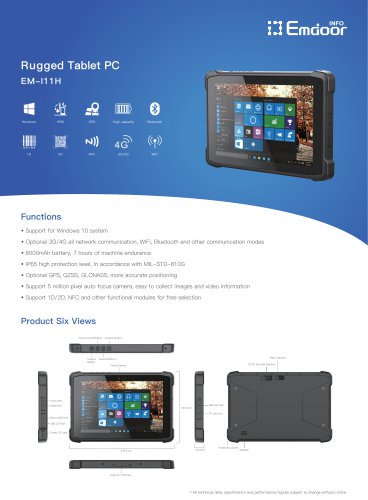 EM-I11H Rugged Tablet PC
2 Pages
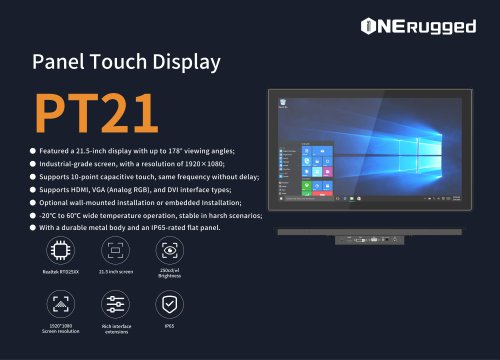 EM-PT21 Panel Touch Display
3 Pages
 Rugged Handheld H60T
2 Pages












































































- Display module
- Emdoor panel PC
- Emdoor industrial panel PC
- Emdoor panel PC with touch screen
- LCD display panel
- Emdoor fanless panel PC
- Emdoor LCD panel PC
- Industrial display panel
- Intel® Core™ PC
- Fanless PC
- Emdoor IP65 panel PC
- Intel® Core™ panel PC
- VESA mounting panel PC
- Housed panel PC
- HDMI PC
- Embedded PC
- Box PC
- RS-232 PC
- USB 2.0 PC
- Windows PC