
- Catalogs
- Emdoor Information Co., Ltd.
- EM-I87J: Rugged Windows Tablet user manual


- Company
- Products
- Catalogs
- News & Trends
- Exhibitions
EM-I87J: Rugged Windows Tablet user manual
1 /51Pages
EM-I87J: Rugged Windows Tablet user manual
1 /51Pages
Catalog excerpts

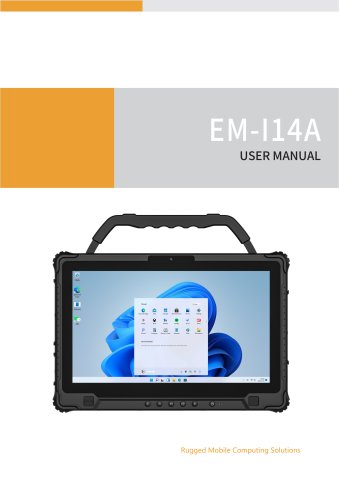
EM-I87J USERMANUAL Rugged Mobile Computing Solutions
Open the catalog to page 1
The information in this manual is subjectto changewithout notice.
Open the catalog to page 2
This chapterfirsttellsyou step by step how to getthetablet up and running. Then, you will find a section briefly introducing the external components of thetablet.
Open the catalog to page 6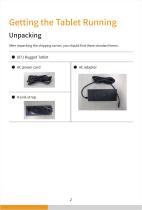
"GUFSVOQBDLJOHUIFTIJQQJOHDBSUPO ZPVTIPVMEOEUIFTFTUBOEBSEJUFNT
Open the catalog to page 7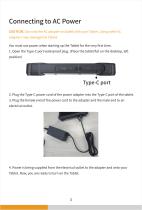
CAUTION: Use onlytheAC adapter included with yourTablet. Using otherAC adapters may damage the Tablet. You must use powerwhen starting up the Tabletfortheveryfirst time. 1. Open the Type-C port waterproof plug. (Place the tablet flat on the desktop, left position) 2. Plug the Type-C powercord ofthe poweradapterinto the Type-C port ofthe tablet. 3. Plug the female end ofthe powercord to the adapterand the male end toan electrical outlet. 4. Power is being supplied from the electrical outletto the adapterand onto your Tablet. Now.you are readyto turn on the Tablet.
Open the catalog to page 8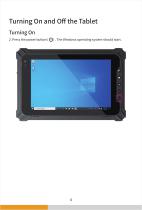
2. Press the power button (([)). The Windows operating system should start.
Open the catalog to page 9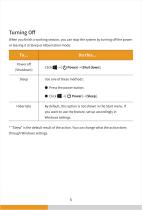
When you finish a working session,you can stop the system by turning offthe power or leaving it in Sleep or Hibernation mode: * “Sleep” isthedefault resultoftheaction.You can changewhattheaction does through Windows settings.
Open the catalog to page 10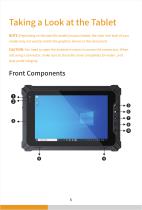
$"65*0/:PVOFFEUPPQFOUIFQSPUFDUJWFDPWFSTUPBDDFTTUIFDPOOFDUPST8IFO OPUVTJOHBDPOOFDUPS NBLFTVSFUPDMPTFUIFDPWFSDPNQMFUFMZGPSXBUFS BOE EVTUQSPPGJOUFHSJUZ
Open the catalog to page 11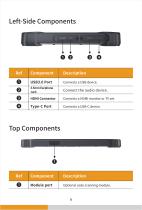
NN&BSQIPOF +BDL $PNQPOFOU .PEVMFQPSU
Open the catalog to page 14
This chapter provides information about the use ofthe Tablet. Ifyou are new to Tablets, reading this chapterwill help you learn the operating basics. Ifyou are alreadya Tablet user.you maychoose to read onlythe parts containinginformation unique toyourTablet. # Do not expose yourskinto the Tabletwhen operating it in a very hot orcold environment. # The Tablet can get uncomfortablywarm when you use it in high temperatures.As a safety precaution in such a circumstance, do not place the Tablet on your lap or touch itwithyourbare handsforextended periods oftime. Prolonged body contact can cause discomfort...
Open the catalog to page 16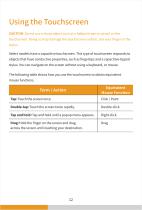
CAUTION:Do not use a sharp objectsuch as a ballpoint pen or pencilon the touchscreen. Doingso maydamagethetouchscreen surface. Useyourfingerorthe stylus. Select models have a capacitive touchscreen. This type oftouchscreen responds to objects that have conductive properties, such as fingertips and a capacitive-tipped stylus. You can navigate on the screen without using a keyboard, or mouse. The following table shows howyou use the touchscreen to obtain equivalent mouse functions.
Open the catalog to page 17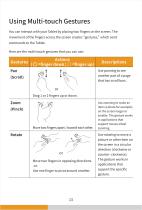
You can interactwith yourTablet by placingtwo fingers on the screen. The movement ofthe fingers across the screen creates “gestures,” which send commands to the Tablet. Hereare the multi-touch gestures thatyou can use: Pan(Scroll) Drag lor2 fingers upordown. Use panningto see anotherpartofa page that has scroll bars. Zoom(Pinch) Move two fingersapart/ toward each other. Use zooming to make an item (a photo for example) on the screen larger or smaller. The gesture works in applications that support mouse wheel zooming. Rotate Move two fingers in opposing directions, -or- Use one fingerto pivot...
Open the catalog to page 18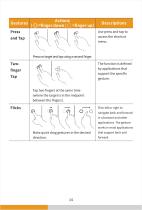
Tap two fingers at the same time (where the target is in the midpoint between the fingers). Use press and tapto access the shortcut menu. The function is defined by applications that support the specific gesture. Make quick drag gestures in the desired direction. Flick left or right to navigate back and forward in a browserand other applications. The gesture works in most applications that support backand forward.
Open the catalog to page 19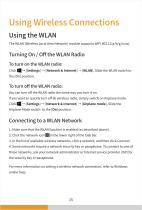
The WLAN (Wireless Local Area Network) module supports WIFI 802.11(a/b/g/n/ac). To turn on the WLAN radio: Click ”S -*■ [Settings] [Network & Internet] [WLAN], Slide the WLAN switch to the [On] position. To turn offthe WLAN radio: You can turn offthe WLAN radio the same wayyou turn it on. Ifyou wantto quicklyturn off all wireless radio.simply switch on Airplane mode. ClickSS ^ [Settings] [Network & Internet] [Airplane mode]. Slide the Airplane Mode switch to the [On] position. 3. In the list ofavailable wireless networks, click a network, and then click Connect. 4. Some networks require a networksecurity...
Open the catalog to page 20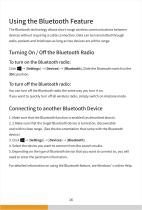
The Bluetooth technology allows short-range wireless communications between devices without requiring a cable connection. Data can be transmitted through walls, pockets and briefcases as long as two devices are within range. Click SS -*■ [Settings] [Devices] [Bluetooth], Slide the Bluetooth switch to the [On] position. You can turn offthe Bluetooth radio the same wayyou turn it on. Ifyou wantto quicklyturn off all wireless radio.simply switch on Airplane mode. 1. Makesurethatthe Bluetoothfunction isenabled (asdescribed above). 2.2.Make sure that the target Bluetooth device is turned on, discoverable...
Open the catalog to page 21
YourTablet operates eitheron externalAC poweroron internal battery power. This chaptertellsyou howyou can effectively manage power. To maintain optimal battery performance, it is importantthatyou use the battery in the proper way.
Open the catalog to page 22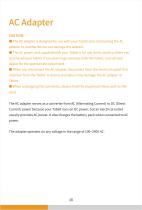
# The AC adapter is designed for use with yourTablet only. ConnectingtheAC adaptertoanotherdevice can damage the adapter. # The AC powercord supplied with yourTablet is for use in the countrywhere you purchased yourTablet. Ifyou plan to go overseas with the Tablet, consultyour dealerforthe appropriate powercord. # When you disconnecttheAC adapter, disconnect from the electrical outlet first and then from the Tablet. A reverse procedure may damage theAC adapteror Tablet. # When unpluggingthe connector, always hold the plug head. Never pull on the cord. TheAC adapterserves as a converterfrom AC...
Open the catalog to page 23
The battery pack is the internal powersource forthe Tablet. It is rechargeable using theAC adapter. CAUTION:The time to unplugthe battery pack is limited to when the battery is not being charged. NOTE:Care and maintenance information forthe battery is provided in the “Battery Pack Guidelines” section in Chapter7. NOTE:The rechargeable temperature ofthe battery is between 0°Cand 50°C. To charge the battery pack, connect the AC adapterto the Tabletand an electrical outlet. The Battery Indicator (e£3i) on the Tablet glows red to indicate that charging is in progress.When the battery is fully charged,...
Open the catalog to page 24All Emdoor Information Co., Ltd. catalogs and technical brochures
 EM-P10R Specification
3 Pages
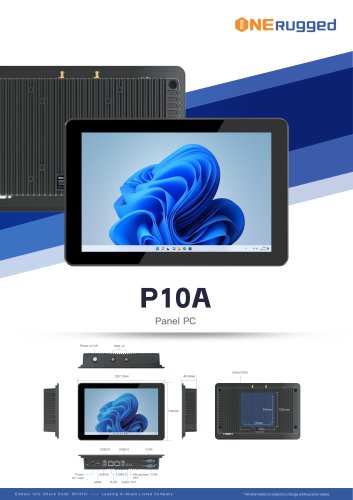 EM-P10A Specification
3 Pages
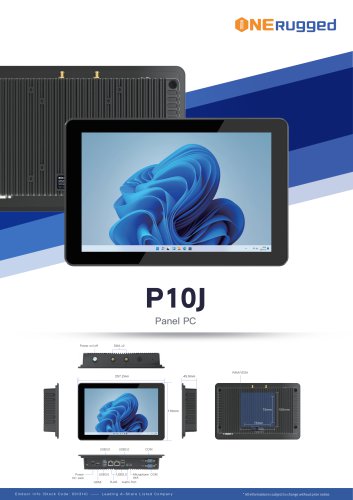 EM-P10J Specification
3 Pages
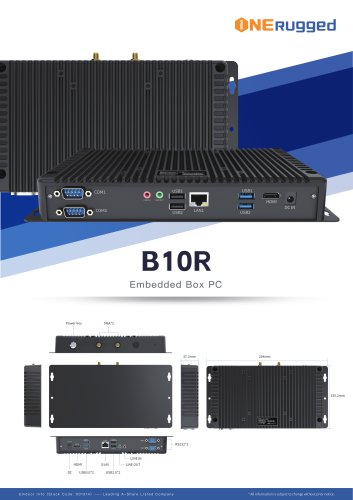 EM-B10R Specification
3 Pages
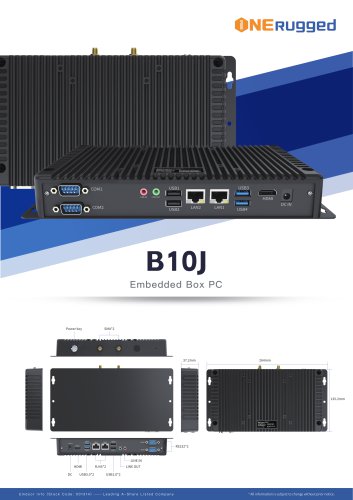 EM-B10J Specification
3 Pages
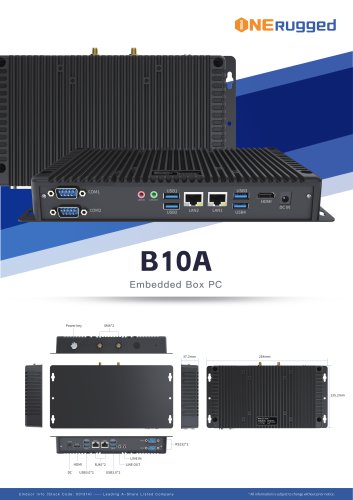 EM-B10A Specification
3 Pages
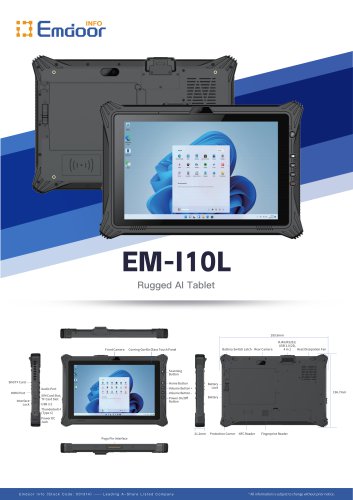 EM-I10L Specification
3 Pages
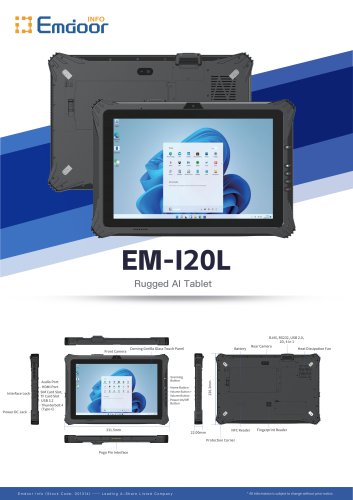 EM-I20L Specification
3 Pages
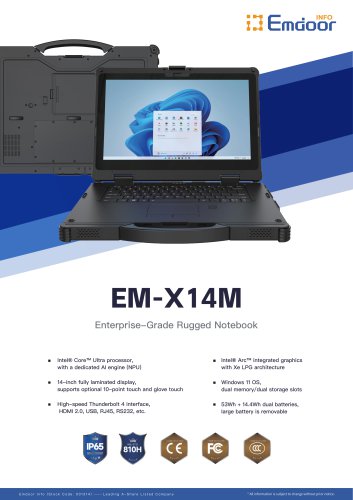 EM-X14M Specification
2 Pages
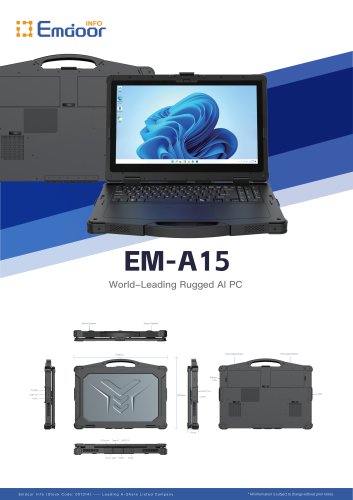 EM-A15 Specification
3 Pages
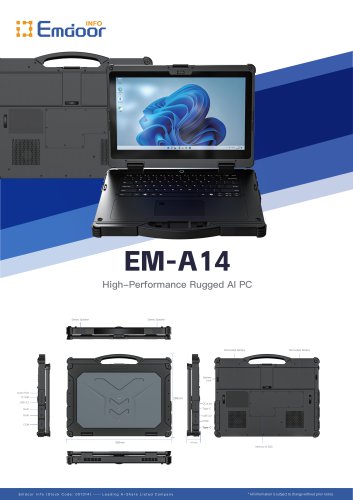 EM-A14 Specification
3 Pages
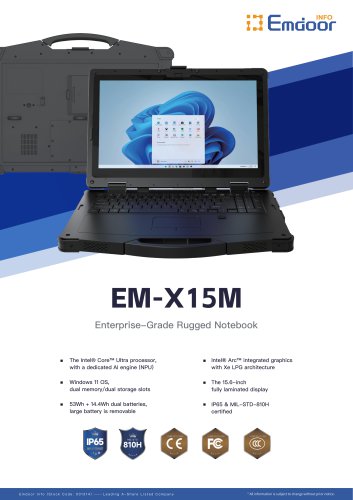 EM-X15M Specification
2 Pages
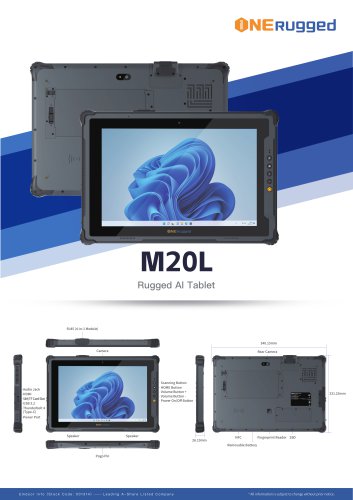 M20L-specification
3 Pages
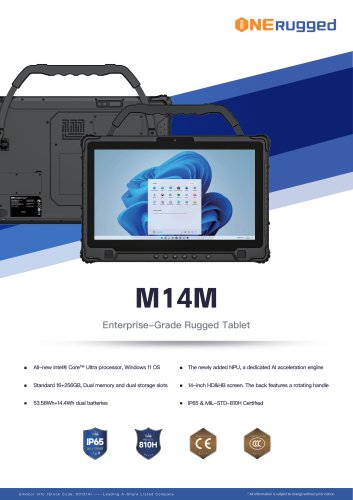 M14M-specification
2 Pages
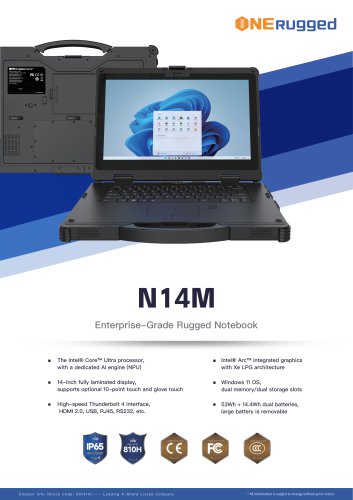 N14M-specification
2 Pages
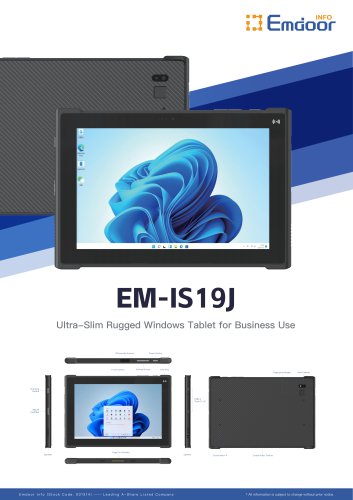 EM-IS19J specification
3 Pages
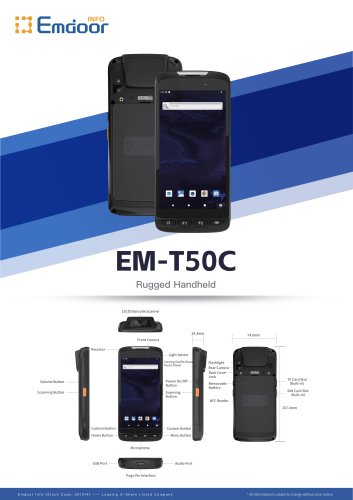 EM-T50C
3 Pages
 EM-D10R successful case
3 Pages
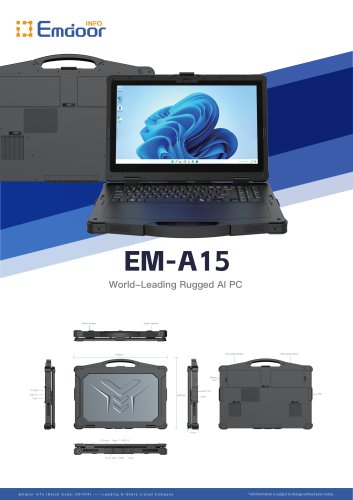 EM-A15
3 Pages
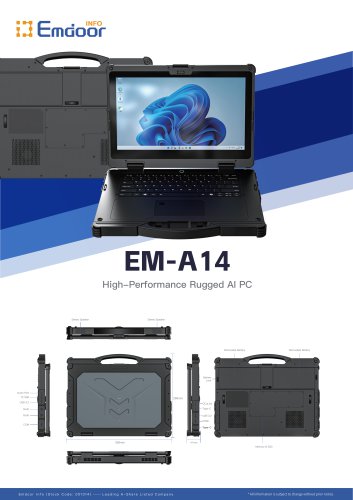 EM-A14
3 Pages
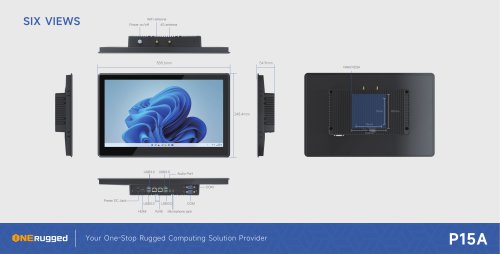 EM-P15A six views
1 Page
 EM-V12R USER MANUAL
2 Pages
 EM-P15A USER
2 Pages
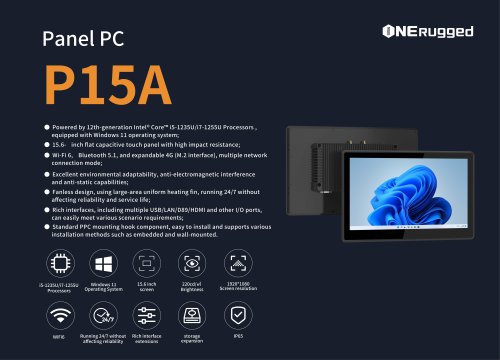 EM-P15A SPE
2 Pages
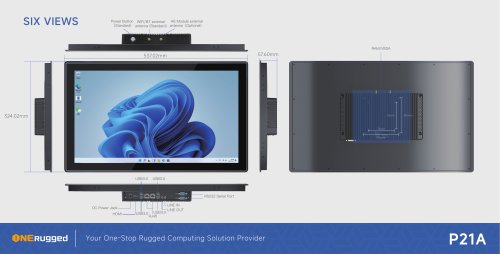 EM-P21A six views
1 Page
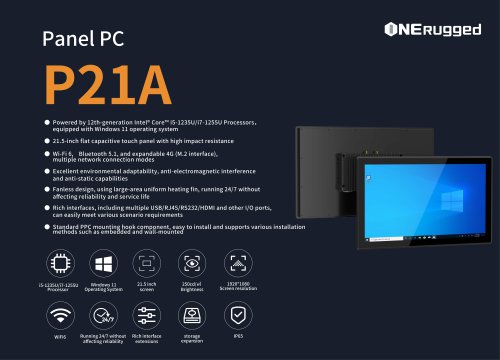 EM-P21A SPE
2 Pages
 EM-P21A user
2 Pages
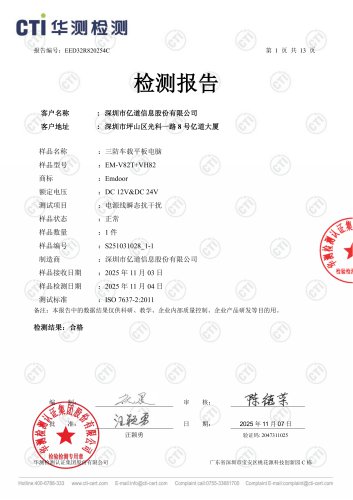 EM-V82T-EMC
13 Pages
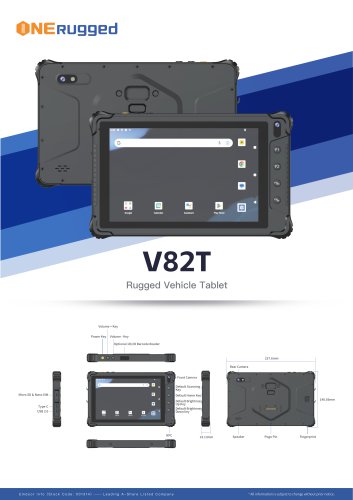 EM-V82T spe
4 Pages
 P2 PRO
2 Pages
 P2 PRO-SPE
2 Pages
 M82A- USER MANUAL
60 Pages
 M82A-spe
2 Pages
 EM-X15A User Manual
76 Pages
 EM-X15M Rugged AI PC uesr manual
76 Pages
 Emdoor Info. EM-I16J User Manual
57 Pages
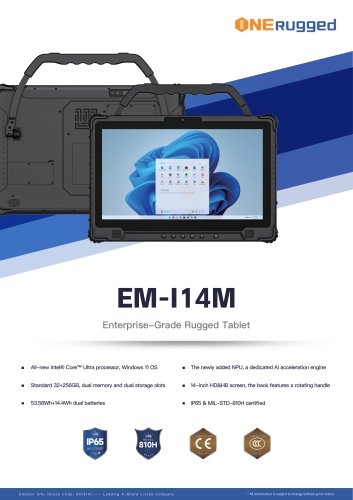 EM-I14M 14Inch Rugged AI PC
2 Pages
 EM-H68T: Android 14 rugged PDA
2 Pages
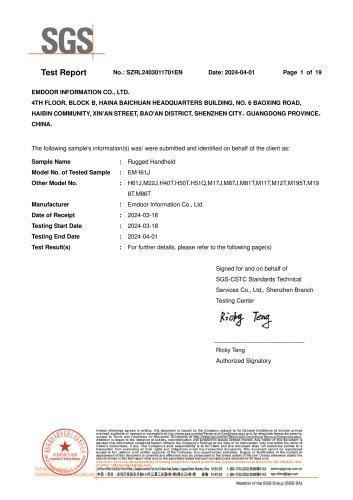 EM -I61J Rugged Handheld
19 Pages
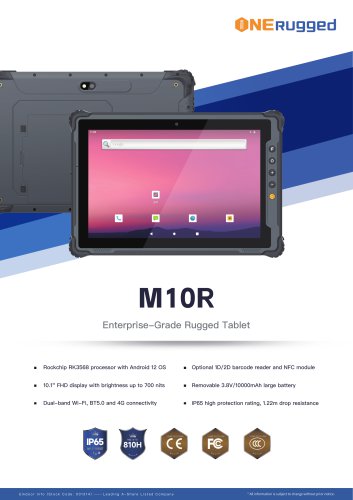 M10R Rugged Tablet RK3588
2 Pages
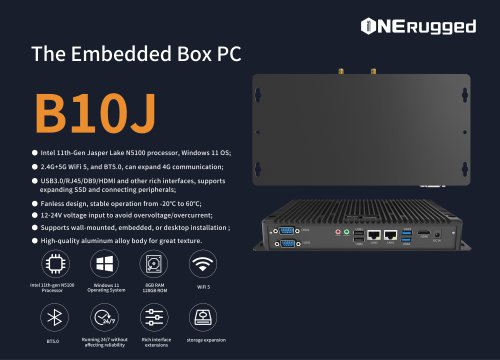 EM-B10J embedded box PC
3 Pages
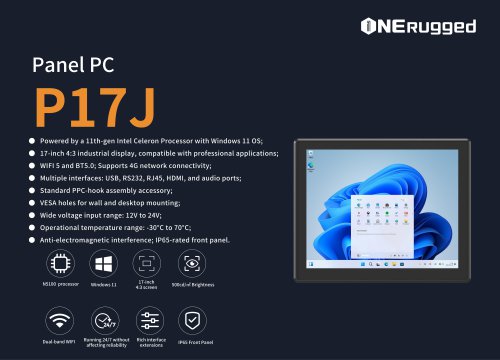 EM-P17J Panel PC
3 Pages
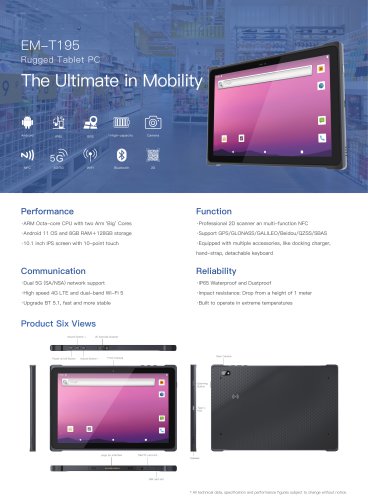 EM-T195 5G Rugged Tablet
2 Pages
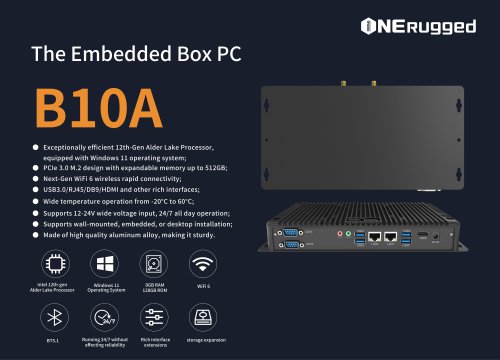 The Embedded Box PC-B10A
3 Pages
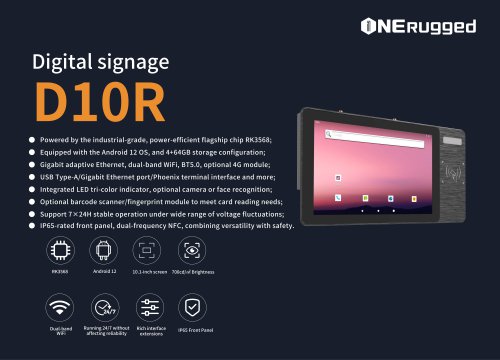 EM-D10R Digital signage
3 Pages
 EM-P1The Outdoor Rugged Phone
2 Pages
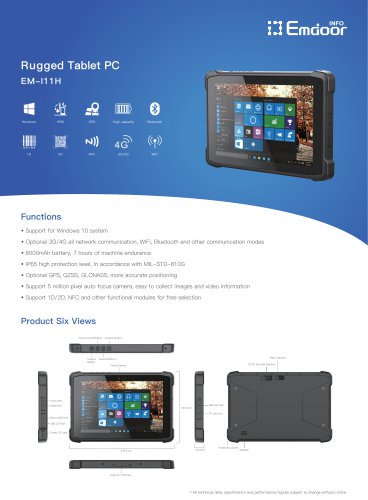 EM-I11H Rugged Tablet PC
2 Pages
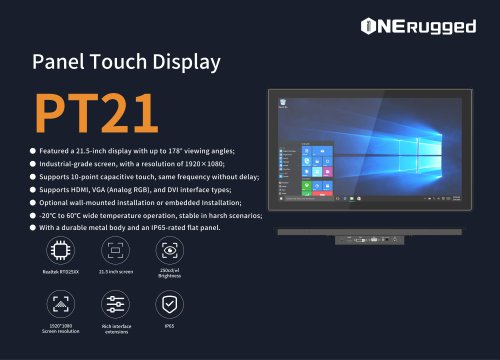 EM-PT21 Panel Touch Display
3 Pages
 Rugged Handheld H60T
2 Pages


















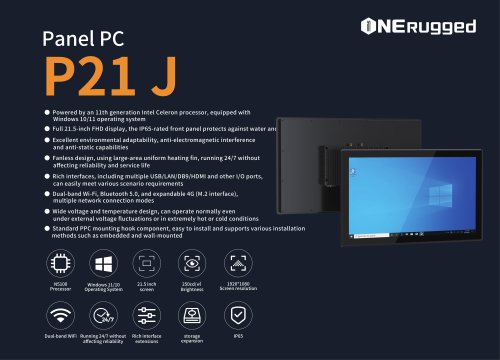
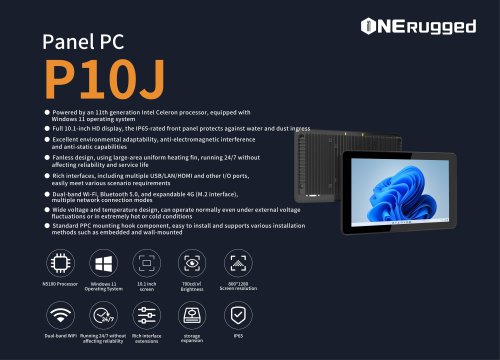
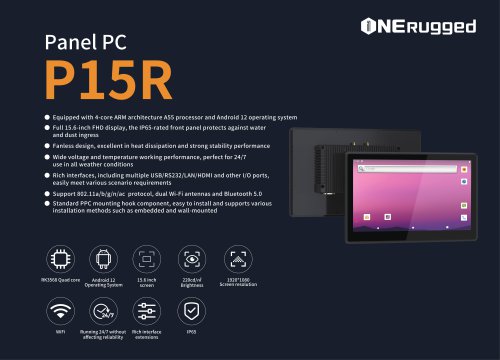

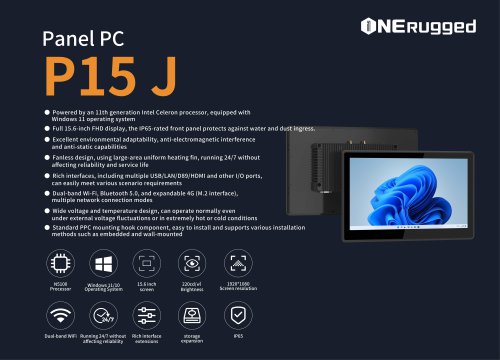

















































- Display module
- Emdoor panel PC
- Emdoor industrial panel PC
- Emdoor panel PC with touch screen
- LCD display panel
- Emdoor fanless panel PC
- Emdoor LCD panel PC
- Industrial display panel
- Intel® Core™ PC
- Fanless PC
- Emdoor IP65 panel PC
- Intel® Core™ panel PC
- VESA mounting panel PC
- Housed panel PC
- HDMI PC
- Embedded PC
- Box PC
- RS-232 PC
- USB 2.0 PC
- Windows PC