
- Catalogs
- Emdoor Information Co., Ltd.
- EM -I61J Rugged Handheld User manual


- Company
- Products
- Catalogs
- News & Trends
- Exhibitions
EM -I61J Rugged Handheld User manual
EM -I61J Rugged Handheld User manual
Catalog excerpts
Rugged Mobile Computing Solutions
Open the catalog to page 1
Foreword Thank you for using our products! To help you get familiar with the product quickly, please refer to the user manual if you have any problems during use. This document mainly introduces the interface and system usage instructions of the EM-I61J rugged handheld and helps you quickly understand the use of the product through the picture instruction. If you have any insoluble problems during use, please contact our technical personnel to deal with them. Thank you for your trust. The information in this manual is subject to change without notice.
Open the catalog to page 2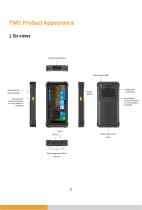
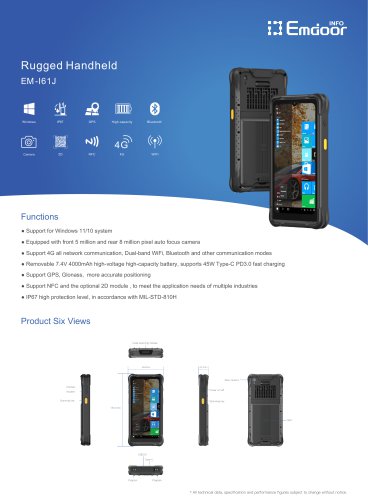
TWO.Product Appearance 1.Six views Power Button Volume Button “-” Scan Button F (Customized when no scan module is available) Scan Button F (Customized when no scan module is available) Battery Rear Cover Base charging Interface (Pogo
Open the catalog to page 5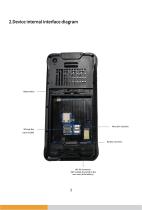
2.Device internal interface diagram Battery latch Micro Sim Card Slot NFC Pin Connector (NFC module is located on the rear cover of the battery)
Open the catalog to page 6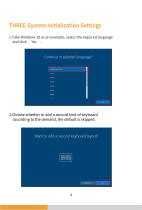
l.Take Windows 10 as an example, selectthe required language and click “Yes” . Continue in selected language? English (United States) 2.Choose whether to add a second kind of keyboard according to the demand, the default is skipped.
Open the catalog to page 7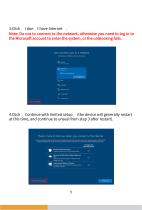
Let's connect you to a network To finish setup, you'll need to connect to the internet I don't Jtave internet 4.Click “Continue with limited setup” (the device will generally restart at this time, and continue to unseal from step 3 after restart). There's more to discover when you connect to the internet ss to Office Online. Outlook. Skype. and Continue with limited setup
Open the catalog to page 8
MICROSOFT SOFTWARE LICENSE TERMS WINDOWS OPERATING SYSTEM Thank you for choosing Microsoft! Depending an how you obtained the Windows software, this is a license agreement between (i) you and the device manufacturer or software installer that distributes the software with your device; or (jj) you and Microsoft Corporation (or. based on where you live or. if a business, where your principal place Of business is located, one Of its affiliates) if you acquired the software from a retailer. Microsoft is the device Manufacturer for devices produced by Microsoft or one of its affiliates, and Microsoft...
Open the catalog to page 9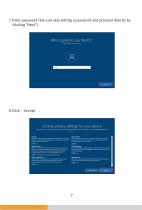
8.Click “Accept" . Choose privacy settings for your device ol of yotii privacy. Choose your settings, then select Accept" to in charge these settings at ary Get location-tesed experiences like directions and weather Let Windows and apps request your location and allow Microsoft to use your location data to improve location services. Turn on Find my device and use your device's location data to help you find your device if you lose it Vbu must sign in to Windows with your Microsoft account to use this feature. Diagnostic data Send info about the websites you browse and how you use apps and features,...
Open the catalog to page 10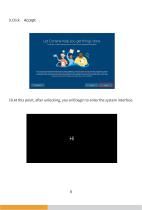
10.At this point, after unlocking, you will begin to enter the system interface.
Open the catalog to page 11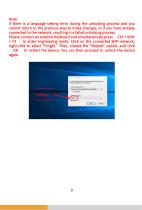
Note: If there is a language setting error during the unlocking process and you cannot return to the previous step to make changes, or if you have already connected to the network, resulting in a failed unlocking process. Please connect an external keyboard and simultaneously press “Ctrl + Shift + F3 ” to enter engineering mode. Click on the connected WiFi network, right-click to select "Forget." Then, choose the "Reboot" option, and click “ OK ” to restart the device. You can then proceed to unlock the device agai
Open the catalog to page 12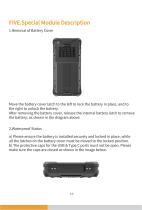
FIVE.Special Module Description 1.Removal of Battery Cover Move the battery cover latch to the left to lock the battery in place, and to the right to unlock the battery. After removing the battery cover, release the internal battery latch to remove the battery, as shown in the diagram above. 2.Waterproof Status a) Please ensure the battery is installed securely and locked in place, while all the latches on the battery cover must be moved to the locked position. b) The protective caps for the USB & Type C ports must not be open. Please make sure the caps are closed as shown in the image below
Open the catalog to page 14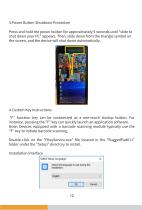
3.Power Button Shutdown Procedure Press and hold the power button for approximately 5 seconds until "slide to shut down your PC" appears. Then, slide down from the triangle symbol on the screen, and the device will shut down automatically. Slide down "F" function key can be customized as a one-touch startup button. For instance, pressing the "F" key can quickly launch an application software. Note: Devices equipped with a barcode scanning module typically use the "F" key to initiate barcode scanning. Double-click on the "FKeyService.exe" file located in the "RuggedPad61J" folder under the "Setup"...
Open the catalog to page 15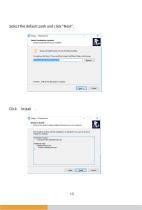
Select the default path and click "Next". Click “Install”.
Open the catalog to page 16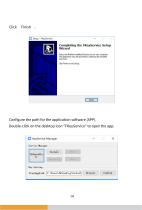
Click “Finish”. Configure the path for the application software (APP). Double-click on the desktop icon "FKeyService" to open the app.
Open the catalog to page 17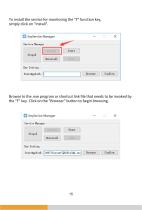
To install the service for monitoring the "F" function key, simply click on "Install". Browse to the .exe program or shortcut link file that needs to be invoked by the "F" key. Click on the "Browser" button to begin browsing.
Open the catalog to page 18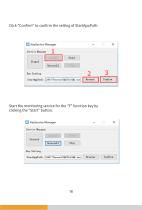
Click "Confirm" to confirm the setting of StartAppPath. Start the monitoring service for the "F" function key by clicking the "Start" button.
Open the catalog to page 19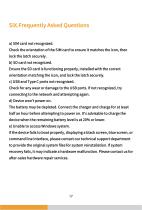
Check the orientation of the SIM card to ensure it matches the icon, then lock the latch securely. Ensure the SD card is functioning properly, installed with the correct orientation matchingthe icon, and lock the latch securely. c) USB and Type C ports not recognized. Check for any wear or damage to the USB ports. If not recognized, try connecting to the network and attempting again. d) Device won't power on. The battery may be depleted. Connect the charger and charge for at least half an hour before attempting to poweron. It's advisable to charge the device when the remaining battery level is...
Open the catalog to page 20All Emdoor Information Co., Ltd. catalogs and technical brochures
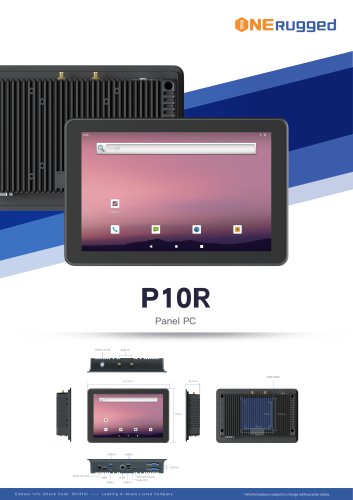 EM-P10R Specification
3 Pages
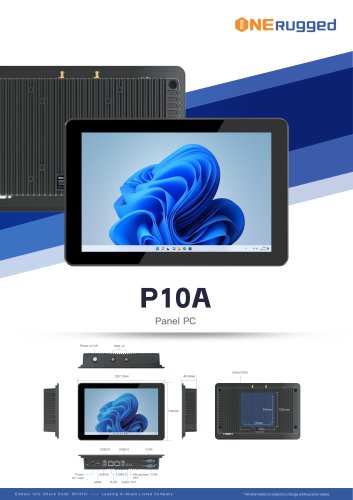 EM-P10A Specification
3 Pages
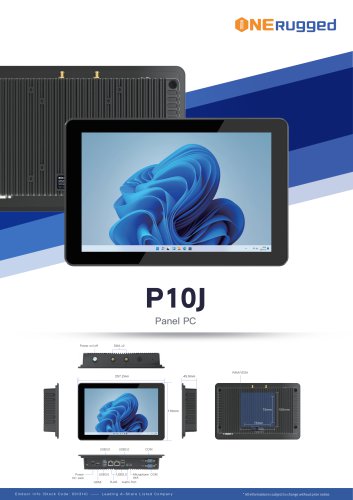 EM-P10J Specification
3 Pages
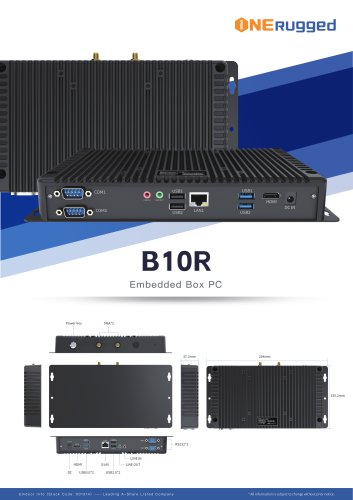 EM-B10R Specification
3 Pages
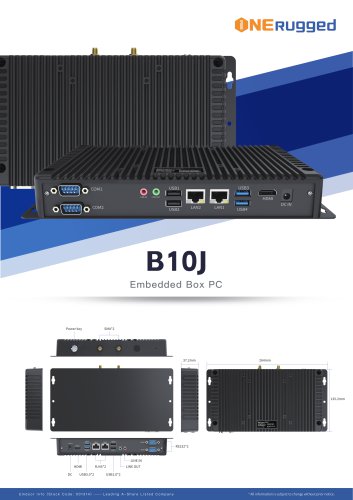 EM-B10J Specification
3 Pages
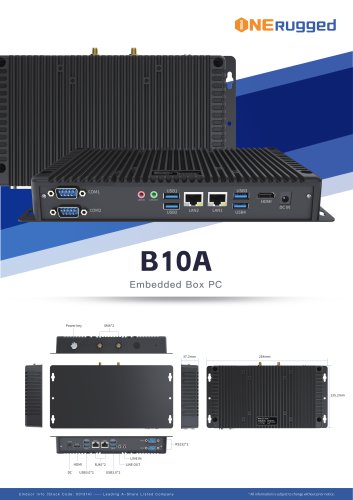 EM-B10A Specification
3 Pages
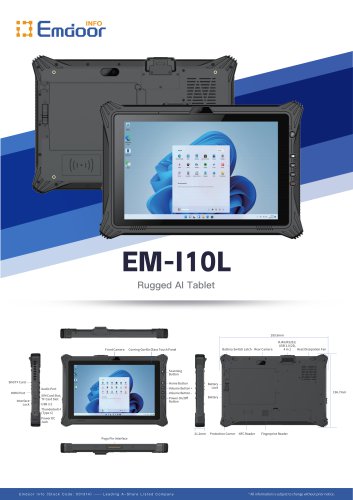 EM-I10L Specification
3 Pages
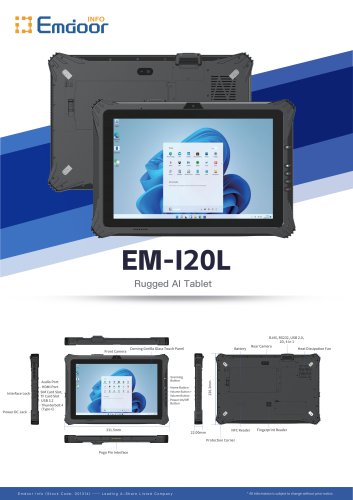 EM-I20L Specification
3 Pages
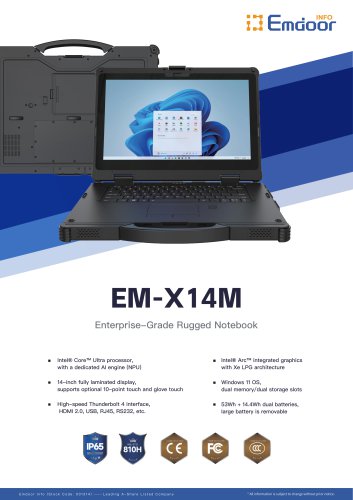 EM-X14M Specification
2 Pages
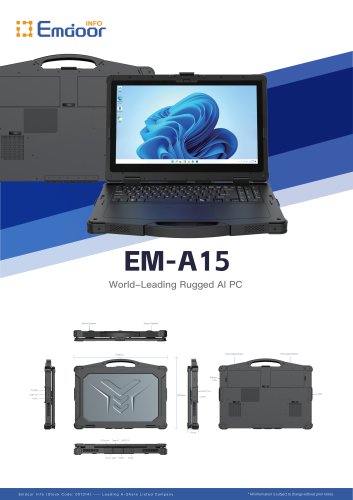 EM-A15 Specification
3 Pages
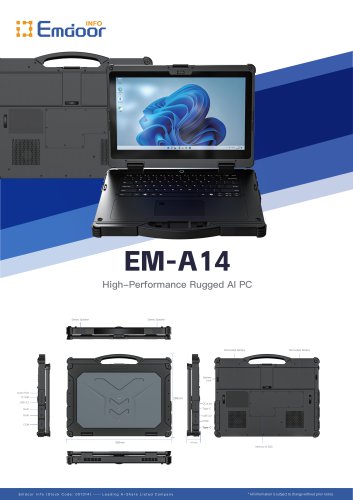 EM-A14 Specification
3 Pages
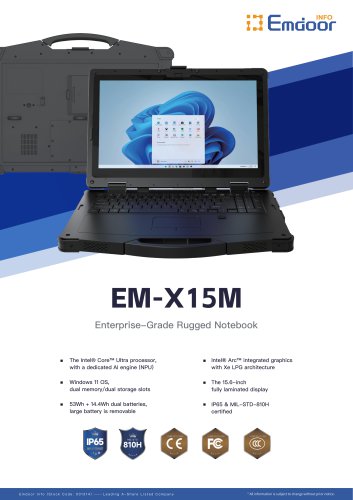 EM-X15M Specification
2 Pages
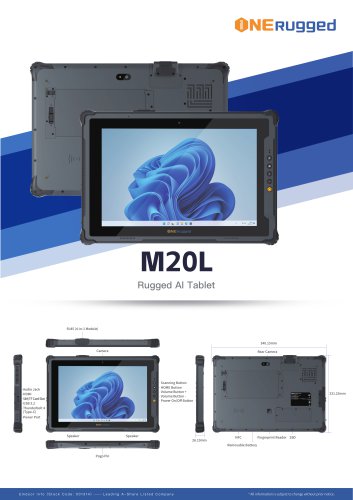 M20L-specification
3 Pages
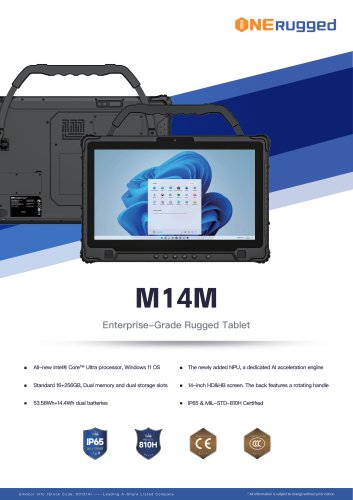 M14M-specification
2 Pages
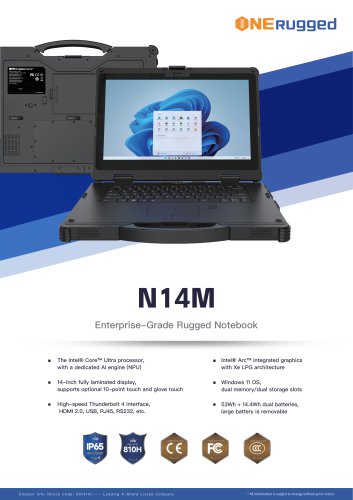 N14M-specification
2 Pages
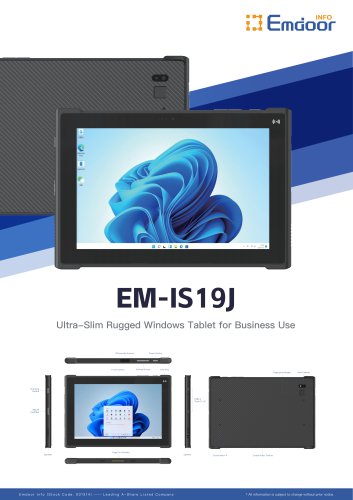 EM-IS19J specification
3 Pages
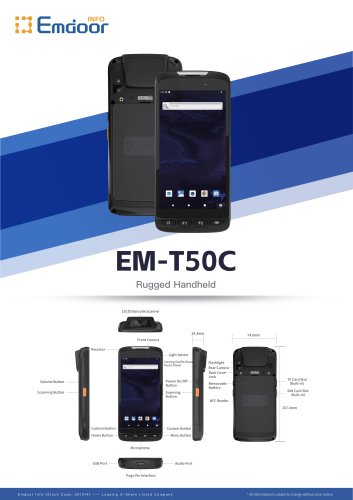 EM-T50C
3 Pages
 EM-D10R successful case
3 Pages
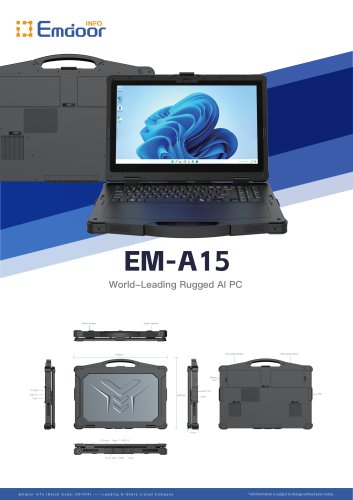 EM-A15
3 Pages
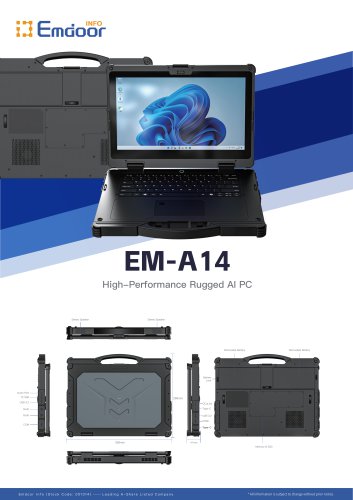 EM-A14
3 Pages
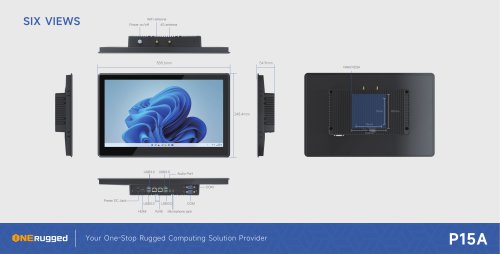 EM-P15A six views
1 Page
 EM-V12R USER MANUAL
2 Pages
 EM-P15A USER
2 Pages
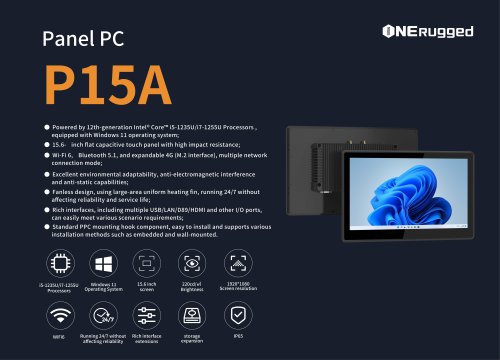 EM-P15A SPE
2 Pages
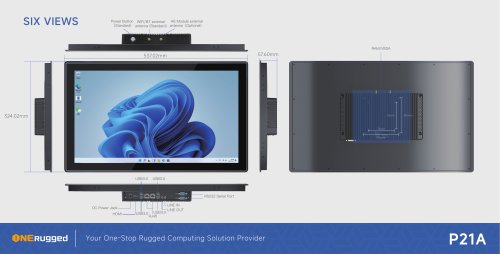 EM-P21A six views
1 Page
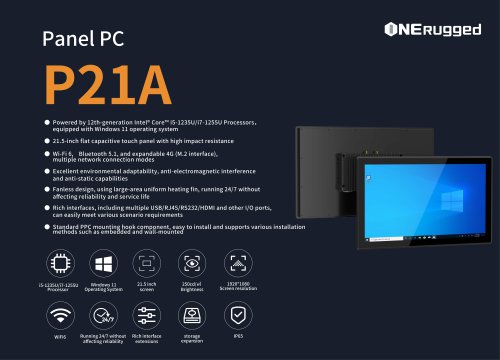 EM-P21A SPE
2 Pages
 EM-P21A user
2 Pages
 EM-V82T-EMC
13 Pages
 EM-V82T spe
4 Pages
 P2 PRO
2 Pages
 P2 PRO-SPE
2 Pages
 M82A- USER MANUAL
60 Pages
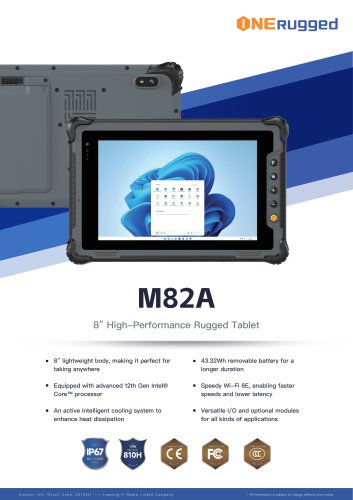 M82A-spe
2 Pages
 EM-X15A User Manual
76 Pages
 EM-X15M Rugged AI PC uesr manual
76 Pages
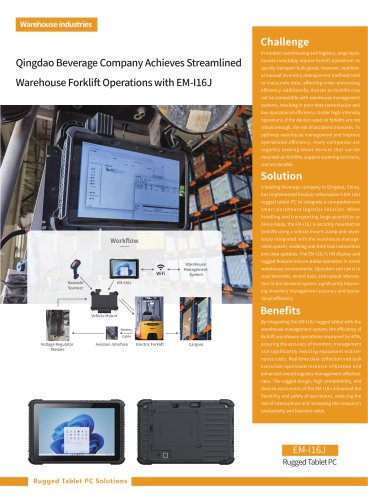
 Emdoor Info. EM-I16J User Manual
57 Pages
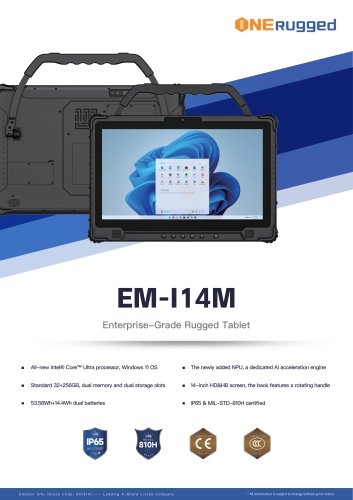 EM-I14M 14Inch Rugged AI PC
2 Pages
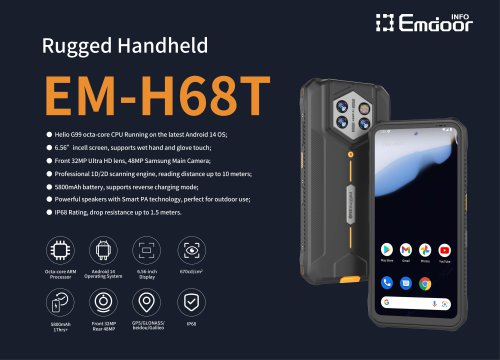
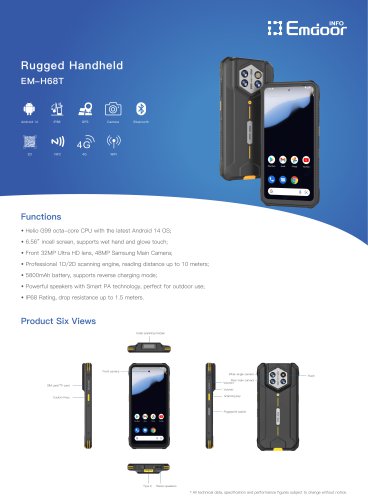 EM-H68T: Android 14 rugged PDA
2 Pages
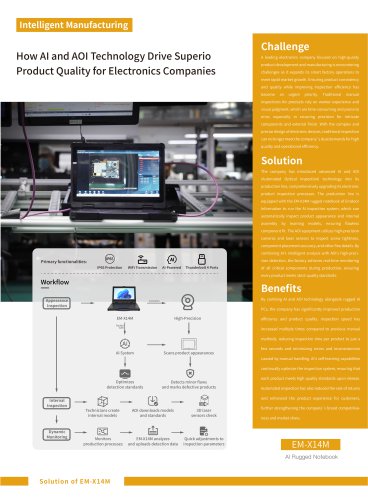
 EM -I61J Rugged Handheld
19 Pages
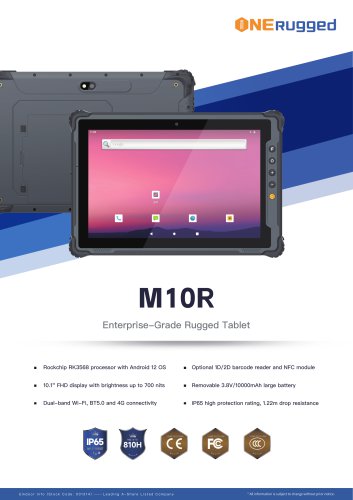 M10R Rugged Tablet RK3588
2 Pages
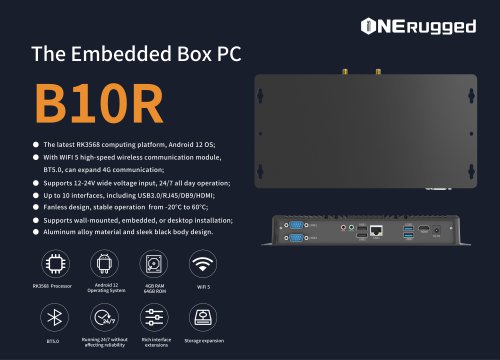
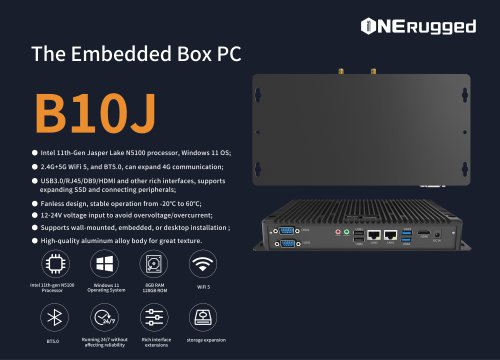 EM-B10J embedded box PC
3 Pages
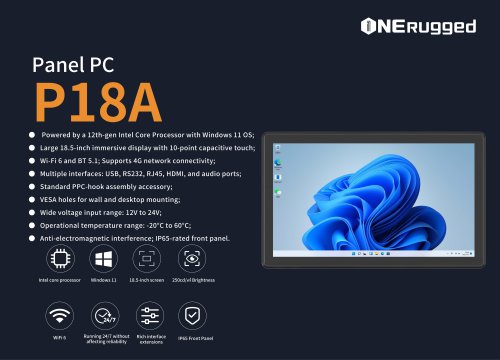
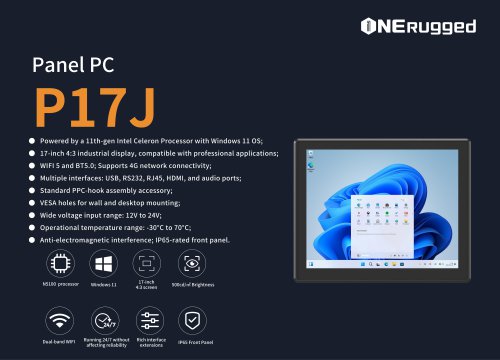 EM-P17J Panel PC
3 Pages
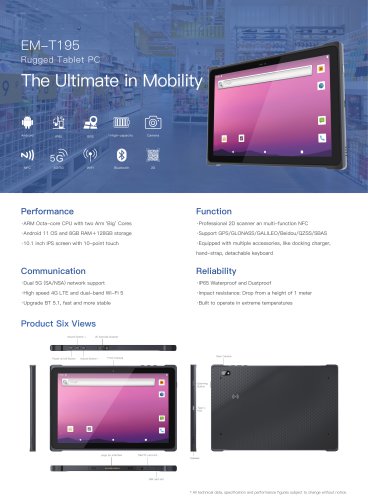 EM-T195 5G Rugged Tablet
2 Pages
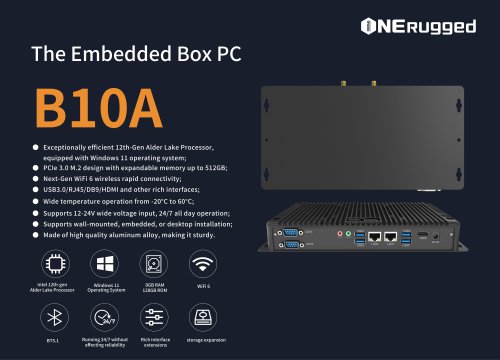 The Embedded Box PC-B10A
3 Pages
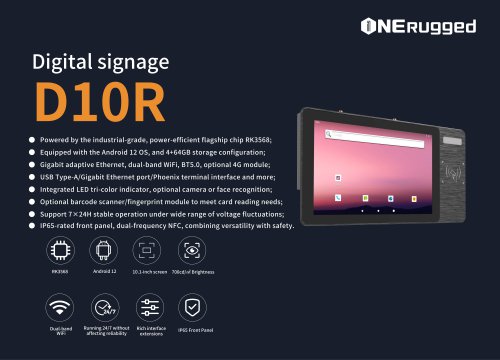 EM-D10R Digital signage
3 Pages
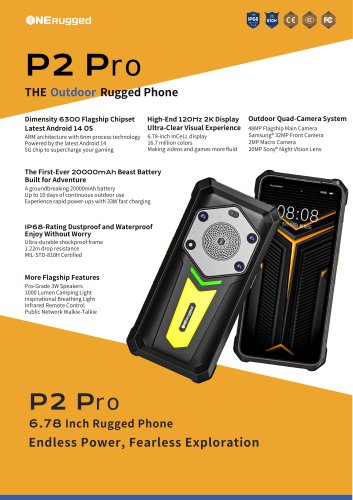
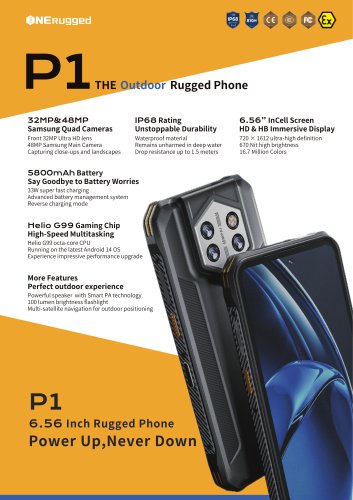 EM-P1The Outdoor Rugged Phone
2 Pages
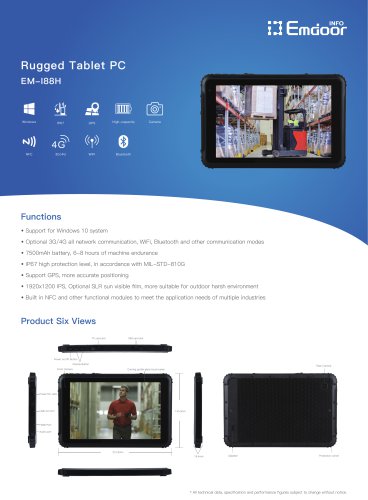
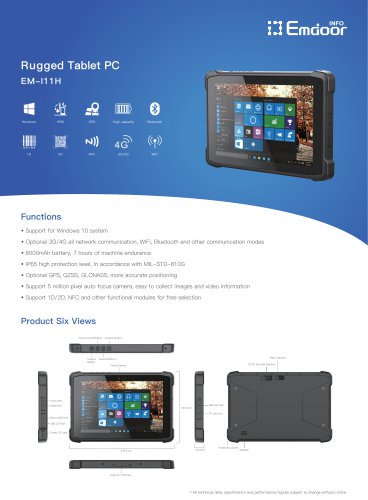 EM-I11H Rugged Tablet PC
2 Pages
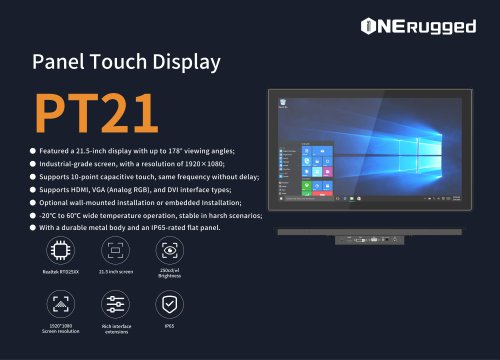 EM-PT21 Panel Touch Display
3 Pages
 Rugged Handheld H60T
2 Pages




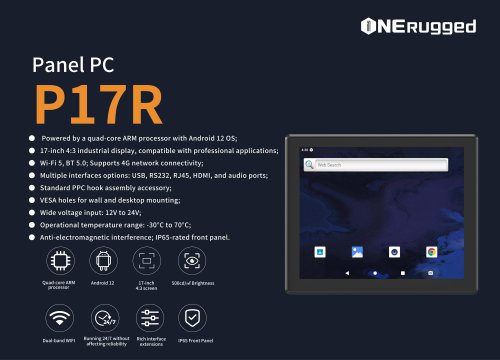
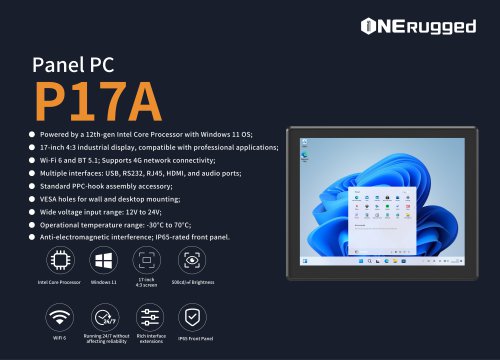










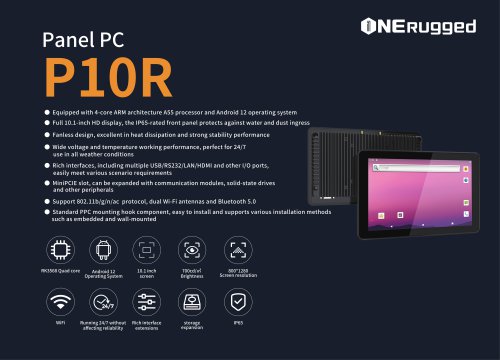

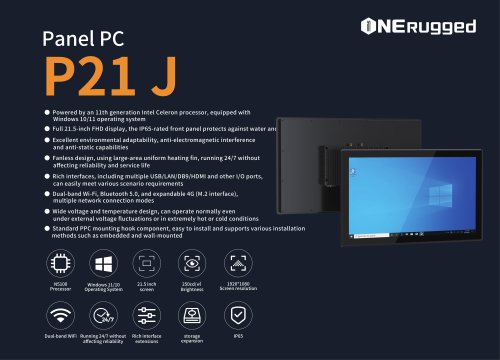
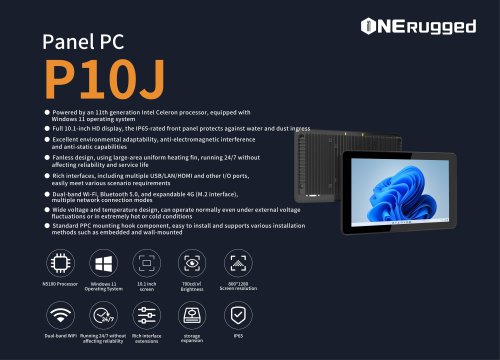
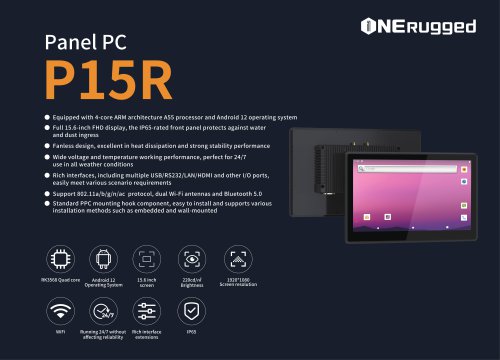





















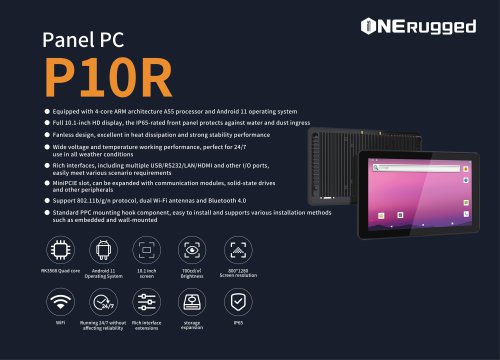
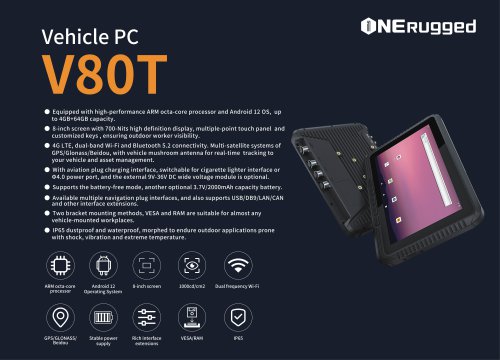
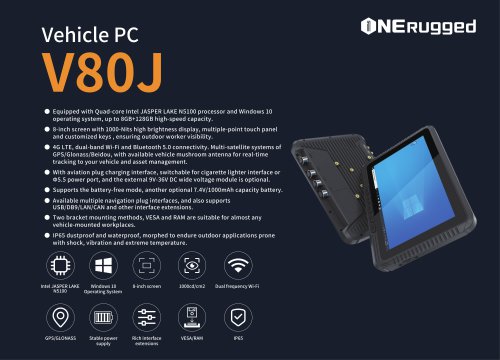
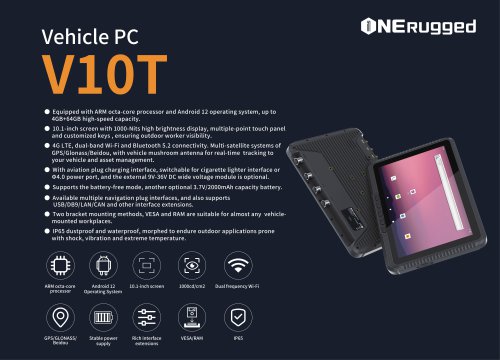





























- Display module
- Emdoor panel PC
- Emdoor industrial panel PC
- Emdoor panel PC with touch screen
- LCD display panel
- Emdoor fanless panel PC
- Emdoor LCD panel PC
- Industrial display panel
- Intel® Core™ PC
- Fanless PC
- Emdoor IP65 panel PC
- Intel® Core™ panel PC
- VESA mounting panel PC
- Housed panel PC
- HDMI PC
- Embedded PC
- Box PC
- RS-232 PC
- USB 2.0 PC
- Windows PC