
- Catalogs
- Emdoor Information Co., Ltd.
- EM-I14A windows rugged tablet User Manual


- Company
- Products
- Catalogs
- News & Trends
- Exhibitions
EM-I14A windows rugged tablet User Manual
1 /58Pages
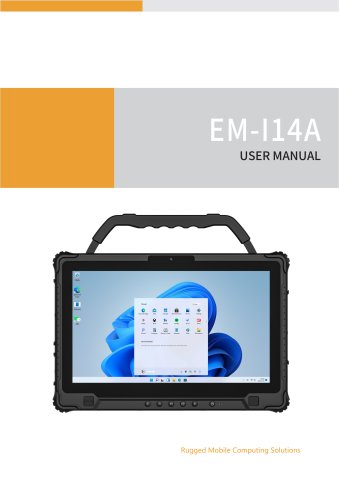
EM-I14A windows rugged tablet User Manual
1 /58Pages
Catalog excerpts
$IBQUFS 濁濁濁濁濁濁濁濁濁濁濁濁濁濁濁濁濁濁濁濁濁濁濁濁濁濁濁濁濁濁濁濁濁濁濁濁濁濁濁濁濁濁濁濁濁濁濁濁濁濁濁濁濁濁濁濁濁濁濁濁濁濁濁濁濁濁濁濁濁濁濁濁濁濁濁濁濁濁濁濁濁濁濁濁濁濁濁濁濁濁濁濁濁濁濁濁濁濁濁濁濁濁濁濁濁濁濁濁濁濄
Open the catalog to page 3
6TF 8JSFMFTT $POOFDUJPOT 濁濁濁濁濁濁濁濁濁濁濁濁濁濁濁濁濁濁濁濁濁濁濁濁濁濁濁濁濁濁濁濁濁濁濁濁濁濁濁濁濁濁濁濁濁濁濁濁濁濁濁濁濁濁濁濁濁濁濁濁濁濁濁濁濁濁濁濄濊 6TF UIF 8-"/ 濁濁濁濁濁濁濁濁濁濁濁濁濁濁濁濁濁濁濁濁濁濁濁濁濁濁濁濁濁濁濁濁濁濁濁濁濁濁濁濁濁濁濁濁濁濁濁濁濁濁濁濁濁濁濁濁濁濁濁濁濁濁濁濁濁濁濁濁濁濁濁濁濁濁濁濁濁濁濁濁濁濁濁濁濁濁濁濁 濄濊
Open the catalog to page 4
$POOFDU UP B .POJUPS 濁濁濁濁濁濁濁濁濁濁濁濁濁濁濁濁濁濁濁濁濁濁濁濁濁濁濁濁濁濁濁濁濁濁濁濁濁濁濁濁濁濁濁濁濁濁濁濁濁濁濁濁濁濁濁濁濁濁濁濁濁濁濁濁濁濁濁濁濁濁濁濁濁 濅濈 $POOFDU UP 34 %FWJDFT 濁濁濁濁濁濁濁濁濁濁濁濁濁濁濁濁濁濁濁濁濁濁濁濁濁濁濁濁濁濁濁濁濁濁濁濁濁濁濁濁濁濁濁濁濁濁濁濁濁濁濁濁濁濁濁濁濁濁濁濁濁濁濁濅濈 $POOFDU UP "VEJP %FWJDFT 濁濁濁濁濁濁濁濁濁濁濁濁濁濁濁濁濁濁濁濁濁濁濁濁濁濁濁濁濁濁濁濁濁濁濁濁濁濁濁濁濁濁濁濁濁濁濁濁濁濁濁濁濁濁濁濁濁濁濁濁濁濁濁濁濅濉 $IBQUFS 濁濁濁濁濁濁濁濁濁濁濁濁濁濁濁濁濁濁濁濁濁濁濁濁濁濁濁濁濁濁濁濁濁濁濁濁濁濁濁濁濁濁濁濁濁濁濁濁濁濁濁濁濁濁濁濁濁濁濁濁濁濁濁濁濁濁濁濁濁濁濁濁濁濁濁濁濁濁濁濁濁濁濁濁濁濁濁濁濁濁濁濁濁濁濁濁濁濁濁濁濁濁濁濁濁濁 濅濊 64& #*04 4&561濁濁濁濁濁濁濁濁濁濁濁濁濁濁濁濁濁濁濁濁濁濁濁濁濁濁濁濁濁濁濁濁濁濁濁濁濁濁濁濁濁濁濁濁濁濁濁濁濁濁濁濁濁濁濁濁濁濁濁濁濁濁濁濁濁濁濁濁濁濁濁濁濁濁濁濁濁濁濁濁濁濁濁濁濁濁濁濁濁濁濁 濅濊 8IFO BOE )PX UP 6TF 濁濁濁濁濁濁濁濁濁濁濁濁濁濁濁濁濁濁濁濁濁濁濁濁濁濁濁濁濁濁濁濁濁濁濁濁濁濁濁濁濁濁濁濁濁濁濁濁濁濁濁濁濁濁濁濁濁濁濁濁濁濁濁濁濁濁濁濁濁濁濁濁濁濁濁濅濋...
Open the catalog to page 5
(FOFSBM (VJEFMJOFT 濁濁濁濁濁濁濁濁濁濁濁濁濁濁濁濁濁濁濁濁濁濁濁濁濁濁濁濁濁濁濁濁濁濁濁濁濁濁濁濁濁濁濁濁濁濁濁濁濁濁濁濁濁濁濁濁濁濁濁濁濁濁濁濁濁濁濁濁濁濁濁濁濁濁濁濁濁濁濆濊 #BUUFSZ 1BDL (VJEFMJOFT 濁濁濁濁濁濁濁濁濁濁濁濁濁濁濁濁濁濁濁濁濁濁濁濁濁濁濁濁濁濁濁濁濁濁濁濁濁濁濁濁濁濁濁濁濁濁濁濁濁濁濁濁濁濁濁濁濁濁濁濁濁濁濁濁濁濁濁 濆濋
Open the catalog to page 6
5IJT DIBQUFS GJSTU UFMMT ZPV TUFQ CZ TUFQ IPX UP HFU UIF EFWJDF VQ BOE SVOOJOH 5IFO ZPV XJMM GJOE B TFDUJPO CSJFGMZ JOUSPEVDJOH UIF FYUFSOBM
Open the catalog to page 8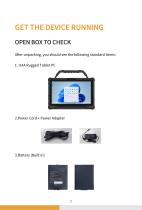
"GUFS VOQBDLJOH ZPV TIPVME TFF UIF GPMMPXJOH TUBOEBSE JUFNT *" 3VHHFE 5BCMFU 1$
Open the catalog to page 9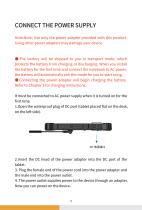
/PUF/PUF 6TF POMZ UIF QPXFS BEBQUFS QSPWJEFE XJUI UIJT QSPEVDU 6TJOH PUIFS QPXFS BEBQUFST NBZ EBNBHF ZPVS EFWJDF ӳ 5IF CBUUFSZ XJMM CF TIJQQFE UP ZPV JO USBOTQPSU NPEF XIJDI QSPUFDUT UIF CBUUFSZ GSPN DIBSHJOH PS EJTDIBSHJOH 8IFO ZPV JOTUBMM UIF CBUUFSZ GPS UIF GJSTU UJNF BOE DPOOFDU UIF OPUFCPPL UP "$ QPXFS UIF CBUUFSZ XJMM BVUPNBUJDBMMZ FYJU UIJT NPEF GPS ZPV UP TUBSU VTJOH ӳ $POOFDUJOH UIF QPXFS BEBQUFS XJMM CFHJO DIBSHJOH UIF CBUUFSZ 3FGFS UP $IBQUFS GPS DIBSHJOH JOTUSVDUJPOT *U NVTU CF DPOOFDUFE UP "$ QPXFS TVQQMZ XIFO JU JT UVSOFE PO GPS UIF GJSTU UJNF 0QFO UIF XBUFSQSPPG QMVH PG %$ QPSU...
Open the catalog to page 10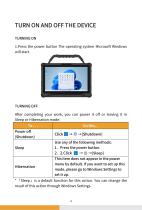
Microsoft Windows After completing your work, you can power it off or leaving it in Sleep or Hibernation mode: * rSleepj is a default function for this action. You can change the result of this action through Windows Settings.
Open the catalog to page 11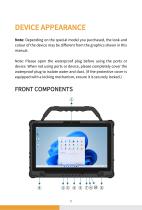
/PUF %FQFOEJOH PO UIF TQFDJBM NPEFM ZPV QVSDIBTFE UIF MPPL BOE DPMPVS PG UIF EFWJDF NBZ CF EJGGFSFOU GSPN UIF HSBQIJDT TIPXO JO UIJT NBOVBM /PUF 1MFBTF PQFO UIF XBUFSQSPPG QMVH CFGPSF VTJOH UIF QPSUT PS EFWJDF 8IFO OPU VTJOH QPSUT PS EFWJDF QMFBTF DPNQMFUFMZ DPWFS UIF XBUFSQSPPG QMVH UP JTPMBUF XBUFS BOE EVTU *G UIF QSPUFDUJWF DPWFS JT FRVJQQFE XJUI B MPDLJOH NFDIBOJTN FOTVSF JU JT TFDVSFMZ MPDLFE
Open the catalog to page 12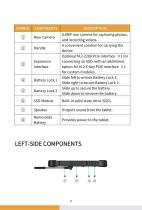
LEFT-SIDE COMPONENTS
Open the catalog to page 15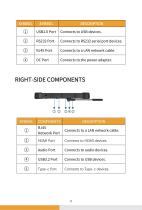
$POOFDUT UP B -"/ OFUXPSL DBCMF $POOFDUT UP 34 TFSJBM QPSU EFWJDFT $POOFDUT UP UIF QPXFS BEBQUFS $POOFDUT UP B -"/ OFUXPSL DBCMF 濛濗濠濜 濣瀂瀅瀇 濖瀂瀁瀁濸濶瀇瀆 瀇瀂 濛濗濠濜 濷濸瀉濼濶濸瀆濁 $POOFDUT UP BVEJP EFWJDFT
Open the catalog to page 16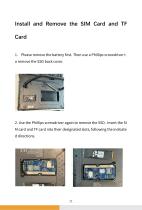
澽濢濧濨濕濠濠 濕濢濘 濆濙濡濣濪濙 濨濜濙 濇澽濁 澷濕濦濘 濕濢濘 濈澺 澷濕濦濘 1MFBTF SFNPWF UIF CBUUFSZ GJSTU 5IFO VTF B 1IJMMJQT TDSFXESJWFS U P SFNPWF UIF 44% CBDL DPWFS 6TF UIF 1IJMMJQT TDSFXESJWFS BHBJO UP SFNPWF UIF 44% *OTFSU UIF 4*
Open the catalog to page 18
5IJT DIBQUFS QSPWJEFT JOGPSNBUJPO BCPVU UIF VTF PG UIF EFWJDF *G ZPV BSF OFX UP EFWJDF SFBEJOH UIJT DIBQUFS XJMM IFMQ ZPV MFBSO UIF PQFSBUJOH CBTJDT *G ZPV BSF BMSFBEZ B 5BCMFU VTFS ZPV NBZ DIPPTF UP SFBE POMZ UIF QBSUT DPOUBJOJOH JOGPSNBUJPO VOJRVF UP ZPVS 5BCMFU ӳ %P OPU FYQPTF ZPVS TLJO UP UIF 5BCMFU XIFO PQFSBUJOH JU JO B WFSZ ӳ 5IF 5BCMFU DBO HFU VODPNGPSUBCMZ XBSN XIFO ZPV VTF JU JO IJHI UFNQFSBUVSFT "T B TBGFUZ QSFDBVUJPO JO TVDI B DJSDVNTUBODF EP OPU QMBDF UIF 5BCMFU PO ZPVS MBQ PS UPVDI JU XJUI ZPVS CBSF IBOET GPS FYUFOEFE QFSJPET PG UJNF 1SPMPOHFE CPEZ DPOUBDU DBO DBVTF EJTDPNGPSU BOE...
Open the catalog to page 19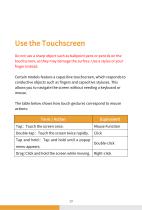
Do not use a sharp object such as ballpoint pens or pencils on the touchscreen, as they may damage the surface. Use a stylus or your finger instead. Certain models feature a capacitive touchscreen, which responds to conductive objects such as fingers and capacitive styluses. This allows you to navigate the screen without needing a keyboard or mouse. The table below shows how touch gestures correspond to mouse actions:
Open the catalog to page 20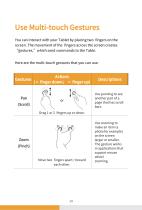
:PV DBO JOUFSBDU XJUI ZPVS 5BCMFU CZ QMBDJOH UXP OHFST PO UIF TDSFFO 5IF NPWFNFOU PG UIF OHFST BDSPTT UIF TDSFFO DSFBUFT HFTUVSFT XIJDI TFOE DPNNBOET UP UIF 5BCMF )FSF BSF UIF NVMUJUPVDI HFTUVSFT UIBU ZPV DBO VTF "DUJPOT OHFS EPXO OHFS VQ 6TF QBOOJOH UP TFF BOPUIFS QBSU PG B QBHF UIBU IBT TDSPMM CBST .PWF UXP OHFST BQBSU UPXBSE FBDI PUIFS 6TF [PPNJOH UP NBLF BO JUFN B QIPUP GPS FYBNQMF PO UIF TDSFFO MBSHFS PS TNBMMFS 5IF HFTUVSF XPSLT JO BQQMJDBUJPOT UIBU TVQQPSU N
Open the catalog to page 21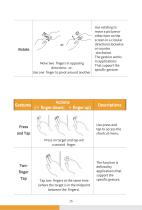
Move two fingers in opposing directions, -or- Use one fingerto pivot around another. Gestures Actions ger Use rotating to move a picture or other item on the screen in a circular direction(clockwise or counter -clockwise). The gesture works in applications That support the specific gesture. Use press and tap to access the shortcut menu. Press on target and tap wit a second finger. Tap two fingers at the same time (where the target is in the midpoint between the fingers). The function is defined by applications that support the specific gesture.
Open the catalog to page 22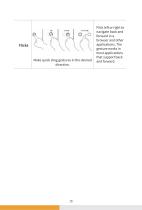
'MJDLT .BLF RVJDL ESBH HFTUVSFT JO UIF EFTJSFE EJSFDUJPO 'MJDL MFGU PS SJHIU UP OBWJHBUF CBDL BOE GPSXBSE JO B CSPXTFS BOE PUIFS BQQMJDBUJPOT 5IF HFTUVSF XPSLT JO NPTU BQQMJDBUJPOT UIBU TVQQPSU CBDL BOE GPSXBSE
Open the catalog to page 23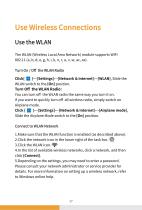
The WLAN (Wireless Local Area Network) module supports WIFI 802.11 (a, b, d, e, g, h, i, k, n, r, u, v, w, ac, ax). Turn On/Off the WLAN Radio WLAN switch to the [On] position. Turn Off the WLAN Radio: You can turn off the WLAN radio the same way you turn it on. If you want to quickly turn off all wireless radio, simply switch on Airplane mode. Click [ II ]—[Settings]—[Network& lnternet]—[Airplane mode], Slide the Airplane Mode switch to the [On] position. Connect to WLAN Network 1. Make sure that the WLAN function is enabled (as described above). 2. Click the network icon in the lower right...
Open the catalog to page 24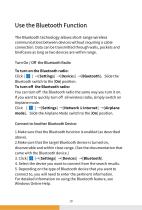
5IF #MVFUPPUI UFDIOPMPHZ BMMPXT TIPSUSBOHF XJSFMFTT DPNNVOJDBUJPOT CFUXFFO EFWJDFT XJUIPVU SFRVJSJOH B DBCMF DPOOFDUJPO %BUB DBO CF USBOTNJUUFE UISPVHI XBMMT QPDLFUT BOE CSJFGDBTFT BT MPOH BT UXP EFWJDFT BSF XJUIJO SBOHF 5VSO 0O 0 UIF #MVFUPPUI 3BEJP 5P UVSO PO UIF #MVFUPPUI SBEJP #MVFUPPUI TXJUDI UP UIF <0O> QPTJUJPO 5P UVSO P UIF #MVFUPPUI SBEJP :PV DBO UVSO P UIF #MVFUPPUI SBEJP UIF TBNF XBZ ZPV UVSO JU PO *G ZPV XBOU UP RVJDLMZ UVSO P BMM XJSFMFTT SBEJP TJNQMZ TXJUDI PO "JSQMBOF NPEF $MJDL NPEF>4MJEF UIF "JSQMBOF .PEF TXJUDI UP UIF <0O> QPTJUJPO $POOFDU UP "OPUIFS #MVFUPPUI %FWJDF .BLF TVSF...
Open the catalog to page 25All Emdoor Information Co., Ltd. catalogs and technical brochures
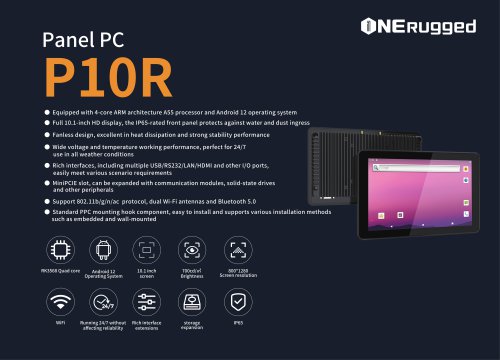
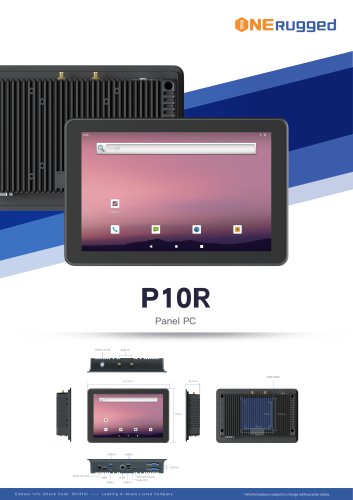 EM-P10R Specification
3 Pages
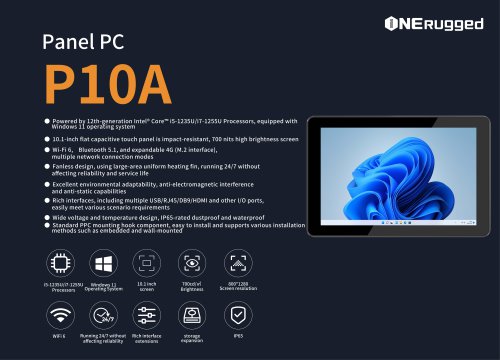
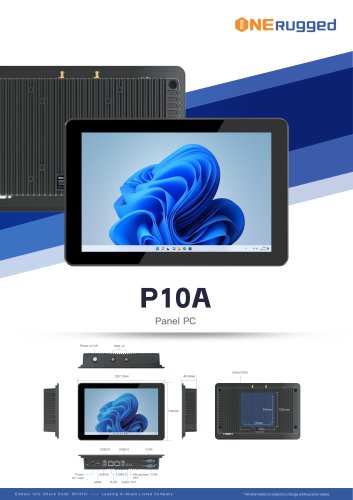 EM-P10A Specification
3 Pages
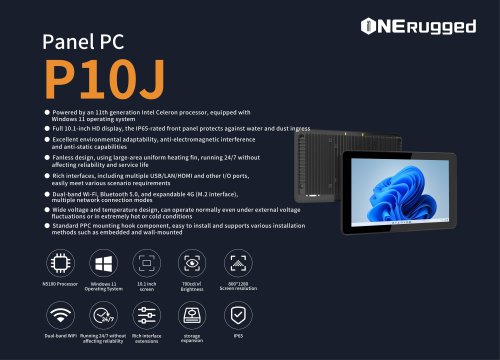
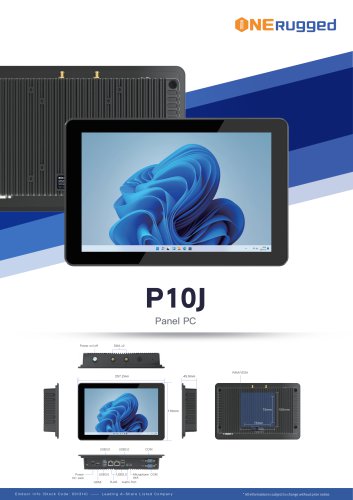 EM-P10J Specification
3 Pages
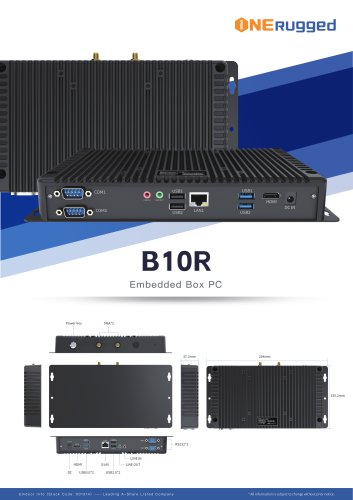 EM-B10R Specification
3 Pages
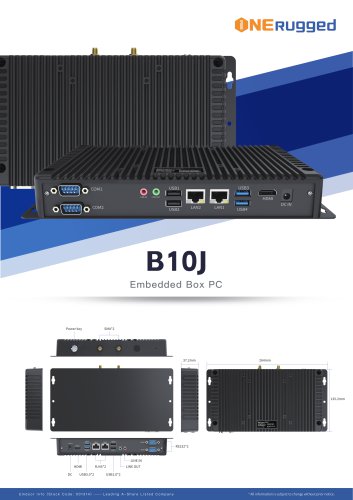 EM-B10J Specification
3 Pages
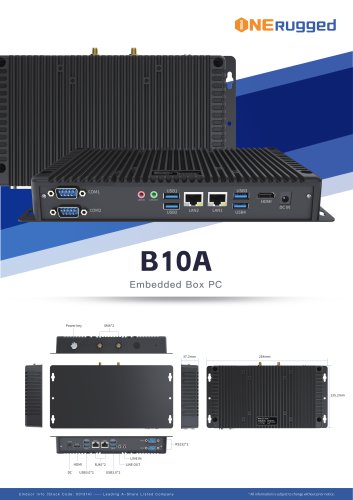 EM-B10A Specification
3 Pages
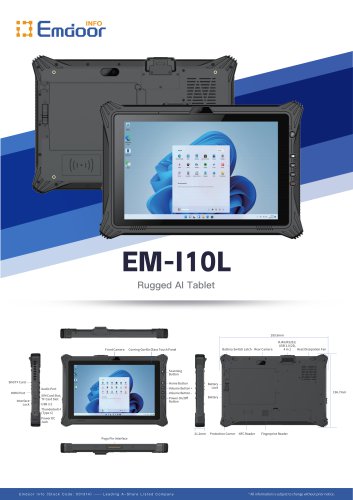 EM-I10L Specification
3 Pages
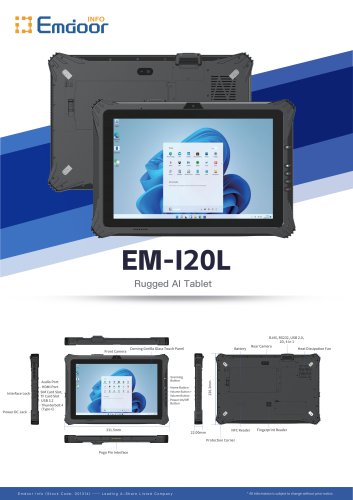 EM-I20L Specification
3 Pages
 EM-X14M Specification
2 Pages
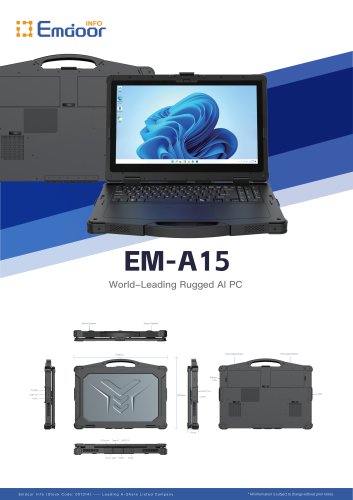 EM-A15 Specification
3 Pages
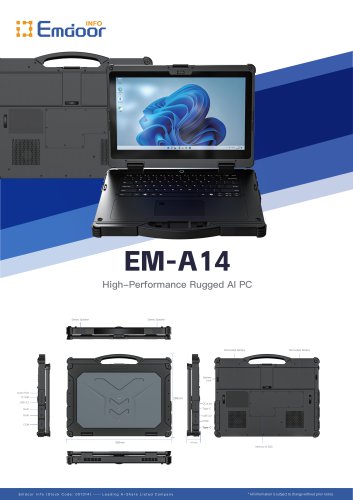 EM-A14 Specification
3 Pages
 EM-X15M Specification
2 Pages
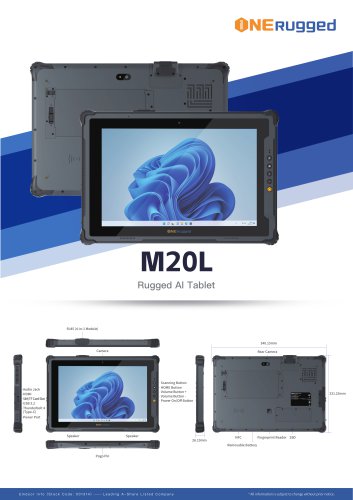 M20L-specification
3 Pages
 M14M-specification
2 Pages
 N14M-specification
2 Pages
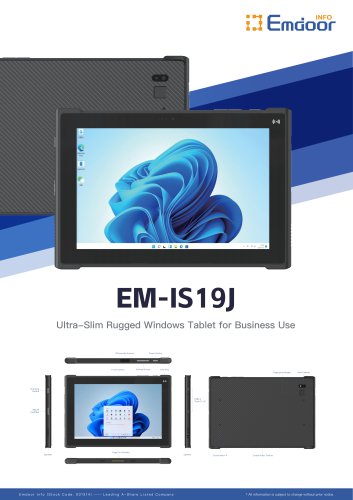 EM-IS19J specification
3 Pages
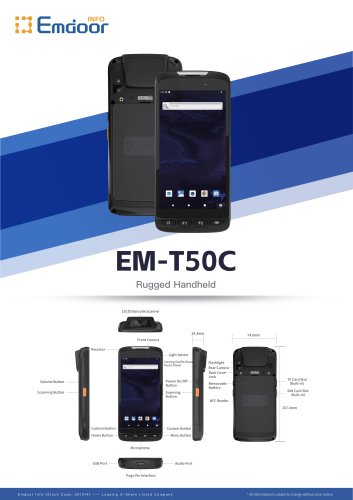 EM-T50C
3 Pages
 EM-D10R successful case
3 Pages
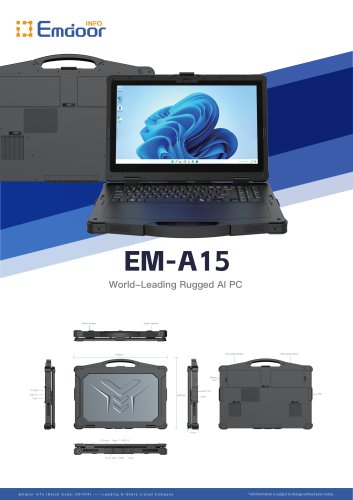 EM-A15
3 Pages
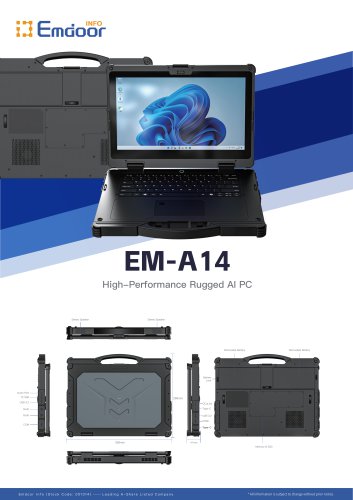 EM-A14
3 Pages
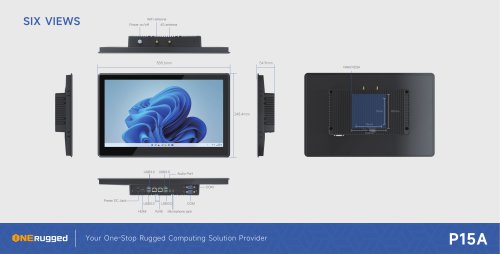 EM-P15A six views
1 Page
 EM-V12R USER MANUAL
2 Pages
 EM-P15A USER
2 Pages
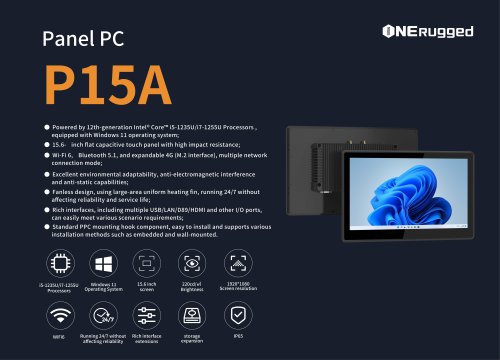 EM-P15A SPE
2 Pages
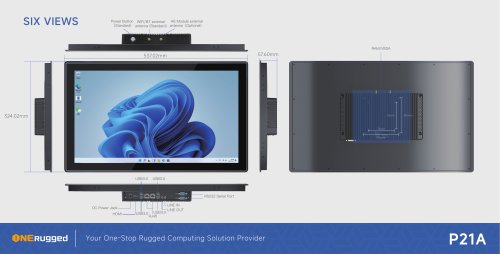 EM-P21A six views
1 Page
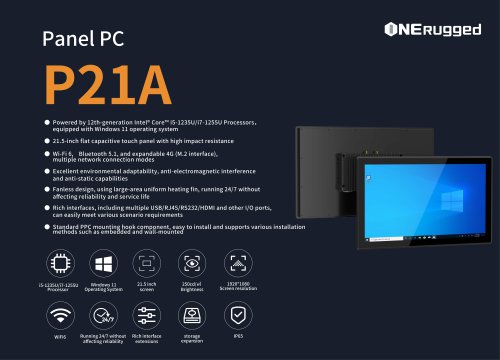 EM-P21A SPE
2 Pages
 EM-P21A user
2 Pages
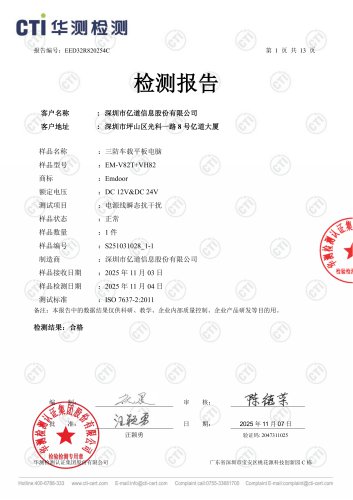 EM-V82T-EMC
13 Pages
 EM-V82T spe
4 Pages
 P2 PRO
2 Pages
 P2 PRO-SPE
2 Pages
 M82A- USER MANUAL
60 Pages
 M82A-spe
2 Pages
 EM-X15A User Manual
76 Pages
 EM-X15M Rugged AI PC uesr manual
76 Pages
 Emdoor Info. EM-I16J User Manual
57 Pages
 EM-I14M 14Inch Rugged AI PC
2 Pages
 EM-H68T: Android 14 rugged PDA
2 Pages
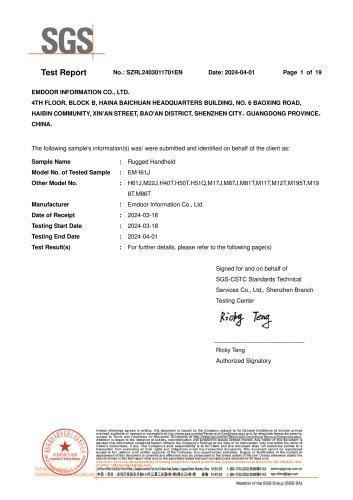 EM -I61J Rugged Handheld
19 Pages
 M10R Rugged Tablet RK3588
2 Pages
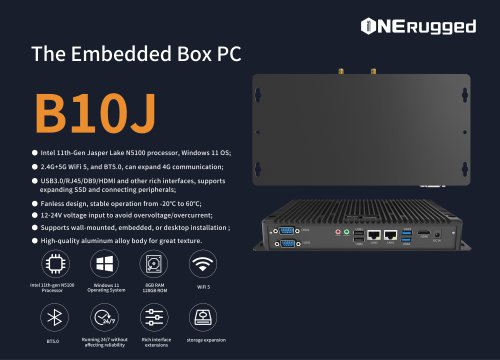 EM-B10J embedded box PC
3 Pages
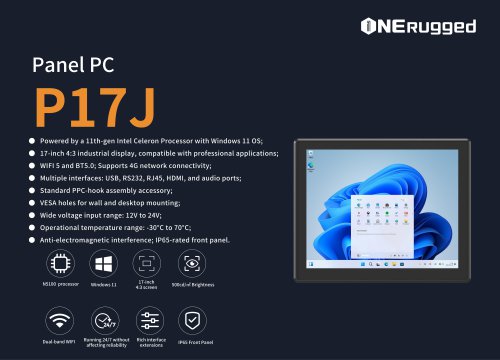 EM-P17J Panel PC
3 Pages
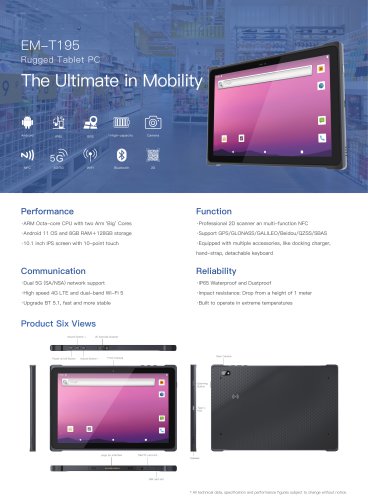 EM-T195 5G Rugged Tablet
2 Pages
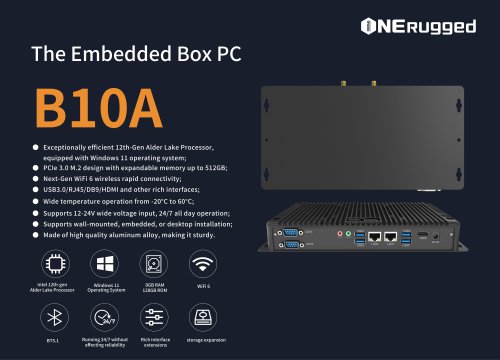 The Embedded Box PC-B10A
3 Pages
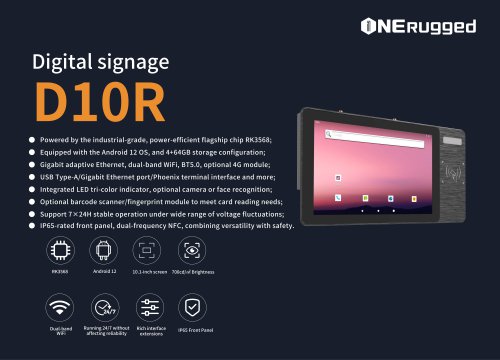 EM-D10R Digital signage
3 Pages
 EM-P1The Outdoor Rugged Phone
2 Pages
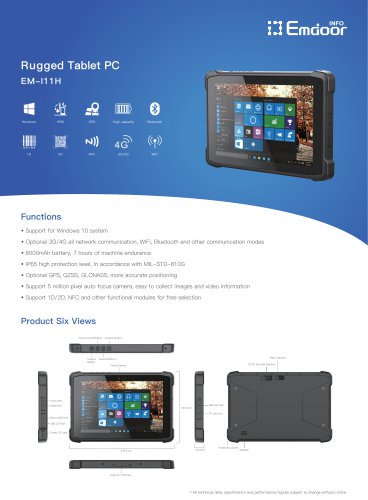 EM-I11H Rugged Tablet PC
2 Pages
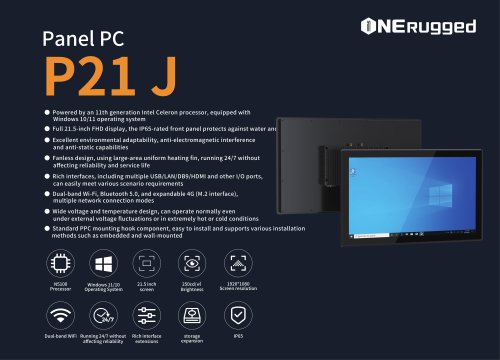
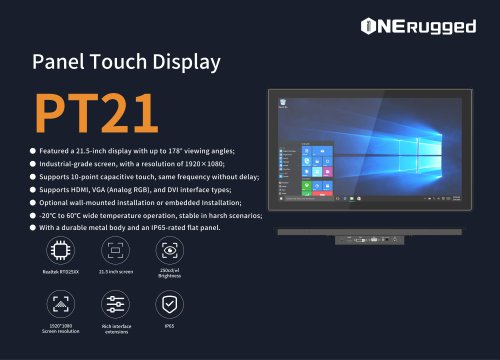 EM-PT21 Panel Touch Display
3 Pages
 Rugged Handheld H60T
2 Pages
























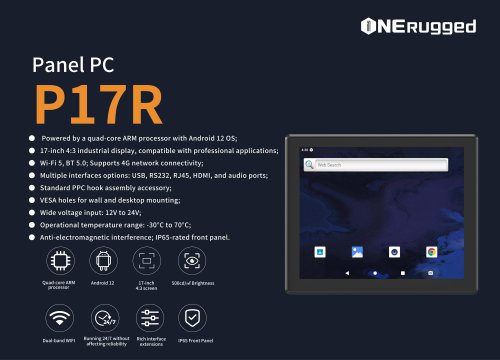
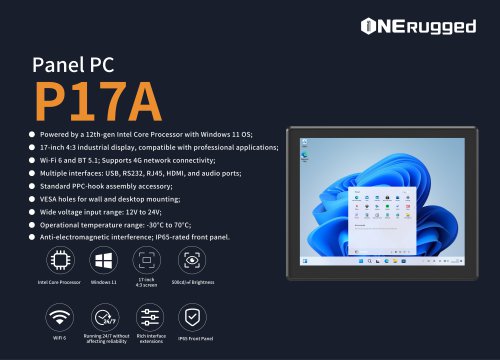















































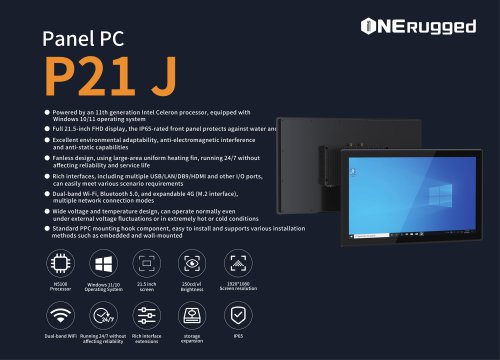




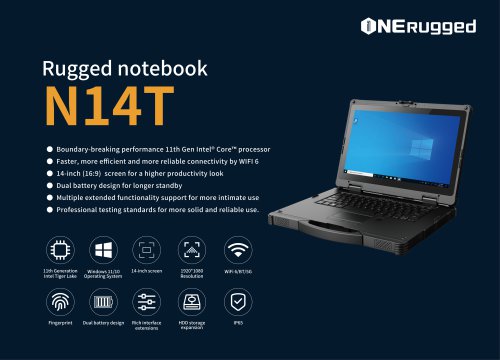
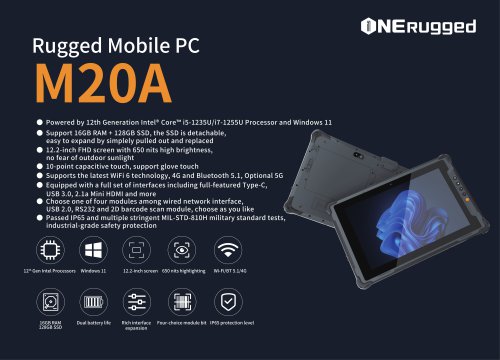
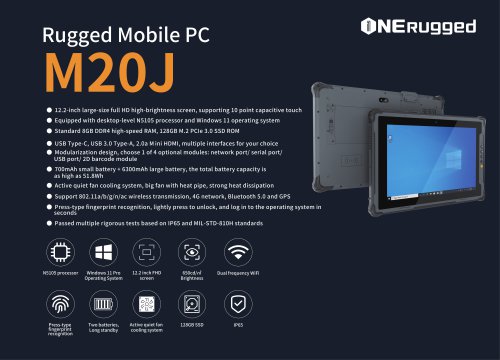













































- Display module
- Emdoor panel PC
- Emdoor industrial panel PC
- Emdoor panel PC with touch screen
- LCD display panel
- Emdoor fanless panel PC
- Emdoor LCD panel PC
- Industrial display panel
- Intel® Core™ PC
- Fanless PC
- Emdoor IP65 panel PC
- Intel® Core™ panel PC
- VESA mounting panel PC
- Housed panel PC
- HDMI PC
- Embedded PC
- Box PC
- RS-232 PC
- USB 2.0 PC
- Windows PC