
- Catalogs
- Eccel Technology Ltd
- EM4XXX Datalogger V2

EM4XXX Datalogger V2
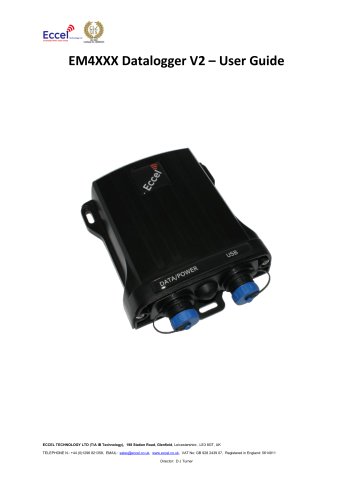
EM4XXX Datalogger V2
The EM4XXX Datalogger V2 is a fully IP68 rated system designed for RFID tag detection and data logging. It comprises four main components: loop antennas, an RFID unit, a datalogger/battery unit, and connection cables. The antennas are available in three sizes and can be configured as single or double, depending on the RFID unit. The RFID unit stores up to 100 detections before transferring data to the datalogger, which is powered by a rechargeable lithium-ion battery.
The device operates with a USB input voltage range of 4.5 to 5.5 V and a maximum input current of 3 A. Charging current ranges from 0.5 to 2.4 A, with a battery voltage range of 2.5 to 4.2 V. The internal battery capacity is 10.67 Ah, and the charging time for a fully discharged battery is approximately 5 hours. Current consumption varies based on mode: WiFi Mode (260-385 mA), Logging Mode (55-180 mA), and Night Mode (3 mA).
To begin, charge the datalogger unit using a USB power supply with a recommended capacity of 2.4 A. Connect the antennas to the RFID unit and the datalogger/battery unit. The system can be tested by connecting to the "Logger XX:XX:XX" WiFi network and accessing the RFID section via a web browser.
Users can configure settings such as date and time, polling rate, night time operation, and tag detection intervals. It is recommended to use Chrome, Opera, or the latest Edge browsers for easy configuration. Files can be downloaded and deleted to manage memory and power consumption efficiently.
Firmware upgrades for both the datalogger and RFID units are performed via the FW Upload button. Separate bin files are required for each unit, and the RFID unit should be upgraded first.
An external power bank can be used for extended operation, provided the output voltage is between 4.5 and 5.5 V. Note that the USB connector is not waterproof when the cap is removed, so additional protection is necessary.
Catalog excerpts
EM4XXX Datalogger V2 – User Guide ECCEL TECHNOLOGY LTD (T/A IB Technology), 198 Station Road, Glenfield, Leicestershire , LE3 8GT, UK TELEPHONE N.: +44 (0)1296 821358, EMAIL: [email protected], www.eccel.co.uk, VAT No: GB 928 2439 07, Registered in England: 5614911 Director: D J Turner
Open the catalog to page 1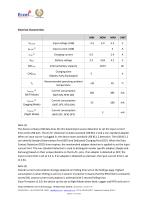
The device contains USB data lines (D+/D-) based input source detection to set the input current limit at the USB port. The D+/D- detection includes standard USB BC1.2 and a non-standard adapter. When an input source is plugged in, the device starts standard USB BC1.2 detection. The USB BC1.2 can identify Standard Downstream Port (SDP) and Dedicated Charging Port (DCP). When the Data Contact Detection (DCD) timer expires, the nonstandard adapter detection is applied to set the input current limit. The non-standard detection is used to distinguish vendor specific adapters (Apple and Samsung) based...
Open the catalog to page 2
the deep sleep condition for the user selected time with total current consumption down to 3mA during this period. The EM4xxx datalogger system is fully IP68 rated. It consists of 4 main elements. 1. Loop antennas. These are available currently in 3 diameters (45mm, 65mm and 80mm). All antennas come with 1.5m of cable. Antennas can be single or double, depending upon the RFID unit ordered being single or double. 2. RFID Unit. This unit can be a single antenna or double antenna version. It is IP68 rated and comes with two connectors. One to the antenna(s) and one to the datalogger/battery unit....
Open the catalog to page 3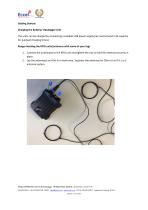
Getting Started Charging the Battery/ Datalogger Unit The units can be charged by connecting a suitable USB power supply (we recommend 2.4A capacity for quickest charging times). Range checking the RFID units/antennas with some of your tags 1. Connect the antenna(s) to the RFID unit and tighten the nut to hold the antenna securely in place. 2. Lay the antenna(s) out flat on a work area. Separate the antennas by 10cm or so if it is a 2antenna system. ECCEL TECHNOLOGY LTD (T/A IB Technology), 198 Station Road, Glenfield, Leicestershire , LE3 8GT, UK TELEPHONE N.: +44 (0)1296 821358, EMAIL: [email protected],...
Open the catalog to page 4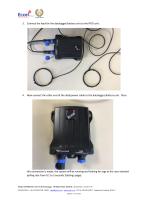
3. Connect the lead for the datalogger/battery unit to the RFID unit: 4. Now connect the other end of the data/power cable to the datalogger/battery unit. Once this connection is made, the system will be running and looking for tags at the user selected polling rate from 0.1 to 5 seconds (Settings page). ECCEL TECHNOLOGY LTD (T/A IB Technology), 198 Station Road, Glenfield, Leicestershire , LE3 8GT, UK TELEPHONE N.: +44 (0)1296 821358, EMAIL: [email protected], www.eccel.co.uk, VAT No: GB 928 2439 07, Registered in England: 5614911 Director: D J Turner
Open the catalog to page 5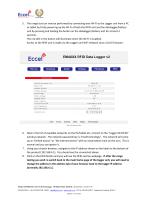
5. The range test can now be performed by connecting over Wi-Fi to the Logger unit from a PC or tablet by firstly powering up the Wi-Fi of both the RFID unit and the datalogger/battery unit by pressing and holding the button on the datalogger/battery unit for at least 3 seconds. The red LED in the button will illuminate when the Wi-Fi is enabled. Access to the RFID unit is made via the Logger unit WiFi network since v2.0.0 firmware. 6. Now in the list of available networks on the PC/tablet etc, connect to the “Logger XX:XX:XX” wireless network. The network password key is “EccelTechnology”. The...
Open the catalog to page 6
9. Now if you use a ruler and a test tag as shown below, you can lower the tag slowly a few mm at a time until you see the tag ID appear in one of the antenna tag ID lines on the screen. You can then see the range by reading the ruler and do the same for the other antenna if it is a 2-antenna system. (The tag ID will flash intermittently because the default polling is 0.25 seconds and the ignore last tag timeout is 1 second.) These tag readings will not be stored in a file for download because the WiFi is powered up. Tag detections are only stored when the WiFi is off, just like in normal detect...
Open the catalog to page 7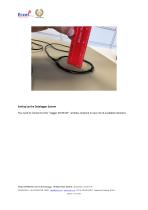
Setting Up the Datalogger System You need to connect to the “Logger XX:XX:XX” wireless network in your list of available networks. ECCEL TECHNOLOGY LTD (T/A IB Technology), 198 Station Road, Glenfield, Leicestershire , LE3 8GT, UK TELEPHONE N.: +44 (0)1296 821358, EMAIL: [email protected], www.eccel.co.uk, VAT No: GB 928 2439 07, Registered in England: 5614911 Director: D J Turne
Open the catalog to page 8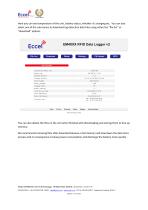
Here you can see temperature of the unit, battery status, whether it’s charging etc. You can also select one of the sub menus to download tag detection data files using either the “file list” or “download” options. You can also delete the files on the unit when finished with downloading and storing them to free up memory. We recommend removing files after download because a full memory will slow down the data store process and in consequence increase power consumption and discharge the battery more quickly . ECCEL TECHNOLOGY LTD (T/A IB Technology), 198 Station Road, Glenfield, Leicestershire...
Open the catalog to page 9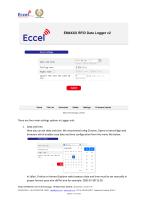
Device Settings Home File List Download Delete Settings Firmware Upload ©Eccel Technology Limited There are four main settings options in Logger unit: Here you can set date and time. We recommend using Chrome, Opera or latest Edge web browsers which enables easy date and time configuration form the menu like below: In Safari, Firefox or Internet Explorer web browsers date and time must be set manually in proper format: yyyy-mm-ddThh:mm for example: 2020-07-30T15:05 ECCEL TECHNOLOGY LTD (T/A IB Technology), 198 Station Road, Glenfield, Leicestershire , LE3 8GT, UK TELEPHONE N.: +44 (0)1296 821358,...
Open the catalog to page 10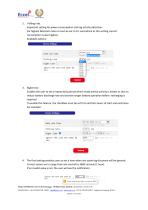
Polling rate. Important setting for power consumption and tag activity detection. For highest detection rates it must be set to 0.1 second but at this setting current consumption is also highest. Available options: 3. Night time Enables the user to set a repeat daily period where study animal activity is lowest or zero to reduce battery discharge rate and achieve longer battery operation before recharging is required. To enable this feature, the checkbox must be set first and then hours of start and end times. For example: 4. The final setting enables users to set a time when any same tag discovery...
Open the catalog to page 11