
- Catalogs
- Dino-Lite Europe/IDCP BV
- Dino-Lite User Manual


Dino-Lite User Manual
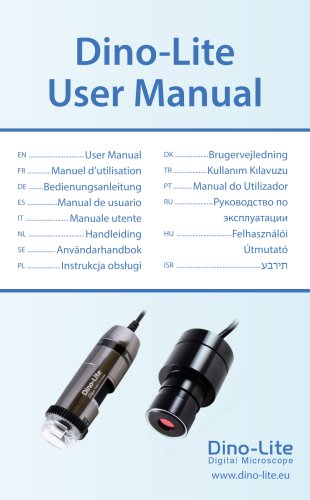
Dino-Lite User Manual
This manual provides guidance on using the Dino-Lite digital microscope, including software installation and usage for both Windows and macOS systems.
- Avoid touching the lens to prevent electrostatic damage.
- Do not drop the device.
- Keep the device dry.
- Download the latest software from www.dino-lite.eu.
- Run the Installshield wizard and follow the prompts.
- Connect the Dino-Lite to a USB 2.0 port only after installation.
- Connect the Dino-Lite to a fully powered USB port after software installation.
- Wait for automatic driver installation.
- Launch DinoCapture 2.0 to start using the microscope.
- Microtouch for capturing images and toggling LEDs.
- Polarizer to reduce glare.
- Various magnification and lighting options.
- DinoCapture (Windows): Includes menu bar, image tools, preview window management, and measurement tools.
- DinoXcope (Mac): Features action bar, image list, and options for photo and video capture.
- Clean the lens with compressed air and the body with a soft cloth.
- Use a 50%-70% alcohol solution for detachable caps.
- Two-year warranty excluding accessories.
- Contact reseller or visit Dino-Lite Europe support pages for assistance.
- Different magnification levels, LED types, and lighting options available.
Catalog excerpts
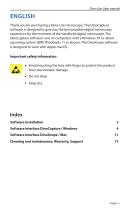
Dino-Lite User manual Thank you for purchasing a Dino-Lite microscope. The DinoCapture software is designed to give you the best possible digital microscopy experience by the inventors of the handheld digital microscope. The DinoCapture software runs on computers with a Windows XP or above operating system (8MP Windowds 11 or above). The DinoXcope software is designed to work with Apple macOS. Important safety information • Avoid touching the lens with finger to protect the product from electrostatic damage Software interface DinoCapture / Windows 4 Software interface DinoXcope / Mac 11 Cleaning...
Open the catalog to page 3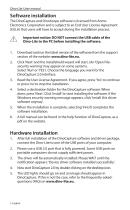
Dino-Lite User manual The DinoCapture and DinoXcope software is licensed from Anmo Electronics Corporation and is subject to an End User License Agreement (EULA) that users will have to accept during the installation process. Important notice: DO NOT connect the USB cable of the Dino-Lite to the PC before installing the software. 1. Download and run the latest version of the software from the support section of the website: www.dino-lite.eu. 2. Click 'Next' and the Installshield wizard will start. (An 'Open File-security warning' may appear on some systems. Select 'Run' or 'YES'). Choose the...
Open the catalog to page 4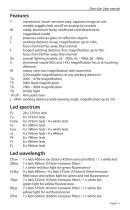
Dino-Lite User manual T microtouch, touch-sensitive area, captures image on usb models, toggles leds on/off on analog (tv) models M metal, aluminum-body, reinforced cord attachment, ruggedized model Z polarizer, reduces glare on reflective objects L working distance (long), magnification up to 140x, focus from farther away than normal F longest working distance (far), magnification up to 70x, focus from farther away than normal Xa coaxial lighting models, 2a - 200x, 4a - 400x, 8a - 800x S shortened nozzle (85x and 145x magnification focus at touching W macro view, low magnification with zoom...
Open the catalog to page 5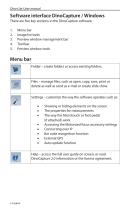
Dino-Lite User manual There are five key sections in the DinoCapture software: 2. Image list tools 3. Preview window management bar 5. Preview window tools Folder - create folders or access existing folders. Files - manage files, such as open, copy, save, print or delete as well as send as e-mail or create slide show. Settings - customize the way the software operates such as: • Showing or hiding elements on the screen • The way the Microtouch or foot pedal (if attached) work • Accessing the Motorized focus accessory settings • Bar code recognition function • Auto update function Help - access...
Open the catalog to page 6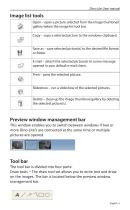
Dino-Lite User manual This window enables you to switch between windows if two or more Dino-Lite's are connected at the same time or multiple pictures are opened. The tool bar is divided into four parts: Draw tools - The draw tool set allows you to write text and draw on the images. The bar is located below the preview window management bar.
Open the catalog to page 7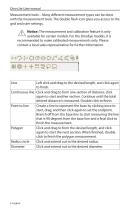
Dino-Lite User manual Measurement tools - Many different measurement types can be done with the measurement tools. The double flash icon gives you access to the grid and ruler settings. Notice: The measurement and calibration feature is only available for certain models. For the DinoEye models, it is recommended to make calibrated measurements only. Please contact a local sales representative for further information.
Open the catalog to page 8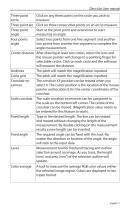
Dino-Lite User manual
Open the catalog to page 9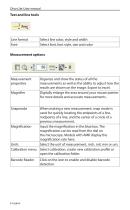
Dino-Lite User manual Text and line tools Dino-Lite User manual Line format Measurement options
Open the catalog to page 10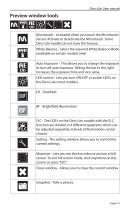
Dino-Lite User manual Preview window tools Microtouch - Activated when you touch the Microtouch sensor. Activate or deactivate the Microtouch. Some Dino-Lite models do not have this feature. White Balance - Select the required White Balance Mode (available on certain models only) Auto Exposure – This allows you to change the exposure or turn off auto exposure. Sliding the bar to the right increases the exposure time and vice versa. LED control - Lets you turn ON/OFF or switch LED’s on the Dino-Lite (most models). DF - Darkfield FLC - The LED’s on the Dino-Lite models with the FLC function are...
Open the catalog to page 11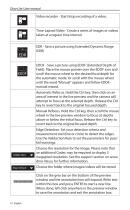
Dino-Lite User manual Video recorder - Start/stop recording of a video. Time-Lapsed Video - Create a series of images or videos taken at a regular time interval EDR - Save a picture using Extended Dynamic Range (EDR) EDOF - Save a picture using EDOF (Extended Depth of Field). Place the mouse pointer over the EDOF icon and scroll the mouse wheel to the desired focal depth for the automatic mode. Or scroll with the mouse wheel until the word "Manual" appears and follow EDOFmanual wizard. Automatic Refocus. Hold the Ctrl key, then click on an area of interest in the live preview and the camera will...
Open the catalog to page 12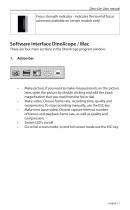
Dino-Lite User manual There are four main sections in the DinoXcope program window: Make picture. If you want to make measurements on the picture later, open the picture by double clicking and add the input magnification that you read from the focus dial. Make video. Choose frame rate, recording time, quality and compression. To stop recording manually, use the ESC key Make time lapse video. Choose capture interval, number of frames and playback frame rate, as well as quality and compression. Switch LED's on/off Go to full screen mode, to end full screen mode use the ESC key
Open the catalog to page 13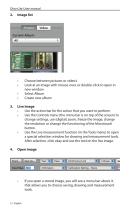
Dino-Lite User manual • Choose between pictures or video's • Look at an image with mouse-over, or double-click to open in new window • Select Album • Use the action bar for the action that you want to perform • Use the Controls menu (the menu bar is on top of the screen) to change settings, use (digital) zoom, freeze the image, change the resolution or change the functioning of the Microtouch button. • Use the Live measurement function (in the Tools menu) to open a special selection window for drawing and measurement tools. After selection, click okay and use the tool on the live image. If you...
Open the catalog to page 14
Dino-Lite User manual Cleaning and maintenance Avoid touching the lens with any substance. Clean the lens periodically with compressed air. Clean the body of the microscope regularly with a soft cloth dampened with disinfectant. Clean the detachable caps with a 50%-70% alcohol solution, do not use diethyl ether, 100% alcohol or alcohol gel. Warranty The DinoCapture software is provided for use with a Dino-Lite digital microscope supplied by AnMo Electronics or one of its distributors or resellers. The use of the DinoCapture software is guided by the End User License Agreement. The Dino-Lite product...
Open the catalog to page 15All Dino-Lite Europe/IDCP BV catalogs and technical brochures
 Dino-Lite Jewellery
12 Pages
 General Dino-Lite Brochure 2025
64 Pages
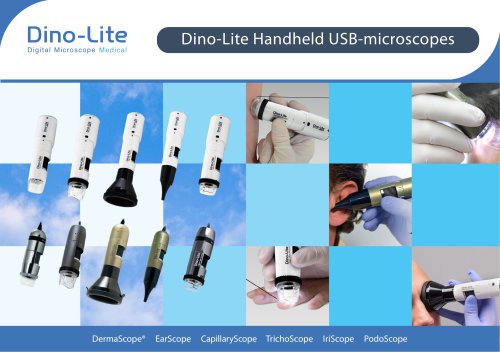 Medical Brochure
32 Pages
 Brochure for Education
8 Pages
Archived catalogs
 Cultural Heritage brochure
8 Pages

- Digital imager
- Visible imager
- CMOS camera module
- Full-color camera system
- USB camera module
- Dino-Lite optical microscope
- Image processing camera module
- HD camera module
- Dino-Lite laboratory microscope
- Transceiver module
- Dino-Lite inspection microscope
- Dino-Lite LED illumination microscope
- Laboratory camera module
- Spark optical emission camera module
- Dino-Lite digital camera microscope
- Megapixel imager
- Dino-Lite measuring microscope
- Dino-Lite polarized microscope
- Dino-Lite USB microscope