
- Catalogs
- ColorLite GmbH
- ColorDaTra IPM - Overview

ColorDaTra IPM - Overview

ColorDaTra IPM - Overview
The document provides instructions for using the PC software ColorDaTra IPM, which operates independently of a PC but can connect to one for data management. The device can store up to 1000 samples and automatically download them when reconnected. It can output data via RS232, USB, or Process Feld Bus and uses SQL Database software for data visualization and calibration.
Starting the Software
To start the software, click the desktop icon. The system connects automatically with the default password 'PASS'.
Standard Measurement (F4)
Users can measure new standards by entering a name and following a calibration routine. The CIEL*a*b* values can be measured, and standards can be deleted using the 'DELETE' key. The BAM Standard holder can be used as a spacer.
Scan Sample (F2)
Select a standard color from the list and measure new values, which are added to a trend diagram. The data can be visualized as CIE L*a*b* values.
Settings (F6)
This section allows customization of settings such as the number of scans, trigger delay, and communication port settings.
Display Results (F5)
Stored data can be displayed in table form, printed, or exported to Excel. Additional customer-specific features are available.
Contact Information
ColorLite GmbH, Am Zimmerplatz 2, 37191 Katlenburg-Lindau, Germany. Phone: +49 (0) 5552 999 580, Email: [email protected], Website: www.colorlite.de
Catalog excerpts
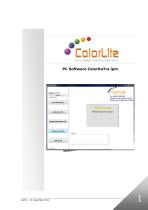
Innovarive Farbmessfechnik Change with click Internet: www.ColorLite.de Email: [email protected] Please choose function
Open the catalog to page 1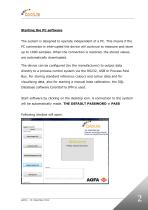
nnoveUvE FBrbmtssrcc-irik The system is designed to operate independent of a PC. This means if the PC connection is interrupted the device will continue to measure and store up to 1000 samples. When the connection is restored, the stored values The device can be configured (by the manufacturer) to output data directly to a process control system via the RS232, USB or Process Feld Bus. For storing standard reference colours and colour data and for visualising data, also for starting a manual base calibration, the SQL Database software ColorDaTra IPM is used. Start software by clicking on the desktop...
Open the catalog to page 2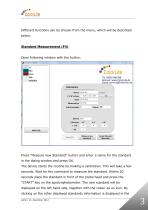
Different functions can be chosen from the menu, which will be described Open following window with the button: white tile Internet: www.ColorLite.de Email: [email protected] Name: white tile Create Standard Press "Measure new Standard" button and enter a name for the standard in the dialog window and press OK. The device starts the routine by making a calibration. This will take a few seconds. Wait for the command to measure the standard. Within 20 seconds place the standard in front of the probe head and press the "START" key on the spectrophotometer. The new standard will be displayed on...
Open the catalog to page 3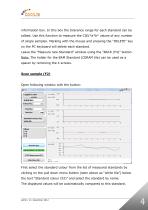
information box. In this box the tolerance range for each standard can be edited. Use this function to measure the CIEL*a*b* values of any number of single samples. Marking with the mouse and pressing the "DELETE" key on the PC keyboard will delete each standard. Leave the "Measure new Standard" window using the "BACK (F4)" button. Note: The holder for the BAM Standard (CERAM tile) can be used as a spacer by removing the 4 screws. Open following window with the button: white tile First select the standard colour from the list of measured standards by clicking on the pull down menu button (seen...
Open the catalog to page 4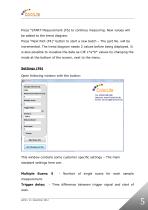
Press "START Measurement (F5) to continue measuring. New values will be added to the trend diagram. Press "Next Part (F4)" button to start a new batch - The part No. will be incremented. The trend diagram needs 2 values before being displayed. It is also possible to visualise the data as CIE l_*a*b* values by changing the mode at the bottom of the screen, next to the menu. Open following window with the button: Basic settings Trigger delay: Distance factor: Invert port: Internet: www.ColorLite.de Email: [email protected] This window contains some customer specific settings - The main standard...
Open the catalog to page 5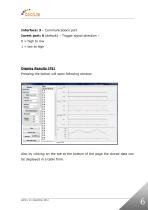
Interface: 3 - Communications port Invert port: 0 (default) - Trigger signal direction - Pressing the button will open following window: Part information Also by clicking on the tab at the bottom of the page the stored data can be displayed in a table form.
Open the catalog to page 6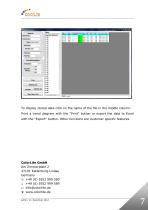
Part information Standard: white tile To display stored data click on the name of the file in the middle column. Print a trend diagram with the "Print" button or export the data to Excel with the "Export" button. Other functions are customer specific features. ColorLite GmbH
Open the catalog to page 7All ColorLite GmbH catalogs and technical brochures
 ColorLite Densitometer sd350
4 Pages
 ColorLite PC Software
17 Pages
 sph900 und sph870
32 Pages
 Industry spectrophotometer sph9i
12 Pages
 ColorLite ColorCube
2 Pages
 ColorLite sph xs1
2 Pages
 ColorLite sph870
2 Pages
 ColorLite sph860
2 Pages
 ColorLite MA38 and MA38-Set
2 Pages
 ColorLite MA35-UK
2 Pages
 ColorLite sph900
32 Pages
 Spectrophometer
2 Pages
 Laboratory Spectrophotomter
2 Pages


