
- Catalogs
- Cisco Systems
- Catalyst 9400 Series

Catalyst 9400 Series

Catalyst 9400 Series
The Cisco 250 Series Smart Switch is designed for immediate operation as a standard switch, facilitating packet forwarding between connected devices upon power-up.
- Cisco 250 Series Smart Switch
- Rackmount Kit
- Power Cord or Adapter
- Quick Start Guide
- Pointer Card with China RoHS
- Technical Support Contacts
- EU Directives Compliance Information (for EU SKU only)
Ensure availability of RJ-45 Ethernet cables (Category 5e or higher) and necessary installation tools. A computer with a compatible web browser is required for configuration.
- Desktop Placement: Attach rubber feet to the switch's bottom.
- Rack Mounting: Use provided brackets and screws for installation in a standard 19-inch rack.
- Wall Mounting: Drill pilot holes, insert screws, and securely mount the switch.
Connect network devices using Ethernet cables to the switch ports, ensuring the use of Cat5 or better cables for Gigabit connectivity, with a maximum cable length of 100 meters.
PoE models can power devices like VoIP phones and IP cameras. Disable PoE on ports connected to other PSEs to avoid false detection.
Access the switch via its web interface using the default IP address 192.168.1.254. Log in with default credentials (username: cisco, password: cisco) and change the password upon first login.
- Power Issues: Verify power connections and replace the adapter if needed.
- Ethernet Connection: Check cable connections and try different cables or ports.
- IP Addressing: Ensure correct IP address usage and check for conflicts.
The switches feature USB ports, RJ-45 Ethernet ports, and SFP ports for connectivity. LEDs indicate power, link activity, and PoE status.
To reset the switch, press the reset button for less than 10 seconds to reboot or follow specific steps to restore factory settings.
The Cisco 250 Series Smart Switches are class A products, which may cause radio interference in domestic environments, requiring users to take adequate measures.
Support resources include the Cisco Support Community, Cisco Support and Resources, and Phone Support Contacts. Firmware downloads are available without login.
Users can request source code under applicable licenses by contacting [email protected] with product details.
Information for Cisco partners is available through Cisco Partner Central. Product documentation is accessible online.
Regulatory, compliance, safety, and warranty information are available through specified Cisco URLs.
Cisco Systems, Inc. has over 200 offices worldwide, with contact details available on the Cisco website.
Cisco and the Cisco logo are trademarks or registered trademarks of Cisco and/or its affiliates. A list of Cisco trademarks is available online.
Catalog excerpts
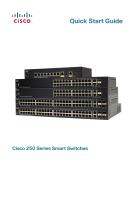
Quick Start Guide Cisco 250 Series Smart Switches
Open the catalog to page 1
Welcome Thank you for choosing the Cisco 250 Series Smart Switch. These switches are designed to be operational right out-of-the-box as a standard switch. In the default configuration, it forwards packets between the connecting devices after powered up. Package Contents • Cisco 250 Series Smart Switch • Rackmount Kit • Power Cord or Adapter • This Quick Start Guide • Pointer Card with China RoHS • Technical Support Contacts • EU Directives 1999/5/EC Compliance Information (for EU SKU only) This guide familiarizes you with the smart switch layout and describes how to deploy the switch in your...
Open the catalog to page 2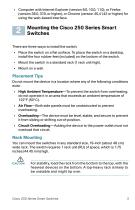
• Computer with Internet Explorer (version 9.0, 10.0, 11.0), or Firefox (version 36.0, 37.0, or higher), or Chrome (version 40,41,42 or higher) for using the web-based interface. Mounting the Cisco 250 Series Smart Switches There are three ways to install the switch: • Place the switch on a flat surface. To place the switch on a desktop, install the four rubber feet (included) on the bottom of the switch. • Mount the switch in a standard rack (1 rack unit high). • Mount on a wall. Placement Tips Do not mount the device in a location where any of the following conditions exist: • High Ambient...
Open the catalog to page 3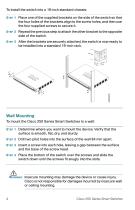
To install the switch into a 19-inch standard chassis: STEP 1 Place one of the supplied brackets on the side of the switch so that the four holes of the brackets align to the screw holes, and then use the four supplied screws to secure it. STEP 2 Repeat the previous step to attach the other bracket to the opposite side of the switch. STEP 3 After the brackets are securely attached, the switch is now ready to be installed into a standard 19-inch rack. Wall Mounting To mount the Cisco 250 Series Smart Switches to a wall: STEP 1 Determine where you want to mount the device. Verify that the surface...
Open the catalog to page 4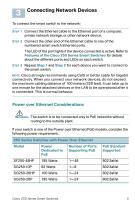
Connecting Network Devices To connect the smart switch to the network: STEP 1 Connect the Ethernet cable to the Ethernet port of a computer, printer, network storage, or other network device. STEP 2 Connect the other end of the Ethernet cable to one of the numbered smart switch Ethernet ports. The LED of the port lights if the device connected is active. Refer to Features of the Cisco 250 Series Smart Switches for details about the different ports and LEDs on each switch. STEP 3 Repeat Step 1 and Step 2 for each device you want to connect to the smart switch. NOTE Cisco strongly recommends using...
Open the catalog to page 5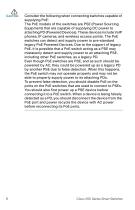
Consider the following when connecting switches capable of supplying PoE: The PoE models of the switches are PSE (Power Sourcing Equipment) that are capable of supplying DC power to attaching PD (Powered Devices). These devices include VoIP phones, IP cameras, and wireless access points. The PoE switches can detect and supply power to pre-standard legacy PoE Powered Devices. Due to the support of legacy PoE, it is possible that a PoE switch acting as a PSE may mistakenly detect and supply power to an attaching PSE, including other PoE switches, as a legacy PD. Even though PoE switches are PSE,...
Open the catalog to page 6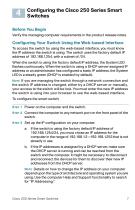
Configuring the Cisco 250 Series Smart Switches Before You Begin Verify the managing computer requirements in the product release notes. Configuring Your Switch Using the Web-based Interface To access the switch by using the web-based interface, you must know the IP address the switch is using. The switch uses the factory default IP address of 192.168.1.254, with a subnet of /24. When the switch is using the factory default IP address, the System LED flashes continuously. When the switch is using a DHCP server-assigned IP address or an administrator has configured a static IP address, the System...
Open the catalog to page 7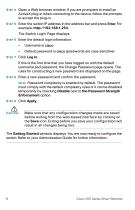
STEP 4 Open a Web browser window. If you are prompted to install an ActiveX plug-in when connecting to the device, follow the prompts to accept the plug-in. STEP 5 Enter the switch IP address in the address bar and press Enter. For example, http://192.168.1.254. The Switch Login Page displays. STEP 6 Enter the default login information: Default password is cisco (passwords are case sensitive) If this is the first time that you have logged on with the default username and password, the Change Password page opens. The rules for constructing a new password are displayed on the page. STEP 8 Enter...
Open the catalog to page 8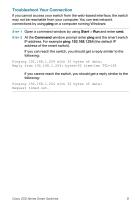
Troubleshoot Your Connection If you cannot access your switch from the web-based interface, the switch may not be reachable from your computer. You can test network connections by using ping on a computer running Windows: STEP 1 Open a command window by using Start > Run and enter cmd. STEP 2 At the Command window prompt enter ping and the smart switch IP address. For example ping 192.168.1.254 (the default IP address of the smart switch). If you can reach the switch, you should get a reply similar to the following: Pinging 192.168.1.254 with 32 bytes of data: Reply from 192.168.1.254: bytes=32...
Open the catalog to page 9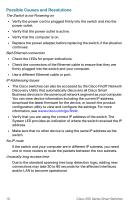
Possible Causes and Resolutions The Switch is not Powering on • Verify the power cord is plugged firmly into the switch and into the power outlet. • Verify that the power outlet is active. • Verify that the computer is on. • Replace the power adapter, before replacing the switch, if the situation continues. Bad Ethernet connection • Check the LEDs for proper indications. • Check the connectors of the Ethernet cable to ensure that they are firmly plugged into the switch and your computer. • Use a different Ethernet cable or port. IP Addressing Issues • The Cisco switches can also be accessed by...
Open the catalog to page 10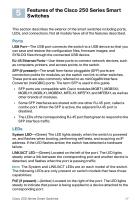
Features of the Cisco 250 Series Smart Switches This section describes the exterior of the smart switches including ports, LEDs, and connections. Not all models have all of the features described. Ports USB Port—The USB port connects the switch to a USB device so that you can save and restore the configuration files, firmware images, and SYSLOG files through the connected USB device. RJ-45 Ethernet Ports—Use these ports to connect network devices, such as computers, printers, and access points, to the switch. SFP (if present)—The small form-factor pluggable (SFP) ports are connection points for...
Open the catalog to page 11All Cisco Systems catalogs and technical brochures
 Cisco MDS 9396T
15 Pages
 Cisco IP Phone Portfolio
45 Pages
 Cisco Nexus 3132C-Z Switches
15 Pages
 Cisco Catalyst 9000
8 Pages
 Cisco 250 Series
17 Pages
 Cisco 220
13 Pages
 Cisco 200E
8 Pages
 Cisco 90 Series
5 Pages
 860
8608 Pages


Archived catalogs
 MDS 9700 Series brochure
2 Pages
 Cisco MDS 9700 Series
2 Pages
 Cisco 500
7 Pages
 809
80916 Pages
 PROFINET_c11-351501
5 Pages
 MDS 9500
11 Pages
 Cisco 5700 Series
8 Pages
 500 series
6 Pages
 Cisco 2500
7 Pages
 Cisco Flex 7500
7 Pages
 Cisco Video Analytics
4 Pages
 c78-713207
7 Pages
 c78-521631
9 Pages
 c78-492032
6 Pages
 C78-464240
4 Pages
 data_sheet_C78-727789
5 Pages
 cisco_prime_
1 Page
 Cisco 4451-X
11 Pages
 Cisco Nexus 9300
16 Pages
 r42610
18 Pages
 NAC
NAC5 Pages
 c78-701253
13 Pages
 0900aecd802930c5
22 Pages
 c78-553913
10 Pages
 c78-553971
5 Pages
 c78-612808
11 Pages
 c78-584157
5 Pages
 c36-609138
9 Pages
 c78-660124
6 Pages
 c78-644629
5 Pages
 c78-553980
11 Pages
 c78-714747
6 Pages
 c78-714744
6 Pages
 data_sheet_c78-714746
6 Pages
 c78-714745
6 Pages
 brochure_c02-717032
2 Pages
 brochure_c02-466008
6 Pages
 brochure_c02-643975
3 Pages
 Cisco_ClientLink
6 Pages
 brochure_c02-646027
41 Pages


- Ethernet switch
- Automation software solution
- Management software solution
- Real-time software
- Cloud-based software
- Managed switch
- Automated software
- Layer 2 network switch
- Rack-mount server
- Network software
- Ethernet communication router
- Industrial communication router
- Storage server
- Cellular communication router
- Communication router with VPN
- Optimization software
- Compact network switch
- Intel® Xeon server
- WAN communication router
- Layer 3 network switch