
- Catalogs
- ChefsTemp (Leadtek Inc.)
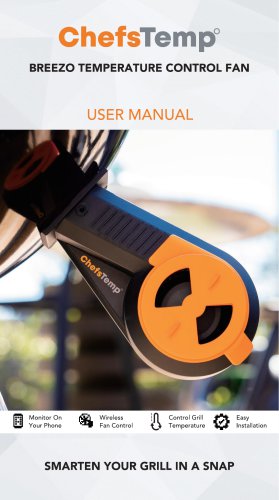
- BREEZO TEMPERATURE CONTROL FAN

BREEZO TEMPERATURE CONTROL FAN
1 /20Pages
BREEZO TEMPERATURE CONTROL FAN
1 /20Pages
Catalog excerpts

BREEZO TEMPERATURE CONTROL FAN SMARTEN YOUR GRILL IN A SNAP
Open the catalog to page 1
Scan the QR code below to download and Install the ChefsTemp App for your phone's operating system.
Open the catalog to page 2
Before using your product, please visit our Help Center first! Go to: https://help.chefstemp.com (or scan the QR code below) Our online Help Center is more up-to-date and detailed than the printed manual. You'll find: • Must-watch tutorial videos • Comprehensive FAQs • Step-by-step troubleshooting guides We continuously update these resources based on real customer feedback to ensure you have the best experience possible. Your success in the kitchen is our priority! Questions? Phone: +1(559)563-8838 Email: [email protected]
Open the catalog to page 3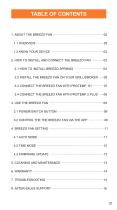
2.4 CONNECT THE BREEZO FAN WITH PROTEMP 2 PLUS 08
Open the catalog to page 4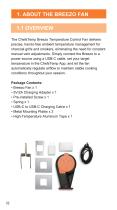
The ChefsTemp Breezo Temperature Control Fan delivers precise, hands-free ambient temperature management for charcoal grills and smokers, eliminating the need for constant manual vent adjustments. Simply connect the Breezo to a power source using a USB-C cable, set your target temperature in the ChefsTemp App, and let the fan automatically regulate airflow to maintain stable cooking conditions throughout your session. Package Contents: • USB-C to USB-C Charging Cable x 1 • Metal Mounting Plates x 3 • High-Temperature Aluminum Tape x 1
Open the catalog to page 5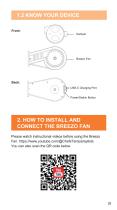
2. HOW TO INSTALL AND CONNECT THE BREEZO FAN Please watch instructional videos before using the Breezo Fan: https://www.youtube.eom/@ChefsTemp/playlists You can also scan the QR code below:
Open the catalog to page 6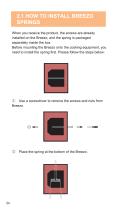
When you receive the product, the screws are already installed on the Breezo, and the spring is packaged separately inside the box. Before mounting the Breezo onto the cooking equipment, you need to install the spring first. Please follow the steps below: CD Use a screwdriver to remove the screws and nuts from Breezo. © Place the spring at the bottom of the Breezo.
Open the catalog to page 7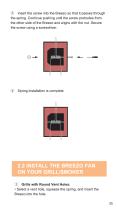
(D Insert the screw into the Breezo so that it passes through the spring. Continue pushing until the screw protrudes from the other side of the Breezo and aligns with the nut. Secure the screw using a screwdriver. (D Spring installation is complete. ® Grills with Round Vent Holes: • Select a vent hole, squeeze the spring, and insert the Breezo into the hole.
Open the catalog to page 8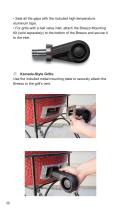
• Seal all the gaps with the Included hlgh-temperature aluminum tape. • For grills with a ball valve Inlet, attach the Breezo Mounting Kit (sold separately) to the bottom of the Breezo and secure It to the Inlet. Use the included metal mounting plate to securely attach the Breezo to the grill's vent.
Open the catalog to page 9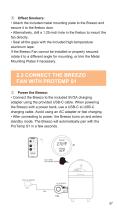
• Attach the included metal mounting plate to the Breezo and secure it to the firebox door. • Alternatively, drill a 1.25-inch hole in the firebox to mount the fan directly. • Seal all the gaps with the included high-temperature aluminum tape. If the Breezo Fan cannot be installed or properly secured, rotate it to a different angle for mounting, or trim the Metal Mounting Plates if necessary. • Connect the Breezo to the included 5V/2A charging adapter using the provided USB-C cable. When powering the Breezo with a power bank, use a USB-C to USB-C charging cable. Avoid using an AC adapter or fast...
Open the catalog to page 10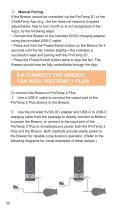
If the Breezo cannot be controlled via the ProTemp SI or the ChefsTemp App (e.g., the fan does not respond to speed adjustments, fails to turn on/off, or is not recognized in the App), try the following steps: • Connect the Breezo to the included 5V/2A charging adapter using the provided USB-C cable. • Press and hold the Power/Switch button on the Breezo for 4 seconds until the fan rotates slightly—this indicates a successful reset and pairing with the ProTemp SI. • Press the Power/Switch button twice to stop the fan. The Breezo should now be fully controllable through the App. To connect the...
Open the catalog to page 11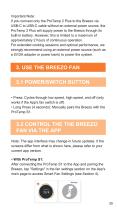
Important Note: If you connect only the ProTemp 2 Plus to the Breezo via USB-C to USB-C cable without an external power source, the ProTemp 2 Plus will supply power to the Breezo through its built-in battery. However, this is limited to a maximum of approximately 2 hours of continuous operation. For extended cooking sessions and optimal performance, we strongly recommend using an external power source (such as a 5V/2A adapter or power bank) to power the system. • Press: Cycles through low speed, high speed, and off (only works if the App's fan switch is off). • Long Press (4 seconds): Manually...
Open the catalog to page 12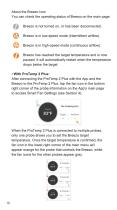
About the Breezo Icon You can check the operating status of Breezo on the main page: Breezo is not turned on, or has been disconnected. Breezo is in low-speed mode (intermittent airflow). Breezo is in high-speed mode (continuous airflow). Breezo has reached the target temperature and is now paused. It will automatically restart when the temperature drops below the target. • With ProTemp 2 Plus: After connecting the ProTemp 2 Plus with the App and the Breezo to the ProTemp 2 Plus, tap the fan icon in the bottom right corner of the probe information on the App's main page to access Smart Fan Settings...
Open the catalog to page 13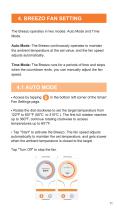
The Breezo operates in two modes: Auto Mode and Time Mode. Auto Mode: The Breezo continuously operates to maintain the ambient temperature at the set value, and the fan speed adjusts automatically. Time Mode: The Breezo runs for a periods of time and stops when the countdown ends, you can manually adjust the fan speed. • Access by tapping in the bottom left corner of the Smart Fan Settings page. • Rotate the dial clockwise to set the target temperature from 122°F to 601 °F (50°C to 315°C ). The first full rotation reaches up to 360°F; continue rotating clockwise to access temperatures up to 601...
Open the catalog to page 14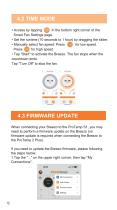
• Access by tapping in the bottom right corner of the Smart Fan Settings page. • Set the runtime (10 seconds to 1 hour) by dragging the slider. • Manually select fan speed: Press for low speed. Press for high speed. • Tap "Start" to activate the Breezo. The fan stops when the countdown ends. 4.3 FIRMWARE UPDATE When connecting your Breezo to the ProTemp SI, you may need to perform a firmware update on the Breezo (no firmware update is required when connecting the Breezo to the ProTemp 2 Plus). If you need to update the Breezo firmware, please following the steps below: 1 .Tap theon the upper...
Open the catalog to page 15All ChefsTemp (Leadtek Inc.) catalogs and technical brochures
 PROTEMP S1 SMART THERMOMETER HUB
32 Pages




- Propeller fan
- Air circulation fan
- Digital pyrometer
- Electrically-powered fan
- °C thermometer
- Waterproof thermometer
- Portable pyrometer
- °F thermometer
- Resistance thermometer
- Food thermometer
- Mobile fan
- DC fan
- Outdoor fan
- Multi-channel thermometer
- High-temperature fan
- Platinum resistive thermometer
- Bluetooth thermometer
- IP54 thermometer
- Thermally-controlled fan
- 4-channel thermometer
 鄂公网安备42018502009509号 -