


APEX2

APEX2
The Casella Apex2 personal sampling pump is a modern air sampling device featuring Bluetooth connectivity, a motion sensor, and an OLED display. It is available in Standard, Plus, and Pro models, each offering different functionalities.
The Apex2 pump includes Bluetooth 4.0 for wireless connectivity, an Airwave App for remote monitoring, and a motion sensor for tracking activity. It is IP65 rated for dust and water resistance and uses Li-Ion batteries with a maximum flow rate of 5l/min.
The pump should not be dropped or exposed to water, solids, or corrosive gases. It contains no user-serviceable parts and must be returned to Casella for servicing if needed. Proper disposal and recycling are encouraged.
The Apex2 requires a docking station for charging, with a full charge taking approximately 6 hours. The device can be powered on and off using the On/Off key, and features a main menu for accessing various functions.
Available in Plus and Pro models, timer programmes allow for scheduled sampling with options for run duration and programmable sequences.
The device can be locked to prevent unauthorized access, with full and partial lock modes. A motion sensor ensures the pump is being worn and provides compliance data.
Detailed technical specifications are provided, including flow performance and battery details.
Casella offers servicing and maintenance support, with instructions for renewing the inlet filter and accessing further assistance.
- Bag Fill Mode: Automatically fills a bag by adjusting the flow to less than 1L/min and stops when the outlet flow sensor pressure reaches 15mBar.
- Low Flow Mode: Allows the use of sorbent tubes at flows down to 5ml/min, involving calibration and a low flow adaptor.
- Configuring the Apex2: Access settings for language, temperature, pressure units, display, and Bluetooth configuration.
- Diagnostic Screens: Provide information on battery cycles, temperature, voltage, capacity, and flow/pressure settings.
- Warning Messages: Lists potential warning and error messages during operation.
- Airwave App: Allows remote monitoring of the pump's status and measurement progress via Bluetooth.
- Data Download Utility: A PC application for downloading run data into Excel-compatible formats.
- Compliance and Safety: Includes FCC and CE conformity statements.
- FAQs: Addresses model differences, upgrade possibilities, and programming options.
- Intrinsically Safe Version: Designed to meet IEC standards for intrinsically safe equipment.
- Mining Industry Model: Meets ATEX standards with a motion sensor and data download capability.
Annual factory maintenance and recalibration are recommended. Various models and accessories are available, including docking stations and protective boots.
Catalog excerpts

Personal Air Sampling Pump User Manual
Open the catalog to page 1
Thank you for purchasing the Casella Apex2 personal sampling pump. We hope that you will be pleased with the unit and the service that you receive from us. If you do have any queries, concerns or problems, please don’t hesitate to contact us at: [email protected] Casella prides itself on providing precision instrumentation since 1799, supplying eminent figures including Darwin and Livingstone. A lot has changed in our 200 year history but what does remain is our commitment to reliable, trustworthy and credible solutions. For more information or to find out more about Casella and our products,...
Open the catalog to page 2
The Apex2 is the new generation of the personal sampling pump – combining class beating performance with wearer acceptance and now with the addition of Bluetooth® Smart giving an extra dimension of connectivity. Monitor the pump from your mobile phone or tablet without having to disturb the wearer. These are just some of the features of the Apex2 • • • • • • • • • • Bluetooth® 4.0 (Low Energy) Wireless Connectivity Airwave App Clear full colour OLED display Motion sensor to track wearer activity and compliance Slim ergonomic design, smooth finish and protective rubber boot IP65 rated Inlet pressure...
Open the catalog to page 3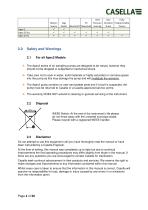
Motion Sensor Inlet PC Pressure Bluetooth® Download Sensing Run Fully Duration Programmable Timer Timers Apex 2 Apex 2 Plus Apex 2 Pro The Apex2 series of air sampling pumps are designed to be robust; however they should not be dropped or subjected to mechanical shock. Take care not to suck in water, solid materials or highly saturated or corrosive gases into the pump as this may damage the pump and will invalidate the warranty. The Apex2 pump contains no user serviceable parts and if a fault is suspected, the pump must be returned to Casella or a Casella approved service centre. The warranty...
Open the catalog to page 4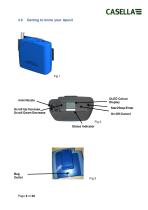
Getting to know your Apex2 OLED Colour Display Inlet Nozzle Scroll Up/Increase Scroll Down/Decrease On/Off/Cancel Fig 2 Status Indicator
Open the catalog to page 6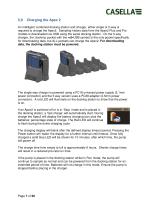
An intelligent combined docking station and charger, either single or 5-way is required to charge the Apex2. Sampling history data from the Apex2 Plus and Pro models is downloaded via USB using the same docking station. On the 5-way charger, the ‘docking’ pocket with the USB symbol is the only pocket specifically for downloading data, but ALL pockets can charge the Apex2. For downloading data, the docking station must be powered. The single way charger is powered using a PC18 universal power supply (2.1mm power connector) and the 5 way version uses a PC28 adapter (2.5mm power connector). A red...
Open the catalog to page 7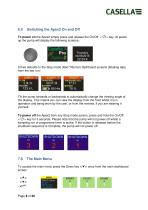
To power on the Apex2 simply press and release the On/Off < (!) > key. At power up the pump will display the following screens;- It then defaults to the Stop mode (Red Title bar) dashboard screens detailing data Tilt the pump forwards or backwards to automatically change the viewing angle of the display. This means you can view the display from the front whilst it is in operation and being worn by the user, or from the reverse, if you are wearing it To power off the Apex2 from any Stop mode screen, press and hold the On/Off < (!) > key for 3 seconds. Please note that the pump will not power off...
Open the catalog to page 8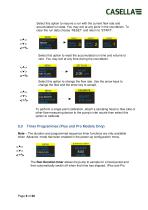
Select this option to resume a run with the current flow rate and accumulated run data. You may exit at any point in the countdown. To clear the run data choose 'RESET' and return to 'START'. Select this option to reset the accumulated run time and volume to zero. You may exit at any time during the countdown. Select this option to change the flow rate. Use the arrow keys to change the flow and the enter key to accept. To perform a single point calibration, attach a sampling head or flow tube or other flow-measuring device to the pump's inlet nozzle then select this 8.0 Timer Programmes (Plus...
Open the catalog to page 9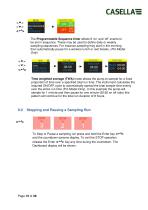
FLOW MODE SEQUENCE START? The Programmable Sequence timer allows 9 on' and off events to be set in sequence. These may be used to define daily or weekly sampling sequences. For instance sampling may start in the morning then automatically pause for a workers lunch or rest breaks. (Pro Model PROG TIMER FLOW MODE Time weighted average (TWA) mode allows the pump to sample for a fixed proportion of time over a specified total run time. The instrument calculates the required ON/OFF cycle to automatically spread the total sample time evenly over the entire run time (Pro Model Only). In this example...
Open the catalog to page 10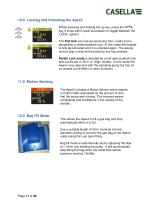
Whilst pressing and holding the up key, press the < > key 3 times within quick succession to toggle between the ‘LOCK’ options. The Full lock can only be set during ‘Run’ mode and is denoted by a closed padlock icon. In this mode the keypad is fully de-activated until it is unlocked again. The wearer cannot stop or disturb the pump by any key presses. Partial Lock mode is denoted by a half open padlock icon and can be set in ‘Run’ or ‘Stop’ modes. In this mode the wearer may stop and start the sampling pump but has no no access to the Menu or other functions. 11.0 Motion Sensing The Apex2 includes...
Open the catalog to page 11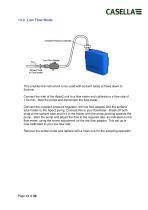
This enables the instrument to be used with sorbent tubes at flows down to 5ml/min. Connect the inlet of the Apex2 unit to a flow meter and calibrate to a flow rate of 1.5L/min. Stop the pump and disconnect the flow meter. Connect the constant pressure regulator, the low flow adaptor and the sorbent tube holder to the Apex2 pump. Connect this to your flowmeter. Break off both ends of the sorbent tube and fit it in the holder with the arrow pointing towards the pump. Start the pump and adjust the flow to the required rate, as indicated on the flow meter, using the screw adjustment on the low flow...
Open the catalog to page 12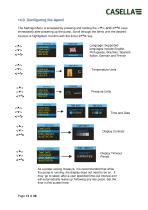
The Settings Menu is accessed by pressing and holding the <A> and <<-"> keys immediately after powering up the pump. Scroll through the items until the desired function is highlighted. Confirm with the Enter <<-*> key. TEMP UNITS TIME DATE Language: Supported languages include English, Portuguese, Brazilian, Spanish, Italian, German and French TEMP UNITS TIME DATE TEMP UNITS Temperature Units TEMP UNITS TIME DATE Pressure Units TEMP UNITS TIME DATE TIME DATE TIME DATE TIME DATE Display Contrast TIME DATE DISP. TIMEOUT Display Timeout As a power saving measure, it is recommended that while the...
Open the catalog to page 13All Casella catalogs and technical brochures
 CASELLA Dust-Detective
2 Pages
 Vortex3
4 Pages
 Tipping Bucket Rain Gauge
2 Pages
 dBadge2
51 Pages
 dBadge Noise Dosimeters
8 Pages
 Sampling accessories
24 Pages
 CEL-712 Real-time Monitoring
4 Pages
 62x series
4 Pages
 120 Calibrator
2 Pages
 Microdust Pro
2 Pages
 350/352 dBadge
8 Pages
 Short Form Catalogue UK
4 Pages


Archived catalogs
 APEX Personal Sampling Pumps
4 Pages

- Industrial pump
- Pump with electric motor
- Pump for the chemical industry
- Diaphragm pump
- Analysis software solution
- High-speed pump
- Calibration system
- Rugged pump
- Intrinsically safe pump
- Monitoring software solution
- Watertight pump
- Air pump
- Portable calibrator
- Mobile pump
- Portable detector
- EDM software
- Temperature calibration system
- Real-time monitoring module
- Large pump