
- Catalogs
- Beijing Breeze Technology Co.,Ltd
- Breeze BC107-4EDM Datasheet

Breeze BC107-4EDM Datasheet
Breeze BC107-4EDM Datasheet
- 3 Speed Fan & On/off Valve: Model BC107-4
- 3 Speed Fan & 0-10V Valve: Model BC107-4A
- EC Motor Fan & On/Off Valve: Model BC107-4E
- EC Motor Fan & 0-10V Valve: Model BC107-2AE
- DX Model: Model BC107-DX
- If BACnet IP or Modbus TCP versions are required, they are available on a Wi-Fi platform upon request.
- Optional features such as Keycard, Window contact, or external sensor can be omitted if not needed.
- A 24V version is available for all models upon request.
Catalog excerpts
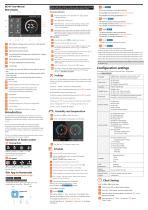
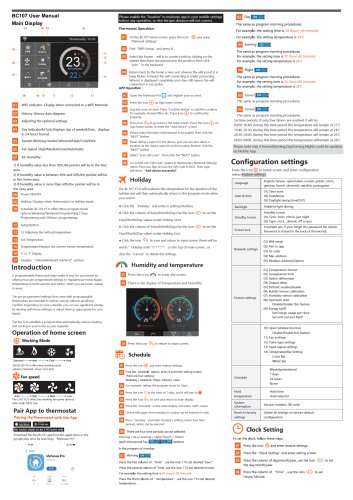
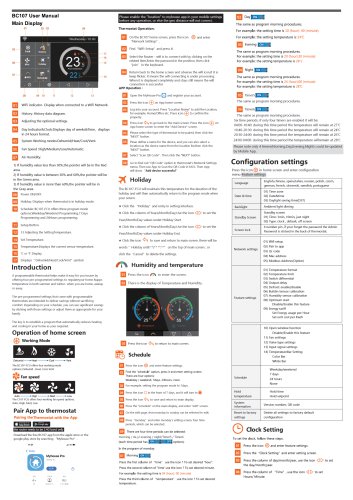
A programmable thermostat helps make it easy for you tosave by offering four pre-programmed settings to regulateyour home &apps temperature in both summer and winter- when you are home, asleep, or away. The pre-programmed settings that come with programmable thermostats are intended to deliver savings without sacrificing comfort. Depending on your schedule, you can see significant savings by sticking with those settings or adjust them as appropriate for your family. The key is to establish a program that automatically reduces heating and cooling in your home as your required. Operation of home screen Working Mode The BC107-FCU offers four working mode options; Dehumid , Heat, Cool, Vent The C107-FCU offers four working fan speed options; Auto, High, Med, Low Pairing theThermostat with the App Q Press the icon © and enter feature settings. ^ Find the "schedule" option, press it and enter setting screen. There are four options: Weekday / weekend, 7days, 24hours, none ^ For example, setting the program mode to 7days. Q Press the icon O in the front of 7 days, and it will turn to®. □ Press the icon to save and return to main display. 3 Press the "schedule" on the main display, and enter “edit" screen. screen, four time The same as program morning procedures. For example: the setting time is 10 (hour): 40 (minute) For example: the setting temperature is 24°C The same as program morning procedures. For example: the setting time is 20 (hour):30 (minute) For example: the setting temperature is 26°c The same as program morning procedures. For example: the setting time is 24 (hour):00 (minute) For example: the setting temperature is 28°C The same as program morning procedures. The same as program morning procedures. Six time periods, if only four timers are enabled it will be: 04:00-10:40: during this time period the temperature will remain at 27°C 10:40-20:30: during this time period the temperature will remain at 24°C 20:30-24:00: during this time period the temperature will remain at 26'C WiFi indicator- Display when connected to a WiFi Network. History: History data diagram. Adjusting the optional settings. Day Indicator&ClodcDisplays day of weeks&Time, displays in 24 hours format. System Working modes:Dehumid/Heat/Cool/Vent. 1) If humidity value less than 30%,the pointer will be in the Red area. 2) If humidity value is between 30% and 60%,the pointer will be in the Green area. 3) If humidity value is more than 60%,the pointer will be in the Gray area. | Holiday: Displays when thermostat is in holiday mode. | Schedule: BC107-FCU offers three program mode options;Weekday/Weedend Programming,? Days Programming and 24Hours programming. | Temperature:Displays the current sensor temperature. I Displays " Dehumid/Heat/Cool/Vent" symbol. A programmable thermostat helps make it easy for you tosave by offering four pre-programmed settings to regulateyour home &apps temperature in both summer and winter- when you are home, asleep, or away. The pre-programmed settings that come with programmable thermostats are intended to deliver savings without sacrificing comfort. Depending on your schedule, you can see significant savings by sticking with those settings or adjust them as appropriate for your family. The key is to establish a program that automatically reduces heating and cooling in your home as your required. Operation of home screen Working Mode The BC107-FCU offers four working mode options; Dehumid , Heat, Cool, Vent The C107-FCU offers four working fan speed options; Auto, High, Med, Low Pairing theThermostat with the App the router needs to be 2.4G band only Download the free BC107 app from the apple store or the google play store by searching "Myhouse Pro" . Please enable the 'location' to myhouse app in your mobile settings before any operation, or else the geo distance will not correct. Thermostat Operation: | On the BC107 home screen, press the icon and enter "Nerwork Settings" . | Find "WiFi Setup" and press it. | Select the Router - wifi is to connect with by clicking on the related Item.Enter the password in the position, then dick “join" in the keyboard. I Return back to the home screen and observe the wifii icon,if it is keep flicker, it means the wifi connecting is under processing; When it is displayed completely and stays still means the wifi connection is successful Open the MyHouse Pro □ and register your account. Press the Icon yfj) on App home screen. J Log into your account. Press 'Location Name" to add the Location, for example, Home/Office etc. Press icon to confirm the property. ] Press icon to go back to the main screen. Press the icon (J) on App home screen to enter the "Add Device' screen. 1 Please select the type of thermostat to be paired, then click the "NEXT" button. J Pleae define a name for the device, and you can also select a location as the device name from the location listthen dick the ■NEXT" button. J Select 'Scan QR Code'. Then click the 'NEXT' button. J Go to find out "QR Code" option in thermostat's Network Settings menu. Then use App to Scan the QR Code in MC6, Then App will show "Add device successful " The BC107-FCU will maintain this temperature for the duration of the holiday and will then automatically return to the program mode when your return. Click the "Holiday" and entry in setting interface. -* Click the column of Years/Month/Day,Use the icon <] [> to set the Year/Month/Day values under Holiday Start -* Click the column of Years/Month/Day,Use the icon <0 [> to set the Year/Month/Day values under Holiday End. * Click the icon <v~h to save and return to main screen .there will be words" Holiday until **/** **:**" on the top of main screen ; or dick the "Cancel" to delete the settings. in Press the icon / A to enter the screen irM There is the display of Temperature and Humidity. J Press the icon to return to Q Press the icon © and enter feature settings. ^ Find the 'schedule" option, press it and enter setting screen. There are four options: Weekday / weekend, 7days, 24hours, none ^ For example, setting the program mode to 7days. Q Press the icon O in the front of 7 days, and it will turn to®. □ Press the icon to save and return to main display. 3 Press the "schedule" on the main display, and enter “edit" screen. Press "monday" and enter monday's setting screen, four time periods, which can be selected. There are four time periods can be selected morning / da y/ evening / night/Timer5 / Timers (each time period has options) Press the first column of "time" use the icon ? To set desired 'hour' Press the second column of 'time' use the icon ? To set desired minute. For example: the setting time is 04 (hour): 00 (minute) Press the third column of “temperature" use the icon ? To set desired temperature. The same as program morning procedures. For example: the setting time is 10 (hour): 40 (minute) For example: the setting temperature is 24°C The same as program morning procedures. For example: the setting time is 20 (hour):30 (minute) For example: the setting temperature is 26°c The same as program morning procedures. For example: the setting time is 24 (hour):00 (minute) For example: the setting temperature is 28°C The same as program morning procedures. The same as program morning procedures. Six time periods, if only four timers are enabled it will be: 04:00-10:40: during this time period the temperature will remain at 27°C 10:40-20:30: during this time period the temperature will remain at 24°C 20:30-24:00: during this time period the temperature will remain at 26'C 24:00-04:00: during this time period the temperature willremain at 28°C Please note only 4 timers(Morning, Day,Evening, Night) could be updated by Mobile App. Configuration settings Press the icon {§} in home screen and enter configuration menu-Feature settings Clock Setting To set the dock, follow these steps. I Press the icon {§} and enter feature settings. Press the "Clock Setting" and enter setting screen. Press the column of day/month/year, use the icon <] D> to set the day/month/year. Press the column of "Time" , use the icon <] [> to
Open the catalog to page 1All Beijing Breeze Technology Co.,Ltd catalogs and technical brochures
 Breeze V1 Datasheet
2 Pages
 Breeze V7-06 Datasheet
2 Pages
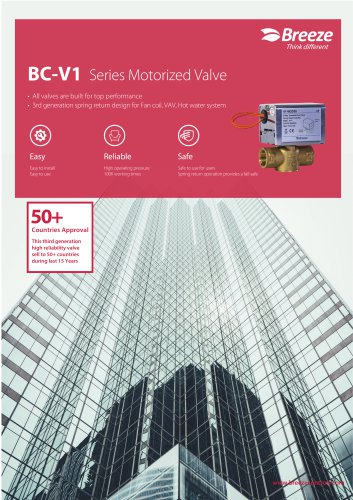 Breeze Valve Datasheet
8 Pages
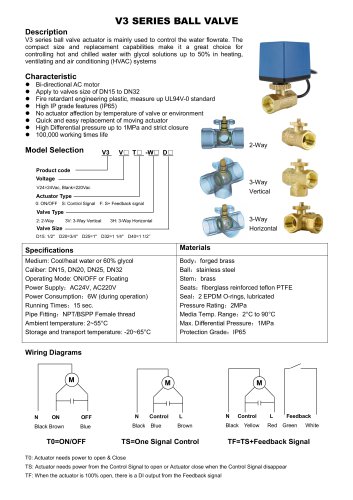 Breeze V3-W3D15 Datasheet
2 Pages
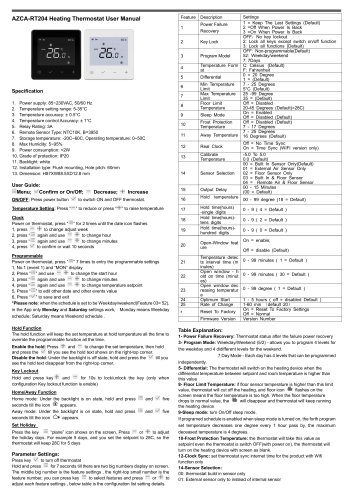 Breeze BC204 Datasheet
3 Pages
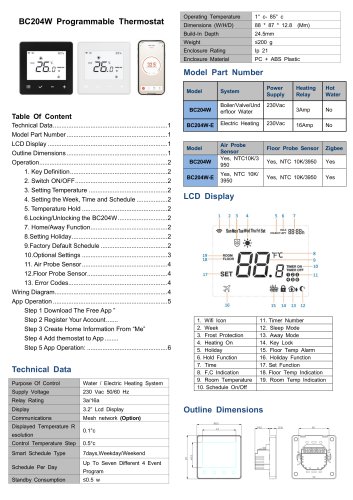 Breeze BC204-E Datasheet
6 Pages
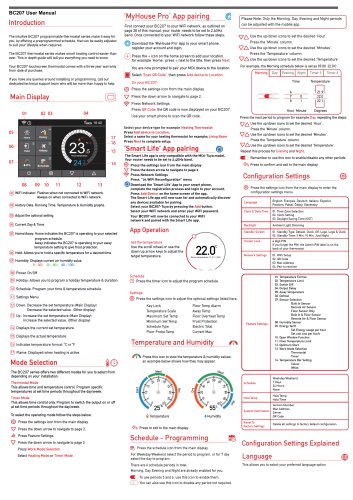 Breeze BC207-E Datasheet
3 Pages
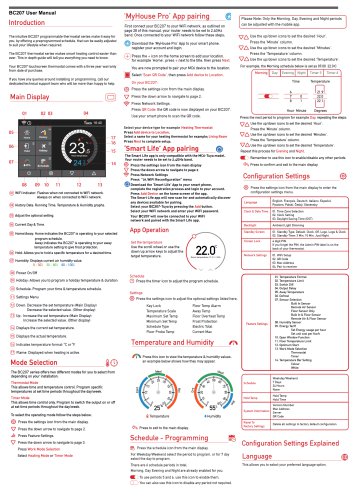 BC207W-T
3 Pages
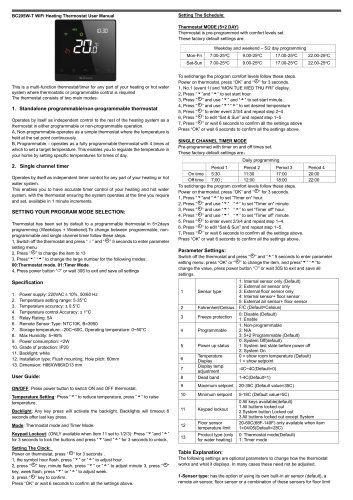 Breeze BC205W-T Datasheet
3 Pages
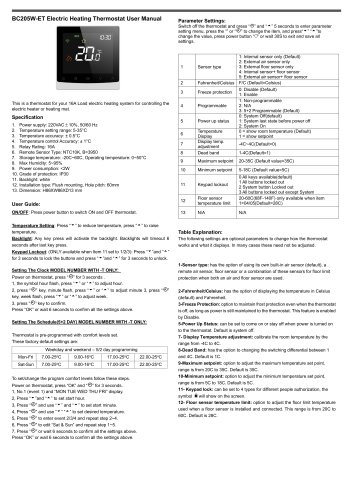 BC205-E WIFI Datasheet
3 Pages
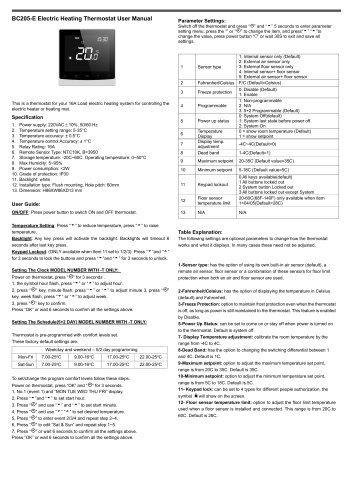 Breeze BC205-E Datasheet
2 Pages
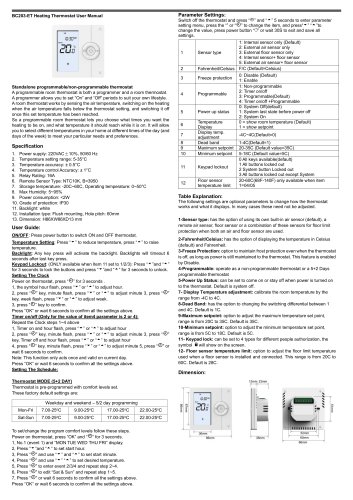 Breeze BC203-E Datasheet
2 Pages
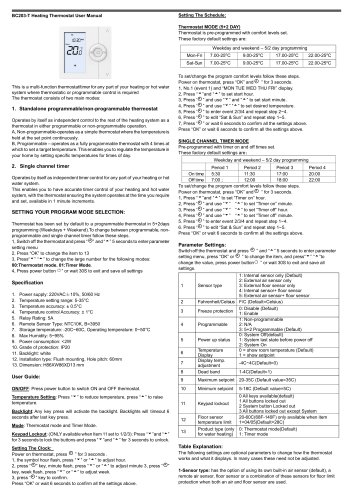 Breeze BC203 Datasheet
2 Pages
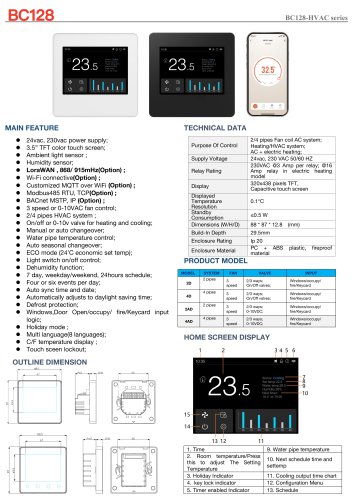 Breeze BC35-4 Datasheet
2 Pages
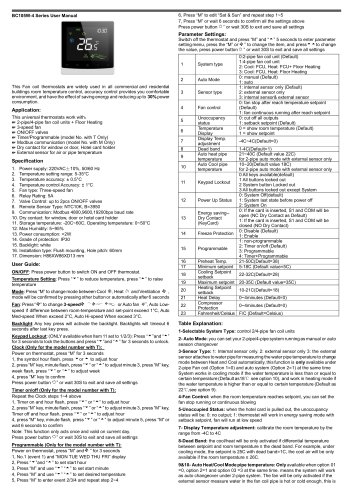 Breeze BC105W-4D Datasheet
2 Pages
 Breeze BC104W-4 Datasheet
2 Pages
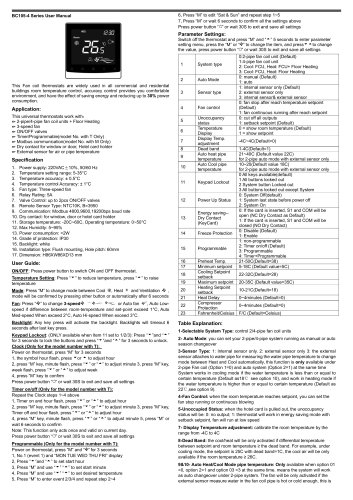 Breeze BC105-4DM Datasheet
2 Pages
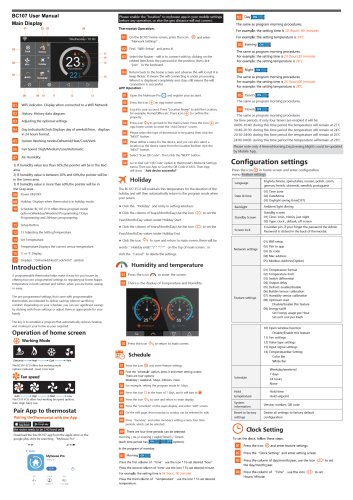 Breeze BC107-2A/4A Datasheet
3 Pages
 Breeze BC107-4DM Datasheet
3 Pages
 Breeze BC103-4ADM Datasheet
2 Pages
 Breeze BC103-4EDM Datasheet
2 Pages
 Breeze BC103-4DM Datasheet
2 Pages
 Breeze BC105W-4ED datasheet
3 Pages
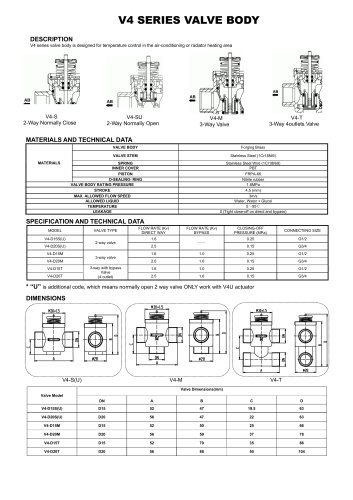
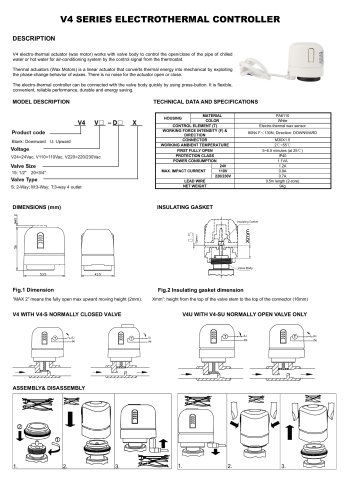
- Control valve
- Water valve
- Ball valve
- Threaded valve
- Electric valve
- Standard valve
- Chrome-plated brass valve
- 2-channel valve
- Valve actuator
- Rotary valve actuator
- 3-way valve
- Flow control valve
- Heating valve
- Electric valve actuator
- Flow-control valve
- Adjustable thermostat
- Pipeline valve
- Waterproof thermostat
- HVAC valve