
- Catalogs
- AUTEL Maxitpms
- TS501/TS601

TS501/TS601
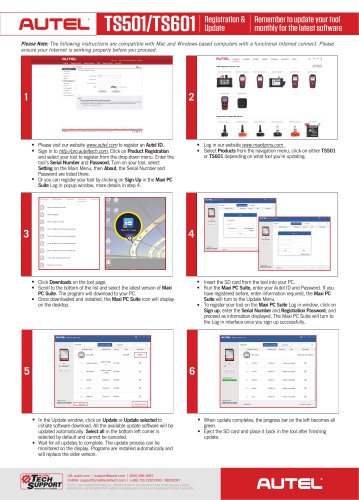
TS501/TS601
- Visit the Autel website to register an Autel ID.
- Sign in to the Autel Pro website and navigate to Product Registration to register your tool using its Serial Number and Password.
- Alternatively, register via the Maxi PC Suite by signing up in the login popup window.
- Log in to the MaxiTPMS website, select the appropriate tool (TS501 or TS601), and download the latest version of Maxi PC Suite.
- Install the Maxi PC Suite on your PC and insert the tool's SD card into the PC.
- Run the Maxi PC Suite, log in with your Autel ID and Password, and proceed to the Update Menu.
- In the Update window, click Update or Update selected to download and install the latest software updates automatically.
- Once updates are complete, indicated by a green progress bar, eject the SD card and return it to the tool.
Catalog excerpts
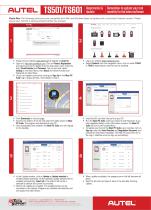
Registration & Remember to update your tool Update monthly for the latest software Please Note: The following instructions are compatible with Mao and Windows-based computers with a functional Internet connect. Please ensure your Internet is working properly before you proceed. • Please visit our website www.autel.com to register an Autel ID. • Sign in to http://pro.auteltech.com. Click on Product Registration and select your tool to register from the drop-down menu. Enter the tool's Serial Number and Password. Turn on your tool, select Setting on the Main Menu, then About, the Serial Number and Password are listed there. • Or you can register your tool by clicking on Sign Up in the Maxi PC Suite Log in popup window, more details in step 4. • Select Products from the navigation menu, click on either TS501 or TS601 depending on what tool you're updating. • Click Downloads on the tool page. • Scroll to the bottom of the list and select the latest version of Maxi PC Suite. The program will download to your PC. • Once downloaded and installed, the Maxi PC Suite icon will display on the desktop. • Insert the SD card from the tool into your PC. • Run the Maxi PC Suite, enter your Autel ID and Password. If you have registered before, enter information required, the Maxi PC Suite will turn to the Update Menu. • To register your tool on the Maxi PC Suite Log in window, click on Sign up, enter the Serial Number and Registration Password, and proceed as information displayed. The Maxi PC Suite will turn to the Log in interface once you sign up successfully. In the Update window, click on Update or Update selected to initiate software download. All the available update software will be updated automatically. Select all in the bottom left corner is selected by default and cannot be canceled. Wait for all updates to complete. The update process can be monitored on the display. Programs are installed automatically and will replace the older version. When update completes, the progress bar on the left becomes all green. Eject the SD card and place it back in the tool after finishing update. INDUSTRY LEADER- © 2017 Autel Intelligent Technology Inc. All Rights Reserved. All trademarks belong to their respective owners. All Autel tools must be registered and updated immediately upon purchase to be guaranteed the latest functionality.
Open the catalog to page 1All AUTEL Maxitpms catalogs and technical brochures
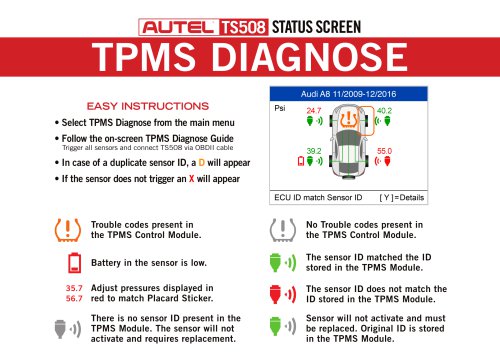 TS508
TS5082 Pages
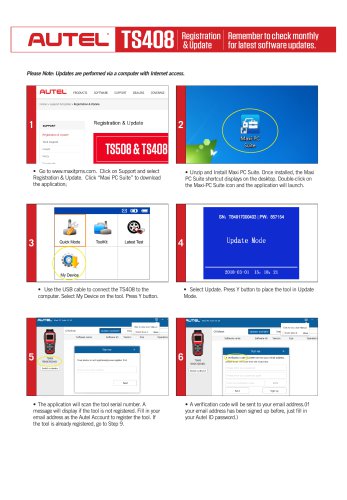 TS408
TS4082 Pages
 TS608 Introduction
2 Pages
Archived catalogs
 1Sensor-Introduction-US
2 Pages
 WHY CHOOSE AUTEL?
2 Pages
 TOOLS catalog 2018
7 Pages

- AUTEL pressure sensor
- AUTEL diagnostic tool
- AUTEL car diagnostic tool
- AUTEL OEM pressure sensor
- AUTEL USB diagnostic tool
- AUTEL WiFi diagnostic tool
- ECU OBD2 scanner
- Android diagnostic tool
- AUTEL vacuum pressure sensor
- AUTEL automotive pressure sensor
- Programmable pressure sensor
- Bluetooth diagnostic tool
- AUTEL TPMS diagnostic tool
- ECU programming diagnostic tool
- Wireless pressure sensor
- HDMI diagnostic tool
- SAS diagnostic tool
- Valve set
- Combined pressure sensor
- IMMO coding diagnostic tool