- Catalogs
- Apulsetechnology Co.,Ltd.
- α811 RFID Handheld Reader User Guide

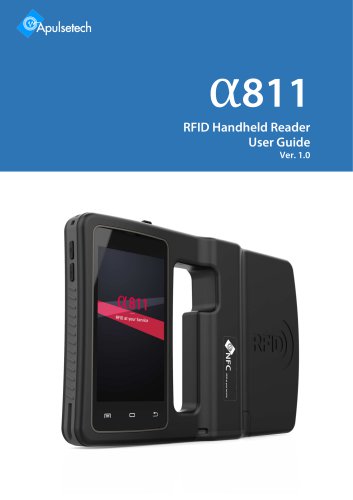
α811 RFID Handheld Reader User Guide
α811 RFID Handheld Reader User Guide
The α811 RFID Smart Reader is a versatile device featuring WiFi, Bluetooth, a 2D scanner, 3G, a camera, and NFC, all running on Android OS. This guide provides operational instructions for the α811.
The device operates on Android 6.1, with radio frequencies between 860MHz and 960MHz. It includes 2GB RAM, 32GB internal memory, a 2D Imager Barcode Scanner, and an 8 Mega Pixel Auto Focus camera.
Additional resources include the α811 Quick Guide, SDK Manual, Firmware Update Manual, and demo applications.
For support, users should contact Apulsetech or regional partners, providing the device's serial number and firmware version.
Warnings and cautions are indicated by symbols. Users should not use the device while driving, in medical sites, or on aircraft without switching to airplane mode.
The package includes the device, power adapter, USB cable, quick guide, battery, hand strap, and protective film. Optional accessories include a docking cradle and leather case.
Physical buttons include power, home, FNC, scan, and reset keys. Software buttons facilitate multitasking and navigation.
The home screen displays app icons and widgets. Users interact via touch gestures, with quick settings accessible by swiping down.
The status bar shows icons for Wi-Fi, Bluetooth, battery, and GPS, while notifications alert users to messages and events.
Instructions for installing micro SD and SIM cards, and battery management are provided. Charging options include USB cable or docking cradle.
Power on by holding the power button for 3 seconds. Avoid removing the battery to turn off the device.
Initial setup includes date and time configuration. Display and sound settings can be customized.
Updates can be performed via the OS update app, ensuring data backup and sufficient battery charge.
Wi-Fi and Bluetooth are managed through quick settings. USB connection enables data synchronization.
Applications include phone, messaging, email, camera, sound recorder, video player, music, gallery, contacts, downloads, file explorer, calendar, clock, calculator, and browser.
Key specifications include an octa-core 2.0GHz processor, Android 6.0.1 OS, 2GB RAM, 32GB internal memory, and a 4’WVGA TFT-LCD display.
Supports WLAN IEEE 802.11 ac/a/b/g/n, Bluetooth V4.1+EDR, GSM, GPRS, EDGE, UMTS, HSDPA+, and GPS.
Features a SE-4710 2D Imager Barcode Scanner and an 8 Mega Pixel Auto Focus camera.
Operates at 860MHz – 960MHz with a reading range of 0M ~ 40M.
Supports ISO 15693, MIFARE, ISO14443 A/B tags with a reading range of 0 – 10cm.
Includes a 6800 mAh main battery and a 3.4 mA RTC backup battery.
Features airplane mode, NFC, Android Beam, tethering, and portable hotspot options.
Screen lock options include none, swipe, pattern, PIN, and password. VPN setup is available.
Manage apps, storage, battery, memory, users, and perform backup and reset operations.
Includes captions, magnification gestures, large text, power button call ending, auto-rotation, and text-to-speech.
Printing via Wi-Fi or Cloud, developer options, and device information are available.
A troubleshooting guide is available separately, with FAQs downloadable from the website.
Catalog excerpts
811 RFID Handheld Reader User Guide Ver. 1.0
Open the catalog to page 1
Copyright Copyright 2018. Aplusetech Co.,Ltd. All rights reserved. Apulsetech is the manufacturer of Apulsetech RFID handheld computers. This document and related software in this device are protected by international copyright laws. Any part of this document may not be reproduced, removed or used in any form by any means, without permission in writing from Apulsetech. The contents in this manual is subject to change without prior notice. Apulsetech and α811 are registered trademarks of Apulsetech Co.,Ltd., all other trademarks and copyrights are property of their respective owners. The software...
Open the catalog to page 2
pulsetech Revision History Change RFID at your service
Open the catalog to page 3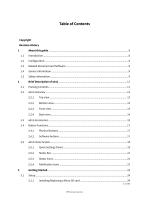
Copyright Revision History 1
Open the catalog to page 4
RFID at your service
Open the catalog to page 6
RFID at your service
Open the catalog to page 7
About this guide The α811 (RFID Smart Reader) provides highest quality RFID reading performance with default or optional features, WiFi, Bluetooth, 2D scanner, 3G, Camera, NFC. With Android OS, users are able to experience efficient working performance. This guide is designed for helping users to operate α811 effectively. Please read the guide carefully before using α811. This guide provides information of the following configurations including optional features. Operating System Data Capture Options 2D Imager Barcode Scanner 8Mega Pixel Auto Focus with Flash Related document and Software α811...
Open the catalog to page 8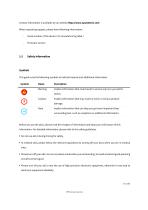
Contact information is available at our website http://www.apulsetech.com When requesting support, please have following information; - Serial number of the device ( On manufacturing label ) - Firmware version This guide uses the following symbols to indicate hazards and additional information. Symbol Name Description Warning Implies information that could result in serious injury to yourself or others. Caution Implies information that may result in minor or serious product Note Implies information that can help you get more important than surrounding text, such as exceptions or additional information....
Open the catalog to page 9
■ Do not take apart your a811 or accessories without authorizing. Only authorized institutions can repair this a811. ■ Please keep a811 away from magnetic equipment. The radiation of a811 will erase the information of the magnetic storage device. ■ Please don’t use a811 under high temperature or in flammable areas (example: gas station). ■ Please keep your a811 and accessories away from children without supervising. ■ Please obey the relevant laws and regulations when you use your a811, and respect others lawful rights and privacy. ■ Please obey the relevant specification of this manual when...
Open the catalog to page 10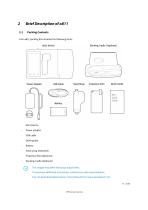
Packing Contents Your α811 packing box includes the following items Power adapter Quick guide Hand strap (Attached) Protective film (Attached) Docking Cradle (Optional) The images may differ from your actual items. To purchase additional accessories, contact your sales representative. You can download latest version of User Manual from www.apulsetech.com. 11 | 109 RFID
Open the catalog to page 11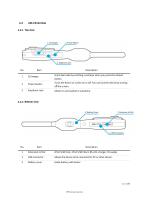
Scans barcodes by emitting a red laser when you press the related button. Turns the device or screen on or off. You can lock the device by turning off the screen. Allows to use headset or earphone. 2Port USB Host, 1Port USB Client, RS-232, charger, 5V supply Allows the device to be connected to PC or other device. Holds battery with locker RFID at your service
Open the catalog to page 12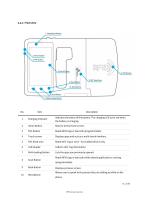
Indicates the status of the battery. The charging LED turns red when the battery is charging. Returns to the Home screen. Reads RFID tags or barcode (programmable) Displays apps and acts as a multi-touch interface. Reads NFC Tag or card - for enabled device only Lists the apps you previously opened. Reads RFID tags or barcode while related application is running. (programmable) Displays previous screen. Allows user to speak to the person they are talking to while on the phone. RFID at your service
Open the catalog to page 13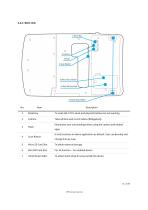
5 Micro SD Card Slot 6 Mini SIM Card Slot 7 Hand Strap holder To reset a811 if it’s stuck and physical buttons are not working. Takes photos and record videos (8Megapixel). Illuminates your surroundings when using the camera and related apps. It only functions on demo application as default. User can develop and change the key map. To obtain external storage. For 3G function - For enabled device To attach hand strap for easy handle the device RFID at your service
Open the catalog to page 14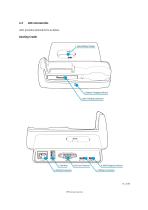
1. Spare Battery Charger 3. Battery Charging Indicator 4. Ethernet Connector 7. USB Sync Connector RFID at your service
Open the catalog to page 15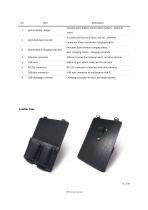
Description Charges spare battery alone ( Spare battery – optional Spare battery charger Spare battery charging indicator Ethernet connector Ethernet connection between α811 and other devices USB Host port which makes α811 to be Host RS-232 connector to interface with other devices USB sync connector to synchronize with PC Charging connector for α811 and spare battery order) Provides USB host and client , RS-232 , Ethernet communications and device charging to α811 Indicates Spare battery charging status. Red- charging, Green – charging complete Leather Case
Open the catalog to page 16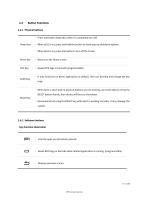
■ Press and hold to boot a811 when it’s completely turn off. Power key ■ When a811 is on, press and hold the button to show pop-up shutdown options. ■ When a811 is on, press the button to turn off the screen. Home key ■ Returns to the Home screen. FNC Key ■ Reads RFID tags or barcode (programmable) ■ It only functions on demo application as default. User can develop and change the key ■ When a811 is stuck and no physical buttons are not working, use small objects and press RESET button shortly, then device will force to shut down. ■ Recommend not using the RESET key while a811 is working normally....
Open the catalog to page 17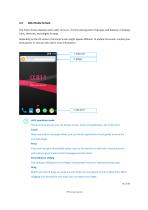
The Home Screen displays when α811 turns on. It is the starting point of all apps and features. It displays icons, shortcuts, and widgets for apps. Depending on the OS version, the Home Screen might appear different. To update OS version, contact your local partner or visit our web site for more information. α811 operation mode There are several ways you can browse screen, menu and application, etc on the α811. Touch When you want to use applications, you can choose applications touch gently once on the icon with finger. Press If you want to open an available option (such as the text box or web...
Open the catalog to page 18All Apulsetechnology Co.,Ltd. catalogs and technical brochures
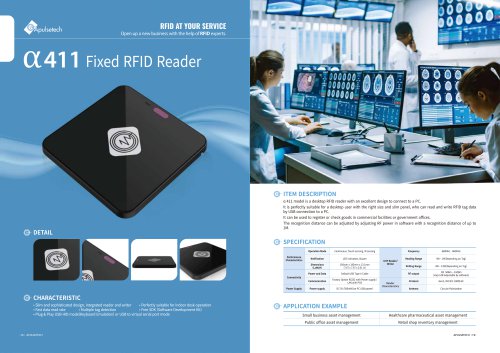 α411 Fixed RFID Reader
1 Page
 Fixed UHF Reader Series
6 Pages
 α712 Quick Guide
2 Pages