- Catalogs
- Apulsetechnology Co.,Ltd.
- α712 Quick Guide

α712 Quick Guide
α712 Quick Guide
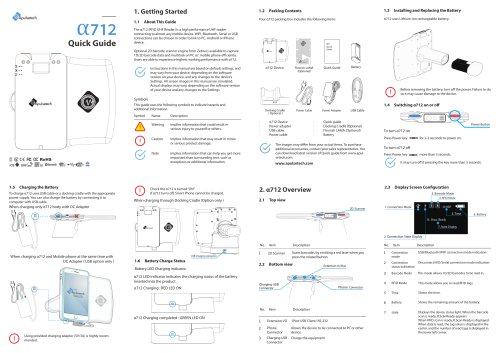
The α712 is a high-performance UHF RFID reader that can connect to various mobile devices via WIFI, Bluetooth, Serial, or USB. It includes an optional 2D barcode scanner engine from Zebra for efficient multitasking on PCs or mobile phones. The device is designed for high working performance and is compatible with Android OS version 5.0 or later.
- Uses a Lithium-ion rechargeable battery.
- Can be charged using a USB cable, docking cradle, or by connecting to a computer.
- LED indicators show charging status and connection modes.
- Supports 1D/2D barcode scanning and RFID tag reading.
- Includes a power button, mode button, and volume/RFID power level controls.
- Ensure the device is turned off before removing the battery to prevent damage.
- Use the provided charging adapter (5V/3A) for optimal performance.
- Follow the instructions for Bluetooth pairing and running demo applications for RFID and barcode scanning.
- Do not use the device while driving or in medical sites without following regulations.
- Turn off the device or use airplane mode when boarding aircraft.
- Avoid using the device near high precision electronic equipment or in flammable areas.
- Unauthorized disassembly or repair is prohibited.
- Hardware is warranted for 12 months, and batteries/accessories for 6 months from the shipment date.
- Warranty does not cover unauthorized repairs, misuse, or damage from external shocks.
- For warranty repairs, customers are responsible for shipping to Apulsetech, while Apulsetech covers return shipping.
- For non-warranty repairs, customers bear all shipping and repair costs.
- DOA claims must be submitted within two weeks of shipment arrival.
For support, visit the Apulsetech website or contact regional partners. Address: A-1403, 60, Haan-ro, Gwangmyeong-si, Gyeonggi-do, Republic of Korea, Zip 14322. Tel: +82-70-4222-5684. Email: [email protected].
Catalog excerpts
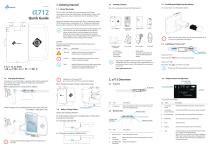
About This Guide Packing Contents α712 uses Lithium-ion rechargeable battery. Your α712 packing box includes the following items The α712 (RFID UHF Reader) is a high performance UHF reader connecting to almost any mobile device. WIFI, Bluetooth, Serial or USB connections can be chosen in order to link to PC, Android or iPhone device. Installing and Replacing the Battery Optional 2D barcode scanner engine from Zebra is available to capture 1D/2D barcode data and multitask on PC or mobile phone efficiently. Users are able to experience highest working performance with α712. Instructions in this manual are based on default settings, and may vary from your device, depending on the software version on your device, and any changes to the device’s Settings. All screen images in this manual are simulated. Actual displays may vary, depending on the software version of your device and any changes to the Settings. Before removing the battery, turn off the power. Failure to do so it may cause damage to the device. This guide uses the following symbols to indicate hazards and additional information. Symbol Implies information that could result in serious injury to yourself or others. To charge α712 uses USB cable or a docking cradle with the appropriate power supply. You can also charge the battery by connecting it to computer with USB cable. Implies information that may result in minor or serious product damage. Power Cable When charging through Docking Cradle (Option only ) Quick guide Docking Cradle (Optional) Flourish LAMA (Optional) Battery The images may differ from your actual items. To purchase additional accessories, contact your sales representative. You can download latest version of Quick guide from www.apulsetech.com Implies information that can help you get more important than surrounding text, such as exceptions or additional information. Check the α712 is turned “ON” If α712 turns off, Smart Phone cannot be charged. α712 Device Power adapter USB cable Power cable Power Button To turn α712 on Press Power key To turn α712 off Press Power key more than 3 seconds. It may turn off if pressing the key more than 5 seconds. Display Screen Configuration 3. Barcode Mode 4. RFID Mode When charging only α712 body with DC Adapter F Power Adapter 2. Connection State Display When charging α712 and Mobile phone at the same time with DC Adapter ( USB option only ) Battery Charge Status Battery LED Charging Indicator α712 LED indicator indicates the charging status of the battery inserted into the product. α712 Charging : RED LED ON α712 Charging completed : GREEN LED ON Using provided charging adapter (5V/3A) is highly recommended. Scans barcodes by emitting a red laser when you press the related button. USB/Bluetooth/WIFI connection mode indication Connection status indication Disconnect/HID/Serial connection mode indication Barcode Mode This mode allows 1D/2D barcodes to be read in. RFID Mode This mode allows you to read RFID tags. Shows the remaining amount of the battery. Displays the device status light. When the barcode scan is ready, B.ScanReady appears When RFID scan is ready, R.Scan Ready is displayed. When data is read, the tag value is displayed in the center, and the number of read tags is displayed in the lower left corner. Phone Connector Allows the device to be connected to PC or other device. Connection mode
Open the catalog to page 1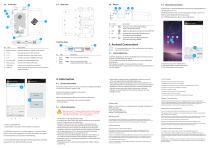
2.5 Back view 2.6 Button 3.2 Bluetooth Connection Confirm that it is ready for Bluetooth connection by checking Bluetooth LED light blinks on a712. Enable Bluetooth function on the mobile device and pair it with a712. When it paired, Bluetooth LED remains green. Run "RFID/Barcode demo app" on your mobile device. (f) This button selects RFID Single Reading Mode or Multi Reading Mode. Button to attempt to connect a712 to a WIFI AP (^) Increase the volume or RFID power level. Lower the volume or RFID power level. Function Keys Indicates the battery condition of the product. LED lights up when in...
Open the catalog to page 2All Apulsetechnology Co.,Ltd. catalogs and technical brochures
 α411 Fixed RFID Reader
1 Page
 Fixed UHF Reader Series
6 Pages
 α811 RFID Handheld Reader User Guide
109 Pages