
- Catalogs
- Ametek Calibration
- ConfigXP, XP2i Digital Pressure Gauge Configuration Software

- Products
- Catalogs
- News & Trends
- Exhibitions
ConfigXP, XP2i Digital Pressure Gauge Configuration Software

ConfigXP, XP2i Digital Pressure Gauge Configuration Software
- Introduction: Confi gXP is a tool designed for customizing gauges such as DTG, XP2, or XP2i using a serial cable and a Windows computer. It enables users to view reports, load/save configurations, reset to factory settings, select pressure units, calibrate gauges, and identify firmware versions.
- Capabilities: The features available depend on the gauge model and firmware version. Users can password protect gauges, disable buttons, select water density, define pressure units, store messages, adjust zero range, program TARE values, enable display damping, and set calibration reminders.
- Installation: Confi gXP is installed via a self-extracting setup application. Users must select a communication port to connect to the gauge. A successful connection displays gauge information for configuration changes.
- Gauge Identity: Users can store specific information in the Message Store. Other details like serial number, model, range, firmware version, and password protection status are factory programmed.
- Peak Button Options: Users can enable/disable peak and averaging displays, control sample numbers for averaging, and enable differential and PSVtest modes for specific models.
- Zero Button Options: Adjusts the zero pressure reading. Users can set a zero limit or enable TARE mode for dual-line display models.
- Enable Vacuum Mode: Available for DP gauges, this mode displays negative pressure values when vacuum is applied.
- Units Button Options: Users can select pressure units, define custom units, and use the User Units Wizard for linear fit or tank level calculations.
- Calibration Options: Users can adjust the Userspan for component aging, disable keypad calibration, and adjust zero value for absolute gauges.
- Enables reminders for calibration due dates, with options to set warning times and messages.
The XP2i gauge provides several options for calibration alerts. When calibration is due, the gauge can display "Cal Due" during startup, continuously until a button is pressed, or alternate with pressure readings. Password protection can be added to make the gauge non-operational until calibration is completed.
As Received/As Left Report
This report summarizes the gauge configuration before and after changes made using ConfigXP. The "As Received" state reflects the initial condition, while the "As Left" state includes all subsequent changes.
Password Protection
A four-digit password can be set to prevent unauthorized changes to the gauge configuration. Without the password, changes via ConfigXP or the gauge's interface are disabled. If the password is lost, an unlock code from the factory is required.
Loading and Saving Configurations
Configurations can be saved and loaded to customize gauge settings for different applications. These configurations do not include passwords or userspan values.
Reset to Factory Defaults
The gauge can be reset to factory settings, which removes the password but retains the userspan value.
Language Selection
ConfigXP supports multiple languages, which can be selected through the interface. Language files must match the version of ConfigXP being used.
Troubleshooting
Some firmware versions may not support all ConfigXP features. A known issue may cause the gauge to operate only in psi mode unless psi or kgf/cm2 is selected.
Contact Information
For support, contact Crystal Engineering via phone, fax, email, or their website.
Warranty
The product is provided "as is" without warranties. Liability is limited to replacement or refund, and Crystal Engineering is not liable for consequential damages.
Catalog excerpts

AMETEK* TEST & CALIBRATION INSTRUMENTS
Open the catalog to page 1
Contents Overview. . . . . . . . . . . . . . . . . . . . . . . . . . . . . . . . . . . . . . . . . . . . . . . . . . . . . . . . . . . . . . . 1 Introduction . . . . . . . . . . . . . . . . . . . . . . . . . . . . . . . . . . . . . . . . . . . . . . . . . . . . . . . . . . . . 1 Capabilities . . . . . . . . . . . . . . . . . . . . . . . . . . . . . . . . . . . . . . . . . . . . . . . . . . . . . . . . . . . . . 1 Operating Instructions. . . . . . . . . . . . . . . . . . . . . . . . . . . . . . . . . . . . . . . . . . . . . 2 Installation . . . . . . . . . . . . . . . . . . . . . . . . . . . ....
Open the catalog to page 2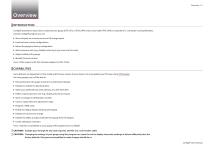
ConfigXP provides an easy way to customize your gauge (DTG, XP2, or XP2i). With only a serial cable (P/N: 2400, or equivalent12), a computer running Windows, and the ConfigXP program you can: • View and print an as receive versus as left change report • Load and save custom configurations • Return the gauge to factory configuration • Select pressure units (e.g., disable inches Hg, if you never use this scale) • Adjust (calibrate) the gauge • Identify firmware version Note: DTGs require an RS-232 interface adapter kit (P/N: 2746). ConfigXP User's Manual Some features are dependant on the model...
Open the catalog to page 3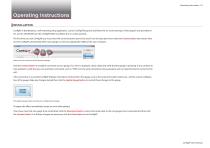
Operating Instructions INSTALLATION ConfigXP is distributed as a self-extracting Setup application. Launch ConfigXPSetup.exe and follow the on-screen prompts. If the program was provided on CD, run the SETUP.EXE from the ConfigXP folder and follow the on-screen prompts. The first time you start ConfigXP, you must select the communications port to be used. From the drop down box under the Connect button and choose Auto to have ConfigXP automatically detect your gauge, or select an appropriate COM port for your computer. Select a port to connect to an XP2i pressure gauge. Click the Connect button...
Open the catalog to page 4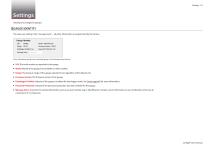
Settings are arranged in groups; The only user setting is the "message store" — all other information is programmed by the factory. Gauge Identity Range: 30 P5I Datalogger Enabled: Yes Message Store: Store information specific to an individual gauge in the Message store text box. • S/N: The serial number as reported by the gauge. • Model: Model of the gauge (not available on older models). • Range: The pressure range of the gauge, reported in psi regardless of the default unit. • Firmware Version: The firmware version of the gauge. • Datalogger Enabled: Indicates if the gauge is enabled for data...
Open the catalog to page 5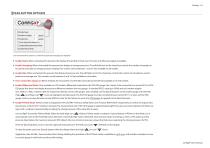
PEAK BUTTON OPTIONS Use the Peak button options to control how peaks and averaging are displayed. Enable Peaks: When unchecked this prevents the display of Peak High or Peak Low. This does not affect averaging, if available. Enable Averaging: When unchecked this prevents the display of average pressures. The edit field next to this check box controls the number of samples to be used to calculate an average pressure reading. This number can be between 1 and 10. Not available on all models. Enable Rate: When unchecked this prevents the display of pressure rate. The edit field next to this check...
Open the catalog to page 6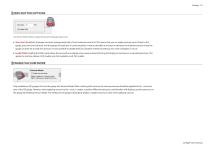
ZERO BUTTON OPTIONS Use the Zero button options to adjust the pressure the gauge reads as zero. Zero Limit: By default, all gauges come pre-programmed with a 20 psi maximum zero limit. This means that you can apply pressure (up to 20 psi) to the gauge, press the (zero) button, and the gauge will read zero. In some situations it may be desirable to increase or decrease the maximum pressure that the gauge could be set to read zero pressure. It’s also possible to disable the (zero) button entirely by setting a zero Limit of negative (-)15 psi. Enable TARE: Enabling the TARE mode allows the second...
Open the catalog to page 7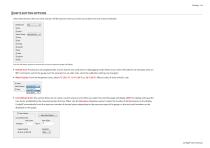
UNITS BUTTON OPTIONS Select the pressure units you need, and turn off the pressure units you never use (at least one unit must be selected). Use the Unit button options to control which units the pressure gauge will display. Default Unit: The pressure unit displayed after a reset, and the unit used when in datalogging mode. (Reset occurs when the batteries are changed, when an !RST command is sent to the gauge over the serial port or, on older units, when the calibration settings are changed.) Water Density: From the dropdown menu, select 4 °C (39.2 °F), 15.6 °C (60 °F), or 20 °C (68 °F). Affects...
Open the catalog to page 8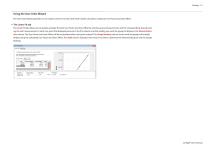
Using the User Units Wizard The User Units Wizard operates in two modes: Linear Fit or Tank Level. Both modes calculate an optimum User Factor and User Offset. The Linear Fit tab The Linear Fit tab allows you to quickly calculate the best User Factor and User Offset by entering actual measurements and the corresponding desired reading for each measurement. In each row, enter the displayed pressure in the first column and the reading you want the gauge to display in the Desired Indication column. The User Factor and User Offset will be recalculated after each point entered. The Gauge Reading...
Open the catalog to page 9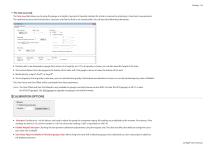
The Tank Level tab allows you to setup the gauge as a height or percent of capacity indicator for a tank or reservoir by entering in a few basic measurements. The tank level assumes the fluid density is constant, and that the fluid is not compressible. You will need the following information: Desired units to be displayed on gauge (feet, meters, % of capacity, etc.). If % of capacity is chosen, you will also need the height of the tank. The vertical distance from the gauge to the bottom of the tank, and if the gauge is above or below the bottom of the tank. Media density, in kg/m³, lbs/ft³, or...
Open the catalog to page 10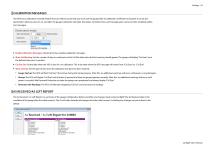
CALIBRATION MESSAGES The XP2i has a calibration reminder feature that can help to assure that you never use the gauge after its calibration certificate has expired. It can be programmed to alert you prior to, on, and after the gauge’s calibration due date. Due dates, reminder times, and message types can be set after enabling calibration messages. Enable Calibration Messages: Checking this box enables calibration messages. Show Cal Warning: Set the number of days or weeks prior to the Cal Due date when the first warning should appear. The gauge will display “Cal Soon” once the defined time...
Open the catalog to page 11All Ametek Calibration catalogs and technical brochures
 Type T Deadweight Tester
8 Pages
 ATMi Temperature Module
7 Pages
 XP2i Data Recorder
6 Pages
 Temperature Pressure Process
12 Pages
 AMETEK Calibration Brochure
12 Pages
 Maritime Brochure
8 Pages
 CPF Brochure (D)
4 Pages
 APM Advanced Pressure Module
6 Pages
 Product Overview Brochure
8 Pages
 GaugeCalHP Manual
20 Pages
 24 VDC Power Supply Manual
7 Pages
 24 VDC Power Supply
4 Pages
 FastCalXP
9 Pages












- AMETEK temperature sensor
- Management software solution
- Automation software solution
- Data logger
- AMETEK resistance temperature sensor
- Process software
- Real-time software
- AMETEK Windows software
- AMETEK calibrator
- Cloud-based software
- Control software
- Digital indicator
- Analog pressure gauge
- Industrial software
- AMETEK measurement software
- Interface software
- AMETEK thermocouple
- Pt100 temperature transducer
- Data-logger with screen