


Omega_manual
Omega_manual
The OMEGA system is designed for factory control rooms to monitor machinery conditions, providing real-time and historical data on parameters like pressure and temperature. It identifies faults such as unbalance and misalignment and integrates with OPC servers for data sharing with third-party software.
The application is installed via the Omega_v1.0.0.0.exe file from the Adash website. Ensure the firmware is updated to version 2.82 or higher before installation. The process includes selecting a setup language, installation folder, and optionally creating a desktop shortcut.
A specific license file is required for each unit's board, which must be saved in the designated folder on the online unit. Without it, data will not be displayed.
Users must log in to edit or create projects. By default, there is no password, but one can be set under the 'Administrator' tab.
Users can add and manage online units (A3716 and A3800), edit properties, test connections, and erase data history. Successful tests confirm licensing and connectivity.
Sensor settings are configured when adding an online unit and can be edited later, including parameters like unit, sensitivity, and ICP powering.
Projects are managed under the 'Project' tab, requiring login for creation. The structure includes machines, parts, and measurement points with specific parameters.
OMEGA identifies faults such as unbalance, looseness, misalignment, and bearing issues, represented by icons and graphs.
- Deleting Items: Items can be deleted by selecting them and pressing 'Delete', with a confirmation window appearing.
- Modifying Properties: Properties can be modified via the 'Properties' tab or by right-clicking the item.
- Saving and Closing Projects: Projects can be saved and closed via the 'Project' tab, with user-defined saving locations.
- Opening Projects: Projects can be opened without logging in, but changes cannot be made. The worst condition item is highlighted upon opening.
- Graph Data: Graphs show trends for faults like unbalance and misalignment, with each measurement point having six graphs.
- Time Columns: Columns labeled M, W, D, and H represent monthly, weekly, daily, and hourly averages, with 'Live' showing the last measured value.
- Color Indicators: Icons and columns are color-coded based on ISO 20816 standards, indicating fault severity.
- Statuses: Additional statuses like 'Connecting', 'Not available', and 'ICP error' indicate various operational states and errors.
- Application Closure: The application can be closed using the 'Close' button or 'Exit' option in the 'Project' tab.
- Connection: The OPC UA server runs on a specified endpoint URL, allowing data exchange with applications like SCADA.
- Structure and Variables: The OPC server mirrors the project structure, with nodes containing variables for fault evaluation.
- Status Codes: Binary codes indicate system states, such as sensor overload or machine not running.
Catalog excerpts

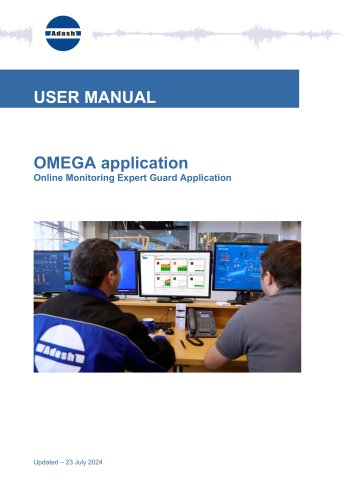
USER MANUAL OMEGA application Online Monitoring Expert Guard Application
Open the catalog to page 1
OMEGA manual
Open the catalog to page 2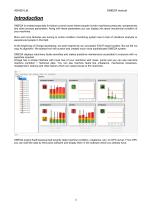
OMEGA manual Introduction OMEGA is created especially for factory control rooms where people monitor machinery pressures, temperatures and other process parameters. Along with these parameters you can display info about mechanical condition of your machines. More and more factories are turning to online condition monitoring system due to lack of vibrations analysts or experienced people in this field. At the beginning of Omega developing, we were inspired by our successful FASIT expert system. But we did not copy its algorithm. We started from the scratch and created much more sophisticated OMEGA...
Open the catalog to page 3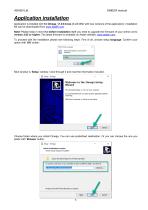
OMEGA manual Application installation Application is installed with file Omega_v1.0.0.0.exe (it will differ with new versions of the application). Installation file can be downloaded from www.adash.com. Note! Please keep in mind that before installation itself you need to upgrade the firmware of your online unit to version 2.82 or higher. The latest firmware is available on Adash website: www.adash.com. To proceed with the installation please see following steps. First of all, choose setup language. Confirm your option with ‘OK’ button. Next window is ‘Setup’ window. Click through it and read...
Open the catalog to page 4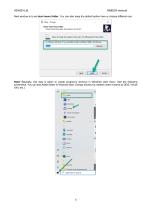
OMEGA manual Next window is to set start menu folder. You can also keep the default option here or choose different one. Note! Basically, this step is taken to create program’s shortcut in Windows start menu. See the following screenshot. You can see Adash folder in Windows start. Omega shortcut is created under it (same as DDS, Virtual Unit, etc.).
Open the catalog to page 5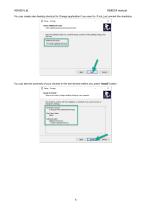
OMEGA manual You can create also desktop shortcut for Omega application if you want to. If not, just unmark the checkbox. You can see the summary of your choices in the last window before you press ‘Install’ button.
Open the catalog to page 6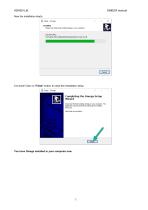
OMEGA manual It is done! Click on ‘Finish’ button to close the installation setup. You have Omega installed in your computer now.
Open the catalog to page 7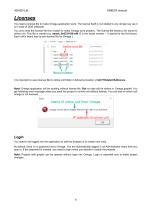
OMEGA manual Licenses You need a license file to make Omega application work. The license itself is not related to any dongle key (as it is in case of DDS software). You only need the license file from Adash to make Omega work properly. The license file needs to be saved to online unit. This file is named e.g. adash_0x6331430.a44 (0 is the board number – 0 stands for the first board. Each unit’s board has its own license file for Omega.). It is important to save license file to online unit folder in following location: c:\A3716\data\VA4licence. Note! Omega application will be working without...
Open the catalog to page 8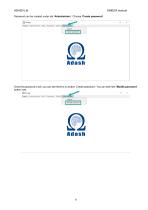
OMEGA manual Password can be created under tab ‘Administrator’. Choose ‘Create password’. Once the password is set, you can see there is no button ‘Create password’. You can see here ‘Modify password’ b
Open the catalog to page 9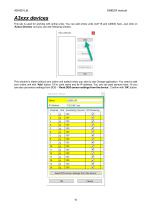
OMEGA manual A3xxx devices This tab is used for working with online units. You can add online units (A3716 and A3800) here. Just click on ‘A3xxx Devices’ and you can see following window. This window is blank (without any online unit added) when you start to use Omega application. You need to add your online unit with ‘Add’ button. Fill in units name and its IP address. You can set used sensors here. Or you can also use sensor settings from DDS – ‘Read DDS sensor settings from the device’. Confirm with ‘OK
Open the catalog to page 10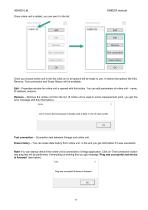
OMEGA manual Once online unit is added, you can see it in the list. Once you choose online unit in this list (click on it), all options will be ready to use. It means that options like Edit, Remove, Test connection and Erase History will be available. Edit – Properties window for online unit is opened with this button. You can edit parameters of online unit – name, IP address, sensors. Remove – Remove the online unit from the list. (If online unit is used in some measurement point, you get the error message with this information.) Test connection – Connection test between Omega and online unit....
Open the catalog to page 11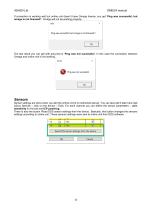
OMEGA manual If connection is working well but online unit doesn’t have Omega license, you get ‘Ping was successful, but omega is not licensed!’. Omega will not be working properly. The last result you can get with ping test is ‘Ping was not successful’. In this case the connection between Omega and online unit is not working. Sensors Sensor settings are done when you add the online unit (it is mentioned above). You can also edit it later here (tab A3xxx Devices – click on the device – Edit). For each channel you can define the sensor parameters – unit, sensitivity in mV/unit and ICP powering....
Open the catalog to page 12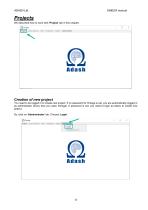
OMEGA manual Projects We described how to work with ‘Project’ tab in this chapter. Creation of new project You need to be logged in to create new project. If no password for Omega is set, you are automatically logged in as administrator (every time you open Omega). If password is set, you need to login as below to create new project. So, click on ‘Administrator’ tab. Choose ‘Logi
Open the catalog to page 13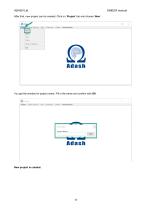
OMEGA manual After that, new project can be created. Click on ‘Project’ tab and choose ‘New’. You get the window for project name. Fill in the name and confirm with OK.
Open the catalog to page 14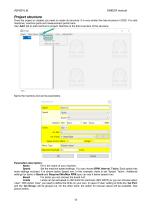
OMEGA manual Project structure Once the project is created you need to create its structure. It is very similar like tree structure in DDS. You add machines, machine parts and measurement points here. Use ‘Add’ tab to add machine to project. Machine is the first level item of the structure. Name the machine and set its parameters. Parameters description: Name Fill in the name of your machine. Speed Set the machine speed settings. You can choose RPM, Interval, Tacho. Each option has more settings included. It is shown below Speed row. In this example, there is set ‘Speed: Tacho’. Additional settings...
Open the catalog to page 15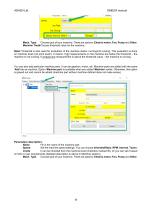
OMEGA manual Mach. Type Choose type of your machine. There are options: Electric motor, Fan, Pump and Other. Machine Thold Choose threshold value for the machine. Note! Threshold is also used for evaluation of the machine status: running/not running. This evaluation is done on machine level (not point level!). It means: if all measurements on the machine are below the threshold – the machine is not running. If at least one measurement is above the threshold value – the machine is running. You can also add particular machine parts. It can be gearbox, motor, etc. Machine parts are added with the...
Open the catalog to page 16All Adash catalogs and technical brochures
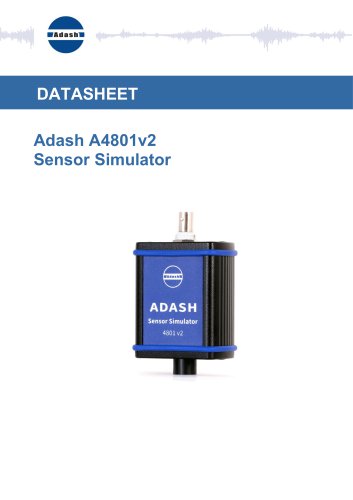 Adash A4801v2 Sensor Simulator
2 Pages
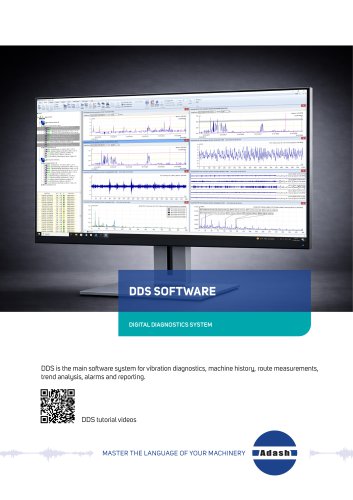 DDS
DDS4 Pages
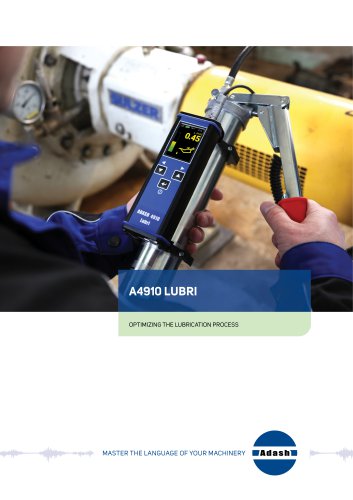 A4910 Lubri
4 Pages
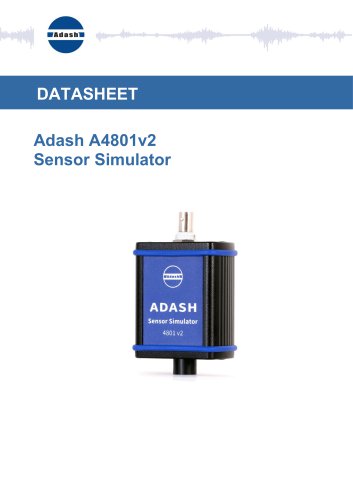 A4801 v2 Sensor Simulator
2 Pages
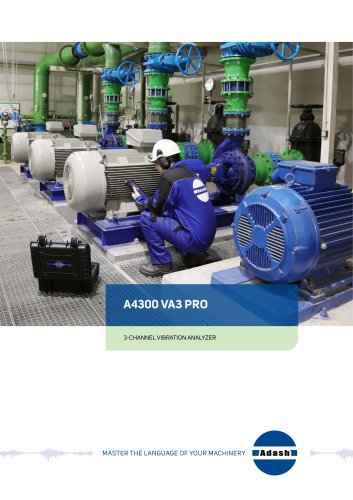 A4300 VA3 Pro
3 Pages
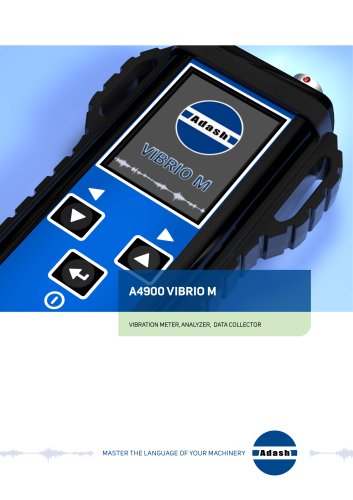 A4900 Vibrio M
3 Pages
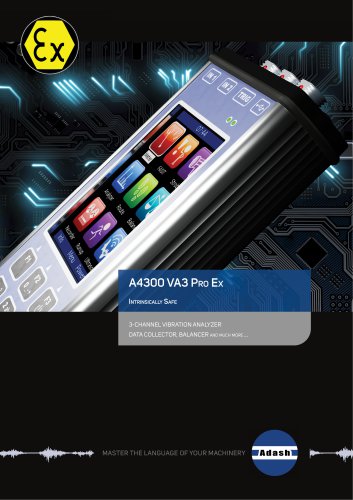 A4300 VA3 Pro Ex
4 Pages
 Adash Brochure
17 Pages
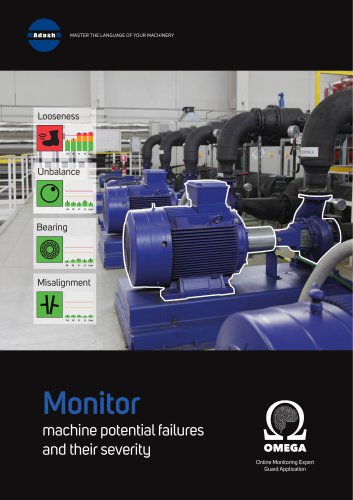 Omega_Data_sheet
4 Pages
 A4404 SAB
4 Pages
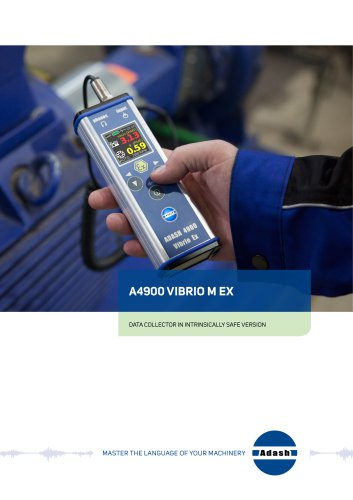 A4900 - Vibrio M Ex
4 Pages
 VA5 Pro
3 Pages
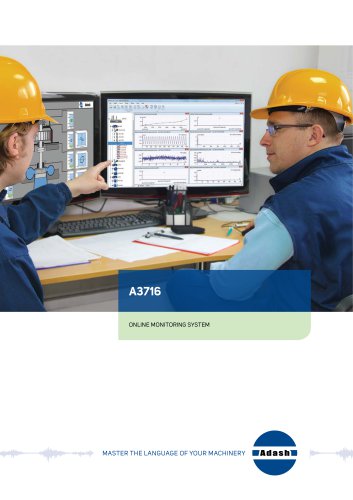 A3716
A37163 Pages
 A3800
A38004 Pages

Archived catalogs
 A4910 Lubri
4 Pages
- Analysis software solution
- Process software
- Cloud-based software
- Monitoring software solution
- Measurement software
- Machine software
- Digital monitoring module
- Storage software
- Adash vibration meter
- Vibration sensor
- Online monitoring module
- Benchtop monitoring system
- Vibration monitoring device
- Alarm software
- Compact monitoring module
- Data acquisition monitoring module
- Machine monitoring module
- Mechanical software
- Adash portable vibration meter