

GEKKO
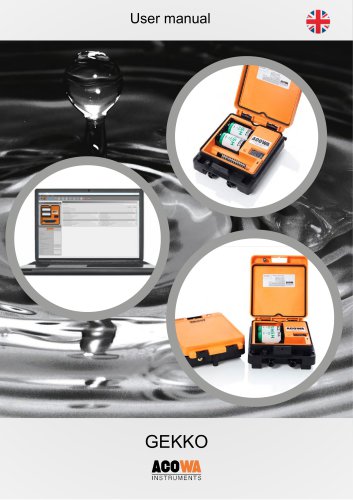
GEKKO
GEKKO is an industrial datalogger designed for wastewater and water supply applications. It features H2S detection, level measurement, overflow recordings, and rainfall event logging. Communication options include MODBUS TCP/IP, SMS commands, and SigFox IOT protocol, with a built-in 4G or SigFox modem for future upgrades. A USB interface is available for programming and data download.
AcowaCore processes data from GEKKO, converting it into a standard ModBus protocol for SCADA systems. It supports event-based logging and integrates with AcowaDash for a customizable user interface.
GEKKO requires a power supply of 2 x Lithium SAFT LSH20 or 12-30V DC. It is designed for harsh environments with an IP67 enclosure, operating temperatures from -20°C to +50°C, and a maximum elevation of 2000m. It includes two analog inputs (0-20 mA / 4-20 mA) and four digital inputs, with two capable of 0-10V analog input.
GEKKO connects to a PC via Micro-USB for configuration using AcowaZoo software, which requires driver installation on Windows. The software allows loading configurations, writing settings, and updating firmware.
The interface includes function buttons for configuration management, device settings, and status supervision. It supports graphical and schematic views and offers language options.
Options include file management, viewing ModBus indices, device information, and tools for firmware updates and data retrieval.
GEKKO supports analog (0-20/4-20mA) and digital inputs (0-10V or pulse inputs) and can connect to pressure transmitters or other measuring equipment. It allows event-based logging with customizable log and call intervals.
To update firmware, connect via USB, select the firmware file, and initiate the flashing process. The status will indicate success.
Users can configure settings for inputs, including scaling, limit values, and alarm signals. High and low limit alarms can be activated or deactivated.
The datalogger connects to AcowaCore for data management. Users must enter the AcowaCore IP address and port and can test the connection.
Instructions are provided for setting up daily status SMS and alarm notifications, as well as modem setup for optimized battery life and connectivity.
Users can check the online status, including power supply, signal strength, and battery voltage. A graphical view of data inputs is available.
Users can edit registers and view online values. The filter function allows searching by register number, description, or name. The 'start address' function locates specific addresses and subsequent registers. 'Reload data' updates search results after changes.
A detailed register list for AcowaCore specifies analog and input signals, their actual values, setpoints, and alarms, categorized by type.
Information on logging intervals, call intervals, and digital logs is provided, along with counters for metrics such as amount, duration, and volume.
This section includes system identifiers, GSM signal strength, battery voltages, and time/date stamping for data exchange, with a breakdown of time since last communication and Unix time.
ACOWA Instruments emphasizes its commitment to quality and future-proof products, developed in Denmark with a focus on advanced technology and customer collaboration.
Catalog excerpts

User manual
Open the catalog to page 1
User manual User manual GEKKO datalogger / AcowaZoo 122021 1 ACOWA INSTRUMENTS, Industrivej 10, 8305 Samsø - VAT-no: 36562919 – mail: [email protected] – Phone: +45 7221 79
Open the catalog to page 2
User manual 2 ACOWA INSTRUMENTS, Industrivej 10, 8305 Samsø - VAT-no: 36562919 – mail: [email protected] – Phone: +45 7221 79
Open the catalog to page 3
User manual 3 ACOWA INSTRUMENTS, Industrivej 10, 8305 Samsø - VAT-no: 36562919 – mail: [email protected] – Phone: +45 722
Open the catalog to page 4
User manual GEKKO datalogger About GEKKO GEKKO datalogger has a robust industrial design. GEKKO is designed for use in wastewater and water supply applications and can, by means of external equipment, be used for H2S detection, level measurement, overflow recordings and the recording of rainfall events. GEKKO can communicate via standard MODBUS TCP/IP, SMS commands or SigFox IOT protocol. Communication is via the built-in 4G or SigFox modem on its own PCB board. This allows for upgrading the communication platform to future communication forms without replacing the entire data logger. GEKKO has...
Open the catalog to page 5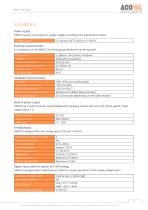
User manual ACOWA INSTRUMENTS InstallationPower supply GEKKO must be connected to a supply voltage according to the specifications below Voltage supply For installation of the GEKKO, the following specifications may be required. ACOWA INSTRUMENTS, Industrivej 10, 8305 Sams0 - VAT-no: 36562919 - mail: [email protected] - Phone: +45 7221 7979
Open the catalog to page 6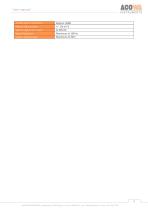
User manual ACOWA INSTRUMENTS ACOWA INSTRUMENTS, Industrivej 10, 8305 Sams0 - VAT-no: 36562919 - mail: [email protected] - Phone: +45 7221 7979
Open the catalog to page 7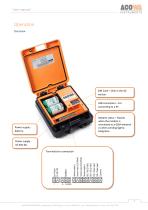
User manual Operation Overview SIM Card – Only in the 4G version. USB connection – For connecting to a PC Modem status – Flashes when the modem is connected to a GSM-network or when sending SigFox telegrams. Power supply battery. Power supply 10-30V DC. Terminals for connection 7 ACOWA INSTRUMENTS, Industrivej 10, 8305 Samsø - VAT-no: 36562919 – mail: [email protected] – Phone: +45 7
Open the catalog to page 8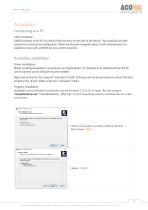
User manual AcowaZoo Connecting to a PC USB connection GEKKO connects to the PC via a Micro-USB connector on the side of the device. The AcowaZoo will then connect to the device for configuration. When the AcowaZoo program starts, it will continuously try to establish contact with a GEKKO device via USB connection. AcowaZoo Installation Driver installation Before installing AcowaZoo on a computer running Windows 7 or Windows 8, an additional driver file for communication via the USB port must be installed. Right-click on the file "fsl_ucwxp.inf" and select "install". Windows will ask for permission...
Open the catalog to page 9
User manual Choose whether to start ACOWA ZOO-Tool after installation. Then choose ”Finish” 9 ACOWA INSTRUMENTS, Industrivej 10, 8305 Samsø - VAT-no: 36562919 – mail: [email protected] – Phone: +45 722
Open the catalog to page 10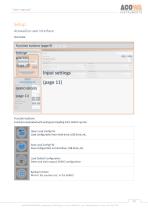
User manual Setup AcowaZoo user interface Overview Function buttons (page 9) Settings selection (page 10) Input settings GEKKO details Function buttons Functions associated with writing and reading from GEKKO og disk. Open Local Config File Load configuration from hard drive, USB drive, etc. Save Local Config File Save configuration on hard drive, USB drive, etc. Load Default Configuration Select and load a typical GEKKO configuration Backup function Mirrors the counters etc. in the GEKKO 10 ACOWA INSTRUMENTS, Industrivej 10, 8305 Samsø - VAT-no: 36562919 – mail: [email protected] – Phone: +45 7221...
Open the catalog to page 11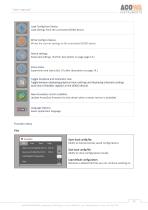
User manual Load Config from Device. Load settings from the connected GEKKO device. Write Config to Device. Writes the current settings to the connected GEKKO device Device settings Advanced settings. (Further description on page page 13.) Show status. Supervision and status bits. (Further description on page 14.) Toggle Graphical and Schematic view Toggle between displaying graphical menu settings and displaying schematic settings (overview of ModBus registers in the GEKKO device) New AcowaZoo version available. Update AcowaZoo firmware (Is only shown when a newer version is available) Language...
Open the catalog to page 12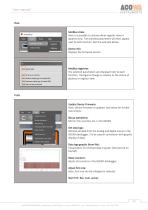
User manual View ModBus index: Here it is possible to choose either register view or address view. The selected parameters will then appear next to each function. See the example below. Device info: Displays the firmware version ModBus registries: The selected parameters are displayed next to each function. The figures change in relation to the choice of address or register view Tools Update Device Firmware: Here, device firmware is updated. See below for further instructions. Bacup operations: Mirrors the counters etc. in the GEKKO Get data logs: Retrieve all data from the analog and digital...
Open the catalog to page 13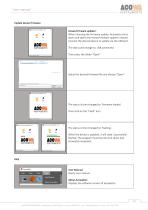
User manual Update device firmware Acowa firmware updater: When choosing the firmware update, AcowaZoo shuts down and opens the Acowa firmware updater instead. Connect the desired device to update via the USB port. The status will change to: USB connected. Then press the folder "Open" Select the desired firmware file and choose "Open" The status is then changed to: Firmware loaded. Then click on the "Flash" icon The status is then changed to: Flashing. When the device is updated, it will state: Successfully flashed. The program must then be shut down and AcowaZoo reopened. User Manual: Opens...
Open the catalog to page 14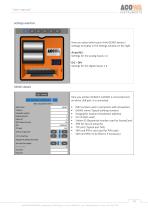
ACOWA INSTRUMENTS Settings selection Here you select which part of the GEKKO device's settings to display in the settings window on the right Here you will be notified if a GEKKO is connected and on which USB port it is connected. • IMEI number used in connection with AcowaCore • GEKKO name (Typical building number) • Geographic location (Installation address) • Station ID (Sequential number used for AcowaCore) • TCP port (Typical port 502) • SIM card PIN in use (used for PIN code) • SIM Card PIN (To be filled in if necessary) ACOWA INSTRUMENTS, Industrivej 10, 8305 Sams0 - VAT-no: 36562919 -...
Open the catalog to page 15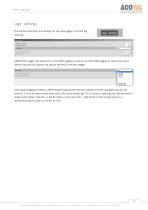
User manual Logs - Settings This section describes the settings for the data logger's call and log intervals. GEKKO data logger has options for a standard logging as well as an intensified logging in case of an event. Default log and call interval are always defined in the data logger. Event based logging enables a differentiated log and call interval compared to the standard log and call interval. It must be determined what starts the event-based log. This is done by selecting the desired option under event signal. Typically, it will be either a limit value (AI1 - High limit) on the analog input...
Open the catalog to page 16All ACOWA INSTRUMENTS catalogs and technical brochures
 DolpHin
1 Page
 FROG
FROG1 Page
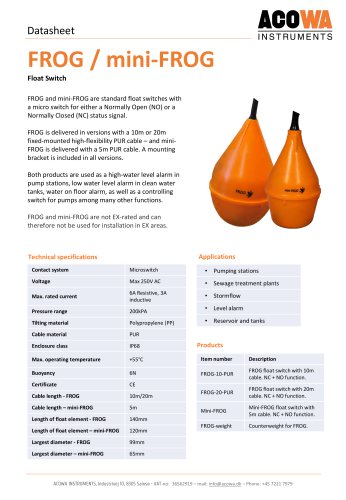 FROG / mini-FROG
1 Page
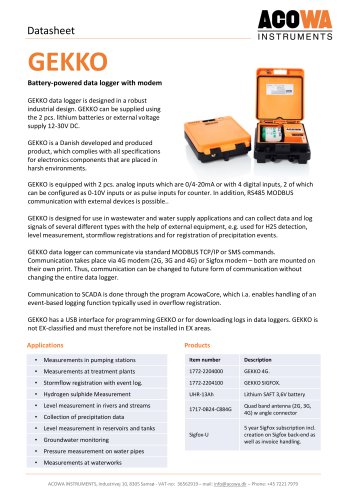 GEKKO Datasheet
3 Pages
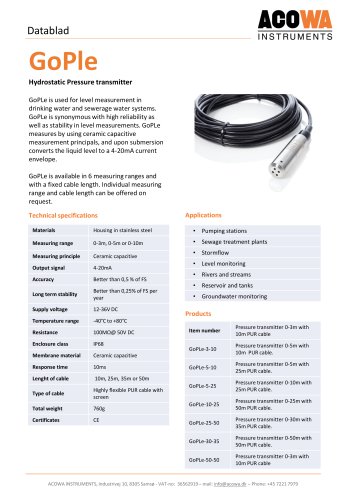 GoPle
GoPle1 Page
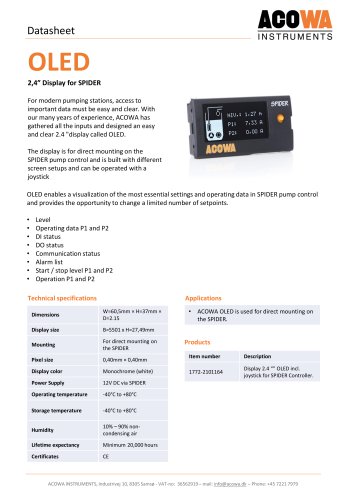 OLED
OLED1 Page
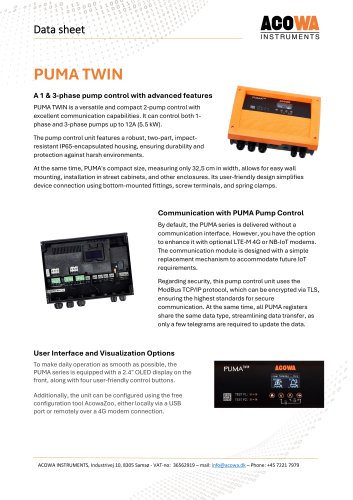 PUMA TWIN
5 Pages
 PUMA
PUMA5 Pages
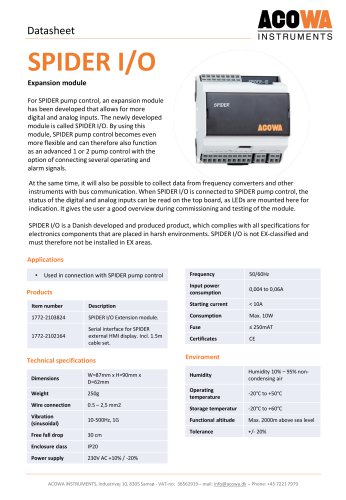 SPIDER I/O
2 Pages
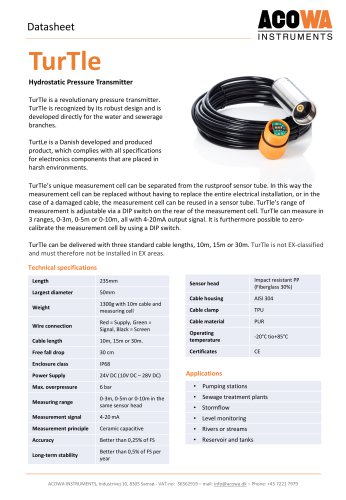 TurTle
2 Pages
 FireFly
13 Pages
 PUMA
PUMA39 Pages
 SPIDER
54 Pages
 ACOWA hiVe
28 Pages
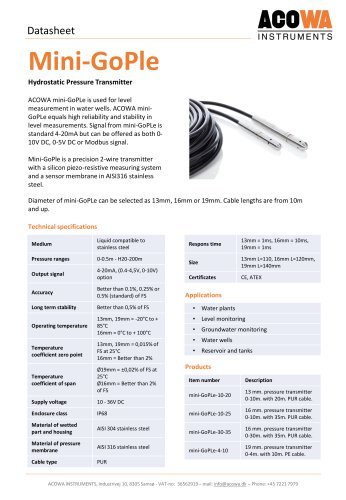 Mini-GoPle
2 Pages
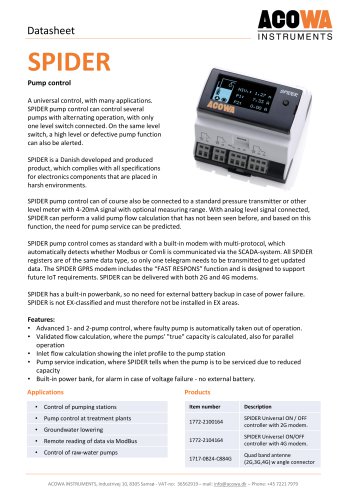 SPIDER
2 Pages
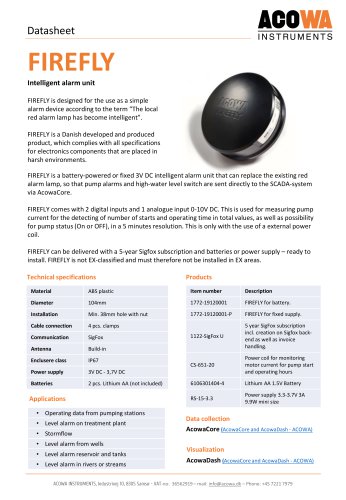 FIREFLY
1 Page
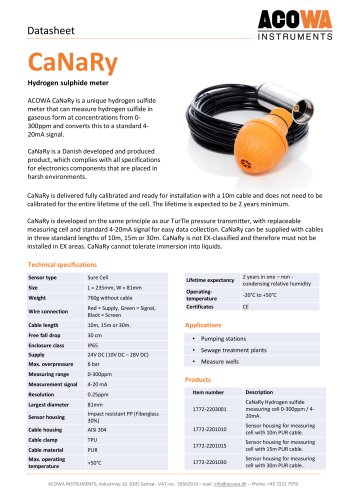 CaNaRy
1 Page
 PRODUCT CATALOG
13 Pages
- Automation software solution
- Management software solution
- Data logger
- Process software
- Level limit switch
- Real-time software
- Windows software
- Analog pressure transmitter
- Liquid level detector
- Control software
- Temperature datalogger
- Monitoring software solution
- Waterproof pressure transmitter
- Membrane pressure transmitter
- Stainless steel pressure transmitter
- LED display panel
- Relative pressure transmitter
- Float level switch