
- Catalogs
- ACOWA INSTRUMENTS
- ACOWA hiVe

ACOWA hiVe
ACOWA hiVe
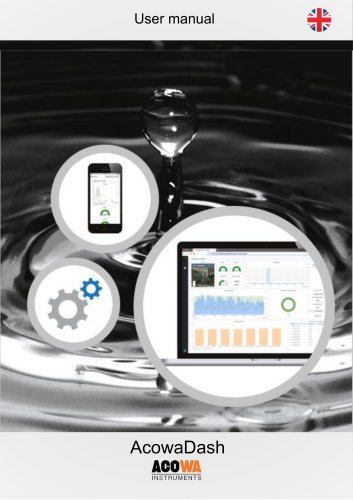
AcowaDash is a visualization and analysis tool based on Grafana, compatible with Linux, macOS, and Windows servers. It supports data from ACOWA's 4G and SigFox products and integrates with existing SCADA systems. The tool offers dynamic dashboards, ad-hoc queries, and the ability to mix data sources in a single graph.
AcowaCore processes data from ACOWA's FireFly and GEKKO data loggers, converting it into ModBus protocol for SCADA systems. It uniquely handles event-based logging and overflow data processing.
AcowaDash can be installed on a user's server or as a hosted service, requiring VPN or similar access. System requirements include Windows 10 or later, a modern browser, and specific hardware specifications. Additional software like Python, PostgreSQL, and Grafana are required.
The dashboard is divided into zones with main functions like search, filter, and settings. Users can create new dashboards, manage alerts, configure data sources, and set personal preferences.
Users and teams can be created with varying access levels. Preferences can be set for organizations or individual users, including UI themes and time zones.
The main menu provides an overview of dashboards, search functions, and the ability to create new dashboards or folders. Users can select time periods for data visualization and customize dashboard settings.
Zooming in and out on data curves is done using the mouse. Zooming in is achieved by selecting a period with the left mouse button, while zooming out is done by double-clicking. Time interval options adjust automatically for efficient data navigation.
Each curve or table has a top bar with options accessible via a drop-down menu. Users can focus on a single curve using the View function, show/hide data, and change curve colors through a pop-up menu.
Data can be exported to CSV files by selecting the export function under each graph or table. The export is limited to the selected time period.
Editing functions are intended for system integrators to set up data exchange and visualization types. Dashboard settings allow users to assign tags, folders, and user rights, with roles such as View, Edit, and Admin.
The document outlines the standards for stormflow registration, using the "Vejle model" in Denmark. It details the conditions for true and conditional overflow events, including onset and completion times.
The document explains how to view stormflow data, including master data and overflow event details. Users can navigate to specific installations for detailed views.
The CaNaRy meter measures hydrogen sulphide levels and transmits data via a 4-20mA signal. Visualization on AcowaDash includes status, curve display, and overview images.
Various methods are described for level measurement, including hydrostatic transmitters and radar. Visualization includes status, curve display, and overview images.
The RAIN-O-MATIC PROFESSIONAL measures precipitation using a funnel and tipping bucket mechanism. Visualization includes status, daily values, and curve display.
FIREFLY is an intelligent, battery-powered alarm device designed to replace traditional red alarm lamps. It communicates pump and high-water alarms directly to the SCADA system using Sigfox communication. It features two digital inputs and one analog input (0-10V DC) for measuring pump current, detecting the number of starts, and operating time with an external power coil.
- Status of digital inputs.
- Schematic display of pump operating information over a selected period.
- Status of latest contact, battery levels, and transmission quality.
- Curve display of pump starts and digital alarm inputs over a selected period.
AcowaCorePro processes historical SCADA data to provide valid flow calculations for pumping stations and stormflow applications. It offers capacity calculations, inlet profiles, a dedicated pump service scheme, stormflow calculations, and non-revenue water detection.
This function monitors pump performance over time, indicating potential clogging, pipe breaks, or pump wear through changes in operating points.
AcowaCorePro uses historical SCADA data to detect non-revenue water, such as seepage or groundwater infiltration, by analyzing inlet profiles and comparing volumes during selected periods, typically night hours.
ACOWA Instruments aims to deliver high-quality, future-proof instrumentation products developed in Denmark. The company emphasizes advanced technology, thorough testing, and close customer collaboration.
Catalog excerpts
User manual
Open the catalog to page 1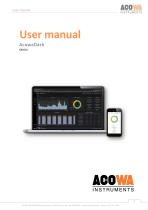
User manual ACOWA INSTRUMENTS ACOWAINSTRUMENTS ACOWA INSTRUMENTS, Industrivej 10, 8305 Sams0 - VAT-no: 36562919 - mail: [email protected] - Phone: +45 7221 7979
Open the catalog to page 2
User manual 2 ACOWA INSTRUMENTS, Industrivej 10, 8305 Samsø - VAT-no: 36562919 – mail: [email protected] – Phone: +45 7221 7
Open the catalog to page 3
User manual 3 ACOWA INSTRUMENTS, Industrivej 10, 8305 Samsø - VAT-no: 36562919 – mail: [email protected] – Phone: +45 7221 79
Open the catalog to page 4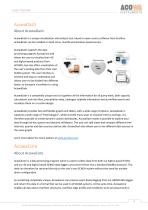
User manual AcowaDash About AcowaDash AcowaDash is a unique visualization and analysis tool, based on open source software from Grafana. AcowaDash can be installed on both Linux, macOS and windows-based servers. AcowaDash supports the data processing program AcowaCore and allows the user to visualize their 4G and SigFox based products from ACOWA, but also offers visualization of the user's existing data from their own SCADA system. The user interface is intuitive and easy to understand and allows users to be divided into different levels, so everyone is confident in using AcowaDash. AcowaDash...
Open the catalog to page 5
User manual one place - directly in AcowaCore. This allows you to make all changes in one place without having to go to all your devices. Installation Software installation The program is installed on the user's own server or offered as a hosted service. Installation is performed by an ACOWA system integrator and requires access via either VPN, team viewer or similar. System Requirements Operating system: Windows10, Windows Server 2014 or later is preferred Browser: Firefox, Google Chrome, Microsoft Edge and Safari CPU: Minimum 1 core 2 GHz - preferably multicore 3 GHz or more RAM: Minimum 4GB...
Open the catalog to page 6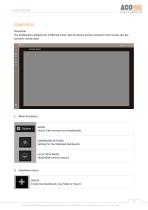
User manual Operation Overview The Dashboard is divided into 3 different zones. Not all options will be reviewed in the manual, just the functions mostly used. HOME Search, filter and see list of dashboards DASHBOARD SETTINGS Settings for the individual dashboards CYCLE VIEW MODE Show/Hide function buttons 2. Functions menu CREATE Create new Dashboard, new folder or import. 6 ACOWA INSTRUMENTS, Industrivej 10, 8305 Samsø - VAT-no: 36562919 – mail: [email protected] – Phone: +45 7221 79
Open the catalog to page 7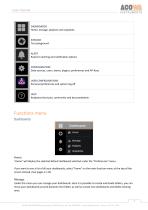
User manual DASHBOARDS Home, manage, playlists and snapshots EXPLORE Test playground ALERT Rules for alerting and notification options CONFIGURATION Data sources, users, teams, plugins, preferences and API keys USER CONFIGURATIONS Personal preferences and system log off HELP Keyboard shortcuts, community and documentation. Functions menu Dashboards Home. "Home" will display the selected default dashboard selected under the "Preferences" menu. If you want to see a list of all your dashboards, select "home" on the main function menu at the top of the screen instead. (See pages 11-12) Manage. Under...
Open the catalog to page 8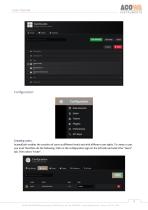
ACOWA INSTRUMENTS HI Manage dashboards Si folders Manage s' Playlists © Snapshots Q Find Dashboard by name New Dashboard New Folder Import ^ Data Sources A Users ll Teams £ Plugins 3 Preferences S API Keys Creating users. AcowaDash enables the creation of users at different levels and with different user rights. To create a user, you must therefore do the following. Click on the configuration logo on the left side and select the "Users" tab. Then select "Invite". !! Data Sources A Users Iil Teams Plugins S Preferences \ API Keys Q, Filter by name or type Seen Role ACOWA INSTRUMENTS, Industrivej...
Open the catalog to page 9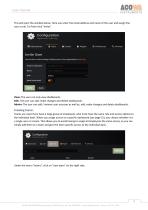
User manual ACOWA INSTRUMENTS This will open the window below. Here you enter the email address and name of the user and assign the user a role. To finish click "Invite". Configuration Organization: Main Org. S Data Sources X Users Send invite or add existing Grafana user to the organization Main Org. Email or Username [email protected] Role Editor View: The user can only view dashboards. Edit: The user can add, make changes and delete dashboards. Admin: The user can add / remove user accesses as well as, add, make changes and delete dashboards. Creating teams. Teams are used if you have a large...
Open the catalog to page 10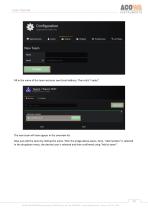
ACOWA INSTRUMENTS Fill in the name of the team and your own Email address. Then click "create". Manage members & settings Name Email The new team will now appear in the overview list. Now just edit the team by clicking the name. Then the image above opens. Here, "add member" is selected. In the dropdown menu, the desired user is selected and then confirmed using "Add to team". ACOWA INSTRUMENTS, Industrivej 10, 8305 Sams0 - VAT-no: 36562919 - mail: [email protected] - Phone: +45 7221 7979
Open the catalog to page 11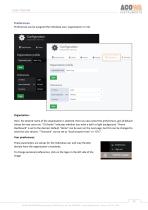
User manual Præferences. Preferences can be assigned the individual user, organization or role. Organization: Here, the desired name of the organization is selected. Here you also select the preferences, get all default values for new users etc. "UI theme" indicates whether you want a dark or light background. "Home Dashboard" is set to the desired. Default "Home" can be seen on the next page, but this can be changed to what the user desires. "Timezone" can be set to "local browser time" or "UTC". User præferences: These parameters are setups for the individual user and may thereby deviate from...
Open the catalog to page 12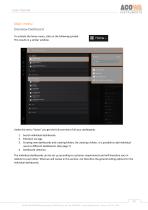
User manual ACOWA INSTRUMENTS Main menu Overview Dashboard To activate the home menu, click on the following symbol: This results in a similar window. Find dashboards by name ACOWA Firefly Uvedkommende VantLvl Plug-in Tester Uvedkommende Vand Under the menu "home" you get the full overview of all your dashboards. 1. Search individual dashboards. 3. Creating new dashboards and creating folders. By creating a folder, it is possible to add individual users to different dashboards. (See page 7) The individual dashboards can be set up according to customer requirements and will therefore vary in relation...
Open the catalog to page 13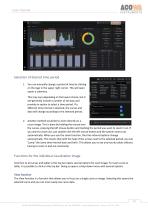
User manual Selection of desired time period 1. You can manually change a period of time by clicking on the logo in the upper right corner. This will open opens a submenu. This may vary depending on the layout choice, but it will generally include a number of set days and provide an option to select a time period. If a different time interval is selected, the curves and data will change according to the selected period. 2. Another method would be to zoom directly on a curve image. This is done by holding the mouse over the curves, pressing the left mouse button and marking the period you want...
Open the catalog to page 14All ACOWA INSTRUMENTS catalogs and technical brochures
 DolpHin
1 Page
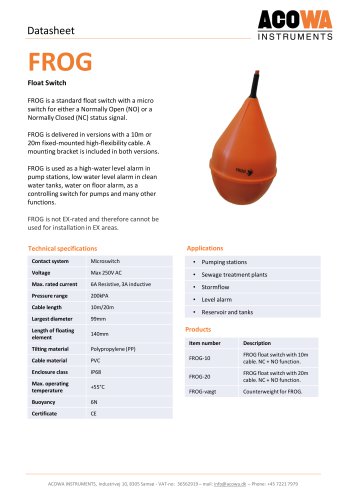 FROG
FROG1 Page
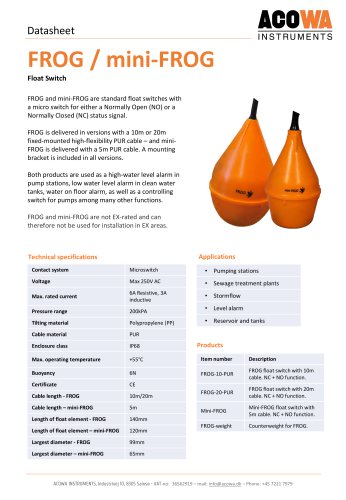 FROG / mini-FROG
1 Page
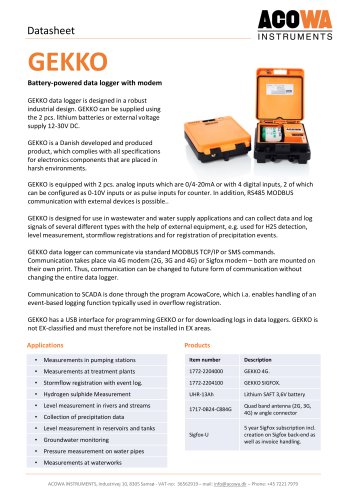 GEKKO Datasheet
3 Pages
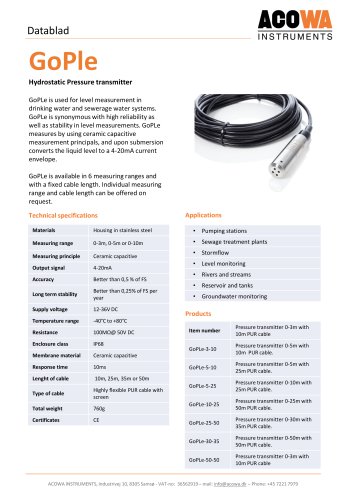 GoPle
GoPle1 Page
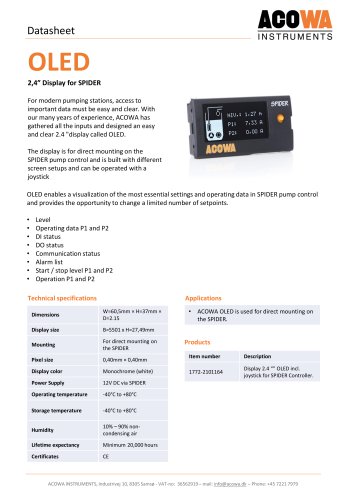 OLED
OLED1 Page
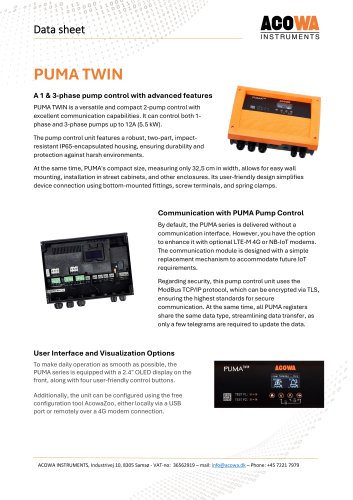 PUMA TWIN
5 Pages
 PUMA
PUMA5 Pages
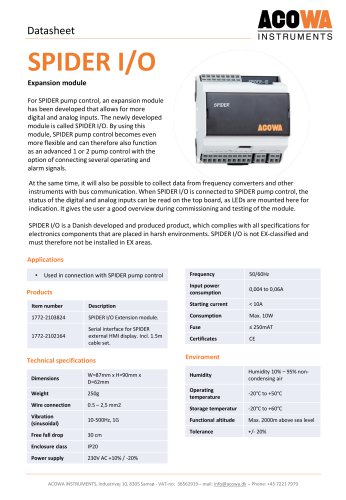 SPIDER I/O
2 Pages
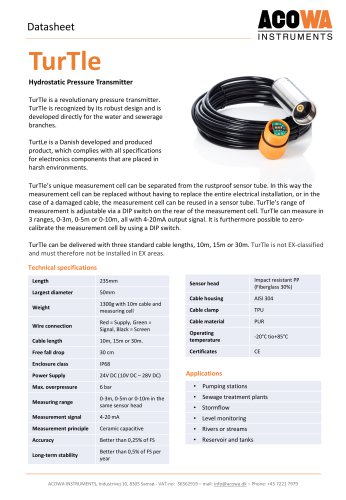 TurTle
2 Pages
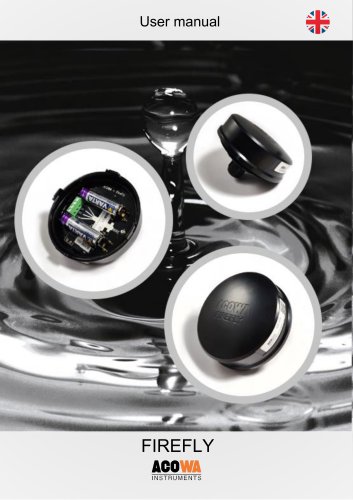 FireFly
13 Pages
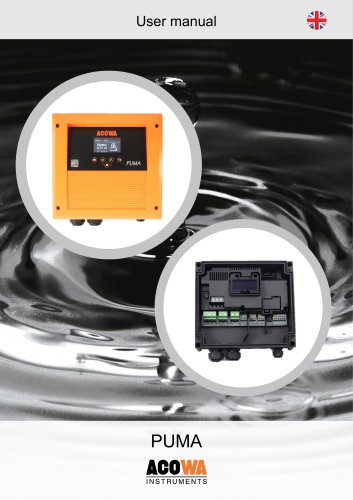 PUMA
PUMA39 Pages
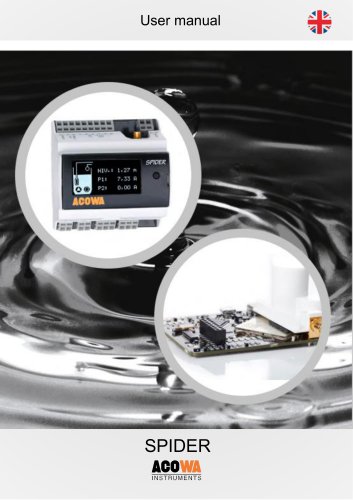 SPIDER
54 Pages
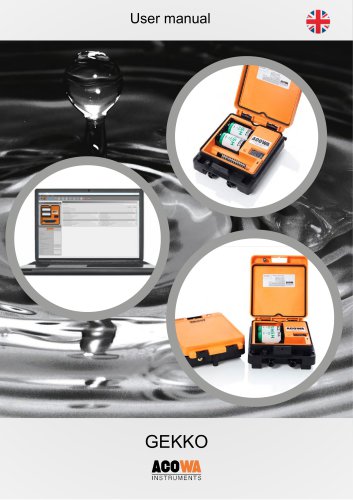 GEKKO
GEKKO29 Pages
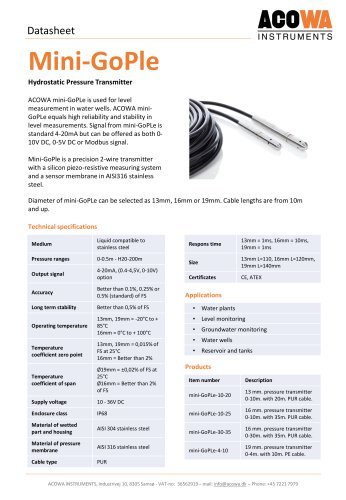 Mini-GoPle
2 Pages
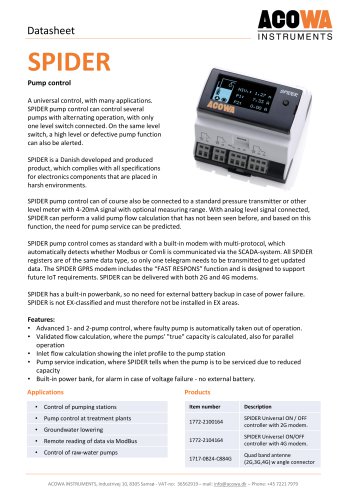 SPIDER
2 Pages
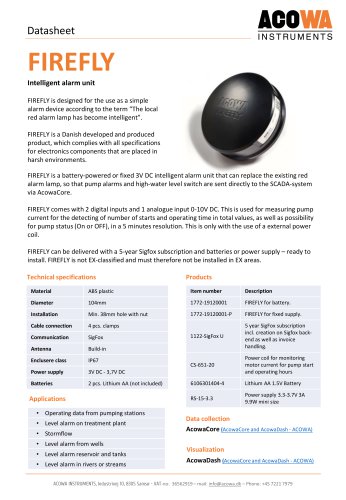 FIREFLY
1 Page
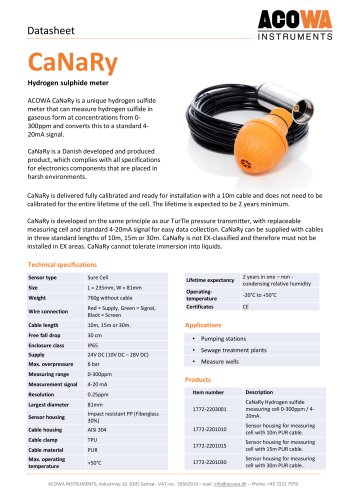 CaNaRy
1 Page
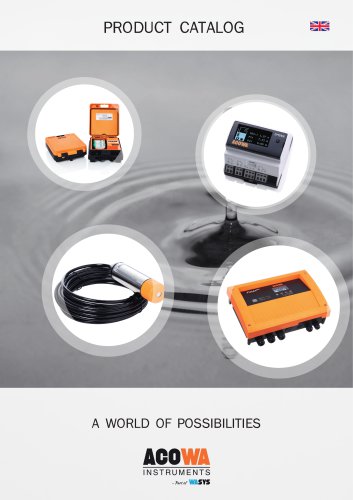 PRODUCT CATALOG
13 Pages