
- Catalogs
- 3Dconnexion Inc.
- 3Dconnexion ® SpaceMouse Compact


3Dconnexion ® SpaceMouse Compact

3Dconnexion ® SpaceMouse Compact
- Desktop Setup: Place the SpaceMouse Compact opposite your standard mouse. Use one hand for the 3D mouse and the other for the standard mouse.
- Hand Position: Position your hand on the contoured controller cap for precise control.
- Installation: Connect via USB, download the latest software from 3dconnexion.com/drivers, install it, and use the Trainer in 3Dconnexion Home to get started.
Feature Guide
- Controller Cap: The Six-Degrees-of-Freedom sensor allows for intuitive 3D navigation. Different modes (Object, Fly, Target Camera, Drone) adjust navigation behavior.
- 3Dconnexion Buttons: Two programmable buttons automatically recognize applications and assign commands, customizable via 3Dconnexion Settings.
3Dconnexion Settings
- Access: Available through 3Dconnexion Home, systray icon, or Windows start menu.
- Speed: Adjusts the force needed to move objects.
- Advanced Settings: Application-specific configurations for navigation, speed, and rotation center.
Buttons
- Assigning Commands: Use the flyout window to assign commands, macros, or radial menus to buttons.
- Creating Macros and Radial Menus: Customize macros and radial menus with icons and assign them to buttons.
3Dconnexion Home
- Access various apps like Trainer, Viewer, and Demo. Register your product and provide feedback.
Technical Specifications
- Dimensions & Weight: 77 mm x 77 mm x 54 mm, 480 g.
- Supported OS: Windows, macOS.
- Package Contents: SpaceMouse Compact.
Safety, Compliance and Warranty Information
- Manufacturer: 3Dconnexion GmbH, Munich, Germany.
- Certifications: CE, UKCA, EAC, FCC, and others.
- Warranty: 3-year limited hardware warranty.
Catalog excerpts

Driver Version: 3DxWare 10.8.15 and higher
Open the catalog to page 1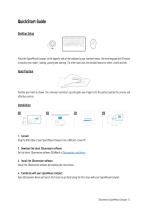
QuickStart Guide Desktop Setup Place the SpaceMouse Compact on the opposite side of the keyboard to your standard mouse. One hand engages the 3D mouse to position your model: rotating, panning and zooming. The other hand uses the standard mouse to select, create and edit. Hand Position Position your hand as shown. The contoured controller cap will guide your fingers into the perfect position for precise and effortless control. 1. Connect Plug the USB cable of your SpaceMouse Compact into a USB port of your PC. 2. Download the latest 3Dconnexion software Get the latest 3Dconnexion software (3DxWare)...
Open the catalog to page 3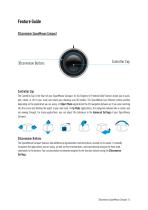
Feature Guide 3Dconnexion SpaceMouse Compact Controller Cap The Controller Cap is the heart of your SpaceMouse Compact. Its Six-Degrees-of-Freedom (6DoF) sensor allows you to push, pull, rotate, or tilt to pan, zoom and rotate your drawings and 3D models. The SpaceMouse has different motion profiles depending on the application you are using. In Object Mode applications the 3D navigation behaves as if you were reaching into the screen and holding the object in your own hand. In Fly Mode applications, the navigation behaves like a camera you are viewing through. For many applications, you can...
Open the catalog to page 4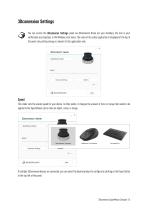
3Dconnexion Settings You can access the 3Dconnexion Settings panel via 3Dconnexion Home (on your desktop), the icon in your notification area (systray), or the Windows start menu. The name of the active application is displayed at the top of the panel. Any setting change is relevant to this application only Speed This slider sets the overall speed for your device. In other words, it changes the amount of force or torque that needs to be applied to the SpaceMouse cap to move an object, scene, or image. If multiple 3Dconnexion devices are connected, you can select the desired product to configure...
Open the catalog to page 5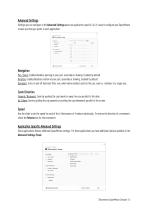
Advanced Settings Settings you can configure in the Advanced Settings panel are application-specific. So, it's easy to configure your SpaceMouse to work just how you prefer in each application. Navigation Pan / Zoom: Enables/disables panning of your part, assembly or drawing. Enabled by default. Rotation: Enables/disables rotation of your part, assembly or drawing. Enabled by default. Dominant: Turns on and off dominant filter axis, which when enabled restricts the pan, zoom or, rotations to a single axis. Zoom Direction Forward / Backward: Zoom by pushing the cap toward or away from you parallel...
Open the catalog to page 6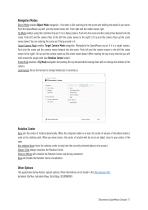
Navigation Modes Object Mode enables Object Mode navigation - this mode is like reaching into the screen and holding the model in your hand. Push the SpaceMouse cap left, and the model moves left. Push right and the model moves right. Fly Mode enables using the Controller Cap as if it is a flying camera. Push into the scene and the camera flies forward into the scene. Push left and the camera flies to the left (the scene moves to the right). Lift up and the camera flies up (the scene moves down). You are entering the scene as if flying around in it. Target Camera Mode enables Target Camera Mode...
Open the catalog to page 7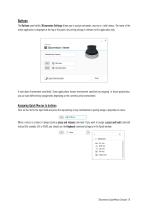
Buttons The Buttons panel within 3Dconnexion Settings allows you to assign commands, macros or, radial menus. The name of the active application is displayed at the top of the panel. Any setting change is relevant to this application only. A note about Environment sensitivity: Some applications feature environment sensitive key mapping. In those applications, you can have different key assignments depending on the currently active environment. Assigning Quick Macros to buttons Click on the text in the input field and press the required key or key combination to quickly assign a keystroke or macro....
Open the catalog to page 8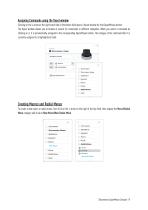
Assigning Commands using the flyout window Clicking on the > arrow on the right-hand side of the button field opens a flyout window for that SpaceMouse button: The flyout window allows you to browse or search for commands in different categories. When you select a command by clicking on it, it is automatically assigned to the corresponding SpaceMouse button. The category of the command that it is currently assigned to is highlighted in bold. Creating Macros and Radial Menus To create a new macro or radial menu, first click on the > arrow on the right of the key field, then expand the Macro/Radial...
Open the catalog to page 9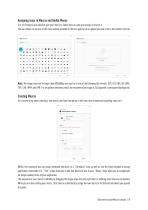
Assigning icons to Macros and Radial Menus In a first step you are asked to give your macro or radial menu a name and assign an icon to it. You can choose to use one of the icons already provided in the icon gallery tab or upload your own icon in the custom icon tab. Note: The image must not be larger than 500x500px and must be in one of the following file formats: SVG, ICO, PNG, GIF, BMP, TIFF, EXIF, WMF, and EMF. For an optimal rendering result, we recommend an image in 24x24px with a transparent background. Creating Macros As a second step, when creating a new macro, you have the option to...
Open the catalog to page 10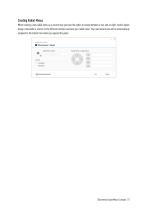
Creating Radial Menus When creating a new radial menu as a second step you have the option to choose between a four and an eight-section layout. Assign commands or macros to the different sections and save your radial menu. Your new radial menu will be automatically assigned to the button from where you opened the panel.
Open the catalog to page 11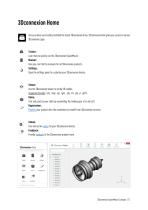
3Dconnexion Home Once you have successfully installed the latest 3Dconnexion driver, 3Dconnexion Home gives you access to various 3Dconnexion apps: Trainer: Learn how to quickly use the 3Dconnexion SpaceMouse. Manual: Here you can find the manuals for all 3Dconnexion products. Settings: Open the settings panel to customize your 3Dconnexion devices. Viewer: Use the 3Dconnexion Viewer to review 3D models. Supported formats (.stp, .step, .igs, .iges, .obj, .stl, .ply, .jt, .glTF). Demo: Test and practice your skills by assembling the landing gear of an aircraft. Registration: Register your product...
Open the catalog to page 12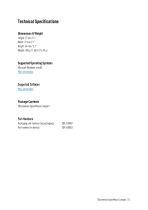
Technical Specifications Dimensions & Weight Length: 77 mm / 3’’ Width: 77 mm / 3’’ Height: 54 mm / 2.1’’ Weight: 480 g / 1.06 lb / 16.93 oz Supported Operating Systems Microsoft Windows, macOS More information Supported Software More information Package Contents 3Dconnexion SpaceMouse Compact Part Numbers Packaging unit numbers (on packaging): Part number (on device):
Open the catalog to page 13All 3Dconnexion Inc. catalogs and technical brochures
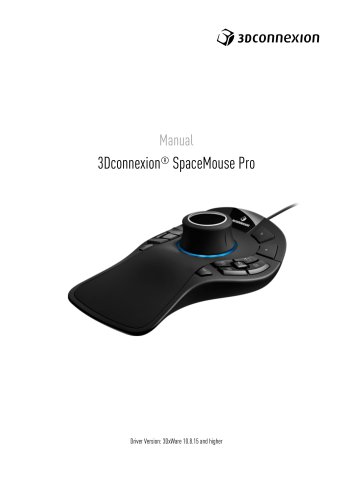 3Dconnexion ® SpaceMouse Pro
15 Pages


Archived catalogs
 spacepilotpro
1 Page
 brochure_spacepilotpro
2 Pages