
- Catalogs
- Hawke International U.K
- EExe and EExd Enclosures

- Products
- Catalogs
- News & Trends
- Exhibitions
EExe and EExd Enclosures
1 /75Pages

EExe and EExd Enclosures
1 /75Pages
Catalog excerpts
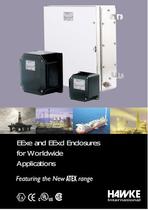
EExe and EExd Enclosuresfor Worldwide Applications >
Open the catalog to page 2
A QUALITY COMPANY ALWAYS DEMANDS THE BEST > For those who demand quality, reliability and above all, safety, Hawke products are the obvious choice. Smarter Products > Hawke International is a member of the worldwide Hubbell Group of Companies and is a well established leading manufacturer of electrical equipment for Hazardous (Classified) locations and hostile environments, with an innovative range of cable connection, termination and barrier products. Introduction Worldwide > Located in Manchester, UK, Hawke International has subsidiary companies in Houston, USA and Singapore, along with direct...
Open the catalog to page 3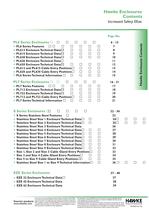
6 - 15 Page No. PL6 Series Features 7PL612 Enclosure Technical Data 8PL615 Enclosure Technical Data 9PL620 Enclosure Technical Data 10 PL626 Enclosure Technical Data 11PL630 Enclosure Technical Data 12PL612 and PL615 Cable Entry Positions 13PL620 and PL630 Cable Entry Positions 14PL6 Series Technical Information 15 > 16 - 21 PL7 Series Features 17PL712 Enclosure Technical Data 18PL722 Enclosure Technical Data 19PL712 and PL722 Cable Entry Positions 20PL7 Series Technical Information 21 > Hawke Enclosures Contents 22 - 36 S Series Stainless Steel Features 23Stainless Steel Size 1 Enclosure Technical...
Open the catalog to page 4
Page No. 40 - 44 Dissipated Wattage Factor 41Combined Terminal Resistance 'F' 42 Maximum Physical Quantity of Terminals 43 - 44 Table of Earths 44ExPress Push-In Stopping Plug > 45 - 48 Stopping Plug Types 375 and 387 46Internal/External Earth Stud 47HTB6/PET5 Breather Drain 47 > Hawke Enclosures Contents 49 50 - 73 1.0 Potentially Explosive Atmospheres2.0 Area Classification (Classification of Locations) 3.0 CENELEC and IEC515151 - 554.0 ATEX 94/9/EC Directive5.0 Extract from EN 60079-14 : 1997/IEC 60079-14 : 1996 Installation in Hazardous Areas 6.0 Apparatus Marking - IEC and CENELEC (Group...
Open the catalog to page 5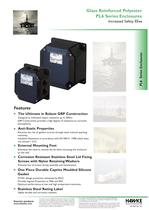
To the best of our knowledge the information contained in this leaflet, is accurate at the time of going to print and the company reserves the right to improve or modify any product illustrated without notification. The company is unable to accept liability for any inaccuracies, errors or omissions that may exist. It is the customer's responsibility to ensure that the product is suitable for their application. Copyright Condition: This document shall be used only for the purpose for which it is provided and no reproduction or publication of the document may be made and no article may be manufactured...
Open the catalog to page 7
These enclosures are a self coloured black anti-static glass reinforced polyester design that meet the requirements of EExe to EN50014 & EN50019. The PL6 Series enclosures are of a robust design with a very high impact strength of up to 20Nm and have excellent electrical insulation properties. > These enclosures may be supplied with fitted terminals or as an empty component approved enclosure. If supplied as the latter, then final certification by the customer after fitting their own equipment must be obtained. In this case the prefix 'Z' is used ie. ZPL612. > Certification : II2 GD EExe II....
Open the catalog to page 15
To the best of our knowledge the information contained in this leaflet, is accurate at the time of going to print and the company reserves the right to improve or modify any product illustrated without notification. The company is unable to accept liability for any inaccuracies, errors or omissions that may exist. It is the customer's responsibility to ensure that the product is suitable for their application. Copyright Condition: This document shall be used only for the purpose for which it is provided and no reproduction or publication of the document may be made and no article may be manufactured...
Open the catalog to page 17
These enclosures are a self coloured black anti-static glass reinforced polyester design with integral continuity plate that meet the requirements of EExe to EN50014 & EN50019. The PL7 Series enclosures are of a robust design with a very high impact strength of up to 20Nm and have excellent electrical insulation properties. > These enclosures may be supplied with fitted terminals or as an empty component approved enclosure. If supplied as the latter, then final certification by the customer after fitting their own equipment must be obtained. In this case the prefix 'Z' is used ie. ZPL712. > Certification...
Open the catalog to page 21
S Series Stainless Steel Enclosures To the best of our knowledge the information contained in this leaflet, is accurate at the time of going to print and the company reserves the right to improve or modify any product illustrated without notification. The company is unable to accept liability for any inaccuracies, errors or omissions that may exist. It is the customer's responsibility to ensure that the product is suitable for their application. Copyright Condition: This document shall be used only for the purpose for which it is provided and no reproduction or publication of the document may...
Open the catalog to page 23
To the best of our knowledge the information contained in this leaflet, is accurate at the time of going to print and the company reserves the right to improve or modify any product illustrated without notification. The company is unable to accept liability for any inaccuracies, errors or omissions that may exist. It is the customer's responsibility to ensure that the product is suitable for their application. Copyright Condition: This document shall be used only for the purpose for which it is provided and no reproduction or publication of the document may be made and no article may be manufactured...
Open the catalog to page 35
These enclosures are a stainless steel design that meet the requirements of EExe to EN50014 & EN50019.The material qualities and electropolished finish provides a very high corrosion resistance. > These enclosures may be supplied with fitted terminals or as an empty component approved enclosure. If supplied as the latter, then final certification by the customer after fitting their own equipment must be obtained. In this case the prefix 'Z' is used ie. ZSIZE 1. > Certification : II2 GD EExe II. and options available).( Zones of Use : Zone 1, Zone 2, Zone 21 & Zone 22. Temperature Class & Ambients...
Open the catalog to page 36All Hawke International U.K catalogs and technical brochures
 501/RCG
2 Pages
 Hazcon Control Stations Overview
24 Pages
 Terminal Block Type HTB6
2 Pages
 EJB Series Enclosures
1 Page
 491 In-Line Swivel Union
1 Page
 481 (M to F) Union
1 Page
 489 Breather Drain
1 Page
 321/R Cable Gland
1 Page
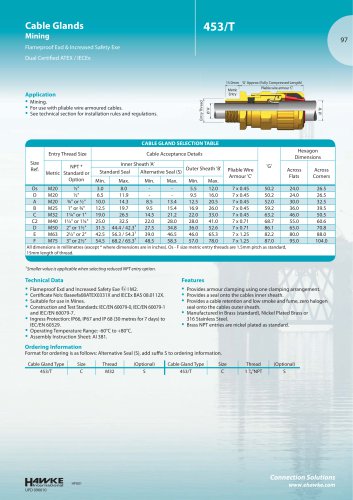 453/T Cable Gland
1 Page
 PL630
PL6301 Page
 PL626
PL6261 Page
 PL620
PL6201 Page
 PL615
PL6151 Page
 PL612
PL6121 Page
 321/R
321/R1 Page
 321
3211 Page
 114
1141 Page
 151/RAC
1 Page
 150/RAC
1 Page
 153/RAC
1 Page
 153/UNIVERSAL
1 Page
 123
1231 Page
 121
1211 Page
 701
7011 Page
 153/X
153/X1 Page
 755
7551 Page
 753
7531 Page
 711
7111 Page
 710
7101 Page
 653/T
653/T1 Page
 653/UNIVERSAL
1 Page
 623
6231 Page
 453/T
453/T1 Page
 453/UNIVERSAL
1 Page
 453/RAC
1 Page
 ICG 653/UNIV/L
1 Page
 PSG 553/RAC
1 Page
 501/453/UNIV
1 Page
 501/453/RAC/L
1 Page
 501/453/RAC
1 Page
 HB Type
1 Page
 SK-Series
4 Pages
 EJB Series
1 Page
 SB 474 Cable glands
1 Page
 S Series Enclosures
1 Page
 Power Ex Features
2 Pages
 PL Series GRP Enclosures
1 Page
 Instrum Ex Features
2 Pages
 ICG 623 Cable glands
1 Page
 EZE Series Enclosures
1 Page
 CSB 656 N Cable glands
1 Page
 Control Ex Features
2 Pages
 753 Cable glands
1 Page
 711 Cable glands
1 Page
 501/423 Cable glands
1 Page
 321 Cable glands
1 Page
 153 Cable glands
1 Page
 151 RAC Cable glands
1 Page
 123 Cable glands
1 Page
 114 Cable glands
1 Page
 501/421 Cable Gland
1 Page
 501/414 Cable Gland
1 Page


Archived catalogs
 Cable Gland Shortform
12 Pages
 Cable Glands
83 Pages
 Connection Products
12 Pages
 Ex Connectors
8 Pages
- Connector
- Data connector
- Electrical power supply connector
- Metal connector
- Stainless fitting
- Round connector
- Plastic housing
- Industrial connector
- Screw-in connector
- Junction block
- IP67 connector
- Circular connector
- Plastic fitting
- Conduit gland
- Male connector
- Plastic plug
- Waterproof cable gland
- Cable connector
- Current connector